

This document describes how to protect sensitive data in Gemini Notebook Enterprise by integrating with Sensitive Data Protection.
About Sensitive Data Protection in Gemini Notebook Enterprise
Sensitive Data Protection content policies inspect data for policy violations or unwanted content. You can configure content policies to block file uploads to Gemini Notebook Enterprise if they violate your policy. This is a responsible AI practice that protects notebooks from sensitive data exposure.
Sensitive Data Protection and Model Armor work together
Sensitive Data Protection and Model Armor work together in Gemini Notebook Enterprise to provide a layered security defense for your notebooks. They protect different aspects of your notebook interactions.
Sensitive Data Protection safeguards uploaded sources
Sensitive Data Protection prevents sensitive data from being uploaded and ingested into your notebooks. Content policies can inspect content in your sources before they are added to the notebook and block sources if the contents violate the content policy.
Not all source types are supported. See Limitations.
Model Armor safeguards the interaction path
Model Armor screens the prompts that users submit to the notebook before processing, and screens responses before displaying them to the user. By screening prompts and responses, Model Armor guards against prompt injection, malicious URLs, and other safety risks. If a policy is violated, Gemini Notebook Enterprise blocks the interaction and displays an error message.
For more information about using Model Armor with Gemini Notebook Enterprise, see Enable Model Armor.
Limitations
The following limitations apply to Sensitive Data Protection content policies in Gemini Notebook Enterprise:
Sensitive Data Protection content policies don't apply to audio files or to Google Drive documents and slides.
Although you can apply a content policy from one project to Gemini Notebook Enterprise in another project, the two projects must be in the same VPC Service Controls perimeter. For general information about VPC Service Controls for Gemini Enterprise, see Secure your app with VPC Service Controls.
Sensitive Data Protection can't scan very large files. For information about the maximum size of PDFs, Office 365 files, text files, and image files, see Content policy limits. By default, content policies allow content in large files. However, you can configure policies to block content in large files.
Before you begin
Make sure you have the required roles assigned to you and the Gemini Enterprise service account:
You need the Gemini Enterprise Admin role.
The Gemini Enterprise service account needs the DLP User (
roles/dlp.user) role.
For more information, see Required roles in Create and manage content policies in the Sensitive Data Protection documentation set.
Create a content policy
To prepare a Sensitive Data Protection content policy to apply to Gemini Notebook Enterprise, do the following:
Create a content policy following the instructions in Create and manage content policies in the Sensitive Data Protection documentation.
Make sure to create the policy in the same region as the notebooks that you want to protect.
Make a note of the policy name. To add a policy to a connector, you need the full path, in the form
projects/PROJECT_ID/locations/LOCATION/contentPolicies/POLICY_ID.
Configure Gemini Notebook Enterprise with the data protection policy
To configure Gemini Notebook Enterprise with the data protection policy, do the following:
Call the
projects.patchmethod to associate the content policy with a region in your project.curl -X PATCH \ -H "Authorization: Bearer $(gcloud auth print-access-token)" \ -H "Content-Type: application/json" \ -H "x-goog-user-project: PROJECT_ID" \ "https://LOCATION-discoveryengine.googleapis.com/v1alpha/projects/PROJECT_NUMBER?update_mask=customer_provided_config" \ -d '{ "customer_provided_config": { "notebooklm_config": { "data_protection_policy": { "sensitive_data_protection_policy": { "policy": "POLICY_ID" } } } } }'Replace the following:
PROJECT_ID: the ID of your project.LOCATION: the location of your project:global,us, oreu.PROJECT_NUMBER: the project number of your project.POLICY_ID: the resource name of the Sensitive Data Protection content policy that you want to apply.
Wait for the configuration to propagate. It typically takes about 10 minutes for the policy to take effect.
Optional: Test the content policy:
Create a source document that contains a harmless violation of the policy. For example, if the content policy blocks US social security numbers, create a source file that says "Mickey Mouse's social security number is 999-00-0000".
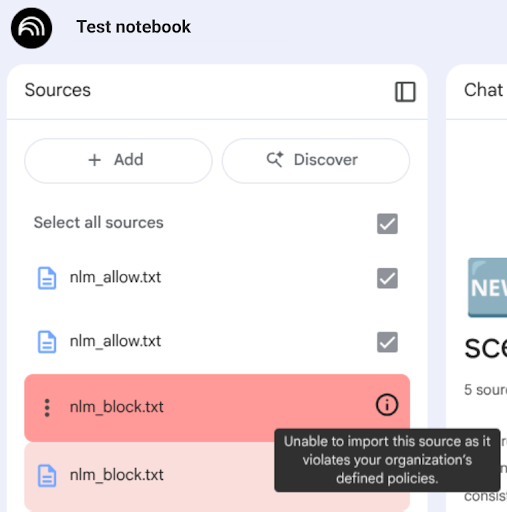
Upload the source document to a notebook. If the policy is in effect, the document appears as blocked in the source list.
Remove the data protection policy
To remove the data protection policy from Gemini Notebook Enterprise, do the following:
Call the
projects.patchmethod with an emptydata_protection_policyobject.curl -X PATCH \ -H "Authorization: Bearer $(gcloud auth print-access-token)" \ -H "Content-Type: application/json" \ -H "x-goog-user-project: PROJECT_ID" \ "https://LOCATION-discoveryengine.googleapis.com/v1alpha/projects/PROJECT_NUMBER?update_mask=customer_provided_config" \ -d '{ "customer_provided_config": { "notebooklm_config": { "data_protection_policy": {} } } }'Replace the following:
PROJECT_ID: the ID of your project.LOCATION: the location of your project:global,us, oreu.PROJECT_NUMBER: the project number of your project.
Wait for the configuration to propagate. It typically takes about 10 minutes for the policy to be removed.
Optional: Test to see if the content policy has been removed:
Create a source document that contains a harmless violation of the policy.
Upload the source document to a notebook. If the document is added to the source list and not blocked, then the policy has been removed.