


이 페이지에서는 커스텀 커넥터를 만드는 방법을 설명합니다.
시작하기 전에
시작하기 전에 다음 사항을 확인하세요.
필수 Python 라이브러리를 설치합니다.
pip install google-cloud-discoveryengine requestsGoogle Cloud 프로젝트에 대한 Discovery Engine 관리자 액세스 권한을 획득합니다.
서드 파티 데이터 소스 (예: API 키 또는 데이터베이스 인증)의 액세스 사용자 인증 정보를 가져옵니다.
명확한 데이터 매핑 계획을 수립합니다. 여기에는 색인을 생성할 필드와 서드 파티 ID를 포함한 액세스 제어를 나타내는 방법이 포함되어야 합니다.
기본 커넥터 만들기
이 섹션에서는 선택한 언어로 맞춤 커넥터를 만드는 방법을 보여줍니다. 여기에 표시된 원칙과 패턴은 모든 외부 시스템에 적용됩니다. 선택한 언어로 특정 소스에 맞게 API 호출과 데이터 변환을 조정하여 기본 커넥터를 만들면 됩니다.
데이터 가져오기
시작하려면 서드 파티 데이터 소스에서 데이터를 가져옵니다. 이 예시에서는 페이지로 나누기를 사용하여 게시물을 가져오는 방법을 보여줍니다. 프로덕션 환경에서는 대규모 데이터 세트에 스트리밍 방식을 사용하는 것이 좋습니다. 이렇게 하면 모든 데이터를 한 번에 로드할 때 발생할 수 있는 메모리 문제가 방지됩니다.
Python
    from typing import List
    import requests

    def fetch_posts(base_url: str, per_page: int = 15) -> List[dict]:
        #Fetch all posts from the given site.#
        url = base_url.rstrip("/") + "/wp-json/wp/v2/posts"
        posts: List[dict] = []
        page = 1
        while True:
            resp = requests.get(
                url,
                params={"page": page, "per_page": per_page},
                # headers={"Authorization": "Bearer YOUR_API_KEY"}, # Add auth if needed
            )
            resp.raise_for_status()
            batch = resp.json()
            posts.extend(batch)
            if len(batch) < per_page:
                break
            page += 1
        return posts
데이터 변환
소스 데이터를 Discovery Engine 문서 형식으로 변환하려면 다음 예시 페이로드와 같이 구조화하세요. 필요한 만큼 키-값 쌍을 포함할 수 있습니다. 예를 들어 포괄적인 검색을 위해 전체 콘텐츠를 포함할 수 있습니다. 또는 패싯 검색을 위한 구조화된 필드나 둘의 조합을 포함할 수 있습니다.
Python
    from typing import List
    import json
    from google.cloud import discoveryengine_v1 as discoveryengine

    def convert_posts_to_documents(posts: List[dict]) -> List[discoveryengine.Document]:
        # Convert WP posts into Discovery Engine Document messages.
        docs: List[discoveryengine.Document] = []
        for post in posts:
            payload = {
                "title": post.get("title", {}).get("rendered"),
                "body": post.get("content", {}).get("rendered"),
                "url": post.get("link"),
                "author": post.get("author"),
                "categories": post.get("categories"),
                "tags": post.get("tags"),
                "date": post.get("date"),
            }
            doc = discoveryengine.Document(
                id=str(post["id"]),
                json_data=json.dumps(payload),
            )
            docs.append(doc)
        return docs
ID 스토어 가져오기 또는 만들기
액세스 제어를 위해 사용자 ID와 그룹을 관리하려면 ID 스토어를 가져오거나 만들어야 합니다. 이 함수는 ID, 프로젝트, 위치를 기준으로 기존 ID 스토어를 가져옵니다. ID 스토어가 없으면 비어 있는 새 ID 스토어를 만들어 반환합니다.
Python
    from google.cloud import discoveryengine_v1 as discoveryengine

    def get_or_create_ims_data_store(
        project_id: str,
        location: str,
        identity_mapping_store_id: str,
    ) -> discoveryengine.DataStore:
      """Get or create a DataStore."""
      # Initialize the client
      client_ims = discoveryengine.IdentityMappingStoreServiceClient()
      # Construct the parent resource name
      parent_ims = client_ims.location_path(project=project_id, location=location)

      try:
        # Create the request object
        name = f"projects/{project_id}/locations/{location}/identityMappingStores/{identity_mapping_store_id}"
        request = discoveryengine.GetIdentityMappingStoreRequest(
            name=name,
        )
        return client_ims.get_identity_mapping_store(request=request)
      except:
        # Create the IdentityMappingStore object (it can be empty for basic creation)
        identity_mapping_store = discoveryengine.IdentityMappingStore()
        # Create the request object
        request = discoveryengine.CreateIdentityMappingStoreRequest(
            parent=parent_ims,
            identity_mapping_store=identity_mapping_store,
            identity_mapping_store_id=identity_mapping_store_id,
        )
        return client_ims.create_identity_mapping_store(request=request)
get_or_create_ims_data_store 함수는 다음 키 변수를 사용합니다.
project_id: Google Cloud 프로젝트의 ID입니다.location: ID 매핑 스토어의 Google Cloud 위치입니다.identity_mapping_store_id: ID 스토어의 고유 식별자입니다.client_ims: ID 스토어 API와 상호작용하는 데 사용되는 discoveryengine.IdentityMappingStoreServiceClient의 인스턴스입니다.parent_ims: client_ims.location_path를 사용하여 구성된 상위 위치의 리소스 이름입니다.name: GetIdentityMappingStoreRequest에 사용되는 ID 매핑 스토어의 전체 리소스 이름입니다.
ID 스토어로 ID 매핑 수집
지정된 ID 스토어에 ID 매핑 항목을 로드하려면 이 함수를 사용하세요. ID 매핑 항목 목록을 가져와 인라인 가져오기 작업을 시작합니다. 이는 액세스 제어 및 맞춤설정에 필요한 사용자, 그룹, 외부 ID 관계를 설정하는 데 중요합니다.
Python
Python
from google.cloud import discoveryengine_v1 as discoveryengine

def load_ims_data(
    ims_store: discoveryengine.DataStore,
    id_mapping_data: list[discoveryengine.IdentityMappingEntry],
) -> discoveryengine.DataStore:
  """Get the IMS data store."""
  # Initialize the client
  client_ims = discoveryengine.IdentityMappingStoreServiceClient()

  #  Create the InlineSource object
  inline_source = discoveryengine.ImportIdentityMappingsRequest.InlineSource(
      identity_mapping_entries=id_mapping_data
  )

  # Create the main request object
  request_ims = discoveryengine.ImportIdentityMappingsRequest(
      identity_mapping_store=ims_store.name,
      inline_source=inline_source,
  )

  try:
    # Create the InlineSource object, which holds your list of entries
    operation = client_ims.import_identity_mappings(
        request=request_ims,
    )
    result = operation.result()
    return result

  except Exception as e:
    print(f"IMS Load Error: {e}")
    return None
load_ims_data 함수는 다음 키 변수를 사용합니다.
ims_store: 데이터를 로드할 ID 매핑 스토어를 나타내는 discoveryengine.DataStore 객체입니다.id_mapping_data: discoveryengine.IdentityMappingEntry 객체의 목록입니다. 각 객체에는 외부 ID와 해당 사용자 또는 그룹 ID가 포함됩니다.result: discoveryengine.DataStore 유형의 반환 값입니다.
데이터 스토어 만들기
맞춤 커넥터를 사용하려면 콘텐츠의 데이터 스토어를 초기화해야 합니다. 맞춤 커넥터에는 default_collection를 사용합니다. IndustryVertical 매개변수는 특정 사용 사례에 맞게 데이터 저장소의 동작을 맞춤설정합니다. GENERIC은 대부분의 시나리오에 적합합니다. 하지만 특정 업종에 대해 MEDIA 또는 HEALTHCARE_FHIR과 같은 다른 값을 선택할 수 있습니다. 프로젝트의 이름 지정 규칙 및 요구사항에 맞게 표시 이름과 기타 속성을 구성합니다.
Python
from google.cloud import discoveryengine_v1 as discoveryengine

def get_or_create_data_store(
    project_id: str,
    location: str,
    display_name: str,
    data_store_id: str,
    identity_mapping_store: str,
) -> discoveryengine.DataStore:
  """Get or create a DataStore."""
  client = discoveryengine.DataStoreServiceClient()
  ds_name = client.data_store_path(project_id, location, data_store_id)
  try:
    result = client.get_data_store(request={"name": ds_name})
    return result
  except:
    parent = client.collection_path(project_id, location, "default_collection")
    operation = client.create_data_store(
        request={
            "parent": parent,
            "data_store": discoveryengine.DataStore(
                display_name=display_name,
                acl_enabled=True,
                industry_vertical=discoveryengine.IndustryVertical.GENERIC,
                identity_mapping_store=identity_mapping_store,
            ),
            "data_store_id": data_store_id,
        }
    )
    result = operation.result()
    return result
get_or_create_data_store 함수는 다음 주요 변수를 사용합니다.
project_id: Google Cloud 프로젝트의 ID입니다.location: 데이터 스토어의 Google Cloud 위치입니다.display_name: 데이터 스토어의 인간이 읽을 수 있는 표시 이름입니다.data_store_id: 데이터 스토어의 고유 식별자입니다.identity_mapping_store: 바인딩할 ID 매핑 스토어의 리소스 이름입니다.result: discoveryengine.DataStore 유형의 반환 값입니다.
인라인으로 문서 업로드
문서를 Discovery Engine으로 직접 전송하려면 인라인 업로드를 사용하세요. 이 메서드는 기본적으로 증분 조정 모드를 사용하며 전체 조정 모드를 지원하지 않습니다. 증분 모드에서는 새 문서가 추가되고 기존 문서가 업데이트되지만 소스에 더 이상 없는 문서는 삭제되지 않습니다. 전체 조정 모드는 소스에 더 이상 없는 문서를 삭제하는 등 데이터 스토어를 소스 데이터와 동기화합니다.
증분 조정은 데이터에 대한 빈번하고 작은 변경사항을 처리하는 CRM과 같은 시스템에 적합합니다. 전체 데이터베이스를 동기화하는 대신 특정 변경사항만 전송하여 프로세스를 더 빠르고 효율적으로 만듭니다.
초기 전체 동기화를 실행한 후 더 자주 증분 동기화를 실행하는 것이 좋습니다.
Python
    from typing import List
    from google.cloud import discoveryengine_v1 as discoveryengine

    def upload_documents_inline(
        project_id: str,
        location: str,
        data_store_id: str,
        branch_id: str,
        documents: List[discoveryengine.Document],
    ) -> discoveryengine.ImportDocumentsMetadata:
        """Inline import of Document messages."""
        client = discoveryengine.DocumentServiceClient()
        parent = client.branch_path(
            project=project_id,
            location=location,
            data_store=data_store_id,
            branch=branch_id,
        )
        request = discoveryengine.ImportDocumentsRequest(
            parent=parent,
            inline_source=discoveryengine.ImportDocumentsRequest.InlineSource(
                documents=documents,
            ),
        )
        operation = client.import_documents(request=request)
        operation.result()
        result = operation.metadata
        return result
upload_documents_inline 함수는 다음 주요 변수를 사용합니다.
project_id: Google Cloud 프로젝트의 ID입니다.location: 데이터 스토어의 Google Cloud 위치입니다.data_store_id: 데이터 스토어 ID입니다.branch_id: 데이터 스토어 내의 브랜치 ID입니다 (일반적으로 '0').documents: 업로드할 discoveryengine.Document 객체 목록입니다.result: discoveryengine.ImportDocumentsMetadata 유형의 반환 값입니다.
discoveryengine.Document 객체 내의 uri 필드는 수집된 콘텐츠 소스 자체를 원시 바이트 또는 Google Cloud Storage의 URI로 가리키는 데 사용됩니다. 이는 서드 파티 소스 콘텐츠의 URI와 다릅니다. 서드 파티 소스 콘텐츠의 URI는 문서의 json_data 페이로드 내의 필드로 정의해야 합니다. 예를 들어 convert_posts_to_documents 함수에서 페이로드의 url 필드가 이 용도로 사용됩니다.
커넥터 유효성 검사
커넥터가 예상대로 작동하는지 확인하려면 테스트 실행을 수행하여 소스에서 Discovery Engine으로 데이터 흐름이 올바른지 확인하세요.
Python
    from google.cloud import discoveryengine_v1 as discoveryengine
    from google.api_core import exceptions as gcp_exceptions

    SITE = "https://altostrat.com"
    PROJECT_ID = "ucs-3p-connectors-testing"
    LOCATION = "global"
    IDENTITY_MAPPING_STORE_ID = "your-unique-ims-id17" # A unique ID for your new store
    DATA_STORE_ID = "my-acl-ds-id1"
    BRANCH_ID = "0"

    posts = fetch_posts(SITE)
    docs = convert_posts_to_documents(posts)
    print(f"Fetched {len(posts)} posts and converted to {len(docs)} documents.")

    try:
      # Step #1: Retrieve an existing identity mapping store or create a new identity mapping store
      ims_store = get_or_create_ims_data_store(PROJECT_ID, LOCATION, IDENTITY_MAPPING_STORE_ID)
      print(f"STEP #1: IMS Store Retrieval/Creation: {ims_store}")

      RAW_IDENTITY_MAPPING_DATA = [
          discoveryengine.IdentityMappingEntry(
              external_identity="external_id_1",
              user_id="testuser1@example.com",
          ),
          discoveryengine.IdentityMappingEntry(
              external_identity="external_id_2",
              user_id="testuser2@example.com",
          ),
          discoveryengine.IdentityMappingEntry(
              external_identity="external_id_2",
              group_id="testgroup1@example.com",
          )
      ]

      # Step #2: Load IMS Data
      response = load_ims_data(ims_store, RAW_IDENTITY_MAPPING_DATA)
      print(
          "\nStep #2: Load Data in IMS Store successful.", response
      )

      # Step #3: Create Entity Data Store & Bind IMS Data Store
      data_store =  get_or_create_data_store(PROJECT_ID, LOCATION, "my-acl-datastore", DATA_STORE_ID, ims_store.name)
      print("\nStep #3: Entity Data Store Create Result: ", data_store)

      metadata = upload_documents_inline(
          PROJECT_ID, LOCATION, DATA_STORE_ID, BRANCH_ID, docs
      )
      print(f"Uploaded {metadata.success_count} documents inline.")

    except gcp_exceptions.GoogleAPICallError as e:
      print(f"\n--- API Call Failed ---")
      print(f"Server Error Message: {e.message}")
      print(f"Status Code: {e.code}")

    except Exception as e:
      print(f"An error occurred: {e}")
커넥터 코드에서 다음 주요 변수를 사용하는지 확인합니다.
SITE: 서드 파티 데이터 소스의 기본 URL입니다.PROJECT_ID: Google Cloud 프로젝트 ID입니다.LOCATION: 리소스의 Google Cloud 위치입니다.IDENTITY_MAPPING_STORE_ID: ID 매핑 스토어의 고유 ID입니다.DATA_STORE_ID: 데이터 스토어의 고유 ID입니다.BRANCH_ID: 데이터 스토어 내 브랜치의 ID입니다.posts: 서드 파티 소스에서 가져온 게시물을 저장합니다.docs: 변환된 문서를 discoveryengine.Document 형식으로 저장합니다.ims_store: ID 매핑을 위해 검색되거나 생성된 discoveryengine.DataStore 객체입니다.RAW_IDENTITY_MAPPING_DATA: discoveryengine.IdentityMappingEntry 객체 목록입니다.
예상 출력:
Shell
  Fetched 20 posts and converted to 20 documents.
  STEP #1: IMS Store Retrieval/Creation: "projects/ <Project Number>/locations/global/identityMappingStores/your-unique-ims-id17"
  Step #2: Load Data in IMS Store successful.
  Step #3: Entity Data Store Create Result: "projects/ <Project Number>/locations/global/collections/default_collection/dataStores/my-acl-ds-id1"
  display_name: "my-acl-datastore"
  industry_vertical: GENERIC
  create_time {
    seconds: 1760906997
    nanos: 192641000
  }
  default_schema_id: "default_schema"
  acl_enabled: true
  identity_mapping_store: "projects/ <Project Number>/locations/global/identityMappingStores/your-unique-ims-id17".
  Uploaded 20 documents inline.
이 시점에서 Google Google Cloud 콘솔에서 데이터 스토어를 확인할 수도 있습니다.
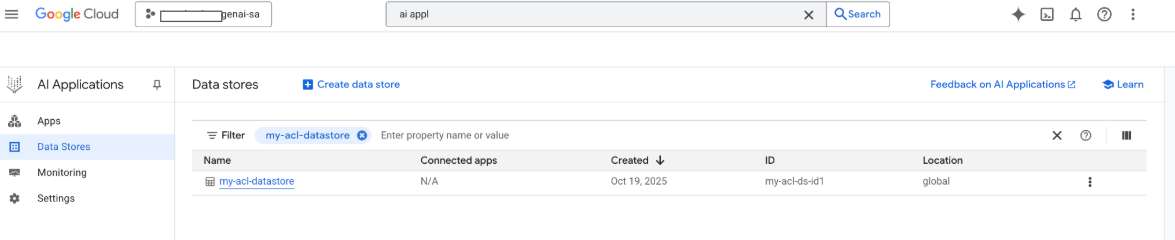
검색이 실행되면 페이로드의 필드가 검색에 사용되고 페이로드의 URI 필드가 인용에 사용됩니다. Gemini Enterprise에서 식별하는 세 가지 주요 속성 필드는 title, description, uri입니다. 해당 문서 필드의 이름은 다를 수 있으며, Google Cloud 콘솔에서 스키마 -> 수정 옵션을 사용하여 매핑할 수 있습니다.
Google Cloud 스토리지 업로드로 커넥터 만들기
인라인 가져오기는 개발에 적합하지만 프로덕션 커넥터는 확장성을 높이고 전체 조정 모드를 사용 설정하기 위해 Google Cloud Storage를 사용해야 합니다. 이 접근 방식은 대규모 데이터 세트를 효율적으로 처리하고 서드 파티 데이터 소스에 더 이상 없는 문서의 자동 삭제를 지원합니다.
문서를 JSONL로 변환
Discovery Engine으로 일괄 가져오기할 문서를 준비하려면 JSON Lines 형식으로 변환하세요.
Python
    from typing import List
    from google.cloud import discoveryengine_v1 as discoveryengine

    def convert_documents_to_jsonl(
        documents: List[discoveryengine.Document],
    ) -> str:
        """Serialize Document messages to JSONL."""
        return "\n".join(
            discoveryengine.Document.to_json(doc, indent=None)
            for doc in documents
        ) + "\n"
convert_documents_to_jsonl 함수는 다음 변수를 사용합니다.
documents: 변환할 discoveryengine.Document 객체 목록입니다.
Google Cloud 스토리지에 업로드
효율적인 일괄 가져오기를 사용 설정하려면 Google Cloud 스토리지에 데이터를 스테이징하세요.
Python
    from google.cloud import storage

    def upload_jsonl_to_gcs(jsonl: str, bucket_name: str, blob_name: str) -> str:
        """Upload JSONL content to Google Cloud Storage."""
        client = storage.Client()
        bucket = client.bucket(bucket_name)
        blob = bucket.blob(blob_name)
        blob.upload_from_string(jsonl, content_type="application/json")
        return f"gs://{bucket_name}/{blob_name}"
upload_jsonl_to_gcs 함수는 다음 주요 변수를 사용합니다.
jsonl: 업로드할 JSONL 형식의 문자열 콘텐츠입니다.bucket_name: Google Cloud 스토리지 버킷의 이름입니다.blob_name: 지정된 버킷 내의 blob (객체) 이름입니다.
전체 조정으로 Google Cloud 스토리지에서 가져오기
전체 조정 모드를 사용하여 완전한 데이터 동기화를 실행하려면 이 메서드를 사용하세요. 이렇게 하면 데이터 스토어가 서드 파티 데이터 소스를 정확하게 반영하여 더 이상 존재하지 않는 문서를 자동으로 삭제합니다.
Google Cloud Storage에서 가져올 때는 다음 제한사항에 유의하세요.
- 단일 가져오기 요청은 최대 100개의 파일을 포함할 수 있습니다(
dataSchema매개변수가content로 설정된 경우 100,000개). 각 파일의 최대 크기는 2GB입니다(
dataSchema매개변수가content로 설정된 경우 100MB).
Python
    from google.cloud import discoveryengine_v1 as discoveryengine

    def import_documents_from_gcs(
        project_id: str,
        location: str,
        data_store_id: str,
        branch_id: str,
        gcs_uri: str,
    ) -> discoveryengine.ImportDocumentsMetadata:
        """Bulk-import documents from Google Cloud Storage with FULL reconciliation mode."""
        client = discoveryengine.DocumentServiceClient()
        parent = client.branch_path(
            project=project_id,
            location=location,
            data_store=data_store_id,
            branch=branch_id,
        )
        gcs_source = discoveryengine.GcsSource(input_uris=[gcs_uri])
        request = discoveryengine.ImportDocumentsRequest(
            parent=parent,
            gcs_source=gcs_source,
            reconciliation_mode=
                discoveryengine.ImportDocumentsRequest
                .ReconciliationMode.FULL,
        )
        operation = client.import_documents(request=request)
        operation.result()
        return operation.metadata
import_documents_from_gcs 함수는 다음 주요 변수를 사용합니다.
project_id: Google Cloud 프로젝트의 ID입니다.location: 데이터 스토어의 Google Cloud 위치입니다.data_store_id: 데이터 스토어 ID입니다.branch_id: 데이터 스토어 내의 브랜치 ID입니다 (일반적으로 '0').gcs_uri: JSONL 파일을 가리키는 Google Cloud 스토리지 URI입니다.
스토리지 업로드 테스트 Google Cloud
Google Cloud 스토리지 기반 가져오기 워크플로를 확인하려면 다음을 실행하세요.
Python
  BUCKET = "your-existing-bucket"
  BLOB = "path-to-any-blob/wp/posts.jsonl"
  SITE = "https://altostrat.com"
  PROJECT_ID = "ucs-3p-connectors-testing"
  LOCATION = "global"
  IDENTITY_MAPPING_STORE_ID = "your-unique-ims-id17" # A unique ID for your new store
  DATA_STORE_ID = "your-data-store-id"
  BRANCH_ID = "0"
  posts = fetch_posts(SITE)
  docs = convert_posts_to_documents(posts)
  print(f"Fetched {len(posts)} posts and converted to {len(docs)} documents.")
  jsonl_payload = convert_documents_to_jsonl(docs)
  gcs_uri = upload_jsonl_to_gcs(jsonl_payload, BUCKET, BLOB)
  print("Uploaded to:", gcs_uri)

  metadata = import_documents_from_gcs(
      PROJECT_ID, LOCATION, DATA_STORE_ID, BRANCH_ID, gcs_uri
  )
  print(f"Imported: {metadata.success_count} documents")
Google Cloud 스토리지 업로드 테스트에는 다음 주요 변수가 사용됩니다.
BUCKET: Google Cloud 스토리지 버킷의 이름입니다.BLOB: 버킷 내 blob의 경로입니다.SITE: 서드 파티 데이터 소스의 기본 URL입니다.PROJECT_ID: Google Cloud 프로젝트 ID입니다.LOCATION: 리소스의 Google Cloud 위치입니다 (예: 'global').IDENTITY_MAPPING_STORE_ID: ID 매핑 스토어의 고유 ID입니다.DATA_STORE_ID: 데이터 스토어의 고유 ID입니다.BRANCH_ID: 데이터 스토어 내의 브랜치 ID입니다 (일반적으로 '0').jsonl_payload: JSONL 형식으로 변환된 문서입니다.gcs_uri: 업로드된 JSONL 파일의 Google Cloud 스토리지 URI입니다.
예상 출력:
Shell
    Fetched 20 posts and converted to 20 documents.
    Uploaded to: gs://alex-de-bucket/wp/posts.jsonl
    Imported: 20 documents
권한 관리
엔터프라이즈 환경에서 문서 수준 액세스를 관리하기 위해 Gemini Enterprise는 액세스 제어 목록 (ACL) 및 ID 매핑을 지원하여 사용자가 볼 수 있는 콘텐츠를 제한합니다.
데이터 스토어에서 ACL 사용 설정
데이터 스토어를 만들 때 ACL을 사용 설정하려면 다음을 실행하세요.
Python
  # get_or_create_data_store()
  "data_store": discoveryengine.DataStore(
      display_name=data_store_id,
      industry_vertical=discoveryengine.IndustryVertical.GENERIC,
      acl_enabled=True, # ADDED
  )
문서에 ACL 추가
문서를 변환할 때 AclInfo를 계산하고 포함하려면 다음을 실행합니다.
Python
  # convert_posts_to_documents()
  doc = discoveryengine.Document(
      id=str(post["id"]),
      json_data=json.dumps(payload),
      acl_info=discoveryengine.Document.AclInfo(
          readers=[{
              "principals": [
                  {"user_id": "baklavainthebalkans@gmail.com"},
                  {"user_id": "cloudysanfrancisco@gmail.com"}
              ]
          }]
      ),
  )
콘텐츠를 공개로 설정
문서를 공개적으로 액세스할 수 있도록 하려면 readers 필드를 다음과 같이 설정하세요.
Python
readers=[{"idp_wide": True}]
ACL 유효성 검사
ACL 구성이 예상대로 작동하는지 확인하려면 다음을 고려하세요.
문서에 액세스할 수 없는 사용자로 검색합니다.
Cloud Storage에서 업로드된 문서 구조를 검사하고 참조와 비교합니다.
JSON
  {
    "id": "108",
    "jsonData": "{...}",
    "aclInfo": {
      "readers": [
        {
          "principals": [
            { "userId": "baklavainthebalkans@gmail.com" },
            { "userId": "cloudysanfrancisco@gmail.com" }
          ],
          "idpWide": false
        }
      ]
    }
  }
ID 매핑 사용
다음 시나리오에서는 ID 매핑을 사용하세요.
서드 파티 데이터 소스에서 Google 이외의 ID를 사용함
개별 사용자 대신 맞춤 그룹 (예: wp-admins)을 참조하려는 경우
API가 그룹 이름만 반환함
확장 또는 일관성을 위해 사용자를 수동으로 그룹화해야 합니다.
서드 파티 시스템에서 IDP 기반이 아닌 그룹을 사용하여 ACL을 구현하며, Gemini Enterprise의 맞춤 데이터 스토어를 사용하여 이러한 ACL을 적용하려고 합니다.
ID를 매핑하려면 다음 단계를 따르세요.
- ID 데이터 스토어를 만들고 연결합니다.
외부 ID (예:
external_group:wp-admins)를 가져옵니다. 가져올 때external_group: prefix를 포함하지 마세요. 예를 들면 다음과 같습니다.JSON
{ "externalIdentity": "wp-admins", "userId": "user@example.com" }문서의 ACL 정보에서
principal identifier에 외부 엔티티 ID를 정의합니다. 맞춤 그룹을 참조할 때는groupId필드에external_group:접두사를 사용하세요.external_group:접두사는 가져오기 중에 문서의 ACL 정보 내 그룹 ID에 필요하지만 ID를 매핑 저장소로 가져올 때는 사용되지 않습니다. ID 매핑이 포함된 문서의 예:JSON
  {
    "id": "108",
    "aclInfo": {
      "readers": [
        {
          "principals": [
            {
              "userId": "cloudysanfrancisco@gmail.com"
            },
            {
              "groupId": "external_group:wp-admins"
            }
          ]
        }
      ]
    },
    "structData": {
      "id": 108,
      "date": "2025-04-24T18:16:04",
      ...
    }
  }
다음 단계
- 데이터를 쿼리하는 사용자 인터페이스를 제공하려면 Gemini Enterprise에서 앱을 만들고 기존 맞춤 커넥터 데이터 스토어에 연결하세요.