

Co-Scientist is a Google-developed agent that accelerates research and development processes. It uses Gemini to automate complex scientific reasoning. For algorithmic discovery, see the AlphaEvolve documentation.
Overview of Co-Scientist agent
Co-Scientist is a multi-agent AI system built on Gemini, designed to act as a virtual scientific collaborator. The system helps researchers uncover original knowledge and formulate novel research hypotheses and experimental proposals. By combining AI reasoning with the scientific method, Co-Scientist enables scientists to navigate literature, synthesize insights across domains, and accelerate biomedical discoveries.
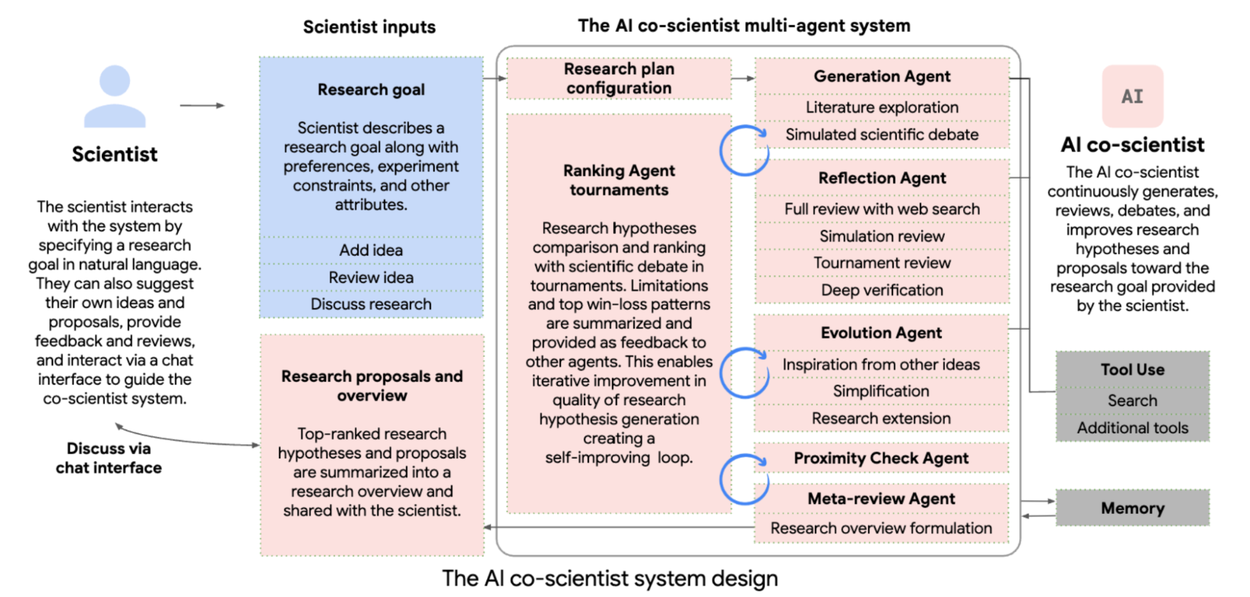
How it works
Co-Scientist is built on a multi-agent architecture and an asynchronous task execution framework to scale test-time computation. This design allows the system to reason, debate, and improve outputs iteratively.
When you provide a research goal in natural language, Co-Scientist coordinates the following specialized agents:
- Generation agent: Explores literature using web search, synthesizes findings, and formulates initial hypotheses.
- Reflection agent: Acts as a peer reviewer to examine the correctness, quality, and safety of generated hypotheses.
- Ranking agent: Evaluates and prioritizes research proposals using an Elo-based tournament.
- Evolution agent: Refines top-ranked hypotheses by grounding them in literature and combining innovative ideas.
- Proximity agent: Organizes tournament matches and deduplicates hypotheses using a proximity graph.
- Meta-review agent: Synthesizes insights from all reviews and debates into a comprehensive research roadmap.
A dedicated Supervisor agent orchestrates the process, allocates resources, and manages the worker queue to maintain a self-improving loop of scientific reasoning.
Use cases
Co-Scientist solves complex problems across multiple scientific disciplines, specifically those requiring deep subject matter expertise and trans-disciplinary insights. Example use cases include:
Drug repurposing: Identify novel therapeutic indications for approved drugs by analyzing molecular signatures, signaling pathways, and literature-based information.
Target discovery: Propose new biological components and epigenetic targets for complex diseases and streamline hypothesis selection for experimental validation.
Mechanistic explanations: Generate hypotheses for intricate problems, such as antimicrobial resistance, by synthesizing fragmented scientific data.
For more information and additional use cases, see the Accelerating scientific breakthroughs with an AI Co-Scientist blog.
Monitor Co-Scientist runs with Cloud Logging
When a Co-Scientist run completes successfully, Gemini Enterprise writes one log entry to Cloud Logging in your Google Cloud project. The entry records who started the run, when it started, how long it took, and how many tokens it used. You can use these entries to track Co-Scientist usage per user, attribute token consumption to teams, or build dashboards and alerts.
Before you begin
- Turn on observability for the Gemini Enterprise app that runs Co-Scientist. In the app, go to Configurations > Observability and turn on Enable instrumentation of OpenTelemetry traces and logs. The page says these settings configure the Core Assistant agent, but Co-Scientist run entries also follow them. Settings on the Co-Scientist agent's own page don't affect these entries. You don't need to turn on Enable logging of prompt inputs and response outputs. For more about these settings, see Manage observability settings.
- To view the logs, you need the
Logs Viewer
IAM role (
roles/logging.viewer) on the Google Cloud project.
Entries are written only for runs that complete after observability is turned on. Earlier runs aren't logged retroactively.
View run entries
In the Google Cloud console, go to the Logs Explorer page.
Select the Google Cloud project that contains your Gemini Enterprise app.
Enter the following query and click Run Query:
logName="projects/PROJECT_ID/logs/discoveryengine.googleapis.com%2Fgemini_enterprise_user_activity"
jsonPayload.logMetadata.methodName="CoscientistRunCompletion"
Replace the following:
PROJECT_ID: the ID of your project.
To use the Google Cloud CLI instead, run the following command:
gcloud logging read \
  'logName="projects/PROJECT_ID/logs/discoveryengine.googleapis.com%2Fgemini_enterprise_user_activity" AND jsonPayload.logMetadata.methodName="CoscientistRunCompletion"' \
  --project=PROJECT_ID \
  --freshness=7d \
  --format='table(timestamp, jsonPayload.logMetadata.name.basename(), jsonPayload.coscientistRunInfo.starterUserPrincipal, jsonPayload.coscientistRunInfo.inputTokenCount, jsonPayload.coscientistRunInfo.outputTokenCount, jsonPayload.coscientistRunInfo.duration)'
To narrow the results, add conditions to the query. For example:
- Runs started by one user:
jsonPayload.coscientistRunInfo.starterUserPrincipal="alex@example.com" - Runs for one app:
jsonPayload.logMetadata.name:"/engines/APP_ID/" - Runs in one location:
resource.labels.location="us"
Each entry's jsonPayload.coscientistRunInfo records who started the run, when
the instance was created, how long it ran, and how many input and output tokens
it used. jsonPayload.logMetadata.name identifies the Co-Scientist instance.
For the full list of fields, see
Logged information.
To control who can read these entries, see
Control access to logs.