

Agent Gallery lets you discover, run, and organize prebuilt and custom agents in Gemini Enterprise.
To open the gallery, go to your Gemini Enterprise web app and click
 Agents in the app navigation menu.
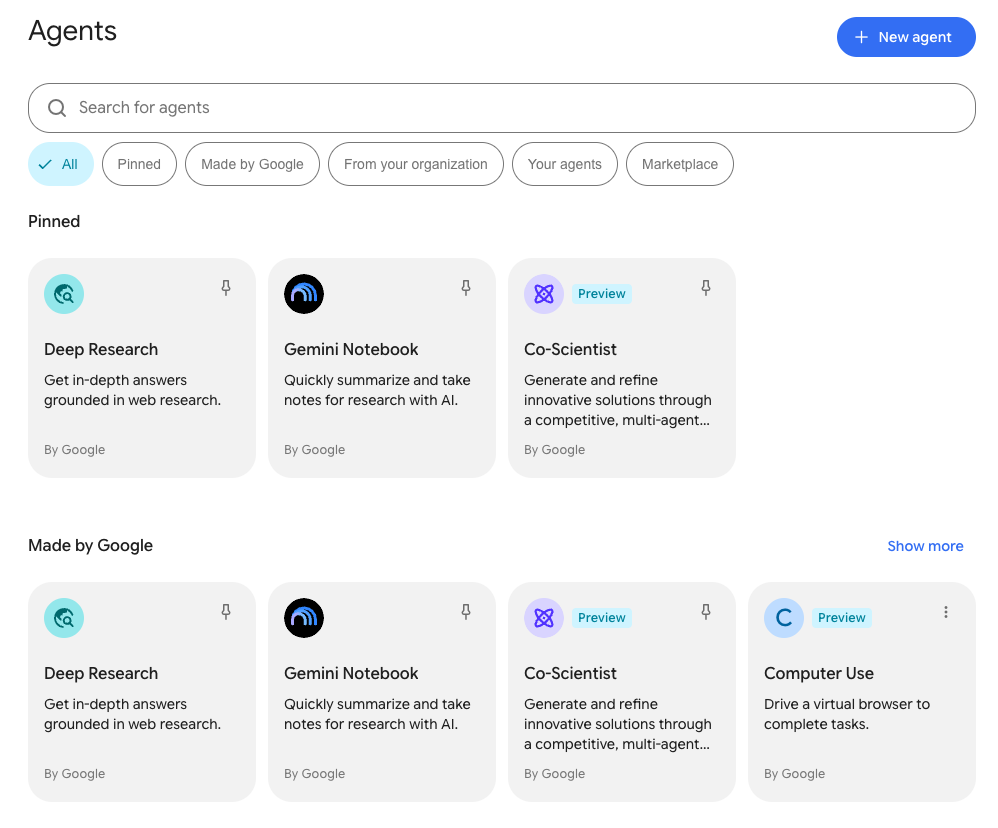
| Feature | Action | Where it appears |
|---|---|---|
| Search bar | Find agents by name or description keyword in real time. | Top of the gallery. |
| Filter chips | Filter visible agents by category (All, Pinned, Made by Google, From your organization, Your agents, Marketplace). |
Below the search bar. |
| Pinned agents | Pin frequently used agents for rapid one-click access. | Pinned gallery section and the left navigation menu. |
| + New agent | Open Workflow Builder to build a new custom agent. | Upper-right corner of the gallery. |
The following image shows the Agent Gallery layout:
Find agents in the gallery
You can find agents using the search bar, category filter chips, or a combination of both.
Search for agents
- In Agent Gallery, click the search bar.
- Enter the name, function, or keyword for the agent you want to find.
- The gallery updates the visible agents in real time. Matching agents remain grouped by category.
Filter agents by category
Select a filter chip below the search bar to restrict the gallery view to a single category:
- All: Displays all accessible agents across all categories (default view).
- Pinned: Displays only agents that you have pinned for quick access.
- Made by Google: Ready-to-use first-party agents created by Google, such as Deep Research, Gemini Notebook Enterprise, and Co-Scientist.
- From your organization: Custom agents created by colleagues and shared with your team or workspace.
- Your agents: Custom agents created by you in Workflow Builder. Cards display their current status (such as Draft or Live).
- Marketplace: Third-party partner agents available to request from your administrator.
When viewing a specific category, click Show more or Show less to expand or collapse the section grid.
Pin agents for quick access
You can pin frequently used agents so they are always accessible without searching the gallery.
- To pin an agent: On any agent card, click the Pin icon.
- To unpin an agent: Click the active Pin icon on the card, or hover over the agent in the navigation menu and click the unpin icon.
When you pin an agent: 1. The agent card appears in the Pinned section at the top of Agent Gallery. 2. The agent is added to the left navigation menu under the Agents heading, allowing you to open the agent directly from anywhere in Gemini Enterprise.
Pin selections persist across your web sessions.
Create and manage custom agents
- Run an agent: Click any agent card to start a conversation. You can also run an agent in conversation using
@agent_name. - Create a custom agent: Click + New agent in the upper-right corner of the gallery (or in the navigation menu) to open Workflow Builder. You can build:
- Chat agents: Conversational agents for dialog and specialized queries.
- Workflows: Multi-step automated workflows configured with triggers and connector actions.
- Edit or delete an agent: On any card in Your agents, click the more options menu (⋮) to edit, share, or delete the agent.
Request access to agents from Google Cloud Marketplace
In Agent Gallery, you can browse available agents from partner vendors listed on Google Cloud Marketplace.
To request access to an agent:
- In the Gemini Enterprise web app, click Agents in the app navigation menu.
- Select the Marketplace filter chip or go to the Marketplace section.
- Click the agent card you want to access.
- Click Request access to send a request to your administrator for review.
When your administrator approves the request:
- You receive a notification at the bell icon in the web app.
- The agent appears in the From your organization section of Agent Gallery.
- You can run the agent by typing
@agent_namein conversation.