


באפליקציות רבות נדרש ניהול סשנים לצורך אימות והעדפות משתמש. ASP.NET Core כולל תוכנת ביניים לאחסון סשנים במטמון מבוזר.
מטמון מבוזר שמוגדר כברירת מחדל ב-ASP.NET הוא לא מבוזר בכלל. הוא מאחסן את נתוני הסשן בזיכרון של שרת האינטרנט. האסטרטגיה הזו מתאימה אם רק שרת אינטרנט אחד מציג אתר. אבל כשמספר שרתי אינטרנט מציגים אתר, המשתמשים באתר עלולים להיתקל בשגיאות ולאבד נתונים.
כדי למנוע שגיאות ואובדן נתונים, אפליקציית ASP.NET צריכה להשתמש במטמון מבוזר שמאחסן נתונים במאגר נתונים קבוע. במדריך הזה נסביר איך לנהל סשנים ב-Cloud Run באמצעות אחסון שלהם ב-Firestore והצפנה של קובצי Cookie באמצעות Cloud Key Management Service.
מטרות
- פורסים את האפליקציה ב-Cloud Run.
עלויות
במסמך הזה משתמשים ברכיבים הבאים של Google Cloud, והשימוש בהם כרוך בתשלום:
כדי להעריך את ההוצאות בהתאם לתחזית השימוש שלכם, אתם יכולים להיעזר במחשבון העלויות.
כשמסיימים את המשימות שמתוארות במסמך הזה אפשר למחוק את המשאבים שיצרתם כדי להימנע מחיובים נוספים. מידע נוסף זמין בקטע הסרת המשאבים.
לפני שמתחילים
- נכנסים לחשבון Google Cloud . אם אתם משתמשים חדשים ב- Google Cloud, צרו חשבון כדי שתוכלו להעריך את הביצועים של המוצרים שלנו בתרחישים מהעולם האמיתי. לקוחות חדשים מקבלים בחינם גם קרדיט בשווי 300$ להרצה, לבדיקה ולפריסה של עומסי העבודה.
-
In the Google Cloud console, on the project selector page, select or create a Google Cloud project.
Roles required to select or create a project
- Select a project: Selecting a project doesn't require a specific IAM role—you can select any project that you've been granted a role on.
-
Create a project: To create a project, you need the Project Creator role
(
roles/resourcemanager.projectCreator), which contains theresourcemanager.projects.createpermission. Learn how to grant roles.
-
Verify that billing is enabled for your Google Cloud project.
Enable the Firestore, Cloud Run, Cloud Key Management Service, and Cloud Storage APIs, if any are not already enabled.
Roles required to enable APIs
To enable APIs, you need the
serviceusage.services.enablepermission. If you created the project, then you likely already have this permission through the Owner role (roles/owner). Otherwise, you can get this permission through the Service Usage Admin role (roles/serviceusage.serviceUsageAdmin). Learn how to grant roles.-
In the Google Cloud console, on the project selector page, select or create a Google Cloud project.
Roles required to select or create a project
- Select a project: Selecting a project doesn't require a specific IAM role—you can select any project that you've been granted a role on.
-
Create a project: To create a project, you need the Project Creator role
(
roles/resourcemanager.projectCreator), which contains theresourcemanager.projects.createpermission. Learn how to grant roles.
-
Verify that billing is enabled for your Google Cloud project.
Enable the Firestore, Cloud Run, Cloud Key Management Service, and Cloud Storage APIs, if any are not already enabled.
Roles required to enable APIs
To enable APIs, you need the
serviceusage.services.enablepermission. If you created the project, then you likely already have this permission through the Owner role (roles/owner). Otherwise, you can get this permission through the Service Usage Admin role (roles/serviceusage.serviceUsageAdmin). Learn how to grant roles.-
כדי ליצור מסד נתונים של Firestore במצב Native, פועלים לפי השלבים הבאים:
-
נכנסים לדף Firestore viewer במסוף Google Cloud .
כניסה לכלי לצפייה ב-Firestore - במסך Select a Firestore mode (בחירת מצב Firestore), לוחצים על Select Native Mode (בחירת מצב מקורי).
- בוחרים מיקום למסד הנתונים של Firestore. הגדרת המיקום הזו היא מיקום ברירת המחדל Google Cloud של משאבים בפרויקט Google Cloud . המיקום הזה משמש את Google Cloud השירותים בפרויקט Google Cloud שדורשים הגדרת מיקום, במיוחד את קטגוריית ברירת המחדל של Cloud Storage ואת אפליקציית App Engine.
- לוחצים על יצירת מסד נתונים.
-
נכנסים לדף Firestore viewer במסוף Google Cloud .
-
ב-Cloud Shell, פותחים את קוד המקור של האפליקציה.
כניסה ל-Cloud ShellCloud Shell נותנת גישה למשאבים Google Cloud שלכם ב-Google Cloud בממשק שורת פקודה ישירות מהדפדפן.
- כדי להוריד את הקוד לדוגמה ולעבור לספריית האפליקציה, לוחצים על המשך.
-
ב-Cloud Shell, מגדירים את ה-CLI של gcloud לשימוש בפרויקט החדש Google Cloud :
# Configure gcloud for your project
gcloud config set project PROJECT_ID
מחליפים את
PROJECT_IDבמזהה Google Cloud הפרויקט שיצרתם באמצעות מסוף Google Cloud .Google Cloud CLI היא הדרך העיקרית לאינטראקציה עם משאבי Google Cloud משורת הפקודה. במדריך הזה משתמשים ב-CLI של gcloud כדי לפרוס את האפליקציה ולעקוב אחריה.
בדיקת קוד המקור
בתרשים הבא אפשר לראות איך Firestore מטפל בסשנים באפליקציית Cloud Run.
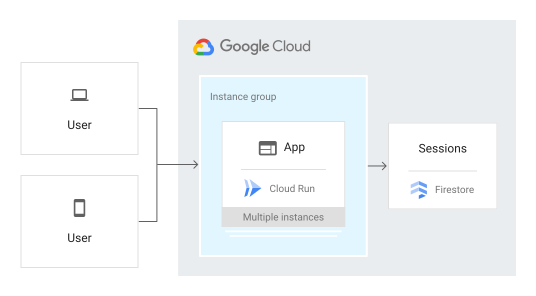
השיטה ConfigureServices בקובץ Startup.cs מגדירה את האפליקציה לשימוש ב-Cloud KMS להצפנה וב-Cloud Storage לאחסון מפתחות מוצפנים.
-
ב-Cloud Shell, לוחצים על
 כדי להפעיל את העורך ולבדוק את הקובץ
 Startup.cs.
הגדרת Google Cloud הפרויקט
-
בעורך של Cloud Shell, עורכים את הקובץ
appsettings.jsonומחליפים את שני המקרים שלYOUR-PROJECT-IDבמזהה הפרויקט Google Cloud . שומרים את הקובץ. -
יוצרים אוסף מפתחות חדש ב-Cloud Key Management Service בשם
dataprotectionprovider:gcloud kms keyrings create dataprotectionprovider --location global
-
יוצרים מפתח חדש ב-Cloud Key Management Service בשם
masterkey:gcloud kms keys create masterkey --location global --keyring dataprotectionprovider --purpose=encryption
-
יוצרים קטגוריה של Cloud Storage לאחסון המפתחות המוצפנים:
gcloud storage buckets create gs://PROJECT_ID-bucket
פריסה והפעלה ב-Cloud Run
אתם יכולים להשתמש ב-Cloud Run כדי ליצור ולפרוס אפליקציה שפועלת בצורה מהימנה בעומס כבד ועם כמויות גדולות של נתונים.
במדריך הזה משתמשים ב-Cloud Run כדי לפרוס את השרת.
ב-Cloud Shell, מפרסמים את האפליקציה:
dotnet publish -c Releaseשימוש ב-Cloud Build כדי ליצור קונטיינר Docker ולפרסם אותו ב-Container Registry:
gcloud builds submit --tag gcr.io/PROJECT_ID/sessions bin/Release/netcoreapp2.1/publish
מריצים את הקונטיינר באמצעות Cloud Run:
gcloud beta run deploy sessions --region us-central1 --platform managed --image gcr.io/PROJECT_ID/sessions --allow-unauthenticated
שימו לב לכתובת ה-URL בפלט:
Service [sessions] revision [sessions-00003-xiz] has been deployed and is serving
100 percent of traffic at https://sessions-r3f3em7nuq-uc.a.run.app
כדי לראות את האפליקציה בשידור חי, עוברים לכתובת ה-URL שהעתקתם מהשלב הקודם.
מחיקת סשנים
אפשר למחוק נתוני סשן במסוףGoogle Cloud או להטמיע אסטרטגיה למחיקה אוטומטית. אם אתם משתמשים בפתרונות אחסון לסשנים כמו Memcache או Redis, סשנים שתוקפם פג נמחקים אוטומטית.
ניפוי באגים באפליקציה
אם אתם לא מצליחים להתחבר לאפליקציית Cloud Run, כדאי לבדוק את הדברים הבאים:
- בודקים שהפקודות
gclouddeploy הושלמו בהצלחה ולא הוחזרו שגיאות. אם היו שגיאות (לדוגמה,message=Build failed), תקנו אותן ונסו לפרוס את אפליקציית Cloud Run שוב. - אפשר לעיין במדריך של Cloud Run לצפייה ביומנים.
הסרת המשאבים
מחיקת הפרויקט
- במסוף Google Cloud , נכנסים לדף Manage resources.
- ברשימת הפרויקטים, בוחרים את הפרויקט שרוצים למחוק ולוחצים על Delete.
- כדי למחוק את הפרויקט, כותבים את מזהה הפרויקט בתיבת הדו-שיח ולוחצים על Shut down.