


במדריך הזה נסביר איך להשתמש בתהליך עבודה של GitHub Actions כדי לפרוס אפליקציית אינטרנט של ASP.NET Model-View-Controller (MVC) שמשתמשת ב-.NET Framework ב-Google Kubernetes Engine (GKE).
המדריך הזה מיועד למפתחים ולמהנדסי DevOps שיש להם ידע בסיסי ב-Microsoft .NET, ב-GitHub Actions וב-GKE. כדי לבצע את ההדרכה הזו, צריך גם חשבון ב-GitHub.
מטרות
פריסת אפליקציית אינטרנט של ASP.NET MVC שמשתמשת ב- .NET Framework 4 ופועלת ב-Windows אל Google Kubernetes Engine.
בתרשים הבא מוצג תהליך העבודה של GitHub Actions לפריסת אפליקציית אינטרנט של ASP.NET MVC ב-Google Kubernetes Engine (GKE).
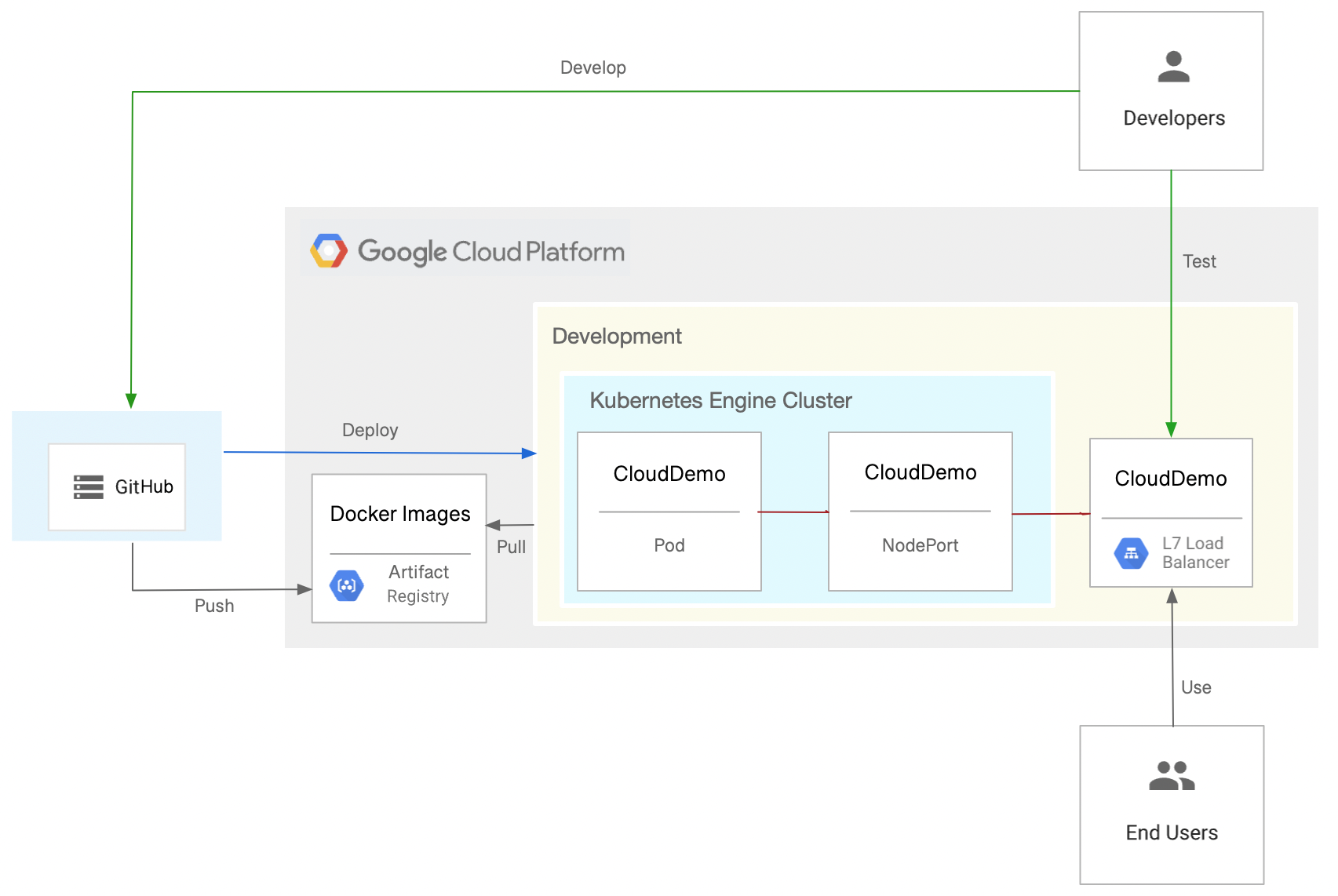
במדריך הזה מוסבר איך לבצע את הפעולות הבאות כדי להשיג את היעד:
- יצירת מאגר ב-GitHub
- הגדרת אימות
- פריסת אשכול GKE ומאגר Artifact Registry
- יצירת תהליך עבודה של GitHub Actions
עלויות
במסמך הזה משתמשים ברכיבים הבאים של Google Cloud, והשימוש בהם כרוך בתשלום:
כדי ליצור הערכת עלויות בהתאם לשימוש החזוי, אתם יכולים להשתמש במחשבון התמחור.
כשמסיימים את המשימות שמתוארות במסמך הזה אפשר למחוק את המשאבים שיצרתם כדי להימנע מחיובים נוספים. מידע נוסף זמין בקטע הסרת המשאבים.
לפני שמתחילים
- נכנסים לחשבון Google Cloud . אנחנו ממליצים למשתמשים חדשים ב- Google Cloud ליצור חשבון כדי שיוכלו להעריך את הביצועים של המוצרים שלנו בתרחישים מהעולם האמיתי. לקוחות חדשים מקבלים בחינם גם קרדיט בשווי 300$ להרצה, לבדיקה ולפריסה של עומסי העבודה.
-
In the Google Cloud console, on the project selector page, select or create a Google Cloud project.
Roles required to select or create a project
- Select a project: Selecting a project doesn't require a specific IAM role—you can select any project that you've been granted a role on.
-
Create a project: To create a project, you need the Project Creator role
(
roles/resourcemanager.projectCreator), which contains theresourcemanager.projects.createpermission. Learn how to grant roles.
-
Verify that billing is enabled for your Google Cloud project.
Enable the Artifact Registry and Google Kubernetes Engine APIs, if any are not already enabled.
Roles required to enable APIs
To enable APIs, you need the
serviceusage.services.enablepermission. If you created the project, then you likely already have this permission through the Owner role (roles/owner). Otherwise, you can get this permission through the Service Usage Admin role (roles/serviceusage.serviceUsageAdmin). Learn how to grant roles.-
In the Google Cloud console, on the project selector page, select or create a Google Cloud project.
Roles required to select or create a project
- Select a project: Selecting a project doesn't require a specific IAM role—you can select any project that you've been granted a role on.
-
Create a project: To create a project, you need the Project Creator role
(
roles/resourcemanager.projectCreator), which contains theresourcemanager.projects.createpermission. Learn how to grant roles.
-
Verify that billing is enabled for your Google Cloud project.
Enable the Artifact Registry and Google Kubernetes Engine APIs, if any are not already enabled.
Roles required to enable APIs
To enable APIs, you need the
serviceusage.services.enablepermission. If you created the project, then you likely already have this permission through the Owner role (roles/owner). Otherwise, you can get this permission through the Service Usage Admin role (roles/serviceusage.serviceUsageAdmin). Learn how to grant roles.
יצירת מאגר ב-GitHub
יוצרים העתק של מאגר dotnet-docs-samples בחשבון GitHub.
השלב הזה נדרש כי אנחנו בונים באמצעות GitHub Actions.
- עוברים למאגר
dotnet-docs-samplesב-GitHub. - לוחצים על Fork.
בדף Create a new fork (יצירת הסתעפות חדשה), מגדירים את האפשרויות הבאות:
- בעלים – החשבון שלכם ב-GitHub
- שם המאגר –
dotnet-docs-samples
לוחצים על Create fork (יצירת הסתעפות).
הגדרת אימות
מכינים את Google Cloud הפרויקט כך ש-GitHub Actions יוכל לאמת את עצמו ולגשת למשאבים ב Google Cloud פרויקט.
יצירה של ספק ומאגר זהויות של עומסי עבודה
כדי לאפשר לפעולות GitHub לבצע אימות Google Cloud ולפרוס ל-GKE, משתמשים באיחוד שירותי אימות הזהות של עומסי עבודה. שימוש באיחוד שירותי אימות הזהות של עומסי עבודה מאפשר לכם להימנע מהצורך לאחסן ולנהל מפתחות של חשבונות שירות עבור עומס העבודה של GitHub Actions.
כדי להשתמש באיחוד שירותי אימות הזהות של עומסי עבודה, צריך ליצור מאגר זהויות של כוח עבודה וספק זהויות של כוח עבודה. מומלץ להשתמש בפרויקט ייעודי לניהול מאגרי זהויות וספקים של עומסי עבודה. במדריך הזה, כדי לפשט את התהליך, יוצרים את המאגר ואת הספק באותו פרויקט שבו נמצא אשכול GKE:
פותחים את מסוף Google Cloud .
-
במסוף Google Cloud , מפעילים את Cloud Shell.
בחלק התחתון של Google Cloud המסוף יתחיל סשן של Cloud Shell ותופיע הודעה של שורת הפקודה. Cloud Shell היא סביבת מעטפת שבה ה-CLI של Google Cloud מותקן ומוגדרים ערכים לפרויקט הקיים. הסשן יופעל תוך כמה שניות.
יצירת מאגר זהויות חדש של עומסי עבודה:
gcloud iam workload-identity-pools create github-actions \
    --location="global" \
    --description="GitHub Actions tutorial" \
    --display-name="GitHub Actions"
הוספת GitHub Actions כספק של מאגר זהויות של עומסי עבודה:
gcloud iam workload-identity-pools providers create-oidc github-actions-oidc \
    --location="global" \
    --workload-identity-pool=github-actions \
    --issuer-uri="https://token.actions.githubusercontent.com/" \
    --attribute-mapping="google.subject=assertion.sub" \
    --attribute-condition="assertion.repository_owner=='ORGANIZATION'"
מחליפים את
ORGANIZATIONבשם ארגון GitHub שלכם.
יצירה של חשבון שירות
ב-Cloud Shell, יוצרים חשבון שירות ש-GitHub Actions יכול להשתמש בו כדי לפרסם תמונות Docker ולפרוס אותן ב-GKE:
SERVICE_ACCOUNT=$(gcloud iam service-accounts create github-actions-workflow \
  --display-name "GitHub Actions workflow" \
  --format "value(email)")
מקצים לחשבון השירות את התפקיד 'בעל הרשאת כתיבה ב-Artifact Registry' (
roles/artifactregistry.writer) כדי לאפשר לפעולות GitHub לשלוח אל Artifact Registry:gcloud projects add-iam-policy-binding $(gcloud config get-value core/project) \ --member serviceAccount:$SERVICE_ACCOUNT \ --role roles/artifactregistry.writer
מקצים את תפקיד המפתח של Google Kubernetes Engine (
roles/container.developer) לחשבון השירות כדי לאפשר לפעולות GitHub לשלוח אל Artifact Registry:gcloud projects add-iam-policy-binding $(gcloud config get-value core/project) \ --member serviceAccount:$SERVICE_ACCOUNT \ --role roles/container.developer
מתן הרשאה לתהליך העבודה של GitHub Actions להשתמש בחשבון השירות
מתן הרשאה לתהליך העבודה של GitHub Actions להתחזות לחשבון השירות ולהשתמש בו:
מאתחלים משתנה סביבה שמכיל את הנושא שמשמש את תהליך העבודה של GitHub Actions. נושא דומה לשם משתמש שמזהה באופן ייחודי את המאגר וההסתעפות ב-GitHub:
SUBJECT=repo:
OWNER/dotnet-docs-samples:ref:refs/heads/mainמחליפים את
OWNERבשם המשתמש שלכם ב-GitHub.נותנים לנושא הרשאה להתחזות לחשבון השירות:
PROJECT_NUMBER=$(gcloud projects describe $(gcloud config get-value core/project) --format='value(projectNumber)')

gcloud iam service-accounts add-iam-policy-binding $SERVICE_ACCOUNT \
  --role=roles/iam.workloadIdentityUser \
  --member="principal://iam.googleapis.com/projects/$PROJECT_NUMBER/locations/global/workloadIdentityPools/github-actions/subject/$SUBJECT"
פריסת אשכול GKE ומאגר Artifact Registry
יוצרים מאגר לתמונות Docker:
gcloud artifacts repositories create clouddemo \
  --repository-format=docker \
  --location=us-central1
מתן אפשרות לחשבון השירות של Compute Engine שמוגדר כברירת מחדל לגשת למאגר:
gcloud projects add-iam-policy-binding $(gcloud config get-value core/project) \
  --member=serviceAccount:$PROJECT_NUMBER-compute@developer.gserviceaccount.com \
  --role=roles/artifactregistry.reader
יוצרים את האשכול:
gcloud container clusters create clouddemo-windows \
  --enable-ip-alias \
  --zone us-central1-a

gcloud container node-pools create clouddemo-windows-pool \
  --cluster=clouddemo-windows \
  --image-type=WINDOWS_LTSC_CONTAINERD \
  --no-enable-autoupgrade \
  --machine-type=n1-standard-2 \
  --zone us-central1-a
יכול להיות שיעברו כמה דקות עד שהפקודה הזו תסתיים.
מקבלים את שם הפרויקט ואת מספר הפרויקט של האשכול:
echo "Project ID: $(gcloud config get-value core/project)"
echo "Project Number: $(gcloud projects describe $(gcloud config get-value core/project) --format=value\(projectNumber\))"
תצטרכו את הערכים האלה בהמשך.
יצירת תהליך עבודה של GitHub Actions
מעכשיו אפשר להשתמש ב-GitHub Actions כדי להגדיר שילוב רציף. לכל קומיט שנדחף למאגר Git, תהליך עבודה של GitHub Actions בונה את הקוד ואורז את תוצרי הבנייה במאגר Docker. מאגר התגים מתפרסם ב-Artifact Registry.
המאגר כבר מכיל את קובץ ה-Dockerfile הבא:
המאגר מכיל גם מניפסט של Kubernetes:
יוצרים תהליך עבודה של GitHub Actions שמבצע את הפעולות הבאות:
- מתבצע אימות ל- Google Cloud באמצעות איחוד שירותי אימות הזהות של עומסי עבודה וחשבון השירות שיצרתם קודם.
- ליצור קובץ אימג' של Docker ולפרוס אותו ב-Artifact Registry.
- פורסים את קובץ אימג' של Docker ב-GKE.
כדי ליצור את תהליך העבודה של GitHub Actions:
- ב-GitHub, עוברים למאגר המחובר
dotnet-docs-samples. - לוחצים על הוספת קובץ > יצירת קובץ חדש.
בתיבת הטקסט Name your file (מתן שם לקובץ), מזינים את השם הבא:
.github/workflows/deploy-gke.yaml
מעתיקים את הקוד הבא לקובץ:
name: Build and Deploy to GKE on: push: branches: - main env: PROJECT_ID:PROJECT_IDPROJECT_NUMBER:PROJECT_NUMBERCLUSTER: clouddemo-windows CLUSTER_ZONE: us-central1-a REPOSITORY: clouddemo REPOSITORY_REGION: us-central1 IMAGE: clouddemo jobs: build: runs-on: windows-2019 # Matches WINDOWS_LTSC in GKE permissions: id-token: write contents: read steps: - name: Checkout uses: actions/checkout@v3 # # Authenticate to Google Cloud using workload identity federation # - id: 'auth' name: 'Obtain access token by using workload identity federation' uses: 'google-github-actions/auth@v0' with: create_credentials_file: true token_format: access_token workload_identity_provider: projects/${{ env.PROJECT_NUMBER }}/locations/global/workloadIdentityPools/github-actions/providers/github-actions-oidc service_account: github-actions-workflow@${{ env.PROJECT_ID }}.iam.gserviceaccount.com - name: Connect to Artifact Registry run: |- echo ${{ steps.auth.outputs.access_token }} | docker login -u oauth2accesstoken --password-stdin https://${{ env.REPOSITORY_REGION }}-docker.pkg.dev - name: Connect to GKE uses: google-github-actions/get-gke-credentials@v0 with: cluster_name: ${{ env.CLUSTER }} location: ${{ env.CLUSTER_ZONE }} # # Build the .NET code # - name: Setup MSBuild uses: microsoft/setup-msbuild@v1 - name: Setup NuGet uses: NuGet/setup-nuget@v1 - name: Restore NuGet packages run: nuget restore applications/clouddemo/net4/CloudDemo.Mvc.sln - name: Build solution run: msbuild /t:Rebuild /p:Configuration=Release /p:DeployOnBuild=true /p:PublishProfile=FolderProfile /nologo applications/clouddemo/net4/CloudDemo.Mvc.sln # # Build the Docker image and push it to Artifact Registry # - name: Create image tag run: echo "IMAGE_TAG=${{ env.REPOSITORY_REGION }}-docker.pkg.dev/${{ env.PROJECT_ID }}/${{ env.REPOSITORY }}/${{ env.IMAGE }}:$env:GITHUB_SHA" >> $env:GITHUB_ENV - name: Lock image version in deployment.yaml shell: pwsh run: (Get-Content applications\clouddemo\net4\deployment.yaml) -replace "CLOUDDEMO_IMAGE","${{ env.IMAGE_TAG }}" | Out-File -Encoding ASCII applications\clouddemo\net4\deployment.yaml - name: Build Docker image run: docker build --tag "${{ env.IMAGE_TAG }}" applications/clouddemo/net4 - name: Publish Docker image to Google Artifact Registry run: docker push "${{ env.IMAGE_TAG }" # # Deploy to GKE # - name: Deploy to GKE run: kubectl apply -f applications/clouddemo/net4/deployment.yamlמחליפים את הערכים הבאים:
-
PROJECT_ID: מזהה הפרויקט שמכיל את אשכול GKE. -
PROJECT_NUMBER: מספר הפרויקט שמכיל את אשכול GKE.
-
בקטע Commit new file (ביצוע פעולת Commit לקובץ חדש), מזינים הודעת Commit, לדוגמה,
Add workflowולוחצים על Commit new file (ביצוע פעולת Commit לקובץ חדש).בתפריט, לוחצים על פעולות וממתינים לסיום תהליך העבודה.
יכול להיות שיחלפו כמה דקות עד שהתהליך יסתיים.
במסוף Google Cloud , מרעננים את הדף Services & Ingress.
עוברים לכרטיסייה Ingress.
מחפשים את שירות ה-Ingress של אשכול clouddemo ומחכים שהסטטוס שלו ישתנה ל-Ok. הפעולה עשויה להימשך כמה דקות.
פותחים את הקישור בעמודה ממשקי קצה באותה שורה. יכול להיות שיחלפו כמה דקות עד שמאזן העומסים יהיה זמין, ולכן יכול להיות שאפליקציית CloudDemo לא תיטען בהתחלה. כמאזן העומסים יהיה מוכן, תראו את האפליקציה CloudDemo עם הכותרת המותאמת אישית, והפעם היא תפעל באשכול הייצור.
הסרת המשאבים
כשמסיימים את המדריך, אפשר למחוק את המשאבים שיצרתם, כדי שהם יפסיקו להשתמש במכסה ולצבור חיובים. הסעיפים הבאים נסביר איך למחוק או להשבית את המשאבים האלו.
מחיקת המאגר ב-GitHub
הוראות למחיקת מאגר ב-GitHub מופיעות במאמר מחיקת מאגר. מחיקת המאגר תגרום לאובדן של כל השינויים בקוד המקור.
מחיקת הפרויקט
הדרך הכי קלה לבטל את החיוב היא למחוק את הפרויקט שיצרתם בשביל המדריך.
כדי למחוק Google Cloud פרויקט:
gcloud projects delete PROJECT_ID
המאמרים הבאים
- פריסה, ניהול והתאמה לעומס (scaling) של אפליקציות בקונטיינרים ב-Kubernetes.
- כדאי לעיין בשיטות המומלצות בGoogle Cloud Well-Architected Framework.
- כדאי להעמיק את הקריאה ולהכיר דוגמאות לארכיטקטורות, תרשימים ושיטות מומלצות בנושאי Google Cloud. כל אלה זמינים במרכז הארכיטקטורה של Cloud.