


使用 Workflows 构建文档处理流水线
如果您使用 Document AI 构建涉及多个文档处理步骤的工作流,则可能需要使用无服务器编排来管理工作流。
Workflows 会按您定义的顺序将一系列任务关联起来。它无需管理基础架构,还可按需无缝扩缩,包括缩减至零。由于采用的是按用量付费价格模式,您只需为执行时间付费。
Workflows 为 Document AI API 提供了一个内置连接器。您只需使用配置文件为连接器定义所需的步骤,无需实现额外的代码。连接器会处理请求的格式设置,隐藏 API 的详细信息。连接器还提供了用于进行身份验证、处理重试和执行长时间运行的操作的内置功能。
如需了解详情,请参阅了解连接器。
如需在 Google Cloud 控制台中直接遵循有关此任务的分步指导,请点击操作演示:
准备工作
- 登录您的 Google Cloud 账号。如果您是新手 Google Cloud, 请创建一个账号来评估我们的产品在 实际场景中的表现。新客户还可获享 $300 赠金,用于 运行、测试和部署工作负载。
-
In the Google Cloud console, on the project selector page, select or create a Google Cloud project.
Roles required to select or create a project
- Select a project: Selecting a project doesn't require a specific IAM role—you can select any project that you've been granted a role on.
-
Create a project: To create a project, you need the Project Creator role
(
roles/resourcemanager.projectCreator), which contains theresourcemanager.projects.createpermission. Learn how to grant roles.
-
If you're using an existing project for this guide, verify that you have the permissions required to complete this guide. If you created a new project, then you already have the required permissions.
-
Verify that billing is enabled for your Google Cloud project.
Enable the Document AI, Cloud Storage, Workflows APIs.
Roles required to enable APIs
To enable APIs, you need the
serviceusage.services.enablepermission. If you created the project, then you likely already have this permission through the Owner role (roles/owner). Otherwise, you can get this permission through the Service Usage Admin role (roles/serviceusage.serviceUsageAdmin). Learn how to grant roles.-
In the Google Cloud console, on the project selector page, select or create a Google Cloud project.
Roles required to select or create a project
- Select a project: Selecting a project doesn't require a specific IAM role—you can select any project that you've been granted a role on.
-
Create a project: To create a project, you need the Project Creator role
(
roles/resourcemanager.projectCreator), which contains theresourcemanager.projects.createpermission. Learn how to grant roles.
-
If you're using an existing project for this guide, verify that you have the permissions required to complete this guide. If you created a new project, then you already have the required permissions.
-
Verify that billing is enabled for your Google Cloud project.
Enable the Document AI, Cloud Storage, Workflows APIs.
Roles required to enable APIs
To enable APIs, you need the
serviceusage.services.enablepermission. If you created the project, then you likely already have this permission through the Owner role (roles/owner). Otherwise, you can get this permission through the Service Usage Admin role (roles/serviceusage.serviceUsageAdmin). Learn how to grant roles.
所需的角色
如需获得创建自定义分类器所需的权限,请让您的管理员为您授予项目的以下 IAM 角色:
- Document AI Administrator (
roles/documentai.admin) - Project IAM Admin (
roles/resourcemanager.projectIamAdmin) - Service Account User (
roles/iam.serviceAccountUser) - Storage Admin (
roles/storage.admin) - Workflows Editor (
roles/workflows.editor) -
创建新服务帐号:
Create Service Accounts (
roles/iam.serviceAccountCreator)
如需详细了解如何授予角色,请参阅管理对项目、文件夹和组织的访问权限。
创建账单解析器
使用 Google Cloud 控制台创建新的账单解析器。如需了解详情,请参阅创建和管理处理器页面。
在 Google Cloud 控制台导航菜单中,点击 Document AI 并 选择 处理器库。
在处理器库中,
搜索 账单解析器,然后选择创建。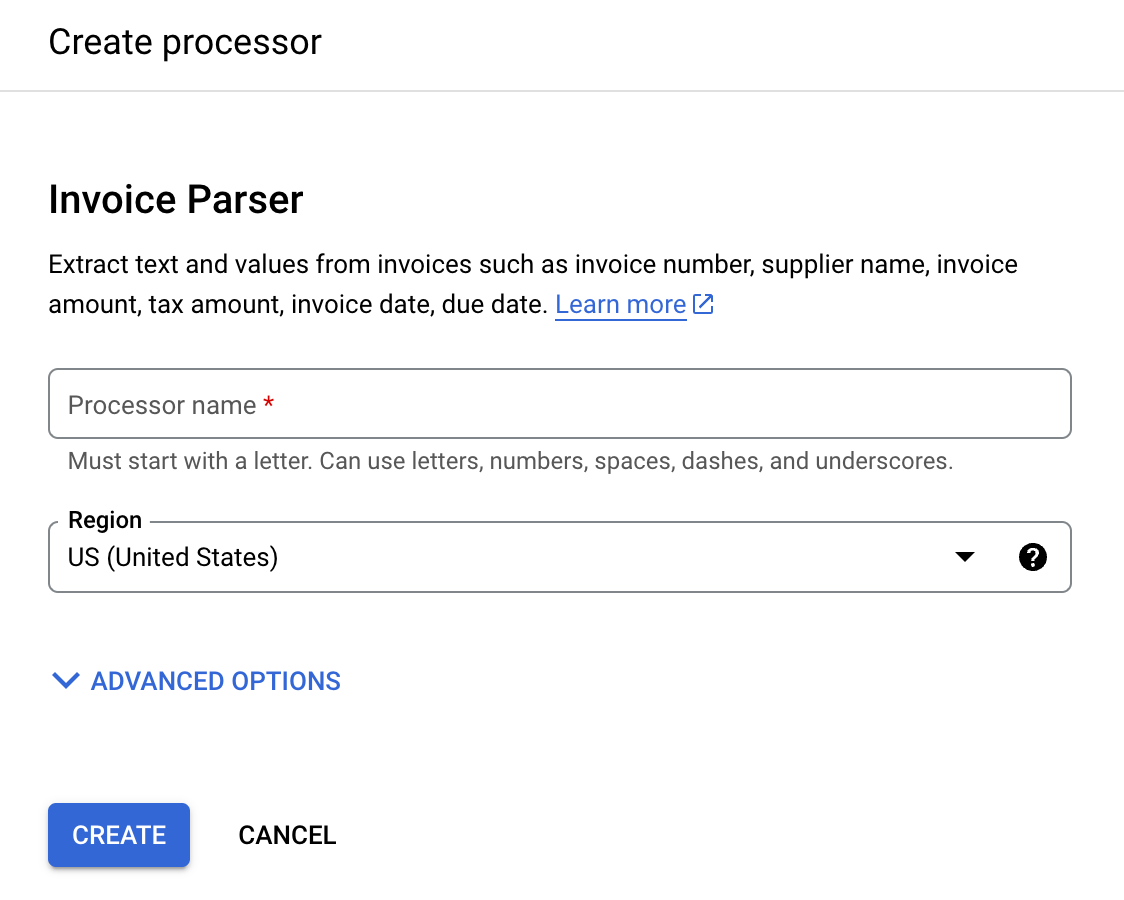
输入处理器名称,例如
workflows-invoice-processor。选择用于托管处理器的区域(在 Document AI API 中为
location)。点击创建。系统随即会显示处理器详情标签页。
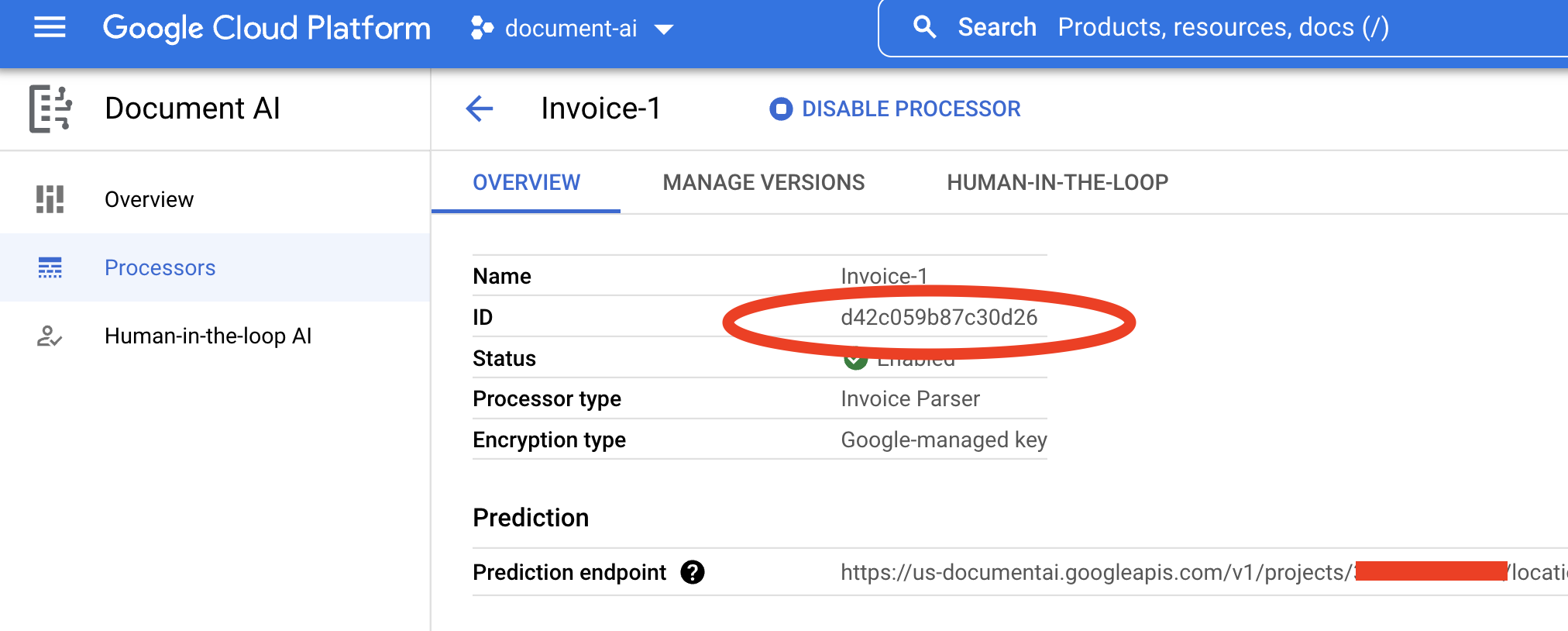
复制您的处理器 ID。您稍后在代码中会用到该 ID。
在 Cloud Storage 中配置输出存储桶
使用批处理(异步)时,输入和输出文件必须存储在 Cloud Storage 中。以下存储桶包含用作本指南输入的内容的示例文件:
gs://cloud-samples-data/documentai/workflows
配置存储桶以将输出文件存储在项目中。
创建工作流
在 Google Cloud 控制台中打开 Workflows 信息中心 。
点击
创建 ,以创建您的第一个工作流。系统会显示创建工作流 页面。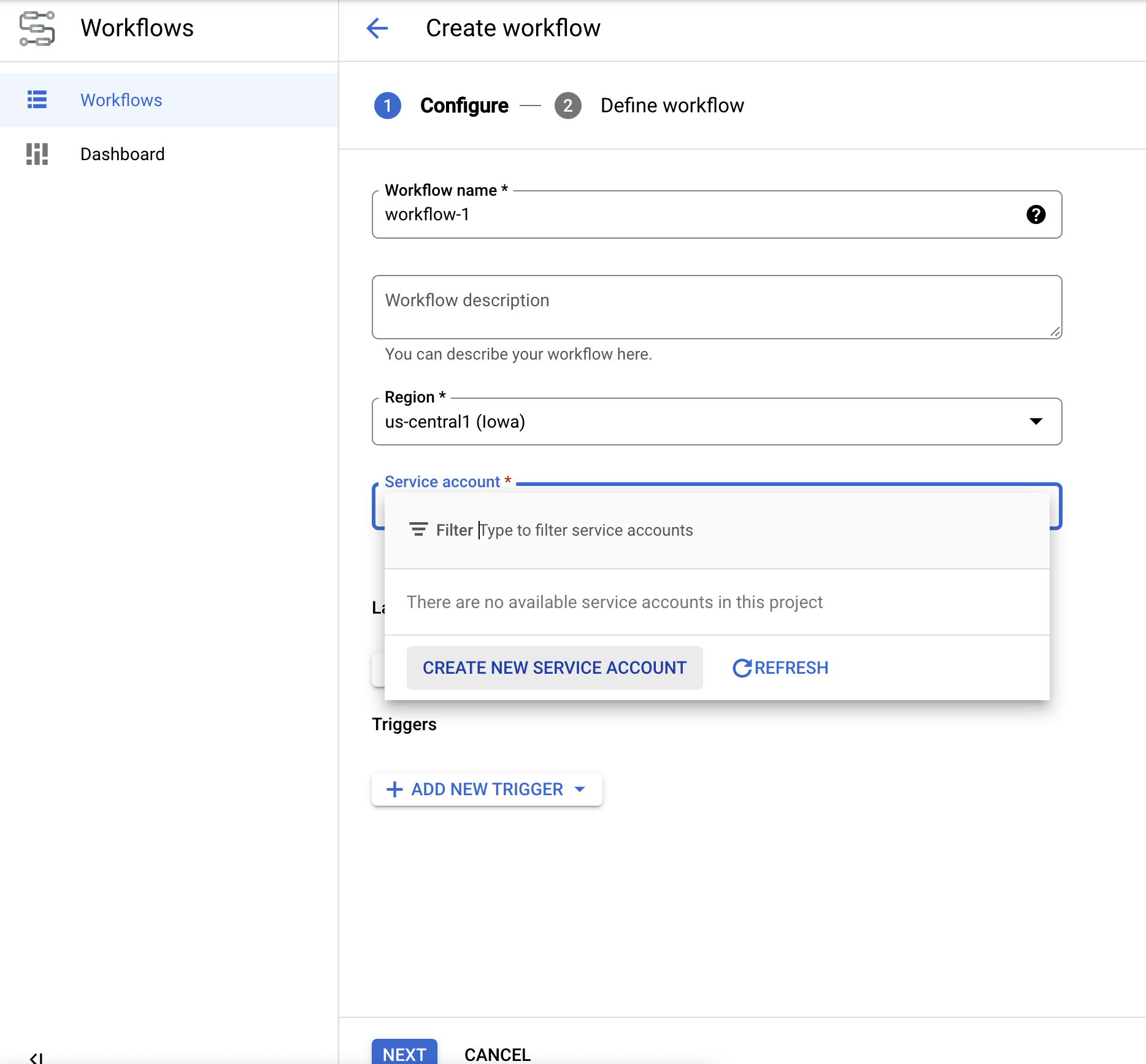
将工作流重命名 为docai-workflows-quickstart。添加说明,如果此项目有服务账号,请选择服务账号。
- 如果您没有服务帐号,请选择创建新的服务账号 。
- 为您的服务帐号指定一个名称,然后选择创建并继续 。
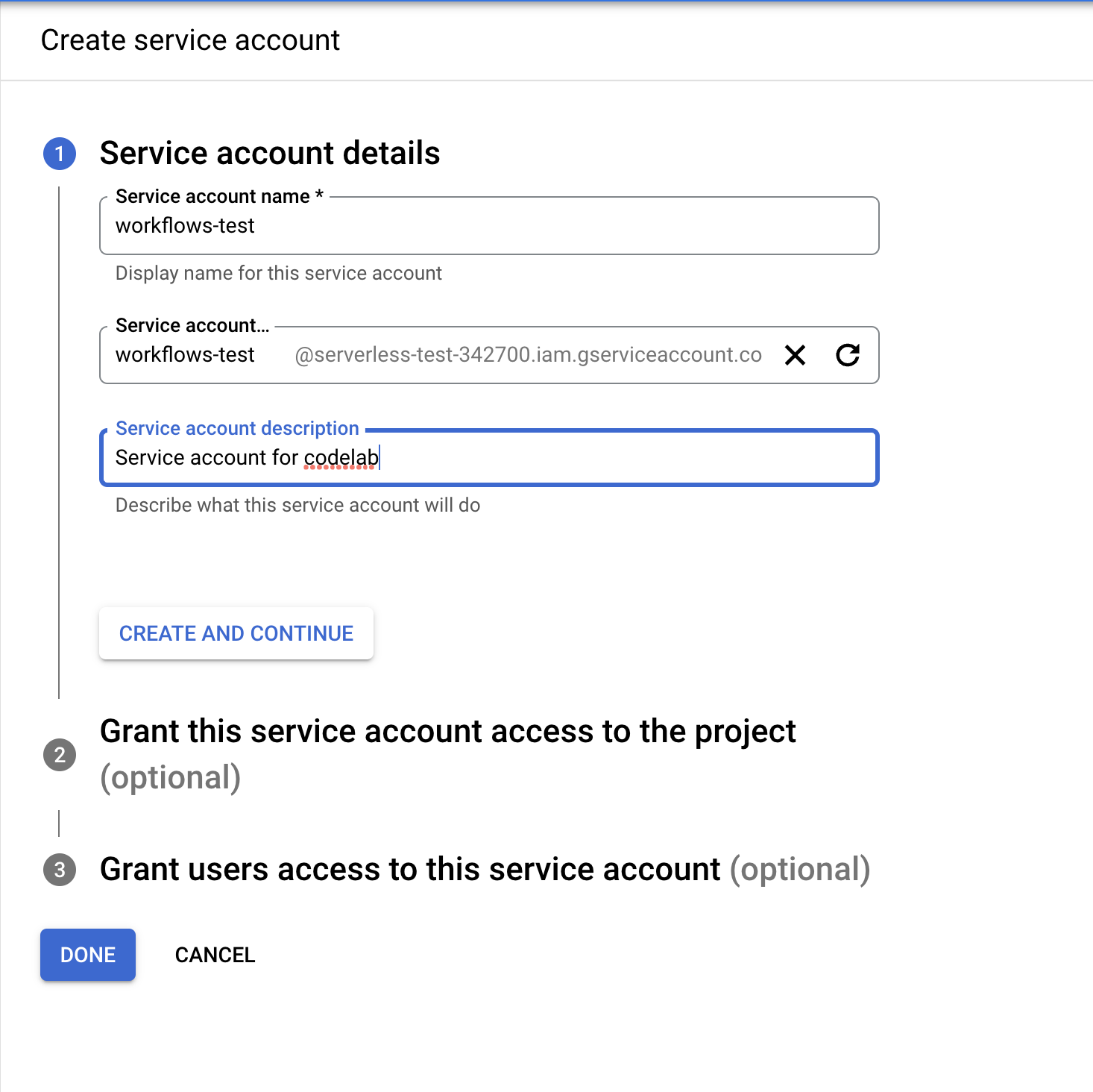
- 为其授予以下角色:
Document AI API UserWorkflows InvokerLogs WriterService Usage Consumer
- 为您的服务帐号指定一个名称,然后选择创建并继续 。
- 如果您没有服务帐号,请选择创建新的服务账号 。
在创建工作流 页面上,点击
下一步 。
定义工作流
在
Workflows 编辑器 中,清除默认的 YAML 文件内容并粘贴以下代码:main: params: [input] steps: - start: call: sys.log args: text: ${input} - vars: assign: - input_gcs_bucket: ${input.inputBucket} - output_gcs_bucket: ${input.outputBucket} - processor_id: ${input.processorId} - location: ${input.location} - project_id: ${sys.get_env("GOOGLE_CLOUD_PROJECT_ID")} - batch_process: call: googleapis.documentai.v1.projects.locations.processors.batchProcess args: name: ${"projects/" + project_id + "/locations/" + location + "/processors/" + processor_id} location: ${location} body: inputDocuments: gcsPrefix: gcsUriPrefix: ${input_gcs_bucket} documentOutputConfig: gcsOutputConfig: gcsUri: ${output_gcs_bucket} skipHumanReview: true result: batch_process_resp - return: return: ${batch_process_resp}
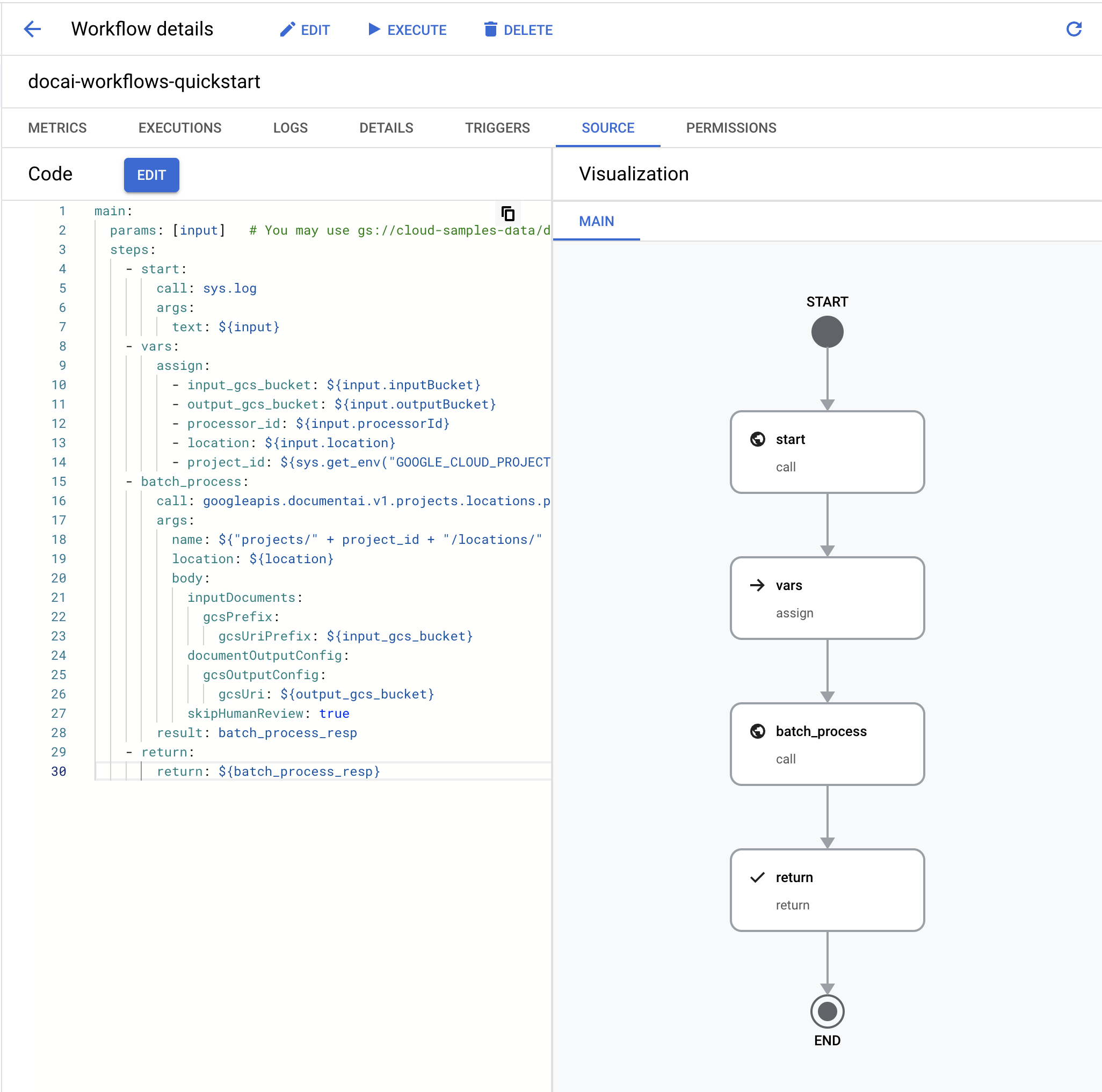
- 选择
部署 。
测试工作流
现在,工作流已部署,当前页面应该是工作流详情页面。
点击页面顶部的
执行 以进入执行工作流页面。通过此页面,您可以在控制台中测试工作流。替换以下输入 JSON 中的占位符变量:
- OUTPUT_BUCKET_PATH:之前创建的输出存储桶和文件夹的完整路径。
- PROCESSOR_ID:之前创建的处理器的 ID。
- LOCATION:之前创建的处理器的区域。
{
  "inputBucket": "gs://cloud-samples-data/documentai/workflows",
  "outputBucket": "OUTPUT_BUCKET_PATH",
  "processorId": "PROCESSOR_ID",
  "location": "LOCATION"
}
将 JSON 复制/粘贴到
输入文本框 中。点击工作流底部的
执行 以测试您的输入,然后等待该过程完成。工作流完成后,输出 JSON 应如下所示。
{
  "done": true,
  "metadata": {
    "@type": "type.googleapis.com/google.cloud.documentai.v1.BatchProcessMetadata",
    "createTime": "2023-02-24T18:31:18.521764Z",
    "individualProcessStatuses": [
      {
        "humanReviewStatus": {
          "state": "SKIPPED"
        },
        "inputGcsSource": "gs://cloud-samples-data/documentai/workflows/baking_technologies_invoice.pdf",
        "outputGcsDestination": "OUTPUT_BUCKET_PATH/11119195367705871803/0",
        "status": {}
      },
      {
        "humanReviewStatus": {
          "state": "SKIPPED"
        },
        "inputGcsSource": "gs://cloud-samples-data/documentai/workflows/generic_invoice.pdf",
        "outputGcsDestination": "OUTPUT_BUCKET_PATH/11119195367705871803/1",
        "status": {}
      },
      {
        "humanReviewStatus": {
          "state": "SKIPPED"
        },
        "inputGcsSource": "gs://cloud-samples-data/documentai/workflows/google_invoice.pdf",
        "outputGcsDestination": "OUTPUT_BUCKET_PATH/11119195367705871803/2",
        "status": {}
      }
    ],
    "state": "SUCCEEDED",
    "updateTime": "2023-02-24T18:31:52.543163Z"
  },
  "name": "projects/PROJECT_ID/locations/LOCATION/operations/11119195367705871803",
  "response": {
    "@type": "type.googleapis.com/google.cloud.documentai.v1.BatchProcessResponse"
  }
}
打开输出存储桶,您会看到在已按操作 ID 命名的文件夹中处理的每份账单的输出内容。

此文件夹中将有子文件夹,每个子文件夹对应于从包含
DocumentJSON 文件的输入批次处理的每个文档。您可以检查每个 JSON 文件,也可以编写代码为您的用例使用相关字段。如需了解详情,请参阅操作处理响应指南。
您现在可以在工作流中关联其他步骤,以进一步处理输出,例如将提取的实体插入数据库进行分析。
如需详细了解如何触发工作流,请参阅 Workflows 文档。
清理
为避免因本页中使用的资源导致您的 Google Cloud 账号产生费用,请按照以下步骤操作。
为避免产生不必要的 Google Cloud 费用,请使用 Google Cloud console 删除您不需要的处理器、存储桶、工作流和项目(如果不需要 )。
后续步骤
- 详细了解 Workflows
- 详细了解 Document AI Workflows 连接器
- 查看当前可用处理器的列表和说明。
- 了解如何处理处理响应。