


Guide de démarrage rapide de l'analyseur de mise en page
L'analyseur de mise en page vous permet d'extraire des éléments d'un document, tels que du texte, des tables et des listes.
Pour obtenir des instructions détaillées sur cette tâche directement dans la Google Cloud console, cliquez sur Visite guidée:
Avant de commencer
- Connectez-vous à votre Google Cloud compte. Si vous débutez sur Google Cloud, créez un compte pour évaluer les performances de nos produits en conditions réelles. Les nouveaux clients bénéficient également de 300 $ de crédits sans frais pour exécuter, tester et déployer des charges de travail.
-
In the Google Cloud console, on the project selector page, select or create a Google Cloud project.
Roles required to select or create a project
- Select a project: Selecting a project doesn't require a specific IAM role—you can select any project that you've been granted a role on.
-
Create a project: To create a project, you need the Project Creator role
(
roles/resourcemanager.projectCreator), which contains theresourcemanager.projects.createpermission. Learn how to grant roles.
-
Verify that billing is enabled for your Google Cloud project.
Enable the Document AI, Cloud Storage APIs, if any are not already enabled.
Roles required to enable APIs
To enable APIs, you need the
serviceusage.services.enablepermission. If you created the project, then you likely already have this permission through the Owner role (roles/owner). Otherwise, you can get this permission through the Service Usage Admin role (roles/serviceusage.serviceUsageAdmin). Learn how to grant roles.-
In the Google Cloud console, on the project selector page, select or create a Google Cloud project.
Roles required to select or create a project
- Select a project: Selecting a project doesn't require a specific IAM role—you can select any project that you've been granted a role on.
-
Create a project: To create a project, you need the Project Creator role
(
roles/resourcemanager.projectCreator), which contains theresourcemanager.projects.createpermission. Learn how to grant roles.
-
Verify that billing is enabled for your Google Cloud project.
Enable the Document AI, Cloud Storage APIs, if any are not already enabled.
Roles required to enable APIs
To enable APIs, you need the
serviceusage.services.enablepermission. If you created the project, then you likely already have this permission through the Owner role (roles/owner). Otherwise, you can get this permission through the Service Usage Admin role (roles/serviceusage.serviceUsageAdmin). Learn how to grant roles.
Créer un outil de traitement
Dans la Google Cloud console, dans la section Document AI, sélectionnez Galerie d'outils de traitement.
Dans la Galerie d'outils de traitement,
recherchez l'élément Analyseur de mise en page et sélectionnez Créer.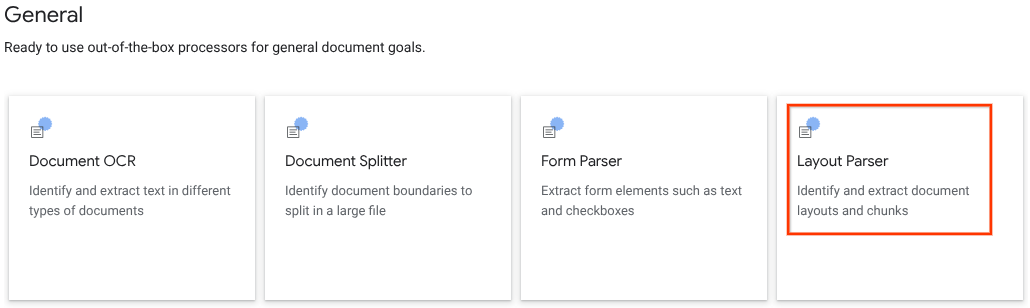
Dans la fenêtre latérale, saisissez un nom d'outil de traitement (par exemple
quickstart-layout-processor).Sélectionnez la région la plus proche de vous.
Cliquez sur Créer.
Vous êtes alors redirigé vers la page Détails de l'outil de traitement de votre nouvel analyseur de formulaires.
Facultatif : Sélectionnez un outil de traitement par défaut en cliquant sur
Gérer les versions , puis en sélectionnant un outil de traitement dans le tableau Versions. Cliquez ensuite surIdentifier comme option par défaut , puis confirmez en saisissant le nom de l'outil de traitement.
Tester l'outil de traitement
Après avoir créé votre outil de traitement, vous pouvez lui envoyer des requêtes d'annotation.
Cliquez sur le bouton
Importer un document de test , puis sélectionnez le document que vous venez de télécharger.La page Analyse des mises en page s'affiche. Vous pouvez afficher les blocs ou les fragments analysés à partir du document, organisés par types détectés.
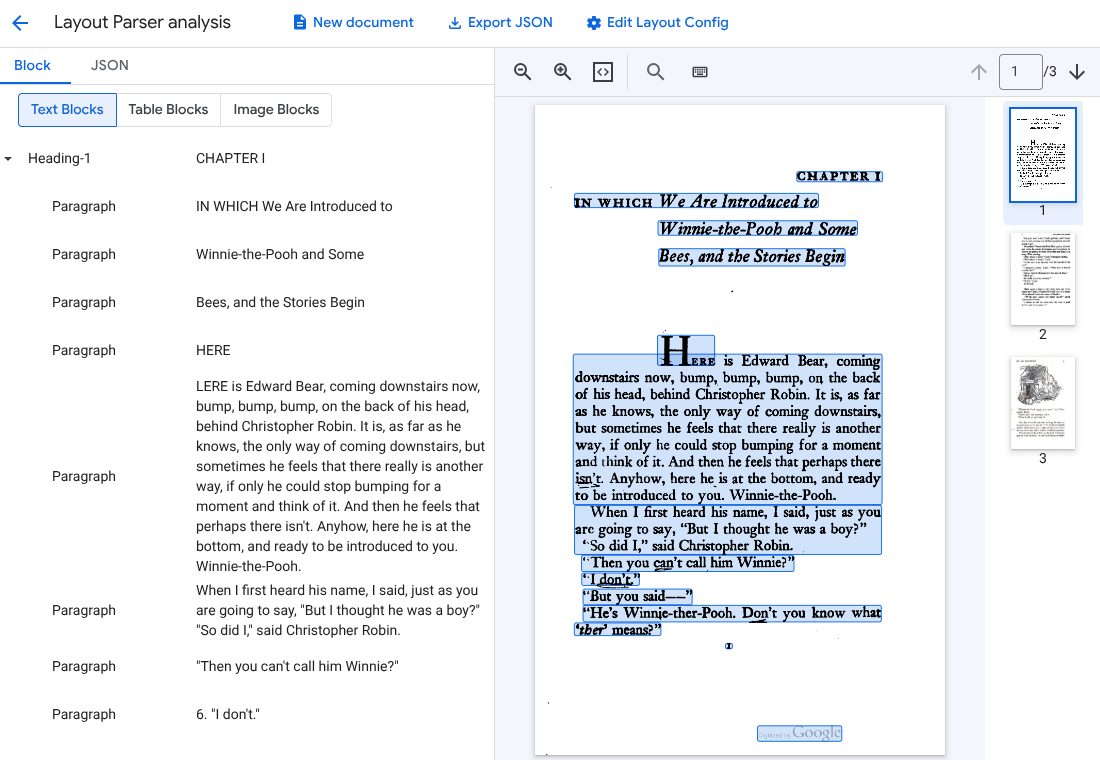
Facultatif : Sélectionnez
Modifier la configuration de la mise en page pour activer les données d'annotation d'images ou de tables.
Traiter un document
REST
Cet exemple montre comment envoyer un document stocké dans Cloud Storage à l'analyseur de mise en page pour traitement. Ce processus active l'annotation d'images et de tables par défaut.
REST
Avant d'utiliser les données de requête ci-dessous, effectuez les remplacements suivants :
- PROJECT_ID : ID de votre Google Cloud projet.
- LOCATION : emplacement de votre outil de traitement, par exemple :
us: États-Uniseu: Union européenne
application/pdf et text/html.Méthode HTTP et URL :
POST https://LOCATION-documentai.googleapis.com/v1beta3/projects/PROJECT_ID/locations/LOCATION/processors/PROCESSOR_ID/processorVersions/pretrained-layout-parser-v1.5-2025-08-25:process
Corps JSON de la requête :
{
  "gcsDocument": {
    "gcsUri": "GCS_FILE_PATH",
    "mimeType": "MIME_TYPE"
  },
  "processOptions": {
    "layoutConfig": {
      "enableTableAnnotation": "true",
      "enableImageAnnotation": "true",
      "chunkingConfig": {
        "chunkSize": "CHUNK_SIZE",
        "includeAncestorHeadings": "INCLUDE_ANCESTOR_HEADINGS",
      }
    }
  }
}
Pour envoyer votre requête, choisissez l'une des options suivantes :
curl
Enregistrez le corps de la requête dans un fichier nommé request.json, puis exécutez la commande suivante :
curl -X POST \
     -H "Authorization: Bearer $(gcloud auth print-access-token)" \
     -H "Content-Type: application/json; charset=utf-8" \
     -d @request.json \
     "https://LOCATION-documentai.googleapis.com/v1beta3/projects/PROJECT_ID/locations/LOCATION/processors/PROCESSOR_ID/processorVersions/pretrained-layout-parser-v1.5-2025-08-25:process"
PowerShell
Enregistrez le corps de la requête dans un fichier nommé request.json, puis exécutez la commande suivante :
$cred = gcloud auth print-access-token
$headers = @{ "Authorization" = "Bearer $cred" }

Invoke-WebRequest `
    -Method POST `
    -Headers $headers `
    -ContentType: "application/json; charset=utf-8" `
    -InFile request.json `
    -Uri "https://LOCATION-documentai.googleapis.com/v1beta3/projects/PROJECT_ID/locations/LOCATION/processors/PROCESSOR_ID/processorVersions/pretrained-layout-parser-v1.5-2025-08-25:process" | Select-Object -Expand Content
Vous devriez recevoir un code d'état indiquant le succès de l'opération (2xx), ainsi qu'une réponse vide.
Examiner le résultat
Si la requête aboutit, elle renvoie un objet de document au format JSON. Les champs les plus importants pour la génération augmentée par récupération (RAG) sont document.chunked_document.chunks.
Voici le formulaire de sortie de l'analyse de la troisième page de "Winnie l'ourson" d'Alan Alexander Milne.
{
  "document": {
  document_layout {
    blocks {
      block_id: "1"
      text_block {
        text: "WE ARE INTRODUCED 3"
        type_: "header"
      }
      page_span {
        page_start: 1
        page_end: 1
      }
    }
    blocks {
      block_id: "2"
      page_span {
        page_start: 1
        page_end: 1
      }
      image_block {
        mime_type: "image/png"
        annotations {
          description: "This is an ink drawing depicting Winnie-the-Pooh sitting outside his house.\n\nHere are the facts and conclusions that can be derived from the image:\n\n*   **Character:** The central figure is a bear, identifiable as Winnie-the-Pooh, sitting on a log.\n*   **Location:** He is positioned outside what appears to be a small, rustic shelter or house.\n*   **Signage:** Above the doorway of the shelter, there is a sign that reads \"MR SANDERZ\". Below this sign, there is another partial sign visible, where the letters \"RNIG\" and \"ALSO\" can be seen.\n*   **Doorbell:** To the left of the doorway, a bell is hanging, indicating a doorbell mechanism.\n*   **Setting:** The dwelling is surrounded by what looks like brush, trees, and general wilderness, suggested by the lines representing foliage and twigs.\n*   **Log:** Pooh is seated on a cut log or tree trunk. To the left of this log, there are other smaller logs or branches piled up.\n*   **Style:** The image is a black and white line drawing, characteristic of classic book illustrations."
        }
        blob_asset_id: "blob_1"
      }
    }
    blocks {
      block_id: "3"
      text_block {
        text: ""Winnie-the-Pooh wasn't quite sure," said Christopher Robin. "Now I am," said a growly voice. "Then I will go on,"said I.) One day when he was out walking, he came to an open place in the middle of the forest, and in the middle of this place was a large oak-tree, and, from the top of the tree, there came a loud buzzing-noise. Winnie-the-Pooh sat down at the foot of the tree,put his head between his paws and began to think."
        type_: "paragraph"
      }
      page_span {
        page_start: 1
        page_end: 1
      }
    }
    blocks {
      block_id: "4"
      text_block {
        text: "Digitized by Google"
        type_: "footer"
      }
      page_span {
        page_start: 1
        page_end: 1
      }
    }
  }
  chunked_document {
    chunks {
      chunk_id: "c1"
      source_block_ids: "2"
      source_block_ids: "3"
      content: "__START_OF_ANNOTATION__This is an ink drawing depicting Winnie-the-Pooh sitting outside his house.\n\nHere are the facts and conclusions that can be derived from the image:\n\n*   **Character:** The central figure is a bear, identifiable as Winnie-the-Pooh, sitting on a log.\n*   **Location:** He is positioned outside what appears to be a small, rustic shelter or house.\n*   **Signage:** Above the doorway of the shelter, there is a sign that reads \"MR SANDERZ\". Below this sign, there is another partial sign visible, where the letters \"RNIG\" and \"ALSO\" can be seen.\n*   **Doorbell:** To the left of the doorway, a bell is hanging, indicating a doorbell mechanism.\n*   **Setting:** The dwelling is surrounded by what looks like brush, trees, and general wilderness, suggested by the lines representing foliage and twigs.\n*   **Log:** Pooh is seated on a cut log or tree trunk. To the left of this log, there are other smaller logs or branches piled up.\n*   **Style:** The image is a black and white line drawing, characteristic of classic book illustrations.__END_OF_ANNOTATION__"Winnie-the-Pooh wasn't quite sure," said Christopher Robin. "Now I am," said a growly voice. "Then I will go on," said I.) One day when he was out walking, he came to an open place in the middle of the forest, and in the middle of this place was a large oak-tree, and, from the top of the tree, there came a loud buzzing-noise. Winnie-the-Pooh sat down at the foot of the tree,put his head between his paws and began to think."
      page_span {
        page_start: 1
        page_end: 1
      }
      page_headers {
        text: "WE ARE INTRODUCED 3"
        page_span {
          page_start: 1
          page_end: 1
        }
      }
      page_footers {
        text: "Digitized by Google"
        page_span {
          page_start: 1
          page_end: 1
        }
      }
      chunk_fields {
        image_chunk_field {
          blob_asset_id: "blob_1"
          annotations {
            description: "This is an ink drawing depicting Winnie-the-Pooh sitting outside his house.\n\nHere are the facts and conclusions that can be derived from the image:\n\n*   **Character:** The central figure is a bear, identifiable as Winnie-the-Pooh, sitting on a log.\n*   **Location:** He is positioned outside what appears to be a small, rustic shelter or house.\n*   **Signage:** Above the doorway of the shelter, there is a sign that reads \"MR SANDERZ\". Below this sign, there is another partial sign visible, where the letters \"RNIG\" and \"ALSO\" can be seen.\n*   **Doorbell:** To the left of the doorway, a bell is hanging, indicating a doorbell mechanism.\n*   **Setting:** The dwelling is surrounded by what looks like brush, trees, and general wilderness, suggested by the lines representing foliage and twigs.\n*   **Log:** Pooh is seated on a cut log or tree trunk. To the left of this log, there are other smaller logs or branches piled up.\n*   **Style:** The image is a black and white line drawing, characteristic of classic book illustrations."
          }
        }
      }
    }
  }
  blob_assets {
    asset_id: "blob_1"
    content: "image_bytes"
    mime_type: "image/png"
  }
}
Python
Ce guide explique comment utiliser la bibliothèque cliente Python pour traiter un document. L'utilisation de ce code active l'annotation d'images et de tables par défaut.
Installez la bibliothèque cliente.
! pip install --upgrade --quiet google-cloud-documentaiExécutez l'outil de traitement.
def process_layout_parser(
    project_id: str, location: str, processor_id: str, gcs_uri: str, mime_type: str
):
    """
    Processes a document with the layout parser and prints chunk text.
    """
    client = documentai.DocumentProcessorServiceClient()

    # The full resource name of the processor
    processor_version_id = 'pretrained-layout-parser-v1.5-2025-08-25'
    name = client.processor_path(project_id, location, processor_id, processor_version_id)

    # Configure the Cloud Storage document
    gcs_document = documentai.GcsDocument(gcs_uri=gcs_uri, mime_type=mime_type)

    # Configure processing options for RAG
    # This enables annotation and context-aware chunking.
    process_options = documentai.ProcessOptions(
      # Process only specific pages
      layout_config=documentai.ProcessOptions.LayoutConfig(
          enable_table_annotation=True,
          enable_image_annotation=True,
          chunking_config=documentai.ProcessOptions.LayoutConfig.ChunkingConfig(
        chunk_size=1024,
        include_ancestor_headings=True,
          ),
      ),
  )

    # Build the request
    request = documentai.ProcessRequest(
        name=name,
        gcs_document=gcs_document,
        process_options=process_options,
    )

    # Process the document
    result = client.process_document(request=request)
    document = result.document

    print(f"Document processing complete.\n")

    print("--- RAG-Ready Chunks (with context) ---")
    for i, chunk in enumerate(document.chunked_document.chunks):
        print(f"\n--- Chunk {i} ---")

        # Print the chunk's content
        print(f"Text: {chunk.content}")
    return result
Traiter des documents par lot avec l'analyseur de mise en page
Procédez comme suit pour analyser et fragmenter plusieurs documents dans une seule requête.
Saisissez des documents dans l'analyseur de mise en page pour les analyser et les fragmenter.
Suivez les instructions concernant les requêtes de traitement par lot dans Envoyer une requête de traitement request.
Configurez les champs dans
ProcessOptions.layoutConfiglorsque vous effectuez unebatchProcessrequête.Entrée
L'exemple JSON suivant configure
ProcessOptions.layoutConfig."processOptions": { "layoutConfig": { "enableTableAnnotation": "true", "enableImageAnnotation": "true", "chunkingConfig": { "chunkSize": "CHUNK_SIZE", "includeAncestorHeadings": "INCLUDE_ANCESTOR_HEADINGS_BOOLEAN" } } }Remplacez les éléments suivants :
CHUNK_SIZE: taille maximale des fragments, en nombre de jetons, à utiliser lors de la division des documents.INCLUDE_ANCESTOR_HEADINGS_BOOLEAN: indique si les titres ancêtres doivent être inclus lors de la division des documents. Les titres ancêtres sont les parents des sous-titres dans le document d'origine. Ils peuvent fournir à un fragment un contexte supplémentaire sur sa position dans le document d'origine. Jusqu'à deux niveaux de titres peuvent être inclus dans un fragment.
Libérer de l'espace
Pour éviter que les ressources utilisées dans cette démonstration soient facturées sur votre Google Cloud compte pour les ressources utilisées sur cette page, procédez comme suit :
Pour éviter des frais inutiles Google Cloud , supprimez votre processeur et votre projet à l'aide de Google Cloud console si vous n'en avez plus besoin.
Si vous avez créé un projet pour apprendre à utiliser Document AI et que vous n'en avez plus besoin, supprimez-le, [supprimer le projet][delete-project].
Si vous avez utilisé un projet Google Cloud existant, supprimez les ressources que vous avez créées pour éviter que des frais ne soient facturés sur votre compte :
Dans le Google Cloud menu de navigation de la console, sélectionnez Document AI et sélectionnez Mes processeurs.
Sur la ligne correspondant à l'outil de traitement que vous souhaitez supprimer, sélectionnez
Autres actions .Sélectionnez Supprimer le processeur, saisissez son nom, puis sélectionnez à nouveau Supprimer pour confirmer.
Étape suivante
Pour en savoir plus, consultez les Guides.