


Membuat fitur ringkasan dokumen di Google Cloud konsol
Anda dapat membuat pemroses ringkasan menggunakan Document AI untuk meringkas konten dokumen. Output dapat disesuaikan berdasarkan panjang dan format.
Berikut adalah contoh output JSON dari entity yang dihasilkan:
{
  "type": "summary",
  "mentionText": " Superconductivity is a phenomenon in which a material conducts
  electricity with no resistance. It was discovered in 1911 by Dutch physicist Heike
  Kamerlingh Onnes. In 1986, a new class of materials was discovered that can superconduct
  at much higher temperatures. These materials are called high-temperature superconductors.
  They have the potential to revolutionize the way we use electricity. However,
  high-temperature superconductors are still very expensive to produce. Scientists
  are working on ways to make them more affordable.",
  "normalizedValue": {
    "text": " Superconductivity is a phenomenon in which a material conducts
    electricity with no resistance. It was discovered in 1911 by Dutch physicist
    Heike Kamerlingh Onnes. In 1986, a new class of materials was discovered that
    can superconduct at much higher temperatures. These materials are called
    high-temperature superconductors. They have the potential to revolutionize
    the way we use electricity. However, high-temperature superconductors are
    still very expensive to produce. Scientists are working on ways to make
    them more affordable."
  }
}
Prosedur
Dalam panduan memulai ini, Anda akan membuat pemroses ringkasan dokumen, mengupload dokumen contoh untuk diproses, dan membuat versi pemroses kustom untuk menyesuaikan struktur ringkasan.
Untuk mengikuti panduan langkah demi langkah untuk tugas ini langsung di Google Cloud konsol, klik Pandu saya:
Sebelum memulai
- Login ke akun Google Cloud Anda. Jika Anda baru menggunakan Google Cloud, buat akun untuk mengevaluasi performa produk kami dalam skenario dunia nyata. Pelanggan baru juga mendapatkan kredit gratis senilai $300 untuk menjalankan, menguji, dan men-deploy workload.
-
In the Google Cloud console, on the project selector page, select or create a Google Cloud project.
Roles required to select or create a project
- Select a project: Selecting a project doesn't require a specific IAM role—you can select any project that you've been granted a role on.
-
Create a project: To create a project, you need the Project Creator role
(
roles/resourcemanager.projectCreator), which contains theresourcemanager.projects.createpermission. Learn how to grant roles.
-
If you're using an existing project for this guide, verify that you have the permissions required to complete this guide. If you created a new project, then you already have the required permissions.
-
Verify that billing is enabled for your Google Cloud project.
Enable the Document AI, Cloud Storage APIs.
Roles required to enable APIs
To enable APIs, you need the Service Usage Admin IAM role (
roles/serviceusage.serviceUsageAdmin), which contains theserviceusage.services.enablepermission. Learn how to grant roles.-
In the Google Cloud console, on the project selector page, select or create a Google Cloud project.
Roles required to select or create a project
- Select a project: Selecting a project doesn't require a specific IAM role—you can select any project that you've been granted a role on.
-
Create a project: To create a project, you need the Project Creator role
(
roles/resourcemanager.projectCreator), which contains theresourcemanager.projects.createpermission. Learn how to grant roles.
-
If you're using an existing project for this guide, verify that you have the permissions required to complete this guide. If you created a new project, then you already have the required permissions.
-
Verify that billing is enabled for your Google Cloud project.
Enable the Document AI, Cloud Storage APIs.
Roles required to enable APIs
To enable APIs, you need the Service Usage Admin IAM role (
roles/serviceusage.serviceUsageAdmin), which contains theserviceusage.services.enablepermission. Learn how to grant roles.
Peran yang diperlukan
Untuk mendapatkan izin yang diperlukan guna membuat fitur ringkasan dokumen, minta administrator untuk memberi Anda peran IAM Administrator Document AI (roles/documentai.admin) di project Anda.
Untuk mengetahui informasi selengkapnya tentang cara memberikan peran, lihat Mengelola akses ke project, folder, dan organisasi.
Anda mungkin juga bisa mendapatkan izin yang diperlukan melalui peran khusus atau peran bawaan lainnya.
Membuat pemroses ringkasan
Gunakan Google Cloud konsol untuk membuat pemroses ringkasan. Lihat membuat dan mengelola pemroses untuk mengetahui informasi selengkapnya.
Di Google Cloud konsol, di bagian Document AI, buka halaman Workbench.
Untuk Summarizer, pilih
Create processor .
Di menu Create processor, masukkan nama untuk pemroses Anda, seperti
quickstart-summarizer.Pilih wilayah yang paling dekat dengan Anda.
Pilih Create.
Pemroses Anda kini telah dibuat.
Menguji Pemroses
Anda berada di halaman Processor overview dari pemroses yang baru saja Anda buat.

Pilih di tab
Customize & build untuk bereksperimen dengan pemroses.
-
Dokumen ini adalah file PDF yang berisi halaman Wikipedia untuk Superconductivity.
Pilih
Upload Test Document , lalu pilih dokumen yang baru saja Anda download.Anda sekarang berada di halaman Summary. Anda dapat melihat teks yang terdeteksi OCR dan ringkasan dokumen.
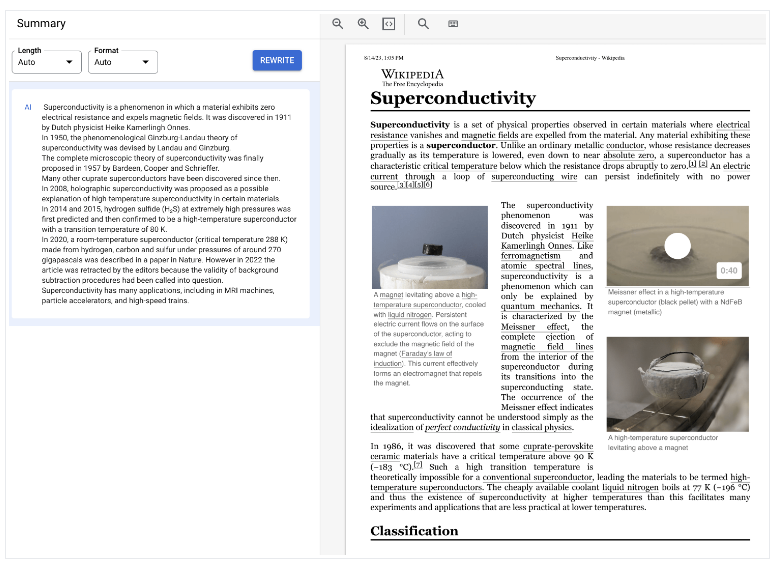
Sesuaikan setelan
Length and Format ke Moderate dan Bulleted, lalu pilih Rewrite dan amati hasilnya.Kembali ke halaman Customize &build.
Men-deploy versi pemroses
Jika ingin menggunakan setelan ringkasan tertentu saat memproses dokumen dengan API, buat versi pemroses untuk setelan tersebut.
Setelan ringkasan ditetapkan ke nilai terakhir yang Anda gunakan di halaman sebelumnya.Pilih
Create New Version untuk membuat versi pemroses dengan Summarization settings yang ditentukan.Masukkan nama untuk versi pemroses, seperti
quickstart-moderate-bulleted, lalu pilih Create Version.Buka tab
Deploy & Use untuk melihat status deployment. Deployment memerlukan waktu beberapa menit.Setelah versi di-deploy, Anda dapat menetapkannya sebagai
Default version , atau Anda dapat memberikan ID versi saat memproses dokumen dengan API.Untuk menggunakan Document AI API:
- Ikuti contoh kode di mengirim permintaan pemrosesan untuk menggunakan pemrosesan online dan batch.
- Lihat Kuota dan batas untuk mengetahui jumlah halaman yang didukung untuk pemrosesan online dan batch.
- Ikuti contoh kode di Menangani respons pemrosesan untuk mendapatkan respons ringkasan dari pemroses.
- Ikuti contoh kode di mengirim permintaan pemrosesan untuk menggunakan pemrosesan online dan batch.
Anda telah berhasil menggunakan Document AI untuk mengekstrak teks dari dokumen dan meringkasnya.
Pembersihan
Agar akunAnda tidak dikenai biaya untuk resource yang digunakan pada halaman ini, ikuti langkah-langkah berikut. Google Cloud
Untuk menghindari tagihan Google Cloud yang tidak perlu, gunakan Google Cloud console untuk menghapus pemroses dan menghapus project Anda jika tidak lagi diperlukan.