


在 Google Cloud 控制台中创建流水线和发布版本
本页介绍了如何使用 Google Cloud 控制台创建 Cloud Deploy 交付流水线,然后为该流水线创建发布版本。
在本快速入门中,您将执行以下操作:
准备工作
- 登录您的 Google Cloud 账号。如果您是 Google Cloud新手,请 创建一个账号来评估我们的产品在实际场景中的表现。新客户还可获享 $300 赠金,用于运行、测试和部署工作负载。
-
In the Google Cloud console, on the project selector page, select or create a Google Cloud project.
Roles required to select or create a project
- Select a project: Selecting a project doesn't require a specific IAM role—you can select any project that you've been granted a role on.
-
Create a project: To create a project, you need the Project Creator role
(
roles/resourcemanager.projectCreator), which contains theresourcemanager.projects.createpermission. Learn how to grant roles.
-
Verify that billing is enabled for your Google Cloud project.
Enable the Cloud Deploy, Cloud Build, GKE, Artifact Registry, Cloud Run, and Cloud Storage APIs, if any are not already enabled.
Roles required to enable APIs
To enable APIs, you need the
serviceusage.services.enablepermission. If you created the project, then you likely already have this permission through the Owner role (roles/owner). Otherwise, you can get this permission through the Service Usage Admin role (roles/serviceusage.serviceUsageAdmin). Learn how to grant roles.-
Install the Google Cloud CLI.
-
If you're using an external identity provider (IdP), you must first sign in to the gcloud CLI with your federated identity.
-
To initialize the gcloud CLI, run the following command:
gcloud init -
In the Google Cloud console, on the project selector page, select or create a Google Cloud project.
Roles required to select or create a project
- Select a project: Selecting a project doesn't require a specific IAM role—you can select any project that you've been granted a role on.
-
Create a project: To create a project, you need the Project Creator role
(
roles/resourcemanager.projectCreator), which contains theresourcemanager.projects.createpermission. Learn how to grant roles.
-
Verify that billing is enabled for your Google Cloud project.
Enable the Cloud Deploy, Cloud Build, GKE, Artifact Registry, Cloud Run, and Cloud Storage APIs, if any are not already enabled.
Roles required to enable APIs
To enable APIs, you need the
serviceusage.services.enablepermission. If you created the project, then you likely already have this permission through the Owner role (roles/owner). Otherwise, you can get this permission through the Service Usage Admin role (roles/serviceusage.serviceUsageAdmin). Learn how to grant roles.-
Install the Google Cloud CLI.
-
If you're using an external identity provider (IdP), you must first sign in to the gcloud CLI with your federated identity.
-
To initialize the gcloud CLI, run the following command:
gcloud init
如果您已安装 CLI,请确保您运行的是最新版本:
gcloud components update
创建运行时环境
如果您要部署到 Cloud Run,可以跳过此命令。
对于 GKE,使用默认设置创建两个集群:quickstart-cluster-for-console-staging 和 quickstart-cluster-for-console-prod。集群的 Kubernetes API 端点必须可通过公共互联网访问。默认情况下,GKE 集群可从外部访问。
gcloud container clusters create-auto quickstart-cluster-for-console-staging \
                 --project=PROJECT_ID \
                 --region=us-central1 && \
gcloud container clusters create-auto quickstart-cluster-for-console-prod \
                 --project=PROJECT_ID \
                 --region=us-central1
创建交付流水线和两个目标
您可以使用 Cloud Deploy 基于一个或多个 YAML 文件中指定的配置创建交付流水线和目标。不过,您也可以使用 Google Cloud 控制台创建交付流水线。
在本部分中,您将使用 Google Cloud 控制台创建交付流水线和两个目标。使用 Google Cloud 控制台时,您无需创建任何 YAML 文件;Cloud Deploy 会为您创建 skaffold.yaml 和清单。
在 Google Cloud 控制台中,前往 Cloud Deploy 主页面。
点击创建
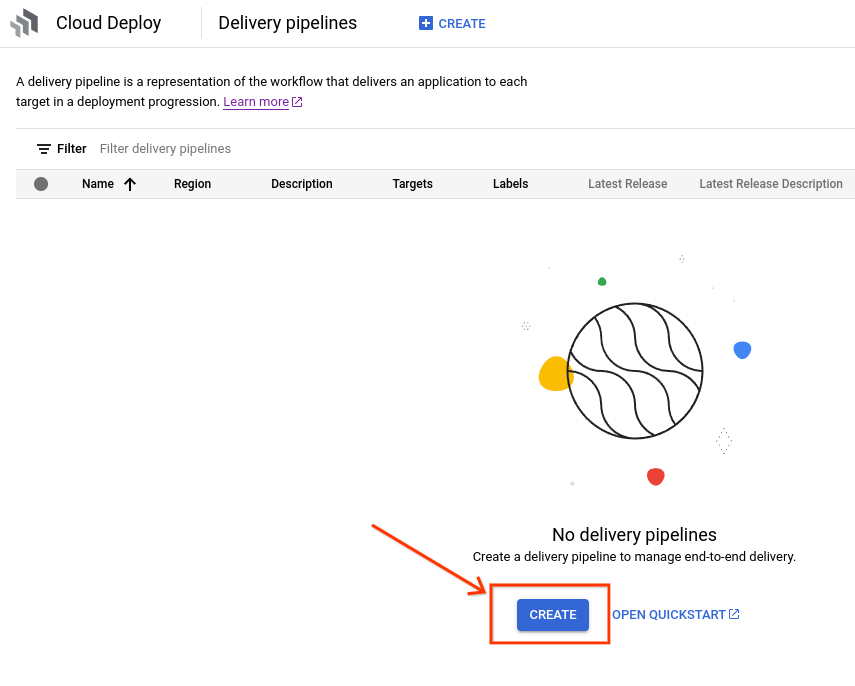
系统随即会显示创建交付流水线表单。
在流水线名称字段中,将默认文本替换为
in-console-quickstart-pipeline。(可选)输入此交付流水线的说明。
在区域下拉列表中,选择
us-central1。选择运行时。
如果您要部署到 GKE,请选择 Google Kubernetes Engine。否则,请选择 Cloud Run。
创建目标:
GKE
在新目标下的目标名称字段中,将默认文本替换为
console-staging。在 Kubernetes Engine 集群下拉菜单中,选择
quickstart-cluster-for-console-staging。点击完成。
点击添加目标。
将目标名称的默认文本替换为
console-prod。从 Kubernetes Engine 集群下拉菜单中选择
quickstart-cluster-for-console-prod。选择需要获得批准才能发布。
在此快速入门中,我们要求批准第二个目标,但不要求批准第一个目标。
点击创建以创建此交付流水线。

Cloud Run
在新目标下的目标名称字段中,将默认文本替换为
console-staging。从区域下拉菜单中,选择
us-central1。点击完成。
点击添加目标。
将目标名称的默认文本替换为
console-prod。为此目标启用需要获得批准才能发布复选框。
在此快速入门中,我们要求批准第二个目标,但不要求批准第一个目标。
点击创建以创建此交付流水线。

现在,您已经有了一条包含两个目标的交付流水线,可以创建发布版本了。
系统会显示流水线的页面,其中显示了两个目标,但没有推出。
创建版本
现在,您已经有了一条包含两个目标(指向两个 GKE 集群或两个 Cloud Run 服务)的交付流水线,可以创建版本,将应用部署到第一个目标了。
如果您尚未前往显示新交付流水线
in-console-quickstart-pipeline的交付流水线页面,请立即前往该页面。系统会显示流水线直观显示效果,但其中没有发布作业。
点击创建版本按钮。
系统会显示创建版本对话框。大多数字段都已预先填充。保留这些默认值。
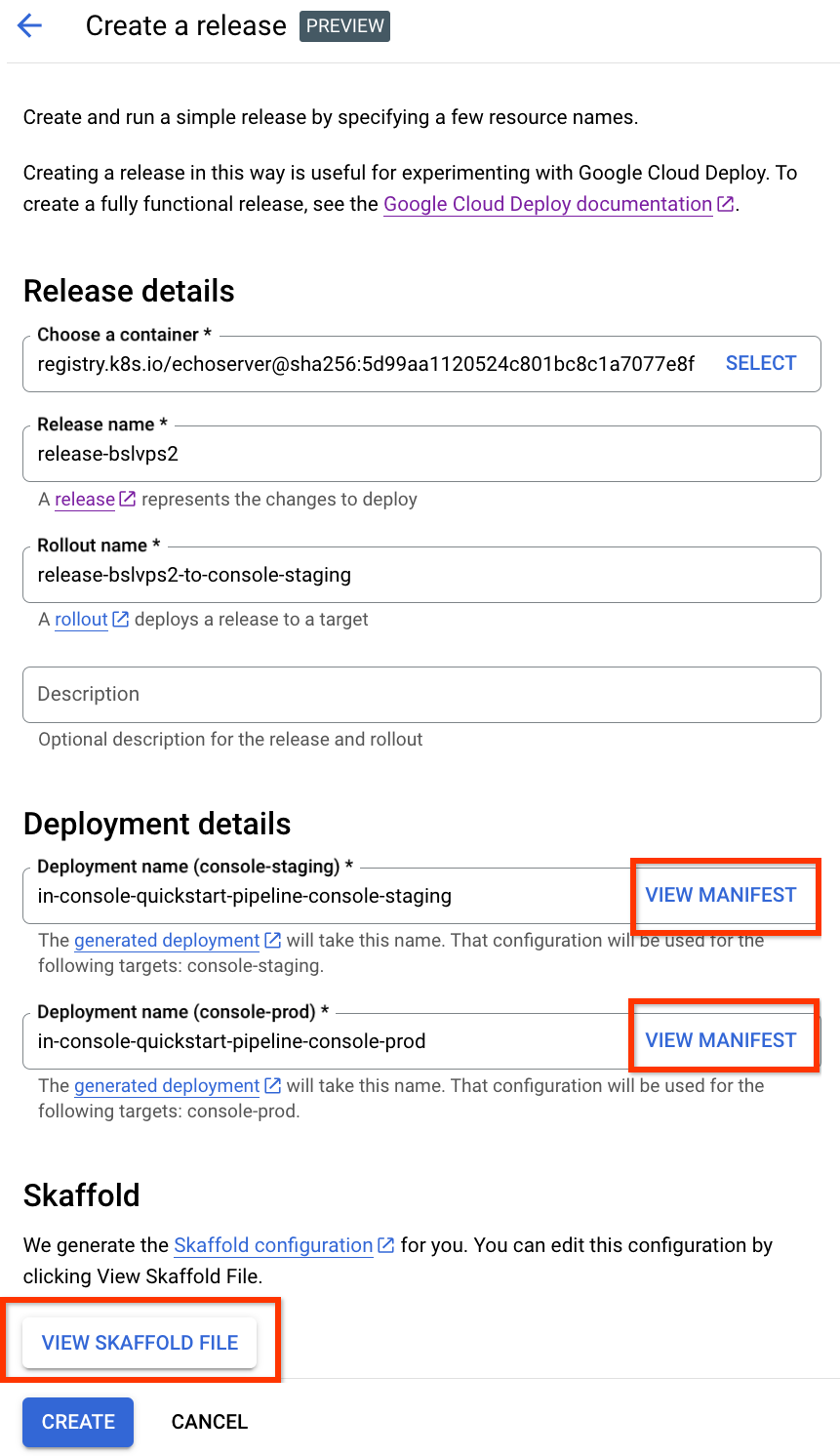
您可以点击查看清单按钮查看自动生成的清单(针对任一目标),也可以点击查看 Skaffold 文件查看生成的
skaffold.yaml。您也可以修改这些设置,但对于本快速入门,请保留这些设置。您可以选择在说明字段中为此版本添加说明。
点击创建以开始发布。
系统会显示发布详情页面,其中包含向第一个目标进行的发布,您可以查看此发布的进度。这需要几分钟才能完成。部署可能需要几秒钟才能开始。
首次发布完成后,点击交付流水线名称前往交付流水线页面。

系统会显示流水线直观显示效果,并显示向第一个目标完成发布。
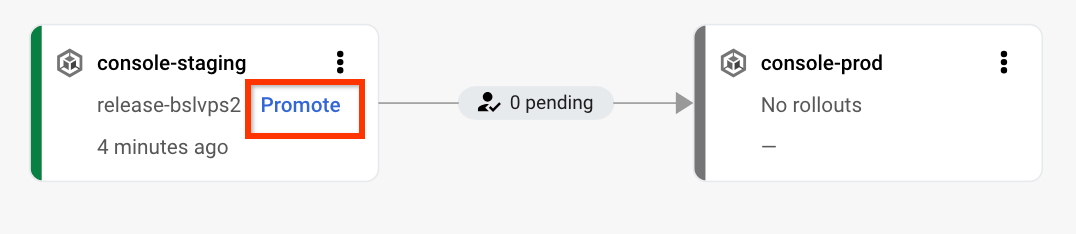
点击提升即可开始向下一个目标推出。
系统会显示提升对话框。
保留默认值,根据需要添加发布说明,然后点击推广。
由于我们在创建第二个目标时选择了需要批准才能发布,因此此升迁作业正在等待批准。
在交付流水线可视化图表中,点击审核。
系统会显示审批页面。

再次点击查看,然后在审批对话框中点击批准。
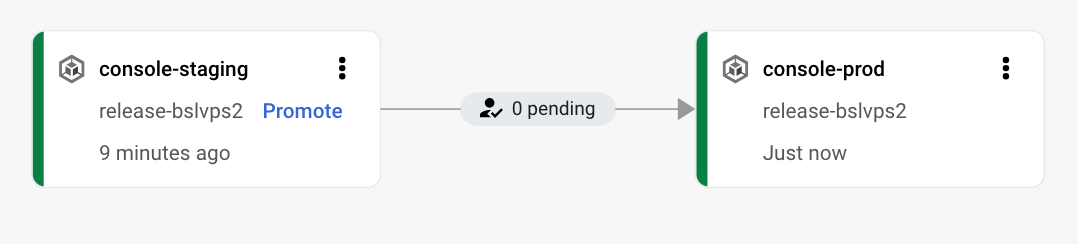
系统会开始向第二个目标群体推出版本。您可以再次点击交付流水线名称,在流水线可视化视图中查看进度。
当第二次发布完成后,应用会部署在第二个目标中,并且交付流水线已完成。
清理
为避免因本页中使用的资源导致您的 Google Cloud 账号产生费用,请按照以下步骤操作。
删除 GKE 集群或 Cloud Run 服务:
GKE
gcloud container clusters delete quickstart-cluster-for-console-staging --region=us-central1 --project=PROJECT_ID \
&& gcloud container clusters delete quickstart-cluster-for-console-prod --region=us-central1 --project=PROJECT_ID
Cloud Run
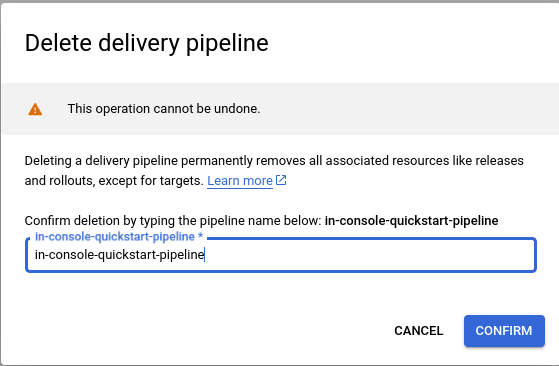
gcloud run services delete in-console-quickstart-pipeline-target-1 --region=us-central1 --project=PROJECT_ID \ && gcloud run services delete in-console-quickstart-pipeline-target-2 --region=us-central1 --project=PROJECT_ID在交付流水线页面中,点击删除以删除交付流水线、发布和发布。
在提供的字段中输入流水线名称,然后点击确认以完成资源删除。
删除这两个目标:
gcloud deploy targets delete console-staging --region=us-central1  && \
gcloud deploy targets delete console-prod --region=us-central1
删除 Cloud Deploy 创建的 Cloud Storage 存储桶。
一个以
_clouddeploy结尾,另一个是[region].deploy-artifacts.[project].appspot.com。
恭喜,您已经完成快速入门!