


使用 Cloud Deploy 將應用程式部署至 GKE
本頁說明如何使用 Cloud Deploy,將名為 nginx 的範例應用程式映像檔傳送至兩個 Google Kubernetes Engine 叢集序列。
在本快速入門導覽課程中,您將執行下列操作:
事前準備
- 登入 Google Cloud 帳戶。如果您是 Google Cloud新手,歡迎 建立帳戶,親自評估產品在實際工作環境中的成效。新客戶還能獲得價值 $300 美元的免費抵免額,可用於執行、測試及部署工作負載。
-
In the Google Cloud console, on the project selector page, select or create a Google Cloud project.
Roles required to select or create a project
- Select a project: Selecting a project doesn't require a specific IAM role—you can select any project that you've been granted a role on.
-
Create a project: To create a project, you need the Project Creator role
(
roles/resourcemanager.projectCreator), which contains theresourcemanager.projects.createpermission. Learn how to grant roles.
-
If you're using an existing project for this guide, verify that you have the permissions required to complete this guide. If you created a new project, then you already have the required permissions.
-
Verify that billing is enabled for your Google Cloud project.
Enable the Cloud Deploy, Cloud Build, GKE, and Cloud Storage APIs.
Roles required to enable APIs
To enable APIs, you need the
serviceusage.services.enablepermission. If you created the project, then you likely already have this permission through the Owner role (roles/owner). Otherwise, you can get this permission through the Service Usage Admin role (roles/serviceusage.serviceUsageAdmin). Learn how to grant roles.-
安裝 Google Cloud CLI。
-
若您採用的是外部識別資訊提供者 (IdP),請先使用聯合身分登入 gcloud CLI。
-
執行下列指令,初始化 gcloud CLI:
gcloud init -
In the Google Cloud console, on the project selector page, select or create a Google Cloud project.
Roles required to select or create a project
- Select a project: Selecting a project doesn't require a specific IAM role—you can select any project that you've been granted a role on.
-
Create a project: To create a project, you need the Project Creator role
(
roles/resourcemanager.projectCreator), which contains theresourcemanager.projects.createpermission. Learn how to grant roles.
-
If you're using an existing project for this guide, verify that you have the permissions required to complete this guide. If you created a new project, then you already have the required permissions.
-
Verify that billing is enabled for your Google Cloud project.
Enable the Cloud Deploy, Cloud Build, GKE, and Cloud Storage APIs.
Roles required to enable APIs
To enable APIs, you need the
serviceusage.services.enablepermission. If you created the project, then you likely already have this permission through the Owner role (roles/owner). Otherwise, you can get this permission through the Service Usage Admin role (roles/serviceusage.serviceUsageAdmin). Learn how to grant roles.-
安裝 Google Cloud CLI。
-
若您採用的是外部識別資訊提供者 (IdP),請先使用聯合身分登入 gcloud CLI。
-
執行下列指令,初始化 gcloud CLI:
gcloud init
必要的角色
為確保 Cloud Deploy 服務帳戶具備執行 Cloud Deploy 作業及部署至 Cloud Run 的必要權限,請管理員在專案中將下列 IAM 角色授予 Cloud Deploy 服務帳戶:
- Google Kubernetes Engine 開發人員 (
roles/container.developer) - IAM 服務帳戶使用者 (
roles/iam.serviceAccountUser) - Cloud Deploy Job Runner (
roles/clouddeploy.jobRunner)
如要進一步瞭解如何授予角色,請參閱「管理專案、資料夾和組織的存取權」。
管理員或許也能透過自訂角色或其他預先定義的角色,授予 Cloud Deploy 服務帳戶必要權限。
建立 Google Kubernetes Engine 叢集
建立兩個叢集:qsdev 和 qsprod,並採用預設設定。叢集的 Kubernetes API 端點必須可從公開網際網路連上網路。根據預設,外部可存取 GKE 叢集。
gcloud container clusters create-auto quickstart-cluster-qsdev --project=PROJECT_ID --region=us-central1 && gcloud container clusters create-auto quickstart-cluster-qsprod --project=PROJECT_ID --region=us-central1
準備 Skaffold 設定和 Kubernetes 資訊清單
Cloud Deploy 會使用 Skaffold 提供詳細資料,說明要部署的內容,以及如何為個別目標正確部署。
在本快速入門導覽課程中,您會建立 skaffold.yaml 檔案,識別用於部署範例應用程式的 Kubernetes 資訊清單。
開啟終端機視窗。
建立名為
deploy-gke-quickstart的新目錄,然後前往該目錄。mkdir deploy-gke-quickstart cd deploy-gke-quickstart建立名為
skaffold.yaml的檔案,並在當中加入下列內容:apiVersion: skaffold/v4beta7 kind: Config manifests: rawYaml: - k8s-* deploy: kubectl: {}這個檔案是基本的 Skaffold 設定,用於識別資訊清單。在本快速入門導覽中,您將建立檔案。但您也可以讓 Cloud Deploy 為您建立一個,適用於簡單的非正式版應用程式。
如要進一步瞭解這個檔案,請參閱
skaffold.yaml參考資料。建立名為
k8s-pod.yaml的檔案,並在當中加入下列內容:apiVersion: v1 kind: Pod metadata: name: getting-started spec: containers: - name: nginx image: my-app-image這個檔案是基本的 Kubernetes 資訊清單,會套用至叢集以部署應用程式。要部署的容器映像檔會在此處設為預留位置
my-app-image,建立版本時會替換為特定映像檔。
建立推送管道和目標
您可以在一個或多個檔案中定義管道和目標。在本快速入門導覽課程中,您將建立單一檔案。
在
deploy-gke-quickstart目錄中建立新檔案:clouddeploy.yaml,並加入下列內容:apiVersion: deploy.cloud.google.com/v1 kind: DeliveryPipeline metadata: name: my-gke-demo-app-1 description: main application pipeline serialPipeline: stages: - targetId: qsdev profiles: [] - targetId: qsprod profiles: [] --- apiVersion: deploy.cloud.google.com/v1 kind: Target metadata: name: qsdev description: development cluster gke: cluster: projects/PROJECT_ID/locations/us-central1/clusters/quickstart-cluster-qsdev --- apiVersion: deploy.cloud.google.com/v1 kind: Target metadata: name: qsprod description: production cluster gke: cluster: projects/PROJECT_ID/locations/us-central1/clusters/quickstart-cluster-qsprod向 Cloud Deploy 服務註冊管道和目標:
gcloud deploy apply --file=clouddeploy.yaml --region=us-central1 --project=PROJECT_ID您現在已擁有管道和目標,可以將應用程式部署到第一個目標。
確認管道和目標:
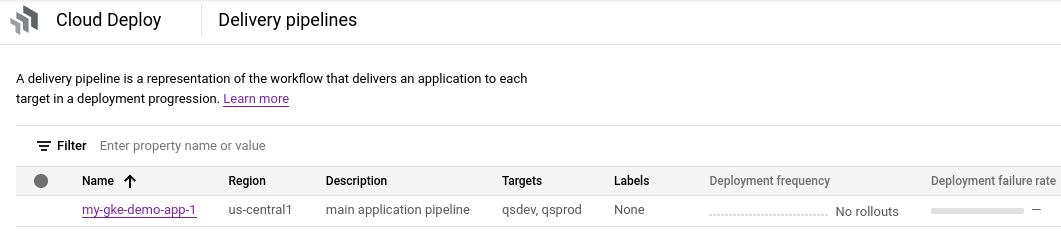
在 Google Cloud 控制台中,前往 Cloud Deploy 的「Delivery pipelines」(推送管道) 頁面,查看可用推送管道的清單。
系統會顯示您剛建立的推送管道,且兩個目標會列在「目標」欄中。
建立發布版本
版本是 Cloud Deploy 的核心資源,代表要部署的變更。推送管道會定義該版本的生命週期。如要進一步瞭解該生命週期,請參閱「Cloud Deploy 服務架構」。
從 deploy-gke-quickstart 目錄執行下列指令,建立代表要部署容器映像檔的 release 資源:
gcloud deploy releases create test-release-001 \
  --project=PROJECT_ID \
  --region=us-central1 \
  --delivery-pipeline=my-gke-demo-app-1 \
  --images=my-app-image=gcr.io/google-containers/nginx@sha256:f49a843c290594dcf4d193535d1f4ba8af7d56cea2cf79d1e9554f077f1e7aaa
請注意 --images= 旗標,您可以使用這個旗標,將資訊清單中的預留位置 (my-app-image) 換成符合 SHA 資格的特定圖片。Google 建議您採用這種方式將資訊清單範本化,並在建立發布版本時使用 SHA 合格的圖片名稱。
與所有版本一樣 (除非包含 --disable-initial-rollout),Cloud Deploy 也會自動建立 rollout 資源。應用程式會自動部署至程序中的第一個目標。
推送版本
在「推送 pipeline」頁面中,按一下
my-gke-demo-app-1pipeline。「推送管道詳細資料」頁面會以圖表呈現推送管道的進度。在本例中,這表示版本已部署至
qsdev目標。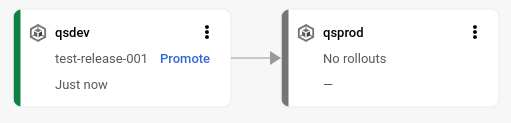
在推送管道的視覺化圖表中,按一下第一個目標上的「升級」。
系統會顯示「升級發布版本」對話方塊。顯示要升級的目標詳細資料。
點選「升級」。
系統已將版本加入佇列,準備部署至
qsprod。部署完成後,傳送管道的視覺化內容會顯示已部署: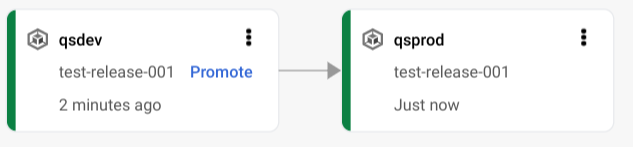
在 Google Cloud 控制台中查看結果
在 Google Cloud 控制台中,前往 Cloud Deploy 的「Delivery pipelines」(推送 pipeline) 頁面,查看「my-gke-demo-app-1」推送管道。
點選推送管道名稱「my-gke-demo-app-1」。
管道圖表會顯示應用程式在管道中的進度。
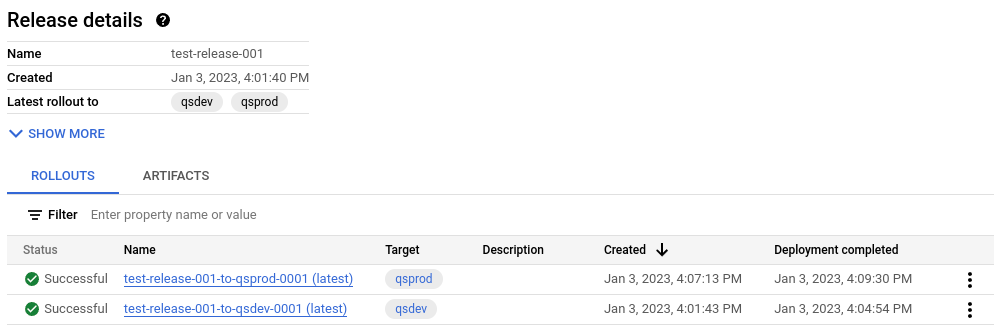
發行內容會列在「推送 pipeline 詳細資料」下方的「發行內容」分頁中。
按一下發行內容名稱
test-release-001。推出版本會顯示在「推出版本」下方。您可以點選推出作業來查看詳細資料,包括部署記錄。
清除所用資源
為了避免系統向您的 Google Cloud 帳戶收取本頁面所用資源的費用,請按照下列步驟操作。
刪除
qsdev叢集:gcloud container clusters delete quickstart-cluster-qsdev --region=us-central1 --project=PROJECT_ID刪除
qsprod叢集:gcloud container clusters delete quickstart-cluster-qsprod --region=us-central1 --project=PROJECT_ID刪除推送管道、目標、版本和推出項目:
gcloud deploy delete --file=clouddeploy.yaml --force --region=us-central1 --project=PROJECT_ID刪除 Cloud Deploy 建立的 Cloud Storage bucket。
一個結尾是
_clouddeploy,另一個是[region].deploy-artifacts.[project].appspot.com。
大功告成,您已經完成本快速入門導覽課程!