


使用指标分析应用
本快速入门介绍如何使用 Cloud Deploy 根据 Google Cloud Observability 中的指标分析已部署的 Cloud Run 服务,以确保应用按预期运行。
在本快速入门中,您将执行以下操作:
创建并部署一个 Cloud Run 服务。
在本例中,您不会使用 Cloud Deploy 来部署该服务。
在 Google Cloud Observability 中创建拨测。
此检查会监控您的 Cloud Run 服务,以确保其正常运行。
在 Cloud Monitoring 中创建提醒政策。
默认情况下,Cloud Deploy 分析可以使用 Google Cloud Observability 中的多种类型的指标。如果拨测表明存在问题,此政策会创建提醒。
创建 Skaffold 配置以 标识 Cloud Run 服务。
定义 Cloud Deploy 交付流水线和目标。
此流水线仅包含一个阶段,并且仅使用一个目标,还包含分析作业的定义。
创建版本,该版本会自动部署到目标。
服务应成功部署到目标,但发布应失败,因为提醒政策会生成提醒。
更改 Cloud Run 服务定义以增加服务的实例数,并创建新版本。
这次,服务将成功部署,并且发布将成功完成。
准备工作
- 登录您的 Google Cloud 账号。如果您是 Google Cloud的新用户, 请创建一个账号,以评估我们的产品在 实际场景中的表现。新客户还可获享 $300 赠金,用于 运行、测试和部署工作负载。
-
In the Google Cloud console, on the project selector page, select or create a Google Cloud project.
Roles required to select or create a project
- Select a project: Selecting a project doesn't require a specific IAM role—you can select any project that you've been granted a role on.
-
Create a project: To create a project, you need the Project Creator role
(
roles/resourcemanager.projectCreator), which contains theresourcemanager.projects.createpermission. Learn how to grant roles.
-
If you're using an existing project for this guide, verify that you have the permissions required to complete this guide. If you created a new project, then you already have the required permissions.
-
Verify that billing is enabled for your Google Cloud project.
Enable the Cloud Deploy, Cloud Build, Cloud Run, and Cloud Storage APIs, if any are not already enabled.
Roles required to enable APIs
To enable APIs, you need the
serviceusage.services.enablepermission. If you created the project, then you likely already have this permission through the Owner role (roles/owner). Otherwise, you can get this permission through the Service Usage Admin role (roles/serviceusage.serviceUsageAdmin). Learn how to grant roles.-
安装 Google Cloud CLI。
-
如果您使用的是外部身份提供方 (IdP),则必须先使用联合身份登录 gcloud CLI。
-
如需初始化 gcloud CLI,请运行以下命令:
gcloud init -
In the Google Cloud console, on the project selector page, select or create a Google Cloud project.
Roles required to select or create a project
- Select a project: Selecting a project doesn't require a specific IAM role—you can select any project that you've been granted a role on.
-
Create a project: To create a project, you need the Project Creator role
(
roles/resourcemanager.projectCreator), which contains theresourcemanager.projects.createpermission. Learn how to grant roles.
-
If you're using an existing project for this guide, verify that you have the permissions required to complete this guide. If you created a new project, then you already have the required permissions.
-
Verify that billing is enabled for your Google Cloud project.
Enable the Cloud Deploy, Cloud Build, Cloud Run, and Cloud Storage APIs, if any are not already enabled.
Roles required to enable APIs
To enable APIs, you need the
serviceusage.services.enablepermission. If you created the project, then you likely already have this permission through the Owner role (roles/owner). Otherwise, you can get this permission through the Service Usage Admin role (roles/serviceusage.serviceUsageAdmin). Learn how to grant roles.-
安装 Google Cloud CLI。
-
如果您使用的是外部身份提供方 (IdP),则必须先使用联合身份登录 gcloud CLI。
-
如需初始化 gcloud CLI,请运行以下命令:
gcloud init
所需的角色
为确保 Cloud Deploy 服务帐号拥有运行 Cloud Deploy 操作和部署到 Cloud Run 所需的权限,请让管理员向您的项目中的 Cloud Deploy 服务帐号授予以下 IAM 角色:
如果未能向正确的正文授予这些角色,可能会导致权限错误。- Cloud Run Developer (
roles/run.developer) - Cloud Deploy Runner (
roles/clouddeploy.jobRunner) - IAM Service Account User (
roles/iam.serviceAccountUser) - Monitoring Alert Viewer (
roles/monitoring.alertViewer) - Service Usage Consumer (
roles/serviceusage.serviceUsageConsumer)
如需详细了解如何授予角色,请参阅管理对项目、文件夹和组织的访问权限。
您的管理员还可以通过自定义角色或其他预定义角色向 Cloud Deploy 服务帐号授予所需的权限。
详细了解 Cloud Deploy 服务帐号。
部署 Cloud Run 服务
本快速入门使用需要 Cloud Run 已存在的提醒政策。因此,我们将在本部分中部署一个 Cloud Run 服务,然后在后面的部分中使用相同的服务名称定义 service.yaml。
运行以下命令以创建初始服务:
gcloud run deploy my-analysis-run-service \
  --image=us-docker.pkg.dev/cloudrun/container/hello@sha256:95ade4b17adcd07623b0a0c68359e344fe54e65d0cb01b989e24c39f2fcd296a \
  --project=PROJECT_ID \
  --region=us-central1 \
  --allow-unauthenticated
将 PROJECT_ID 替换为您的项目 ID。
创建 Google Cloud Observability 拨测
此拨测会监控您的运行中服务,以确认其正常运行。 在后面的部分中,您将创建一个 Google Cloud Observability 提醒政策,如果您的服务没有至少一个正在运行的可用实例,该政策会生成提醒。
如需创建拨测,请运行以下命令:
gcloud monitoring uptime create my-analysis-run-service-cloud-run-uptime-check \
  --resource-type=cloud-run-revision \
  --resource-labels="project_id=PROJECT_ID,location=us-central1,service_name=my-analysis-run-service" \
  --project=PROJECT_ID \
  --protocol=https \
  --path="/" \
  --port=443 \
  --period=1 \
  --timeout=10 \
  --service-agent-auth="oidc-token" \
  --status-classes="2xx"
复制拨测 ID。
您刚刚运行的命令的输出包含该 ID。
准备 Skaffold 配置和服务定义
在本快速入门中,您将创建一个 skaffold.yaml 文件,用于标识要用于部署示例 Cloud Run 服务的清单,并且您还将定义用于定义 Cloud Run 本身的 service.yaml 文件。
打开一个终端窗口。
创建一个新目录并进入该目录。
mkdir deploy-analysis-run-quickstart
cd deploy-analysis-run-quickstart
- 创建一个名为
skaffold.yaml且包含以下内容的文件:
apiVersion: skaffold/v4beta7
kind: Config
manifests:
  rawYaml:
  - service.yaml
deploy:
  cloudrun: {}
如需详细了解此配置文件,请参阅 skaffold.yaml 参考文档
。
- 创建一个名为
service.yaml的文件,其中包含以下内容:
apiVersion: serving.knative.dev/v1
kind: Service
metadata:
  name: my-analysis-run-service
  annotations:
    run.googleapis.com/scalingMode: manual
    run.googleapis.com/manualInstanceCount: 0
spec:
  template:
    spec:
      containers:
      - image: my-app-image
此文件是 Cloud Run 服务定义,用于部署应用。要部署的容器映像在此处设置为
占位符 my-app-image,在您
创建版本时,该占位符将替换为特定映像。
请注意,我们将伸缩模式设置为手动,并将实例数设置为 0。
这意味着已部署的服务将无法接收流量,并且不会有任何正在运行的实例,这将触发提醒。接下来,您将配置该提醒。
创建提醒政策
本快速入门使用 Google Cloud Observability 提醒政策。当 Cloud Run 服务未能通过您之前创建的拨测时,此提醒政策会生成提醒。
在
deploy-analysis-run-quickstart目录中,创建一个名为policy.yaml且包含以下内容的文件:displayName: Cloud Run service uptime check userLabels: policy-for: analysis-run-pipeline combiner: OR conditions: - displayName: Failure of uptime check UPTIME_ID conditionThreshold: filter: metric.type="monitoring.googleapis.com/uptime_check/check_passed" AND metric.label.check_id="UPTIME_ID" AND resource.type="cloud_run_revision" aggregations: - alignmentPeriod: 60s crossSeriesReducer: REDUCE_COUNT_FALSE groupByFields: - resource.label.* perSeriesAligner: ALIGN_NEXT_OLDER comparison: COMPARISON_GT duration: 60s thresholdValue: 1.0将
UPTIME_ID替换为您之前创建的拨测的 ID before。运行以下命令以创建政策:
gcloud monitoring policies create \
  --policy-from-file=policy.yaml\
  --project=PROJECT_ID
将
PROJECT_ID替换为您的项目 ID。从您刚刚运行的命令的输出中复制政策 ID。
这次,请复制整个资源 ID,包括路径。您将在下一部分中使用此 ID,即交付流水线中的分析配置。
创建交付流水线和目标
此交付流水线包含一个阶段,用于一个目标:analysis-staging。
在
deploy-analysis-run-quickstart目录中,创建一个名为clouddeploy.yaml且包含以下内容的新文件:apiVersion: deploy.cloud.google.com/v1 kind: DeliveryPipeline metadata: name: deploy-analysis-demo-app-run description: main application pipeline serialPipeline: stages: - targetId: analysis-staging profiles: [] strategy: standard: analysis: duration: 300s googleCloud: alertPolicyChecks: - id: check-1 alertPolicies: - ALERT_POLICY_ID --- apiVersion: deploy.cloud.google.com/v1 kind: Target metadata: name: analysis-staging description: staging Run service run: location: projects/PROJECT_ID/locations/us-central1在此 YAML 中,将
ALERT_POLICY_ID替换为您之前运行的gcloud monitoring policies list命令的输出, 并将PROJECT_ID替换为您使用的项目的 ID。在 Cloud Deploy 服务中注册流水线和目标:
gcloud deploy apply --file=clouddeploy.yaml --region=us-central1 --project=PROJECT_ID现在,您已经有了一个包含一个目标的交付流水线,可以部署应用了。
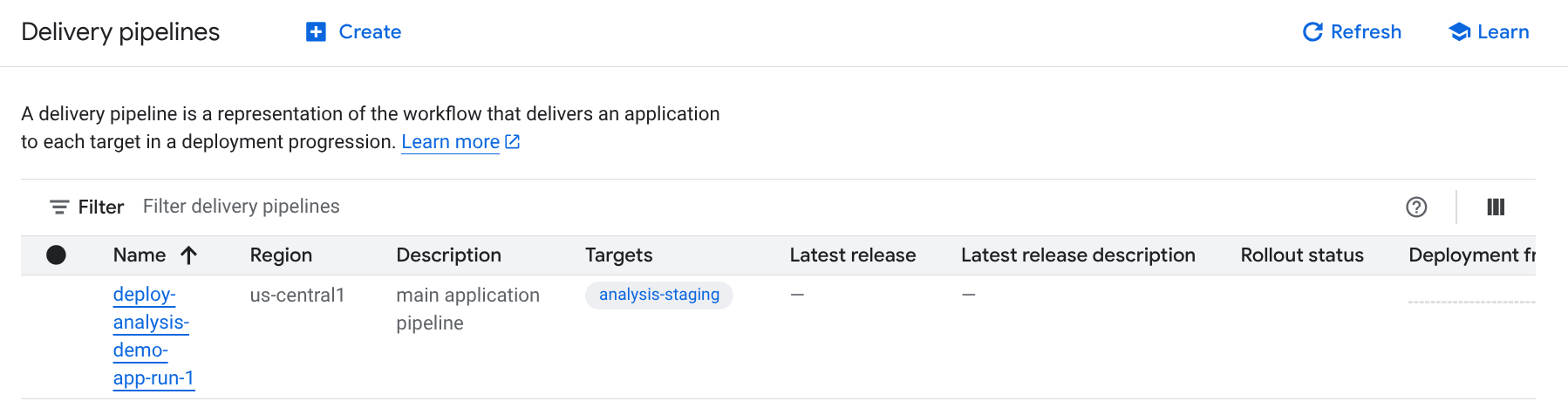
确认您的流水线和目标:
在 Google Cloud 控制台中,导航到 Cloud Deploy 交付流水线 页面,以查看可用交付 流水线的列表。
此时将显示您刚刚创建的交付流水线,并且目标 列会列出了一个目标。
创建版本
版本是表示要部署的更改的中央 Cloud Deploy 资源。交付流水线定义该版本的生命周期。如需详细了解该生命周期,请参阅 Cloud Deploy 服务架构 。
从 deploy-analysis-run-quickstart 目录运行以下命令,以创建表示要部署的容器映像的 release 资源:
gcloud deploy releases create test-release-001 \
  --project=PROJECT_ID \
  --region=us-central1 \
  --delivery-pipeline=deploy-analysis-demo-app-run \
  --images=my-app-image=us-docker.pkg.dev/cloudrun/container/hello@sha256:95ade4b17adcd07623b0a0c68359e344fe54e65d0cb01b989e24c39f2fcd296a
请注意
--images= 标志,您可以使用该标志将
服务定义中的占位符 (my-app-image) 替换为特定的、符合 SHA 规范的
映像。Google 建议您以这种方式将服务定义模板化,并在创建版本时使用符合 SHA 规范的映像名称。
与所有版本一样(除非它们包含 --disable-initial-rollout),
Cloud Deploy 也会自动创建
发布资源。应用会自动部署到为此交付流水线配置的一个目标。
在 Google Cloud 控制台中查看结果
几分钟后,您的版本将部署到目标运行时。您可以查看它。
在 Google Cloud 控制台中,导航到 Cloud Deploy 交付流水线 页面,以查看您的交付流水线 ("deploy-analysis-demo-app-run")。
点击交付流水线的名称 (“deploy-analysis-demo-app-run”)。
流水线直观显示将显示应用的部署状态。由于流水线中只有一个阶段,因此直观显示仅显示一个节点。
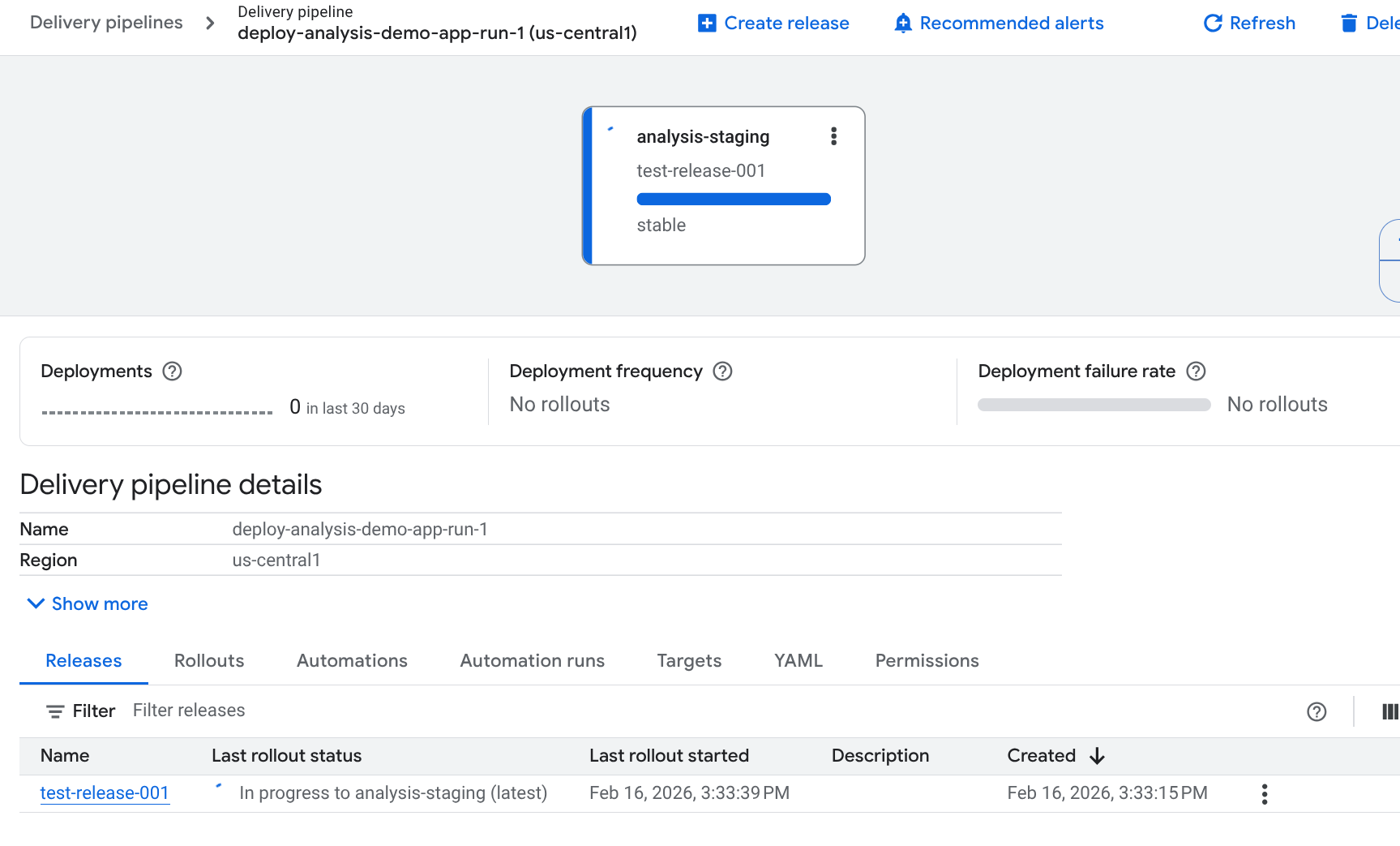
您的版本列在版本 标签页中交付流水线详细信息 下。
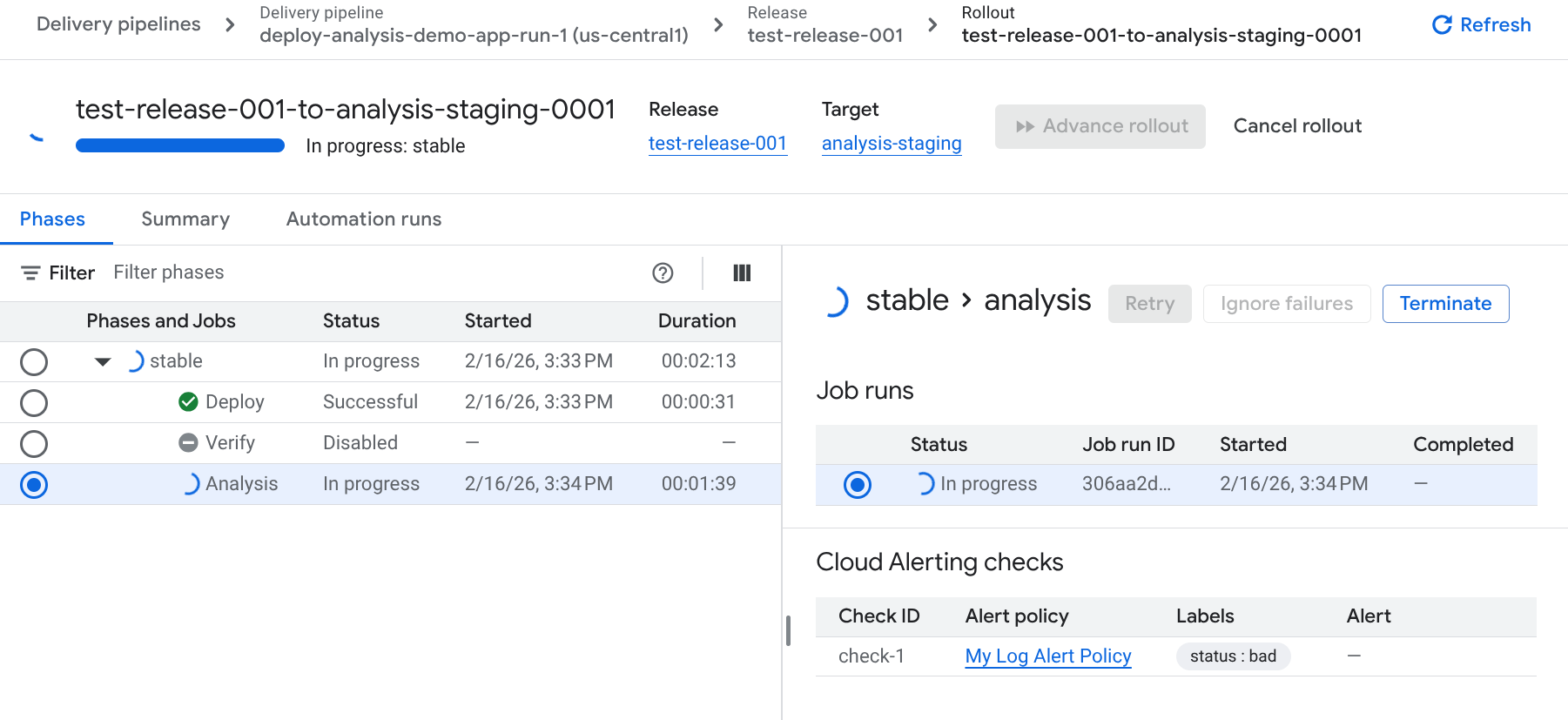
点击发布 标签页,位于交付流水线详细信息 下。
点击发布名称以查看发布详细信息。
分析 列为作业。
分析失败
我们在交付流水线配置中指定的分析作业将作为此发布的一部分运行,在应用部署后运行。此分析旨在失败,因为提醒政策应触发提醒。由于此分析失败,发布将失败。
我们将进行更改,然后创建另一个版本,该版本应会成功。
更改服务定义并创建新版本
现在,我们更改服务定义中的实例数,以便服务有一个正在运行的实例,并且不会触发提醒。
修改 Cloud Run 定义文件
service.yaml,将run.googleapis.com/manualInstanceCount的值从0更改为1。从同一
deploy-analysis-run-quickstart目录运行以下命令,以创建另一个release:gcloud deploy releases create test-release-002 \ --project=PROJECT_ID \ --region=us-central1 \ --delivery-pipeline=deploy-analysis-demo-app-run \ --images=my-app-image=us-docker.pkg.dev/cloudrun/container/hello@sha256:95ade4b17adcd07623b0a0c68359e344fe54e65d0cb01b989e24c39f2fcd296a
这次,发布应会成功。这是因为您的 Cloud Run 服务现在有一个正在运行的实例,因此拨测不会从提醒政策调用提醒。
清理
为避免因本页中使用的资源导致您的 Google Cloud 账号产生费用,请按照以下步骤操作。
删除 Cloud Run 服务:
gcloud run services delete my-analysis-run-service \
--region=us-central1 \
--project=PROJECT_ID
如需删除交付流水线、目标、版本和发布,请从包含交付流水线定义的目录中运行以下命令:
gcloud deploy delete --file=clouddeploy.yaml \
--force \
--region=us-central1 \
--project=PROJECT_ID
删除 Google Cloud Observability 提醒政策:
gcloud monitoring policies delete ALERT_POLICY_ID删除 Cloud Deploy 创建的 Cloud Storage 存储分区。
一个以
_clouddeploy结尾,另一个是[region].deploy-artifacts.[project].appspot.com。
恭喜,您已经完成快速入门!