

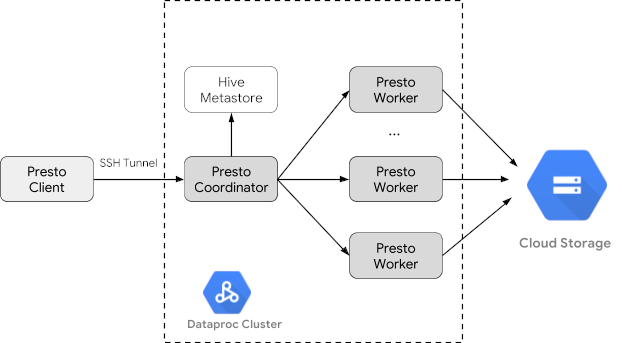
Trino (舊稱 Presto) 是分散式 SQL 查詢引擎,可查詢分散在一個或多個異質資料來源的大型資料集。Trino 可以透過連接器查詢 Hive、MySQL、Kafka 和其他資料來源。本教學課程將示範如何:
- 在 Dataproc 叢集上安裝 Trino 服務
- 從本機電腦上安裝的 Trino 用戶端查詢公開資料,該用戶端會與叢集上的 Trino 服務通訊
- 透過 Trino Java JDBC 驅動程式,從與叢集上 Trino 服務通訊的 Java 應用程式執行查詢。
目標
- 從 BigQuery 擷取資料
- 以 CSV 檔案的形式將資料載入 Cloud Storage
- 轉換資料:
- 將資料公開為 Hive 外部資料表,讓 Trino 可查詢資料
- 將資料從 CSV 格式轉換為 Parquet 格式,加快查詢速度
費用
在本文件中,您會使用下列 Google Cloud的計費元件:
您可以使用 Pricing Calculator,根據預測用量估算費用。
事前準備
請建立 Google Cloud 專案和 Cloud Storage bucket,用來存放本教學課程使用的資料。1. 設定專案- Sign in to your Google Cloud account. If you're new to Google Cloud, create an account to evaluate how our products perform in real-world scenarios. New customers also get $300 in free credits to run, test, and deploy workloads.
-
In the Google Cloud console, on the project selector page, select or create a Google Cloud project.
Roles required to select or create a project
- Select a project: Selecting a project doesn't require a specific IAM role—you can select any project that you've been granted a role on.
-
Create a project: To create a project, you need the Project Creator role
(
roles/resourcemanager.projectCreator), which contains theresourcemanager.projects.createpermission. Learn how to grant roles.
-
Verify that billing is enabled for your Google Cloud project.
-
Enable the Dataproc, Compute Engine, Cloud Storage, and BigQuery APIs.
Roles required to enable APIs
To enable APIs, you need the Service Usage Admin IAM role (
roles/serviceusage.serviceUsageAdmin), which contains theserviceusage.services.enablepermission. Learn how to grant roles. -
Install the Google Cloud CLI.
-
若您採用的是外部識別資訊提供者 (IdP),請先使用聯合身分登入 gcloud CLI。
-
執行下列指令,初始化 gcloud CLI:
gcloud init -
In the Google Cloud console, on the project selector page, select or create a Google Cloud project.
Roles required to select or create a project
- Select a project: Selecting a project doesn't require a specific IAM role—you can select any project that you've been granted a role on.
-
Create a project: To create a project, you need the Project Creator role
(
roles/resourcemanager.projectCreator), which contains theresourcemanager.projects.createpermission. Learn how to grant roles.
-
Verify that billing is enabled for your Google Cloud project.
-
Enable the Dataproc, Compute Engine, Cloud Storage, and BigQuery APIs.
Roles required to enable APIs
To enable APIs, you need the Service Usage Admin IAM role (
roles/serviceusage.serviceUsageAdmin), which contains theserviceusage.services.enablepermission. Learn how to grant roles. -
Install the Google Cloud CLI.
-
若您採用的是外部識別資訊提供者 (IdP),請先使用聯合身分登入 gcloud CLI。
-
執行下列指令,初始化 gcloud CLI:
gcloud init - In the Google Cloud console, go to the Cloud Storage Buckets page.
- Click Create.
- On the Create a bucket page, enter your bucket information. To go to the next
step, click Continue.
-
In the Get started section, do the following:
- Enter a globally unique name that meets the bucket naming requirements.
- To add a
bucket label,
expand the Labels section (),
click add_box
Add label, and specify a
keyand avaluefor your label.
-
In the Choose where to store your data section, do the following:
- Select a Location type.
- Choose a location where your bucket's data is permanently stored from the Location type drop-down menu.
- If you select the dual-region location type, you can also choose to enable turbo replication by using the relevant checkbox.
- To set up cross-bucket replication, select
Add cross-bucket replication via Storage Transfer Service and
follow these steps:
Set up cross-bucket replication
- In the Bucket menu, select a bucket.
In the Replication settings section, click Configure to configure settings for the replication job.
The Configure cross-bucket replication pane appears.
- To filter objects to replicate by object name prefix, enter a prefix that you want to include or exclude objects from, then click Add a prefix.
- To set a storage class for the replicated objects, select a storage class from the Storage class menu. If you skip this step, the replicated objects will use the destination bucket's storage class by default.
- Click Done.
-
In the Choose how to store your data section, do the following:
- Select a default storage class for the bucket or Autoclass for automatic storage class management of your bucket's data.
- To enable hierarchical namespace, in the Optimize storage for data-intensive workloads section, select Enable hierarchical namespace on this bucket.
- In the Choose how to control access to objects section, select whether or not your bucket enforces public access prevention, and select an access control method for your bucket's objects.
-
In the Choose how to protect object data section, do the
following:
- Select any of the options under Data protection that you
want to set for your bucket.
- To enable soft delete, click the Soft delete policy (For data recovery) checkbox, and specify the number of days you want to retain objects after deletion.
- To set Object Versioning, click the Object versioning (For version control) checkbox, and specify the maximum number of versions per object and the number of days after which the noncurrent versions expire.
- To enable the retention policy on objects and buckets, click the Retention (For compliance) checkbox, and then do the following:
- To enable Object Retention Lock, click the Enable object retention checkbox.
- To enable Bucket Lock, click the Set bucket retention policy checkbox, and choose a unit of time and a length of time for your retention period.
- To choose how your object data will be encrypted, expand the Data encryption section (), and select a Data encryption method.
- Select any of the options under Data protection that you
want to set for your bucket.
-
In the Get started section, do the following:
- Click Create.
- 設定環境變數:
- PROJECT:您的專案 ID
- BUCKET_NAME:您在「事前準備」中建立的 Cloud Storage bucket 名稱
- REGION:本教學課程所用叢集的建立區域,例如「us-west1」
- WORKERS:建議使用 3 到 5 個 worker 進行本教學課程
export PROJECT=project-id
export WORKERS=number
export REGION=region
export BUCKET_NAME=bucket-name
- 在本機電腦上執行 Google Cloud CLI,建立叢集。
gcloud beta dataproc clusters create trino-cluster \ --project=${PROJECT} \ --region=${REGION} \ --num-workers=${WORKERS} \ --scopes=cloud-platform \ --optional-components=TRINO \ --image-version=2.1 \ --enable-component-gateway - 在本機上執行下列指令,將 BigQuery 中的計程車資料匯出為不含標題的 CSV 檔案,並匯入您在「事前準備」建立的 Cloud Storage bucket。
bq --location=us extract --destination_format=CSV \ --field_delimiter=',' --print_header=false \ "bigquery-public-data:chicago_taxi_trips.taxi_trips" \ gs://${BUCKET_NAME}/chicago_taxi_trips/csv/shard-*.csv - 建立 Hive 外部資料表,並以 Cloud Storage bucket 中的 CSV 和 Parquet 檔案做為備份。
- 建立 Hive 外部資料表
chicago_taxi_trips_csv。gcloud dataproc jobs submit hive \ --cluster trino-cluster \ --region=${REGION} \ --execute " CREATE EXTERNAL TABLE chicago_taxi_trips_csv( unique_key STRING, taxi_id STRING, trip_start_timestamp TIMESTAMP, trip_end_timestamp TIMESTAMP, trip_seconds INT, trip_miles FLOAT, pickup_census_tract INT, dropoff_census_tract INT, pickup_community_area INT, dropoff_community_area INT, fare FLOAT, tips FLOAT, tolls FLOAT, extras FLOAT, trip_total FLOAT, payment_type STRING, company STRING, pickup_latitude FLOAT, pickup_longitude FLOAT, pickup_location STRING, dropoff_latitude FLOAT, dropoff_longitude FLOAT, dropoff_location STRING) ROW FORMAT DELIMITED FIELDS TERMINATED BY ',' STORED AS TEXTFILE location 'gs://${BUCKET_NAME}/chicago_taxi_trips/csv/';" - 確認 Hive 外部資料表已建立。
gcloud dataproc jobs submit hive \ --cluster trino-cluster \ --region=${REGION} \ --execute "SELECT COUNT(*) FROM chicago_taxi_trips_csv;" - 使用相同的資料欄建立另一個 Hive 外部資料表
chicago_taxi_trips_parquet,但以 Parquet 格式儲存資料,以提升查詢效能。gcloud dataproc jobs submit hive \ --cluster trino-cluster \ --region=${REGION} \ --execute " CREATE EXTERNAL TABLE chicago_taxi_trips_parquet( unique_key STRING, taxi_id STRING, trip_start_timestamp TIMESTAMP, trip_end_timestamp TIMESTAMP, trip_seconds INT, trip_miles FLOAT, pickup_census_tract INT, dropoff_census_tract INT, pickup_community_area INT, dropoff_community_area INT, fare FLOAT, tips FLOAT, tolls FLOAT, extras FLOAT, trip_total FLOAT, payment_type STRING, company STRING, pickup_latitude FLOAT, pickup_longitude FLOAT, pickup_location STRING, dropoff_latitude FLOAT, dropoff_longitude FLOAT, dropoff_location STRING) STORED AS PARQUET location 'gs://${BUCKET_NAME}/chicago_taxi_trips/parquet/';" - 將 Hive CSV 資料表中的資料載入 Hive Parquet 資料表。
gcloud dataproc jobs submit hive \ --cluster trino-cluster \ --region=${REGION} \ --execute " INSERT OVERWRITE TABLE chicago_taxi_trips_parquet SELECT * FROM chicago_taxi_trips_csv;" - 確認資料已正確載入。
gcloud dataproc jobs submit hive \
    --cluster trino-cluster \
    --region=${REGION} \
    --execute "SELECT COUNT(*) FROM chicago_taxi_trips_parquet;"
- 建立 Hive 外部資料表
- 在本機執行下列指令,以使用 SSH 連結至叢集的主節點。執行指令時,本機終端機會停止回應。
gcloud compute ssh trino-cluster-m
- 在叢集主節點的 SSH 終端機視窗中,執行 Trino CLI,連線至主節點上執行的 Trino 伺服器。
trino --catalog hive --schema default
- 在
trino:default提示時,確認 Trino 可以找到 Hive 資料表。show tables;
Table
‐‐‐‐‐‐‐‐‐‐‐‐‐‐‐‐‐‐‐‐‐‐‐‐‐‐‐‐‐
 chicago_taxi_trips_csv
 chicago_taxi_trips_parquet
(2 rows)
- 從
trino:default提示執行查詢,並比較查詢 Parquet 與 CSV 資料的效能。- Parquet 資料查詢
select count(*) from chicago_taxi_trips_parquet where trip_miles > 50;
_col0 ‐‐‐‐‐‐‐‐ 117957 (1 row)
Query 20180928_171735_00006_2sz8c, FINISHED, 3 nodes Splits: 308 total, 308 done (100.00%) 0:16 [113M rows, 297MB] [6.91M rows/s, 18.2MB/s] - CSV 資料查詢
select count(*) from chicago_taxi_trips_csv where trip_miles > 50;
_col0
‐‐‐‐‐‐‐‐
 117957
(1 row)

Query 20180928_171936_00009_2sz8c, FINISHED, 3 nodes
Splits: 881 total, 881 done (100.00%)
0:47 [113M rows, 41.5GB] [2.42M rows/s, 911MB/s]
- Parquet 資料查詢
- In the Google Cloud console, go to the Manage resources page.
- In the project list, select the project that you want to delete, and then click Delete.
- In the dialog, type the project ID, and then click Shut down to delete the project.
- 刪除叢集的方法如下:
gcloud dataproc clusters delete --project=${PROJECT} trino-cluster \ --region=${REGION} - 如要刪除您在「事前準備」中建立的 Cloud Storage bucket,包括儲存在 bucket 中的資料檔案,請按照下列步驟操作:
gcloud storage rm gs://${BUCKET_NAME} --recursive
建立 Dataproc 叢集
使用 optional-components 旗標 (適用於 2.1 以上版本的映像檔) 建立 Dataproc 叢集,在叢集上安裝 Trino 選用元件,並使用 enable-component-gateway 旗標啟用元件閘道,即可從 Google Cloud 控制台存取 Trino Web UI。
準備資料
將 bigquery-public-data chicago_taxi_trips 資料集匯出至 Cloud Storage 做為 CSV 檔案,然後建立 Hive 外部資料表以參照資料。
執行查詢
您可以透過 Trino CLI 或應用程式在本機執行查詢。
Trino CLI 查詢
本節將示範如何使用 Trino CLI 查詢 Hive Parquet 計程車資料集。
Java 應用程式查詢
如要透過 Trino Java JDBC 驅動程式從 Java 應用程式執行查詢,請按照下列步驟操作:
1. 下載 Trino Java JDBC 驅動程式。1. 在 Maven pom.xml 中新增 trino-jdbc 依附元件。
<dependency>
  <groupId>io.trino</groupId>
  <artifactId>trino-jdbc</artifactId>
  <version>376</version>
</dependency>
package dataproc.codelab.trino;
import java.sql.Connection;
import java.sql.DriverManager;
import java.sql.ResultSet;
import java.sql.SQLException;
import java.sql.Statement;
import java.util.Properties;
public class TrinoQuery {
  private static final String URL = "jdbc:trino://trino-cluster-m:8080/hive/default";
  private static final String SOCKS_PROXY = "localhost:1080";
  private static final String USER = "user";
  private static final String QUERY =
      "select count(*) as count from chicago_taxi_trips_parquet where trip_miles > 50";
  public static void main(String[] args) {
    try {
      Properties properties = new Properties();
      properties.setProperty("user", USER);
      properties.setProperty("socksProxy", SOCKS_PROXY);
      Connection connection = DriverManager.getConnection(URL, properties);
      try (Statement stmt = connection.createStatement()) {
        ResultSet rs = stmt.executeQuery(QUERY);
        while (rs.next()) {
          int count = rs.getInt("count");
          System.out.println("The number of long trips: " + count);
        }
      }
    } catch (SQLException e) {
      e.printStackTrace();
    }
  }
}
記錄和監控
記錄
Trino 記錄位於叢集主節點和 worker 節點的 /var/log/trino/。
網路使用者介面
如要在本機瀏覽器中開啟在叢集主節點上執行的 Trino Web UI,請參閱「查看及存取元件閘道網址」。
監控
Trino 會透過執行階段資料表公開叢集執行階段資訊。在 Trino 工作階段 (從 trino:default 提示字元) 中,執行下列查詢以查看執行階段資料表資料:
select * FROM system.runtime.nodes;
清除所用資源
完成教學課程後,您可以清除所建立的資源,這樣資源就不會繼續使用配額,也不會產生費用。下列各節將說明如何刪除或關閉這些資源。
刪除專案
如要避免付費,最簡單的方法就是刪除您為了本教學課程所建立的專案。
如要刪除專案: