

You can use the spark-bigquery-connector
with Managed Service for Apache Spark to read and write data from and to BigQuery. This tutorial demonstrates a PySpark application that uses the
spark-bigquery-connector.
Confirm the connector version
See Managed Service for Apache Spark runtime releases to determine the BigQuery connector version that is installed in your batch workload or interactive session runtime version. If the connector is not listed, see Make the connector available to applications.
Make the connector available to applications (if needed)
The BigQuery connector is installed in all
supported Managed Service for Apache Spark runtime versions.
If you are using an
unsupported runtime version
that does not install the connector (Spark runtime 1.0), you can make the connector available to an
application in either of the following two ways:
- Use the
jarsparameter to point to a connector jar file when you submit a Managed Service for Apache Spark batch workload or run an interactive session. The following batch workload example specifies a connector jar file (see the GoogleCloudDataproc/spark-bigquery-connector repository on GitHub for a list of available connector jar files).- Google Cloud CLI example:
gcloud dataproc batches submit pyspark \
    --region=REGION \
    --jars=spark-3.5-bigquery-version.jar \
    ... other args
- Google Cloud CLI example:
Calculate costs
This tutorial uses billable components of Google Cloud, including:
- Managed Service for Apache Spark
- BigQuery
- Cloud Storage
Use the Pricing Calculator to generate a cost estimate based on your projected usage.
Configure billing
By default, the project associated with the credentials or service account is
billed for API usage. To bill a different project, set the following
configuration property: spark.conf.set("parentProject", "<BILLED-GCP-PROJECT>").
You can also add this property to a read or write operation, as follows:
.option("parentProject", "<BILLED-GCP-PROJECT>").
Submit a PySpark wordcount batch workload
This example reads data from BigQuery into a Spark DataFrame to perform a word count using the standard data source API.
The connector writes the wordcount output to BigQuery in the following sequence of operations:
Buffers the data into temporary files in your Cloud Storage bucket
Copies the data in one operation from your Cloud Storage bucket into BigQuery
Deletes the temporary files in Cloud Storage after the BigQuery load operation completes (temporary files are also deleted after the Spark application terminates). If deletion fails, you will need to delete any unwanted temporary Cloud Storage files, which typically are placed in
gs://BUCKET_NAME/.spark-bigquery-JOB_ID-UUID.
Steps to run the wordcount workload
- Open a local terminal or Cloud Shell.
- Create the
wordcount_datasetwith the bq command-line tool in a local terminal or in Cloud Shell.bq mk wordcount_dataset
- Create a Cloud Storage bucket with the
Google Cloud CLI.
gcloud storage buckets create gs://BUCKET_NAME
BUCKET_NAMEwith the name of the Cloud Storage bucket you created. - Create the file
wordcount.pylocally in a text editor by copying the following PySpark code.#!/usr/bin/python """BigQuery I/O PySpark example.""" from pyspark.sql import SparkSession spark = SparkSession \ .builder \ .appName('spark-bigquery-demo') \ .getOrCreate() # Cloud Storage bucket used by the connector for temporary BigQuery # export data. bucket = "BUCKET_NAME" spark.conf.set('temporaryGcsBucket', bucket) # Load data from BigQuery. words = spark.read.format('bigquery') \ .load('bigquery-public-data.samples.shakespeare') \ .load() words.createOrReplaceTempView('words') # Perform word count. word_count = spark.sql( 'SELECT word, SUM(word_count) AS word_count FROM words GROUP BY word') word_count.show() word_count.printSchema() # Save the data to BigQuery word_count.write.format('bigquery') \ .save('wordcount_dataset.wordcount_output')
- Submit the PySpark batch workload:
gcloud dataproc batches submit pyspark wordcount.py \
    --region=REGION \
    --deps-bucket=BUCKET_NAME
...
+---------+----------+
|     word|word_count|
+---------+----------+
|     XVII|         2|
|    spoil|        28|
|    Drink|         7|
|forgetful|         5|
|   Cannot|        46|
|    cures|        10|
|   harder|        13|
|  tresses|         3|
|      few|        62|
|  steel'd|         5|
| tripping|         7|
|   travel|        35|
|   ransom|        55|
|     hope|       366|
|       By|       816|
|     some|      1169|
|    those|       508|
|    still|       567|
|      art|       893|
|    feign|        10|
+---------+----------+
only showing top 20 rows

root
 |-- word: string (nullable = false)
 |-- word_count: long (nullable = true)
To preview the output table in the Google Cloud console, open the BigQuery page, select thewordcount_outputtable, and then click Preview.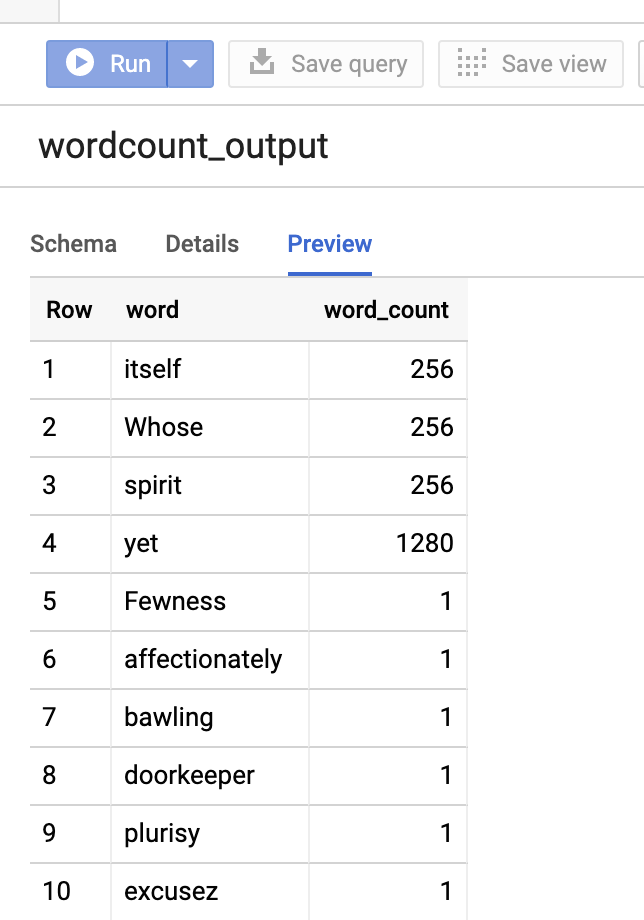
Figure 1: Preview the output table in BigQuery
For more information
- BigQuery Storage & Spark SQL - Python
- Creating a table definition file for an external data source
- Use externally partitioned data