


创建实验
本页面介绍了如何通过 Colab Enterprise 中的侧边栏与 Gemini Enterprise Agent Platform 上的实验互动。
如需通过在 Colab Enterprise 笔记本中运行代码来访问 Google Cloud 服务和 API,您可以使用与 Google 账号关联的凭据。如需了解详情,请参阅访问 Google Cloud 服务和 API。
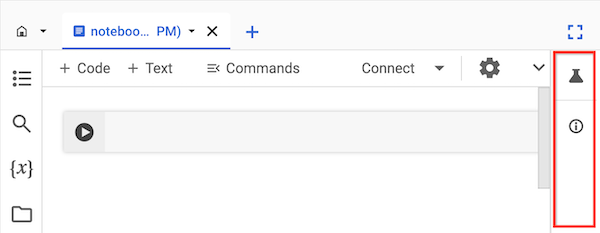
侧边栏是与 Agent Platform Experiments 互动的一种额外方式,无需离开 Colab Enterprise 界面。
侧边栏会显示在打开的笔记本右侧。
准备工作
- 登录您的 Google Cloud 账号。如果您是 Google Cloud新手,请 创建一个账号来评估我们的产品在实际场景中的表现。新客户还可获享 $300 赠金,用于运行、测试和部署工作负载。
-
In the Google Cloud console, on the project selector page, select or create a Google Cloud project.
Roles required to select or create a project
- Select a project: Selecting a project doesn't require a specific IAM role—you can select any project that you've been granted a role on.
-
Create a project: To create a project, you need the Project Creator role
(
roles/resourcemanager.projectCreator), which contains theresourcemanager.projects.createpermission. Learn how to grant roles.
-
Verify that billing is enabled for your Google Cloud project.
Enable the Agent Platform, Dataform, and Compute Engine APIs.
Roles required to enable APIs
To enable APIs, you need the Service Usage Admin IAM role (
roles/serviceusage.serviceUsageAdmin), which contains theserviceusage.services.enablepermission. Learn how to grant roles.-
In the Google Cloud console, on the project selector page, select or create a Google Cloud project.
Roles required to select or create a project
- Select a project: Selecting a project doesn't require a specific IAM role—you can select any project that you've been granted a role on.
-
Create a project: To create a project, you need the Project Creator role
(
roles/resourcemanager.projectCreator), which contains theresourcemanager.projects.createpermission. Learn how to grant roles.
-
Verify that billing is enabled for your Google Cloud project.
Enable the Agent Platform, Dataform, and Compute Engine APIs.
Roles required to enable APIs
To enable APIs, you need the Service Usage Admin IAM role (
roles/serviceusage.serviceUsageAdmin), which contains theserviceusage.services.enablepermission. Learn how to grant roles.
所需的角色
如需获得在 Colab Enterprise 笔记本中使用侧边栏所需的权限,请让您的管理员为您授予项目的以下 IAM 角色:
- Colab Enterprise User (
roles/aiplatform.colabEnterpriseUser) - Agent Platform User (
roles/aiplatform.user)
如需详细了解如何授予角色,请参阅管理对项目、文件夹和组织的访问权限。
Agent Platform 上的实验
Agent Platform 上的实验可帮助您跟踪和分析不同的模型架构、超参数和训练环境,继而跟踪实验运行的各个步骤、输入和输出。如需了解详情,请参阅 Agent Platform 上的实验简介。
创建和查看实验
您可以使用 Colab Enterprise 中的侧边栏创建实验并查看实验结果。
-
在 Google Cloud 控制台中,前往 Colab Enterprise 我的笔记本页面。
-
在区域菜单中,选择包含笔记本的区域。
-
点击您要打开的笔记本。如果您尚未创建笔记本,请创建一个笔记本。
-
在侧边栏中,点击笔记本右侧的 实验按钮。
侧边栏会展开实验标签页。
-
点击插入示例代码按钮。
Colab Enterprise 会在您的笔记本中添加代码单元,以便您与实验互动。
-
在笔记本中,找到存储参数值的代码单元格。 您将使用这些参数与 Agent Platform 上的 Experiments 进行交互。
-
更新以下参数的值:
-
PROJECT_ID:笔记本所在项目的 ID。 -
REGION:笔记本所在的区域。 -
BUCKET_URI:Cloud Storage 存储桶 URI,格式为gs://BUCKET_NAME。 可以是现有存储桶,也可以在运行代码时创建。此存储桶必须与您的 Colab Enterprise 笔记本位于同一项目和区域中。 -
EXPERIMENT_NAME:实验的名称。如果您的实验不存在,Agent Platform Experiments 会创建一个。
-
-
如果您需要创建 Cloud Storage 存储桶,请找到并取消注释以下代码行:
# ! gcloud storage buckets create {BUCKET_URI} --location={REGION} --project={PROJECT_ID} -
运行侧边栏添加到笔记本中的代码单元。
-
最后一个代码单元格运行完毕后,点击显示的 查看实验按钮。
-
在侧边栏中,点击运行标签页或详细信息标签页,查看实验的相关信息。 如需了解详情,请参阅创建和管理实验运行作业。
 实验按钮。
实验按钮。
后续步骤
详细了解 Agent Platform 上的实验。
如需查找可帮助您快速启动项目的笔记本,请参阅笔记本库。