

This document explains how to plan and design your cluster by prompting the Compute Advisor, an AI-powered interface that is powered by Gemini. To learn more about the components that you must configure before or when you create a cluster, see Cluster creation process overview.
Compute Advisor helps you evaluate hardware options, estimate deployment costs, and view recommended configurations for your clusters. To tailor its recommendations, Compute Advisor evaluates your Google Cloud project by checking your quota limits, existing reservations, committed use discounts (CUDs), default region and zone, and any resource location constraints. By using Compute Advisor to help with your planning, you can reach an optimal configuration for your workload before you create or modify a cluster.
Limitations
When you prompt Compute Advisor in the Google Cloud console, you can't directly create, modify, or delete resources.
Before you begin
When you use the Google Cloud console to access Google Cloud services and APIs, you don't need to set up authentication.
Required roles
To get the permissions that
you need to access and prompt Gemini,
ask your administrator to grant you the
Cluster Director Viewer (roles/hypercomputecluster.viewer) IAM role on the project.
For more information about granting roles, see Manage access to projects, folders, and organizations.
This predefined role contains the permissions required to access and prompt Gemini. To see the exact permissions that are required, expand the Required permissions section:
Required permissions
The following permissions are required to access and prompt Gemini:
-
To view a list of clusters:
hypercomputecluster.clusters.list
You might also be able to get these permissions with custom roles or other predefined roles.
Access Compute Advisor in the Google Cloud console
To access Compute Advisor in the Google Cloud console, complete the following steps:
In the Google Cloud console, go to the Overview page.
In the Design your infrastructure with Compute Advisor section, click Start a new chat.
On the Compute Advisor page, you can view the following:
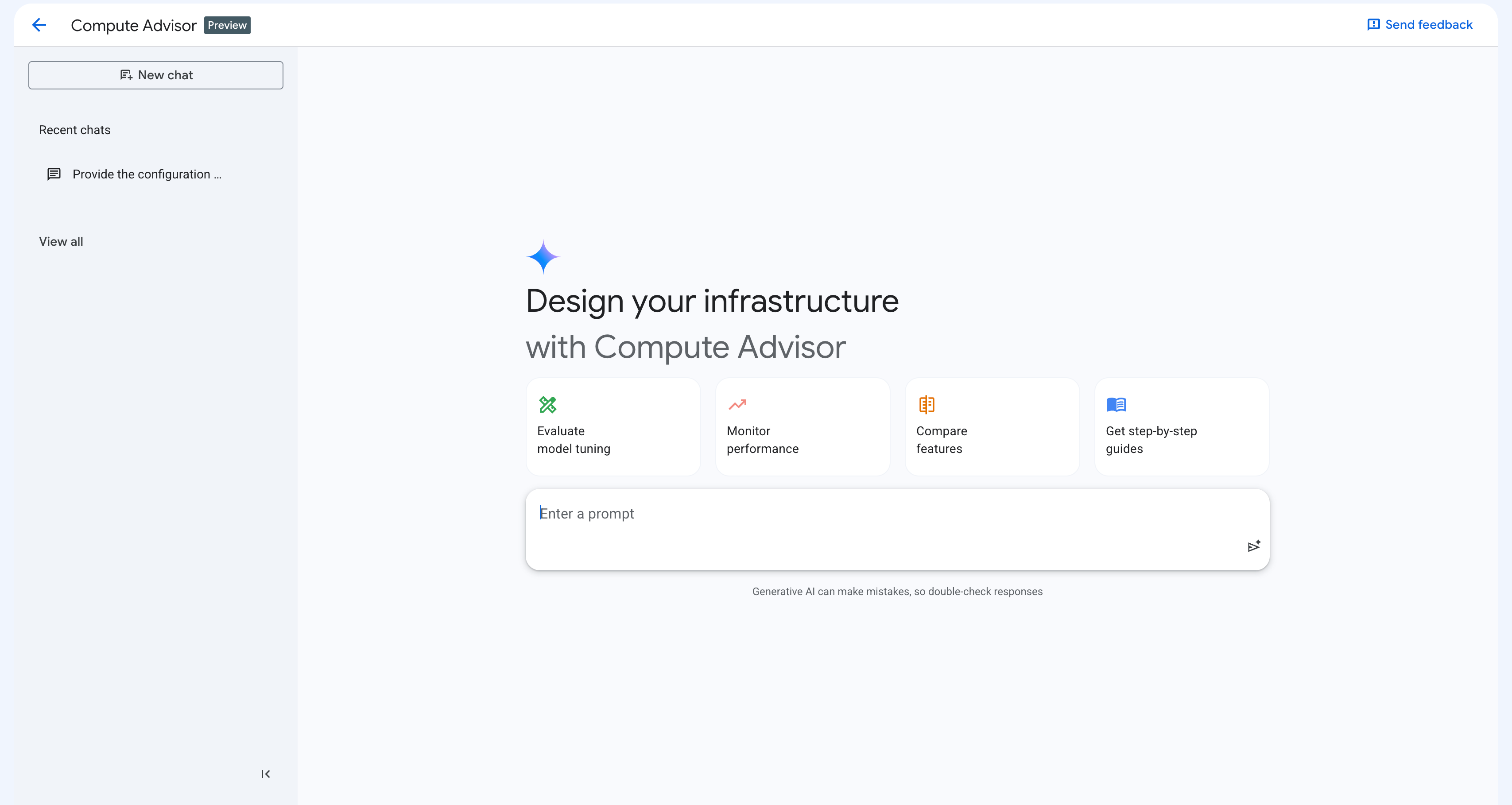
The UI elements that are displayed in the preceding screenshot are the following:
Conversation history side panel: shows your recent chats. You can interact with this panel as follows:
To start a new conversation, click New chat.
To resume a recent conversation, in the Recent chats section, click the conversation.
To view a list of all your conversations, click View all. On the My history page, you can view the details of a past conversation and resume it, or delete conversations if you no longer need them.
Quick-action prompt cards: a set of cards that each contain a sample prompt. If you click a card, then the Google Cloud console automatically populates the prompt box with the sample prompt.
Prompt box: this field lets you enter and submit prompts. To submit a prompt, click Submit prompt.
Prompt Compute Advisor
After you submit a prompt, Compute Advisor starts to generate a response. A pane appears and Google Cloud console displays the response to your prompt in the pane, as shown in the following screenshot:
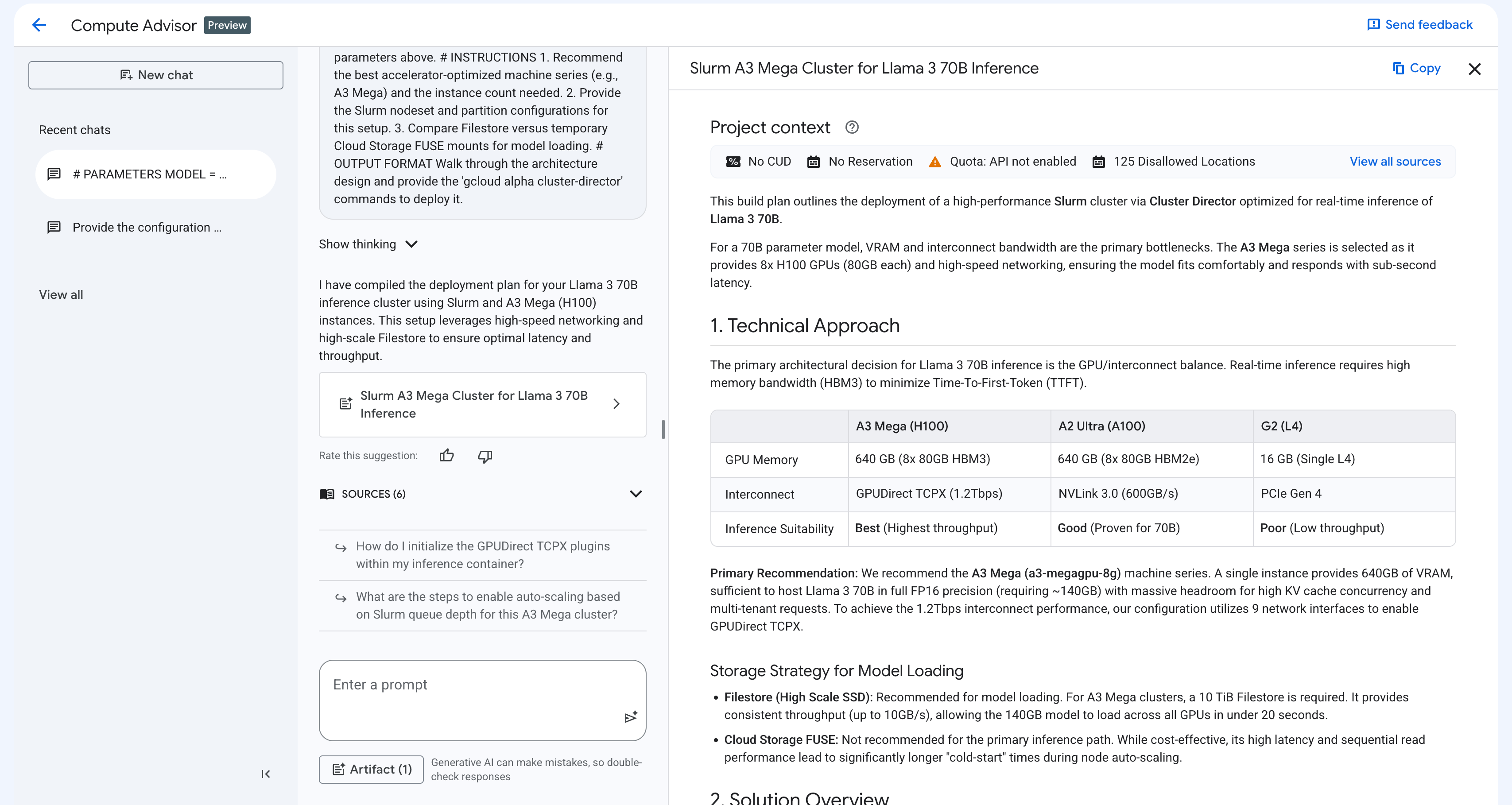
Based on your prompt, the response pane includes the following elements:
Contextual grounding: Compute Advisor automatically evaluates your project context to deliver highly tailored recommendations, including quota limits, existing reservations, CUDs, your default region and zone, and any resource location constraints.
Interactive code snippets: Compute Advisor generates gcloud commands, REST API methods, or Terraform resources. You can copy and paste these code snippets or run them in Cloud Shell.
Visual canvas: Compute Advisor organizes recommendations into structured tables and side-by-side comparisons. This view helps you evaluate product features and architectural approaches. It also provides an implementation plan for your use case.
The following sections outline the best practices for writing prompts, and example prompts that you can use before you create or modify a cluster.
Best practices for prompts
To get the most accurate and actionable recommendations from Compute Advisor, we recommend that you structure your prompts in the same way that you would do a code block. This approach guides the generative AI by using clear parameter declarations, role definitions, specific instructions, and explicit output formats.
When you prompt Compute Advisor, consider the following best practices:
Focus on design and planning: we recommend that you don't prompt Compute Advisor for troubleshooting cluster errors. To resolve these errors, see instead Troubleshoot errors in Cluster Director.
Specify a persona or role: declare a target role or persona, such as an IT administrator, AI researcher, or platform engineer, for Compute Advisor to adopt. This approach guides the tone, depth, and expertise level of the resulting recommendations.
Provide explicit, numbered instructions: break your objective down into concrete, step-by-step questions or tasks. This approach structures the Compute Advisor's reasoning process and helps ensure that Compute Advisor addresses all of your requirements.
Define a specific output format: explicitly state how you want the recommendation to be formatted, such as a walkthrough explanation, a Markdown comparison table, or a ready-to-use gcloud code block.
Leverage automatic context grounding: you don't need to include your default region or zone, available quotas, CUDs, or resource location constraints into your prompt. Compute Advisor can access this information in your Google Cloud project.
Iteratively refine your designs: you can modify or expand the response that Compute Advisor generated by sending new prompts. For example, you can ask the assistant to add networking recommendations to your deployment plan or modify the storage requirements without starting a new conversation.
Example prompts
The following are examples of prompts that you can use to help you design and optimize your cluster:
Cluster topology and placement strategy: to determine the optimal deployment model and placement policy for a high-performance AI workload, use a prompt like the following:
Act as an AI researcher. I need to design a GPU cluster topology in
Cluster Director to train a foundation large language model that
maximizes ML goodput and secures accelerator capacity. Please provide the
following:

1. A comparison of clustered GPU machine series across available regions.
2. An explanation of how compact placement policies and workload policies
   reduce network latency and boost goodput.
3. The optimal configuration for future reservations in
   AI Hypercomputer to secure capacity for this workload.

Format the comparison as a Markdown table, and provide the deployment steps
as a ready-to-use gcloud code block.
Provisioning model and cost optimization: to evaluate provisioning models and reduce batch processing costs, use a prompt like the following:
Act as an IT administrator. I need to select the most cost-effective
consumption option to run large fault-tolerant AI batch jobs on clusters in
Cluster Director without data loss. Please provide the following:

1. A cost and availability comparison of Flex-start VMs against
   Spot VMs for AI workloads.

2. An explanation of how atomic allocation in Flex-start VMs
   provisions all accelerator nodes at the exact same time.

3. A cluster configuration with checkpoint storage to save model state
   before Compute Engine reclaims a Spot VM.

Format the comparison as a Markdown table, and provide the configuration
steps to complete in the Google Cloud console.
What's next
To create a cluster in Cluster Director, use one of the following methods: