

This document explains the different ways, called consumption options, to get and use compute resources in Cluster Director. For each partition that you want to create in a cluster, choose the consumption option that best fits your workload, its duration, and your cost needs.
Each consumption option specifies the following:
How you access compute resources to create virtual machine (VM) instances in your cluster.
The underlying provisioning model, which determines the obtainability, lifespan, and pricing of your VMs.
To get AI-powered assistance when you evaluate which consumption option best fits your workload and budget requirements, you can prompt Gemini in the Google Cloud console. For more information, see Design and optimize your cluster with Gemini.
Compare consumption options
The following table summarizes the key differences between the consumption options:
| Consumption option | Future reservations for blocks of capacity | Future reservations for up to 90 days (in calendar mode) | Flex-start | Spot | On-demand |
|---|---|---|---|---|---|
| Supported machines | A4X Max, A4X, A4, A3 Ultra, and A3 Mega | A4, A3 Ultra, and A3 Mega | A4, A3 Ultra, and A3 Mega | A4, A3 Ultra, A3 Mega, and N2 | N2 |
| Lifespan | Unlimited | 90 days maximum | 7 days maximum | Unlimited (but subject to preemption) | Unlimited |
| Preemptible | |||||
| Capacity assurance | Very high. If Google Cloud approves your reservation request, then you have very high assurance that Compute Engine provisions your requested capacity. | Very high. If Google Cloud approves your reservation request, then you have very high assurance that Compute Engine provisions your requested capacity. | Best-effort. Compute Engine makes best-effort attempts to schedule the provisioning of your requested capacity. | Best-effort. Compute Engine makes best-effort attempts to provision your requested capacity. | Best-effort. Compute Engine makes best-effort attempts to provision your requested capacity. |
| Quota | Quota is automatically increased before capacity is delivered. | No quota is charged. | Preemptible quota is charged. | Preemptible quota is charged. | Standard quota is charged. |
| Pricing |
|
|
|
|
|
| Resource allocation | Dense. Resources are physically close to each other to minimize network hops and optimize for the lowest latency. | Dense. Resources are physically close to each other to minimize network hops and optimize for the lowest latency. | Dense. Resources are physically close to each other to minimize network hops and optimize for the lowest latency. | Best-effort. Resources are closely placed to each other on a best-effort basis. | Best-effort. Resources are closely placed to each other on a best-effort basis. |
| Provisioning model | Reservation-bound | Reservation-bound | Flex-start | Spot | Standard |
| Creation prerequisites | To create clusters, you must do the following:
|
To create clusters, you must do the following:
|
If your requested capacity becomes available within your specified timeframe, Cluster Director creates the VMs. Otherwise, you encounter errors. | If resources are available, then you can immediately create VMs. Otherwise, you encounter errors. | If resources are available, then you can immediately create VMs. Otherwise, you encounter errors. |
Choose a consumption option
Use the following flowchart to choose the consumption option that best fits the type of partition for your cluster:
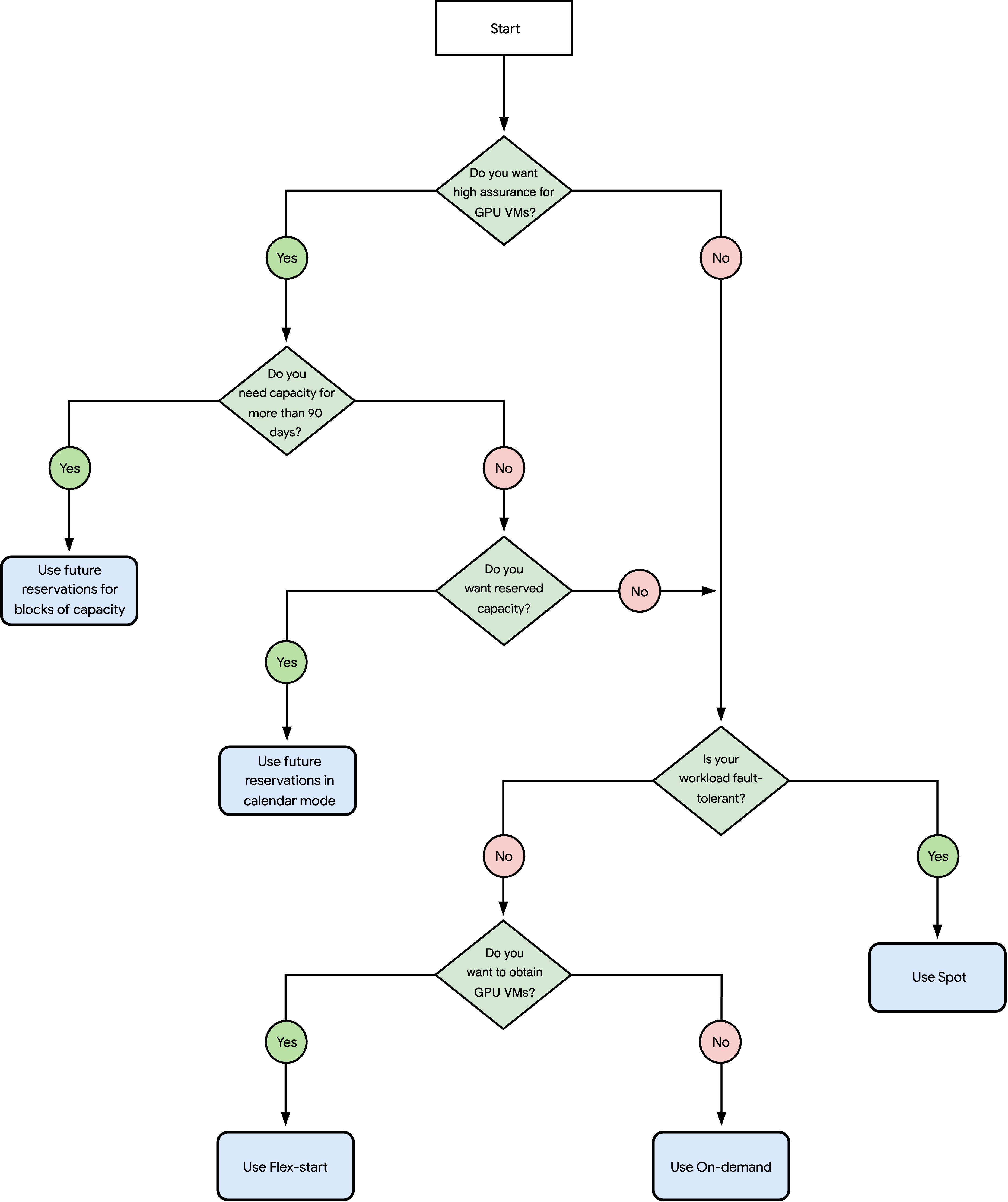
The questions in the preceding diagram are the following:
Do you want high assurance for GPU VMs?
Yes: go to question 2.
No: go to question 4.
Do you need capacity for more than 90 days?
No: go to question 3.
Do you want reserved capacity?
Yes: see Use future reservations in calendar mode.
No: go to the question 4.
Is your workload fault-tolerant?
Yes: see Use Spot.
No: go to question 5.
Do you want to obtain GPU VMs?
Yes: see Use Flex-start.
No: see Use On-demand.
Use future reservations for blocks of capacity
To run long-running, large-scale distributed workloads that require densely allocated resources, you can request to reserve compute resources for a specific time in the future. If your request is approved, then you have exclusive access to your reserved resources for that period of time, and you can use the resources to create clusters. At the end of the reservation period, Compute Engine does the following:
Compute Engine deletes the reservation.
Based on the termination action that you specify when creating your cluster, Compute Engine stops or deletes any VMs that use the reservation.
Ideal workloads for future reservations for blocks of capacity
Future reservations for blocks of capacity are ideal for the following workloads:
Pre-training foundation models
Multi-host foundation model inference
Key characteristics of future reservations for blocks of capacity
Future reservations for blocks of capacity have the following characteristics:
You can reserve A4X Max, A4X, A4, A3 Ultra, and A3 Mega machine types. Machines are densely allocated to minimize network latency.
You can reserve as many VMs as you want for up to a year. For any VMs you want to reserve for a year or longer, you need to purchase and attach a resource-based commitment to your reserved resources. Then, you can use the reserved resources to create and run VMs until the end of the reservation period. to your reserved resources.
You use the reservation-bound provisioning model, which has the following benefits:
You have a higher chance of obtaining GPUs.
In addition to the commitment attached to your VMs, you get a discount up to 53% for vCPUs, memory, GPUs, and any attached Local SSD disks.
How to use future reservations for blocks of capacity
To use future reservations for blocks of capacity to create clusters, you must complete the following steps:
Request to reserve capacity. Contact your account team and specify the resources to reserve. Based on availability, Google creates a draft reservation request for you. If it looks correct, then you can submit it. Google Cloud immediately approves your reservation request.
For instructions, see Reserve capacity through your account team.
Consume reserved resources. At the start of your chosen reservation period, you can use the reservation to create VMs in one or more of your cluster partitions.
For instructions, see one of the following:
Use future reservations in calendar mode
To run short-running distributed workloads that require densely allocated resources, you can request to reserve compute resources for up to 90 days. If your request is approved, then you have exclusive access to your reserved resources for that time, and you can use the resources to create clusters. At the end of the reservation period, Compute Engine does the following:
Compute Engine deletes the reservation.
Based on the termination action that you specify when creating your cluster, Compute Engine stops or deletes any VMs that use the reservation.
Ideal workloads for future reservations in calendar mode
Future reservations in calendar mode are ideal for the following workloads:
Model pre-training
Model fine-tuning
Simulations
Inference
Key characteristics of future reservations in calendar mode
Future reservations in calendar mode have the following characteristics:
You can reserve A4, A3 Ultra, or A3 Mega machine types. These machines are densely allocated to minimize network latency.
You can view the future availability of resources, and then reserve up to 80 VMs for up to 90 days in the future. Then, you can use the reserved resources to create VMs until the end of the reservation period.
You use the reservation-bound provisioning model, which has the following benefits:
You have a higher chance of obtaining GPUs.
You get a discount up to 53% for vCPUs, memory, GPUs, and any attached Local SSD disks.
How to use future reservations in calendar mode
To use future reservations in calendar mode to clusters, you must complete the following steps:
View resources availability. You can view the future availability of the resources that you want to reserve. When you create a reservation request, you can specify the number, type, and reservation duration for the resources that you confirmed as available. This action increases the chances that Google Cloud approves your request.
For instructions, see View resource future availability.
Reserve capacity. You create a reservation request for a future date and time. Google Cloud approves the reservation request within two minutes. If approved, then Compute Engine reserves the capacity for you. At your chosen delivery date, you can use the reserved resources to create clusters.
For instructions, see Create a request for GPU VMs, H4D VMs, or TPUs.
Consume reserved resources. At the start of your chosen reservation period, you can use the reservation to create VMs in one or more of your cluster partitions.
For instructions, see one of the following:
Use Flex-start
To run short-duration workloads that require densely allocated resources, you can request compute resources for up to seven days by using Flex-start. Whenever resources are available, Compute Engine creates your requested number of VMs. The Flex-start VMs run until you delete them, or until Compute Engine deletes the VMs at the end of their run duration.
Ideal workloads for Flex-start
Flex-start is ideal for workloads that can start at any time, such as the following:
Small model pre-training
Model fine-tuning
Simulations
Batch inference
Key characteristics of Flex-start
Flex-start has the following characteristics:
You can request A4, A3 Ultra, and A3 Mega VMs. Dense allocation depends on resource availability.
You use the flex-start provisioning model, which has the following benefits:
You have a higher chance of obtaining GPUs.
You can get a discount up to 53% for vCPUs, memory, GPUs, and any attached Local SSD disks.
You can request resources for up to seven days. When your allocated resources reach the end of their maximum run duration, Cluster Director automatically requests new resources with the same run duration.
How to use Flex-start
To use Flex-start to create VMs in one or more of your cluster partitions, use one of the following methods:
Use Spot
To run fault-tolerant workloads, you can obtain compute resources immediately based on availability. You get resources at the lowest price possible. However, Compute Engine can preempt VMs at any time to reclaim capacity.
Ideal workloads for Spot
Spot is ideal for workloads where interruptions are acceptable, such as the following:
Batch processing
High performance computing (HPC)
Continuous integration and continuous deployment (CI/CD)
Data analytics
Media encoding
Online inference
Key characteristics of Spot
Spot has the following characteristics:
You can create A4, A3 Ultra, A3 Mega, and N2 VMs. Dense allocation depends on resource availability.
You can immediately create clusters. The VMs in the cluster run until you stop or delete them, or until Compute Engine preempts the VMs to reclaim capacity.
You use the spot provisioning model, which has the following benefits:
You have a higher chance of obtaining GPUs.
You get a discount of up to 91% off for vCPUs, memory, and any attached GPUs and Local SSD disks.
How to use Spot
To use Spot to create VMs in one or more of your cluster partitions, complete the following steps:
View resources availability. You can view resource availability in the region or zone where you want to create Spot VMs. This action helps reduce the time that Cluster Director takes to allocate resources and create Spot VMs.
For instructions, see View resource availability for Spot VMs.
View preemption rate and pricing. You can view the historical and current preemption rate and pricing across different machine types and zones. This information helps you choose the machine type and location that best fit your workload and budget.
For instructions, see View the preemption rate and pricing for Spot VMs.
Create your cluster. To create your cluster with one or more partitions that use Spot VMs, select one of the following methods:
Use On-demand
For cluster components that don't require GPU acceleration, such as login nodes, or for running CPU-bound computational tasks like HPC workloads, you can get resources immediately based on availability. You get resources at the standard pricing.
Ideal workloads for On-demand
On-demand is ideal for workloads that don't require GPU-acceleration, such as the following:
Login nodes
CPU-bound computational tasks
General-purpose HPC
Key characteristics of On-demand
On-demand has the following characteristics:
You can create N2 VMs. Dense allocation depends on resource availability.
You can immediately create clusters. The VMs in the cluster run until you stop or delete them.
You use the standard provisioning model, which is the default model.
How to use On-demand
To use On-demand to create VMs in one or more of your cluster partitions, use one of the following methods: