

Get started with API Gateway and API hub
This tutorial shows you how to connect API Gateway with API hub to enable seamless publishing of API metadata from your API Gateway project to API hub.
In this tutorial, you'll use the Google Cloud console.
Task List
Use the following task list as you work through the tutorial. All tasks are required to connect API Gateway with API hub.
Perform the prerequisite steps described in Before you begin.
Avoid incurring charges to your Google Cloud account. See Clean up.
Before you begin
Before you begin, ensure that you have completed the following prerequisite steps:
Set up API Gateway in your project
To set up API Gateway in your project, do the following:
In the Google Cloud console, go to the API Gateway page.
API Gateway requires that you enable the following Google services:
Name Title apigateway.googleapis.comAPI Gateway API servicemanagement.googleapis.comService Management API servicecontrol.googleapis.comService Control API If you have not previously enabled these services for the project you select, you are prompted to do so.
Confirm that billing is enabled for your project.
Set up API hub in your host project
Create or select a Google Cloud project to use as your host project.
A host project is a Google Cloud project in your Google Cloud organization that you designate as the consumer project for all API hub resources. A single API hub instance can be provisioned per host project.
To provide centralized discovery of APIs across all of your API Gateways, we recommend using one dedicated host project for the API hub instance and attaching multiple API Gateway projects, referred to as runtime projects, to the API hub instance.
Grant Identity and Access Management (IAM) roles required to connect API Gateway with API hub.
Provision API hub in your host project.
Deploy an API to API Gateway
Complete the API Gateway quickstart to deploy a "hello world" Cloud Run service and create a gateway that points to that service.
For example, the helloworld API is deployed to the helloworld-gateway API Gateway, as shown on the Gateways page in Google Cloud console.

Attach your API Gateway project to API hub
To attach your API Gateway project to API hub, do the following:
- In the Google Cloud console, go to the API hub page.
- Select your API hub host project in the drop-down.
- Click Settings from the left navigation menu to open the Settings page.
- Go to the Project associations tab.
- Click Attach runtime project.
This displays the Select a resource pane. - Click the Google Cloud project where API Gateway is provisioned.
- In the Project association settings pane, select API Gateway and any other API assets you want to automatically import.
- Click Save.
Your runtime project is attached and displayed in the list of attached runtime projects in the Google Cloud console.
For example:

View your API Gateway API in API hub
To view your API Gateway API in API hub, do the following:
- In the Google Cloud console, go to the APIs page in API hub.
- Locate the "hello world" API you deployed to API Gateway.
If necessary, select Gateway: API Gateway in the Filter drop-down to display only the API Gateway APIs.
For example: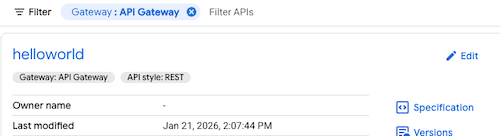
- Click the API to view more details, including the API metadata.
View your MCP Gateway in API hub
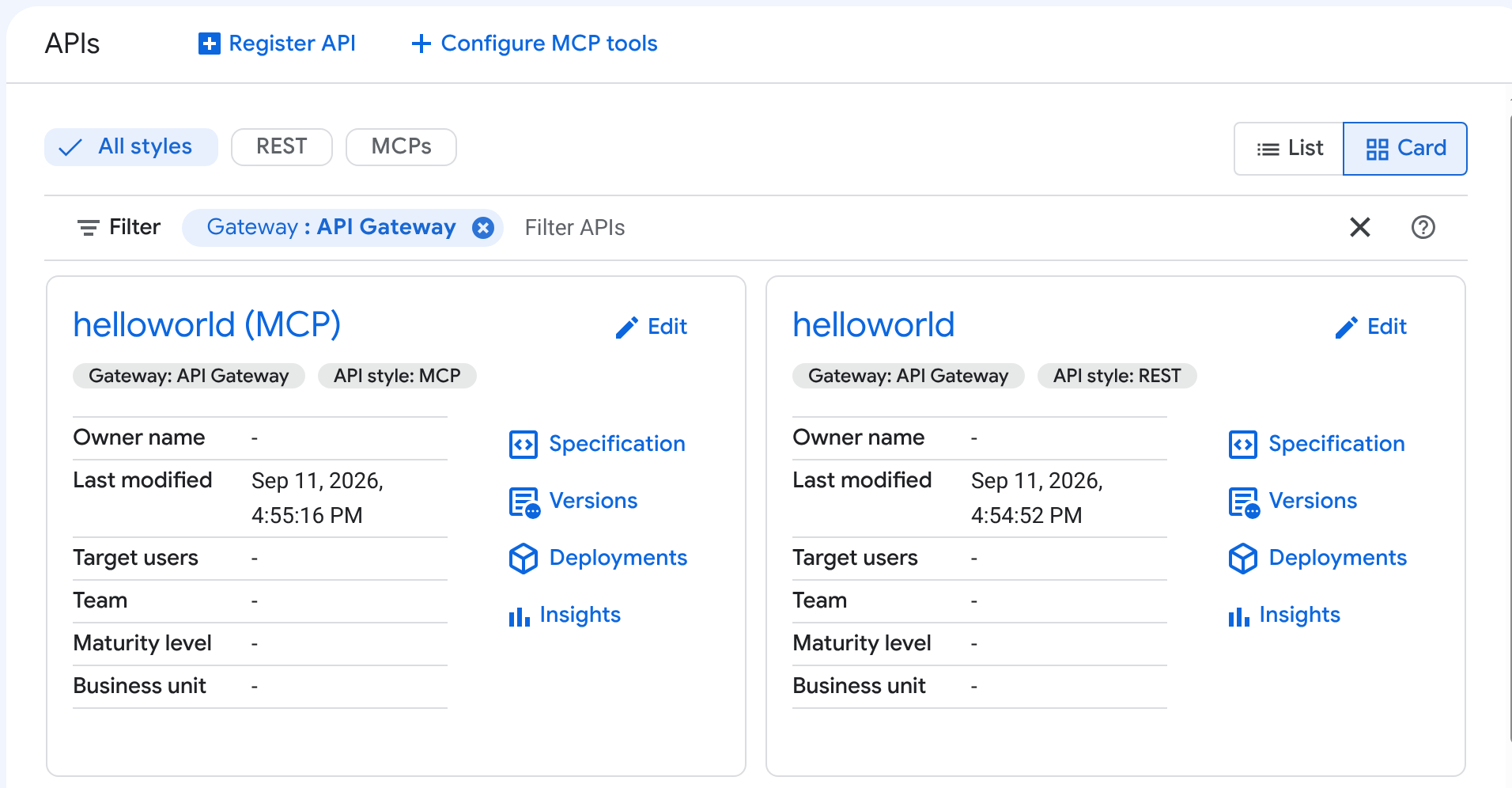
If your API Gateway API is configured as a Model Context Protocol (MCP) server, API hub adds a second entry for it, named <your-api> (MCP). See Discovery through API hub and Agent Registry in the MCP overview.
Only gateways that have MCP enabled will display these additional entries in API hub.
To view your MCP Gateway details in API hub:
- In the Google Cloud console, go to the APIs page in API hub.
- Locate the entry named
<your-api> (MCP). - Click the API to view its details, including MCP-specific metadata and tools.
For example, the helloworld (MCP) API is displayed alongside the standard helloworld API in API hub:
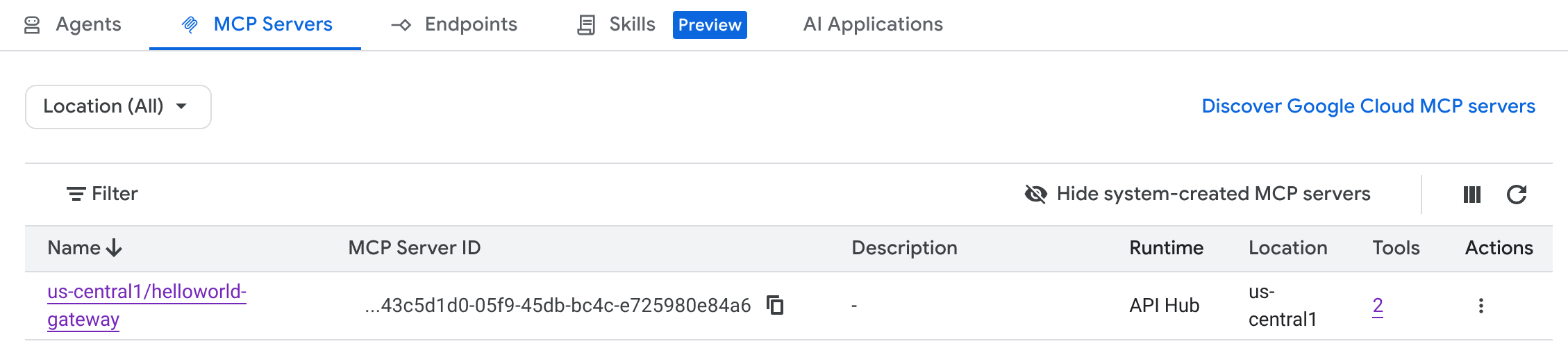
You can also view this MCP server in Agent Registry. Agents can discover the server and its tools through either catalog automatically.
For example, the MCP server is displayed in the MCP Servers tab in Agent Registry:
Clean up
To avoid incurring charges to your Google Cloud account for the resources used in this tutorial, you can:
Alternatively, you can also delete the Google Cloud projects used for this tutorial.
What's next
- Learn more about API Gateway
- Learn more about how to centralize your APIs using API hub