Learn how to open an SSH tunnel from your local machine
to a workstation, and then use
[VS Code Remote Development](https://code.visualstudio.com/docs/remote/remote-overview)
support to connect to Cloud Workstations from your local VS Code editor.
> [!TIP]
> **Tip:** For an in-browser experience, you can use the Cloud Workstations IDE [Code OSS for Cloud Workstations](https://docs.cloud.google.com/workstations/docs/base-editor-overview), which is based on the [Code-OSS](https://github.com/microsoft/vscode) open source project.
## Before you begin
Before you begin, make sure that you follow the steps for these tasks:
1. Make sure that someone on your team has created a [workstation configuration](https://docs.cloud.google.com/workstations/docs/create-configuration).
2. [Create and launch your workstation](https://docs.cloud.google.com/workstations/docs/create-workstation).
3. While you're in the Google Cloud console, copy the following information:
1. Project name and ID: click the project name in the Google Cloud menu bar and copy the ID in the **Project name and ID** dialog that opens.
2. Region
3. Cluster name
4. Configuration name
4. From your local machine,
[install the `gcloud` CLI](https://docs.cloud.google.com/sdk/docs/install).
If you're running `gcloud` CLI for the first time, you may also
need to run `gcloud auth login` to obtain credentials and
`gcloud config set project PROJECT_ID` to set your current
project to the project ID you copied in the previous step.
5. When using `ssh` for the first time, install a remote SSH extension so you
can connect to a workstation from the VS Code editor through the
Extension Marketplace or through the command palette.
### Extension Marketplace
1. Open your local VS Code editor application and then open the
Extension Marketplace by selecting
 **Extensions** in the Activity bar.
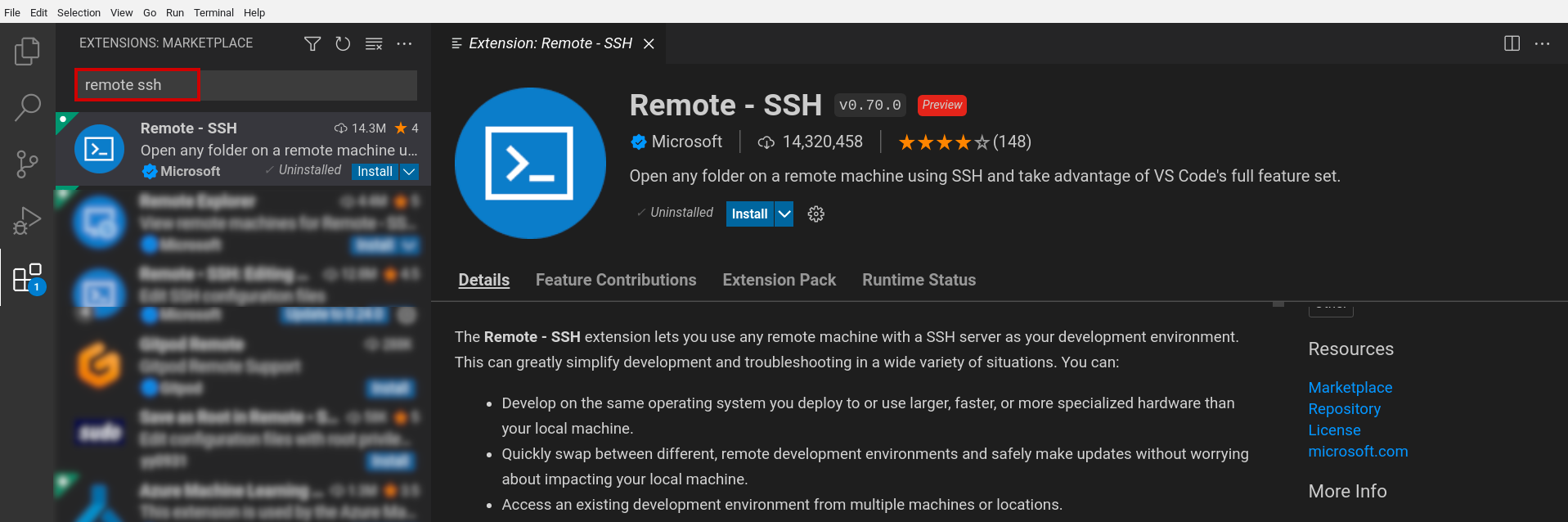
2. Click **Install** to install the **Remote - SSH** extension.
3. Enter `remote ssh` in the search field, which opens the extension page
for **Remote - SSH.**
### Command palette
1. To open the command palette, press Control+Shift+P
(or Command+Shift+P on macOS), or click
**View** \> **Command Palette**.
2. Enter `ext install ms-vscode-remote.remote-ssh` to install the
extension.
## Open an SSH tunnel
Open an SSH tunnel from your local machine to a workstation using the
[`gcloud workstations start-tcp-tunnel`](https://docs.cloud.google.com/sdk/gcloud/reference/workstations/start-tcp-tunnel)
command:
1. In the Google Cloud console,
go to the **Cloud Workstations** \> **Workstations** page.
[Go to Workstations](https://console.cloud.google.com/workstations/list)
2. Click the workstation name to open the **Workstation details** page.
3. In the following example, replace the placeholders for the
workstation name, region (location), workstation cluster name, and
workstation configuration name. Copy the values from the Workstation details
panel into the placeholders marked with an
editEdit icon.
gcloud workstations start-tcp-tunnel \
--project=PROJECT_ID \
--region=REGION \
--cluster=CLUSTER_NAME \
--config=CONFIG_NAME \
--local-host-port=:LOCAL_PORT \
WORKSTATION_NAME 22
See the
[Before you begin](https://docs.cloud.google.com/workstations/docs/develop-code-using-local-vscode-editor#before_you_begin)
section to find the project ID.
The `--local-host-port=:LOCAL_PORT` flag is optional.
If you would like to specify a local port, replace
`LOCAL_PORT` with the local port number that you want
to use. If you don't specify a local port, the system chooses an
arbitrary, unused local port for you, and outputs a message with the port
number so you know which local port it uses.
4. After filling in the placeholders, click
content_copy
**Copy code sample** to copy the `gcloud` CLI command.
5. Paste the command into your local terminal window and press Enter
to create the tunnel.
When the command succeeds, a `Listening on port` message appears followed by
the local port number.
For more details about each configuration flag, see
[SSH tunnel](https://docs.cloud.google.com/workstations/docs/ssh-support)
or
[`start-tcp-tunnel`](https://docs.cloud.google.com/sdk/gcloud/reference/workstations/start-tcp-tunnel).
## Connect to a Cloud Workstations host
Follow these steps to connect to a Cloud Workstations host:
1. Open or return to the VS Code application.
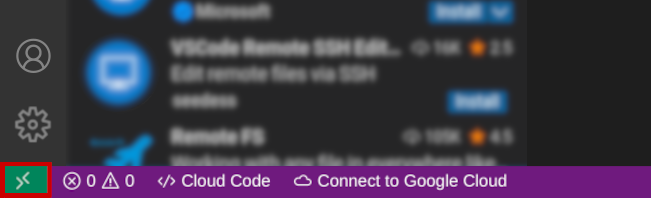
2. To launch **Remote - SSH** , click 
**Open a Remote Window** in the status bar.
3. Select the **Connect to Host** option when the command palette opens.

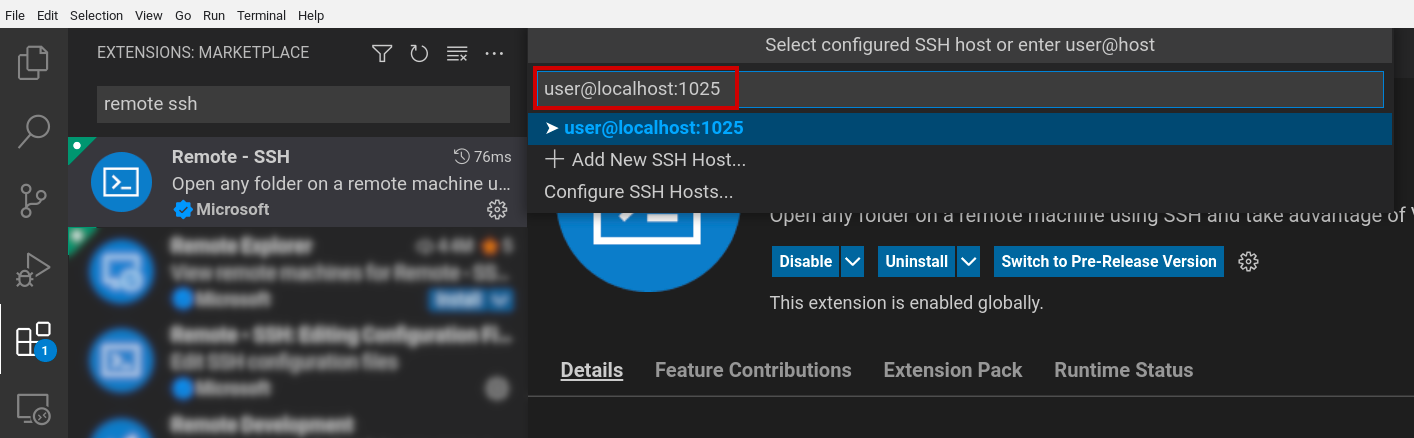
4. Enter `user@localhost:LOCAL_PORT`, replacing
`LOCAL_PORT` with your local port number.
The following example connects to local port `1025` by specifying
`user@localhost:1025`.
> [!NOTE]
> **Note:** The host keys for the workstations change between sessions because workstations run on ephemeral VMs. Ensure that host key validation is disabled for the workstation configuration for this reason.
5. If prompted to connect after you see the **Host Added** confirmation
message, click **Connect**.
The system might also prompt you to confirm the hash. If prompted, click
**Continue**.
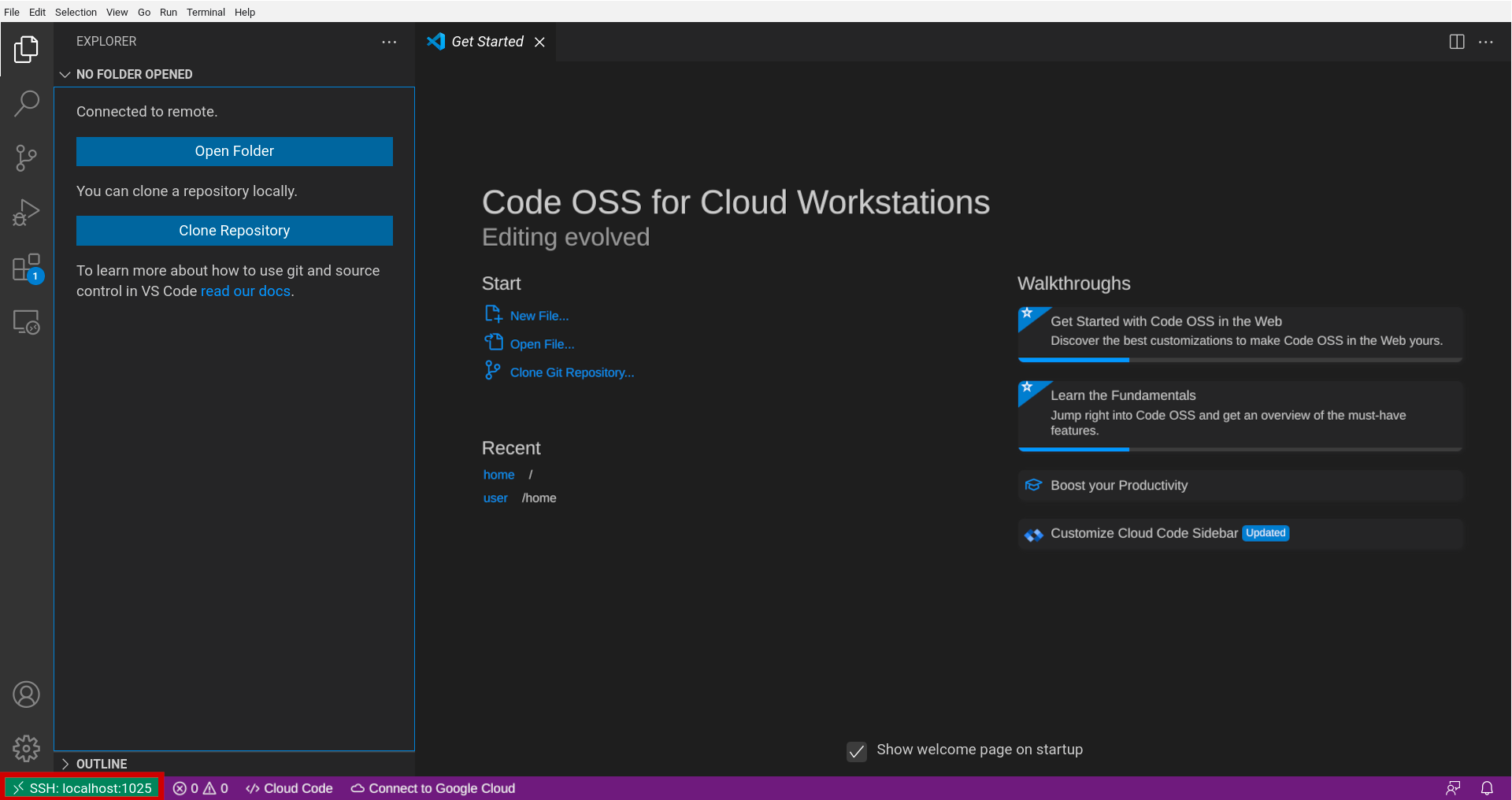
6. A new VS Code editor opens and the VS Code status bar shows
 **SSH: localhost:** followed by the port number.
You now have access to the files and language servers on your remote workstation,
and you can build and run processes that run inside your workstation.
The following example shows a VS Code editor window connected to
Cloud Workstations through  **SSH: localhost: 1025**.
You can also go back to the Extensions Marketplace to install
[Cloud Code](https://docs.cloud.google.com/code/docs)
and other local VS Code extensions to help you
build, run, and test your code.