You can use IAM Conditions to grant access to individual
workstation ports. This is useful for sharing limited access to individual
workstation ports. For example, you can use IAM Conditions to
grant access to a demo server running on a workstation port.
Cloud Workstations supports `destination.port` IAM Conditions
attribute.
For more information about IAM Conditions, see the
following:
- [Conditions overview](https://docs.cloud.google.com/iam/docs/conditions-overview)
- [Managing conditional role bindings](https://docs.cloud.google.com/iam/docs/managing-conditional-policies)
## Before you begin
Before you can grant access to individual workstation ports, you must have the
Cloud Workstations Policy Admin
(`roles/workstations.policyAdmin`) role on the workstation.
### Check IAM roles on the workstation
Be sure that you have the Cloud Workstations User (`roles/workstations.user`) and
Cloud Workstations Policy Admin (`roles/workstations.policyAdmin`) roles
on the workstation. If you don't, ask your organization's
Cloud Workstations Admin to grant you those roles on the workstation.
> [!TIP]
> **Tip:** [--grant-workstation-admin-role-on-create](https://docs.cloud.google.com/sdk/gcloud/reference/workstations/configs/create#--grant-workstation-admin-role-on-create) option is recommended on Cloud Workstations configuration because it lets creators of workstations to update IAM policy of the workstation that they create. For details on this option, see the [Add users](https://docs.cloud.google.com/workstations/docs/create-configuration#add_users) section.
### Start a demo server in workstation
Start and connect to your workstations using the [Launch workstation](https://docs.cloud.google.com/workstations/docs/create-workstation#launch_a_workstation)
guide. Run the following command on the workstation to start a demo server on
a workstation port.
python3 -m http.server WORKSTATIONS_PORT
Replace the following:
- `WORKSTATIONS_PORT`: the port on which the demo server will listen. For example, use 8081.
## Update conditional IAM policy of workstation
To grant access to a workstation port, you can use Google Cloud console or
`gcloud` CLI [`iam policies`](https://docs.cloud.google.com/sdk/gcloud/reference/iam/policies)
command.
### Console
To grant conditional access to the workstation:
1. In the Google Cloud console, navigate to the
**Cloud Workstations** \> **Workstations**
page.
[Go to Workstations](https://console.cloud.google.com/workstations/list)
2. Find your workstation and then click themore_vert**More** options menu, and select **Add Users**.
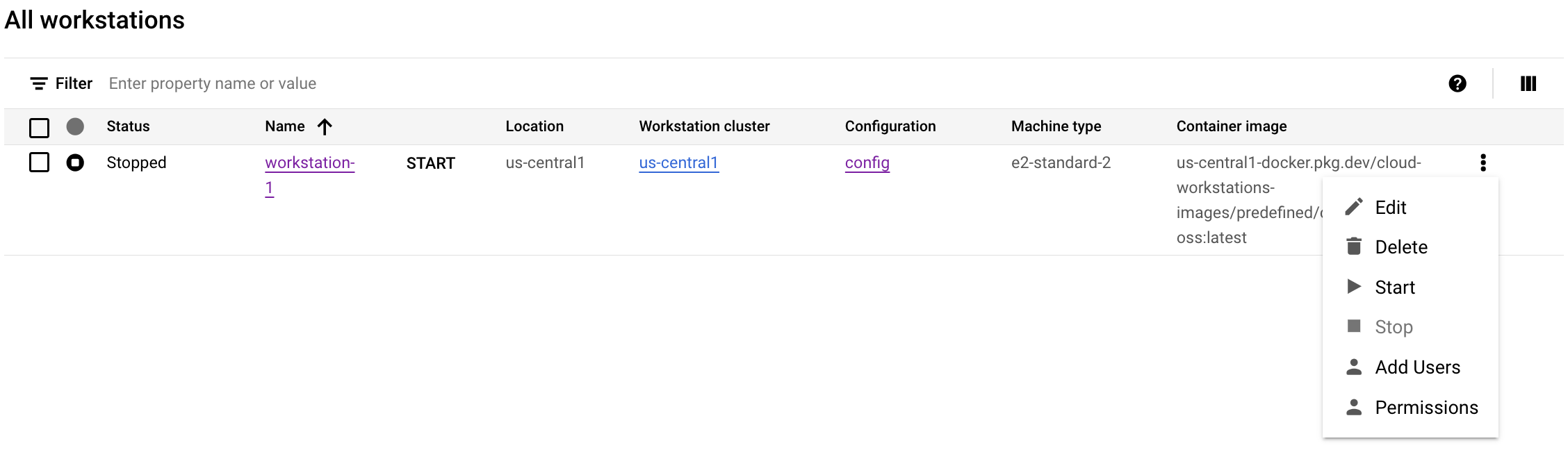
3. To grant conditional access, enter the email for the principal. For example,
`222larabrown@gmail.com`.
4. Ensure **Cloud Workstations User** is selected as a Role.
5. Update the IAM condition to grant port-specific access:
1. Click **Add IAM Condition**.
2. Specify a title such as **Port WORKSTATIONS_PORT**.
3. In the **Condition Editor** tab, enter the following condition:
destination.port == WORKSTATIONS_PORT
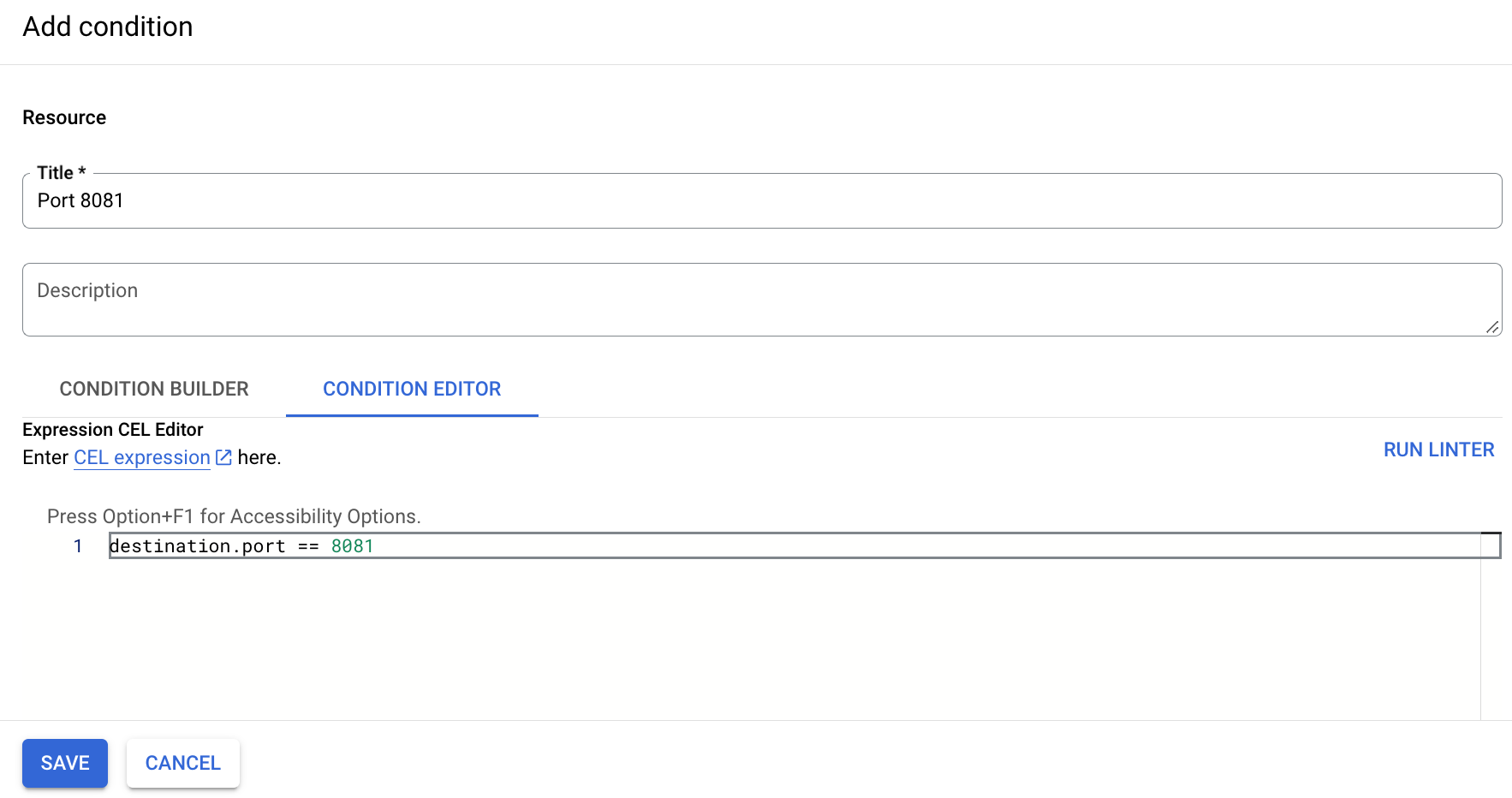
1. Click **Save** to finalize granting conditional access to the specific port to the principal.
### gcloud
1. Get the workstation IAM policy by using the
`gcloud` CLI [`workstations get-iam-policy`](https://docs.cloud.google.com/sdk/gcloud/reference/workstations/get-iam-policy)
command. This command outputs the policy to the file:
`/tmp/WORKSTATIONS_NAME.yaml`. If the file
exists, it will be overwritten.
gcloud workstations get-iam-policy WORKSTATIONS_NAME \
--cluster=WORKSTATIONS_CLUSTER_NAME \
--config=WORKSTATIONS_CONFIG_NAME \
--region=LOCATION \
--project=WORKSTATIONS_PROJECT_ID \
> /tmp/WORKSTATIONS_NAME.yaml
Replace the following:
- `WORKSTATIONS_NAME`: the name of the workstation.
- `WORKSTATIONS_CONFIG_NAME`: the name of the workstation configuration.
- `WORKSTATIONS_CLUSTER_NAME`: the name of the workstation cluster.
- `LOCATION`: the region name for your workstation cluster.
- `WORKSTATIONS_PROJECT_ID`: the ID of the Cloud Workstations project containing your workstation.
The YAML format of the policy is downloaded into `/tmp/WORKSTATIONS_NAME.yaml`:
bindings:
- members:
- user:222larabrown@gmail.com
role: roles/workstations.user
etag: BwYdnV9Eg7Y=
version: 1
2. To grant conditional access to a principal, add the following highlighted
condition expression to the policy file that you downloaded in the previous
step.
Do not modify the etag. Ensure the version is specified as `3`, since this policy includes the `condition` field.
For example:
bindings:
- members:
- user:YOUR_ID
role: roles/workstations.user
- condition:
expression: destination.port == WORKSTATIONS_PORT
title: Port WORKSTATIONS_PORT
members:
- user:PRINCIPAL
role: roles/workstations.user
etag: BwYlui8uSXo=
version: 3
Replace the following:
- `YOUR_ID`: your own login ID. For example, `222larabrown@gmail.com`.
- `PRINCIPAL`: the principal with whom you want share access of the port WORKSTATIONS_PORT of the workstation. For example, `baklavainthebalkans@gmail.com`.
- `WORKSTATIONS_PORT`: the workstation port on which the demo server is listening.
3. Set IAM policy of workstation using the
`gcloud` CLI [`workstations set-iam-policy`](https://docs.cloud.google.com/sdk/gcloud/reference/workstations/set-iam-policy)
command.
gcloud workstations set-iam-policy WORKSTATIONS_NAME \
--cluster=WORKSTATIONS_CLUSTER_NAME \
--config=WORKSTATIONS_CONFIG_NAME \
--region=LOCATION \
--project=WORKSTATIONS_PROJECT_ID \
/tmp/WORKSTATIONS_NAME.yaml
Replace the following:
- `WORKSTATIONS_NAME`: the name of the workstation.
- `WORKSTATIONS_CONFIG_NAME`: the name of the workstation configuration.
- `WORKSTATIONS_CLUSTER_NAME`: the name of the workstation cluster.
- `LOCATION`: the region name for your workstation cluster.
- `WORKSTATIONS_PROJECT_ID`: the ID of the Cloud Workstations project containing your workstation.
After the IAM policy of the workstation is updated, the principal
will be able to access the specified port of the workstation.
> [!NOTE]
> **Note:** Even if you revoke the IAM access, the principal may be able to access the specified port for up to 24 hours, or until the workstation is shut down.
## Share URL of workstation
The principal will be able to access the specified port with the following
workstation URL:
https://WORKSTATIONS_PORT-WORKSTATIONS_NAME.WORKSTATIONS_CLUSTER_NAME.cloudworkstations.dev
The placeholders represent the following:
- `WORKSTATIONS_PORT`: the port on which the demo server is listening.
- `WORKSTATIONS_NAME`: the workstation name.
- `WORKSTATIONS_CLUSTER_NAME`: the randomly generated cluster identifier.
- `cloudworkstations.dev`: the default domain name for a workstation.
The principal won't be able to access other ports of the workstation they
don't have access to.