Although Google Cloud encrypts data at rest by default using Google-owned and Google-managed encryption keys, you can encrypt your Workload Manager evaluation data by using customer-managed encryption keys (CMEKs). CMEK lets you manage key rotation, access, and protection levels to help you meet specific security and compliance requirements.
This document describes how to configure CMEK when you create or update custom rule type evaluations, and when you view Workload Manager evaluation results.
## Overview
By default, Workload Manager encrypts customer content at
rest. Workload Manager handles encryption for you without any
additional actions on your part. This option is called *Google default encryption*.
If you want to control your encryption keys, then you can use customer-managed encryption keys
(CMEKs) in [Cloud KMS](https://docs.cloud.google.com/kms/docs.md.txt) with CMEK-integrated services including
Workload Manager. Using Cloud KMS keys gives you control over their protection
level, location, rotation schedule, usage and access permissions, and cryptographic boundaries.
Using Cloud KMS also lets
you view audit logs and control key lifecycles.
Instead of Google owning and managing the symmetric
[key encryption keys (KEKs)](https://docs.cloud.google.com/kms/docs/envelope-encryption.md.txt#key_encryption_keys) that protect your data, you control and
manage these keys in Cloud KMS.
After you set up your resources with CMEKs, the experience of accessing your
Workload Manager resources is similar to using Google default encryption.
For more information about your encryption
options, see [Customer-managed encryption keys (CMEK)](https://docs.cloud.google.com/kms/docs/cmek.md.txt).
## Limitations
The following limitations apply to CMEK encryptions in Workload Manager:
- CMEK is available for Workload Manager custom rule type evaluations
only. Other Workload Manager features such as SAP evaluations or deployment use Google
default encryption because no customer content at rest is involved.
- Workload Manager applies CMEK keys to the storage owned by
Workload Manager only.
## Before you begin
Before you can use CMEK, you need to create a Cloud Key Management Service key and grant the
required permissions.
1. Create a key ring and key.
Select a project, follow the [Cloud KMS guide to creating symmetric keys](https://docs.cloud.google.com/kms/docs/creating-keys)
to create a key ring and a key. The [key ring's location](https://docs.cloud.google.com/kms/docs/locations.md.txt)
must match the evaluation's location.
Note that Workload Manager supports External Managed Key.
For more information, see [Cloud External Key Manager](https://docs.cloud.google.com/kms/docs/ekm.md.txt).
2. Grant permissions.
To provide access to the Cloud KMS key, [grant the `roles/cloudkms.cryptoKeyEncrypterDecrypter` role](https://docs.cloud.google.com/kms/docs/iam.md.txt#granting_roles_on_a_resource) to the Workload Manager service agent.
The service agent is `service-PROJECT_ID@gcp-sa-workloadmanager.iam.gserviceaccount.com`, where PROJECT_ID is the project ID in which the evaluation is created.
## How CMEK works for custom rule type evaluations
This section describes how CMEK works for custom rule type evaluations.
### KMS key provision
You can provide a Cloud KMS key during the creation or update process of a
custom rule type evaluation. This provision is optional. If no Cloud KMS key is
specified, Workload Manager uses Google default encryption.
The provided Cloud KMS key must exist and the Workload Manager service account
must be assigned the Encrypter/Decrypter role
(`roles/cloudkms.cryptoKeyEncrypterDecrypter`) to use the Cloud KMS key. Workload Manager
validates the Cloud KMS key during the evaluation creation or update,
and it returns errors.
### Data encryption
When you run an evaluation with a provisioned Cloud KMS key, Workload Manager
uses the provided Cloud KMS key to encrypt the storage owned by Workload Manager:
- Temporary Cloud Storage bucket used by the evaluation operation.
The temporary Cloud Storage bucket is created at the start of an evaluation and
deleted at the end of the evaluation.
- BigQuery datasets where evaluation results are stored.
Workload Manager doesn't use these keys to encrypt data in
the Cloud Storage buckets where you store custom rules, or the external
BigQuery datasets that you use to save the evaluation results.
### Data access
> [!WARNING]
> **Warning:** If the Cloud KMS key version is disabled or destroyed, you cannot access the evaluation results.
Workload Manager encrypts evaluation results with the provided Cloud KMS key primary version
at the time of running the evaluation. You can access and view the results of
an evaluation if that specific Cloud KMS key version remains enabled.
Evaluation results access is not affected by [KMS key rotation](https://docs.cloud.google.com/kms/docs/key-rotation.md.txt).
Key rotation creates a new version and the earlier versions still remain.
Evaluation results are not re-encrypted when the key is rotated.
## Configure CMEK for custom rule type evaluations
To use CMEK for custom rule type evaluations, first create a key in Cloud KMS,
then grant the key the required permissions as described in [Before you begin](https://docs.cloud.google.com/workload-manager/docs/evaluate/custom-rules/enable-cmek.md.txt#before-you-begin). After that you can use the key to
create or update evaluations, run evaluations and view evaluation results.
### Create an evaluation with CMEK
You can create custom rule type evaluations with CMEK the same way as described
in [the create evaluation page](https://docs.cloud.google.com/workload-manager/docs/evaluate/custom-rules/evaluate-using-custom-rules.md.txt).
You can enable CMEK after selecting the regions.
1. Select **Customer-managed encryption key (CMEK)** in the **Encryption (Optional)** list.
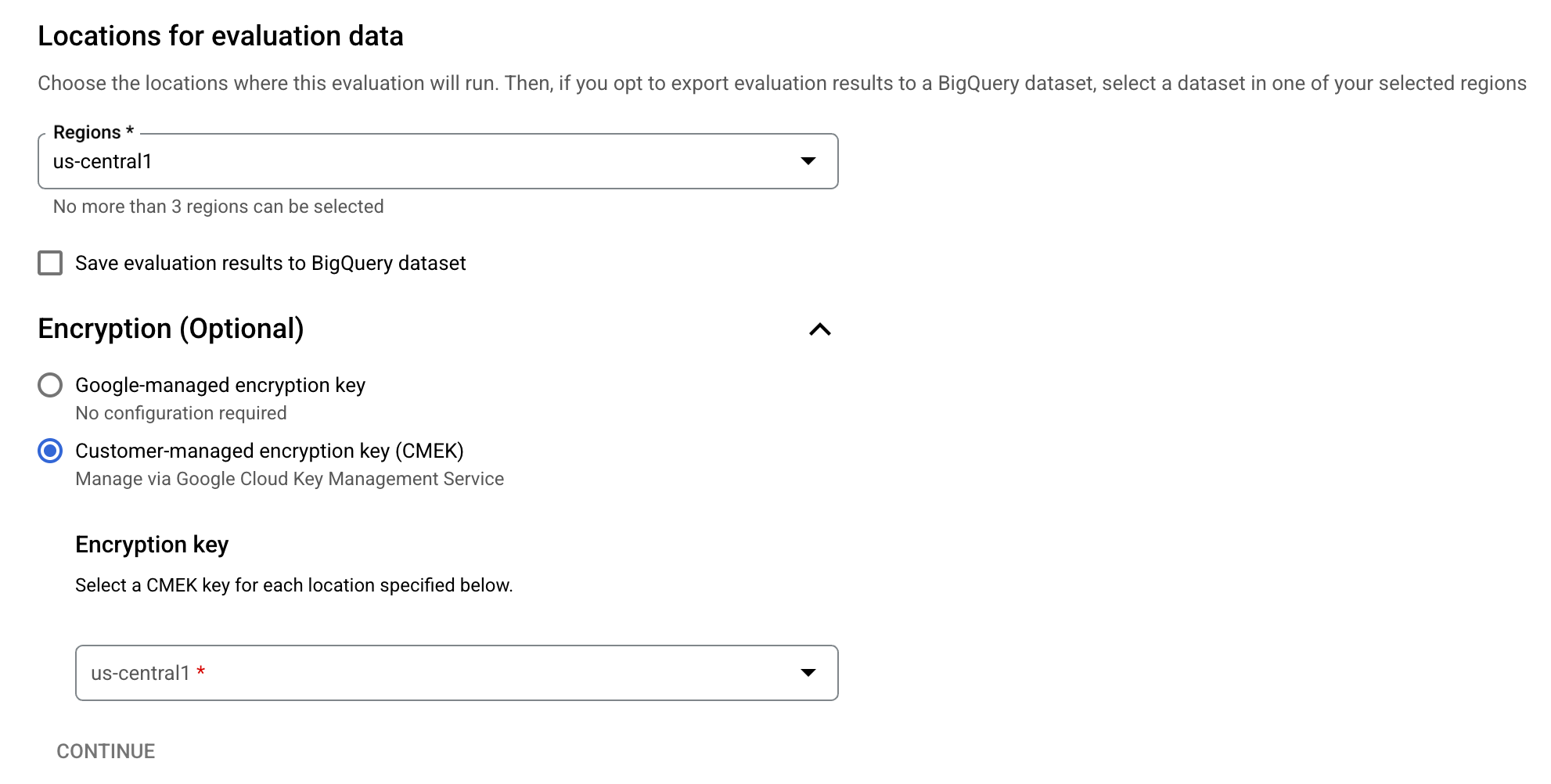
2. Select a Cloud KMS key.
### Update an evaluation with CMEK
You can update an evaluation to use CMEK keys.
1. On the evaluation edit page, select **Customer-managed encryption key (CMEK)** in the **Encryption (Optional)** list
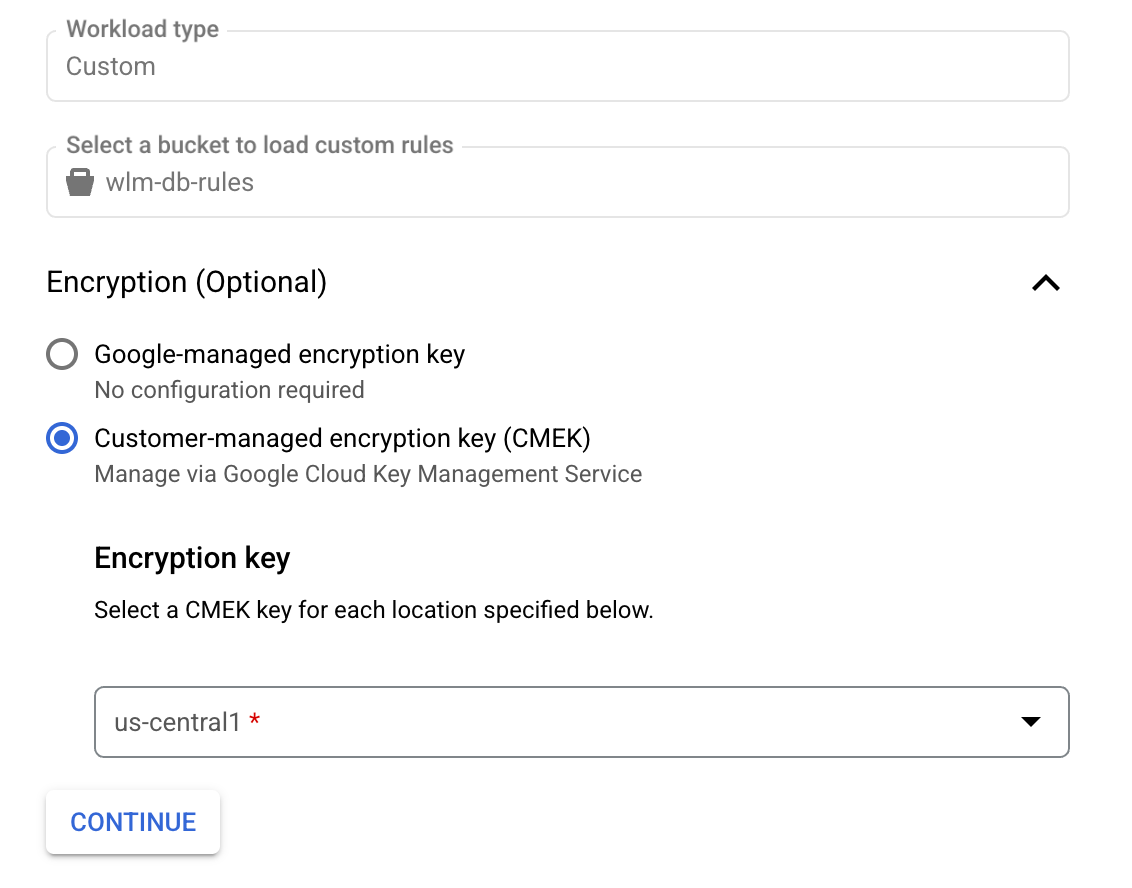
2. Select a Cloud KMS key.
> [!NOTE]
> **Note:** Workload Manager doesn't show the history of the keys used for encryption.
### View evaluation results with CMEK
You can view the evaluation results the same way as described on
[the view evaluation results](https://docs.cloud.google.com/workload-manager/docs/evaluate/view-evaluation-results.md.txt)
page. No additional work is needed.
## Cloud KMS quotas and Workload Manager
When you use CMEK in Workload Manager,
your projects can consume Cloud KMS cryptographic requests
quotas.
For example, CMEK-encrypted Workload Manager evaluations can consume these quotas.
Encryption and decryption operations using CMEK keys affect Cloud KMS
quotas only if you use hardware (Cloud HSM) or external
(Cloud EKM) keys.
For more information, see
[Cloud KMS quotas](https://docs.cloud.google.com/kms/quotas.md.txt).
For external keys, the default quota is 100 QPS per [key project](https://docs.cloud.google.com/kms/quotas.md.txt#examples)
for cryptographic operations. You can [request higher EKM quota](https://docs.cloud.google.com/kms/docs/monitor-adjust-quotas.md.txt#increase_quotas) if needed.
## What's next
- Learn more about [CMEK on Google Cloud](https://docs.cloud.google.com/kms/docs/cmek.md.txt).
- Learn [how to use CMEK with other Google Cloud
products](https://docs.cloud.google.com/kms/docs/use-keys-google-cloud).