This document provides an overview of the SAP S/4HANA systems that you can deploy
using the Guided Deployment Automation tool in Workload Manager
and additional considerations for deployment. For more information, see Google Cloud's
[reference architecture for SAP S/4HANA](https://docs.cloud.google.com/sap/docs/architectures/sap-s4hana-on-gcp).
## SAP S/4HANA deployment process
The following list provides an overview of various tasks that
Workload Manager completes during the deployment process:
- Enables required APIs, if not enabled in the project.
- Configures and provisions the required infrastructure for deployment.
- Configures operating system on VMs.
- Installs SAP S/4HANA.
- Performs a full backup of the SAP HANA database to file.
- Configures Pacemaker OS cluster for SAP HANA high availability, required load balancers, and health checks (HA only)
- Enables SAP HANA System Replication (HSR) for high availability.
- Configures Pacemaker OS cluster for the SAP application high availability, required load balancers, and health checks.
- Installs the selected SAP application.
- Starts the SAP HANA database and the installed SAP application.
- Installs the following required agents on VMs:
- Google Cloud's Agent for SAP
- SAP Host Agent
The output of a successful deployment is an empty ("greenfield") SAP S/4HANA
system. For more information about the next steps after a successful deployment,
see [Post-deployment tasks for SAP S/4HANA](https://docs.cloud.google.com/workload-manager/docs/deploy/sap/post-deployment).
## Deploy using the Google Cloud console
When you choose to deploy your workload using the Google Cloud console,
Workload Manager automatically handles the end-to-end deployment,
including the execution of Terraform and Ansible scripts and provisioning resources.
You also have access to all underlying files used during the deployment process.
Workload Manager uses Infrastructure Manager to automate the
deployment process. Infrastructure Manager uses Cloud Build to initialize
Terraform and to run other Terraform commands. Cloud Build then stores
Terraform files and the Terraform State File in a Cloud Storage bucket.
To learn more about Infrastructure Manager, see [Infrastructure Manager overview](https://docs.cloud.google.com/infrastructure-manager/docs/overview).
In addition to Compute Engine resources required for your SAP workload,
Terraform deploys an Ansible Runner VM which has access to other resources
in the deployment. The Runner VM automatically executes the Ansible scripts that
perform further configuration of the deployed infrastructure,
including OS configuration, HA cluster configuration, and orchestration of the
SAP application installation process.
## High-Level architecture of SAP S/4HANA deployment
This section provides an overview of the system that is deployed when
deploying SAP S/4HANA using the Guided Deployment Automation tool in
Workload Manager. Note that the exact architecture might vary
depending on the configuration and settings that you specified, and not all the
deployed resources are included in the figures.
In addition to these resources, a temporary Ansible Runner VM is also
deployed in the primary zone which has access to other resources in the
deployment. The Ansible Runner VM automatically executes the Ansible scripts
that perform further configuration of the deployed infrastructure, including OS
configuration, HA cluster configuration, and orchestration of the SAP
application installation process.
#### Distributed with high availability
The following figure shows a distributed deployment with high
availability where Linux clusters are set up across zones to help guard
against component failures in a given region.
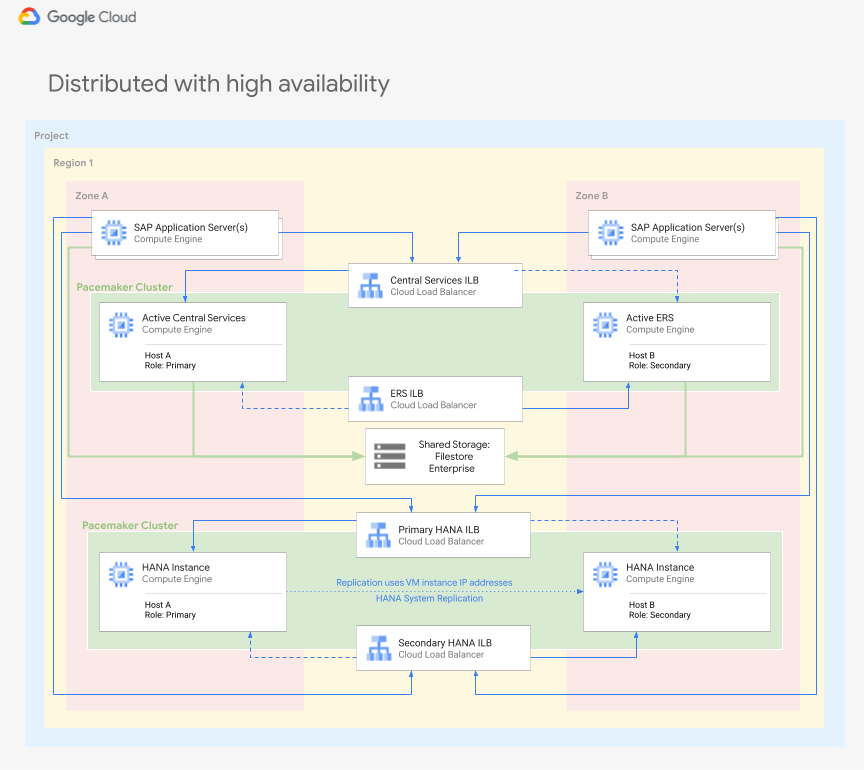
SAP S/4HANA distributed with HA architecture
#### Distributed architecture
The following figure shows the architecture for SAP S/4HANA in a distributed
deployment.
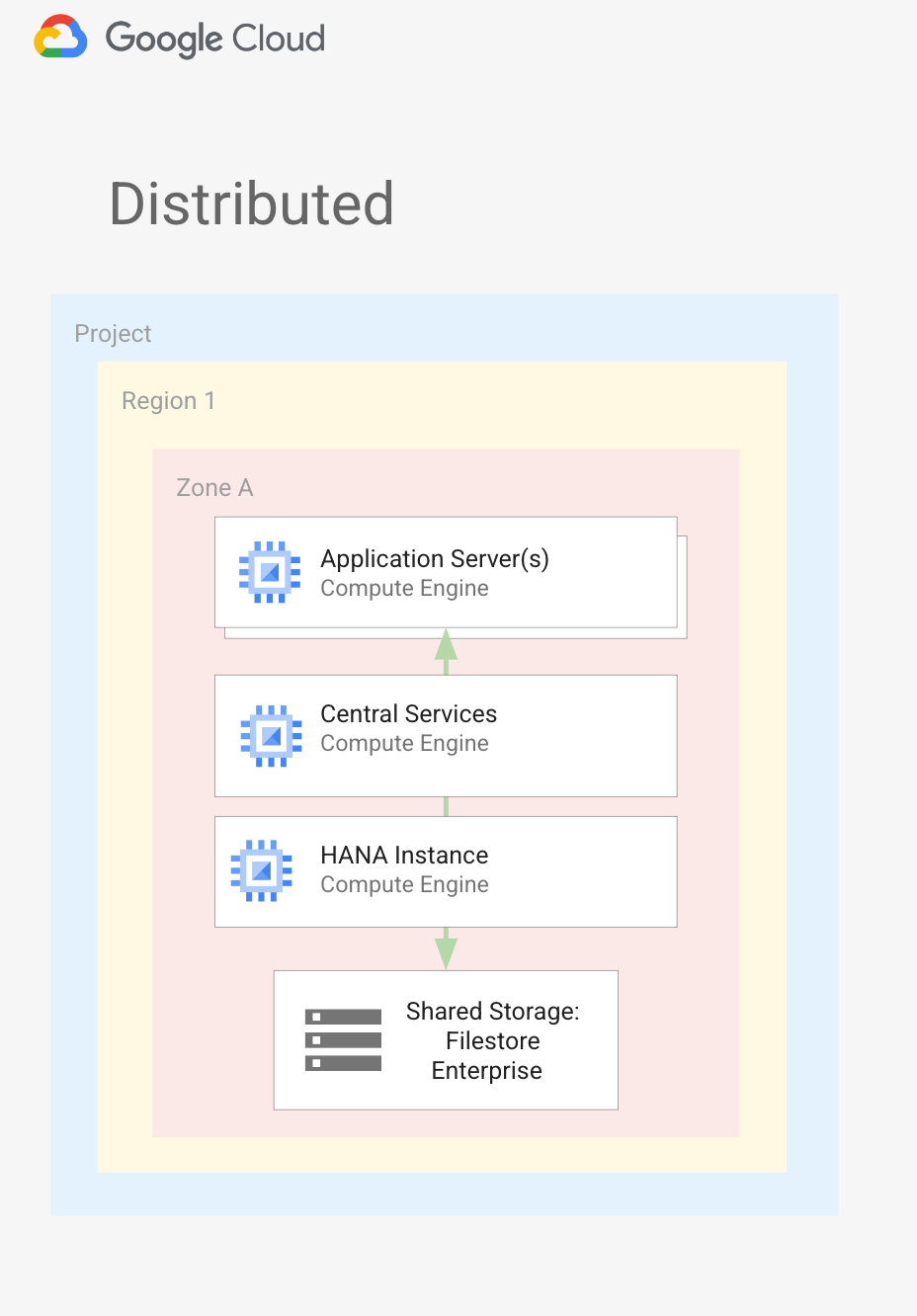
SAP S/4HANA distributed architecture
#### SAP HANA disk layout
The following diagram shows the SAP HANA database disk layout, which applies to both
distributed and distributed with high-availability configurations.
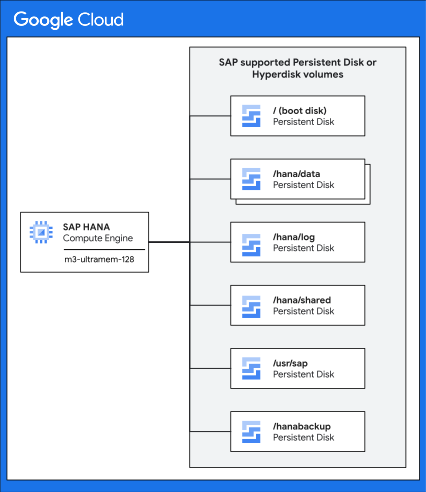
The disks described in the preceding disk layout are mounted directly in the
operating system as part of the required SAP HANA file systems. These disks are not
used as part of logical volumes created through LVM. For example, the output
looks similar to the following when you run the `df -h` command:
```
example-vm:~ # df -h | grep /dev/sd
Filesystem Size Used Avail Use% Mounted on
/dev/sda3 50G 4.3G 46G 9% /
/dev/sda2 20M 3.0M 17M 15% /boot/efi
/dev/sda 32G 293M 32G 1% /usr/sap
/dev/sdc 308G 164G 145G 54% /hana/data
/dev/sdd 128G 11G 118G 9% /hana/log
/dev/sde 256G 12G 245G 5% /hana/shared
/dev/sdf 256G 96G 161G 38% /hanabackup
```
## Resources created during the deployment
Workload Manager uses the following Google Cloud APIs and Services for
the SAP S/4HANA deployment.
### Compute Engine
**VM instances**
SAP S/4HANA deployments include Compute Engine resources for the following
components. When configuring VMs for these components, you can select only
those machine types certified by SAP to match the sizing requirements for deploying S/4HANA.
- SAP HANA databases
- ASCS -- ABAP SAP Central Services
- Contains the Message Server and Enqueue Server, which are required in any SAP ABAP system.
- Deployed either on their own VM instance in HA deployments or deployed on the VM instance hosting the PAS.
- In HA deployments, the ASCS resources are managed by a Linux cluster resource manager such as Pacemaker.
- ERS -- Enqueue Replication Server or Enqueue Replicator
- Deployed in HA deployments to keep a replica of the lock table in case something happens to the ASCS instance.
- Managed by a Linux cluster resource manager such as Pacemaker.
- PAS---Primary application server.
- The first or only application server for the SAP system.
- AAS---Additional application server.
- Usually deployed for application level load balancing. You can install multiple AAS to achieve higher availability from an application layer perspective as well. If one of the application servers goes down, all user sessions connected to that application server are terminated, but users can sign in again to the other AAS in the environment.
- In high-availability configurations, the application servers are evenly split across the primary and secondary zones.
### Storage options
Persistent Disk or Hyperdisk are used to provide storage capacity for the VM
instances in your SAP S/4HANA deployment.
Disk sizes for each volume are automatically calculated in accordance with the best
practices for SAP S/4HANA for the selected machine and block storage types.
The following table shows the disks created in an SAP S/4HANA deployment.
| **VM instance for:** | **Disk** | **Supported Types** ^\*^ |
|---|---|---|
| HANA databases | boot | SSD Persistent Disk |
| HANA databases | `/hana/data` | Balanced Persistent Disk SSD Persistent Disk Hyperdisk Extreme |
| HANA databases | `/hana/log` | Balanced Persistent Disk SSD Persistent Disk Hyperdisk Extreme |
| HANA databases | `/hana/shared` | Balanced Persistent Disk SSD Persistent Disk |
| HANA databases | `/usr/sap` | Balanced Persistent Disk SSD Persistent Disk |
| HANA databases | `/hanabackup` | Balanced Persistent Disk SSD Persistent Disk |
| ASCS/ERS | boot | SSD Persistent Disk |
| ASCS/ERS | `/usr/sap` | Balanced Persistent Disk |
| PAS/AAS | boot | SSD Persistent Disk |
| PAS/AAS | `/usr/sap` | Balanced Persistent Disk |
| PAS/AAS | export-interfaces | Balanced Persistent Disk |
^\*^For the SAP HANA database, you can select Balanced Persistent Disk, SSD
Persistent Disk, or Hyperdisk Extreme if supported for the selected machine type.
If you select Balanced Persistent Disk or SSD Persistent Disk, all disks in the
deployment are the selected disk type. If you select Hyperdisk Extreme,
only the `/data` and `/log` volumes use Hyperdisk Extreme, and the other disk
volumes use SSD Persistent Disk.
### Networking
**Shared VPC**
A Shared VPC from a *host project* can be used for deployment in a *service
project* . If you select Shared VPC, then the following network resources are created
in the *host project*.
- Firewall rules
- The network Filestore instance
- Forwarding rules
**Firewall rules**
During the deployment process, Workload Manager automatically creates
the firewall rules to allow necessary communication between VMs in the deployment. In
high-availability configurations, these firewall rules also provide access to
perform health checks on load balancers that are created in the specified
subnetwork.
Workload Manager creates the following firewall rules:
- `DEPLOYMENT_NAME-communication-firewall`: enables communication between VM instances in the deployment.
- `Ilb-firewall-ascs-DEPLOYMENT_NAME` or `Ilb-firewall-ers-DEPLOYMENT_NAME`: for high-availability configurations only. Enables health checks used in the ASCS or ERS failover.
- `Ilb-firewall-db-DEPLOYMENT_NAME`: For high-availability configurations only. Enables health checks used in the SAP HANA database failover.
When using a
[Shared VPC](https://docs.cloud.google.com/vpc/docs/shared-vpc)
configuration, these firewall rules are created in the host project where the
network being shared is hosted.
**Load balancers and forwarding rules**
In high-availability configurations, the following load balancers and forwarding
rules are created:
- `DEPLOYMENT_NAME-ascs-service`
- `DEPLOYMENT_NAME-ascs-forwarding-rule`
- `DEPLOYMENT_NAME-db-service`
- `DEPLOYMENT_NAME-db-forwarding-rule`
- `DEPLOYMENT_NAME-ers-service`
- `DEPLOYMENT_NAME-ers-forwarding-rule`
### DNS zones
During the configuration process, you can choose Workload Manager
to create a Cloud DNS zone for your deployment. Alternatively, skip the DNS
zone creation during the configuration and manually set up a DNS zone later.
Workload Manager creates the zone and DNS with the following names:
- Zone name: `DEPLOYMENT_NAME`
- DNS name: `DEPLOYMENT_NAME-gcp.sapcloud.goog`
Workload Manager adds the necessary DNS record sets for each VM in the
deployment.
When using a
[Shared VPC](https://docs.cloud.google.com/vpc/docs/shared-vpc)
configuration, the DNS-related configuration and setup occurs in the *service
project*.
### Filestore
Filestore Enterprise is a high-performance, fully managed NFS file storage and is
attached to the network specified during the configuration process. On the ASCS
and ERS instances, it is used for the transport files, `/usr/sap/SID/ascs` and
`/usr/sap/SID/ers` directories. On the application servers, it is used for the
`sapmnt/SID` directory.
When using a
[Shared VPC](https://docs.cloud.google.com/vpc/docs/shared-vpc)
configuration, the Filestore Enterprise instance is created in the host
project.
## Security considerations
This section describes the security considerations that Workload Manager
addresses to secure your deployments on Google Cloud.
### Service accounts and permissions
During the configuration process, you must specify a service account that is
used for authentication when deploying your workload.
Workload Manager uses the permissions and credentials for this service account
to call other Google Cloud APIs
and services that are used in the deployment.
After selecting a service account, Workload Manager automatically evaluates the
attached IAM roles to determine if it has the permissions necessary to deploy
your system. If a role is missing, you are prompted to grant the missing
roles, if you have the necessary permissions.
The following roles are required for the service account being used to deploy
SAP S/4HANA systems. Alternatively, you can create custom roles to assign the
individual permissions required during the deployment process. Note that
the specific permissions required are shown for example purposes only. The
specific permissions might vary depending upon your chosen configuration and
project configuration.
| Required IAM role | Use case | Required permissions |
|---|---|---|
| Actions Viewer | Required to verify the project is valid and that the service account has the required permissions to access the resource. | resourcemanager.projects.get |
| Cloud Filestore Editor | Permissions required to create and manage Filestore Enterprise shared storage volumes attached to the deployment. | file.instances.create file.instances.delete file.instances.get file.operations.get |
| Cloud Infrastructure Manager Agent | Required for the Infrastructure Manager service which is used to deploy the infrastructure when deploying using the Google Cloud console. | config.deployments.getLock config.deployments.getState config.deployments.updateState logging.logEntries.create storage.buckets.create storage.buckets.delete storage.buckets.get storage.objects.create storage.objects.delete storage.objects.get storage.objects.list |
| Compute Admin | Permissions required to create and manage all the compute resources created for the deployment | compute.addresses.createInternal compute.addresses.deleteInternal compute.addresses.get compute.addresses.useInternal compute.disks.create compute.disks.delete compute.disks.get compute.disks.setLabels compute.disks.use compute.firewalls.create compute.firewalls.delete compute.firewalls.get compute.forwardingRules.create compute.forwardingRules.delete compute.forwardingRules.get compute.forwardingRules.setLabels compute.globalOperations.get compute.healthChecks.create compute.healthChecks.delete compute.healthChecks.get compute.healthChecks.useReadOnly compute.instanceGroups.create compute.instanceGroups.delete compute.instanceGroups.get compute.instanceGroups.update compute.instanceGroups.use compute.instances.create compute.instances.delete compute.instances.get compute.instances.setLabels compute.instances.setMetadata compute.instances.setServiceAccount compute.instances.setTags compute.instances.use compute.networks.get compute.networks.updatePolicy compute.regionBackendServices.create compute.regionBackendServices.delete compute.regionBackendServices.get compute.regionBackendServices.use compute.regionOperations.get compute.subnetworks.get compute.subnetworks.use compute.subnetworks.useExternalIp compute.zoneOperations.get compute.zones.get resourcemanager.projects.get serviceusage.services.list |
| DNS Administrator | Permissions required to create a DNS zone and to create the required record sets. | compute.networks.get dns.changes.create dns.changes.get dns.managedZones.create dns.managedZones.delete dns.managedZones.get dns.networks.bindPrivateDNSZone dns.resourceRecordSets.create dns.resourceRecordSets.delete dns.resourceRecordSets.list dns.resourceRecordSets.update resourcemanager.projects.get |
| Project IAM Admin | Permissions required to assign IAM roles to the service accounts created for each layer of the deployment | resourcemanager.projects.get
resourcemanager.projects.getIamPolicy
resourcemanager.projects.setIamPolicy |
| Service Account Admin | Permissions required to create and manage the service accounts created for each layer of the deployment. | iam.serviceAccounts.create
iam.serviceAccounts.delete
iam.serviceAccounts.get
iam.serviceAccounts.getIamPolicy
iam.serviceAccounts.list
iam.serviceAccounts.setIamPolicy
resourcemanager.projects.get |
| Service Account User | Required to allow the chosen service account to act has a service account when calling other products and services | iam.serviceAccounts.actAs iam.serviceAccounts.get iam.serviceAccounts.list resourcemanager.projects.get |
| Service Usage Admin | Permissions to verify the status of required APIs and enable APIs, if necessary. | Serviceusage.services.list serviceusage.services.enable |
| Storage Admin | Permissions required to access and use the SAP installation media files uploaded to Cloud Storage. | resourcemanager.projects.get storage.buckets.getIamPolicy storage.objects.get storage.objects.getIamPolicy storage.objects.list |
When using a
[Shared VPC](https://docs.cloud.google.com/vpc/docs/shared-vpc)
configuration, the following IAM permissions might also be required in the host
project, in addition to the preceding roles that are required in the service
project.
- compute.firewalls.create
- compute.firewalls.delete
- compute.firewalls.get
- compute.globalOperations.get
- compute.networks.get
- compute.networks.updatePolicy
- compute.subnetworks.get
- compute.subnetworks.use
- compute.subnetworks.useExternalIp
- dns.networks.bindPrivateDNSZone
- file.instances.create
- file.instances.delete
- file.instances.get
- file.operations.get
You can use Workload Manager to create the following service accounts for each layer
in the deployment. Workload Manager provides only the required permissions
to these service accounts for their role in the deployment. Alternatively, you
can select an existing service account that has the
required IAM permissions for each layer in the deployment.
| Service account for: | Service account email | IAM roles assigned |
|---|---|---|
| Ansible Runner VM | `DEPLOYMENT_NAME-ansible@PROJECT_ID.iam.gserviceaccount.com` | Compute Instance Admin (v1) Compute Viewer DNS Administrator Logging Admin Monitoring Admin Role Viewer Secret Manager Secret Accessor Secret Manager Viewer Service Account User Storage Object Viewer Workload Manager Insights Writer |
| SAP ASCS / ERS VMs | `DEPLOYMENT_NAME-ascs@PROJECT_ID.iam.gserviceaccount.com` | Compute Instance Admin (v1) Compute Viewer Logging Admin Monitoring Admin Monitoring Metric Writer Storage Object Viewer Workload Manager Insights Writer |
| Application VMs | `DEPLOYMENT_NAME-app@PROJECT_ID.iam.gserviceaccount.com` | Compute Viewer Logging Admin Monitoring Admin Monitoring Metric Writer Storage Object Viewer Workload Manager Insights Writer |
| Database VMs | `DEPLOYMENT_NAME-db@PROJECT_ID.iam.gserviceaccount.com` | Compute Instance Admin (v1) Compute Viewer Logging Admin Monitoring Admin Monitoring Metric Writer Storage Object Viewer Workload Manager Insights Writer |
Replace the following:
- `DEPLOYMENT_NAME`: name of your SAP deployment.
- `PROJECT_ID`: ID of your Google Cloud project in which you create the deployment.
For more information about IAM and permissions for running SAP on Google Cloud,
see
[Identity and Access Management for SAP Programs on Google Cloud](https://docs.cloud.google.com/sap/docs/security-for-sap/iam-for-sap-programs).
### SAP database and application user credentials
Workload Manager uses
[Secret Manager](https://docs.cloud.google.com/secret-manager)
to store the credentials for your SAP system, such as the password for the
administrator and `SYSTEM` user accounts. To securely provide
the password, you must create a secret and use that during the
deployment process. You can create
separate secrets to store credentials for your database and the application
layers.
The Secret provided for SAP HANA is used as the initial password for the following
users:
- System database:
- `SYSTEM`
- `SERVICE_BACKUP`
- `DBACOCKPIT`
- HANA tenant database:
- `SYSTEM`
- `SERVICE_BACKUP`
- S/4HANA tenant database:
- `SYSTEM`
- `SAPDBCTRL`
- `DBACOCKPIT`
- `SAPHANADB`
The application credentials are used for the following users inside the client
`000`:
- `DDIC`
- `SAP*`
After successful deployment, you can modify or assign new
passwords to these users.
## Required APIs
To deploy a SAP S/4HANA workload, the following APIs and services are required.
During the deployment process, these APIs are automatically enabled through Terraform
if the service account you are using for the deployment has the necessary permissions.
You are subject to the Terms of Service of each of these services and you'll start
incurring charges when used in the solution after deployment.
- [Resource Manager API](https://console.cloud.google.com/apis/library/cloudresourcemanager.googleapis.com): to manage resources for your projects.
- [Compute Engine API](https://console.cloud.google.com/apis/library/compute.googleapis.com): to create and manage VMs for your deployment.
- [Cloud DNS API](https://console.cloud.google.com/apis/library/dns.googleapis.com): to create a DNS zone for your deployment.
- [Filestore API](https://console.cloud.google.com/apis/library/file.googleapis.com): to create and manage Google Cloud file servers.
- [Service Account Credentials API](https://console.cloud.google.com/apis/library/iamcredentials.googleapis.com): to create credentials for service accounts on Google Cloud.
- [Secret Manager API](https://console.cloud.google.com/apis/library/secretmanager.googleapis.com): to create and manage secrets that store your application and database passwords.
- [Service Usage API](https://console.cloud.google.com/apis/library/serviceusage.googleapis.com): to enable Google Cloud services required for your deployment.
## Getting Support
See [Getting support for SAP on Google
Cloud](https://docs.cloud.google.com/sap/docs/getting-support).
## What's next
- Read the [prerequisites for deploying a SAP S/4HANA system](https://docs.cloud.google.com/workload-manager/docs/deploy/prerequisites).
- Learn how to [deploy a SAP S/4HANA workload](https://docs.cloud.google.com/workload-manager/docs/deploy/deploy-sap).