This tutorial shows how to reliably run serverless workflows using [Workflows](https://docs.cloud.google.com/workflows), [Cloud Run functions](https://docs.cloud.google.com/functions), and [Firestore](https://docs.cloud.google.com/firestore) to load raw data, such as event logs, from [Cloud Storage](https://docs.cloud.google.com/storage) to [BigQuery](https://docs.cloud.google.com/bigquery). Analytics platforms commonly have an orchestration tool to periodically load data in BigQuery using [BigQuery jobs](https://docs.cloud.google.com/bigquery/docs/loading-data), and then transform the data to provide business metrics using SQL statements, including [BigQuery procedural language statements](https://docs.cloud.google.com/bigquery/docs/reference/standard-sql/procedural-language). This tutorial is intended for developers and architects, who want to build serverless event-driven data processing pipelines. The tutorial assumes that you are familiar with YAML, SQL, and Python.
## Architecture
The following diagram shows the high-level architecture of a serverless
[extract, load, and transform (ELT)](https://docs.cloud.google.com/architecture/dw2bq/dw-bq-data-pipelines#elt)
pipeline using
[Workflows](https://docs.cloud.google.com/workflows).
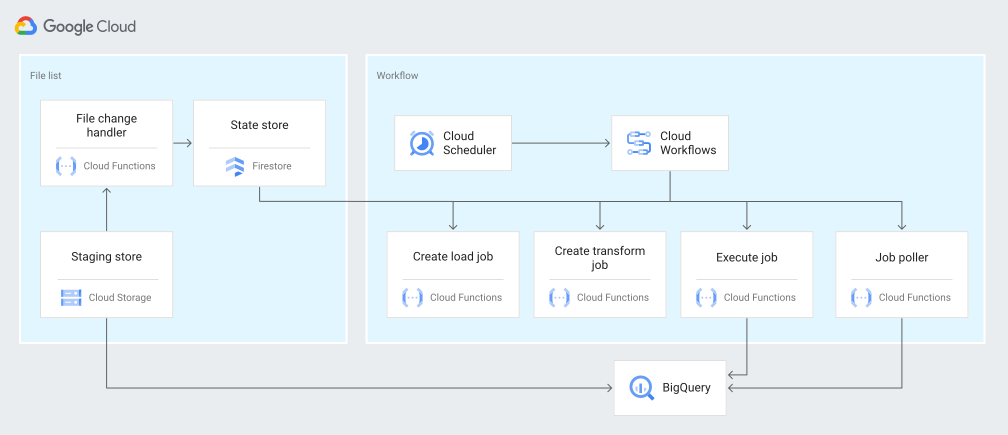
In the preceding diagram, consider a retail platform that periodically collects
sales events as files from various stores, and then writes the files to a
Cloud Storage bucket. The events are used to provide business metrics
by importing and processing in BigQuery. This architecture
provides a reliable and serverless orchestration system to import your files
into BigQuery, and is divided into the following two modules:
- **File list** : Maintains the list of unprocessed files added to a Cloud Storage bucket in a Firestore collection. This module works through a Cloud Run function that is triggered by an [Object Finalize](https://docs.cloud.google.com/functions/docs/calling/storage#object_finalize) storage event, which is generated when a new file is added to the Cloud Storage bucket. The filename is appended to the `files` array of the collection named `new` in Firestore.
- **Workflow** : Runs the scheduled workflows.
[Cloud Scheduler](https://docs.cloud.google.com/scheduler)
triggers a workflow
that runs a series of steps according to a
[YAML-based syntax](https://docs.cloud.google.com/workflows/docs/reference/syntax)
to orchestrate loading, and then transforming the data in
BigQuery by calling
[Cloud Run functions](https://docs.cloud.google.com/functions).
The steps in the workflow call Cloud Run functions to run the
following tasks:
- Create and start a BigQuery load job.
- Poll the load job status.
- Create and start the transform query job.
- Poll the transform job status.
Using transactions to maintain the list of new files in
Firestore helps ensure that no file is missed when a workflow
imports them into BigQuery. Separate runs of the workflow are
made idempotent by storing job metadata and status in
Firestore.
## Objectives
- Create a Firestore database.
- Set up a Cloud Run function trigger to track files added to the Cloud Storage bucket in Firestore.
- Deploy Cloud Run functions to run and monitor BigQuery jobs.
- Deploy and run a workflow to automate the process.
## Costs
In this document, you use the following billable components of Google Cloud:
- [BigQuery](https://cloud.google.com/bigquery/pricing)
- [Cloud Run functions](https://docs.cloud.google.com/functions/pricing)
- [Cloud Storage](https://docs.cloud.google.com/storage/pricing)
- [Firestore](https://docs.cloud.google.com/firestore/pricing)
- [Workflows](https://docs.cloud.google.com/workflows/pricing)
To generate a cost estimate based on your projected usage,
use the [pricing calculator](https://docs.cloud.google.com/products/calculator).
New Google Cloud users might be eligible for a [free trial](https://docs.cloud.google.com/free).
When you finish the tasks that are described in this document, you can avoid
continued billing by deleting the resources that you created. For more information, see
[Clean up](https://docs.cloud.google.com/workflows/docs/tutorials/load-data-from-cloud-storage-to-bigquery-using-workflows#clean-up).
## Before you begin
1. In the Google Cloud console, on the project selector page,
select or create a Google Cloud project.
**Roles required to select or create a project**
- **Select a project**: Selecting a project doesn't require a specific IAM role---you can select any project that you've been granted a role on.
- **Create a project** : To create a project, you need the Project Creator role (`roles/resourcemanager.projectCreator`), which contains the `resourcemanager.projects.create` permission. [Learn how to grant
roles](https://docs.cloud.google.com/iam/docs/granting-changing-revoking-access).
> [!NOTE]
> **Note**: If you don't plan to keep the resources that you create in this procedure, create a project instead of selecting an existing project. After you finish these steps, you can delete the project, removing all resources associated with the project.
[Go to project selector](https://console.cloud.google.com/projectselector2/home/dashboard)
2.
[Verify that billing is enabled for your Google Cloud project](https://docs.cloud.google.com/billing/docs/how-to/verify-billing-enabled#confirm_billing_is_enabled_on_a_project).
3.
Enable the Cloud Build, Cloud Run functions, Identity and Access Management, Resource Manager, and Workflows APIs, if any are not already enabled.
**Roles required to enable APIs**
To enable APIs, you need the `serviceusage.services.enable` permission. If you
created the project, then you likely already have this permission through the
Owner role (`roles/owner`). Otherwise, you can get this permission through the
Service Usage Admin role (`roles/serviceusage.serviceUsageAdmin`).
[Learn how to grant roles](https://docs.cloud.google.com/iam/docs/granting-changing-revoking-access).
[Enable the APIs](https://console.cloud.google.com/apis/enableflow?apiid=cloudbuild.googleapis.com,cloudfunctions.googleapis.com,cloudresourcemanager.googleapis.com,iam.googleapis.com,workflows.googleapis.com)
4. Go to the **Welcome** page and make a note of the **Project ID** to use
in a later step.
[Go to Welcome page](https://console.cloud.google.com/welcome)
5.
In the Google Cloud console, activate Cloud Shell.
[Activate Cloud Shell](https://console.cloud.google.com/?cloudshell=true)
## Prepare your environment
To prepare your environment, create a Firestore database, clone
the code samples from the GitHub repo, create resources using
[Terraform](https://www.terraform.io/),
edit the Workflows YAML file, and install requirements for the
file generator.
1. To create a Firestore database, do the following:
1. In the Google Cloud console, go to the Firestore page.
[Go to Firestore](https://console.cloud.google.com/firestore)
2. Click **Select native mode**.
3. In the **Select a location** menu, select the region where you want to
host the Firestore database. We recommend picking a region
that is close to your physical location.
4. Click **Create database**.
2. In Cloud Shell, clone the source repository:
cd $HOME && git clone https://github.com/GoogleCloudPlatform/workflows-demos
cd workflows-demos/workflows-bigquery-load
3. In Cloud Shell, create the following resources using Terraform:
```sh
terraform init
terraform apply \
-var project_id=PROJECT_ID \
-var region=REGION \
-var zone=ZONE \
--auto-approve
```
Replace the following:
- `PROJECT_ID`: your Google Cloud project ID
- `REGION`: a specific Google Cloud geographical location to host your resources---for example, `us-central1`
- `ZONE`: a location within a region to host your resources---for example, `us-central1-b`
You should see a message similar to the following:
`Apply complete! Resources: 7 added, 0 changed, 1 destroyed.`
Terraform can help you create, change, and upgrade infrastructure at
scale safely and predictably. The following resources are created in your
project:
- [Service accounts](https://docs.cloud.google.com/iam/docs/service-accounts) with the required privileges to ensure secure access to your resources.
- A BigQuery dataset named `serverless_elt_dataset` and a table named `word_count` to load the incoming files.
- A Cloud Storage bucket named `${project_id}-ordersbucket` for staging input files.
- The following five Cloud Run functions:
- `file_add_handler` adds the name of the files that are added to the Cloud Storage bucket to the Firestore collection.
- `create_job` creates a new BigQuery load job and associates files in the Firebase collection with the job.
- `create_query` creates a new BigQuery query job.
- `poll_bigquery_job` gets the status of a BigQuery job.
- `run_bigquery_job` starts a BigQuery job.
4. Get the URLs for the `create_job`, `create_query`, `poll_job`, and
`run_bigquery_job` Cloud Run functions that you deployed in the previous
step.
```sh
gcloud functions describe create_job | grep url
gcloud functions describe poll_bigquery_job | grep url
gcloud functions describe run_bigquery_job | grep url
gcloud functions describe create_query | grep url
```
The output is similar to the following:
```
url: https://REGION-PROJECT_ID.cloudfunctions.net/create_job
url: https://REGION-PROJECT_ID.cloudfunctions.net/poll_bigquery_job
url: https://REGION-PROJECT_ID.cloudfunctions.net/run_bigquery_job
url: https://REGION-PROJECT_ID.cloudfunctions.net/create_query
```
Make a note of these URLs as they are needed when you deploy your workflow.
## Create and deploy a workflow
1. In Cloud Shell, open the source file for the workflow,
`workflow.yaml`:
main:
steps:
- constants:
assign:
- create_job_url: CREATE_JOB_URL
- poll_job_url: POLL_BIGQUERY_JOB_URL
- run_job_url: RUN_BIGQUERY_JOB_URL
- create_query_url: CREATE_QUERY_URL
- region: BQ_REGION
- table_name: BQ_DATASET_TABLE_NAME
next: createJob
- createJob:
call: http.get
args:
url: ${create_job_url}
auth:
type: OIDC
query:
region: ${region}
table_name: ${table_name}
result: job
next: setJobId
- setJobId:
assign:
- job_id: ${job.body.job_id}
next: jobCreateCheck
- jobCreateCheck:
switch:
- condition: ${job_id == Null}
next: noOpJob
next: runLoadJob
- runLoadJob:
call: runBigQueryJob
args:
job_id: ${job_id}
run_job_url: ${run_job_url}
poll_job_url: ${poll_job_url}
result: jobStatus
next: loadRunCheck
- loadRunCheck:
switch:
- condition: ${jobStatus == 2}
next: createQueryJob
next: failedLoadJob
- createQueryJob:
call: http.get
args:
url: ${create_query_url}
query:
qs: "select count(*) from serverless_elt_dataset.word_count"
region: "US"
auth:
type: OIDC
result: queryjob
next: setQueryJobId
- setQueryJobId:
assign:
- qid: ${queryjob.body.job_id}
next: queryCreateCheck
- queryCreateCheck:
switch:
- condition: ${qid == Null}
next: failedQueryJob
next: runQueryJob
- runQueryJob:
call: runBigQueryJob
args:
job_id: ${qid}
run_job_url: ${run_job_url}
poll_job_url: ${poll_job_url}
result: queryJobState
next: runQueryCheck
- runQueryCheck:
switch:
- condition: ${queryJobState == 2}
next: allDone
next: failedQueryJob
- noOpJob:
return: "No files to import"
next: end
- allDone:
return: "All done!"
next: end
- failedQueryJob:
return: "Query job failed"
next: end
- failedLoadJob:
return: "Load job failed"
next: end
runBigQueryJob:
params: [job_id, run_job_url, poll_job_url]
steps:
- startBigQueryJob:
try:
call: http.get
args:
url: ${run_job_url}
query:
job_id: ${job_id}
auth:
type: OIDC
timeout: 600
result: submitJobState
retry: ${http.default_retry}
next: validateSubmit
- validateSubmit:
switch:
- condition: ${submitJobState.body.status == 1}
next: sleepAndPollLoad
next: returnState
- returnState:
return: ${submitJobState.body.status}
- sleepAndPollLoad:
call: sys.sleep
args:
seconds: 5
next: pollJob
- pollJob:
try:
call: http.get
args:
url: ${poll_job_url}
query:
job_id: ${job_id}
auth:
type: OIDC
timeout: 600
result: pollJobState
retry:
predicate: ${http.default_retry_predicate}
max_retries: 10
backoff:
initial_delay: 1
max_delay: 60
multiplier: 2
next: stateCheck
- stateCheck:
switch:
- condition: ${pollJobState.body.status == 2}
return: ${pollJobState.body.status}
- condition: ${pollJobState.body.status == 3}
return: ${pollJobState.body.status}
next: sleepAndPollLoad
Replace the following:
- `CREATE_JOB_URL`: the URL of the function to create a new job
- `POLL_BIGQUERY_JOB_URL`: the URL of the function to poll the status of a running job
- `RUN_BIGQUERY_JOB_URL`: the URL of the function to start a BigQuery load job
- `CREATE_QUERY_URL`: the URL of the function to start a BigQuery query job
- `BQ_REGION`: the [BigQuery region](https://docs.cloud.google.com/bigquery/docs/locations#supported_regions) where data is stored---for example, `US`
- `BQ_DATASET_TABLE_NAME`: the BigQuery dataset table name in the format `PROJECT_ID.serverless_elt_dataset.word_count`
2. Deploy the `workflow` file:
```sh
gcloud workflows deploy WORKFLOW_NAME \
--location=WORKFLOW_REGION \
--description='WORKFLOW_DESCRIPTION' \
--service-account=workflow-runner@PROJECT_ID.iam.gserviceaccount.com \
--source=workflow.yaml
```
Replace the following:
- `WORKFLOW_NAME`: the unique name of the workflow
- `WORKFLOW_REGION`: the [region](https://docs.cloud.google.com/workflows/docs/locations) in which the workflow is deployed---for example, `us-central1`
- `WORKFLOW_DESCRIPTION`: the description of the workflow
3. Create a Python 3 virtual environment and install requirements for the
file generator:
sudo apt-get install -y python3-venv
python3 -m venv env
. env/bin/activate
cd generator
pip install -r requirements.txt
## Generate files to import
The `gen.py` Python script generates random content in
[Avro format](https://avro.apache.org/). The schema is the same as
the BigQuery `word_count` table. These Avro files are copied to
the specified Cloud Storage bucket.
In Cloud Shell, generate the files:
```sh
python gen.py -p PROJECT_ID \
-o PROJECT_ID-ordersbucket \
-n RECORDS_PER_FILE \
-f NUM_FILES \
-x FILE_PREFIX
```
Replace the following:
- `RECORDS_PER_FILE`: the number of records in a single file
- `NUM_FILES`: the total number of files to be uploaded
- `FILE_PREFIX`: the prefix for the names of the generated files
## View file entries in Firestore
When the files are copied to Cloud Storage, the
`handle_new_file` Cloud Run function is triggered. This function adds
the file list to the file list array in the `new` document in the
Firestore `jobs` collection.
To view the file list, in the Google Cloud console, go to the
Firestore **Data** page.
[Go to Data](https://console.cloud.google.com/firestore/data/panel/jobs/new)

## Trigger the workflow
Workflows links a series of serverless tasks together from
Google Cloud and API services. Individual steps in this workflow run as
Cloud Run functions and the state is stored in Firestore. All
calls to Cloud Run functions are authenticated by using the service account
of the workflow.
In Cloud Shell, run the workflow:
```sh
gcloud workflows execute WORKFLOW_NAME
```
The following diagram shows the steps used in the workflow:
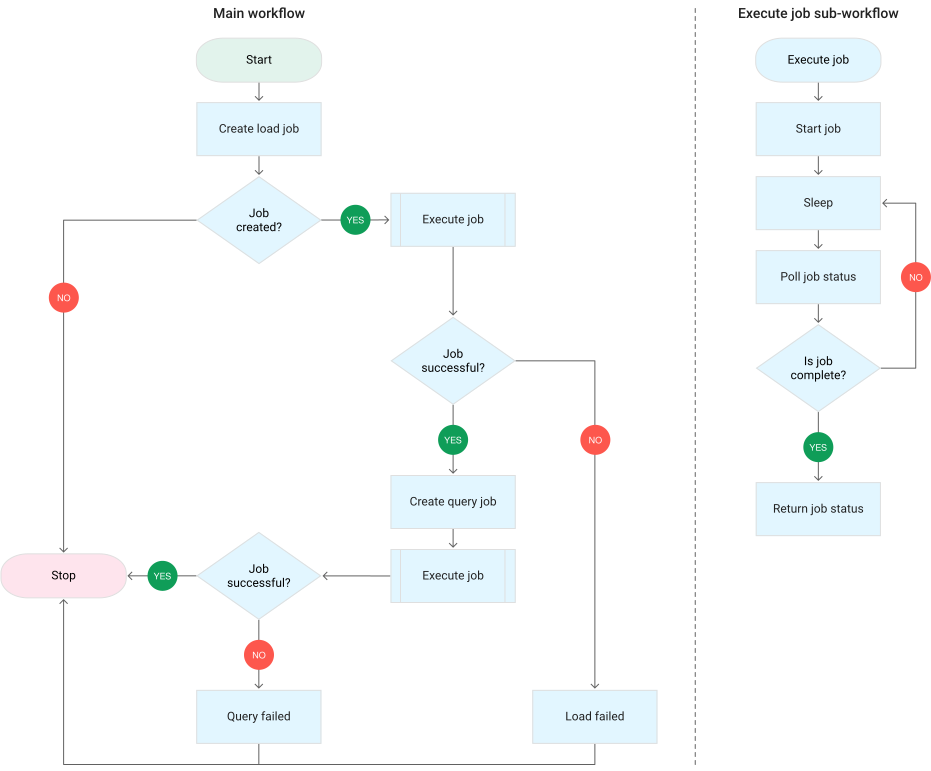
The workflow is split into two parts: the main workflow and the sub workflow.
The main workflow handles job creation and conditional execution while the sub
workflow executes a
[BigQuery job](https://docs.cloud.google.com/bigquery/docs/managing-jobs).
The workflow performs the following operations:
- The `create_job` Cloud Run function creates a new job object, gets the list of files added to Cloud Storage from the Firestore document, and associates the files with the load job. If there are no files to load, the function doesn't create a new job.
- The `create_query` Cloud Run function takes the query that needs to be executed along with the BigQuery region that the query should be executed in. The function creates the job in Firestore and returns the job ID.
- The `run_bigquery_job` Cloud Run function gets the ID of the job that needs to be executed, and then calls the BigQuery API to submit the job.
- Instead of waiting for the job to complete in the Cloud Run function, you can periodically poll the status of the job.
- The `poll_bigquery_job` Cloud Run function provides the [status](https://docs.cloud.google.com/workflows/docs/tutorials/load-data-from-cloud-storage-to-bigquery-using-workflows#view_the_job_status) of the job. It is called repeatedly until the job completes.
- To add a delay between calls to the `poll_bigquery_job` Cloud Run function, a [`sleep` routine](https://docs.cloud.google.com/workflows/docs/reference/syntax#sleeping) is called from Workflows.
## View the job status
You can view the file list and the status of the job.
1. In the
Google Cloud console, go to the Firestore **Data** page.
[Go to Data](https://console.cloud.google.com/firestore/data/panel/jobs/new)
2. A [unique identifier (UUID)](https://wikipedia.org/wiki/Universally_unique_identifier)
is generated for each job. To view the `job_type` and
`status`, click the job ID. Each job might have one of the
following types and statuses:
- `job_type`: The type of job that is being run by the workflow with one of the
following values:
- 0: Load data into BigQuery.
- 1: Run a query in BigQuery.
- `status`: The current state of the job with one of the following values:
- 0: The job has been created, but not started.
- 1: The job is running.
- 2: The job completed its execution successfully.
- 3: There was an error and the job did not complete successfully.
The job object also contains metadata attributes such as the region of the
BigQuery dataset, the name of the BigQuery
table, and if it's a query job, the query string being run.

## View data in BigQuery
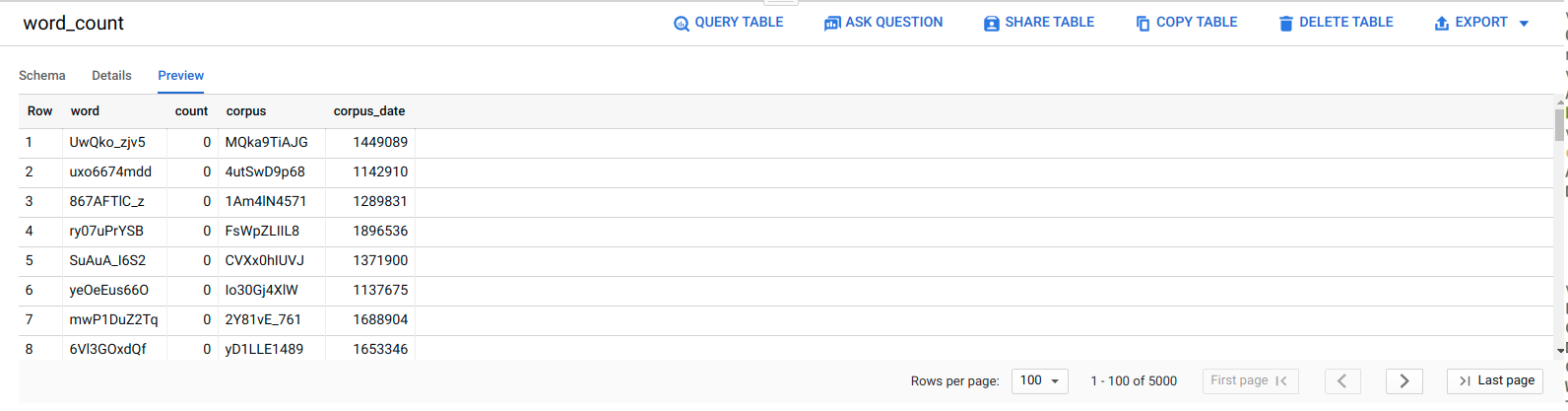
To confirm that the ELT job was successful, verify that the data appears in the
table.
1. In the Google Cloud console, go to the BigQuery
**Editor** page.
[Go to Editor](https://console.cloud.google.com/bigquery)
2. Click the `serverless_elt_dataset.word_count` table.
3. Click the **Preview** tab.
## Schedule the workflow
To periodically run the workflow on a schedule, you can
[use Cloud Scheduler](https://docs.cloud.google.com/workflows/docs/schedule-workflow).
## Clean up
The easiest way to eliminate billing is to delete the Google Cloud project that you created for the tutorial. Alternatively, you can delete the individual resources.
### Delete the individual resources
1. In Cloud Shell, remove all resources created using Terraform:
```sh
cd $HOME/bigquery-workflows-load
terraform destroy \
-var project_id=PROJECT_ID \
-var region=REGION \
-var zone=ZONE \
--auto-approve
```
2. In the Google Cloud console, go to the Firestore **Data**
page.
[Go to Data](https://console.cloud.google.com/firestore/data/panel/jobs/new)
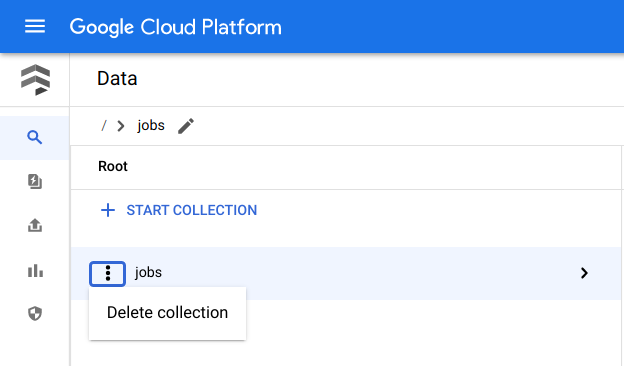
3. Next to **Jobs** , click
**Menu** and select **Delete**.
### Delete the project
> [!CAUTION]
> **Caution** : Deleting a project has the following effects:
>
> - **Everything in the project is deleted.** If you used an existing project for the tasks in this document, when you delete it, you also delete any other work you've done in the project.
> - **Custom project IDs are lost.** When you created this project, you might have created a custom project ID that you want to use in the future. To preserve the URLs that use the project ID, such as an `appspot.com` URL, delete selected resources inside the project instead of deleting the whole project.
1. In the Google Cloud console, go to the **Manage resources** page.
[Go to Manage resources](https://console.cloud.google.com/iam-admin/projects)
2. In the project list, select the project that you want to delete, and then click **Delete**.
3. In the dialog, type the project ID, and then click **Shut down** to delete the project.
## What's next
- To learn more about BigQuery, see the [BigQuery documentation](https://docs.cloud.google.com/bigquery/docs/introduction).
- Learn how to [build serverless custom machine learning pipelines](https://github.com/GoogleCloudPlatform/community/blob/master/archived/ml-pipeline-with-workflows/index.md).
- For more reference architectures, diagrams, and best practices, explore the [Cloud Architecture Center](https://docs.cloud.google.com/architecture).