# Run the sample Web Risk app
Learn how to install the sample Web Risk Go app from
GitHub and how to run the sample app to detect malicious URLs in a Go environment.
*** ** * ** ***
To follow step-by-step guidance for this task directly in the
Google Cloud console, click **Guide me**:
[Guide me](https://console.cloud.google.com/freetrial?redirectPath=/?walkthrough_id%3Dhttps://cloud-dot-devsite-v2-prod.appspot.com/walkthroughs/web-risk/webrisk_sample_quickstart)
*** ** * ** ***
## Before you begin
1. Create a new API key for authentication:
1. In the Google Cloud console navigation menu, click **APIs \& Services \> Credentials**.
2. On the **Credentials** page, click **Create credentials** and then select **API key**.
3. In the **API key created** dialog, to copy the key, click **Copy key**. Close the dialog and secure the key that you copied for later use.
2. Set up your environment:
1.
In the Google Cloud console, click **Activate Cloud Shell** to open a terminal window.
 
The Cloud Shell terminal can take several seconds to fully load.
2. Export the API key that you copied.
```bash
export APIKEY=API_KEY
```
## Install and run the sample Web Risk app
The sample Web Risk app has the following binaries to detect
whether the URLs are malicious or safe:
- [**`wrserver`** server](https://github.com/google/webrisk/tree/master/cmd/wrserver): This binary runs the Web Risk API lookup proxy that lets you check URLs.
- [**`wrlookup`** command-line](https://github.com/google/webrisk/tree/master/cmd/wrlookup): This binary filters unsafe URLs piped through STDIN.
This quickstart document shows how to detect whether the URLs are malicious or safe by using the
**`wrserver`** server and **`wrlookup`** command-line binaries.
### Check URLs using the `wrserver` server binary
1. In the Cloud Shell terminal, install `wrserver`:
```bash
go install github.com/google/webrisk/cmd/wrserver@latest
```
2. Run `wrserver` with your API key:
```bash
wrserver -apikey=$APIKEY
```
When you see the *Starting server at localhost:8080* message, `wrserver` is started at `localhost:8080`.
3. To preview the application on the localhost, click **Web Preview** and then select **Preview on port 8080** .
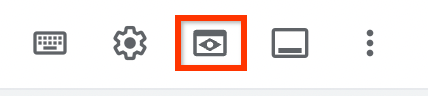 
Cloud Shell opens the preview URL (port 8080) on its proxy service in a new browser window.
The preview URL browser window shows a **404 page not found** message.
4. In the preview URL window, check the following URLs. To check a URL, replace the query string after the preview URL of the local server with the URL you want to check in the following format: `PREVIEW_URL/r?url=URL_TO_BE_CHECKED`.
If the URL is unsafe, an interstitial warning page is shown as recommended by Web Risk.
If the URL is safe, the client is automatically redirected to the target.
A fake malware URL:
```bash
http://testsafebrowsing.appspot.com/apiv4/ANY_PLATFORM/MALWARE/URL/
```
A safe URL:
```bash
http://www.google.com/
```
5. To stop the server, press `Control+C`.
You have successfully verified the URLs by using the `wrserver` server binary.
### Check URLs using the `wrlookup` command-line binary
1. In the Cloud Shell terminal, install the `wrlookup` command-line binary:
```bash
go install github.com/google/webrisk/cmd/wrlookup@latest
```
2. Check the URLs with your API key. A fake malware URL:
```bash
echo "http://testsafebrowsing.appspot.com/apiv4/ANY_PLATFORM/MALWARE/URL/" | wrlookup -apikey=$APIKEY
```
The following output is an abbreviated output for a malware URL:
```
......
Unsafe URL: [MALWARE]
```
A safe URL:
```bash
echo "http://www.google.com/" | wrlookup -apikey=$APIKEY
```
The following output is an abbreviated output for a safe URL:
```
......
Safe URL: http://google.com
```
You have successfully verified the URLs by using the `wrlookup` command-line binary.
## Clean up
To avoid incurring charges to your Google Cloud account for
the resources used on this page, follow these steps.
Keep the following things in mind when deleting a project:
- Deleting a project deletes all the resources in the project.
- You cannot reuse the custom project ID of a deleted project.
If you plan to explore multiple tutorials and quickstarts, reusing projects can
help you avoid exceeding project quota limits.
To delete your project, do the following:
1. In the Google Cloud console navigation menu, click **IAM \& Admin \> Settings** .
[Go to Settings](https://console.cloud.google.com/iam-admin/settings)
2. Confirm that the project name is the name of the project you want to delete. If it isn't, choose the project you want to delete from the
**Project selector**.
3. Click **Shut down**.
4. In the dialog, type the project ID, then click **Shut down** to delete the project.
## What's next
- Learn more about [Web Risk](https://docs.cloud.google.com/web-risk/docs/overview.md.txt).
- Learn more about the Web Risk app on the [Web Risk GitHub project](https://github.com/google/webrisk).