# Send serverless traffic to a VPC network
We recommend that you enable your Cloud Run service or job to send
traffic to a VPC network by using
[Direct VPC egress](https://docs.cloud.google.com/run/docs/configuring/vpc-direct-vpc.md.txt)---with no Serverless VPC Access connector required.
However, if Direct VPC egress isn't an option for you, you can use
Serverless VPC Access to connect directly to
your VPC network from serverless environments such as
Cloud Run and App Engine. Configuring
Serverless VPC Access lets your serverless environment send
requests to your VPC network by using internal DNS and internal
IP addresses (as defined by [RFC
1918](https://tools.ietf.org/html/rfc1918) and [RFC
6598](https://tools.ietf.org/html/rfc6598)). The responses to
these requests also use your internal network.
There are two main benefits to using Serverless VPC Access:
- Requests sent to your VPC network are never exposed to the internet.
- Communication through Serverless VPC Access can have less latency compared to the internet.
Serverless VPC Access sends internal traffic from your
VPC network to your serverless environment only when that traffic
is a response to a request that was sent from your serverless environment
through the Serverless VPC Access connector. To learn about
sending other internal traffic, see
[Private Google Access](https://docs.cloud.google.com/vpc/docs/private-google-access.md.txt).
To access resources across multiple VPC networks and
Google Cloud projects, you must also configure
[Shared VPC](https://docs.cloud.google.com/vpc/docs/shared-vpc.md.txt) or
[VPC Network Peering](https://docs.cloud.google.com/vpc/docs/using-vpc-peering.md.txt).
## How it works
Serverless VPC Access is based on a resource called a
*connector*. A connector handles traffic between your serverless environment and
your VPC network. When you create a connector in your
Google Cloud project, you attach it to a specific VPC
network and region. You can then configure your serverless services to use the
connector for outbound network traffic.
### IP address ranges
There are two options for setting the IP address range for a connector:
- **Subnet:** You can specify an existing `/28` [subnet](https://docs.cloud.google.com/vpc/docs/subnets.md.txt) if there are no resources that already use the subnet.
- **CIDR range:** You can specify an unused `/28` CIDR range. When specifying this range, make sure that it doesn't overlap with any in-use CIDR ranges.
Traffic sent through the connector into your VPC network
originates from the subnet or CIDR range that you specify.
### Firewall rules
[Firewall rules](https://docs.cloud.google.com/vpc/docs/vpc.md.txt#firewall_rules) are necessary for the operation
of the connector and its communication with other resources, including resources
in your network.
#### Firewall rules for connectors in standalone VPC networks or Shared VPC host projects
If you create a connector in a standalone VPC network or in the
host project of a Shared VPC network, Google Cloud creates all
necessary firewall rules. These firewall rules exist only as long as the
associated connector exists. They are visible in the Google Cloud console, but you
cannot edit or delete them.
| Firewall rule purpose | Name format | Type | Action | Priority | Protocols and ports |
|---|---|---|---|---|---|
| Allows traffic to the connector's VM instances from health check probes ranges (`35.191.0.0/16`, `130.211.0.0/22`) on certain ports | `aet-CONNECTOR_REGION-CONNECTOR_NAME-hcfw` | Ingress | Allow | 100 | TCP:667 |
| Allows traffic to the connector's VM instances from [Google's underlying serverless infrastructure (`35.199.224.0/19`)](https://docs.cloud.google.com/vpc/docs/routes.md.txt#serverless-vpc-return-path) on certain ports | `aet-CONNECTOR_REGION-CONNECTOR_NAME-rsgfw` | Ingress | Allow | 100 | TCP:667, UDP:665-666, ICMP |
| Allows traffic from the connector's VM instances to [Google's underlying serverless infrastructure (`35.199.224.0/19`)](https://docs.cloud.google.com/vpc/docs/routes.md.txt#serverless-vpc-return-path) on certain ports | `aet-CONNECTOR_REGION-CONNECTOR_NAME-earfw` | Egress | Allow | 100 | TCP:667, UDP:665-666, ICMP |
| Blocks traffic from the connector's VM instances to [Google's underlying serverless infrastructure (`35.199.224.0/19`)](https://docs.cloud.google.com/vpc/docs/routes.md.txt#serverless-vpc-return-path) for all other ports | `aet-CONNECTOR_REGION-CONNECTOR_NAME-egrfw` | Egress | Deny | 100 | TCP:1-666, 668-65535, UDP:1-664, 667-65535 |
| Allows all traffic from the connector's VM instances (based on their IP address) to all resources in the connector's VPC network | `aet-CONNECTOR_REGION-CONNECTOR_NAME-sbntfw` | Ingress | Allow | 1000 | TCP, UDP, ICMP |
| Allows all traffic from the connector's VM instances (based on their network tag) to all resources in the connector's VPC network | `aet-CONNECTOR_REGION-CONNECTOR_NAME-tagfw` | Ingress | Allow | 1000 | TCP, UDP, ICMP |
You can further restrict your connector's access to resources in its target VPC
network by using VPC firewall rules or rules in firewall policies. When adding
firewall rules, be sure they use a priority higher than 100 so that they don't
conflict with hidden firewall rules set by Google Cloud. For more
information, see [Restrict connector VM access VPC network resources](https://docs.cloud.google.com/vpc/docs/configure-serverless-vpc-access.md.txt#connector-to-resource).
#### Firewall rules for connectors in Shared VPC service projects
If you create a connector in a service project and the connector targets a
Shared VPC network in the host project, you need to add firewall rules
to allow necessary traffic for the connector's operation.
You can also restrict your connector's access to resources in its target VPC
network by using VPC firewall rules or rules in firewall policies.
For more information, see
[Access to VPC resources](https://docs.cloud.google.com/vpc/docs/configure-serverless-vpc-access.md.txt#restrict-access).
### Throughput and scaling
A Serverless VPC Access connector consists of connector
instances. Connector instances can use one of several machine types. Larger
machine types provide more throughput. You can view the estimated throughput and
cost for each machine type in the Google Cloud console and in the following table.
| Machine type | Estimated throughput range in Mbps^\*^ | Price (connector instance plus network outbound data transfer costs) |
|---|---|---|
| `f1-micro` | 100-500 | [f1-micro pricing](https://cloud.google.com/compute/vm-instance-pricing#sharedcore) |
| `e2-micro` | 200-1000 | [e2-micro pricing](https://docs.cloud.google.com/compute/vm-instance-pricing#e2_sharedcore_machine_types) |
| `e2-standard-4` | 3200-16000 | [e2 standard pricing](https://docs.cloud.google.com/compute/vm-instance-pricing#e2_standard_machine-types) |
^\*^ Maximum throughput ranges are estimates based on regular
operation. Actual throughput depends on many factors. See
[VM network bandwidth](https://docs.cloud.google.com/compute/docs/network-bandwidth.md.txt#vm-out-baseline).
You can set the minimum and maximum number of connector instances allowed for
your connector. The minimum must be at least 2. The maximum can be at most 10,
and must be larger than the minimum. If you don't specify the minimum and
maximum number of instances for your connector, the default minimum of 2 and
default maximum of 10 apply.
Serverless VPC Access automatically scales out the number of
instances in your connector as traffic increases. The instances added are of the
type you specified for your connector. Connectors cannot mix machine types.
Connectors don't scale in. To prevent connectors from scaling out more than you
want, set the maximum number of instances to a low number. If your connector has
scaled out and you prefer to have fewer instances, recreate the connector with
the necessary number of instances.
#### Example
If you choose `f1-micro` for your machine type, and you use the
default values for minimum and maximum number of instances (2 and 10
respectively), the estimated throughput for your connector is 100 Mbps at the
default minimum number of instances and 500 Mbps at the default maximum number
of instances.
#### Throughput chart
> [!WARNING]
>
> **Preview
> --- Using Cloud Monitoring Throughput chart**
>
>
> This feature is
>
> subject to the "Pre-GA Offerings Terms" in the General Service Terms section of the
> [Service Specific
> Terms](https://docs.cloud.google.com/terms/service-terms#1).
>
> Pre-GA features are available "as is" and might have limited support.
>
> For more information, see the
> [launch stage descriptions](https://cloud.google.com/products/#product-launch-stages).
You can monitor current throughput from the Connector details page in the
Google Cloud console. The **Throughput chart** on this page displays a detailed view
of the connector's throughput metrics.
#### Maintenance and instance replacement
Google regularly performs infrastructure maintenance, such as host migrations,
occasional security updates to the connector's base image, and once every two
week restarts. During these updates, the platform replaces your instances.
When an instance is scheduled for replacement, the system starts a one-minute
countdown. The instance stops accepting new requests one minute before it shuts
down. To maintain throughput, the platform attempts to create a replacement
instance at the same time.
The platform proceeds with the scheduled shutdown even if a replacement cannot
be created. If your project has an organization policy, such as
[`constraints/compute.trustedImageProjects`](https://docs.cloud.google.com/compute/docs/images/restricting-image-access.md.txt#trusted_images),
that blocks images from the `serverless-vpc-access-images` project, replacement
instances will fail to start. Over time, as instances reach a maintenance window
and aren't replaced, your connector's instance count will decrease and could
reach zero. To prevent this, ensure your organization policies allow the
required image projects.
To minimize the impact during maintenance:
- **Use [connection pools](https://docs.cloud.google.com/sql/docs/mysql/connect-run.md.txt#connection-pools):** Don't rely on individual connections that last longer than one minute.
- **Allow for temporary surge:** A connector might temporarily exceed the maximum instance count as new instances are added before the old ones are removed.
### Network tags
Serverless VPC Access network tags let you refer to
VPC connectors in [firewall rules](https://docs.cloud.google.com/vpc/docs/firewalls) and
[routes](https://docs.cloud.google.com/vpc/docs/routes.md.txt).
Every Serverless VPC Access connector automatically receives
the following two network tags (sometimes called *instance tags*):
- **Universal network tag** (`vpc-connector`): Applies to all existing
connectors and any connectors made in the future.
- **Unique network tag** (`vpc-connector-REGION-CONNECTOR_NAME`): Applies to the connector
CONNECTOR_NAME in the region REGION.
These network tags cannot be deleted. New network tags cannot be added. Use
network tags to [restrict connector VM access to VPC resources](https://docs.cloud.google.com/run/docs/configuring/vpc-connectors.md.txt#connector-to-resource).
## Use cases
You can use Serverless VPC Access to access Compute Engine VM
instances, Memorystore instances, and any other resources with internal
DNS or internal IP address. Some examples are:
- You use Memorystore to store data for a serverless service.
- Your serverless workloads use third-party software that you run on a Compute Engine VM.
- You run a backend service on a Managed Instance Group in Compute Engine and need your serverless environment to communicate with this backend without exposure to the internet.
- Your serverless environment needs to access data from your on-premises database through Cloud VPN.
### Example
In this example, a Google Cloud project is running multiple services
across the following serverless environments: App Engine,
Cloud Run functions, and Cloud Run.
A Serverless VPC Access connector was created and assigned the IP
range `10.8.0.0/28`. Therefore, the source IP address for any request sent from
the connector is in this range.
There are two resources in the VPC network. One of the resources
has the internal IP address `10.0.0.4`. The other resource has the internal IP
address `10.1.0.2`, and is in a different region than the
Serverless VPC Access connector.
The connector handles sending and receiving both the requests and responses
directly from these internal IP addresses. When the connector sends requests to
the resource with internal IP address `10.1.0.2`, [outbound data transfer
costs](https://docs.cloud.google.com/vpc/network-pricing#general) apply because that resource is in a
different region.
All requests and responses between the serverless environments and the resources
in the VPC network travel internally.
Requests sent to external IP addresses still travel through the internet and
don't use the Serverless VPC Access connector.
The following diagram shows this configuration.
[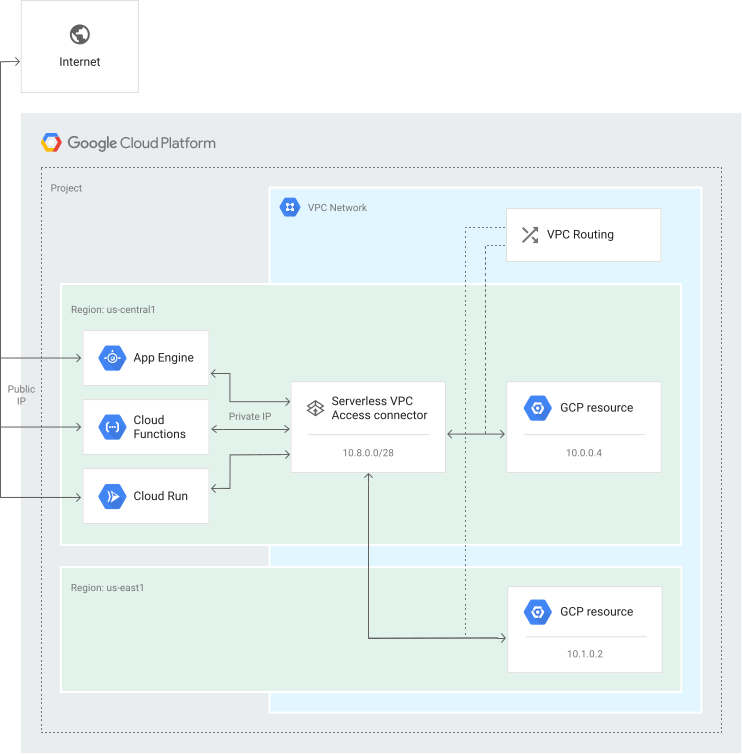](https://docs.cloud.google.com/static/vpc/images/serverless-vpc-access.svg) Serverless VPC Access example (click to enlarge).
## Pricing
For Serverless VPC Access pricing, see [Serverless VPC Access](https://cloud.google.com/vpc/pricing#serverless-vpc-pricing) on
the VPC pricing page.
## Supported services
The following table shows which types of networks you can reach using
Serverless VPC Access:
| Connectivity service | Serverless VPC Access support |
|---|---|
| [VPC](https://docs.cloud.google.com/vpc/docs/overview.md.txt) | Yes |
| [Shared VPC](https://docs.cloud.google.com/vpc/docs/shared-vpc.md.txt) | Yes |
| [Legacy networks](https://docs.cloud.google.com/vpc/docs/legacy.md.txt) | No |
| Networks connected to [Cloud Interconnect](https://docs.cloud.google.com/network-connectivity/docs/interconnect.md.txt) | Yes |
| Networks connected to [Cloud VPN](https://docs.cloud.google.com/network-connectivity/docs/vpn.md.txt) | Yes |
| Networks connected to [VPC Network Peering](https://docs.cloud.google.com/vpc/docs/vpc-peering.md.txt) | Yes |
The following table shows which serverless environments support
Serverless VPC Access:
| Serverless environment | Serverless VPC Access support |
|---|---|
| [Cloud Run](https://docs.cloud.google.com/run) | Yes |
| [Knative serving](https://docs.cloud.google.com/kubernetes-engine/enterprise/knative-serving/docs.md.txt)\* | No |
| [Cloud Run functions](https://docs.cloud.google.com/functions) | Yes |
| [App Engine standard environment](https://docs.cloud.google.com/appengine/docs/standard) | All runtimes except PHP 5 |
| [App Engine flexible environment](https://docs.cloud.google.com/appengine/docs/flexible)\* | No |
\*If you want to use internal IP addresses when connecting from
Knative serving or the App Engine flexible environment, you
don't need to configure Serverless VPC Access. Just make sure
your service is deployed in a VPC network that has connectivity
to the resources you want to reach.
## Supported networking protocols
The following table describes the networking protocols supported by
Serverless VPC Access connectors.
| Protocol | Route only requests to private IPs through the connector | Route all traffic through the connector |
|---|---|---|
| TCP | Yes | Yes |
| UDP | Yes | Yes |
| ICMP | Supported only for external IP addresses | No |
> [!NOTE]
> **Note:** IPv6 traffic is not supported.
## Supported regions
Serverless VPC Access connectors are supported in every region
that supports Cloud Run, Cloud Run functions, or
App Engine standard environment.
To view available regions:
```sh
gcloud compute networks vpc-access locations list
```
## What's next
- To configure Serverless VPC Access, see [Configure
Serverless VPC Access](https://docs.cloud.google.com/vpc/docs/configure-serverless-vpc-access).