Learn how to set up a service perimeter using VPC Service Controls. This
tutorial uses networking settings such as firewalls,
Private Service Connect, and DNS configurations that are necessary to
use a VPC Service Controls perimeter effectively. This tutorial then
demonstrates how services are allowed or denied, and how to make granular
exceptions for an allowlist of specific services.
## Objectives
- Configure a VPC Service Controls perimeter with additional networking controls to mitigate exfiltration paths.
- Allow or deny access to services inside the perimeter from requests that originate from inside the perimeter or outside the perimeter.
- Allow or deny access to services outside the perimeter from requests that originate within the perimeter.
- Use the Restrict Resource Service Usage organization policy and VPC Service Controls together.
## Costs
This tutorial uses the following billable components of Google Cloud:
- [Compute Engine](https://cloud.google.com/compute/all-pricing)
- [Cloud Storage](https://cloud.google.com/storage/pricing)
- [Private Service Connect](https://cloud.google.com/vpc/network-pricing)
To generate a cost estimate based on your projected usage, use the
[pricing calculator](https://cloud.google.com/products/calculator).
When you finish this tutorial, you can avoid continued billing by deleting the
resources you created. For more information, see
[Clean up](https://docs.cloud.google.com/architecture/limit-network-access-individually-approved-apis-vpc-acccessible-services#clean-up).
## Before you begin
1. This tutorial requires a project under your organization. If
you don't already have a Google Cloud organization, see
[creating and managing an organization](https://docs.cloud.google.com/resource-manager/docs/creating-managing-organization.md.txt).
2. In the Google Cloud console, on the project selector page,
select or create a Google Cloud project.
**Roles required to select or create a project**
- **Select a project**: Selecting a project doesn't require a specific IAM role---you can select any project that you've been granted a role on.
- **Create a project** : To create a project, you need the Project Creator role (`roles/resourcemanager.projectCreator`), which contains the `resourcemanager.projects.create` permission. [Learn how to grant
roles](https://docs.cloud.google.com/iam/docs/granting-changing-revoking-access).
> [!NOTE]
> **Note**: If you don't plan to keep the resources that you create in this procedure, create a project instead of selecting an existing project. After you finish these steps, you can delete the project, removing all resources associated with the project.
[Go to project selector](https://console.cloud.google.com/projectselector2/home/dashboard)
3.
[Verify that billing is enabled for your Google Cloud project](https://docs.cloud.google.com/billing/docs/how-to/verify-billing-enabled.md.txt#confirm_billing_is_enabled_on_a_project).
4.
Enable the Compute Engine, Access Context Manager, and Cloud DNS APIs, if any are not already enabled.
**Roles required to enable APIs**
To enable APIs, you need the `serviceusage.services.enable` permission. If you
created the project, then you likely already have this permission through the
Owner role (`roles/owner`). Otherwise, you can get this permission through the
Service Usage Admin role (`roles/serviceusage.serviceUsageAdmin`).
[Learn how to grant roles](https://docs.cloud.google.com/iam/docs/granting-changing-revoking-access.md.txt).
[Enable the APIs](https://console.cloud.google.com/apis/enableflow?apiid=compute.googleapis.com,accesscontextmanager.googleapis.com,dns.googleapis.com)
5. In the Google Cloud console, activate Cloud Shell.
[Activate Cloud Shell](https://console.cloud.google.com/?cloudshell=true)
6.
Make sure that you have the following role or roles on the organization:
Access Context Manager Admin, Organization Policy Administrator
#### Check for the roles
1.
In the Google Cloud console, go to the **IAM** page.
[Go to IAM](https://console.cloud.google.com/projectselector/iam-admin/iam?supportedpurview=organizationId)
2. Select the organization.
3.
In the **Principal** column, find all rows that identify you or a group that
you're included in. To learn which groups you're included in, contact your
administrator.
4. For all rows that specify or include you, check the **Role** column to see whether the list of roles includes the required roles.
#### Grant the roles
1.
In the Google Cloud console, go to the **IAM** page.
[Go to IAM](https://console.cloud.google.com/projectselector/iam-admin/iam?supportedpurview=organizationId)
2. Select the organization.
3. Click **Grant access**.
4.
In the **New principals** field, enter your user identifier.
This is typically the email address for a Google Account.
5. Click **Select a role**, then search for the role.
6. To grant additional roles, click **Add
another role** and add each additional role.
7. Click **Save**.
7.
Make sure that you have the following role or roles on the project:
Compute Admin, DNS Administrator, IAP-Secured Tunnel User, Service Account User, Service Directory Editor
#### Check for the roles
1.
In the Google Cloud console, go to the **IAM** page.
[Go to IAM](https://console.cloud.google.com/projectselector/iam-admin/iam?supportedpurview=project)
2. Select the project.
3.
In the **Principal** column, find all rows that identify you or a group that
you're included in. To learn which groups you're included in, contact your
administrator.
4. For all rows that specify or include you, check the **Role** column to see whether the list of roles includes the required roles.
#### Grant the roles
1.
In the Google Cloud console, go to the **IAM** page.
[Go to IAM](https://console.cloud.google.com/projectselector/iam-admin/iam?supportedpurview=project)
2. Select the project.
3. Click **Grant access**.
4.
In the **New principals** field, enter your user identifier.
This is typically the email address for a Google Account.
5. Click **Select a role**, then search for the role.
6. To grant additional roles, click **Add
another role** and add each additional role.
7. Click **Save**.
## Set up your VPC Service Controls perimeter
To implement a VPC Service Controls perimeter for a VPC network, you must
implement networking controls that deny traffic to external services. The
following sections detail the networking configurations you must implement in
VPC networks inside your perimeter and an example perimeter configuration.
### Prepare your VPC network
In this section, you [set up private connectivity to Google APIs and services](https://docs.cloud.google.com/vpc-service-controls/docs/set-up-private-connectivity.md.txt) for your VPC network to mitigate a
range of network egress paths to the internet.
1. In Cloud Shell, set variables:
```bash
gcloud config set project PROJECT_ID
gcloud config set compute/region REGION
gcloud config set compute/zone ZONE
```
Replace the following:
- PROJECT_ID: the project ID for the project where you will create resources
- REGION: a region that's close to your location---for example, `us-central1`
- ZONE: a zone that's close to your location---for example, `us-central1-a`
2. Create a VPC network and a subnet with Private Google Access enabled:
```bash
gcloud compute networks create restricted-vpc --subnet-mode=custom
gcloud compute networks subnets create restricted-subnet \
--range=10.0.0.0/24 \
--network=restricted-vpc \
--enable-private-ip-google-access
```
3. Create a Private Service Connect endpoint and a
forwarding rule configured to use the
[vpc-sc bundle](https://docs.cloud.google.com/vpc/docs/about-accessing-google-apis-endpoints.md.txt#supported-apis):
```bash
gcloud compute addresses create restricted-psc-endpoint \
--global \
--purpose=PRIVATE_SERVICE_CONNECT \
--addresses=10.0.1.1 \
--network=restricted-vpc
gcloud compute forwarding-rules create restrictedpsc \
--global \
--network=restricted-vpc \
--address=restricted-psc-endpoint \
--target-google-apis-bundle=vpc-sc
```
4. Configure the Cloud DNS server policy to redirect queries for Google
Cloud APIs to your Private Service Connect endpoint:
```bash
gcloud dns managed-zones create restricted-dns-zone \
--description="Private DNS Zone to map Google API queries to the Private Service Connect endpoint for Google APIs" \
--dns-name="googleapis.com." \
--networks=restricted-vpc \
--visibility=private
gcloud dns record-sets create googleapis.com \
--rrdatas=10.0.1.1 \
--type=A \
--ttl=300 \
--zone=restricted-dns-zone
gcloud dns record-sets create *.googleapis.com \
--rrdatas="googleapis.com." \
--type=CNAME \
--ttl=300 \
--zone=restricted-dns-zone
```
5. Configure a firewall rule at a low priority to deny all egress traffic:
```bash
gcloud compute firewall-rules create deny-all-egress \
--priority=65534 \
--direction=egress \
--network=restricted-vpc \
--action=DENY \
--rules=all \
--destination-ranges=0.0.0.0/0
```
6. Configure a firewall rule at a higher priority to allow traffic to
reach the IP address used by your Private Service Connect
endpoint:
```bash
gcloud compute firewall-rules create allow-psc-for-google-apis \
--priority=1000 \
--direction=egress \
--network=restricted-vpc \
--action=ALLOW \
--rules=tcp:443 \
--destination-ranges=10.0.1.1
```
These firewall rules deny egress broadly, before selectively allowing egress to
the Private Service Connect endpoint. This configuration denies
egress traffic to
[the default domains](https://docs.cloud.google.com/vpc/docs/configure-private-google-access.md.txt)
that are normally reachable by default with Private Google Access and
the
[implied firewall rules](https://docs.cloud.google.com/vpc/docs/firewalls#default_firewall_rules).
### Create a VPC Service Controls perimeter
In this section, you create a VPC Service Controls perimeter.
> [!NOTE]
> **Note:** This tutorial implements an enforced perimeter because there are no production resources inside the perimeter. If you're adding a perimeter to existing production projects, we recommend testing with [dry run mode](https://docs.cloud.google.com/vpc-service-controls/docs/dry-run-mode.md.txt) before enforcing.
1. In Cloud Shell, create an access policy as a prerequisite to
create a VPC Service Controls perimeter:
```bash
gcloud access-context-manager policies create \
--organization=ORGANIZATION_ID --title "Access policy at organization node"
```
The output is similar to the following:
"Create request issued
Waiting for operation [operations/accessPolicies/123456789/create/123456789] to complete...done."
There can only be one access policy container at the organization node. If a
policy has already been created in your organization, the output is similar to the following:
"ALREADY_EXISTS: Policy already exists with parent ContainerKey{containerId=organizations/123456789012, numericId=123456789012}"
If you see this message, continue to the next step.
2. Create a VPC Service Controls perimeter that restricts the
Cloud Storage and Compute Engine services.
```bash
export POLICY_ID=$(gcloud access-context-manager policies list \
--organization=ORGANIZATION_ID \
--format="value(name)")
gcloud access-context-manager perimeters create demo_perimeter \
--title="demo_perimeter" \
--resources=projects/$(gcloud projects describe PROJECT_ID --format="value(projectNumber)") \
--restricted-services="storage.googleapis.com,compute.googleapis.com" \
--enable-vpc-accessible-services \
--policy=$POLICY_ID \
--vpc-allowed-services="RESTRICTED-SERVICES"
```
> [!CAUTION]
> **Caution:** In this tutorial, you restrict only the Compute Engine and Cloud Storage services. In a production perimeter, we recommend that you [restrict all supported services](https://docs.cloud.google.com/architecture/vpc-service-controls-enterprise-best-practices#perimeter_design) to mitigate a range of exfiltration paths.
> The sample perimeter configures `--vpc-allowed-services` flag with the [alias value RESTRICTED-SERVICES](https://docs.cloud.google.com/vpc-service-controls/docs/manage-service-perimeters.md.txt#enable_vpc_accessible_services) to allow traffic from this VPC to the same set of services you define with the `--restricted-services` flag.
## Verify the services allowed from traffic outside your perimeter
The following sections demonstrate how the VPC Service Controls perimeter
allows or denies access to requests made from outside of the perimeter and how
you can selectively allow ingress to services by configuring access levels and
ingress policies.
To simulate traffic from outside your perimeter, you can run commands in
Cloud Shell. Cloud Shell is a resource outside your own
project and perimeter. The perimeter allows or denies requests even though the requests have sufficient Identity and Access Management privileges to succeed.
This tutorial uses the Compute Engine API, Cloud Storage API, and
Cloud Resource Manager API, but the same concepts apply to other services as well.
### Verify that the perimeter denies external traffic to restricted services
In this section, you verify that the perimeter denies external traffic to
restricted services.
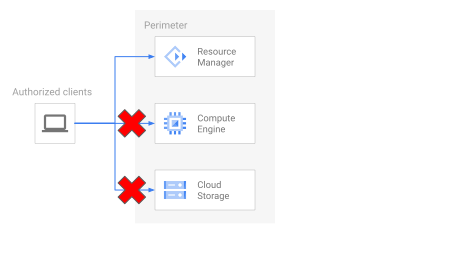
The previous diagram illustrates how an authorized client is denied access to
services inside the perimeter that you configured as restricted, but the client
is allowed access to services that you did not configure as restricted.
In the following steps, you verify this concept by using Cloud Shell to
attempt to create a VM inside your VPC network, which fails due
to the configuration of the VPC Service Controls perimeter.
1. In Cloud Shell, run the following command to create a VM
inside your VPC network.
```bash
gcloud compute instances create demo-vm \
--machine-type=e2-micro \
--subnet=restricted-subnet \
--scopes=https://www.googleapis.com/auth/cloud-platform \
--no-address
```
The output is similar to the following:
"ERROR: (gcloud.compute.instances.create) Could not fetch resource:
- Request is prohibited by organization's policy."
The request fails because Cloud Shell is outside of your perimeter,
and Compute Engine is configured with the `--restricted-services`
flag.
2. In Cloud Shell, run the following command to access the
Resource Manager service, which is not configured in the
`--restricted-services` flag.
```bash
gcloud projects describe PROJECT_ID
```
A successful response returns the details of your project. This response
demonstrates that your perimeter allows external traffic to the
Cloud Resource Manager API.
You have demonstrated that the perimeter denies external traffic
to services configured in `--restricted-services` and allows external
traffic to services not explicitly configured in`--restricted-services`.
The following sections introduce exception patterns to reach restricted
services inside the perimeter.
### Verify that an access level allows an exception to the perimeter
In this section, you verify that an [access level](https://docs.cloud.google.com/access-context-manager/docs/overview.md.txt#access-levels)
allows an exception to the perimeter. An access level is useful when you want
to create an exception for external traffic to access all restricted services
inside the perimeter and you don't require granular exceptions for each service
or other attributes.
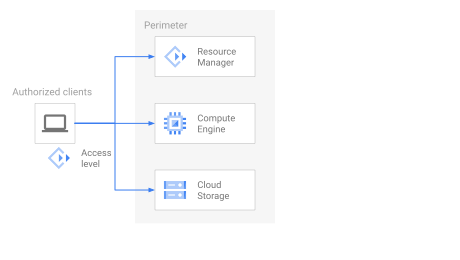
The previous diagram illustrates how an access level allows an authorized client
to access all the restricted services inside the perimeter.
In the following steps, you verify this concept by creating an access level and
then making a successful request to the Compute Engine service. This
request is allowed even you configured Compute Engine as restricted.
1. From Cloud Shell, create a YAML file that describes the
configuration of an access level and apply it to your perimeter. This
sample creates an access level for the user identity that you're currently
using to run the tutorial.
```bash
export USERNAME=$(gcloud config list account --format "value(core.account)")
cat < user_spec.yaml
- members:
- user:$USERNAME
EOF
```
```bash
gcloud access-context-manager levels create single_user_level \
--title="single-user access level" \
--basic-level-spec=user_spec.yaml \
--policy=$POLICY_ID
gcloud access-context-manager perimeters update demo_perimeter \
--add-access-levels=single_user_level \
--policy=$POLICY_ID
```
2. From Cloud Shell, run the following command again to attempt
to create a VM:
```bash
gcloud compute instances create demo-vm \
--machine-type=e2-micro \
--subnet=restricted-subnet \
--scopes=https://www.googleapis.com/auth/cloud-platform \
--no-address
```
This time, the request works. Your perimeter prevents external traffic from
using the restricted services, but the access level that you configured allows
an exception.
> [!NOTE]
> **Note:** After you update a service perimeter, it can take some time for the changes to propagate and take effect. If you receive an unexpected result, wait a minute and try again after the perimeter has fully updated.
### Verify that an ingress policy allows a granular exception to the perimeter
In this section, you verify that an ingress policy allows a granular exception
to the perimeter. Compared to the coarse-grained access level, a fine-grained
[ingress policy](https://docs.cloud.google.com/vpc-service-controls/docs/ingress-egress-rules.md.txt#ingress-rules-reference)
can configure additional attributes about the traffic source and allow access to individual services or methods.
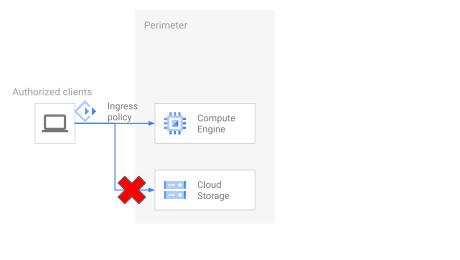
The previous diagram illustrates how an ingress policy allows an authorized
client to access only a specified service inside the perimeter, without allowing
access to other restricted services.
In the following steps, you verify this concept by replacing the access level
with an ingress policy that allows an authorized client to access only the
Compute Engine service, but does not allow access to other restricted
services.
1. From the Cloud Shell tab, run the following command to remove
the access level.
```bash
gcloud access-context-manager perimeters update demo_perimeter \
--policy=$POLICY_ID \
--clear-access-levels
```
2. From the Cloud Shell tab, create an ingress policy that allows
your user identity to ingress to the
Compute Engine service only, and apply the policy to your perimeter.
```bash
cat < ingress_spec.yaml
- ingressFrom:
identities:
- user:$USERNAME
sources:
- accessLevel: '*'
ingressTo:
operations:
- methodSelectors:
- method: '*'
serviceName: compute.googleapis.com
resources:
- '*'
EOF
```
```bash
gcloud access-context-manager perimeters update demo_perimeter \
--set-ingress-policies=ingress_spec.yaml \
--policy=$POLICY_ID
```
3. From the Cloud Shell tab, run the following command to create a Cloud Storage bucket inside the perimeter.
```bash
gcloud storage buckets create gs://PROJECT_ID-01
```
The output is similar to the following:
"ERROR: (gcloud.storage.buckets.create) HTTPError 403: Request is prohibited by organization's policy."
Cloud Shell is a client outside the perimeter, so the
VPC Service Controls perimeter blocks Cloud Shell from
communicating with restricted services inside the perimeter.
4. From the Cloud Shell tab, run the following command to make a
request to the Compute Engine service inside the perimeter.
```bash
gcloud compute instances describe demo-vm --zone=ZONE
```
A successful response returns the details of `demo-vm`. This response
demonstrates that your perimeter allows external traffic that meets the
conditions of your ingress policy to the Compute Engine service.
## Verify the services allowed from traffic inside your perimeter
The following sections demonstrate how the VPC Service Controls perimeter
allows or denies requests to services from inside the perimeter, and how you can
selectively allow egress to external services by egress policies.
To demonstrate the difference between traffic inside and outside the perimeter,
the following sections use both Cloud Shell outside the perimeter and a
Compute Engine instance you create inside the perimeter. Commands that
you run from the SSH session on the Compute Engine instance inside the
perimeter use the identity of the attached service account, whereas commands run
from Cloud Shell outside the perimeter use your own identity. When
following the recommended setup for the tutorial, the perimeter allows or denies
requests even though the requests have sufficient IAM privileges to
succeed.
This tutorial uses the Compute Engine API, Cloud Storage API, and
Cloud Resource Manager API, but the same concepts apply to other services as well.
### Verify that the perimeter allows internal traffic to restricted services inside the perimeter
In this section, you verify that the perimeter allows traffic from network
endpoints inside your perimeter if the service is also configured in [VPC accessible services](https://docs.cloud.google.com/vpc-service-controls/docs/vpc-accessible-services.md.txt).
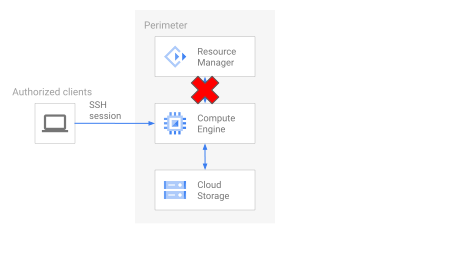
The previous diagram illustrates how a perimeter allows traffic from network
endpoints inside the perimeter to reach restricted services that you also
configured as VPC accessible services. Services that you did not configure as
VPC accessible services cannot be reached from network endpoints inside the
perimeter.
In the following steps, you verify this concept by establishing an SSH
connection to the Compute Engine instance inside the perimeter, then
making requests to services.
1. From Cloud Shell, create a firewall rule that allows SSH
traffic to your VPC network by allowing ingress from the 35.235.240.0/20 IP
address range that's used by the
[IAP for TCP forwarding](https://docs.cloud.google.com/iap/docs/using-tcp-forwarding.md.txt)
service:
```bash
gcloud compute firewall-rules create demo-allow-ssh \
--direction=INGRESS \
--priority=1000 \
--network=restricted-vpc \
--action=ALLOW \
--rules=tcp:22 \
--source-ranges=35.235.240.0/20
```
2. Start an SSH session to this instance:
```bash
gcloud compute ssh demo-vm --zone=ZONE
```
Verify that you have successfully connected to the `demo-vm` instance by
confirming that the command-line prompt has changed to show the hostname of your
instance:
username@demo-vm:~$
If the previous command fails, you might see an error message similar to the
following:
"[/usr/bin/ssh] exited with return code [255]"
In this case, the Compute Engine instance might not have completed
booting up. Wait a minute and then try again.
3. From the SSH session inside your perimeter, verify the services that
your perimeter allows internally by using a Google Cloud service that
is configured in the VPC accessible services allowlist. For example, try
any command using the Compute Engine service.
```bash
gcloud compute instances describe demo-vm --zone=ZONE
```
A successful response returns the details of `demo-vm`. This response
demonstrates that your perimeter allows internal traffic to the
Compute Engine API.
4. From the SSH session inside your perimeter, verify that the services
not included in the VPC accessible services allowlist are not allowed from
your VM. For example, the following command uses the
Resource Manager service, which is not configured in the VPC accessible
services allowlist.
```bash
gcloud projects describe PROJECT_ID
```
The output is similar to the following:
"ERROR: (gcloud.projects.list) PERMISSION_DENIED: Request is prohibited by organization's policy."
Your Compute Engine instance and other network endpoints can only
request services that are configured in the VPC accessible services allowlist.
However, serverless resources or service traffic originating from outside your
perimeter might request that service. If you want to prevent a service
from being used in your project, see the
[Restricted Service Resource Usage policy](https://docs.cloud.google.com/resource-manager/docs/organization-policy/restricting-resources).
### Verify that the perimeter denies internal traffic to restricted services outside the perimeter
In this section, you verify that the perimeter blocks communication from
services inside the perimeter to Google Cloud services outside the
perimeter.
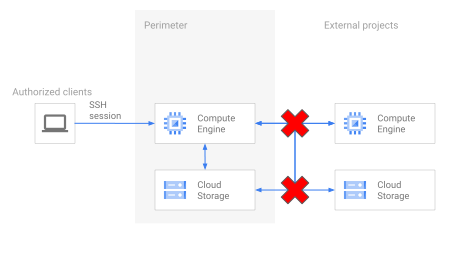
The previous diagram illustrates how internal traffic cannot communicate with
restricted services outside the perimeter.
In the following steps, you verify this concept by attempting to send internal
traffic to a restricted service inside the perimeter and to a restricted service
outside the perimeter.
1. From the SSH session inside your perimeter, run the following command
to create a storage bucket inside your perimeter. This command works
because the Cloud Storage service is configured in both `restricted-services`
and `accessible-services`.
```bash
gcloud storage buckets create gs://PROJECT_ID-02
```
A successful response creates the storage bucket. This response
demonstrates that your perimeter allows internal traffic to the Cloud Storage
service.
2. From the SSH session inside your perimeter, run the following command
to read from a bucket that is outside of your perimeter. This
public bucket allows read-only permission to `allUsers`, but the perimeter
denies traffic from inside your perimeter to a restricted service outside
the perimeter.
```bash
gcloud storage cat gs://solutions-public-assets/vpcsc-tutorial/helloworld.txt
```
The output is similar to the following:
"ERROR: (gcloud.storage.objects.describe) HTTPError 403: Request is prohibited
by organization's policy."
This response demonstrates that you can use restricted services inside the
perimeter, but a resource inside the perimeter cannot communicate with
restricted services outside the perimeter.
### Verify that an egress policy allows an exception to the perimeter
In this section, you verify that an egress policy allows an exception to the perimeter.
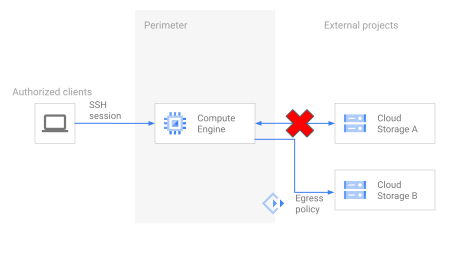
The previous diagram illustrates how internal traffic can communicate with a specific external resource when you grant a narrow exception with the egress policy.
In the following steps, you verify this concept by creating an egress policy
then accessing a public Cloud Storage bucket outside of the perimeter
allowed by the egress policy.
1. Open a new Cloud Shell session by clicking
**open a new tab** in Cloud Shell.
In subsequent steps you switch between the first tab with the SSH session
inside your perimeter, and the second tab in Cloud Shell outside
your perimeter where the command-line prompt begins with
`username@cloudshell`.
2. From the Cloud Shell tab, create an egress policy that allows
egress from the attached service account identity of `demo-vm` using the
`google.storage.objects.get` method to a public bucket in an external
project. Update the perimeter with the egress policy.
```bash
export POLICY_ID=$(gcloud access-context-manager policies list \
--organization=ORGANIZATION_ID \
--format="value(name)")
export SERVICE_ACCOUNT_EMAIL=$(gcloud compute instances describe demo-vm \
--zone=ZONE \
--format="value(serviceAccounts.email)")
```
```bash
cat < egress_spec.yaml
- egressFrom:
identities:
- serviceAccount:$SERVICE_ACCOUNT_EMAIL
egressTo:
operations:
- methodSelectors:
- method: 'google.storage.objects.get'
serviceName: storage.googleapis.com
resources:
- projects/950403849117
EOF
```
```bash
gcloud access-context-manager perimeters update demo_perimeter \
--set-egress-policies=egress_spec.yaml \
--policy=$POLICY_ID
```
3. Return to the tab with the SSH session to the VM inside your perimeter,
where the command-line prompt begins with `username@demo-vm`.
4. From the SSH session inside your perimeter, make another request to the
Cloud Storage bucket and verify it works.
```bash
gcloud storage cat gs://solutions-public-assets/vpcsc-tutorial/helloworld.txt
```
The output is similar to the following:
"Hello world!
This is a sample file in Cloud Storage that is viewable to allUsers."
This response demonstrates that your perimeter and egress policy allow internal
traffic from a specific identity to a specific Cloud Storage bucket.
> [!NOTE]
> **Note:** After you update a service perimeter, it can take some time for the changes to propagate and take effect. If you receive an unexpected result, wait a minute and try again after the perimeter has fully updated.
5. From the SSH session inside your perimeter, you can also test other
methods that weren't explicitly allowed by the egress policy exception. For
example, the following command requires the `google.storage.buckets.list`
permission which is denied by your perimeter.
```bash
gcloud storage ls gs://solutions-public-assets/vpcsc-tutorial/*
```
The output is similar to the following:
"ERROR: (gcloud.storage.cp) Request is prohibited by organization's policy."
This response demonstrates that your perimeter denies internal traffic from
listing objects in the external bucket, indicating that the egress policy
narrowly allows explicitly specified methods.
For more references on common patterns for sharing data outside of your service
perimeter, see
[secure data exchange with ingress and egress rules](https://docs.cloud.google.com/vpc-service-controls/docs/secure-data-exchange.md.txt).
### (Optional) Configure the Restricted Service Resource Usage policy
You might also have internal requirements or compliance requirements to
allow only individually approved APIs
to be used in your environment. In this case you might also configure the
[Restricted Service Resource Usage](https://docs.cloud.google.com/resource-manager/docs/organization-policy/restricting-resources)
Organization Policy Service. By applying the Organization Policy in a project, you
restrict which services can be created in that project. However, the
Organization Policy does not prevent services in this project from
communicating with services in other projects. In comparison,
VPC Service Controls allows you to define a perimeter to prevent
communication with services outside the perimeter.
For example, if you define an Organization Policy to allow
Compute Engine and deny Cloud Storage in your project, a VM in this
project could not create a Cloud Storage bucket in your
project. However, the VM can make requests to a Cloud Storage bucket in
another project, so exfiltration with the Cloud Storage service is still
possible. The following steps show how to implement and test this scenario:
1. Switch to the Cloud Shell tab, where the command-line prompt begins with `username@cloudshell`.
2. From the Cloud Shell tab, create a YAML file describing the
Organization Policy Service that will only allow usage of the Compute Engine
service and deny all other services, and then apply it to your project.
```bash
cat < allowed_services_policy.yaml
constraint: constraints/gcp.restrictServiceUsage
listPolicy:
allowedValues:
- compute.googleapis.com
inheritFromParent: true
EOF
```
```bash
gcloud resource-manager org-policies set-policy allowed_services_policy.yaml \
--project=PROJECT_ID
```
3. Return to the tab with the SSH session to the VM inside your perimeter,
where the command-line prompt begins with `username@demo-vm`.
4. From the SSH session inside your perimeter, run the following command to
view the same storage bucket you previously created inside this project.
```bash
gcloud storage buckets describe gs://PROJECT_ID
```
The output is similar to the following:
"ERROR: (gcloud.storage.buckets.create) HTTPError 403: Request is disallowed by organization's constraints/gcp.restrictServiceUsage constraint for 'projects/123456789' attempting to use service 'storage.googleapis.com'."
This response demonstrates that Organization Policy Service denies the Cloud Storage service
inside your project, regardless of the configuration of your perimeter.
> [!NOTE]
> **Note:** After you update an Organization Policy Service, it can take some time for the changes to propagate and take effect. If you receive an unexpected result, wait a minute and try again after the perimeter has fully updated.
5. From the SSH session inside your perimeter, run the following command
to view a storage bucket outside the perimeter that is allowed by your
egress policy.
```bash
gcloud storage cat gs://solutions-public-assets/vpcsc-tutorial/helloworld.txt
```
The output is similar to the following:
"Hello world!
This is a sample file in Cloud Storage that is viewable to allUsers."
A successful response returns the content of `helloworld.txt` in the external
storage bucket. This response demonstrates that your
perimeter and egress policy allows internal traffic to reach an external storage
bucket under certain limited conditions, but the Organization Policy Service denies the
Cloud Storage service in your project regardless of the configuration of your
perimeter. Services outside your project might still be used for exfiltration if
they are allowed by your perimeter, regardless of the Restricted Service
Resource Usage Organization Policy Service.
To deny communication with Cloud Storage or other Google services
outside the perimeter, the
[Restricted Service Resource Usage](https://docs.cloud.google.com/resource-manager/docs/organization-policy/restricting-resources)
Organization Policy Service alone is not sufficient, you must configure a
VPC Service Controls perimeter. VPC Service Controls mitigates data
exfiltration paths, and
[Restricted Service Resource Usage](https://docs.cloud.google.com/resource-manager/docs/organization-policy/restricting-resources)
is a compliance control to prevent creating unapproved services inside your
environment. Use these controls together to block a range of exfiltration paths
to and selectively allow approved services for internal use in your
environment.
## Clean up
> [!CAUTION]
> **Caution** : Deleting a project has the following effects:
>
> - **Everything in the project is deleted.** If you used an existing project for the tasks in this document, when you delete it, you also delete any other work you've done in the project.
> - **Custom project IDs are lost.** When you created this project, you might have created a custom project ID that you want to use in the future. To preserve the URLs that use the project ID, such as an `appspot.com` URL, delete selected resources inside the project instead of deleting the whole project.
>
>
> If you plan to explore multiple architectures, tutorials, or quickstarts, reusing projects
> can help you avoid exceeding project quota limits.
Delete a Google Cloud project:
```
gcloud projects delete PROJECT_ID
```
Although the VPC Service Controls perimeter does not generate any
additional cost, it should be cleaned up to avoid clutter and unused resources
in your organization.
1. In the project selector at the top of the Google Cloud console, select the organization you used during this tutorial.
2. In the Google Cloud console, go to the **VPC Service Controls**
page.
[Go to VPC Service Controls](https://console.cloud.google.com/security/service-perimeter)
3. Under the list of perimeters, select the perimeter you want to delete
and click **Delete**.
4. In the dialog, click **Delete** again to confirm deletion.
## What's next
- Learn about [best practices for enabling VPC Service Controls](https://docs.cloud.google.com/vpc-service-controls/docs/enable.md.txt).
- Learn about which services are [supported on VPC Service Controls](https://docs.cloud.google.com/vpc-service-controls/docs/supported-products.md.txt).
- Learn how to enable [VPC accessible services](https://docs.cloud.google.com/vpc-service-controls/docs/manage-service-perimeters.md.txt#enable_vpc_accessible_services).
- Read about the configuration of [Private Service Connect to access Google APIs](https://docs.cloud.google.com/vpc/docs/configure-private-service-connect-apis.md.txt).
- For more reference architectures, diagrams, tutorials, and best
practices, explore the
[Cloud Architecture Center](https://docs.cloud.google.com/architecture).