This example shows how you can migrate VPC networks of an existing
host project, which is already in a service perimeter, into separate perimeters.
In this example, the host project consists of two VPC networks.
Two service projects host their Cloud Storage resources.
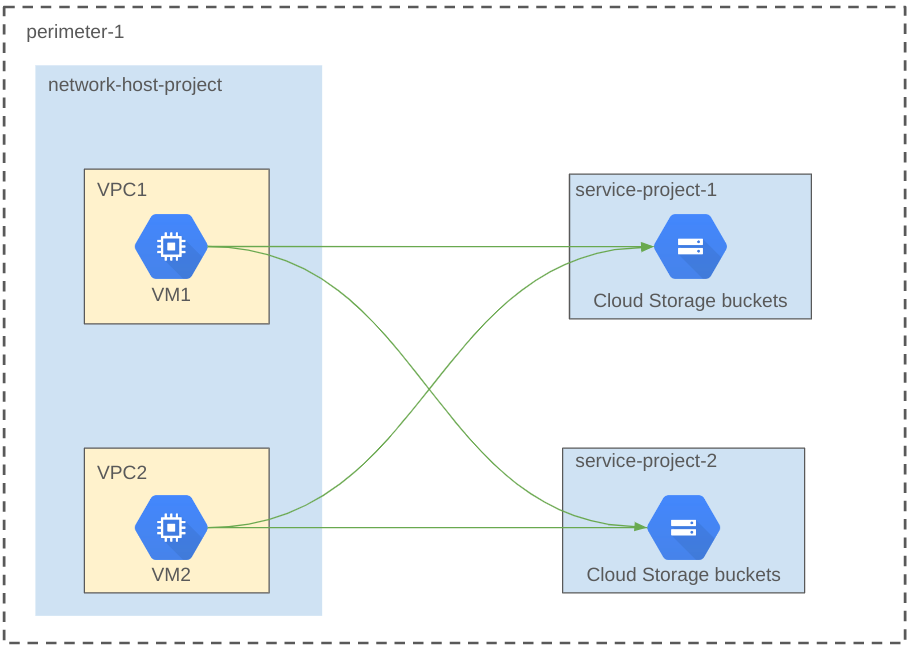
The following diagram shows the perimeter configuration of an example host project
before the migration:
The architecture diagram shows the following components:
- **Host project** . The host project contains two VPC networks `VPC1` and `VPC2`.
- **Service projects** . The service projects `service-project-1` and `service-project-2` contain Cloud Storage buckets and are protected by the service perimeter.
- **Perimeter** . The service perimeter `perimeter-1` protects the entire host project and service projects. The VM `VM1` in VPC network `VPC1` and the VM `VM2` in VPC network `VPC2` can access resources in both `service-project-1` and `service-project-2`.
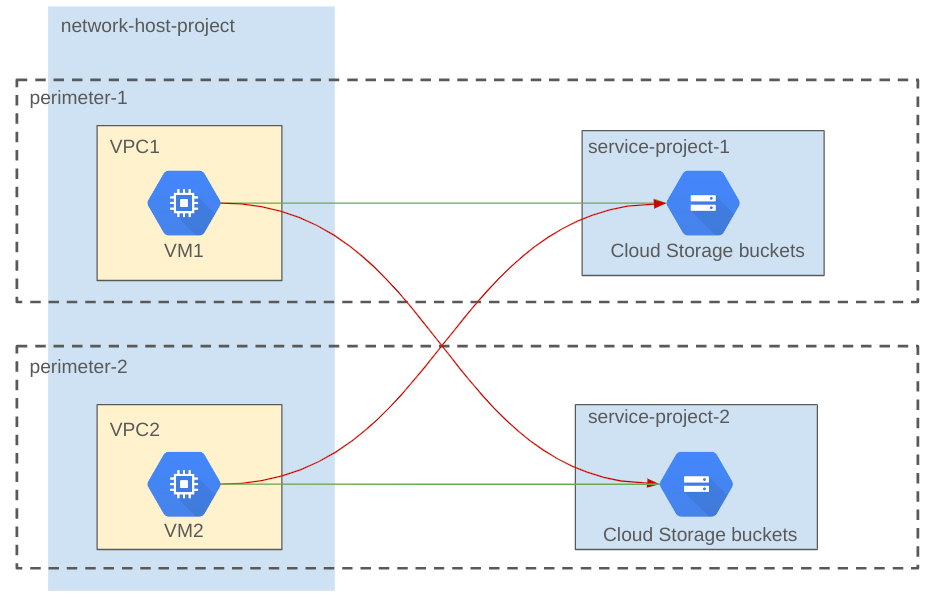
The following diagram shows the perimeter configuration of the host project after
the migration.
The architecture diagram shows the following components:
- **Perimeter-1** . This perimeter protects the VPC network `VPC1` and the service project `service-project-1`. The VM `VM1` can access the Cloud Storage bucket in `service-project-1` but cannot access the Cloud Storage bucket in `service-project-2`.
- **Perimeter-2** . This perimeter protects the VPC network `VPC2` and the service project `service-project-2`. The VM `VM2` can access the Cloud Storage bucket in `service-project-2` but cannot access the Cloud Storage bucket in `service-project-1`.
In this migration example, the configuration changes are made in dry-run mode and
then verified before enforcing the dry-run configuration. This process ensures that
the VPC networks and resources are protected and the production traffic
from `VPC1` to `service-project-1` and from `VPC2` to `service-project-2` is not
disrupted during the migration.
The migration process consists of the following steps:
- Get the VPC networks and perimeter details
- Set up a dry-run perimeter configuration
- Verify the dry-run setup
- Enforce the dry-run configuration
## Get the VPC networks and perimeter details
In this example, before you start the migration, you must get the list of VPC
networks and perimeter details.
### List the VPC networks in the host project
The following command lists the VPC networks in the network-host-project:
```
gcloud compute networks list --project=network-host-project
```
This example produces the following output:
```
NAME SUBNET_MODE BGP_ROUTING_MODE IPV4_RANGE GATEWAY_IPV4
vpc1 AUTO REGIONAL
vpc2 AUTO REGIONAL
```
### Get the perimeter details
The following command gets the details of the perimeter:
```
gcloud access-context-manager perimeters describe perimeter-1
```
This example produces the following output:
name: accessPolicies//servicePerimeters/perimeter-1
status:
...
resources:
- projects/
- projects/
- projects/
The \ is used in the example dry-run mode commands.
You can also set up a default access policy with the following command:
```
gcloud alpha config set access_context_manager/policy
```
## Set up a dry-run configuration
In this example, you use the dry-run command to update the perimeter `perimeter-1`
to remove `network-host-project`, `service-project-2`, and add `VPC1`. Then, you
run the dry-run command to create a new perimeter `perimeter-2` and add `service-project-2`
and `VPC2`.
If you add a project to a perimeter in a different access policy, you must first remove
the project from the perimeters in the existing access policy. For information about
how to remove a project from a perimeter, see [Update a service perimeter](https://docs.cloud.google.com/vpc-service-controls/docs/manage-service-perimeters.md.txt#update).
### Update the dry-run configuration
The following command updates the perimeter `perimeter-1` to remove `network-host-project`,
`service-project-2`, and adds `VPC1`:
```
gcloud access-context-manager perimeters dry-run update perimeter-1
--remove-resources="projects/,projects/"
--add-resources="//compute.googleapis.com/projects/network-host-project/global/networks/vpc1"
--policy=
```
### Create a new perimeter in dry-run mode
The following command creates the perimeter `perimeter-2` and adds `service-project-2`,
and adds `VPC2`:
```
gcloud access-context-manager perimeters dry-run create perimeter-2
--title=perimeter-2 --type="regular"
--resources="projects/,//compute.googleapis.com/projects/network-host-project/global/networks/vpc2"
--restricted-services="storage.googleapis.com"
--policy=
```
## Verify the dry-run configuration
In this example, run the following commands to ensure that there are no dry-run errors
from `VPC1` to `service-project-1`, and from `VPC2` to `service-project-2`:
To list the Cloud Storage buckets in `service-project-1`, log in to `VM1`, which is in `VPC1`
and run the following command:
```
gcloud storage ls --project=service-project-1
```
To list the Cloud Storage buckets in `service-project-2`, run the following command:
```
gcloud storage ls --project=service-project-2
```
The commands run successfully because the dry-run configuration doesn't affect production
traffic. However, the following dry-run error appears in the audit logs for `network-host-project`
for accessing `service-project-2` from `VM1`:
```
egressViolations: [
0: {
servicePerimeter: "accessPolicies//servicePerimeters/perimeter-1"
source: "//compute.googleapis.com/projects/network-host-project/global/networks/VPC1"
sourceType: "Network"
targetResource: "projects/"
}
]
```
Similarly, Cloud Storage requests from `VM2` to `service-project-2` don't have dry-run errors,
and requests from `VM2` to `service-project-1` have the following dry-run error in
the audit logs for the `network-host-project`:
```
egressViolations: [
0: {
servicePerimeter: "accessPolicies//servicePerimeters/perimeter-2"
source: "//compute.googleapis.com/projects/network-host-project/global/networks/VPC2"
sourceType: "Network"
targetResource: "projects/"
}
]
```
## Enforce the dry-run configuration
You must enforce all dry-run configurations at once in one atomic transaction.
> [!NOTE]
> **Note:** When you enforce a dry-run configuration, all dry-run configurations within the access policy are enforced. Make sure that the dry-run configurations of all perimeters in the access policy are consistent with the enforced configurations.
To enforce the dry-run configurations, run the following command:
```
gcloud access-context-manager perimeters dry-run enforce-all --policy=
```
After you enforce the dry-run configurations, run the following command to describe
`perimeter-1`:
```
gcloud access-context-manager perimeters describe perimeter-1 --policy=
```
This example produces the following output in which `network-host-project` and `service-project-2`
are removed, and `VPC1` is added to `perimeter-1`.
```
name: accessPolicies//servicePerimeters/perimeter-1
status:
…
resources:
- projects/
- //compute.googleapis.com/projects//global/networks/VPC1
```
Run the following command to describe `perimeter-2`:
```
gcloud access-context-manager perimeters describe perimeter-2 --policy=
```
This example produces the following output in which `service-project-2` and `VPC2`
are added to `perimeter-2`.
```
name: accessPolicies//servicePerimeters/perimeter-2
status:
…
resources:
- projects/
- //compute.googleapis.com/projects//global/networks/VPC2
title: perimeter-2
```