This page describes how to allow traffic from internal IP addresses in a
VPC network to service perimeters using [ingress and egress rules](https://docs.cloud.google.com/vpc-service-controls/docs/ingress-egress-rules.md.txt).
## Overview
You can use VPC Service Controls to specify conditions to allow specific IP
address ranges of the VPC network to access the protected
projects and VPC networks. This feature lets you do the following
tasks:
- Support [basic access
level](https://docs.cloud.google.com/access-context-manager/docs/create-basic-access-level) conditions to
allow internal IP address ranges of VPC networks.
- Allow the use of these access level conditions for ingress or egress API
calls into or out of service perimeter boundary.
This feature provides the following benefits:
- You can specify conditions in VPC Service Controls configurations to allow
access from an internal IP address in a VPC network.
- Workflows that require API calls to pass through multiple service perimeters
can restrict access to allow only a few subnets rather than allowing the
whole VPC network or project.
- You can configure different resources from your on-premises to be able to
access only specific Google Cloud resources. You need to use the subnet's IP
address range associated with these on-premises resources and the landing zone
VPC network as part of the access level.
Figure 1 shows an example setup that allows access to a specific protected
service from an authorized internal IP address.
## Limitations of using internal IP address
When you use an internal IP address in VPC Service Controls, the following
limitations apply:
- You can enable an internal IP address only with basic access levels and not
with custom access levels.
- We recommend that you don't negate access levels with internal IP address
based conditions because it can cause unexpected behaviors.
- The [limitations](https://docs.cloud.google.com/vpc-service-controls/docs/vpc-perimeters-management.md.txt#limitations)
in adding VPC networks to service perimeters apply as well.
- When VPC Service Controls logs a policy denied audit log, it redacts the name
of the VPC network as `__UNKNOWN__` in the audit log.
- VPC networks for which the `SUBNET_MODE` is set to `custom`
but don't have subnets, are not supported. Enabling internal IP address
requires that a VPC network must contain at least one subnet.
- You can only specify [500 VPC
networks](https://docs.cloud.google.com/vpc-service-controls/quotas#access-policy-limits) across all
access levels within your access policy.
- When you delete a VPC network that is referenced by an access
level or a service perimeter and then recreate another VPC
network with the same name, VPC Service Controls doesn't automatically enable
internal IP addresses on the recreated VPC network. To
overcome this limitation, create a VPC network with a
different name and add it to the perimeter.
- You can't use an internal IP address to allow access from Google-managed
services. For example, Cloud SQL.
- If you use an access level that has internal IP address based conditions
with an egress rule, we recommend that you don't add any other conditions
such as device type, user identity to the access level.
- Internal IP address doesn't match access levels referring to geographical
regions.
## Use internal IP address in access levels
1. Specify the VPC network name and the IP address range in the
`vpcNetworkSources` field of [basic access level
condition](https://docs.cloud.google.com/access-context-manager/docs/reference/rest/v1/accessPolicies.accessLevels#condition).
- **VPC network name.** You must define the VPC
network name in the following format:
```
//compute.googleapis.com/projects/PROJECT_ID/global/networks/NETWORK_NAME
```
For example,
`//compute.googleapis.com/projects/my-project/global/networks/my-vpc`.
- **IP address range.** The IP address range specified in the `VpcSubNetwork`
field of
[`VpcNetworkSource`](https://docs.cloud.google.com/access-context-manager/docs/reference/rest/v1/accessPolicies.accessLevels.md.txt#VpcNetworkSource)
must follow the CIDR block IP subnetwork specification. You can use any IP address
range that is a [valid IPv4 range](https://docs.cloud.google.com/vpc/docs/subnets.md.txt#valid-ranges) for subnets.
2. Use this access level with allow conditions in the
[`IngressSource`](https://docs.cloud.google.com/access-context-manager/docs/reference/rest/v1/accessPolicies.servicePerimeters.md.txt#ingresssource)
or
[`EgressSource`](https://docs.cloud.google.com/access-context-manager/docs/reference/rest/v1/accessPolicies.servicePerimeters.md.txt#egresssource).
Using an example scenario, the following sections explain how to perform these
steps to enable an internal IP address.
## An example of using an internal IP address to set up subnet access
In the following example, you have two projects:
1. **Network host project:** `Project1` hosts a VPC network:
`default`. The two VMs in `Project1`, `VM1` and `VM2`, use this network as a
network interface to send traffic through.
2. **Cloud Storage project:** `Project2` contains a Cloud Storage bucket.
You can use VPC Service Controls to only allow `VM1` from `Project1` to access the
Cloud Storage bucket in `Project2` using an internal IP address.
To achieve this setup, you need to do the following steps:
1. You create a service perimeter `sp1` around `Project1` and another service
perimeter `sp2` around `Project2`.
2. Then, you can add ingress and egress rules to the service perimeters to
allow only `VM1`'s subnet access to the Cloud Storage bucket.
The following diagram shows the setup described in this example.
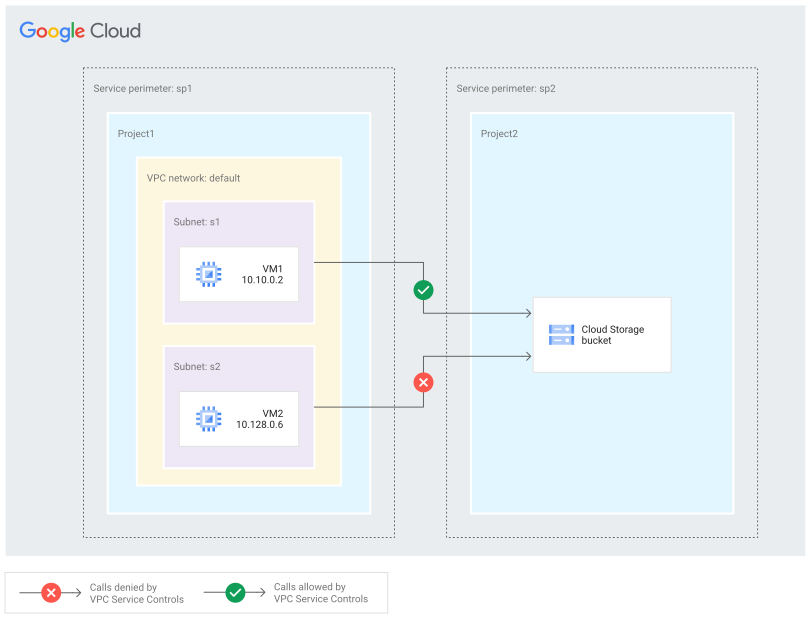 **Figure 1.** An example of enabling an internal IP address.
### Configure an access policy at the organization level
1. Ensure that you have an access policy at the organization level. If you
don't have an access policy at this level, run the following
gcloud CLI command:
```
gcloud access-context-manager policies create \
--organization=ORGANIZATION_ID --title=POLICY_TITLE
```
Replace the following:
- ORGANIZATION_ID: The numeric ID of your organization.
- POLICY_TITLE: A human-readable title for your access policy.
For more information, see [Create an organization-level access
policy](https://docs.cloud.google.com/access-context-manager/docs/create-access-policy#organization-access-policy).
2. [Get the name of your access
policy](https://docs.cloud.google.com/access-context-manager/docs/manage-access-policy#get_the_name_of_an_access_policy).
3. To set this policy as your default access policy, run the following
gcloud CLI command:
```
gcloud config set access_context_manager/policy POLICY_NAME
```
Replace POLICY_NAME with the numeric name of your access policy.
For more information, see [Set the default access policy for
the `gcloud` command-line tool](https://docs.cloud.google.com/access-context-manager/docs/manage-access-policy#set-default).
### Create perimeters to protect the network host project and the Cloud Storage project
1. To create a perimeter `sp1` around `Project1`, run the following
gcloud CLI command:
```
gcloud access-context-manager perimeters create sp1 --title="sp1" --resources=PROJECT_NUMBER \
--restricted-services=storage.googleapis.com --policy=POLICY_NAME
```
Replace the following:
- PROJECT_NUMBER: The project number of the network host project.
For example, `projects/111`.
- POLICY_NAME: The numeric name of your access policy. For
example, `1234567890`.
2. To create a perimeter `sp2` around `Project2` that restricts
Cloud Storage service, run the following gcloud CLI command:
```
gcloud access-context-manager perimeters create sp2 --title="sp2" --resources=PROJECT_NUMBER \
--restricted-services=storage.googleapis.com --policy=POLICY_NAME
```
Replace the following:
- PROJECT_NUMBER: The project number of the Cloud Storage
project. For example, `projects/222`.
- POLICY_NAME: The numeric name of your access policy. For
example, `1234567890`.
For more information about creating a service perimeter, see [Create a service
perimeter](https://docs.cloud.google.com/vpc-service-controls/docs/create-service-perimeters).
After you create these two perimeters, the Cloud Storage bucket is no longer
accessible from the two VMs.
### Create an access level with an internal IP address based access condition
Create an access level that only allows traffic coming from the `VM1`'s subnet.
1. Create a YAML file that defines your access conditions. The following sample
shows only the attributes that you require to enable an internal IP address:
```yaml
echo """
- vpcNetworkSources:
- vpcSubnetwork:
network: VPC_NETWORK_NAME
vpcIpSubnetworks:
- IP_RANGE
""" > level.yaml
```
Replace the following:
- VPC_NETWORK_NAME: The name of the VPC network
where the `VM1` resides. For example,
`//compute.googleapis.com/projects/Project1/global/networks/default`.
- IP_RANGE: The IP address range of the subnet. For example,
`10.10.0.0/24`.
Use the VPC network name and the IP address range formats
[explained earlier](https://docs.cloud.google.com/vpc-service-controls/docs/enable-internal-ip-access.md.txt#enable).
For more information about the YAML file, see [`basic-level-spec` YAML
file](https://docs.cloud.google.com/access-context-manager/docs/create-basic-access-level#yaml-file).
2. To create an access level using the YAML file, run the following
gcloud CLI command:
```
gcloud access-context-manager levels create LEVEL_NAME \
--title="TITLE" --basic-level-spec=FILE_NAME
```
Replace the following:
- LEVEL_NAME: A unique name for the access level. For example,
`allowvm1`.
- TITLE: A short, human-readable title for the access level.
For example, `allowvm1`.
- FILE_NAME: The YAML file that defines your access conditions
for the access level. For example, `level.yaml`.
For more information, see [Creating a basic access
level](https://docs.cloud.google.com/access-context-manager/docs/create-basic-access-level).
### Configure an ingress policy to allow inbound API traffic to the Cloud Storage bucket
To only allow access from `VM1`, configure an ingress policy in the `sp2`
perimeter to allow Cloud Storage API traffic to enter the perimeter.
1. Create a YAML file that defines your ingress policy.
```yaml
echo """
- ingressFrom:
identityType: ANY_IDENTITY
sources:
- accessLevel: accessPolicies/POLICY_NAME/accessLevels/ACCESS_LEVEL_NAME
ingressTo:
operations:
- methodSelectors:
- method: '*'
serviceName: storage.googleapis.com
resources:
- '*'
""" > ingress.yaml
```
Replace the following:
- POLICY_NAME: The numeric name of your access policy. For example,
`1234567890`.
- ACCESS_LEVEL_NAME: The name of your access level. For
example, `allowvm1`.
For more information about the YAML file, see [Ingress rules
reference](https://docs.cloud.google.com/vpc-service-controls/docs/ingress-egress-rules#ingress-rules-reference).
2. To update the ingress policy for a service perimeter, run the following
gcloud CLI command:
```
gcloud access-context-manager perimeters update PERIMETER --set-ingress-policies=FILE_NAME
```
Replace the following:
- PERIMETER: The name of your service perimeter that protects the
Cloud Storage project. For example, `sp2`.
- FILE_NAME: The YAML file that defines your ingress policy. For
example, `ingress.yaml`.
For more information, see [Updating ingress and egress policies for a
service perimeter](https://docs.cloud.google.com/vpc-service-controls/docs/configuring-ingress-egress-policies#updating).
### Configure an egress policy to allow outbound API traffic to the Cloud Storage bucket
Additionally, configure an egress policy in the `sp1` perimeter to allow
Cloud Storage API traffic to exit the perimeter.
1. Create a YAML file that defines your egress policy. Make sure that you set
the `sourceRestriction` field as `SOURCE_RESTRICTION_ENABLED` in the YAML
file.
```yaml
echo """
- egressFrom:
identityType: ANY_IDENTITY
sourceRestriction: SOURCE_RESTRICTION_ENABLED
sources:
- accessLevel: accessPolicies/POLICY_NAME/accessLevels/ACCESS_LEVEL_NAME
egressTo:
operations:
- methodSelectors:
- method: '*'
serviceName: storage.googleapis.com
resources:
- '*'
""" > egress.yaml
```
Replace the following:
- POLICY_NAME: The numeric name of your access policy. For example,
`1234567890`.
- ACCESS_LEVEL_NAME: The name of your access level. For
example, `allowvm1`.
For more information about the YAML file, see [Egress rules
reference](https://docs.cloud.google.com/vpc-service-controls/docs/ingress-egress-rules#egress-rules-reference).
2. To update the egress policy for a service perimeter, run the following
command:
```
gcloud access-context-manager perimeters update PERIMETER --set-egress-policies=FILE_NAME
```
Replace the following:
- PERIMETER: The name of your service perimeter that protects the
network host project. For example, `sp1`.
- FILE_NAME: The YAML file that defines your egress policy. For
example, `egress.yaml`.
For more information, see [Updating ingress and egress policies for a
service perimeter](https://docs.cloud.google.com/vpc-service-controls/docs/configuring-ingress-egress-policies#updating).
After you configure the ingress and egress policies, the Cloud Storage bucket
is accessible from the `VM1`, whereas the Cloud Storage bucket is not
accessible from the `VM2`.
## Recommendations
- When you enable an internal IP address, we recommend that you disable [IP
forwarding](https://docs.cloud.google.com/vpc/docs/using-routes#canipforward) for your VMs. IP forwarding
allows a VM within the same VPC network to send requests
using a different IP address, posing the risk of IP address spoofing.
- If you want to enable IP forwarding, then we recommend that you use the
following configurations to reduce the risk of IP address spoofing:
- Use the `Restrict VM IP Forwarding` [organization policy
constraint](https://docs.cloud.google.com/resource-manager/docs/organization-policy/org-policy-constraints)
(`constraints/compute.vmCanIpForward`) to ensure only authorized VMs can
enable IP forwarding.
- Use [sources for firewall rules](https://docs.cloud.google.com/firewall/docs/firewalls.md.txt#sources_for_the_rule)
to restrict the IP addresses that can communicate with the VMs that have IP
forwarding enabled. Complete the following tasks:
- Set up ingress firewall rules to allow inbound traffic only from a specific
IP address range to the VMs that have IP forwarding enabled.
- Set up egress firewall rules to allow outbound traffic only to a specific
IP address range from the VMs that have IP forwarding enabled.