# Create a product set and search for products
This quickstart demonstrates how to create and use the three types of
Vision API Product Search resources: a *product set* which contains a
group of *products* , and *reference images* associated with those products.
In this quickstart you will create a product set, products, and their
reference images in a single step by batch import.
After the product set has been [indexed](https://docs.cloud.google.com/vision/product-search/docs/create-product-set-search-products.md.txt#indexing), you can query the product
set using Vision API Product Search.
This quickstart steps you through the process of:
- Using a CSV and bulk import to create a *product set* , *products* , and *reference images*.
- Making a request to the Vision API Product Search with an image stored in a Cloud Storage bucket.
## Before you begin
If you haven't done so already, set up your project as explained below.
### Set up your project
## Using a dataset
In this quickstart you use a dataset of \~100 `apparel-v2` product category
entries. This publicly available dataset is located in a public
Cloud Storage bucket at:
- [`gs://cloud-samples-data/vision/product_search/product_catalog.csv`](https://storage.cloud.google.com/cloud-samples-data/vision/product_search/product_catalog.csv)
The CSV format is as follows:
```
gs://cloud-ai-vision-data/product-search-tutorial/images/filename1.jpg,image0,product_set0,product_id0,apparel-v2,,"style=women,category=shoe",
gs://cloud-ai-vision-data/product-search-tutorial/images/filename2.jpg,image1,product_set0,product_id1,apparel-v2,,"style=men,category=shoe",
gs://cloud-ai-vision-data/product-search-tutorial/images/filename3.jpg,image2,product_set0,product_id2,apparel-v2,,"style=women,category=dress",
```
> [!NOTE]
> **Note:** This sample CSV omits the optional columns `product-display` and `bounding-poly`. For more information about CSV requirements, see the [Formatting a bulk import CSV](https://docs.cloud.google.com/vision/product-search/docs/csv-format.md.txt) how-to topic.
## Use bulk import to create a product set, products, and reference images
Use the following `curl` command to create a new product set with products and
reference images. This set is named `product_set0`, a value declared in
the import CSV.
First create a request JSON file called `import_request.json` and save it in
your current working directory:
`import_request.json`
```
{
"inputConfig": {
"gcsSource": {
"csvFileUri": "gs://cloud-samples-data/vision/product_search/product_catalog.csv"
}
}
}
```
After creating the request JSON file, send the request:
```
curl -X POST \
-H "Authorization: Bearer $(gcloud auth print-access-token)" \
-H "x-goog-user-project: PROJECT_ID" \
-H "Content-Type: application/json; charset=utf-8" \
-d @import_request.json \
https://vision.googleapis.com/v1/projects/PROJECT_ID/locations/LOCATION_ID/productSets:import
```
Replace the following:
- LOCATION_ID: The location that will run your tutorial, for example, `us-east1`. Valid location identifiers are: `us-west1`, `us-east1`, `europe-west1`, and `asia-east1` .
A successful response contains a long-running operation object:
```
{
"name": "locations/LOCATION_ID/operations/0a0aec86192599fa"
}
```
The response also contains a relative operation ID (for example,
`0a0aec86192599fa`) that can be used to get the status of the operation.
### Get import operation status
You can use the OPERATION_ID returned from the import operation
to check the status of the bulk import operation:
```
curl -X GET \
-H "Authorization: Bearer $(gcloud auth print-access-token)" \
-H "x-goog-user-project: PROJECT_ID" \
-H "Content-Type: application/json" \
https://vision.googleapis.com/v1/locations/LOCATION_ID/operations/OPERATION_ID
```
A successful response looks like:
```
{
"name": "locations/LOCATION_ID/operations/0a0aec86192599fb",
"metadata": {
"@type": "type.googleapis.com/google.cloud.vision.v1.BatchOperationMetadata",
"state": "SUCCESSFUL",
"submitTime": "2018-11-30T03:11:04.808114024Z",
"endTime": "2018-11-30T03:11:38.624444324Z"
},
"done": true,
"response": {
"@type": "type.googleapis.com/google.cloud.vision.v1.ImportProductSetsResponse",
"referenceImages": [
{
"name": "projects/PROJECT_ID/locations/LOCATION_ID/products/product_id0/referenceImages/image0",
"uri": "gs://cloud-ai-vision-data/product-search-tutorial/images/46a0cbcf70ba11e89399d20059124800.jpg"
},
{
"name": "projects/PROJECT_ID/locations/LOCATION_ID/products/product_id1/referenceImages/image1",
"uri": "gs://cloud-ai-vision-data/product-search-tutorial/images/46a1aea370ba11e888d4d20059124800.jpg"
},
...
{
"name": "projects/PROJECT_ID/locations/LOCATION_ID/products/product_id93/referenceImages/image93",
"uri": "gs://cloud-ai-vision-data/product-search-tutorial/images/4697319970ba11e8a7bfd20059124800.jpg"
},
{
"name": "projects/PROJECT_ID/locations/LOCATION_ID/products/product_id94/referenceImages/image94",
"uri": "gs://cloud-ai-vision-data/product-search-tutorial/images/4698596370ba11e8bf6ad20059124800.jpg"
}
],
"statuses": [
{},
{},
[...]
{},
{}
]
}
}
```
## Indexing
The Product Search index of products is updated
approximately every day. When images are added or deleted, the change won't be
reflected in your Product Search responses until the index is next updated.
To make sure that indexing has completed successfully, check the
[`indexTime`](https://cloud.google.com/vision/product-search/docs/reference/rest/v1/projects.locations.productSets#ProductSet) field
of a product set.
### List product sets and check indexing
You can list all your product sets and use the `indexTime` field to verify that
indexing has completed successfully:
```
curl -X GET \
-H "Authorization: Bearer $(gcloud auth print-access-token)" \
-H "x-goog-user-project: PROJECT_ID" \
-H "Content-Type: application/json" \
https://vision.googleapis.com/v1/projects/PROJECT_ID/locations/LOCATION_ID/productSets
```
A successful response lists all your product sets, including a product set ID
(for example, `product_set0`) as well as the `indexTime` field indicating
when indexing completed:
```
{
"productSets": [
{
"name": "projects/PROJECT_ID/locations/LOCATION_ID/productSets/product_set0",
"displayName": " ",
"indexTime": "2019-11-30T18:33:40.093508652Z",
"indexError": {}
}
]
}
```
### List products
You can use the PRODUCT_SET_ID returned from the list of product sets
to list all products in your product set:
```
curl -X GET \
-H "Authorization: Bearer $(gcloud auth print-access-token)" \
-H "x-goog-user-project: PROJECT_ID" \
-H "Content-Type: application/json" \
https://vision.googleapis.com/v1/projects/PROJECT_ID/locations/LOCATION_ID/productSets/PRODUCT_SET_ID/products?pageSize=15
```
A successful response lists product details.
In this request you use the optional query parameter
[`pageSize`](https://docs.cloud.google.com/vision/product-search/docs/reference/rest/v1/projects.locations.productSets.products/list.md.txt#query-parameters) to set the result list to 15 products. The
[`nextPageToken`](https://docs.cloud.google.com/vision/product-search/docs/reference/rest/v1/projects.locations.productSets.products/list.md.txt#response-body) in the response also indicates there are more
products to list. You can use the token listed to retrieve further results. For
more information on using a `pageToken`, see
[Getting and listing resources](https://docs.cloud.google.com/vision/product-search/docs/get-list-resources.md.txt#listing_all_products_in_a_product_set).
```
{
"products": [
{
"name": "projects/PROJECT_ID/locations/LOCATION_ID/products/product_id0",
"displayName": " ",
"productCategory": "apparel",
"productLabels": [
{
"key": "style",
"value": "women"
},
{
"key": "category",
"value": "shoe"
}
]
},
{
"name": "projects/PROJECT_ID/locations/LOCATION_ID/products/product_id1",
"displayName": " ",
"productCategory": "apparel",
"productLabels": [
{
"key": "style",
"value": "men"
},
{
"key": "category",
"value": "shoe"
}
]
},
...
{
"name": "projects/PROJECT_ID/locations/LOCATION_ID/products/product_id21",
"displayName": " ",
"productCategory": "apparel",
"productLabels": [
{
"key": "style",
"value": "women"
},
{
"key": "category",
"value": "dress"
}
]
}
],
"nextPageToken": "1LqhSgZfM_uWKOxvog"
}
```
## Search for matching products with Vision API Product Search
After indexing is complete, you can search for products that match a sample
image. In this quickstart you use an image stored in a Google
Cloud Storage bucket such as the following image.
> [!NOTE]
> **Note:** You can also search using a [base64 encoded](https://docs.cloud.google.com/vision/product-search/docs/base64.md.txt) local image. For code samples using a local image, see [Searching for products](https://docs.cloud.google.com/vision/product-search/docs/searching.md.txt).
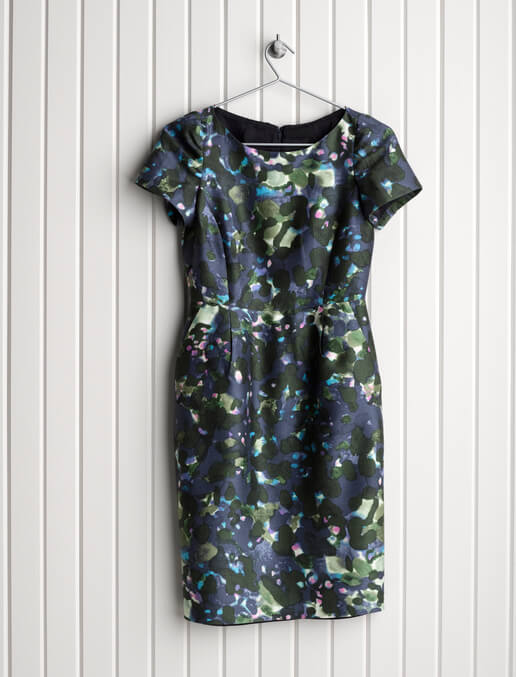 `gs://cloud-ai-vision-data/product-search-tutorial/images/468f782e70ba11e8941fd20059124800.jpg`
### Search using a remote image
Use the following request to search using the image stored in a public
Cloud Storage bucket.
First create a request JSON file called `search_request.json` and save it in
your current working directory. Change the following values in the request
JSON to match your project's information:
- PROJECT_ID
- LOCATION_ID
- PRODUCT_SET_ID
`search_request.json`
```
{
"requests": [
{
"image": {
"source": {
"gcsImageUri": "gs://cloud-ai-vision-data/product-search-tutorial/images/468f782e70ba11e8941fd20059124800.jpg"
}
},
"features": [
{
"type": "PRODUCT_SEARCH"
}
],
"imageContext": {
"productSearchParams": {
"productSet": "projects/PROJECT_ID/locations/LOCATION_ID/productSets/PRODUCT_SET_ID",
"productCategories": [
"apparel-v2"
],
"filter": "style=womens OR style=women"
}
}
}
]
}
```
After creating the request JSON file, send the request:
```
curl -X POST \
-H "Authorization: Bearer $(gcloud auth print-access-token)" \
-H "x-goog-user-project: PROJECT_ID" \
-H "Content-Type: application/json; charset=utf-8" \
-d @search_request.json \
https://vision.googleapis.com/v1/images:annotate
```
A successful request returns a list of matching products, indicated by their
product ID. These results are further broken down by individual products
identified by bounding boxes if there are multiple products in a single image.
For an example of single-product detection and multi-detection of products in an
image, see
[Understanding search responses \& multi-detection](https://docs.cloud.google.com/vision/product-search/docs/searching-response.md.txt).
A field `score` is returned as well. This field indicates the
confidence at which the service feels the product matches the supplied image,
on a scale of 0 (no confidence) to 1 (full confidence).
The `indexTime` field shows which version of the index is being searched. Image
changes made after this time are not reflected in the results.
**Response**
```
{
"responses": [
{
"productSearchResults": {
"indexTime": "2020-01-07T18:33:45.300851144Z",
"results": [
{
"product": {
"name": "projects/PROJECT_ID/locations/LOCATION_ID/products/product_id16",
"displayName": " ",
"productCategory": "apparel-v2",
"productLabels": [
{
"key": "style",
"value": "women"
},
{
"key": "category",
"value": "dress"
}
]
},
"score": 1,
"image": "projects/PROJECT_ID/locations/LOCATION_ID/products/product_id16/referenceImages/image16"
},
{
"product": {
"name": "projects/PROJECT_ID/locations/LOCATION_ID/products/product_id29",
"displayName": " ",
"productCategory": "apparel-v2",
"productLabels": [
{
"key": "style",
"value": "women"
},
{
"key": "category",
"value": "dress"
}
]
},
"score": 0.27578148,
"image": "projects/PROJECT_ID/locations/LOCATION_ID/products/product_id29/referenceImages/image29"
},
...
{
"product": {
"name": "projects/PROJECT_ID/locations/LOCATION_ID/products/product_id22",
"displayName": " ",
"productCategory": "apparel-v2",
"productLabels": [
{
"key": "style",
"value": "women"
},
{
"key": "category",
"value": "dress"
},
{
"key": "kids",
"value": "true"
}
]
},
"score": 0.20356013,
"image": "projects/PROJECT_ID/locations/LOCATION_ID/products/product_id22/referenceImages/image22"
}
],
"productGroupedResults": [
{
"boundingPoly": {
"normalizedVertices": [
{
"x": 0.25542393,
"y": 0.15517132
},
{
"x": 0.8196448,
"y": 0.15517132
},
{
"x": 0.8196448,
"y": 0.92001766
},
{
"x": 0.25542393,
"y": 0.92001766
}
]
},
"results": [
{
"product": {
"name": "projects/PROJECT_ID/locations/LOCATION_ID/products/product_id16",
"displayName": " ",
"productCategory": "apparel-v2",
"productLabels": [
{
"key": "style",
"value": "women"
},
{
"key": "category",
"value": "dress"
}
]
},
"score": 1,
"image": "projects/PROJECT_ID/locations/LOCATION_ID/products/product_id16/referenceImages/image16"
},
{
"product": {
"name": "projects/PROJECT_ID/locations/LOCATION_ID/products/product_id57",
"displayName": " ",
"productCategory": "apparel-v2",
"productLabels": [
{
"key": "style",
"value": "women"
},
{
"key": "category",
"value": "dress"
}
]
},
"score": 0.27369013,
"image": "projects/PROJECT_ID/locations/LOCATION_ID/products/product_id57/referenceImages/image57"
},
...
{
"product": {
"name": "projects/PROJECT_ID/locations/LOCATION_ID/products/product_id18",
"displayName": " ",
"productCategory": "apparel-v2",
"productLabels": [
{
"key": "style",
"value": "women"
},
{
"key": "category",
"value": "dress"
}
]
},
"score": 0.21221256,
"image": "projects/PROJECT_ID/locations/LOCATION_ID/products/product_id18/referenceImages/image18"
}
],
"objectAnnotations": [
{
"mid": "/m/01d40f",
"name": "Dress",
"score": 0.968603
}
]
}
]
}
}
]
}
```
Congratulations! You've made your first `images.annotate` request to the
Vision API Product Search service.
## Clean up
1.
Optional: Revoke credentials from the gcloud CLI.
```bash
gcloud auth revoke
```
2.
> [!CAUTION]
> **Caution** : Deleting a project has the following effects:
> - **Everything in the project is deleted.** If you used an existing project for the tasks in this document, when you delete it, you also delete any other work you've done in the project.
> - **Custom project IDs are lost.** When you created this project, you might have created a custom project ID that you want to use in the future. To preserve the URLs that use the project ID, such as an `appspot.com` URL, delete selected resources inside the project instead of deleting the whole project.
>
>
> If you plan to explore multiple architectures, tutorials, or quickstarts, reusing projects
> can help you avoid exceeding project quota limits.
Delete a Google Cloud project:
```
gcloud projects delete PROJECT_ID
```
## What's next
- Get started with the Vision API Product Search in your language of choice by using a [Vision API Product Search Client Library](https://docs.cloud.google.com/vision/product-search/docs/libraries.md.txt).
- Work through the [How-To Guides](https://docs.cloud.google.com/vision/product-search/docs/how-to.md.txt).
- Work through the [Tutorial](https://docs.cloud.google.com/vision/product-search/docs/tutorial.md.txt).