


Vision API יכול לזהות ולתמלל טקסט מקובצי PDF ו-TIFF שמאוחסנים ב-Cloud Storage.
כדי לזהות טקסט במסמכי PDF ו-TIFF, צריך לשלוח בקשה באמצעות הפונקציה files:asyncBatchAnnotate. הפונקציה הזו מבצעת בקשה אופליין (אסינכרונית) ומספקת את הסטטוס שלה באמצעות משאבי operations.
הפלט מבקשת PDF/TIFF נכתב לקובץ JSON שנוצר בקטגוריה של Cloud Storage שצוינה.
מגבלות
Vision API מקבל קובצי PDF או TIFF של עד 2,000 דפים. קבצים גדולים יותר יחזירו שגיאה.
אימות
אין תמיכה במפתחות API לבקשות files:asyncBatchAnnotate. הוראות לאימות באמצעות חשבון שירות מופיעות במאמר שימוש בחשבון שירות.
לחשבון שמשמש לאימות צריכה להיות גישה לקטגוריה של Cloud Storage שציינתם עבור הפלט (roles/editor או roles/storage.objectCreator ומעלה).
אפשר להשתמש במפתח API כדי לשלוח שאילתה לגבי סטטוס הפעולה. הוראות מפורטות זמינות במאמר שימוש במפתח API.
בקשות לזיהוי טקסט במסמך
כרגע, זיהוי מסמכי PDF/TIFF זמין רק לקבצים שמאוחסנים בדליים של Cloud Storage. קובצי JSON של תגובות נשמרים באופן דומה בקטגוריה של Cloud Storage.
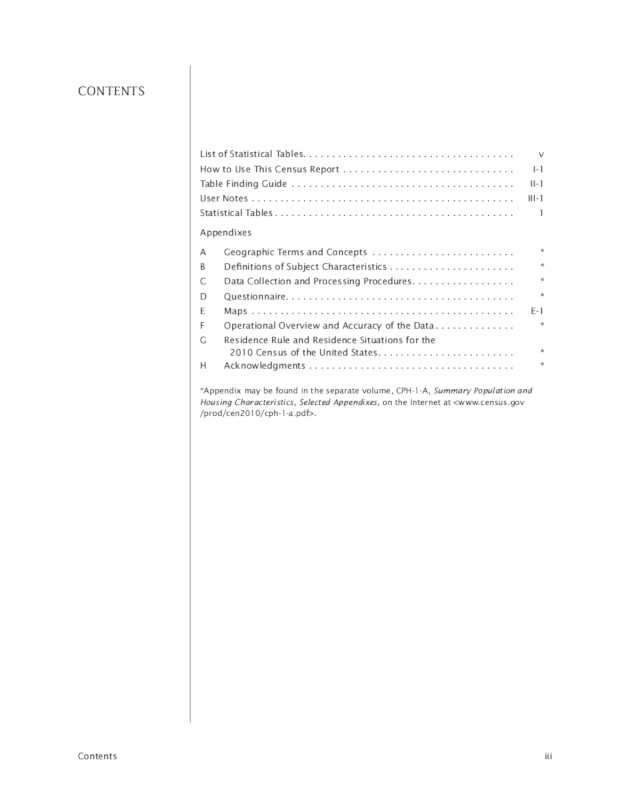
gs://cloud-samples-data/vision/pdf_tiff/census2010.pdf,
מקור:
United States
Census Bureau.
REST
לפני שמשתמשים בנתוני הבקשה, צריך להחליף את הנתונים הבאים:
- CLOUD_STORAGE_BUCKET: קטגוריה או ספרייה ב-Cloud Storage לשמירת קובצי הפלט, בפורמט הבא:
gs://bucket/directory/
- CLOUD_STORAGE_FILE_URI: הנתיב לקובץ תקין (PDF/TIFF) בקטגוריה של Cloud Storage. צריכות להיות לכם לפחות הרשאות קריאה לקובץ.
דוגמה:
gs://cloud-samples-data/vision/pdf_tiff/census2010.pdf
- FEATURE_TYPE: סוג תכונה תקין.
בבקשות מסוג
files:asyncBatchAnnotateאפשר להשתמש בסוגי התכונות הבאים:DOCUMENT_TEXT_DETECTIONTEXT_DETECTION
- PROJECT_ID: מזהה הפרויקט ב- Google Cloud .
שיקולים ספציפיים לשדה:
-
inputConfig– מחליף את השדהimageשמשמש בבקשות אחרות של Vision API. הוא מכיל שני שדות צאצא:-
gcsSource.uri– ה-URI של קובץ ה-PDF או ה-TIFF ב-Google Cloud Storage (נגיש למשתמש או לחשבון השירות ששולח את הבקשה). -
mimeType– אחד מסוגי הקבצים המקובלים:application/pdfאוimage/tiff.
-
-
outputConfig– מציין את פרטי הפלט. הוא מכיל שני שדות צאצא:-
gcsDestination.uri– URI תקין של Google Cloud Storage. המשתמש או חשבון השירות ששולחים את הבקשה צריכים להיות בעלי הרשאת כתיבה לקטגוריה. שם הקובץ יהיהoutput-x-to-y, כאשרxו-yמייצגים את מספרי הדפים ב-PDF או ב-TIFF שכלולים בקובץ הפלט הזה. אם הקובץ קיים, התוכן שלו יוחלף. -
batchSize– מציין כמה דפים של פלט צריך לכלול בכל קובץ JSON של פלט.
-
ה-method של ה-HTTP וכתובת ה-URL:
POST https://vision.googleapis.com/v1/files:asyncBatchAnnotate
גוף בקשת JSON:
{
  "requests":[
    {
      "inputConfig": {
        "gcsSource": {
          "uri": "CLOUD_STORAGE_FILE_URI"
        },
        "mimeType": "application/pdf"
      },
      "features": [
        {
          "type": "FEATURE_TYPE"
        }
      ],
      "outputConfig": {
        "gcsDestination": {
          "uri": "CLOUD_STORAGE_BUCKET"
        },
        "batchSize": 1
      }
    }
  ]
}
כדי לשלוח את הבקשה עליכם לבחור אחת מהאפשרויות הבאות:
curl
שומרים את גוף הבקשה בקובץ בשם request.json ומריצים את הפקודה הבאה:
curl -X POST \
     -H "Authorization: Bearer $(gcloud auth print-access-token)" \
     -H "x-goog-user-project: PROJECT_ID" \
     -H "Content-Type: application/json; charset=utf-8" \
     -d @request.json \
     "https://vision.googleapis.com/v1/files:asyncBatchAnnotate"
PowerShell
שומרים את גוף הבקשה בקובץ בשם request.json ומריצים את הפקודה הבאה:
$cred = gcloud auth print-access-token
$headers = @{ "Authorization" = "Bearer $cred"; "x-goog-user-project" = "PROJECT_ID" }

Invoke-WebRequest `
    -Method POST `
    -Headers $headers `
    -ContentType: "application/json; charset=utf-8" `
    -InFile request.json `
    -Uri "https://vision.googleapis.com/v1/files:asyncBatchAnnotate" | Select-Object -Expand Content
בקשת asyncBatchAnnotate מוצלחת מחזירה תגובה עם שדה שם יחיד:
{
  "name": "projects/usable-auth-library/operations/1efec2285bd442df"
}
השם הזה מייצג פעולה ממושכת עם מזהה משויך (לדוגמה, 1efec2285bd442df), שאפשר לשלוח לגביו שאילתה באמצעות v1.operations API.
כדי לאחזר את תגובת ההערה של Vision, שולחים בקשת GET לנקודת הקצה v1.operations ומעבירים את מזהה הפעולה בכתובת ה-URL:
GET https://vision.googleapis.com/v1/operations/operation-idלדוגמה:
curl -X GET -H "Authorization: Bearer $(gcloud auth application-default print-access-token)" \
-H "Content-Type: application/json" \
https://vision.googleapis.com/v1/projects/project-id/locations/location-id/operations/1efec2285bd442df
אם הפעולה מתבצעת:
{
  "name": "operations/1efec2285bd442df",
  "metadata": {
    "@type": "type.googleapis.com/google.cloud.vision.v1.OperationMetadata",
    "state": "RUNNING",
    "createTime": "2019-05-15T21:10:08.401917049Z",
    "updateTime": "2019-05-15T21:10:33.700763554Z"
  }
}
אחרי שהפעולה מסתיימת, הסמל state משתנה ל-DONE והתוצאות נכתבות בקובץ Google Cloud Storage שציינתם:
{
  "name": "operations/1efec2285bd442df",
  "metadata": {
    "@type": "type.googleapis.com/google.cloud.vision.v1.OperationMetadata",
    "state": "DONE",
    "createTime": "2019-05-15T20:56:30.622473785Z",
    "updateTime": "2019-05-15T20:56:41.666379749Z"
  },
  "done": true,
  "response": {
    "@type": "type.googleapis.com/google.cloud.vision.v1.AsyncBatchAnnotateFilesResponse",
    "responses": [
      {
        "outputConfig": {
          "gcsDestination": {
            "uri": "gs://your-bucket-name/folder/"
          },
          "batchSize": 1
        }
      }
    ]
  }
}
ה-JSON בקובץ הפלט דומה ל-JSON של [בקשה לזיהוי טקסט במסמך](/vision/docs/ocr) של תמונה, עם התוספת של שדה context שמציג את המיקום של קובץ ה-PDF או ה-TIFF שצוין ואת מספר הדפים בקובץ:
output-1-to-1.json
Go
לפני שמנסים את הדוגמה הזו, צריך לפעול לפי Goהוראות ההגדרה שבמדריך לתחילת העבודה עם Vision באמצעות ספריות לקוח. מידע נוסף מופיע במאמרי העזרה של Vision Go API.
כדי לבצע אימות ב-Vision, צריך להגדיר את Application Default Credentials. מידע נוסף זמין במאמר הגדרת אימות לסביבת פיתוח מקומית.
Java
לפני שמנסים את הדוגמה הזו, צריך לפעול לפי הוראות ההגדרה של Java במאמר התחלת העבודה עם Vision API באמצעות ספריות לקוח. מידע נוסף מופיע ב מאמרי העזרה של Vision API Java.
Node.js
לפני שמנסים את הדוגמה הזו, צריך לפעול לפי Node.jsהוראות ההגדרה שבמדריך לתחילת העבודה עם Vision באמצעות ספריות לקוח. מידע נוסף מופיע במאמרי העזרה של Vision Node.js API.
כדי לבצע אימות ב-Vision, צריך להגדיר את Application Default Credentials. מידע נוסף זמין במאמר הגדרת אימות לסביבת פיתוח מקומית.
Python
לפני שמנסים את הדוגמה הזו, צריך לפעול לפי Pythonהוראות ההגדרה שבמדריך לתחילת העבודה עם Vision באמצעות ספריות לקוח. מידע נוסף מופיע במאמרי העזרה של Vision Python API.
כדי לבצע אימות ב-Vision, צריך להגדיר את Application Default Credentials. מידע נוסף זמין במאמר הגדרת אימות לסביבת פיתוח מקומית.
gcloud
הפקודה gcloud שבה משתמשים תלויה בסוג הקובץ.
כדי לבצע זיהוי טקסט בPDF, משתמשים בפקודה
gcloud ml vision detect-text-pdfכמו בדוגמה הבאה:gcloud ml vision detect-text-pdf gs://my_bucket/input_file gs://my_bucket/out_put_prefix
כדי לבצע זיהוי טקסט בפורמט TIFF, משתמשים בפקודה
gcloud ml vision detect-text-tiffכמו בדוגמה הבאה:gcloud ml vision detect-text-tiff gs://my_bucket/input_file gs://my_bucket/out_put_prefix
שפות נוספות
C#: צריך לפעול לפי הוראות ההגדרה של C# בדף של ספריות הלקוח ואז לעבור אל מאמרי העזרה של Vision ל- .NET.
PHP: Please follow the PHP setup instructions on the client libraries page and then visit the מאמרי עזרה של Vision עבור PHP.
Ruby: פועלים לפי הוראות ההגדרה של Ruby בדף של ספריות הלקוח ואז עוברים אל מאמרי העזרה של Vision בנושא Ruby.
תמיכה במספר אזורים
עכשיו אפשר לציין אחסון נתונים ועיבוד OCR ברמת היבשת. האזורים הבאים נתמכים כרגע:
us: ארה"ב בלבד-
eu: האיחוד האירופי
מיקומים
Cloud Vision מאפשר לכם לשלוט במידה מסוימת במיקום שבו המשאבים של הפרויקט מאוחסנים ומעובדים. בפרט, אתם יכולים להגדיר את Cloud Vision כך שיאחסן ויעבד את הנתונים שלכם רק באיחוד האירופי.
כברירת מחדל, Cloud Vision מאחסן ומעבד משאבים במיקום גלובלי, כלומר Cloud Vision לא מבטיח שהמשאבים יישארו במיקום או באזור מסוימים. אם תבחרו במיקום האיחוד האירופי, Google תשמור את הנתונים שלכם ותעבד אותם רק באיחוד האירופי. אתם והמשתמשים שלכם יכולים לגשת לנתונים מכל מקום.
הגדרת המיקום באמצעות ה-API
Vision API תומך בנקודת קצה גלובלית של API (vision.googleapis.com) וגם בשתי נקודות קצה אזוריות: נקודת קצה של האיחוד האירופי (eu-vision.googleapis.com) ונקודת קצה של ארצות הברית (us-vision.googleapis.com). כדאי להשתמש בנקודות הקצה האלה לעיבוד ספציפי לאזור. לדוגמה, כדי לאחסן ולעבד את הנתונים שלכם רק באיחוד האירופי, צריך להשתמש ב-URI eu-vision.googleapis.com במקום vision.googleapis.com בשיחות API בארכיטקטורת REST:
- https://eu-vision.googleapis.com/v1/projects/PROJECT_ID/locations/eu/images:annotate
- https://eu-vision.googleapis.com/v1/projects/PROJECT_ID/locations/eu/images:asyncBatchAnnotate
- https://eu-vision.googleapis.com/v1/projects/PROJECT_ID/locations/eu/files:annotate
- https://eu-vision.googleapis.com/v1/projects/PROJECT_ID/locations/eu/files:asyncBatchAnnotate
כדי לאחסן ולעבד את הנתונים שלכם בארצות הברית בלבד, צריך להשתמש בנקודת הקצה בארה"ב (us-vision.googleapis.com) עם השיטות שלמעלה.
הגדרת המיקום באמצעות ספריות הלקוח
ספריות הלקוח של Vision API ניגשות לנקודת הקצה הגלובלית של ה-API (vision.googleapis.com) כברירת מחדל. כדי לאחסן ולעבד את הנתונים שלכם באיחוד האירופי בלבד, אתם צריכים להגדיר במפורש את נקודת הקצה (eu-vision.googleapis.com). בדוגמאות הקוד הבאות אפשר לראות איך מגדירים את ההגדרה הזו.
REST
לפני שמשתמשים בנתוני הבקשה, צריך להחליף את הנתונים הבאים:
- REGION_ID: אחד ממזהי המיקום האזוריים התקפים:
us: ארה"ב בלבד-
eu: האיחוד האירופי
- CLOUD_STORAGE_IMAGE_URI: הנתיב לקובץ תמונה תקין בקטגוריה של Cloud Storage. צריכות להיות לכם לפחות הרשאות קריאה לקובץ.
דוגמה:
gs://cloud-samples-data/vision/pdf_tiff/census2010.pdf
- CLOUD_STORAGE_BUCKET: קטגוריה או ספרייה ב-Cloud Storage לשמירת קובצי הפלט, בפורמט הבא:
gs://bucket/directory/
- FEATURE_TYPE: סוג תכונה תקין.
בבקשות מסוג
files:asyncBatchAnnotateאפשר להשתמש בסוגי התכונות הבאים:DOCUMENT_TEXT_DETECTIONTEXT_DETECTION
- PROJECT_ID: מזהה הפרויקט ב- Google Cloud .
שיקולים ספציפיים לשדה:
-
inputConfig– מחליף את השדהimageשמשמש בבקשות אחרות של Vision API. הוא מכיל שני שדות צאצא:-
gcsSource.uri– ה-URI של קובץ ה-PDF או ה-TIFF ב-Google Cloud Storage (נגיש למשתמש או לחשבון השירות ששולח את הבקשה). -
mimeType– אחד מסוגי הקבצים המקובלים:application/pdfאוimage/tiff.
-
-
outputConfig– מציין את פרטי הפלט. הוא מכיל שני שדות צאצא:-
gcsDestination.uri– URI תקין של Google Cloud Storage. המשתמש או חשבון השירות ששולחים את הבקשה צריכים להיות בעלי הרשאת כתיבה לקטגוריה. שם הקובץ יהיהoutput-x-to-y, כאשרxו-yמייצגים את מספרי הדפים ב-PDF או ב-TIFF שכלולים בקובץ הפלט הזה. אם הקובץ קיים, התוכן שלו יוחלף. -
batchSize– מציין כמה דפים של פלט צריך לכלול בכל קובץ JSON של פלט.
-
ה-method של ה-HTTP וכתובת ה-URL:
POST https://REGION_ID-vision.googleapis.com/v1/projects/PROJECT_ID/locations/REGION_ID/files:asyncBatchAnnotate
גוף בקשת JSON:
{
  "requests":[
    {
      "inputConfig": {
        "gcsSource": {
          "uri": "CLOUD_STORAGE_IMAGE_URI"
        },
        "mimeType": "application/pdf"
      },
      "features": [
        {
          "type": "FEATURE_TYPE"
        }
      ],
      "outputConfig": {
        "gcsDestination": {
          "uri": "CLOUD_STORAGE_BUCKET"
        },
        "batchSize": 1
      }
    }
  ]
}
כדי לשלוח את הבקשה עליכם לבחור אחת מהאפשרויות הבאות:
curl
שומרים את גוף הבקשה בקובץ בשם request.json ומריצים את הפקודה הבאה:
curl -X POST \
     -H "Authorization: Bearer $(gcloud auth print-access-token)" \
     -H "x-goog-user-project: PROJECT_ID" \
     -H "Content-Type: application/json; charset=utf-8" \
     -d @request.json \
     "https://REGION_ID-vision.googleapis.com/v1/projects/PROJECT_ID/locations/REGION_ID/files:asyncBatchAnnotate"
PowerShell
שומרים את גוף הבקשה בקובץ בשם request.json ומריצים את הפקודה הבאה:
$cred = gcloud auth print-access-token
$headers = @{ "Authorization" = "Bearer $cred"; "x-goog-user-project" = "PROJECT_ID" }

Invoke-WebRequest `
    -Method POST `
    -Headers $headers `
    -ContentType: "application/json; charset=utf-8" `
    -InFile request.json `
    -Uri "https://REGION_ID-vision.googleapis.com/v1/projects/PROJECT_ID/locations/REGION_ID/files:asyncBatchAnnotate" | Select-Object -Expand Content
בקשת asyncBatchAnnotate מוצלחת מחזירה תגובה עם שדה שם יחיד:
{
  "name": "projects/usable-auth-library/operations/1efec2285bd442df"
}
השם הזה מייצג פעולה ממושכת עם מזהה משויך (לדוגמה, 1efec2285bd442df), שאפשר לשלוח לגביו שאילתה באמצעות v1.operations API.
כדי לאחזר את תגובת ההערה של Vision, שולחים בקשת GET לנקודת הקצה v1.operations ומעבירים את מזהה הפעולה בכתובת ה-URL:
GET https://vision.googleapis.com/v1/operations/operation-idלדוגמה:
curl -X GET -H "Authorization: Bearer $(gcloud auth application-default print-access-token)" \
-H "Content-Type: application/json" \
https://vision.googleapis.com/v1/projects/project-id/locations/location-id/operations/1efec2285bd442df
אם הפעולה מתבצעת:
{
  "name": "operations/1efec2285bd442df",
  "metadata": {
    "@type": "type.googleapis.com/google.cloud.vision.v1.OperationMetadata",
    "state": "RUNNING",
    "createTime": "2019-05-15T21:10:08.401917049Z",
    "updateTime": "2019-05-15T21:10:33.700763554Z"
  }
}
אחרי שהפעולה מסתיימת, הסמל state משתנה ל-DONE והתוצאות נכתבות בקובץ Google Cloud Storage שציינתם:
{
  "name": "operations/1efec2285bd442df",
  "metadata": {
    "@type": "type.googleapis.com/google.cloud.vision.v1.OperationMetadata",
    "state": "DONE",
    "createTime": "2019-05-15T20:56:30.622473785Z",
    "updateTime": "2019-05-15T20:56:41.666379749Z"
  },
  "done": true,
  "response": {
    "@type": "type.googleapis.com/google.cloud.vision.v1.AsyncBatchAnnotateFilesResponse",
    "responses": [
      {
        "outputConfig": {
          "gcsDestination": {
            "uri": "gs://your-bucket-name/folder/"
          },
          "batchSize": 1
        }
      }
    ]
  }
}
ה-JSON בקובץ הפלט דומה ל-JSON של תגובת זיהוי טקסט במסמך של תמונה אם השתמשתם בתכונה DOCUMENT_TEXT_DETECTION, או ל-JSON של תגובת זיהוי טקסט אם השתמשתם בתכונה TEXT_DETECTION. בפלט יופיע שדה נוסף context עם המיקום של קובץ ה-PDF או ה-TIFF שצוין ומספר הדפים בקובץ:
output-1-to-1.json
Go
לפני שמנסים את הדוגמה הזו, צריך לפעול לפי Goהוראות ההגדרה שבמדריך לתחילת העבודה עם Vision באמצעות ספריות לקוח. מידע נוסף מופיע במאמרי העזרה של Vision Go API.
כדי לבצע אימות ב-Vision, צריך להגדיר את Application Default Credentials. מידע נוסף זמין במאמר הגדרת אימות לסביבת פיתוח מקומית.
Java
לפני שמנסים את הדוגמה הזו, צריך לפעול לפי הוראות ההגדרה של Java במאמר התחלת העבודה עם Vision API באמצעות ספריות לקוח. מידע נוסף מופיע ב מאמרי העזרה של Vision API Java.
Node.js
לפני שמנסים את הדוגמה הזו, צריך לפעול לפי Node.jsהוראות ההגדרה שבמדריך לתחילת העבודה עם Vision באמצעות ספריות לקוח. מידע נוסף מופיע במאמרי העזרה של Vision Node.js API.
כדי לבצע אימות ב-Vision, צריך להגדיר את Application Default Credentials. מידע נוסף זמין במאמר הגדרת אימות לסביבת פיתוח מקומית.
Python
לפני שמנסים את הדוגמה הזו, צריך לפעול לפי Pythonהוראות ההגדרה שבמדריך לתחילת העבודה עם Vision באמצעות ספריות לקוח. מידע נוסף מופיע במאמרי העזרה של Vision Python API.
כדי לבצע אימות ב-Vision, צריך להגדיר את Application Default Credentials. מידע נוסף זמין במאמר הגדרת אימות לסביבת פיתוח מקומית.
נסו בעצמכם
אנחנו ממליצים למשתמשים חדשים ב-Google Cloud ליצור חשבון כדי שיוכלו להעריך את הביצועים של Cloud Vision API בתרחישים מהעולם האמיתי. לקוחות חדשים מקבלים בחינם גם קרדיט בשווי 300 $להרצה, לבדיקה ולפריסה של עומסי העבודה.
לניסיון חינם של Cloud Vision API