> [!NOTE]
> If you are detecting text in scanned documents, try [Document AI](https://docs.cloud.google.com/document-ai/docs/overview) for optical character recognition, structured form parsing, and entity extraction. You can use the [Document AI Toolbox](https://docs.cloud.google.com/document-ai/docs/handle-response#toolbox) to convert output from the Document AI format to the Cloud Vision format.
> [!NOTE]
> Using this API in a mobile device app? Try [Firebase Machine Learning](https://firebase.google.com/docs/ml) and [ML Kit](https://developers.google.com/ml-kit), which provide platform-specific Android and iOS SDKs for using Cloud Vision services, as well as on-device ML Vision APIs and on-device inference using custom ML models.
## Optical Character Recognition (OCR)
The Cloud Vision API lets you use optical character recognition (OCR) capabilities
for text detection from images. This means you can use Cloud Vision for
computer vision tasks like image analysis and dense document text detection,
including handwriting extraction.
Cloud Vision API provides two
annotation features that support optical character recognition (OCR):
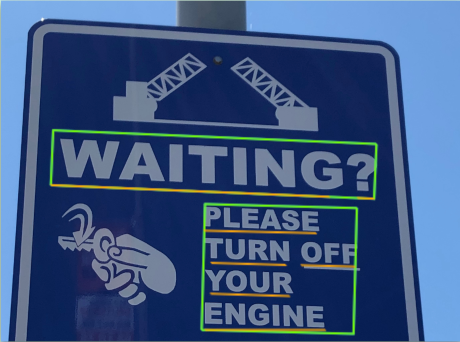
- `TEXT_DETECTION` detects and **extracts text from any image**. For example,
a photograph might contain a street sign or traffic sign. The JSON includes
the entire extracted string, as well as individual words, and their bounding
boxes.
- `DOCUMENT_TEXT_DETECTION` also extracts text from an image, but the response
is **optimized for dense text and documents**. The JSON includes page,
block, paragraph, word, and break information.
Learn more about `DOCUMENT_TEXT_DETECTION` for [handwriting
extraction](https://docs.cloud.google.com/vision/docs/handwriting) and [text extraction from files (PDF
or TIFF)](https://docs.cloud.google.com/vision/docs/pdf).
## Text detection requests
> [!NOTE]
> **Note:** The Vision API now supports offline **asynchronous batch image annotation** for all features. This asynchronous request supports up to 2000 image files and returns response JSON files that are stored in your Cloud Storage bucket. For more information about this feature, refer to [Offline batch image annotation](https://docs.cloud.google.com/vision/docs/batch).
### Set up your Google Cloud project and authentication
If you have not created a Google Cloud project, do so now. Expand this section for instructions.
### Detect text in a local image
You can use the Vision API to perform feature detection on a local image file.
For REST requests, send the contents of the image file as a
[base64 encoded](https://docs.cloud.google.com/vision/docs/base64) string in the body of your request.
For `gcloud` and client library requests, specify the path to a local image in your
request.
### gcloud
To perform text detection, use the [`gcloud ml vision
detect-text`](https://docs.cloud.google.com/sdk/gcloud/reference/ml/vision/detect-text) command:
```
gcloud ml vision detect-text ./path/to/local/file.jpg
```
### REST
Before using any of the request data,
make the following replacements:
- BASE64_ENCODED_IMAGE: The base64 representation (ASCII string) of your binary image data. This string should look similar to the following string:
- `/9j/4QAYRXhpZgAA...9tAVx/zDQDlGxn//2Q==`
Visit the [base64 encode](https://docs.cloud.google.com/vision/docs/base64) topic for more information.
- PROJECT_ID: Your Google Cloud project ID.
HTTP method and URL:
```
POST https://vision.googleapis.com/v1/images:annotate
```
Request JSON body:
```
{
"requests": [
{
"image": {
"content": "BASE64_ENCODED_IMAGE"
},
"features": [
{
"type": "TEXT_DETECTION"
}
]
}
]
}
```
To send your request, choose one of these options:
#### curl
> [!NOTE]
> **Note:** The following command assumes that you have logged in to the `gcloud` CLI with your user account by running [`gcloud init`](https://docs.cloud.google.com/sdk/gcloud/reference/init) or [`gcloud auth login`](https://docs.cloud.google.com/sdk/gcloud/reference/auth/login) , or by using [Cloud Shell](https://docs.cloud.google.com/shell/docs), which automatically logs you into the `gcloud` CLI . You can check the currently active account by running [`gcloud auth list`](https://docs.cloud.google.com/sdk/gcloud/reference/auth/list).
Save the request body in a file named `request.json`,
and execute the following command:
```
curl -X POST \
-H "Authorization: Bearer $(gcloud auth print-access-token)" \
-H "x-goog-user-project: PROJECT_ID" \
-H "Content-Type: application/json; charset=utf-8" \
-d @request.json \
"https://vision.googleapis.com/v1/images:annotate"
```
#### PowerShell
> [!NOTE]
> **Note:** The following command assumes that you have logged in to the `gcloud` CLI with your user account by running [`gcloud init`](https://docs.cloud.google.com/sdk/gcloud/reference/init) or [`gcloud auth login`](https://docs.cloud.google.com/sdk/gcloud/reference/auth/login) . You can check the currently active account by running [`gcloud auth list`](https://docs.cloud.google.com/sdk/gcloud/reference/auth/list).
Save the request body in a file named `request.json`,
and execute the following command:
```
$cred = gcloud auth print-access-token
$headers = @{ "Authorization" = "Bearer $cred"; "x-goog-user-project" = "PROJECT_ID" }
Invoke-WebRequest `
-Method POST `
-Headers $headers `
-ContentType: "application/json; charset=utf-8" `
-InFile request.json `
-Uri "https://vision.googleapis.com/v1/images:annotate" | Select-Object -Expand Content
```
If the request is successful, the server returns a `200 OK` HTTP status code and
the response in JSON format.
A `TEXT_DETECTION` response includes the detected phrase, its bounding box,
and individual words and their bounding boxes.
> [!NOTE]
> **Note: Zero coordinate values omitted.** When the API detects a coordinate ("x" or "y") value of 0, ***that coordinate is omitted in the JSON response*** . Thus, a response with a bounding poly around the entire image would be
> **\[{},{"x": 100},{"x": 100,"y": 100},{"y": 100}\] for an image that is 100 pixels by 100 pixels** . For more information, see the [API Reference documentation](https://cloud.google.com/vision/docs/reference/rest/v1/images/annotate#boundingpoly).
#### Response
```
{
"responses": [
{
"textAnnotations": [
{
"locale": "en",
"description": "WAITING?\nPLEASE\nTURN OFF\nYOUR\nENGINE\n",
"boundingPoly": {
"vertices": [
{
"x": 341,
"y": 828
},
{
"x": 2249,
"y": 828
},
{
"x": 2249,
"y": 1993
},
{
"x": 341,
"y": 1993
}
]
}
},
{
"description": "WAITING?",
"boundingPoly": {
"vertices": [
{
"x": 352,
"y": 828
},
{
"x": 2248,
"y": 911
},
{
"x": 2238,
"y": 1148
},
{
"x": 342,
"y": 1065
}
]
}
},
{
"description": "PLEASE",
"boundingPoly": {
"vertices": [
{
"x": 1210,
"y": 1233
},
{
"x": 1907,
"y": 1263
},
{
"x": 1902,
"y": 1383
},
{
"x": 1205,
"y": 1353
}
]
}
},
{
"description": "TURN",
"boundingPoly": {
"vertices": [
{
"x": 1210,
"y": 1418
},
{
"x": 1730,
"y": 1441
},
{
"x": 1724,
"y": 1564
},
{
"x": 1205,
"y": 1541
}
]
}
},
{
"description": "OFF",
"boundingPoly": {
"vertices": [
{
"x": 1792,
"y": 1443
},
{
"x": 2128,
"y": 1458
},
{
"x": 2122,
"y": 1581
},
{
"x": 1787,
"y": 1566
}
]
}
},
{
"description": "YOUR",
"boundingPoly": {
"vertices": [
{
"x": 1219,
"y": 1603
},
{
"x": 1746,
"y": 1629
},
{
"x": 1740,
"y": 1759
},
{
"x": 1213,
"y": 1733
}
]
}
},
{
"description": "ENGINE",
"boundingPoly": {
"vertices": [
{
"x": 1222,
"y": 1771
},
{
"x": 1944,
"y": 1834
},
{
"x": 1930,
"y": 1992
},
{
"x": 1208,
"y": 1928
}
]
}
}
],
"fullTextAnnotation": {
"pages": [
...
]
},
"paragraphs": [
...
]
},
"words": [
...
},
"symbols": [
...
}
]
}
],
"blockType": "TEXT"
},
...
]
}
],
"text": "WAITING?\nPLEASE\nTURN OFF\nYOUR\nENGINE\n"
}
}
]
}
```
### Go
Before trying this sample, follow the Go setup instructions in the
[Vision quickstart using
client libraries](https://docs.cloud.google.com/vision/docs/quickstart-client-libraries).
For more information, see the
[Vision Go API
reference documentation](https://godoc.org/cloud.google.com/go/vision/apiv1).
To authenticate to Vision, set up Application Default Credentials.
For more information, see
[Set up authentication for a local development environment](https://docs.cloud.google.com/docs/authentication/set-up-adc-local-dev-environment).
// detectText gets text from the Vision API for an image at the given file path.
func detectText(w io.Writer, file string) error {
ctx := context.Background()
client, err := vision.NewImageAnnotatorClient(ctx)
if err != nil {
return err
}
f, err := os.Open(file)
if err != nil {
return err
}
defer f.Close()
image, err := vision.NewImageFromReader(f)
if err != nil {
return err
}
annotations, err := client.DetectTexts(ctx, image, nil, 10)
if err != nil {
return err
}
if len(annotations) == 0 {
fmt.Fprintln(w, "No text found.")
} else {
fmt.Fprintln(w, "Text:")
for _, annotation := range annotations {
fmt.Fprintf(w, "%q\n", annotation.Description)
}
}
return nil
}
### Java
Before trying this sample, follow the Java setup instructions in the
[Vision API Quickstart
Using Client Libraries](https://docs.cloud.google.com/vision/docs/detect-labels-image-client-libraries). For more information, see the
[Vision API Java reference documentation](https://cloud.google.com/java/docs/reference/google-cloud-vision/latest/overview).
> [!NOTE]
> **Note:** For Java **Spring framework** users, [Spring Cloud Google Cloud](https://docs.cloud.google.com/vision/docs/adding-spring) offers a way to automatically configure authentication settings and client objects to use Vision API.
import com.google.cloud.vision.v1.https://docs.cloud.google.com/java/docs/reference/google-cloud-vision/latest/com.google.cloud.vision.v1.AnnotateImageRequest.html;
import com.google.cloud.vision.v1.https://docs.cloud.google.com/java/docs/reference/google-cloud-vision/latest/com.google.cloud.vision.v1.AnnotateImageResponse.html;
import com.google.cloud.vision.v1.https://docs.cloud.google.com/java/docs/reference/google-cloud-vision/latest/com.google.cloud.vision.v1.BatchAnnotateImagesResponse.html;
import com.google.cloud.vision.v1.https://docs.cloud.google.com/java/docs/reference/google-cloud-vision/latest/com.google.cloud.vision.v1.EntityAnnotation.html;
import com.google.cloud.vision.v1.https://docs.cloud.google.com/java/docs/reference/google-cloud-vision/latest/com.google.cloud.vision.v1.Feature.html;
import com.google.cloud.vision.v1.https://docs.cloud.google.com/java/docs/reference/google-cloud-vision/latest/com.google.cloud.vision.v1.Image.html;
import com.google.cloud.vision.v1.https://docs.cloud.google.com/java/docs/reference/google-cloud-vision/latest/com.google.cloud.vision.v1.ImageAnnotatorClient.html;
import com.google.protobuf.https://docs.cloud.google.com/java/docs/reference/protobuf/latest/com.google.protobuf.ByteString.html;
import java.io.FileInputStream;
import java.io.IOException;
import java.util.ArrayList;
import java.util.List;
public class DetectText {
public static void detectText() throws IOException {
// TODO(developer): Replace these variables before running the sample.
String filePath = "path/to/your/image/file.jpg";
detectText(filePath);
}
// Detects text in the specified image.
public static void detectText(String filePath) throws IOException {
List requests = new ArrayList<>();
https://docs.cloud.google.com/java/docs/reference/protobuf/latest/com.google.protobuf.ByteString.html imgBytes = https://docs.cloud.google.com/java/docs/reference/protobuf/latest/com.google.protobuf.ByteString.html.https://docs.cloud.google.com/java/docs/reference/protobuf/latest/com.google.protobuf.ByteString.html#com_google_protobuf_ByteString_readFrom_java_io_InputStream_(new FileInputStream(filePath));
https://docs.cloud.google.com/java/docs/reference/google-cloud-vision/latest/com.google.cloud.vision.v1.Image.html img = https://docs.cloud.google.com/java/docs/reference/google-cloud-vision/latest/com.google.cloud.vision.v1.Image.html.newBuilder().setContent(imgBytes).build();
https://docs.cloud.google.com/java/docs/reference/google-cloud-vision/latest/com.google.cloud.vision.v1.Feature.html feat = https://docs.cloud.google.com/java/docs/reference/google-cloud-vision/latest/com.google.cloud.vision.v1.Feature.html.newBuilder().setType(https://docs.cloud.google.com/java/docs/reference/google-cloud-vision/latest/com.google.cloud.vision.v1.Feature.html.Type.TEXT_DETECTION).build();
https://docs.cloud.google.com/java/docs/reference/google-cloud-vision/latest/com.google.cloud.vision.v1.AnnotateImageRequest.html request =
https://docs.cloud.google.com/java/docs/reference/google-cloud-vision/latest/com.google.cloud.vision.v1.AnnotateImageRequest.html.newBuilder().addFeatures(feat).setImage(img).build();
requests.add(request);
// Initialize client that will be used to send requests. This client only needs to be created
// once, and can be reused for multiple requests. After completing all of your requests, call
// the "close" method on the client to safely clean up any remaining background resources.
try (https://docs.cloud.google.com/java/docs/reference/google-cloud-vision/latest/com.google.cloud.vision.v1.ImageAnnotatorClient.html client = https://docs.cloud.google.com/java/docs/reference/google-cloud-vision/latest/com.google.cloud.vision.v1.ImageAnnotatorClient.html.create()) {
https://docs.cloud.google.com/java/docs/reference/google-cloud-vision/latest/com.google.cloud.vision.v1.BatchAnnotateImagesResponse.html response = client.batchAnnotateImages(requests);
List responses = response.https://docs.cloud.google.com/java/docs/reference/google-cloud-vision/latest/com.google.cloud.vision.v1.BatchAnnotateImagesResponse.html#com_google_cloud_vision_v1_BatchAnnotateImagesResponse_getResponsesList__();
for (https://docs.cloud.google.com/java/docs/reference/google-cloud-vision/latest/com.google.cloud.vision.v1.AnnotateImageResponse.html res : responses) {
if (res.hasError()) {
System.out.format("Error: %s%n", res.getError().getMessage());
return;
}
// For full list of available annotations, see http://g.co/cloud/vision/docs
for (https://docs.cloud.google.com/java/docs/reference/google-cloud-vision/latest/com.google.cloud.vision.v1.EntityAnnotation.html annotation : res.getTextAnnotationsList()) {
System.out.format("Text: %s%n", annotation.getDescription());
System.out.format("Position : %s%n", annotation.getBoundingPoly());
}
}
}
}
}
### Node.js
Before trying this sample, follow the Node.js setup instructions in the
[Vision quickstart using
client libraries](https://docs.cloud.google.com/vision/docs/quickstart-client-libraries).
For more information, see the
[Vision Node.js API
reference documentation](https://googleapis.dev/nodejs/vision/latest).
To authenticate to Vision, set up Application Default Credentials.
For more information, see
[Set up authentication for a local development environment](https://docs.cloud.google.com/docs/authentication/set-up-adc-local-dev-environment).
const vision = require('https://docs.cloud.google.com/nodejs/docs/reference/vision/latest/overview.html');
// Creates a client
const client = new vision.https://docs.cloud.google.com/nodejs/docs/reference/vision/latest/overview.html();
/**
* TODO(developer): Uncomment the following line before running the sample.
*/
// const fileName = 'Local image file, e.g. /path/to/image.png';
// Performs text detection on the local file
const [result] = await client.textDetection(fileName);
const detections = result.textAnnotations;
console.log('Text:');
detections.forEach(text => console.log(text));
### Python
Before trying this sample, follow the Python setup instructions in the
[Vision quickstart using
client libraries](https://docs.cloud.google.com/vision/docs/quickstart-client-libraries).
For more information, see the
[Vision Python API
reference documentation](https://docs.cloud.google.com/python/docs/reference/vision/latest).
To authenticate to Vision, set up Application Default Credentials.
For more information, see
[Set up authentication for a local development environment](https://docs.cloud.google.com/docs/authentication/set-up-adc-local-dev-environment).
def detect_text(path):
"""Detects text in the file."""
from google.cloud import vision
client = vision.https://docs.cloud.google.com/python/docs/reference/vision/latest/google.cloud.vision_v1.services.image_annotator.ImageAnnotatorClient.html()
with open(path, "rb") as image_file:
content = image_file.read()
image = vision.https://docs.cloud.google.com/python/docs/reference/vision/latest/google.cloud.vision_v1.types.Image.html(content=content)
response = client.text_detection(image=image)
texts = response.text_annotations
print("Texts:")
for text in texts:
print(f'\n"{text.description}"')
vertices = [
f"({vertex.x},{vertex.y})" for vertex in text.bounding_poly.vertices
]
print("bounds: {}".format(",".join(vertices)))
if response.error.message:
raise Exception(
"{}\nFor more info on error messages, check: "
"https://cloud.google.com/apis/design/errors".format(response.error.message)
)
### Additional languages
**C#** :
Please follow the
[C# setup instructions](https://docs.cloud.google.com/vision/docs/libraries)
on the client libraries page
and then visit the
[Vision reference documentation for .NET.](https://googleapis.dev/dotnet/Google.Apis.Vision.v1/latest/api/Google.Apis.Vision.v1.html)
**PHP** :
Please follow the
[PHP setup instructions](https://docs.cloud.google.com/vision/docs/libraries)
on the client libraries page
and then visit the
[Vision reference documentation for PHP.](https://docs.cloud.google.com/php/docs/reference/cloud-vision/latest)
**Ruby** :
Please follow the
[Ruby setup instructions](https://docs.cloud.google.com/vision/docs/libraries)
on the client libraries page
and then visit the
[Vision reference documentation for Ruby.](https://googleapis.dev/ruby/google-cloud-vision/latest/Google/Cloud/Vision.html)
### Detect text in a remote image
You can use the Vision API to perform feature detection on a remote image file that is located
in Cloud Storage or on the Web. To send a remote file request, specify the file's Web URL or
Cloud Storage URI in the request body.
> [!CAUTION]
> **Caution:** When fetching images from HTTP/HTTPS URLs, Google cannot guarantee that the request will be completed. Your request might fail if the specified host denies the request (for example, due to request throttling or [DoS](https://en.wikipedia.org/wiki/Denial-of-service_attack) prevention), or if Google throttles requests to the site for abuse prevention. **As a best practice, don't
> depend on externally-hosted images for production applications**.
### gcloud
To perform text detection, use the [`gcloud ml vision
detect-text`](https://docs.cloud.google.com/sdk/gcloud/reference/ml/vision/detect-text) command:
```
gcloud ml vision detect-text gs://cloud-samples-data/vision/ocr/sign.jpg
```
### REST
Before using any of the request data,
make the following replacements:
- CLOUD_STORAGE_IMAGE_URI: the path to a valid image file in a Cloud Storage bucket. You must at least have read privileges to the file. Example:
-
```restructuredtext
gs://cloud-samples-data/vision/ocr/sign.jpg
```
- PROJECT_ID: Your Google Cloud project ID.
HTTP method and URL:
```
POST https://vision.googleapis.com/v1/images:annotate
```
Request JSON body:
```
{
"requests": [
{
"image": {
"source": {
"imageUri": "CLOUD_STORAGE_IMAGE_URI"
}
},
"features": [
{
"type": "TEXT_DETECTION"
}
]
}
]
}
```
To send your request, choose one of these options:
#### curl
> [!NOTE]
> **Note:** The following command assumes that you have logged in to the `gcloud` CLI with your user account by running [`gcloud init`](https://docs.cloud.google.com/sdk/gcloud/reference/init) or [`gcloud auth login`](https://docs.cloud.google.com/sdk/gcloud/reference/auth/login) , or by using [Cloud Shell](https://docs.cloud.google.com/shell/docs), which automatically logs you into the `gcloud` CLI . You can check the currently active account by running [`gcloud auth list`](https://docs.cloud.google.com/sdk/gcloud/reference/auth/list).
Save the request body in a file named `request.json`,
and execute the following command:
```
curl -X POST \
-H "Authorization: Bearer $(gcloud auth print-access-token)" \
-H "x-goog-user-project: PROJECT_ID" \
-H "Content-Type: application/json; charset=utf-8" \
-d @request.json \
"https://vision.googleapis.com/v1/images:annotate"
```
#### PowerShell
> [!NOTE]
> **Note:** The following command assumes that you have logged in to the `gcloud` CLI with your user account by running [`gcloud init`](https://docs.cloud.google.com/sdk/gcloud/reference/init) or [`gcloud auth login`](https://docs.cloud.google.com/sdk/gcloud/reference/auth/login) . You can check the currently active account by running [`gcloud auth list`](https://docs.cloud.google.com/sdk/gcloud/reference/auth/list).
Save the request body in a file named `request.json`,
and execute the following command:
```
$cred = gcloud auth print-access-token
$headers = @{ "Authorization" = "Bearer $cred"; "x-goog-user-project" = "PROJECT_ID" }
Invoke-WebRequest `
-Method POST `
-Headers $headers `
-ContentType: "application/json; charset=utf-8" `
-InFile request.json `
-Uri "https://vision.googleapis.com/v1/images:annotate" | Select-Object -Expand Content
```
If the request is successful, the server returns a `200 OK` HTTP status code and
the response in JSON format.
A `TEXT_DETECTION` response includes the detected phrase, its bounding box,
and individual words and their bounding boxes.
> [!NOTE]
> **Note: Zero coordinate values omitted.** When the API detects a coordinate ("x" or "y") value of 0, ***that coordinate is omitted in the JSON response*** . Thus, a response with a bounding poly around the entire image would be
> **\[{},{"x": 100},{"x": 100,"y": 100},{"y": 100}\] for an image that is 100 pixels by 100 pixels** . For more information, see the [API Reference documentation](https://cloud.google.com/vision/docs/reference/rest/v1/images/annotate#boundingpoly).
#### Response
```
{
"responses": [
{
"textAnnotations": [
{
"locale": "en",
"description": "WAITING?\nPLEASE\nTURN OFF\nYOUR\nENGINE\n",
"boundingPoly": {
"vertices": [
{
"x": 341,
"y": 828
},
{
"x": 2249,
"y": 828
},
{
"x": 2249,
"y": 1993
},
{
"x": 341,
"y": 1993
}
]
}
},
{
"description": "WAITING?",
"boundingPoly": {
"vertices": [
{
"x": 352,
"y": 828
},
{
"x": 2248,
"y": 911
},
{
"x": 2238,
"y": 1148
},
{
"x": 342,
"y": 1065
}
]
}
},
{
"description": "PLEASE",
"boundingPoly": {
"vertices": [
{
"x": 1210,
"y": 1233
},
{
"x": 1907,
"y": 1263
},
{
"x": 1902,
"y": 1383
},
{
"x": 1205,
"y": 1353
}
]
}
},
{
"description": "TURN",
"boundingPoly": {
"vertices": [
{
"x": 1210,
"y": 1418
},
{
"x": 1730,
"y": 1441
},
{
"x": 1724,
"y": 1564
},
{
"x": 1205,
"y": 1541
}
]
}
},
{
"description": "OFF",
"boundingPoly": {
"vertices": [
{
"x": 1792,
"y": 1443
},
{
"x": 2128,
"y": 1458
},
{
"x": 2122,
"y": 1581
},
{
"x": 1787,
"y": 1566
}
]
}
},
{
"description": "YOUR",
"boundingPoly": {
"vertices": [
{
"x": 1219,
"y": 1603
},
{
"x": 1746,
"y": 1629
},
{
"x": 1740,
"y": 1759
},
{
"x": 1213,
"y": 1733
}
]
}
},
{
"description": "ENGINE",
"boundingPoly": {
"vertices": [
{
"x": 1222,
"y": 1771
},
{
"x": 1944,
"y": 1834
},
{
"x": 1930,
"y": 1992
},
{
"x": 1208,
"y": 1928
}
]
}
}
],
"fullTextAnnotation": {
"pages": [
...
]
},
"paragraphs": [
...
]
},
"words": [
...
},
"symbols": [
...
}
]
}
],
"blockType": "TEXT"
},
...
]
}
],
"text": "WAITING?\nPLEASE\nTURN OFF\nYOUR\nENGINE\n"
}
}
]
}
```
### Go
Before trying this sample, follow the Go setup instructions in the
[Vision quickstart using
client libraries](https://docs.cloud.google.com/vision/docs/quickstart-client-libraries).
For more information, see the
[Vision Go API
reference documentation](https://godoc.org/cloud.google.com/go/vision/apiv1).
To authenticate to Vision, set up Application Default Credentials.
For more information, see
[Set up authentication for a local development environment](https://docs.cloud.google.com/docs/authentication/set-up-adc-local-dev-environment).
// detectText gets text from the Vision API for an image at the given file path.
func detectTextURI(w io.Writer, file string) error {
ctx := context.Background()
client, err := vision.NewImageAnnotatorClient(ctx)
if err != nil {
return err
}
image := vision.NewImageFromURI(file)
annotations, err := client.DetectTexts(ctx, image, nil, 10)
if err != nil {
return err
}
if len(annotations) == 0 {
fmt.Fprintln(w, "No text found.")
} else {
fmt.Fprintln(w, "Text:")
for _, annotation := range annotations {
fmt.Fprintf(w, "%q\n", annotation.Description)
}
}
return nil
}
### Java
Before trying this sample, follow the Java setup instructions in the
[Vision API Quickstart
Using Client Libraries](https://docs.cloud.google.com/vision/docs/detect-labels-image-client-libraries). For more information, see the
[Vision API Java reference documentation](https://cloud.google.com/java/docs/reference/google-cloud-vision/latest/overview).
> [!NOTE]
> **Note:** For Java **Spring framework** users, [Spring Cloud Google Cloud](https://docs.cloud.google.com/vision/docs/adding-spring) offers a way to automatically configure authentication settings and client objects to use Vision API.
import com.google.cloud.vision.v1.https://docs.cloud.google.com/java/docs/reference/google-cloud-vision/latest/com.google.cloud.vision.v1.AnnotateImageRequest.html;
import com.google.cloud.vision.v1.https://docs.cloud.google.com/java/docs/reference/google-cloud-vision/latest/com.google.cloud.vision.v1.AnnotateImageResponse.html;
import com.google.cloud.vision.v1.https://docs.cloud.google.com/java/docs/reference/google-cloud-vision/latest/com.google.cloud.vision.v1.BatchAnnotateImagesResponse.html;
import com.google.cloud.vision.v1.https://docs.cloud.google.com/java/docs/reference/google-cloud-vision/latest/com.google.cloud.vision.v1.EntityAnnotation.html;
import com.google.cloud.vision.v1.https://docs.cloud.google.com/java/docs/reference/google-cloud-vision/latest/com.google.cloud.vision.v1.Feature.html;
import com.google.cloud.vision.v1.https://docs.cloud.google.com/java/docs/reference/google-cloud-vision/latest/com.google.cloud.vision.v1.Image.html;
import com.google.cloud.vision.v1.https://docs.cloud.google.com/java/docs/reference/google-cloud-vision/latest/com.google.cloud.vision.v1.ImageAnnotatorClient.html;
import com.google.cloud.vision.v1.https://docs.cloud.google.com/java/docs/reference/google-cloud-vision/latest/com.google.cloud.vision.v1.ImageSource.html;
import java.io.IOException;
import java.util.ArrayList;
import java.util.List;
public class DetectTextGcs {
public static void detectTextGcs() throws IOException {
// TODO(developer): Replace these variables before running the sample.
String filePath = "gs://your-gcs-bucket/path/to/image/file.jpg";
detectTextGcs(filePath);
}
// Detects text in the specified remote image on Google Cloud Storage.
public static void detectTextGcs(String gcsPath) throws IOException {
List requests = new ArrayList<>();
https://docs.cloud.google.com/java/docs/reference/google-cloud-vision/latest/com.google.cloud.vision.v1.ImageSource.html imgSource = https://docs.cloud.google.com/java/docs/reference/google-cloud-vision/latest/com.google.cloud.vision.v1.ImageSource.html.newBuilder().https://docs.cloud.google.com/java/docs/reference/google-cloud-vision/latest/com.google.cloud.vision.v1.ImageSource.Builder.html#com_google_cloud_vision_v1_ImageSource_Builder_setGcsImageUri_java_lang_String_(gcsPath).build();
https://docs.cloud.google.com/java/docs/reference/google-cloud-vision/latest/com.google.cloud.vision.v1.Image.html img = https://docs.cloud.google.com/java/docs/reference/google-cloud-vision/latest/com.google.cloud.vision.v1.Image.html.newBuilder().https://docs.cloud.google.com/java/docs/reference/google-cloud-vision/latest/com.google.cloud.vision.v1.Image.Builder.html#com_google_cloud_vision_v1_Image_Builder_setSource_com_google_cloud_vision_v1_ImageSource_(imgSource).build();
https://docs.cloud.google.com/java/docs/reference/google-cloud-vision/latest/com.google.cloud.vision.v1.Feature.html feat = https://docs.cloud.google.com/java/docs/reference/google-cloud-vision/latest/com.google.cloud.vision.v1.Feature.html.newBuilder().setType(https://docs.cloud.google.com/java/docs/reference/google-cloud-vision/latest/com.google.cloud.vision.v1.Feature.html.Type.TEXT_DETECTION).build();
https://docs.cloud.google.com/java/docs/reference/google-cloud-vision/latest/com.google.cloud.vision.v1.AnnotateImageRequest.html request =
https://docs.cloud.google.com/java/docs/reference/google-cloud-vision/latest/com.google.cloud.vision.v1.AnnotateImageRequest.html.newBuilder().addFeatures(feat).setImage(img).build();
requests.add(request);
// Initialize client that will be used to send requests. This client only needs to be created
// once, and can be reused for multiple requests. After completing all of your requests, call
// the "close" method on the client to safely clean up any remaining background resources.
try (https://docs.cloud.google.com/java/docs/reference/google-cloud-vision/latest/com.google.cloud.vision.v1.ImageAnnotatorClient.html client = https://docs.cloud.google.com/java/docs/reference/google-cloud-vision/latest/com.google.cloud.vision.v1.ImageAnnotatorClient.html.create()) {
https://docs.cloud.google.com/java/docs/reference/google-cloud-vision/latest/com.google.cloud.vision.v1.BatchAnnotateImagesResponse.html response = client.batchAnnotateImages(requests);
List responses = response.https://docs.cloud.google.com/java/docs/reference/google-cloud-vision/latest/com.google.cloud.vision.v1.BatchAnnotateImagesResponse.html#com_google_cloud_vision_v1_BatchAnnotateImagesResponse_getResponsesList__();
for (https://docs.cloud.google.com/java/docs/reference/google-cloud-vision/latest/com.google.cloud.vision.v1.AnnotateImageResponse.html res : responses) {
if (res.hasError()) {
System.out.format("Error: %s%n", res.getError().getMessage());
return;
}
// For full list of available annotations, see http://g.co/cloud/vision/docs
for (https://docs.cloud.google.com/java/docs/reference/google-cloud-vision/latest/com.google.cloud.vision.v1.EntityAnnotation.html annotation : res.getTextAnnotationsList()) {
System.out.format("Text: %s%n", annotation.getDescription());
System.out.format("Position : %s%n", annotation.getBoundingPoly());
}
}
}
}
}
### Node.js
Before trying this sample, follow the Node.js setup instructions in the
[Vision quickstart using
client libraries](https://docs.cloud.google.com/vision/docs/quickstart-client-libraries).
For more information, see the
[Vision Node.js API
reference documentation](https://googleapis.dev/nodejs/vision/latest).
To authenticate to Vision, set up Application Default Credentials.
For more information, see
[Set up authentication for a local development environment](https://docs.cloud.google.com/docs/authentication/set-up-adc-local-dev-environment).
// Imports the Google Cloud client libraries
const vision = require('https://docs.cloud.google.com/nodejs/docs/reference/vision/latest/overview.html');
// Creates a client
const client = new vision.https://docs.cloud.google.com/nodejs/docs/reference/vision/latest/overview.html();
/**
* TODO(developer): Uncomment the following lines before running the sample.
*/
// const bucketName = 'Bucket where the file resides, e.g. my-bucket';
// const fileName = 'Path to file within bucket, e.g. path/to/image.png';
// Performs text detection on the gcs file
const [result] = await client.textDetection(`gs://${bucketName}/${fileName}`);
const detections = result.textAnnotations;
console.log('Text:');
detections.forEach(text => console.log(text));
### Python
Before trying this sample, follow the Python setup instructions in the
[Vision quickstart using
client libraries](https://docs.cloud.google.com/vision/docs/quickstart-client-libraries).
For more information, see the
[Vision Python API
reference documentation](https://docs.cloud.google.com/python/docs/reference/vision/latest).
To authenticate to Vision, set up Application Default Credentials.
For more information, see
[Set up authentication for a local development environment](https://docs.cloud.google.com/docs/authentication/set-up-adc-local-dev-environment).
def detect_text_uri(uri):
"""Detects text in the file located in Google Cloud Storage or on the Web."""
from google.cloud import vision
client = vision.https://docs.cloud.google.com/python/docs/reference/vision/latest/google.cloud.vision_v1.services.image_annotator.ImageAnnotatorClient.html()
image = vision.https://docs.cloud.google.com/python/docs/reference/vision/latest/google.cloud.vision_v1.types.Image.html()
image.source.image_uri = uri
response = client.text_detection(image=image)
texts = response.text_annotations
print("Texts:")
for text in texts:
print(f'\n"{text.description}"')
vertices = [
f"({vertex.x},{vertex.y})" for vertex in text.bounding_poly.vertices
]
print("bounds: {}".format(",".join(vertices)))
if response.error.message:
raise Exception(
"{}\nFor more info on error messages, check: "
"https://cloud.google.com/apis/design/errors".format(response.error.message)
)
### Additional languages
**C#** :
Please follow the
[C# setup instructions](https://docs.cloud.google.com/vision/docs/libraries)
on the client libraries page
and then visit the
[Vision reference documentation for .NET.](https://googleapis.dev/dotnet/Google.Apis.Vision.v1/latest/api/Google.Apis.Vision.v1.html)
**PHP** :
Please follow the
[PHP setup instructions](https://docs.cloud.google.com/vision/docs/libraries)
on the client libraries page
and then visit the
[Vision reference documentation for PHP.](https://docs.cloud.google.com/php/docs/reference/cloud-vision/latest)
**Ruby** :
Please follow the
[Ruby setup instructions](https://docs.cloud.google.com/vision/docs/libraries)
on the client libraries page
and then visit the
[Vision reference documentation for Ruby.](https://googleapis.dev/ruby/google-cloud-vision/latest/Google/Cloud/Vision.html)
### Specify the language for OCR text detection (optional)
Both types of OCR requests support one or more `languageHints` that specify the
language of any text in the image. However, an empty value usually yields the best results,
because omitting a value enables automatic language detection. For languages based on the Latin
alphabet, setting `languageHints` is not needed. In rare cases, when the language of
the text in
the image is known, setting a hint helps get better results (although it can be a significant
hindrance if the hint is wrong). Text detection returns an error if one or more of the specified
languages is not one of the
[supported languages](https://cloud.google.com/vision/docs/languages).
If you choose to provide a language hint, modify the body of your request
(`request.json` file) to provide the string of one of the supported languages
in the `imageContext.languageHints` field as shown in the following sample:
```bash
{
"requests": [
{
"image": {
"source": {
"imageUri": "IMAGE_URL"
}
},
"features": [
{
"type": "DOCUMENT_TEXT_DETECTION"
}
],
"imageContext": {
"languageHints": ["en-t-i0-handwrit"]
}
}
]
}
```
> [!IMPORTANT]
> **How do language hints work?**
>
> The `languageHint` format follows the
> [BCP47](https://tools.ietf.org/html/bcp47) language code formatting guidelines.
> The BCP47 specified format is as follows:
>
> `language` \["-" `script`\] \["-" `region`\] \*("-" `variant`) \*("-" `extension`) \["-" `privateuse`\].
>
> For example, the language hint
> "`en`-`t`-`i0`-`handwrit`"
> specifies English language (`en`),
> [transform](https://tools.ietf.org/html/rfc6497) extension singleton
> (`t`), [input method engine
> transform](http://www.unicode.org/reports/tr35/) extension code (`i0`), and
> [handwriting
> transform code](http://unicode.org/repos/cldr/tags/latest/common/bcp47/transform_ime.xml)
> (`handwrit`).
> This code says that the language is "English transformed from handwriting." You don't need
> to specify a script code because `Latn` is implied by the "`en`"
> language.
## Multi-regional support for Vision API OCR
> [!NOTE]
> This functionality currently only applies to the OCR feature (types `TEXT_DETECTION` or `DOCUMENT_TEXT_DETECTION`).
You can now specify continent-level data storage and OCR processing. The following regions
are currently supported:
- `us`: USA country only
- `eu`: The European Union
### Locations
Cloud Vision offers you some control over where the resources for your project
are stored and processed. In particular, you can configure
Cloud Vision to store and process your data only in the European Union.
By default Cloud Vision stores and processes resources in a **Global** location,
which means that Cloud Vision doesn't guarantee that your resources will remain
within a particular location or region. If you choose the **European Union** location,
Google will store your data and process it only in the European Union.
You and your users can access the data from any location.
### Setting the location using the API
The Vision API supports a global API endpoint (`vision.googleapis.com`) and also
two region-based endpoints: a European Union endpoint
(`eu-vision.googleapis.com`) and United States
endpoint (`us-vision.googleapis.com`). Use these endpoints for region-specific
processing. For example, to store and process your data in the European Union only, use the
URI `eu-vision.googleapis.com` in place of `vision.googleapis.com`
for your REST API calls:
- https://**eu-** vision.googleapis.com/v1/projects/PROJECT_ID/locations/**eu**/images:annotate
- https://**eu-** vision.googleapis.com/v1/projects/PROJECT_ID/locations/**eu**/images:asyncBatchAnnotate
- https://**eu-** vision.googleapis.com/v1/projects/PROJECT_ID/locations/**eu**/files:annotate
- https://**eu-** vision.googleapis.com/v1/projects/PROJECT_ID/locations/**eu**/files:asyncBatchAnnotate
To store and process your data in the United States only, use the US endpoint
(`us-vision.googleapis.com`) with the preceding methods.
### Setting the location using the client libraries
The Vision API client libraries accesses the global API endpoint
(`vision.googleapis.com`) by default. To store and process your data in the
European Union only, you need to explicitly set the endpoint
(`eu-vision.googleapis.com`). The following code samples show how to configure
this setting.
### REST
Before using any of the request data,
make the following replacements:
- REGION_ID: One of the valid regional location identifiers:
- `us`: USA country only
- `eu`: The European Union
- CLOUD_STORAGE_IMAGE_URI: the path to a valid image file in a Cloud Storage bucket. You must at least have read privileges to the file. Example:
-
```restructuredtext
gs://cloud-samples-data/vision/ocr/sign.jpg
```
- PROJECT_ID: Your Google Cloud project ID.
HTTP method and URL:
```
POST https://REGION_ID-vision.googleapis.com/v1/projects/PROJECT_ID/locations/REGION_ID/images:annotate
```
Request JSON body:
```
{
"requests": [
{
"image": {
"source": {
"imageUri": "CLOUD_STORAGE_IMAGE_URI"
}
},
"features": [
{
"type": "TEXT_DETECTION"
}
]
}
]
}
```
To send your request, choose one of these options:
#### curl
> [!NOTE]
> **Note:** The following command assumes that you have logged in to the `gcloud` CLI with your user account by running [`gcloud init`](https://docs.cloud.google.com/sdk/gcloud/reference/init) or [`gcloud auth login`](https://docs.cloud.google.com/sdk/gcloud/reference/auth/login) , or by using [Cloud Shell](https://docs.cloud.google.com/shell/docs), which automatically logs you into the `gcloud` CLI . You can check the currently active account by running [`gcloud auth list`](https://docs.cloud.google.com/sdk/gcloud/reference/auth/list).
Save the request body in a file named `request.json`,
and execute the following command:
```
curl -X POST \
-H "Authorization: Bearer $(gcloud auth print-access-token)" \
-H "x-goog-user-project: PROJECT_ID" \
-H "Content-Type: application/json; charset=utf-8" \
-d @request.json \
"https://REGION_ID-vision.googleapis.com/v1/projects/PROJECT_ID/locations/REGION_ID/images:annotate"
```
#### PowerShell
> [!NOTE]
> **Note:** The following command assumes that you have logged in to the `gcloud` CLI with your user account by running [`gcloud init`](https://docs.cloud.google.com/sdk/gcloud/reference/init) or [`gcloud auth login`](https://docs.cloud.google.com/sdk/gcloud/reference/auth/login) . You can check the currently active account by running [`gcloud auth list`](https://docs.cloud.google.com/sdk/gcloud/reference/auth/list).
Save the request body in a file named `request.json`,
and execute the following command:
```
$cred = gcloud auth print-access-token
$headers = @{ "Authorization" = "Bearer $cred"; "x-goog-user-project" = "PROJECT_ID" }
Invoke-WebRequest `
-Method POST `
-Headers $headers `
-ContentType: "application/json; charset=utf-8" `
-InFile request.json `
-Uri "https://REGION_ID-vision.googleapis.com/v1/projects/PROJECT_ID/locations/REGION_ID/images:annotate" | Select-Object -Expand Content
```
If the request is successful, the server returns a `200 OK` HTTP status code and
the response in JSON format.
A `TEXT_DETECTION` response includes the detected phrase, its bounding box,
and individual words and their bounding boxes.
> [!NOTE]
> **Note: Zero coordinate values omitted.** When the API detects a coordinate ("x" or "y") value of 0, ***that coordinate is omitted in the JSON response*** . Thus, a response with a bounding poly around the entire image would be
> **\[{},{"x": 100},{"x": 100,"y": 100},{"y": 100}\] for an image that is 100 pixels by 100 pixels** . For more information, see the [API Reference documentation](https://cloud.google.com/vision/docs/reference/rest/v1/images/annotate#boundingpoly).
#### Response
```
{
"responses": [
{
"textAnnotations": [
{
"locale": "en",
"description": "WAITING?\nPLEASE\nTURN OFF\nYOUR\nENGINE\n",
"boundingPoly": {
"vertices": [
{
"x": 341,
"y": 828
},
{
"x": 2249,
"y": 828
},
{
"x": 2249,
"y": 1993
},
{
"x": 341,
"y": 1993
}
]
}
},
{
"description": "WAITING?",
"boundingPoly": {
"vertices": [
{
"x": 352,
"y": 828
},
{
"x": 2248,
"y": 911
},
{
"x": 2238,
"y": 1148
},
{
"x": 342,
"y": 1065
}
]
}
},
{
"description": "PLEASE",
"boundingPoly": {
"vertices": [
{
"x": 1210,
"y": 1233
},
{
"x": 1907,
"y": 1263
},
{
"x": 1902,
"y": 1383
},
{
"x": 1205,
"y": 1353
}
]
}
},
{
"description": "TURN",
"boundingPoly": {
"vertices": [
{
"x": 1210,
"y": 1418
},
{
"x": 1730,
"y": 1441
},
{
"x": 1724,
"y": 1564
},
{
"x": 1205,
"y": 1541
}
]
}
},
{
"description": "OFF",
"boundingPoly": {
"vertices": [
{
"x": 1792,
"y": 1443
},
{
"x": 2128,
"y": 1458
},
{
"x": 2122,
"y": 1581
},
{
"x": 1787,
"y": 1566
}
]
}
},
{
"description": "YOUR",
"boundingPoly": {
"vertices": [
{
"x": 1219,
"y": 1603
},
{
"x": 1746,
"y": 1629
},
{
"x": 1740,
"y": 1759
},
{
"x": 1213,
"y": 1733
}
]
}
},
{
"description": "ENGINE",
"boundingPoly": {
"vertices": [
{
"x": 1222,
"y": 1771
},
{
"x": 1944,
"y": 1834
},
{
"x": 1930,
"y": 1992
},
{
"x": 1208,
"y": 1928
}
]
}
}
],
"fullTextAnnotation": {
"pages": [
...
]
},
"paragraphs": [
...
]
},
"words": [
...
},
"symbols": [
...
}
]
}
],
"blockType": "TEXT"
},
...
]
}
],
"text": "WAITING?\nPLEASE\nTURN OFF\nYOUR\nENGINE\n"
}
}
]
}
```
### Go
Before trying this sample, follow the Go setup instructions in the
[Vision quickstart using
client libraries](https://docs.cloud.google.com/vision/docs/quickstart-client-libraries).
For more information, see the
[Vision Go API
reference documentation](https://godoc.org/cloud.google.com/go/vision/apiv1).
To authenticate to Vision, set up Application Default Credentials.
For more information, see
[Set up authentication for a local development environment](https://docs.cloud.google.com/docs/authentication/set-up-adc-local-dev-environment).
import (
"context"
"fmt"
vision "cloud.google.com/go/vision/apiv1"
"google.golang.org/api/option"
)
// setEndpoint changes your endpoint.
func setEndpoint(endpoint string) error {
// endpoint := "eu-vision.googleapis.com:443"
ctx := context.Background()
client, err := vision.https://docs.cloud.google.com/go/docs/reference/cloud.google.com/go/vision/latest/apiv1.html#cloud_google_com_go_vision_apiv1_ImageAnnotatorClient_NewImageAnnotatorClient(ctx, option.WithEndpoint(endpoint))
if err != nil {
return fmt.Errorf("NewImageAnnotatorClient: %w", err)
}
defer client.Close()
return nil
}
### Java
Before trying this sample, follow the Java setup instructions in the
[Vision API Quickstart
Using Client Libraries](https://docs.cloud.google.com/vision/docs/detect-labels-image-client-libraries). For more information, see the
[Vision API Java reference documentation](https://cloud.google.com/java/docs/reference/google-cloud-vision/latest/overview).
> [!NOTE]
> **Note:** For Java **Spring framework** users, [Spring Cloud Google Cloud](https://docs.cloud.google.com/vision/docs/adding-spring) offers a way to automatically configure authentication settings and client objects to use Vision API.
ImageAnnotatorSettings settings =
ImageAnnotatorSettings.newBuilder().setEndpoint("eu-vision.googleapis.com:443").build();
// Initialize client that will be used to send requests. This client only needs to be created
// once, and can be reused for multiple requests. After completing all of your requests, call
// the "close" method on the client to safely clean up any remaining background resources.
ImageAnnotatorClient client = ImageAnnotatorClient.create(settings);
### Node.js
Before trying this sample, follow the Node.js setup instructions in the
[Vision quickstart using
client libraries](https://docs.cloud.google.com/vision/docs/quickstart-client-libraries).
For more information, see the
[Vision Node.js API
reference documentation](https://googleapis.dev/nodejs/vision/latest).
To authenticate to Vision, set up Application Default Credentials.
For more information, see
[Set up authentication for a local development environment](https://docs.cloud.google.com/docs/authentication/set-up-adc-local-dev-environment).
// Imports the Google Cloud client library
const vision = require('https://docs.cloud.google.com/nodejs/docs/reference/vision/latest/overview.html');
async function setEndpoint() {
// Specifies the location of the api endpoint
const clientOptions = {apiEndpoint: 'eu-vision.googleapis.com'};
// Creates a client
const client = new vision.https://docs.cloud.google.com/nodejs/docs/reference/vision/latest/overview.html(clientOptions);
// Performs text detection on the image file
const [result] = await client.textDetection('./resources/wakeupcat.jpg');
const labels = result.textAnnotations;
console.log('Text:');
labels.forEach(label => console.log(label.description));
}
setEndpoint();
### Python
Before trying this sample, follow the Python setup instructions in the
[Vision quickstart using
client libraries](https://docs.cloud.google.com/vision/docs/quickstart-client-libraries).
For more information, see the
[Vision Python API
reference documentation](https://docs.cloud.google.com/python/docs/reference/vision/latest).
To authenticate to Vision, set up Application Default Credentials.
For more information, see
[Set up authentication for a local development environment](https://docs.cloud.google.com/docs/authentication/set-up-adc-local-dev-environment).
from google.cloud import vision
client_options = {"api_endpoint": "eu-vision.googleapis.com"}
client = vision.https://docs.cloud.google.com/python/docs/reference/vision/latest/google.cloud.vision_v1.services.image_annotator.ImageAnnotatorClient.html(client_options=client_options)
## Try the feature with the Google APIs Explorer
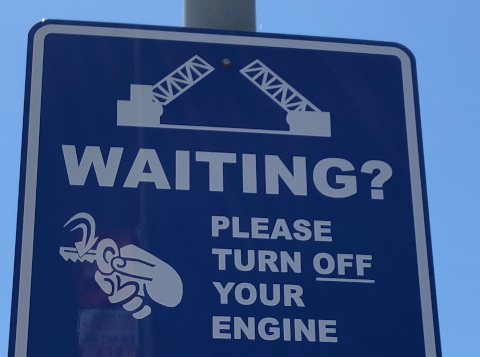
Try text detection and document text detection using the Google APIs
Explorer. You can use the provided image
(`gs://cloud-samples-data/vision/ocr/sign.jpg`) by clicking
**Execute**, or you can specify your own image in its place.
To try document text detection, update the value of `type` to
`DOCUMENT_TEXT_DETECTION`.
**Request body:**
```
{
"requests": [
{
"features": [
{
"type": "TEXT_DETECTION"
}
],
"image": {
"source": {
"imageUri": "gs://cloud-samples-data/vision/ocr/sign.jpg"
}
}
}
]
}
```
### Open the Google APIs Explorer and send the request
1. To open the Google APIs Explorer, click **Try it!**.
2. Optional. Modify the existing request body.
3. To send the request, click **Execute**.