זיהוי סמלי לוגו

זיהוי לוגו מזהה לוגואים של מוצרים פופולריים בתמונה.
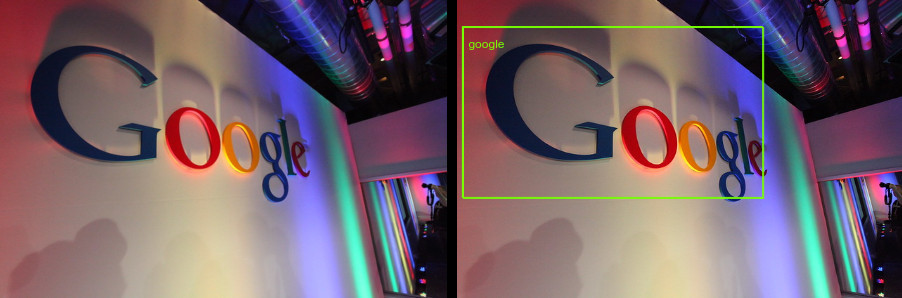
הלוגו של Google עם הערה
קרדיט על התמונה: Robert Scoble (CC BY 2.0, נוספה הערה).

בקשות לזיהוי לוגו

הגדרה של Google Cloud הפרויקט והאימות

זיהוי סמלי לוגו בתמונה מקומית

אתם יכולים להשתמש ב-Vision API כדי לבצע זיהוי תכונות בקובץ תמונה מקומי.

בבקשות REST, שולחים את תוכן קובץ התמונה כמחרוזת מקודדת ב-Base64 בגוף הבקשה.

בבקשות של gcloud וספריית לקוח, מציינים בבקשה את הנתיב לתמונה מקומית.

REST

לפני שמשתמשים בנתוני הבקשה, צריך להחליף את הנתונים הבאים:

  • BASE64_ENCODED_IMAGE: ייצוג base64 (מחרוזת ASCII) של נתוני התמונה הבינאריים. המחרוזת הזו צריכה להיראות כמו המחרוזת הבאה:
    • /9j/4QAYRXhpZgAA...9tAVx/zDQDlGxn//2Q==
    מידע נוסף זמין בנושא קידוד base64.
  • PROJECT_ID: מזהה הפרויקט ב- Google Cloud .

ה-method של ה-HTTP וכתובת ה-URL:

POST https://vision.googleapis.com/v1/images:annotate

גוף בקשת JSON:

{
  "requests": [
    {
      "image": {
        "content": "BASE64_ENCODED_IMAGE"
      },
      "features": [
        {
          "type": "LOGO_DETECTION"
        },
      ]
    }
  ]
}

כדי לשלוח את הבקשה עליכם לבחור אחת מהאפשרויות הבאות:

curl

שומרים את גוף הבקשה בקובץ בשם request.json ומריצים את הפקודה הבאה:

curl -X POST \
-H "Authorization: Bearer $(gcloud auth print-access-token)" \
-H "x-goog-user-project: PROJECT_ID" \
-H "Content-Type: application/json; charset=utf-8" \
-d @request.json \
"https://vision.googleapis.com/v1/images:annotate"

PowerShell

שומרים את גוף הבקשה בקובץ בשם request.json ומריצים את הפקודה הבאה:

$cred = gcloud auth print-access-token
$headers = @{ "Authorization" = "Bearer $cred"; "x-goog-user-project" = "PROJECT_ID" }

Invoke-WebRequest `
-Method POST `
-Headers $headers `
-ContentType: "application/json; charset=utf-8" `
-InFile request.json `
-Uri "https://vision.googleapis.com/v1/images:annotate" | Select-Object -Expand Content

אם הבקשה תתבצע בהצלחה, השרת יחזיר קוד סטטוס 200 OK של HTTP ואת התשובה בפורמט JSON.

תשובה:

{
  "responses": [
    {
      "logoAnnotations": [
        {
          "mid": "/m/045c7b",
          "description": "google",
          "score": 0.980325,
          "boundingPoly": {
            "vertices": [
              {
                "x": 12,
                "y": 42
              },
              {
                "x": 439,
                "y": 42
              },
              {
                "x": 439,
                "y": 285
              },
              {
                "x": 12,
                "y": 285
              }
            ]
          }
        }
      ]
    }
  ]
}

Go

לפני שמנסים את הדוגמה הזו, צריך לפעול לפי Goהוראות ההגדרה שבמדריך לתחילת העבודה עם Vision באמצעות ספריות לקוח. מידע נוסף מופיע במאמרי העזרה של Vision Go API.

כדי לבצע אימות ב-Vision, צריך להגדיר את Application Default Credentials. מידע נוסף זמין במאמר הגדרת אימות לסביבת פיתוח מקומית.


// detectLogos gets logos from the Vision API for an image at the given file path.
func detectLogos(w io.Writer, file string) error {
	ctx := context.Background()

	client, err := vision.NewImageAnnotatorClient(ctx)
	if err != nil {
		return err
	}

	fileBytes, err := os.ReadFile(file)
	if err != nil {
		return err
	}

	image := &visionpb.Image{
		Content: fileBytes,
	}

	feature := &visionpb.Feature{
		Type:       visionpb.Feature_LOGO_DETECTION,
		MaxResults: 10,
	}

	request := &visionpb.BatchAnnotateImagesRequest{
		Requests: []*visionpb.AnnotateImageRequest{
			{
				Image:    image,
				Features: []*visionpb.Feature{feature},
			},
		},
	}

	response, err := client.BatchAnnotateImages(ctx, request)
	if err != nil {
		return err
	}

	for _, resp := range response.Responses {
		if resp.Error != nil {
			fmt.Fprintf(w, "Error: %v\n", resp.Error)
			continue
		}
		if len(resp.LogoAnnotations) == 0 {
			fmt.Fprintln(w, "No logos found.")
		} else {
			fmt.Fprintln(w, "Logos:")
			for _, annotation := range resp.LogoAnnotations {
				fmt.Fprintln(w, annotation.Description)
			}
		}
	}

	return nil
}

Java

לפני שמנסים את הדוגמה הזו, צריך לפעול לפי הוראות ההגדרה של Java במאמר התחלת העבודה עם Vision API באמצעות ספריות לקוח. מידע נוסף מופיע ב מאמרי העזרה של Vision API Java.


import com.google.cloud.vision.v1.AnnotateImageRequest;
import com.google.cloud.vision.v1.AnnotateImageResponse;
import com.google.cloud.vision.v1.BatchAnnotateImagesResponse;
import com.google.cloud.vision.v1.EntityAnnotation;
import com.google.cloud.vision.v1.Feature;
import com.google.cloud.vision.v1.Image;
import com.google.cloud.vision.v1.ImageAnnotatorClient;
import com.google.protobuf.ByteString;
import java.io.FileInputStream;
import java.io.IOException;
import java.util.ArrayList;
import java.util.List;

public class DetectLogos {
  public static void detectLogos() throws IOException {
    // TODO(developer): Replace these variables before running the sample.
    String filePath = "path/to/your/image/file.jpg";
    detectLogos(filePath);
  }

  // Detects logos in the specified local image.

  public static void detectLogos(String filePath) throws IOException {
    List<AnnotateImageRequest> requests = new ArrayList<>();

    ByteString imgBytes = ByteString.readFrom(new FileInputStream(filePath));

    Image img = Image.newBuilder().setContent(imgBytes).build();
    Feature feat = Feature.newBuilder().setType(Feature.Type.LOGO_DETECTION).build();
    AnnotateImageRequest request =
        AnnotateImageRequest.newBuilder().addFeatures(feat).setImage(img).build();
    requests.add(request);

    // Initialize client that will be used to send requests. This client only needs to be created
    // once, and can be reused for multiple requests. After completing all of your requests, call
    // the "close" method on the client to safely clean up any remaining background resources.
    try (ImageAnnotatorClient client = ImageAnnotatorClient.create()) {
      BatchAnnotateImagesResponse response = client.batchAnnotateImages(requests);
      List<AnnotateImageResponse> responses = response.getResponsesList();

      for (AnnotateImageResponse res : responses) {
        if (res.hasError()) {
          System.out.format("Error: %s%n", res.getError().getMessage());
          return;
        }

        // For full list of available annotations, see http://g.co/cloud/vision/docs
        for (EntityAnnotation annotation : res.getLogoAnnotationsList()) {
          System.out.println(annotation.getDescription());
        }
      }
    }
  }
}

Node.js

לפני שמנסים את הדוגמה הזו, צריך לפעול לפי Node.jsהוראות ההגדרה שבמדריך לתחילת העבודה עם Vision באמצעות ספריות לקוח. מידע נוסף מופיע במאמרי העזרה של Vision Node.js API.

כדי לבצע אימות ב-Vision, צריך להגדיר את Application Default Credentials. מידע נוסף זמין במאמר הגדרת אימות לסביבת פיתוח מקומית.

const vision = require('@google-cloud/vision');
const fs = require('fs');

// Creates a client
const client = new vision.ImageAnnotatorClient();

/**
 * TODO(developer): Uncomment the following line before running the sample.
 */
// const fileName = 'Local image file, e.g. /path/to/image.png';

const imageBuffer = fs.readFileSync(fileName);
const base64Image = imageBuffer.toString('base64');

const request = {
  requests: [
    {
      image: {
        content: base64Image,
      },
      features: [
        {
          type: 'LOGO_DETECTION',
        },
      ],
    },
  ],
};

// Performs logo detection on the local file
const [response] = await client.batchAnnotateImages(request);

response.responses.forEach(res => {
  if (res.logoAnnotations) {
    console.log('Logos:');
    res.logoAnnotations.forEach(logo => console.log(logo));
  }

  if (res.error) {
    console.error(` - Error: ${res.error.message}`);
  }
});

Python

לפני שמנסים את הדוגמה הזו, צריך לפעול לפי Pythonהוראות ההגדרה שבמדריך לתחילת העבודה עם Vision באמצעות ספריות לקוח. מידע נוסף מופיע במאמרי העזרה של Vision Python API.

כדי לבצע אימות ב-Vision, צריך להגדיר את Application Default Credentials. מידע נוסף זמין במאמר הגדרת אימות לסביבת פיתוח מקומית.

def detect_logos(path):
    """Detects logos in the file."""
    from google.cloud import vision

    client = vision.ImageAnnotatorClient()

    with open(path, "rb") as image_file:
        content = image_file.read()

    image = vision.Image(content=content)

    request = {
        "image": image,
        "features": [{"type_": vision.Feature.Type.LOGO_DETECTION}],
    }

    response = client.annotate_image(request=request)
    logos = response.logo_annotations
    print("Logos:")

    for logo in logos:
        print(logo.description)

    if response.error.message:
        raise Exception(
            "{}\nFor more info on error messages, check: "
            "https://cloud.google.com/apis/design/errors".format(response.error.message)
        )

שפות נוספות

C#‎: פועלים לפי הוראות ההגדרה של C# ‎ בדף של ספריות הלקוח ואז עוברים אל מאמרי העזרה בנושא Vision ל-‎ .NET.

PHP: Please follow the PHP setup instructions on the client libraries page and then visit the מאמרי עזרה של Vision עבור PHP.

Ruby: פועלים לפי הוראות ההגדרה של Ruby בדף של ספריות הלקוח ואז עוברים אל מאמרי העזרה של Vision בנושא Ruby.

זיהוי לוגו בתמונה מרוחקת

אתם יכולים להשתמש ב-Vision API כדי לבצע זיהוי תכונות בקובץ תמונה מרוחק שנמצא ב-Cloud Storage או באינטרנט. כדי לשלוח בקשה לקובץ מרוחק, מציינים את כתובת ה-URL של הקובץ או את ה-URI של Cloud Storage בגוף הבקשה.

REST

לפני שמשתמשים בנתוני הבקשה, צריך להחליף את הנתונים הבאים:

  • CLOUD_STORAGE_IMAGE_URI: הנתיב לקובץ תמונה תקין בקטגוריה של Cloud Storage. צריכות להיות לכם לפחות הרשאות קריאה לקובץ. דוגמה:
    • gs://cloud-samples-data/vision/logo/google_logo.jpg
  • PROJECT_ID: מזהה הפרויקט ב- Google Cloud .

ה-method של ה-HTTP וכתובת ה-URL:

POST https://vision.googleapis.com/v1/images:annotate

גוף בקשת JSON:

{
  "requests": [
    {
      "image": {
        "source": {
          "gcsImageUri": "CLOUD_STORAGE_IMAGE_URI"
        }
      },
      "features": [
        {
          "type": "LOGO_DETECTION"
        },
      ]
    }
  ]
}

כדי לשלוח את הבקשה עליכם לבחור אחת מהאפשרויות הבאות:

curl

שומרים את גוף הבקשה בקובץ בשם request.json ומריצים את הפקודה הבאה:

curl -X POST \
-H "Authorization: Bearer $(gcloud auth print-access-token)" \
-H "x-goog-user-project: PROJECT_ID" \
-H "Content-Type: application/json; charset=utf-8" \
-d @request.json \
"https://vision.googleapis.com/v1/images:annotate"

PowerShell

שומרים את גוף הבקשה בקובץ בשם request.json ומריצים את הפקודה הבאה:

$cred = gcloud auth print-access-token
$headers = @{ "Authorization" = "Bearer $cred"; "x-goog-user-project" = "PROJECT_ID" }

Invoke-WebRequest `
-Method POST `
-Headers $headers `
-ContentType: "application/json; charset=utf-8" `
-InFile request.json `
-Uri "https://vision.googleapis.com/v1/images:annotate" | Select-Object -Expand Content

אם הבקשה תתבצע בהצלחה, השרת יחזיר קוד סטטוס 200 OK של HTTP ואת התשובה בפורמט JSON.

תשובה:

{
  "responses": [
    {
      "logoAnnotations": [
        {
          "mid": "/m/045c7b",
          "description": "google",
          "score": 0.980325,
          "boundingPoly": {
            "vertices": [
              {
                "x": 12,
                "y": 42
              },
              {
                "x": 439,
                "y": 42
              },
              {
                "x": 439,
                "y": 285
              },
              {
                "x": 12,
                "y": 285
              }
            ]
          }
        }
      ]
    }
  ]
}

Go

לפני שמנסים את הדוגמה הזו, צריך לפעול לפי Goהוראות ההגדרה שבמדריך לתחילת העבודה עם Vision באמצעות ספריות לקוח. מידע נוסף מופיע במאמרי העזרה של Vision Go API.

כדי לבצע אימות ב-Vision, צריך להגדיר את Application Default Credentials. מידע נוסף זמין במאמר הגדרת אימות לסביבת פיתוח מקומית.


// detectLogos gets logos from the Vision API for an image at the given file path.
func detectLogosURI(w io.Writer, file string) error {
	ctx := context.Background()

	client, err := vision.NewImageAnnotatorClient(ctx)
	if err != nil {
		return err
	}

	image := &visionpb.Image{
		Source: &visionpb.ImageSource{
			// Use GcsImageUri for gs:// links
			// Use ImageUri for public https:// links
			GcsImageUri: file,
		},
	}

	feature := &visionpb.Feature{
		Type:       visionpb.Feature_LOGO_DETECTION,
		MaxResults: 10,
	}

	request := &visionpb.BatchAnnotateImagesRequest{
		Requests: []*visionpb.AnnotateImageRequest{
			{
				Image:    image,
				Features: []*visionpb.Feature{feature},
			},
		},
	}

	response, err := client.BatchAnnotateImages(ctx, request)
	if err != nil {
		return err
	}

	for _, resp := range response.Responses {
		if resp.Error != nil {
			fmt.Fprintf(w, "Error: %v\n", resp.Error)
			continue
		}
		if len(resp.LogoAnnotations) == 0 {
			fmt.Fprintln(w, "No logos found.")
		} else {
			fmt.Fprintln(w, "Logos:")
			for _, annotation := range resp.LogoAnnotations {
				fmt.Fprintln(w, annotation.Description)
			}
		}
	}

	return nil
}

Java

לפני שמנסים את הדוגמה הזו, צריך לפעול לפי Javaהוראות ההגדרה שבמדריך לתחילת העבודה עם Vision באמצעות ספריות לקוח. מידע נוסף מופיע במאמרי העזרה של Vision Java API.

כדי לבצע אימות ב-Vision, צריך להגדיר את Application Default Credentials. מידע נוסף זמין במאמר הגדרת אימות לסביבת פיתוח מקומית.


import com.google.cloud.vision.v1.AnnotateImageRequest;
import com.google.cloud.vision.v1.AnnotateImageResponse;
import com.google.cloud.vision.v1.BatchAnnotateImagesResponse;
import com.google.cloud.vision.v1.EntityAnnotation;
import com.google.cloud.vision.v1.Feature;
import com.google.cloud.vision.v1.Image;
import com.google.cloud.vision.v1.ImageAnnotatorClient;
import com.google.cloud.vision.v1.ImageSource;
import java.io.IOException;
import java.util.ArrayList;
import java.util.List;

public class DetectLogosGcs {

  public static void detectLogosGcs() throws IOException {
    // TODO(developer): Replace these variables before running the sample.
    String filePath = "gs://your-gcs-bucket/path/to/image/file.jpg";
    detectLogosGcs(filePath);
  }

  // Detects logos in the specified remote image on Google Cloud Storage.
  public static void detectLogosGcs(String gcsPath) throws IOException {
    List<AnnotateImageRequest> requests = new ArrayList<>();

    ImageSource imgSource = ImageSource.newBuilder().setGcsImageUri(gcsPath).build();
    Image img = Image.newBuilder().setSource(imgSource).build();
    Feature feat = Feature.newBuilder().setType(Feature.Type.LOGO_DETECTION).build();
    AnnotateImageRequest request =
        AnnotateImageRequest.newBuilder().addFeatures(feat).setImage(img).build();
    requests.add(request);

    // Initialize client that will be used to send requests. This client only needs to be created
    // once, and can be reused for multiple requests. After completing all of your requests, call
    // the "close" method on the client to safely clean up any remaining background resources.
    try (ImageAnnotatorClient client = ImageAnnotatorClient.create()) {
      BatchAnnotateImagesResponse response = client.batchAnnotateImages(requests);
      List<AnnotateImageResponse> responses = response.getResponsesList();

      for (AnnotateImageResponse res : responses) {
        if (res.hasError()) {
          System.out.format("Error: %s%n", res.getError().getMessage());
          return;
        }

        // For full list of available annotations, see http://g.co/cloud/vision/docs
        for (EntityAnnotation annotation : res.getLogoAnnotationsList()) {
          System.out.println(annotation.getDescription());
        }
      }
    }
  }
}

Node.js

לפני שמנסים את הדוגמה הזו, צריך לפעול לפי Node.jsהוראות ההגדרה שבמדריך לתחילת העבודה עם Vision באמצעות ספריות לקוח. מידע נוסף מופיע במאמרי העזרה של Vision Node.js API.

כדי לבצע אימות ב-Vision, צריך להגדיר את Application Default Credentials. מידע נוסף זמין במאמר הגדרת אימות לסביבת פיתוח מקומית.

const vision = require('@google-cloud/vision');

// Creates a client
const client = new vision.ImageAnnotatorClient();

/**
 * TODO(developer): Uncomment the following lines before running the sample.
 */
// const bucketName = 'Bucket where the file resides, e.g. my-bucket';
// const fileName = 'Path to file within bucket, e.g. path/to/image.png';

const request = {
  requests: [
    {
      image: {
        source: {
          imageUri: `gs://${bucketName}/${fileName}`,
        },
      },
      features: [
        {
          type: 'LOGO_DETECTION',
        },
      ],
    },
  ],
};

// Performs logo detection on the gcs file
const [response] = await client.batchAnnotateImages(request);

response.responses.forEach(res => {
  if (res.logoAnnotations) {
    console.log('Logos:');
    res.logoAnnotations.forEach(logo => console.log(logo));
  }

  if (res.error) {
    console.error(` - Error: ${res.error.message}`);
  }
});

Python

לפני שמנסים את הדוגמה הזו, צריך לפעול לפי Pythonהוראות ההגדרה שבמדריך לתחילת העבודה עם Vision באמצעות ספריות לקוח. מידע נוסף מופיע במאמרי העזרה של Vision Python API.

כדי לבצע אימות ב-Vision, צריך להגדיר את Application Default Credentials. מידע נוסף זמין במאמר הגדרת אימות לסביבת פיתוח מקומית.

def detect_logos_uri(uri):
    """Detects logos in the file located in Google Cloud Storage or on the Web."""
    from google.cloud import vision

    client = vision.ImageAnnotatorClient()
    image = vision.Image()
    image.source.image_uri = uri

    request = {
        "image": image,
        "features": [{"type_": vision.Feature.Type.LOGO_DETECTION}],
    }

    response = client.annotate_image(request=request)

    logos = response.logo_annotations
    print("Logos:")

    for logo in logos:
        print(logo.description)

    if response.error.message:
        raise Exception(
            "{}\nFor more info on error messages, check: "
            "https://cloud.google.com/apis/design/errors".format(response.error.message)
        )

gcloud

כדי לבצע זיהוי של מאפייני תמונה, משתמשים בפקודה gcloud ml vision detect-logos כמו בדוגמה הבאה:

gcloud ml vision detect-logos gs://cloud-samples-data/vision/logo/google_logo.jpg

שפות נוספות

C#‎: פועלים לפי הוראות ההגדרה של C# ‎ בדף של ספריות הלקוח ואז עוברים אל מאמרי העזרה בנושא Vision ל-‎ .NET.

PHP: Please follow the PHP setup instructions on the client libraries page and then visit the מאמרי עזרה של Vision עבור PHP.

Ruby: פועלים לפי הוראות ההגדרה של Ruby בדף של ספריות הלקוח ואז עוברים אל מאמרי העזרה של Vision בנושא Ruby.

אני רוצה לנסות

אפשר לנסות את התכונה 'זיהוי לוגו' בהמשך. אתם יכולים להשתמש בתמונה שכבר צוינה (gs://cloud-samples-data/vision/logo/google_logo.jpg) או לציין תמונה משלכם במקומה. לוחצים על Execute (הפעלה) כדי לשלוח את הבקשה.

הלוגו של Google עם הערה
קרדיט על התמונה: Robert Scoble (CC BY 2.0, נוספה הערה).

גוף הבקשה:

{
  "requests": [
    {
      "features": [
        {
          "type": "LOGO_DETECTION"
        }
      ],
      "image": {
        "source": {
          "imageUri": "gs://cloud-samples-data/vision/logo/google_logo.jpg"
        }
      }
    }
  ]
}

פותחים את Google APIs Explorer ושולחים את הבקשה.

  1. כדי לפתוח את Google APIs Explorer, לוחצים על Try it!‎.

  2. זה שינוי אופציונלי. משנים את גוף הבקשה הקיים.

  3. כדי לשלוח את הבקשה, לוחצים על Execute (ביצוע).