**Landmark Detection** detects popular natural and human-made structures within
an image.
> [!NOTE]
> **Note:** The Vision API now supports offline **asynchronous batch image annotation** for all features. This asynchronous request supports up to 2000 image files and returns response JSON files that are stored in your Cloud Storage bucket. For more information about this feature, refer to [Offline batch image annotation](https://docs.cloud.google.com/vision/docs/batch.md.txt).
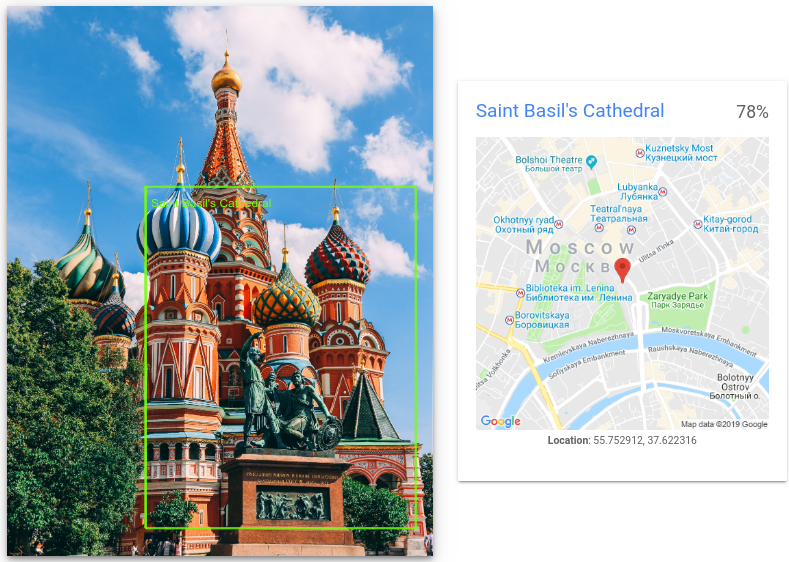 *Image credit*: [Nikolay Vorobyev](https://unsplash.com/photos/jaH3QF46gAY) on [Unsplash](https://unsplash.com/) (*annotations added*).
## Landmark detection requests
### Set up your Google Cloud project and authentication
If you have not created a Google Cloud project, do so now. Expand this section for instructions.
### Detect Landmarks in a local image
You can use the Vision API to perform feature detection on a local image file.
For REST requests, send the contents of the image file as a
[base64 encoded](https://docs.cloud.google.com/vision/docs/base64.md.txt) string in the body of your request.
For `gcloud` and client library requests, specify the path to a local image in your
request.
### REST
Before using any of the request data,
make the following replacements:
- BASE64_ENCODED_IMAGE: The base64 representation (ASCII string) of your binary image data. This string should look similar to the following string:
- `/9j/4QAYRXhpZgAA...9tAVx/zDQDlGxn//2Q==`
Visit the [base64 encode](https://docs.cloud.google.com/vision/docs/base64.md.txt) topic for more information.
- RESULTS_INT: (Optional) An integer value of results to return. If you omit the `"maxResults"` field and its value, the API returns the default value of 10 results. This field does not apply to the following feature types: `TEXT_DETECTION`, `DOCUMENT_TEXT_DETECTION`, or `CROP_HINTS`.
- PROJECT_ID: Your Google Cloud project ID.
HTTP method and URL:
```
POST https://vision.googleapis.com/v1/images:annotate
```
Request JSON body:
```
{
"requests": [
{
"image": {
"content": "BASE64_ENCODED_IMAGE"
},
"features": [
{
"maxResults": RESULTS_INT,
"type": "LANDMARK_DETECTION"
},
]
}
]
}
```
To send your request, choose one of these options:
#### curl
> [!NOTE]
> **Note:** The following command assumes that you have logged in to the `gcloud` CLI with your user account by running [`gcloud init`](https://docs.cloud.google.com/sdk/gcloud/reference/init) or [`gcloud auth login`](https://docs.cloud.google.com/sdk/gcloud/reference/auth/login.md.txt) , or by using [Cloud Shell](https://docs.cloud.google.com/shell/docs.md.txt), which automatically logs you into the `gcloud` CLI . You can check the currently active account by running [`gcloud auth list`](https://docs.cloud.google.com/sdk/gcloud/reference/auth/list.md.txt).
Save the request body in a file named `request.json`,
and execute the following command:
```
curl -X POST \
-H "Authorization: Bearer $(gcloud auth print-access-token)" \
-H "x-goog-user-project: PROJECT_ID" \
-H "Content-Type: application/json; charset=utf-8" \
-d @request.json \
"https://vision.googleapis.com/v1/images:annotate"
```
#### PowerShell
> [!NOTE]
> **Note:** The following command assumes that you have logged in to the `gcloud` CLI with your user account by running [`gcloud init`](https://docs.cloud.google.com/sdk/gcloud/reference/init) or [`gcloud auth login`](https://docs.cloud.google.com/sdk/gcloud/reference/auth/login.md.txt) . You can check the currently active account by running [`gcloud auth list`](https://docs.cloud.google.com/sdk/gcloud/reference/auth/list.md.txt).
Save the request body in a file named `request.json`,
and execute the following command:
```
$cred = gcloud auth print-access-token
$headers = @{ "Authorization" = "Bearer $cred"; "x-goog-user-project" = "PROJECT_ID" }
Invoke-WebRequest `
-Method POST `
-Headers $headers `
-ContentType: "application/json; charset=utf-8" `
-InFile request.json `
-Uri "https://vision.googleapis.com/v1/images:annotate" | Select-Object -Expand Content
```
If the request is successful, the server returns a `200 OK` HTTP status code and
the response in JSON format.
**Response:**
> [!NOTE]
> **Note: Zero coordinate values omitted.** When the API detects a coordinate ("x" or "y") value of 0, ***that coordinate is omitted in the JSON response*** . Thus, a response with a bounding poly around the entire image would be
> **\[{},{"x": 100},{"x": 100,"y": 100},{"y": 100}\] for an image that is 100 pixels by 100 pixels** . For more information, see the [API Reference documentation](https://cloud.google.com/vision/docs/reference/rest/v1/images/annotate#boundingpoly).
```
{
"responses": [
{
"landmarkAnnotations": [
{
"mid": "/m/014lft",
"description": "Saint Basil's Cathedral",
"score": 0.7840959,
"boundingPoly": {
"vertices": [
{
"x": 812,
"y": 1058
},
{
"x": 2389,
"y": 1058
},
{
"x": 2389,
"y": 3052
},
{
"x": 812,
"y": 3052
}
]
},
"locations": [
{
"latLng": {
"latitude": 55.752912,
"longitude": 37.622315883636475
}
}
]
}
]
}
]
}
```
### Go
Before trying this sample, follow the Go setup instructions in the
[Vision quickstart using
client libraries](https://docs.cloud.google.com/vision/docs/quickstart-client-libraries).
For more information, see the
[Vision Go API
reference documentation](https://godoc.org/cloud.google.com/go/vision/apiv1).
To authenticate to Vision, set up Application Default Credentials.
For more information, see
[Set up authentication for a local development environment](https://docs.cloud.google.com/docs/authentication/set-up-adc-local-dev-environment.md.txt).
```go
// detectLandmarks gets landmarks from the Vision API for an image at the given file path.
func detectLandmarks(w io.Writer, file string) error {
ctx := context.Background()
client, err := vision.NewImageAnnotatorClient(ctx)
if err != nil {
return err
}
f, err := os.Open(file)
if err != nil {
return err
}
defer f.Close()
image, err := vision.NewImageFromReader(f)
if err != nil {
return err
}
annotations, err := client.DetectLandmarks(ctx, image, nil, 10)
if err != nil {
return err
}
if len(annotations) == 0 {
fmt.Fprintln(w, "No landmarks found.")
} else {
fmt.Fprintln(w, "Landmarks:")
for _, annotation := range annotations {
fmt.Fprintln(w, annotation.Description)
}
}
return nil
}
```
### Java
Before trying this sample, follow the Java setup instructions in the
[Vision API Quickstart
Using Client Libraries](https://docs.cloud.google.com/vision/docs/detect-labels-image-client-libraries). For more information, see the
[Vision API Java reference documentation](https://cloud.google.com/java/docs/reference/google-cloud-vision/latest/overview).
> [!NOTE]
> **Note:** For Java **Spring framework** users, [Spring Cloud Google Cloud](https://docs.cloud.google.com/vision/docs/adding-spring.md.txt) offers a way to automatically configure authentication settings and client objects to use Vision API.
```java
import com.google.cloud.vision.v1.AnnotateImageRequest;
import com.google.cloud.vision.v1.AnnotateImageResponse;
import com.google.cloud.vision.v1.BatchAnnotateImagesResponse;
import com.google.cloud.vision.v1.EntityAnnotation;
import com.google.cloud.vision.v1.Feature;
import com.google.cloud.vision.v1.Image;
import com.google.cloud.vision.v1.ImageAnnotatorClient;
import com.google.cloud.vision.v1.LocationInfo;
import com.google.protobuf.ByteString;
import java.io.FileInputStream;
import java.io.IOException;
import java.util.ArrayList;
import java.util.List;
public class DetectLandmarks {
public static void detectLandmarks() throws IOException {
// TODO(developer): Replace these variables before running the sample.
String filePath = "path/to/your/image/file.jpg";
detectLandmarks(filePath);
}
// Detects landmarks in the specified local image.
public static void detectLandmarks(String filePath) throws IOException {
List requests = new ArrayList<>();
ByteString imgBytes = ByteString.readFrom(new FileInputStream(filePath));
Image img = Image.newBuilder().setContent(imgBytes).build();
Feature feat = Feature.newBuilder().setType(Feature.Type.LANDMARK_DETECTION).build();
AnnotateImageRequest request =
AnnotateImageRequest.newBuilder().addFeatures(feat).setImage(img).build();
requests.add(request);
// Initialize client that will be used to send requests. This client only needs to be created
// once, and can be reused for multiple requests. After completing all of your requests, call
// the "close" method on the client to safely clean up any remaining background resources.
try (ImageAnnotatorClient client = ImageAnnotatorClient.create()) {
BatchAnnotateImagesResponse response = client.batchAnnotateImages(requests);
List responses = response.getResponsesList();
for (AnnotateImageResponse res : responses) {
if (res.hasError()) {
System.out.format("Error: %s%n", res.getError().getMessage());
return;
}
// For full list of available annotations, see http://g.co/cloud/vision/docs
for (EntityAnnotation annotation : res.getLandmarkAnnotationsList()) {
LocationInfo info = annotation.getLocationsList().listIterator().next();
System.out.format("Landmark: %s%n %s%n", annotation.getDescription(), info.getLatLng());
}
}
}
}
}
```
### Node.js
Before trying this sample, follow the Node.js setup instructions in the
[Vision quickstart using
client libraries](https://docs.cloud.google.com/vision/docs/quickstart-client-libraries).
For more information, see the
[Vision Node.js API
reference documentation](https://googleapis.dev/nodejs/vision/latest).
To authenticate to Vision, set up Application Default Credentials.
For more information, see
[Set up authentication for a local development environment](https://docs.cloud.google.com/docs/authentication/set-up-adc-local-dev-environment.md.txt).
```javascript
const vision = require('@google-cloud/vision');
// Creates a client
const client = new vision.ImageAnnotatorClient();
/**
* TODO(developer): Uncomment the following line before running the sample.
*/
// const fileName = 'Local image file, e.g. /path/to/image.png';
// Performs landmark detection on the local file
const [result] = await client.landmarkDetection(fileName);
const landmarks = result.landmarkAnnotations;
console.log('Landmarks:');
landmarks.forEach(landmark => console.log(landmark));
```
### Python
Before trying this sample, follow the Python setup instructions in the
[Vision quickstart using
client libraries](https://docs.cloud.google.com/vision/docs/quickstart-client-libraries).
For more information, see the
[Vision Python API
reference documentation](https://docs.cloud.google.com/python/docs/reference/vision/latest).
To authenticate to Vision, set up Application Default Credentials.
For more information, see
[Set up authentication for a local development environment](https://docs.cloud.google.com/docs/authentication/set-up-adc-local-dev-environment.md.txt).
```python
def detect_landmarks(path):
"""Detects landmarks in the file."""
from google.cloud import vision
client = vision.ImageAnnotatorClient()
with open(path, "rb") as image_file:
content = image_file.read()
image = vision.Image(content=content)
response = client.landmark_detection(image=image)
landmarks = response.landmark_annotations
print("Landmarks:")
for landmark in landmarks:
print(landmark.description)
for location in landmark.locations:
lat_lng = location.lat_lng
print(f"Latitude {lat_lng.latitude}")
print(f"Longitude {lat_lng.longitude}")
if response.error.message:
raise Exception(
"{}\nFor more info on error messages, check: "
"https://cloud.google.com/apis/design/errors".format(response.error.message)
)
```
### Additional languages
**C#** :
Please follow the
[C# setup instructions](https://docs.cloud.google.com/vision/docs/libraries.md.txt)
on the client libraries page
and then visit the
[Vision reference documentation for .NET.](https://googleapis.dev/dotnet/Google.Apis.Vision.v1/latest/api/Google.Apis.Vision.v1.html)
**PHP** :
Please follow the
[PHP setup instructions](https://docs.cloud.google.com/vision/docs/libraries.md.txt)
on the client libraries page
and then visit the
[Vision reference documentation for PHP.](https://docs.cloud.google.com/php/docs/reference/cloud-vision/latest.md.txt)
**Ruby** :
Please follow the
[Ruby setup instructions](https://docs.cloud.google.com/vision/docs/libraries.md.txt)
on the client libraries page
and then visit the
[Vision reference documentation for Ruby.](https://googleapis.dev/ruby/google-cloud-vision/latest/Google/Cloud/Vision.html)
### Detect Landmarks in a remote image
You can use the Vision API to perform feature detection on a remote image file that is located
in Cloud Storage or on the Web. To send a remote file request, specify the file's Web URL or
Cloud Storage URI in the request body.
> [!CAUTION]
> **Caution:** When fetching images from HTTP/HTTPS URLs, Google cannot guarantee that the request will be completed. Your request might fail if the specified host denies the request (for example, due to request throttling or [DoS](https://en.wikipedia.org/wiki/Denial-of-service_attack) prevention), or if Google throttles requests to the site for abuse prevention. **As a best practice, don't
> depend on externally-hosted images for production applications**.
### REST
Before using any of the request data,
make the following replacements:
- CLOUD_STORAGE_IMAGE_URI: the path to a valid image file in a Cloud Storage bucket. You must at least have read privileges to the file. Example:
-
```restructuredtext
gs://cloud-samples-data/vision/landmark/st_basils.jpeg
```
- RESULTS_INT: (Optional) An integer value of results to return. If you omit the `"maxResults"` field and its value, the API returns the default value of 10 results. This field does not apply to the following feature types: `TEXT_DETECTION`, `DOCUMENT_TEXT_DETECTION`, or `CROP_HINTS`.
- PROJECT_ID: Your Google Cloud project ID.
HTTP method and URL:
```
POST https://vision.googleapis.com/v1/images:annotate
```
Request JSON body:
```
{
"requests": [
{
"image": {
"source": {
"gcsImageUri": "CLOUD_STORAGE_IMAGE_URI"
}
},
"features": [
{
"maxResults": RESULTS_INT,
"type": "LANDMARK_DETECTION"
},
]
}
]
}
```
To send your request, choose one of these options:
#### curl
> [!NOTE]
> **Note:** The following command assumes that you have logged in to the `gcloud` CLI with your user account by running [`gcloud init`](https://docs.cloud.google.com/sdk/gcloud/reference/init) or [`gcloud auth login`](https://docs.cloud.google.com/sdk/gcloud/reference/auth/login.md.txt) , or by using [Cloud Shell](https://docs.cloud.google.com/shell/docs.md.txt), which automatically logs you into the `gcloud` CLI . You can check the currently active account by running [`gcloud auth list`](https://docs.cloud.google.com/sdk/gcloud/reference/auth/list.md.txt).
Save the request body in a file named `request.json`,
and execute the following command:
```
curl -X POST \
-H "Authorization: Bearer $(gcloud auth print-access-token)" \
-H "x-goog-user-project: PROJECT_ID" \
-H "Content-Type: application/json; charset=utf-8" \
-d @request.json \
"https://vision.googleapis.com/v1/images:annotate"
```
#### PowerShell
> [!NOTE]
> **Note:** The following command assumes that you have logged in to the `gcloud` CLI with your user account by running [`gcloud init`](https://docs.cloud.google.com/sdk/gcloud/reference/init) or [`gcloud auth login`](https://docs.cloud.google.com/sdk/gcloud/reference/auth/login.md.txt) . You can check the currently active account by running [`gcloud auth list`](https://docs.cloud.google.com/sdk/gcloud/reference/auth/list.md.txt).
Save the request body in a file named `request.json`,
and execute the following command:
```
$cred = gcloud auth print-access-token
$headers = @{ "Authorization" = "Bearer $cred"; "x-goog-user-project" = "PROJECT_ID" }
Invoke-WebRequest `
-Method POST `
-Headers $headers `
-ContentType: "application/json; charset=utf-8" `
-InFile request.json `
-Uri "https://vision.googleapis.com/v1/images:annotate" | Select-Object -Expand Content
```
If the request is successful, the server returns a `200 OK` HTTP status code and
the response in JSON format.
**Response:**
> [!NOTE]
> **Note: Zero coordinate values omitted.** When the API detects a coordinate ("x" or "y") value of 0, ***that coordinate is omitted in the JSON response*** . Thus, a response with a bounding poly around the entire image would be
> **\[{},{"x": 100},{"x": 100,"y": 100},{"y": 100}\] for an image that is 100 pixels by 100 pixels** . For more information, see the [API Reference documentation](https://cloud.google.com/vision/docs/reference/rest/v1/images/annotate#boundingpoly).
```
{
"responses": [
{
"landmarkAnnotations": [
{
"mid": "/m/014lft",
"description": "Saint Basil's Cathedral",
"score": 0.7840959,
"boundingPoly": {
"vertices": [
{
"x": 812,
"y": 1058
},
{
"x": 2389,
"y": 1058
},
{
"x": 2389,
"y": 3052
},
{
"x": 812,
"y": 3052
}
]
},
"locations": [
{
"latLng": {
"latitude": 55.752912,
"longitude": 37.622315883636475
}
}
]
}
]
}
]
}
```
### Go
Before trying this sample, follow the Go setup instructions in the
[Vision quickstart using
client libraries](https://docs.cloud.google.com/vision/docs/quickstart-client-libraries).
For more information, see the
[Vision Go API
reference documentation](https://godoc.org/cloud.google.com/go/vision/apiv1).
To authenticate to Vision, set up Application Default Credentials.
For more information, see
[Set up authentication for a local development environment](https://docs.cloud.google.com/docs/authentication/set-up-adc-local-dev-environment.md.txt).
```go
// detectLandmarks gets landmarks from the Vision API for an image at the given file path.
func detectLandmarksURI(w io.Writer, file string) error {
ctx := context.Background()
client, err := vision.NewImageAnnotatorClient(ctx)
if err != nil {
return err
}
image := vision.NewImageFromURI(file)
annotations, err := client.DetectLandmarks(ctx, image, nil, 10)
if err != nil {
return err
}
if len(annotations) == 0 {
fmt.Fprintln(w, "No landmarks found.")
} else {
fmt.Fprintln(w, "Landmarks:")
for _, annotation := range annotations {
fmt.Fprintln(w, annotation.Description)
}
}
return nil
}
```
### Java
Before trying this sample, follow the Java setup instructions in the
[Vision quickstart using
client libraries](https://docs.cloud.google.com/vision/docs/quickstart-client-libraries).
For more information, see the
[Vision Java API
reference documentation](https://docs.cloud.google.com/java/docs/reference/google-cloud-vision/latest/overview).
To authenticate to Vision, set up Application Default Credentials.
For more information, see
[Set up authentication for a local development environment](https://docs.cloud.google.com/docs/authentication/set-up-adc-local-dev-environment.md.txt).
```java
import com.google.cloud.vision.v1.AnnotateImageRequest;
import com.google.cloud.vision.v1.AnnotateImageResponse;
import com.google.cloud.vision.v1.BatchAnnotateImagesResponse;
import com.google.cloud.vision.v1.EntityAnnotation;
import com.google.cloud.vision.v1.Feature;
import com.google.cloud.vision.v1.Image;
import com.google.cloud.vision.v1.ImageAnnotatorClient;
import com.google.cloud.vision.v1.ImageSource;
import com.google.cloud.vision.v1.LocationInfo;
import java.io.IOException;
import java.util.ArrayList;
import java.util.List;
public class DetectLandmarksGcs {
public static void detectLandmarksGcs() throws IOException {
// TODO(developer): Replace these variables before running the sample.
String filePath = "gs://your-gcs-bucket/path/to/image/file.jpg";
detectLandmarksGcs(filePath);
}
// Detects landmarks in the specified remote image on Google Cloud Storage.
public static void detectLandmarksGcs(String gcsPath) throws IOException {
List requests = new ArrayList<>();
ImageSource imgSource = ImageSource.newBuilder().setGcsImageUri(gcsPath).build();
Image img = Image.newBuilder().setSource(imgSource).build();
Feature feat = Feature.newBuilder().setType(Feature.Type.LANDMARK_DETECTION).build();
AnnotateImageRequest request =
AnnotateImageRequest.newBuilder().addFeatures(feat).setImage(img).build();
requests.add(request);
// Initialize client that will be used to send requests. This client only needs to be created
// once, and can be reused for multiple requests. After completing all of your requests, call
// the "close" method on the client to safely clean up any remaining background resources.
try (ImageAnnotatorClient client = ImageAnnotatorClient.create()) {
BatchAnnotateImagesResponse response = client.batchAnnotateImages(requests);
List responses = response.getResponsesList();
for (AnnotateImageResponse res : responses) {
if (res.hasError()) {
System.out.format("Error: %s%n", res.getError().getMessage());
return;
}
// For full list of available annotations, see http://g.co/cloud/vision/docs
for (EntityAnnotation annotation : res.getLandmarkAnnotationsList()) {
LocationInfo info = annotation.getLocationsList().listIterator().next();
System.out.format("Landmark: %s%n %s%n", annotation.getDescription(), info.getLatLng());
}
}
}
}
}
```
### Node.js
Before trying this sample, follow the Node.js setup instructions in the
[Vision quickstart using
client libraries](https://docs.cloud.google.com/vision/docs/quickstart-client-libraries).
For more information, see the
[Vision Node.js API
reference documentation](https://googleapis.dev/nodejs/vision/latest).
To authenticate to Vision, set up Application Default Credentials.
For more information, see
[Set up authentication for a local development environment](https://docs.cloud.google.com/docs/authentication/set-up-adc-local-dev-environment.md.txt).
```javascript
// Imports the Google Cloud client libraries
const vision = require('@google-cloud/vision');
// Creates a client
const client = new vision.ImageAnnotatorClient();
/**
* TODO(developer): Uncomment the following lines before running the sample.
*/
// const bucketName = 'Bucket where the file resides, e.g. my-bucket';
// const fileName = 'Path to file within bucket, e.g. path/to/image.png';
// Performs landmark detection on the gcs file
const [result] = await client.landmarkDetection(
`gs://${bucketName}/${fileName}`
);
const landmarks = result.landmarkAnnotations;
console.log('Landmarks:');
landmarks.forEach(landmark => console.log(landmark));
```
### Python
Before trying this sample, follow the Python setup instructions in the
[Vision quickstart using
client libraries](https://docs.cloud.google.com/vision/docs/quickstart-client-libraries).
For more information, see the
[Vision Python API
reference documentation](https://docs.cloud.google.com/python/docs/reference/vision/latest).
To authenticate to Vision, set up Application Default Credentials.
For more information, see
[Set up authentication for a local development environment](https://docs.cloud.google.com/docs/authentication/set-up-adc-local-dev-environment.md.txt).
```python
def detect_landmarks_uri(uri):
"""Detects landmarks in the file located in Google Cloud Storage or on the
Web."""
from google.cloud import vision
client = vision.ImageAnnotatorClient()
image = vision.Image()
image.source.image_uri = uri
response = client.landmark_detection(image=image)
landmarks = response.landmark_annotations
print("Landmarks:")
for landmark in landmarks:
print(landmark.description)
if response.error.message:
raise Exception(
"{}\nFor more info on error messages, check: "
"https://cloud.google.com/apis/design/errors".format(response.error.message)
)
```
### gcloud
To perform landmark detection, use the
[`gcloud ml vision detect-landmarks`](https://docs.cloud.google.com/sdk/gcloud/reference/ml/vision/detect-landmarks)
command as shown in the following example:
```
gcloud ml vision detect-landmarks gs://cloud-samples-data/vision/landmark/st_basils.jpeg
```
### Additional languages
**C#** :
Please follow the
[C# setup instructions](https://docs.cloud.google.com/vision/docs/libraries.md.txt)
on the client libraries page
and then visit the
[Vision reference documentation for .NET.](https://googleapis.dev/dotnet/Google.Apis.Vision.v1/latest/api/Google.Apis.Vision.v1.html)
**PHP** :
Please follow the
[PHP setup instructions](https://docs.cloud.google.com/vision/docs/libraries.md.txt)
on the client libraries page
and then visit the
[Vision reference documentation for PHP.](https://docs.cloud.google.com/php/docs/reference/cloud-vision/latest.md.txt)
**Ruby** :
Please follow the
[Ruby setup instructions](https://docs.cloud.google.com/vision/docs/libraries.md.txt)
on the client libraries page
and then visit the
[Vision reference documentation for Ruby.](https://googleapis.dev/ruby/google-cloud-vision/latest/Google/Cloud/Vision.html)
## Try it
Try landmark detection below. You can use the
image specified already (`gs://cloud-samples-data/vision/landmark/st_basils.jpeg`)
or specify your own image in its place. Send the request by selecting
**Execute**.
 *Image credit*: [Nikolay Vorobyev](https://unsplash.com/photos/jaH3QF46gAY) on [Unsplash](https://unsplash.com/).
**Request body:**
```
{
"requests": [
{
"features": [
{
"maxResults": 10,
"type": "LANDMARK_DETECTION"
}
],
"image": {
"source": {
"imageUri": "gs://cloud-samples-data/vision/landmark/st_basils.jpeg"
}
}
}
]
}
```
### Open the Google APIs Explorer and send the request
1. To open the Google APIs Explorer, click **Try it!**.
2. Optional. Modify the existing request body.
3. To send the request, click **Execute**.