# Detect labels in an image by using the command line
This page shows you how to send three feature detection and annotation requests
to the Vision API using the [REST interface](https://docs.cloud.google.com/vision/docs/reference/rest)
and the `curl` command.
Vision API enables easy integration of Google vision recognition
technologies into developer applications. You can send image data and desired
feature types to the Vision API, which then returns a corresponding
response based on the image attributes you are interested in.
For more information about the feature types offered, see
the [List of all Vision API features](https://docs.cloud.google.com/vision/docs/features-list).
## Before you begin
## Make an image annotation request
After completing the [Before you begin](https://docs.cloud.google.com/vision/docs/detect-labels-image-command-line#before-you-begin) steps you can
use the Vision API to annotate an image file.
In this example you use curl to send a request to the Vision API using the
following image:
**Cloud Storage URI:**
```bash
gs://cloud-samples-data/vision/using_curl/shanghai.jpeg
```
**HTTPS URL:**
```bash
https://console.cloud.google.com/storage/browser/cloud-samples-data/vision/using_curl/shanghai.jpeg
```
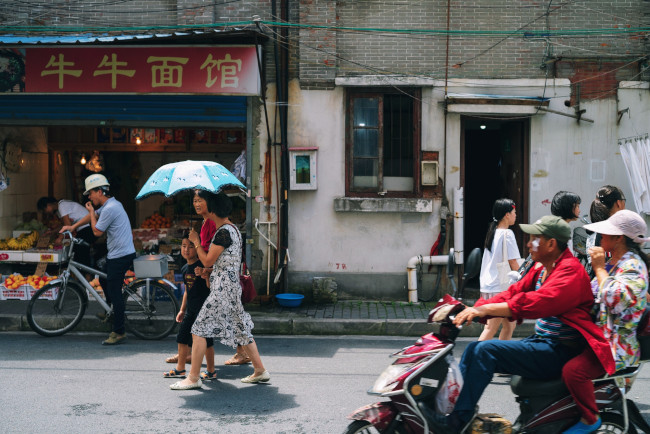 *Image credit*: [Steve Long](https://unsplash.com/photos/jNGs6ys7MKk) on [Unsplash](https://unsplash.com/).
## Create the request JSON
The following `request.json` file demonstrates how
to request three `images:annotate` [features](https://docs.cloud.google.com/vision/docs/features-list)
and limit the results in the response.
Create the JSON request file with the following text, and save it as a
`request.json` plain text file in your working directory:
`request.json`
```json
{
"requests": [
{
"image": {
"source": {
"imageUri": "gs://cloud-samples-data/vision/using_curl/shanghai.jpeg"
}
},
"features": [
{
"type": "LABEL_DETECTION",
"maxResults": 3
},
{
"type": "OBJECT_LOCALIZATION",
"maxResults": 1
},
{
"type": "TEXT_DETECTION",
"maxResults": 1,
"model": "builtin/latest"
}
]
}
]
}
```
**Field value details**
- `image.source.gcsImageUri` - Indicates the image stored in a Cloud Storage bucket. You change this request to `image.source.imageUri` for a publicly available URI, or `image.content` to pass a base64 encoded string representation of an image.
- `features` - An object representing a specific feature type. You can request multiple feature types for a single image.
- `type` - The [enum value](https://docs.cloud.google.com/vision/docs/reference/rest/v1/Feature#type) specifying a feature.
- `maxResults` (optional) - A limiting value on the results returned.
- `model` (optional) - If applicable you can specify either `builtin/stable` (the default if unset) or `builtin/latest` to choose your model. Refer to the [Release
notes](https://docs.cloud.google.com/vision/docs/release-notes) topic for a list of recently updated models.
## Send the request
You use curl and the body content from `request.json` to send the request
to the Vision API. Enter the following on your
command line:
```bash
curl -X POST \
-H "Authorization: Bearer $(gcloud auth print-access-token)" \
-H "x-goog-user-project: PROJECT_ID" \
-H "Content-Type: application/json; charset=utf-8" \
https://vision.googleapis.com/v1/images:annotate -d @request.json
```
> [!IMPORTANT]
> - The sample `curl` command uses the `gcloud auth
> print-access-token` command to get an authentication token.
> - Note that to pass a filename to `curl` you use the `-d` option (for "data") and precede the filename with an `@` sign. This file should be in the same directory in which you execute the `curl` command.
## Interpret the response
You should see a JSON response similar to the one below.
The request JSON body specified `maxResults` for each annotation type.
Consequently, you will see the following in the response JSON:
- three [`labelAnnotations` results](https://docs.cloud.google.com/vision/docs/detect-labels-image-command-line#label-results)
- one [`textAnnotations` result](https://docs.cloud.google.com/vision/docs/detect-labels-image-command-line#text-results) (shortened for clarity)
- one [`localizedObjectAnnotations` result](https://docs.cloud.google.com/vision/docs/detect-labels-image-command-line#object-results)
**Response**
> [!NOTE]
> **Note: Zero coordinate values omitted.** When the API detects a coordinate ("x" or "y") value of 0, ***that coordinate is omitted in the JSON response*** . Thus, a response with a bounding poly around the entire image would be
> **\[{},{"x": 100},{"x": 100,"y": 100},{"y": 100}\] for an image that is 100 pixels by 100 pixels** . For more information, see the [API Reference documentation](https://cloud.google.com/vision/docs/reference/rest/v1/images/annotate#boundingpoly).
```json
{
"responses": [
{
"labelAnnotations": [
{
"mid": "/m/09g5pq",
"description": "People",
"score": 0.9504782,
"topicality": 0.9504782
},
{
"mid": "/m/01c8br",
"description": "Street",
"score": 0.8911568,
"topicality": 0.8911568
},
{
"mid": "/m/079bkr",
"description": "Mode of transport",
"score": 0.89089024,
"topicality": 0.89089024
}
],
"textAnnotations": [
{
"locale": "zh",
"description": "牛牛面馆\n",
"boundingPoly": {
"vertices": [
{
"x": 159,
"y": 212
},
{
"x": 947,
"y": 212
},
{
"x": 947,
"y": 354
},
{
"x": 159,
"y": 354
}
]
}
},
...
],
"fullTextAnnotation": {
"pages": [
{
...
"paragraphs": [
{
...
"words": [
{
...
"symbols": [
{
...
],
"blockType": "TEXT"
}
]
}
],
"text": "牛牛面馆\n"
},
"localizedObjectAnnotations": [
{
"mid": "/m/01g317",
"name": "Person",
"score": 0.94413143,
"boundingPoly": {
"normalizedVertices": [
{
"x": 0.26063988,
"y": 0.46869153
},
{
"x": 0.40736017,
"y": 0.46869153
},
{
"x": 0.40736017,
"y": 0.8957791
},
{
"x": 0.26063988,
"y": 0.8957791
}
]
}
}
]
}
]
}
```
### Label detection results
1. description: "People", score: 0.950
2. description: "Street", score: 0.891
3. description: "Mode of transport", score: 0.890
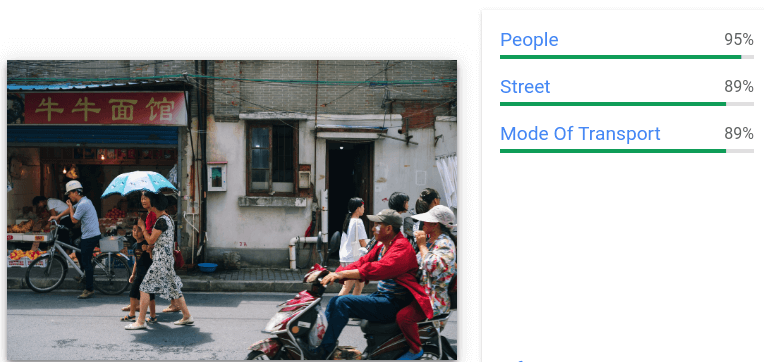 *Image credit*: [Steve Long](https://unsplash.com/photos/jNGs6ys7MKk) on [Unsplash](https://unsplash.com/) (*annotations added*).
### Text detection results
- text: 牛牛面馆\\n
- vertices: (x: 159, y: 212), (x: 947, y: 212), (x: 947, y: 354), (x: 159, y: 354 )
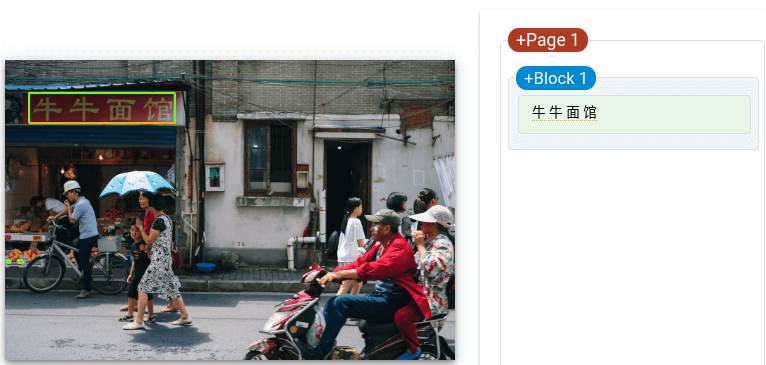 *Image credit*: [Steve Long](https://unsplash.com/photos/jNGs6ys7MKk) on [Unsplash](https://unsplash.com/) (*annotations added*).
### Object detection results
- name: "Person", score: 0.944
- normalized vertices: (x: 0.260, y: 0.468), (x: 0.407, y: 0.468), (x: 0.407, y: 0.895), (x: 0.260, y: 0.895)
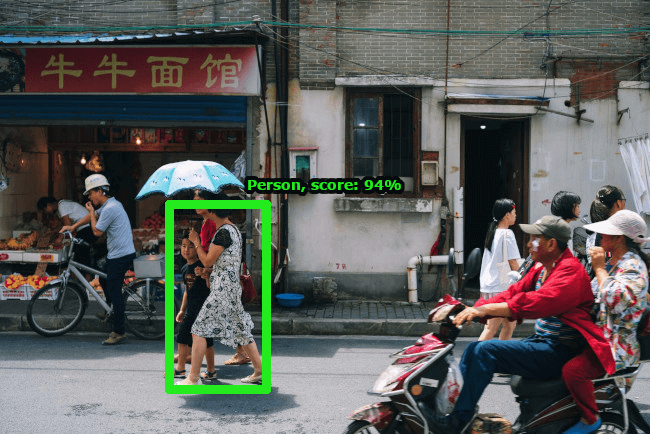 *Image credit*: [Steve Long](https://unsplash.com/photos/jNGs6ys7MKk) on [Unsplash](https://unsplash.com/) (*annotations added*).
Congratulations! You've sent your first request to the Vision API.
## Clean up
To avoid incurring charges to your Google Cloud account for
the resources used on this page, delete the Google Cloud project with the
resources.
Optional: Revoke credentials from the gcloud CLI.
```bash
gcloud auth revoke
```
## What's next
- See a list of [all feature types](https://docs.cloud.google.com/vision/docs/features-list) and their uses.
- Get started with the Vision API in your language of choice by using a [Vision API Client
Library](https://docs.cloud.google.com/vision/docs/quickstart-client-libraries).
- Use the [How-to guides](https://docs.cloud.google.com/vision/docs/how-to) to learn more about specific features, see example annotations, and get annotations for an individual file or image.
- Learn about batch [image](https://docs.cloud.google.com/vision/docs/batch) and [file](https://docs.cloud.google.com/vision/docs/file-small-batch) (PDF/TIFF/GIF) annotation.
- Browse through a comprehensive list of client library code [samples](https://docs.cloud.google.com/vision/docs/samples).