After you have created a Vision Warehouse, added it to an app, and
deployed the app, you can search for clips (assets) stored in the streaming video warehouse.
## Search streaming video clip assets
### Console
1. Open the **Warehouses** tab of the Gemini Enterprise Agent Platform Vision dashboard.
[Go to the Warehouses tab](https://console.cloud.google.com/ai/vision-ai/media-warehouse)
2. Find your desired warehouse, and click **View assets**.
3. You will see a list of clips (each corresponding to a stream), as well
as two search bars: **Date range**
and **Stream name**. You can either select a clip to view it, or begin
to search for clips.
> [!NOTE]
> **Note:** For assets not ingesting data, a placeholder image appears in Google Cloud console
4. To begin searching, identify and enter search criteria. On the search
result page you can see these video clips, each clip corresponding to a
continuous video clip matching the search criteria. Use the following
criteria:
- **Date search** : To view all clips within some time frame
(for example, *This month* ), click the **Date range** drop down and
select your desired range.
- **Stream name search** : If you would like to search for a particular
stream clip, type its stream name into the **Search stream name** bar.
- **Date \& stream name search**: To view one particular clip at some
specified date range, populate both search options.
- **Generic search** : Select the key-value pair of any searchable type
in your warehouse using the **Add criteria (AND)** button.
5. After specifying search criteria, click the **Search** button to
execute the search.
All clips that matches the initial search criteria will appear on the
side of the page. On the other side, you will see groups of facetable
schema fields, and a list of criteria to select.
You can modify faceted filtering and selectively enable or disable facet
criteria from the details page. Initially, all of these checkboxes will
be disabled. To facet by some criteria you need to go to the
details page, enable that facet, and then search again. See
[create and update data schema](https://docs.cloud.google.com/vision-ai/docs/create-update-dataschema.md.txt#modify-facetable-fields) for more details.
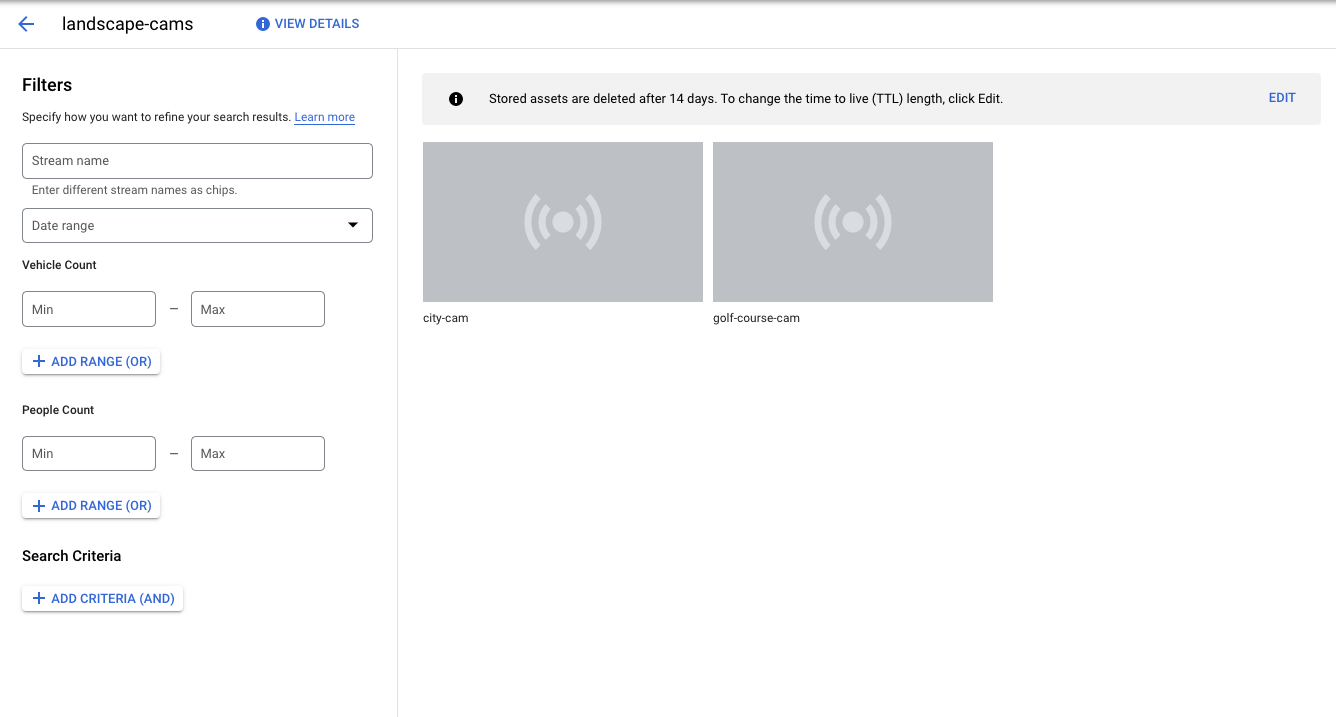
To further filter the clips, select one or more of the facet criteria
checkboxes on the side, then click **Search**. You will see an updated
list of matching clips, as well as updated facets.
You can also click on a video image to view the clip. Downloading a clip
has a 100MB restriction.
6. After search results are populated, you can order the search results by the
available data schema by clicking **Sort By** in the top right.
Selecting a data schema automatically reorders the results.
1. Optional: After search results populate, sort the search results by the available data schema by clicking the arrow at the top right.