After you [build](https://docs.cloud.google.com/vision-ai/docs/build-app.md.txt) and [deploy](https://docs.cloud.google.com/vision-ai/docs/deploy-app.md.txt) apps, you can
manage these app instances using the Google Cloud console or command line.
## View deployed app instances and output
You can view app instances and output using the Google Cloud console or
command line. You can then use this information to
[read model output streams](https://docs.cloud.google.com/vision-ai/docs/read-stream.md.txt)
and [get assets](https://docs.cloud.google.com/vision-ai/docs/manage-assets-api.md.txt#get-asset).
### Web UI
View an app's instances and output in the Google Cloud console.
1. Open the **Applications** tab of the Gemini Enterprise Agent Platform Vision dashboard.
[Go to the Applications tab](https://console.cloud.google.com/ai/vision-ai/applications)
2. Select the name of the app you want to view. This takes you to the
application details page.
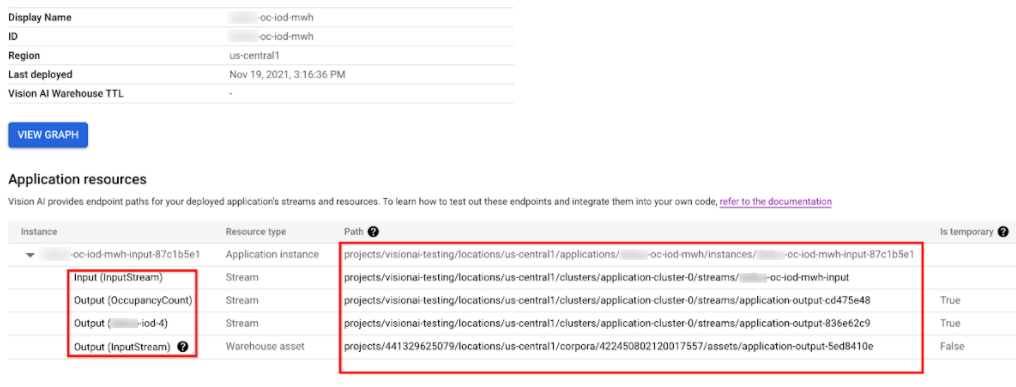
The application details page displays a table with application resources.
This table lists all the running instances of the application. Each input
stream to the application has its own instance. Each instance has
its own input and output resources listed under it.
3. To inspect the stream or warehouse asset resources in the instance table,
click on the input or output ID, or select the path.
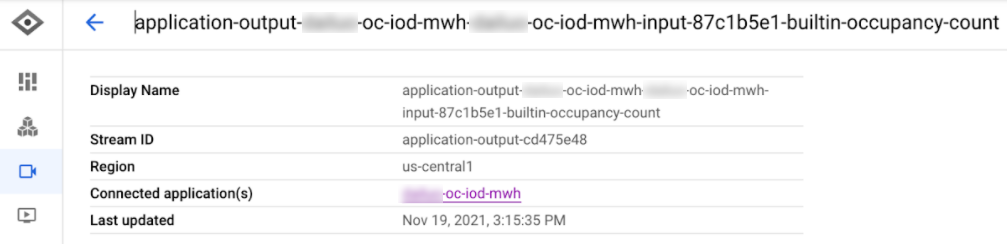
- If you click on **stream** resource, you are redirected to the
stream details page, where you can inspect the detailed information of
that stream.
To learn how to read a model's output stream using the command line,
see [Create and manage Streams](https://docs.cloud.google.com/vision-ai/docs/read-stream.md.txt).
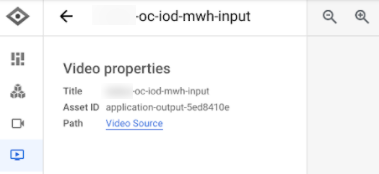
- Clicking on the **warehouse asset** resource takes you to the
Vision Warehouse asset details page.
To get a Vision Warehouse asset, see [Manage resources
using the Vision Warehouse API](https://docs.cloud.google.com/vision-ai/docs/manage-assets-api#get-asset).
### REST
To list app instances, send a GET request by using the
[projects.locations.applications.instances.list](https://docs.cloud.google.com/vision-ai/docs/reference/rest/v1/projects.locations.applications.instances/list.md.txt)
method.
Before using any of the request data,
make the following replacements:
- PROJECT: Your Google Cloud [project ID or
project number](https://docs.cloud.google.com/resource-manager/docs/creating-managing-projects#identifying_projects).
- LOCATION_ID: The [region](https://cloud.google.com/about/locations) where you are using Agent Platform Vision. For example: `us-central1`, `europe-west4`. See [available regions](https://docs.cloud.google.com/vision-ai/docs/warehouse-supported-regions.md.txt).
- APPLICATION_ID: The ID of your target application.
HTTP method and URL:
```
GET https://visionai.googleapis.com/v1/projects/PROJECT_NUMBER/locations/LOCATION_ID/applications/APPLICATION_ID/instances
```
To send your request, choose one of these options:
#### curl
> [!NOTE]
> **Note:** The following command assumes that you have logged in to the `gcloud` CLI with your user account by running [`gcloud init`](https://docs.cloud.google.com/sdk/gcloud/reference/init) or [`gcloud auth login`](https://docs.cloud.google.com/sdk/gcloud/reference/auth/login.md.txt) , or by using [Cloud Shell](https://docs.cloud.google.com/shell/docs.md.txt), which automatically logs you into the `gcloud` CLI . You can check the currently active account by running [`gcloud auth list`](https://docs.cloud.google.com/sdk/gcloud/reference/auth/list.md.txt).
Execute the following command:
```
curl -X GET \
-H "Authorization: Bearer $(gcloud auth print-access-token)" \
"https://visionai.googleapis.com/v1/projects/PROJECT_NUMBER/locations/LOCATION_ID/applications/APPLICATION_ID/instances"
```
#### PowerShell
> [!NOTE]
> **Note:** The following command assumes that you have logged in to the `gcloud` CLI with your user account by running [`gcloud init`](https://docs.cloud.google.com/sdk/gcloud/reference/init) or [`gcloud auth login`](https://docs.cloud.google.com/sdk/gcloud/reference/auth/login.md.txt) . You can check the currently active account by running [`gcloud auth list`](https://docs.cloud.google.com/sdk/gcloud/reference/auth/list.md.txt).
Execute the following command:
```
$cred = gcloud auth print-access-token
$headers = @{ "Authorization" = "Bearer $cred" }
Invoke-WebRequest `
-Method GET `
-Headers $headers `
-Uri "https://visionai.googleapis.com/v1/projects/PROJECT_NUMBER/locations/LOCATION_ID/applications/APPLICATION_ID/instances" | Select-Object -Expand Content
```
You should receive a JSON response similar to the following:
```
{
"instances": [
{
"name": "projects/PROJECT_NUMBER/locations/LOCATION_ID/applications/APPLICATION_ID/instances/INSTANCE_ID",
"createTime": "2022-03-01T20:05:45.863836157Z",
"inputResources": [
{
"inputResource": "input-stream",
"consumerNode": "builtin-input-stream"
}
],
"outputResources": [
{
"outputResource": "sample-resource-1",
"producerNode": "builtin-occupancy-count",
"isTemporary": true
},
{
"outputResource": "sample-resource-2",
"producerNode": "builtin-input-stream"
},
{
"outputResource": "sample-resource-3",
"producerNode": "builtin-input-stream",
"isTemporary": true
},
{
"outputResource": "sample-resource-4",
"producerNode": "builtin-input-stream",
"isTemporary": true
}
]
}
]
}
```
## Delete an app instance
### REST
To delete application instances, send a POST request by using the
[projects.locations.applications.deleteApplicationInstances](https://docs.cloud.google.com/vision-ai/docs/reference/rest/v1/projects.locations.applications/deleteApplicationInstances.md.txt)
method.
Before using any of the request data,
make the following replacements:
- PROJECT_NUMBER: Your Google Cloud [project number](https://docs.cloud.google.com/resource-manager/docs/creating-managing-projects.md.txt#identifying_projects).
- LOCATION_ID: The [region](https://cloud.google.com/about/locations) where you are using Agent Platform Vision. For example: `us-central1`, `europe-west4`. See [available regions](https://docs.cloud.google.com/vision-ai/docs/warehouse-supported-regions.md.txt).
- APPLICATION_ID: The ID of your target application.
HTTP method and URL:
```
POST https://visionai.googleapis.com/v1/projects/PROJECT_NUMBER/locations/LOCATION_ID/applications/APPLICATION_ID:deleteApplicationInstances
```
Request JSON body:
```
{
"instanceIds": [
"INSTANCE_ID1",
"INSTANCE_ID2",
[...]
]
}
```
To send your request, choose one of these options:
#### curl
> [!NOTE]
> **Note:** The following command assumes that you have logged in to the `gcloud` CLI with your user account by running [`gcloud init`](https://docs.cloud.google.com/sdk/gcloud/reference/init) or [`gcloud auth login`](https://docs.cloud.google.com/sdk/gcloud/reference/auth/login.md.txt) , or by using [Cloud Shell](https://docs.cloud.google.com/shell/docs.md.txt), which automatically logs you into the `gcloud` CLI . You can check the currently active account by running [`gcloud auth list`](https://docs.cloud.google.com/sdk/gcloud/reference/auth/list.md.txt).
Save the request body in a file named `request.json`,
and execute the following command:
```
curl -X POST \
-H "Authorization: Bearer $(gcloud auth print-access-token)" \
-H "Content-Type: application/json; charset=utf-8" \
-d @request.json \
"https://visionai.googleapis.com/v1/projects/PROJECT_NUMBER/locations/LOCATION_ID/applications/APPLICATION_ID:deleteApplicationInstances"
```
#### PowerShell
> [!NOTE]
> **Note:** The following command assumes that you have logged in to the `gcloud` CLI with your user account by running [`gcloud init`](https://docs.cloud.google.com/sdk/gcloud/reference/init) or [`gcloud auth login`](https://docs.cloud.google.com/sdk/gcloud/reference/auth/login.md.txt) . You can check the currently active account by running [`gcloud auth list`](https://docs.cloud.google.com/sdk/gcloud/reference/auth/list.md.txt).
Save the request body in a file named `request.json`,
and execute the following command:
```
$cred = gcloud auth print-access-token
$headers = @{ "Authorization" = "Bearer $cred" }
Invoke-WebRequest `
-Method POST `
-Headers $headers `
-ContentType: "application/json; charset=utf-8" `
-InFile request.json `
-Uri "https://visionai.googleapis.com/v1/projects/PROJECT_NUMBER/locations/LOCATION_ID/applications/APPLICATION_ID:deleteApplicationInstances" | Select-Object -Expand Content
```
You should receive a JSON response similar to the following:
```
{
"name": "projects/PROJECT_NUMBER/locations/LOCATION_ID/operations/OPERATION_ID",
"metadata": {
"@type": "type.googleapis.com/google.cloud.visionai.v1.OperationMetadata",
"createTime": "[...]",
"Target": "projects/PROJECT_NUMBER/locations/LOCATION_ID/applications/APPLICATION_ID"
"Verb": "update"
"apiVersion": "v1"
},
"done": false
}
```
## Manage large scale apps
The deploy and undeploy methods are valid for applications with less than
20 instances. If your app has more than 20 instances you must create and
remove instances incrementally with the API. The recommended workflow is as
follows:
1. Create your app.
2. Add 1-20 experimental instances.
3. Deploy your application.
4. Verify your app works as expected.
5. Use the [`createApplicationInstances`](https://docs.cloud.google.com/vision-ai/docs/reference/rest/v1/projects.locations.applications/createApplicationInstances.md.txt) method to incrementally add more inputs to the deployed application.
6. Allow app to run.
7. Use the [`deleteApplicationInstances`](https://docs.cloud.google.com/vision-ai/docs/reference/rest/v1/projects.locations.applications/deleteApplicationInstances.md.txt) method to incrementally remove inputs from deployed applications.
8. Undeploy the application.
> [!CAUTION]
> **Caution:** For a single application there can only be *one* update request running at a time. You are responsible for queueing these types of requests, and performing the necessary retries if there is a failure.