> [!WARNING]
> **Warning:** Each application can have a maximum of 2 output streams per instance.
After you [create the data ingestion stream](https://docs.cloud.google.com/vision-ai/docs/create-manage-streams.md.txt) and [add the
processing nodes](https://docs.cloud.google.com/vision-ai/docs/build-app#add-pretrained-model) to your app, you
must choose where to send the processed data. One option is to receive the live
stream app output directly so you can act on these real-time analytics.
In general, you configure your app to store model output into a
Google Cloud data warehouse like Gemini Enterprise Agent Platform Vision's Media Warehouse or BigQuery.
After the data is stored in one
of these warehouses they can be used for offline analytic jobs based
on your application graph. However, you can also receive the model outputs
in a live streaming way. You can have Gemini Enterprise Agent Platform Vision forward the model
outputs to a stream resource, and you can use either the command line tool
(`vaictl`) or Gemini Enterprise Agent Platform Vision API to consume them in real-time.
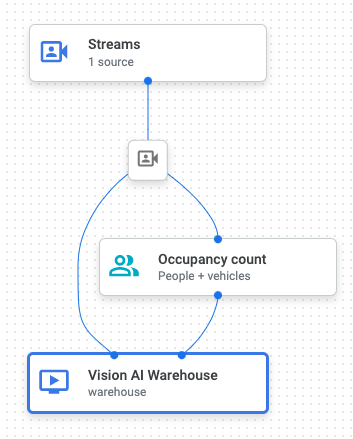
Assuming you have the following application graph that has the following three
nodes:
1. The data source node "Input Stream" (`input-stream`)
2. The processing node "Occupancy Count" (`occupancy-count`)
3. The app output destination node "Media Warehouse" (`warehouse`)
The app output is currently sent from the stream to the occupancy count process,
and then out to the Gemini Enterprise Agent Platform Vision's Media Warehouse where it is stored.
**API app configuration:**
|---|---|
|  | ``` { "applicationConfigs": { "nodes": [ { "displayName": "Input Stream", "name": "input-stream", "processor": "builtin:stream-input" }, { "displayName": "Occupancy Count", "name": "occupancy-count", "nodeConfig": { "occupancyCountConfig": { "enablePeopleCounting": true, "enableVehicleCounting": true } }, "parents": [ { "parentNode": "input-stream" } ], "processor": "builtin:occupancy-count" }, { "displayName": "Media Warehouse", "name": "warehouse", "nodeConfig": { "mediaWarehouseConfig": { "corpus": "projects/PROJECT_ID/locations/LOCATION_ID/corpora/CORPUS_ID", "ttl": "86400s" } }, "parents": [ { "parentNode": "input-stream" }, { "parentNode": "occupancy-count" } ], "processor": "builtin:media-warehouse" } ] } } ``` |
## Enable stream output (Google Cloud console)
You can enable stream output in the Google Cloud console when you first
[deploy your model](https://docs.cloud.google.com/vision-ai/docs/deploy-app.md.txt) or when you undeploy and then redeploy the
model.
### Console
1. Open the **Applications** tab of the Gemini Enterprise Agent Platform Vision dashboard.
[Go to the Applications tab](https://console.cloud.google.com/ai/vision-ai/applications)
2. Next to the name of your application in the list, select
**View app**.
3. From the application graph builder page click the **Deploy** button.
4. In the **Deploy application** option menu that opens,
select
**Enable output streaming**.

5. From the corresponding **Model(s)** dropdown menu, select
the models you want to
enable streaming output for.
6. Click **Deploy**
## Enable stream output (API)
### Update the app node
You can update an app's configuration on the command line so a model node
specifically sends output to a stream.
After you complete this step, you have the option to
[update the app instance](https://docs.cloud.google.com/vision-ai/docs/enable-stream-output.md.txt#update-app-instance) to specify the stream resource
that receives the analysis node output data.
### REST
This example uses the [projects.locations.applications.patch](https://docs.cloud.google.com/vision-ai/docs/reference/rest/v1/projects.locations.applications/patch.md.txt)
method. This request updates the API app configuration from the previous
sample app to have the `occupancy-count` node send output
annotations to a Gemini Enterprise Agent Platform Vision stream. This behavior is enabled by the
`output_all_output_channels_to_stream` field.
Before using any of the request data,
make the following replacements:
- PROJECT: Your Google Cloud [project ID or
project number](https://docs.cloud.google.com/resource-manager/docs/creating-managing-projects#identifying_projects).
- LOCATION_ID: The [region](https://cloud.google.com/about/locations) where you are using Agent Platform Vision. For example: `us-central1`, `europe-west4`. See [available regions](https://docs.cloud.google.com/vision-ai/docs/warehouse-supported-regions.md.txt).
- APPLICATION_ID: The ID of your target application.
HTTP method and URL:
```
PATCH https://visionai.googleapis.com/v1/projects/PROJECT_NUMBER/locations/LOCATION_ID/applications/APPLICATION_ID
```
Request JSON body:
```
{
"applicationConfigs": {
"nodes": [
{
"displayName": "Input Stream",
"name": "input-stream",
"processor": "builtin:stream-input"
},
{
"displayName": "Occupancy Count",
"name": "occupancy-count",
"nodeConfig": {
"occupancyCountConfig": {
"enablePeopleCounting": true,
"enableVehicleCounting": true
}
},
"parents": [
{
"parentNode": "input-stream"
}
],
"processor": "builtin:occupancy-count",
"output_all_output_channels_to_stream": true
}
]
}
}
```
To send your request, choose one of these options:
#### curl
> [!NOTE]
> **Note:** The following command assumes that you have logged in to the `gcloud` CLI with your user account by running [`gcloud init`](https://docs.cloud.google.com/sdk/gcloud/reference/init) or [`gcloud auth login`](https://docs.cloud.google.com/sdk/gcloud/reference/auth/login.md.txt) , or by using [Cloud Shell](https://docs.cloud.google.com/shell/docs.md.txt), which automatically logs you into the `gcloud` CLI . You can check the currently active account by running [`gcloud auth list`](https://docs.cloud.google.com/sdk/gcloud/reference/auth/list.md.txt).
Save the request body in a file named `request.json`,
and execute the following command:
```
curl -X PATCH \
-H "Authorization: Bearer $(gcloud auth print-access-token)" \
-H "Content-Type: application/json; charset=utf-8" \
-d @request.json \
"https://visionai.googleapis.com/v1/projects/PROJECT_NUMBER/locations/LOCATION_ID/applications/APPLICATION_ID"
```
#### PowerShell
> [!NOTE]
> **Note:** The following command assumes that you have logged in to the `gcloud` CLI with your user account by running [`gcloud init`](https://docs.cloud.google.com/sdk/gcloud/reference/init) or [`gcloud auth login`](https://docs.cloud.google.com/sdk/gcloud/reference/auth/login.md.txt) . You can check the currently active account by running [`gcloud auth list`](https://docs.cloud.google.com/sdk/gcloud/reference/auth/list.md.txt).
Save the request body in a file named `request.json`,
and execute the following command:
```
$cred = gcloud auth print-access-token
$headers = @{ "Authorization" = "Bearer $cred" }
Invoke-WebRequest `
-Method PATCH `
-Headers $headers `
-ContentType: "application/json; charset=utf-8" `
-InFile request.json `
-Uri "https://visionai.googleapis.com/v1/projects/PROJECT_NUMBER/locations/LOCATION_ID/applications/APPLICATION_ID" | Select-Object -Expand Content
```
If the update operation finishes, the operation returns a `200 OK` status without any error, and the service updates the application resource accordingly.
### Update the app instance
The previous sample shows you how to [update the app](https://docs.cloud.google.com/vision-ai/docs/enable-stream-output.md.txt#update-app-node),
which enables the
target node to send output to a stream. After you enable this option,
you can optionally update the app instance to specify the stream resource that
receives the analysis node output data.
If you don't specify a stream with this command, the app platform
continues to use a default stream that is created when the app node is deployed.
You must [create a stream resource](https://docs.cloud.google.com/vision-ai/docs/create-manage-streams.md.txt) the node sends output to
before you send the following request.
### REST
This example uses the
[projects.locations.applications.updateApplicationInstances](https://docs.cloud.google.com/vision-ai/docs/reference/rest/v1/projects.locations.applications/updateApplicationInstances.md.txt)
method. This request uses the updated API app configuration from the previous
sample app. The previous update command set the `occupancy-count` node to be
able to send output annotations to a Gemini Enterprise Agent Platform Vision stream. This command
updates the app instance to send the data from that producer `occupancy-count`
node to an existing stream resource.
Before using any of the request data,
make the following replacements:
- PROJECT: Your Google Cloud [project ID or
project number](https://docs.cloud.google.com/resource-manager/docs/creating-managing-projects#identifying_projects).
- LOCATION_ID: The [region](https://cloud.google.com/about/locations) where you are using Agent Platform Vision. For example: `us-central1`, `europe-west4`. See [available regions](https://docs.cloud.google.com/vision-ai/docs/warehouse-supported-regions.md.txt).
- APPLICATION_ID: The ID of your target application.
- `inputResources`: The input resource (or resources) for the current application instance. This is an array of objects that contain the following fields:
- `consumerNode`: The name of graph node who receives the input resource.
- `inputResource`: The full input resource name.
- `outputResources.outputResource`: The `stream` resource to output app data to.
- `outputResources.producerNode`: The app output producer node name. In this example this is the analysis node, `occupancy-count`.
- INSTANCE_ID: The ID of the app instance.
HTTP method and URL:
```
POST https://visionai.googleapis.com/v1/projects/PROJECT_NUMBER/locations/LOCATION_ID/applications/APPLICATION_ID:updateApplicationInstances
```
Request JSON body:
```
{
"applicationInstances": [
{
"instance": {
"inputResources": [
{
"consumerNode": "input-stream",
"inputResource": "projects/PROJECT_NUMBER/locations/LOCATION_ID/clusters/application-cluster-0/streams/INPUT_STREAM_ID"
}
],
"outputResources":[
{
"outputResource": "projects/PROJECT_NUMBER/locations/LOCATION_ID/clusters/application-cluster-0/streams/OUTPUT_STREAM_ID",
"producerNode": "occupancy-count"
}
]
},
"instanceId": INSTANCE_ID
}
]
}
```
To send your request, choose one of these options:
#### curl
> [!NOTE]
> **Note:** The following command assumes that you have logged in to the `gcloud` CLI with your user account by running [`gcloud init`](https://docs.cloud.google.com/sdk/gcloud/reference/init) or [`gcloud auth login`](https://docs.cloud.google.com/sdk/gcloud/reference/auth/login.md.txt) , or by using [Cloud Shell](https://docs.cloud.google.com/shell/docs.md.txt), which automatically logs you into the `gcloud` CLI . You can check the currently active account by running [`gcloud auth list`](https://docs.cloud.google.com/sdk/gcloud/reference/auth/list.md.txt).
Save the request body in a file named `request.json`,
and execute the following command:
```
curl -X POST \
-H "Authorization: Bearer $(gcloud auth print-access-token)" \
-H "Content-Type: application/json; charset=utf-8" \
-d @request.json \
"https://visionai.googleapis.com/v1/projects/PROJECT_NUMBER/locations/LOCATION_ID/applications/APPLICATION_ID:updateApplicationInstances"
```
#### PowerShell
> [!NOTE]
> **Note:** The following command assumes that you have logged in to the `gcloud` CLI with your user account by running [`gcloud init`](https://docs.cloud.google.com/sdk/gcloud/reference/init) or [`gcloud auth login`](https://docs.cloud.google.com/sdk/gcloud/reference/auth/login.md.txt) . You can check the currently active account by running [`gcloud auth list`](https://docs.cloud.google.com/sdk/gcloud/reference/auth/list.md.txt).
Save the request body in a file named `request.json`,
and execute the following command:
```
$cred = gcloud auth print-access-token
$headers = @{ "Authorization" = "Bearer $cred" }
Invoke-WebRequest `
-Method POST `
-Headers $headers `
-ContentType: "application/json; charset=utf-8" `
-InFile request.json `
-Uri "https://visionai.googleapis.com/v1/projects/PROJECT_NUMBER/locations/LOCATION_ID/applications/APPLICATION_ID:updateApplicationInstances" | Select-Object -Expand Content
```
If the update operation finishes, the operation returns a `200 OK` status without any error, and the service updates the application instance accordingly.