A connected Vision Warehouse (`corpus`) in a data-ingesting deployed
app has one or more media object `assets`. You can provide more detail about
these media object `assets` with `dataSchema` and user provided
`annotation` resources.
Data schema resources need to be created *before* an
`annotation` resource with that data schema key can be created. After you have
created data schema (`dataSchema` resources) to inform the Gemini Enterprise Agent Platform Vision API how to
interpret media annotations, you can create `annotation` resources for media
in a warehouse.
## Create data schema (API)
### REST
Before using any of the request data,
make the following replacements:
- REGIONALIZED_ENDPOINT: Endpoint might include a prefix matching the `LOCATION_ID` such as `europe-west4-`. See more about [regionalized endpoints](https://docs.cloud.google.com/vision-ai/docs/warehouse-supported-regions.md.txt).
- PROJECT_NUMBER: Your Google Cloud [project number](https://docs.cloud.google.com/resource-manager/docs/creating-managing-projects.md.txt#identifying_projects).
- LOCATION_ID: The [region](https://cloud.google.com/about/locations) where you are using Agent Platform Vision. For example: `us-central1`, `europe-west4`. See [available regions](https://docs.cloud.google.com/vision-ai/docs/warehouse-supported-regions.md.txt).
- CORPUS_ID: The ID of your target corpus.
- DATASCHEMA_KEY: This key must match the key of a user-specified annotation and unique inside a `corpus`. For example, `data-key`.
- ANNOTATION_DATA_TYPE: The data type of the annotation. Available values are:
- `DATA_TYPE_UNSPECIFIED`
- `INTEGER`
- `FLOAT`
- `STRING`
- `DATETIME`
- `GEO_COORDINATE`
- `PROTO_ANY`
- `BOOLEAN`
For more information, see the
[API
reference documentation](https://docs.cloud.google.com/vision-ai/docs/reference/rest/v1/projects.locations.corpora.dataSchemas#datatype).
- ANNOTATION_GRANULARITY: The granularity of the annotations under this `dataSchema`. Available values are:
- `GRANULARITY_UNSPECIFIED` - Unspecified granularity.
- `GRANULARITY_ASSET_LEVEL` - Asset-level granularity (annotations must not contain temporal partition information for the media asset).
- `GRANULARITY_PARTITION_LEVEL` - Partition-level granularity (annotations must contain temporal partition information for the media asset).
- SEARCH_STRATEGY: One of the available enum values. The types of search strategies to be applied on the annotation key. Available values are:
- `NO_SEARCH`
- `EXACT_SEARCH`
- `SMART_SEARCH`
HTTP method and URL:
```
POST https://warehouse-visionai.googleapis.com/v1/projects/PROJECT_NUMBER/locations/LOCATION_ID/corpora/CORPUS_ID/dataSchemas
```
Request JSON body:
```
{
"key": "DATASCHEMA_KEY",
"schema_details": {
"type": "ANNOTATION_DATA_TYPE",
"granularity": "ANNOTATION_GRANULARITY",
"search_strategy": {
"search_strategy_type": "SEARCH_STRATEGY"
}
}
}
```
To send your request, choose one of these options:
#### curl
> [!NOTE]
> **Note:** The following command assumes that you have logged in to the `gcloud` CLI with your user account by running [`gcloud init`](https://docs.cloud.google.com/sdk/gcloud/reference/init) or [`gcloud auth login`](https://docs.cloud.google.com/sdk/gcloud/reference/auth/login.md.txt) , or by using [Cloud Shell](https://docs.cloud.google.com/shell/docs.md.txt), which automatically logs you into the `gcloud` CLI . You can check the currently active account by running [`gcloud auth list`](https://docs.cloud.google.com/sdk/gcloud/reference/auth/list.md.txt).
Save the request body in a file named `request.json`,
and execute the following command:
```
curl -X POST \
-H "Authorization: Bearer $(gcloud auth print-access-token)" \
-H "Content-Type: application/json; charset=utf-8" \
-d @request.json \
"https://warehouse-visionai.googleapis.com/v1/projects/PROJECT_NUMBER/locations/LOCATION_ID/corpora/CORPUS_ID/dataSchemas"
```
#### PowerShell
> [!NOTE]
> **Note:** The following command assumes that you have logged in to the `gcloud` CLI with your user account by running [`gcloud init`](https://docs.cloud.google.com/sdk/gcloud/reference/init) or [`gcloud auth login`](https://docs.cloud.google.com/sdk/gcloud/reference/auth/login.md.txt) . You can check the currently active account by running [`gcloud auth list`](https://docs.cloud.google.com/sdk/gcloud/reference/auth/list.md.txt).
Save the request body in a file named `request.json`,
and execute the following command:
```
$cred = gcloud auth print-access-token
$headers = @{ "Authorization" = "Bearer $cred" }
Invoke-WebRequest `
-Method POST `
-Headers $headers `
-ContentType: "application/json; charset=utf-8" `
-InFile request.json `
-Uri "https://warehouse-visionai.googleapis.com/v1/projects/PROJECT_NUMBER/locations/LOCATION_ID/corpora/CORPUS_ID/dataSchemas" | Select-Object -Expand Content
```
You should receive a JSON response similar to the following:
```
{
"name": "projects/PROJECT_NUMBER/locations/LOCATION_ID/corpora/CORPUS_ID/dataSchemas/DATASCHEMA_ID",
"key": "data-key",
"schemaDetails": {
"type": "BOOLEAN",
"granularity": "GRANULARITY_ASSET_LEVEL",
"searchStrategy": {
"search_strategy_type": "EXACT_SEARCH"
}
}
}
```
## Update data schema (API)
### REST \& CMD LINE
The following code updates a `dataSchema` using the
[`projects.locations.corpora.dataSchemas.patch`](https://docs.cloud.google.com/vision-ai/docs/reference/rest/v1/projects.locations.corpora.dataSchemas/patch.md.txt) method.
This sample uses
`?updateMask=schemaDetails.type,schemaDetails.granularity` in the request
URL, and includes new `schemaDetails.type` and `schemaDetails.granularity`
values in the request body to update the data schema.
Before using any of the request data,
make the following replacements:
- REGIONALIZED_ENDPOINT: Endpoint might include a prefix matching the `LOCATION_ID` such as `europe-west4-`. See more about [regionalized endpoints](https://docs.cloud.google.com/vision-ai/docs/warehouse-supported-regions.md.txt).
- PROJECT_NUMBER: Your Google Cloud [project number](https://docs.cloud.google.com/resource-manager/docs/creating-managing-projects.md.txt#identifying_projects).
- LOCATION_ID: The [region](https://cloud.google.com/about/locations) where you are using Agent Platform Vision. For example: `us-central1`, `europe-west4`. See [available regions](https://docs.cloud.google.com/vision-ai/docs/warehouse-supported-regions.md.txt).
- CORPUS_ID: The ID of your target corpus.
- DATASCHEMA_ID: The ID of your target data schema.
- `?updateMask=fieldToUpdate`: One of the available fields you can apply an `updateMask` to. Specify the corresponding new field value in the request body. This new value replaces the existing field value. Available fields:
- Key: `?updateMask=key`
- Schema type: `?updateMask=schemaDetails.type`
- Schema granularity: `?updateMask=schemaDetails.granularity`
- Schema search strategy type: `?updateMask=schemaDetails.searchStrategy.searchStrategyType`
- Update all fields: `?updateMask=*`
HTTP method and URL:
```
PATCH https://warehouse-visionai.googleapis.com/v1/projects/PROJECT_NUMBER/locations/LOCATION_ID/corpora/CORPUS_ID/dataSchemas/DATASCHEMA_ID?updateMask=schemaDetails.type,schemaDetails.granularity
```
Request JSON body:
```
{
"key": "original-data-key",
"schemaDetails": {
"type":"INTEGER",
"granularity":"GRANULARITY_PARTITION_LEVEL"
"searchStrategy": {
"searchStrategyType": "NO_SEARCH"
}
}
}
```
To send your request, choose one of these options:
#### curl
> [!NOTE]
> **Note:** The following command assumes that you have logged in to the `gcloud` CLI with your user account by running [`gcloud init`](https://docs.cloud.google.com/sdk/gcloud/reference/init) or [`gcloud auth login`](https://docs.cloud.google.com/sdk/gcloud/reference/auth/login.md.txt) , or by using [Cloud Shell](https://docs.cloud.google.com/shell/docs.md.txt), which automatically logs you into the `gcloud` CLI . You can check the currently active account by running [`gcloud auth list`](https://docs.cloud.google.com/sdk/gcloud/reference/auth/list.md.txt).
Save the request body in a file named `request.json`,
and execute the following command:
```
curl -X PATCH \
-H "Authorization: Bearer $(gcloud auth print-access-token)" \
-H "Content-Type: application/json; charset=utf-8" \
-d @request.json \
"https://warehouse-visionai.googleapis.com/v1/projects/PROJECT_NUMBER/locations/LOCATION_ID/corpora/CORPUS_ID/dataSchemas/DATASCHEMA_ID?updateMask=schemaDetails.type,schemaDetails.granularity"
```
#### PowerShell
> [!NOTE]
> **Note:** The following command assumes that you have logged in to the `gcloud` CLI with your user account by running [`gcloud init`](https://docs.cloud.google.com/sdk/gcloud/reference/init) or [`gcloud auth login`](https://docs.cloud.google.com/sdk/gcloud/reference/auth/login.md.txt) . You can check the currently active account by running [`gcloud auth list`](https://docs.cloud.google.com/sdk/gcloud/reference/auth/list.md.txt).
Save the request body in a file named `request.json`,
and execute the following command:
```
$cred = gcloud auth print-access-token
$headers = @{ "Authorization" = "Bearer $cred" }
Invoke-WebRequest `
-Method PATCH `
-Headers $headers `
-ContentType: "application/json; charset=utf-8" `
-InFile request.json `
-Uri "https://warehouse-visionai.googleapis.com/v1/projects/PROJECT_NUMBER/locations/LOCATION_ID/corpora/CORPUS_ID/dataSchemas/DATASCHEMA_ID?updateMask=schemaDetails.type,schemaDetails.granularity" | Select-Object -Expand Content
```
You should receive a JSON response similar to the following:
```
{
"name": "projects/PROJECT_NUMBER/locations/LOCATION_ID/corpora/CORPUS_ID/dataSchemas/DATASCHEMA_ID",
"key": "original-data-key",
"schemaDetails": {
"type": "INTEGER",
"granularity": "GRANULARITY_PARTITION_LEVEL",
"searchStrategy": {
"searchStrategyType": "NO_SEARCH"
}
}
}
```
## Add custom struct data schema
Custom struct allows users to define more complex containers to hold values
and provide search functionality. To use this feature, the data schema needs to
be defined, for example:
### REST
Before using any of the request data,
make the following replacements:
- REGIONALIZED_ENDPOINT: Endpoint might include a prefix matching the `LOCATION_ID` such as `europe-west4-`. See more about [regionalized endpoints](https://docs.cloud.google.com/vision-ai/docs/warehouse-supported-regions.md.txt).
- PROJECT_NUMBER: Your Google Cloud [project number](https://docs.cloud.google.com/resource-manager/docs/creating-managing-projects.md.txt#identifying_projects).
- LOCATION_ID: The [region](https://cloud.google.com/about/locations) where you are using Agent Platform Vision. For example: `us-central1`, `europe-west4`. See [available regions](https://docs.cloud.google.com/vision-ai/docs/warehouse-supported-regions.md.txt).
- CORPUS_ID: The ID of your target corpus.
HTTP method and URL:
```
POST https://warehouse-visionai.googleapis.com/v1/projects/PROJECT_NUMBER/locations/LOCATION_ID/corpora/CORPUS_ID/dataSchemas
```
Request JSON body:
```
{
"key": "person",
"schema_details" : {
"type":"CUSTOMIZED_STRUCT",
"granularity":"GRANULARITY_ASSET_LEVEL",
"customized_struct_config": {
"field_schemas": {
"name": {
"type":"STRING",
"granularity":"GRANULARITY_ASSET_LEVEL",
"search_strategy": {
"search_strategy_type":"EXACT_SEARCH"
}
},
"age": {
"type":"FLOAT",
"granularity":"GRANULARITY_ASSET_LEVEL",
"search_strategy": {
"search_strategy_type":"EXACT_SEARCH"
}
}
}
}
}
}
```
To send your request, choose one of these options:
#### curl
> [!NOTE]
> **Note:** The following command assumes that you have logged in to the `gcloud` CLI with your user account by running [`gcloud init`](https://docs.cloud.google.com/sdk/gcloud/reference/init) or [`gcloud auth login`](https://docs.cloud.google.com/sdk/gcloud/reference/auth/login.md.txt) , or by using [Cloud Shell](https://docs.cloud.google.com/shell/docs.md.txt), which automatically logs you into the `gcloud` CLI . You can check the currently active account by running [`gcloud auth list`](https://docs.cloud.google.com/sdk/gcloud/reference/auth/list.md.txt).
Save the request body in a file named `request.json`,
and execute the following command:
```
curl -X POST \
-H "Authorization: Bearer $(gcloud auth print-access-token)" \
-H "Content-Type: application/json; charset=utf-8" \
-d @request.json \
"https://warehouse-visionai.googleapis.com/v1/projects/PROJECT_NUMBER/locations/LOCATION_ID/corpora/CORPUS_ID/dataSchemas"
```
#### PowerShell
> [!NOTE]
> **Note:** The following command assumes that you have logged in to the `gcloud` CLI with your user account by running [`gcloud init`](https://docs.cloud.google.com/sdk/gcloud/reference/init) or [`gcloud auth login`](https://docs.cloud.google.com/sdk/gcloud/reference/auth/login.md.txt) . You can check the currently active account by running [`gcloud auth list`](https://docs.cloud.google.com/sdk/gcloud/reference/auth/list.md.txt).
Save the request body in a file named `request.json`,
and execute the following command:
```
$cred = gcloud auth print-access-token
$headers = @{ "Authorization" = "Bearer $cred" }
Invoke-WebRequest `
-Method POST `
-Headers $headers `
-ContentType: "application/json; charset=utf-8" `
-InFile request.json `
-Uri "https://warehouse-visionai.googleapis.com/v1/projects/PROJECT_NUMBER/locations/LOCATION_ID/corpora/CORPUS_ID/dataSchemas" | Select-Object -Expand Content
```
You should receive a JSON response similar to the following:
```
{
"name": "projects/PROJECT_NUMBER/locations/LOCATION_ID/corpora/CORPUS_ID/dataSchemas/DATASCHEMA_ID",
"key": "person",
"schemaDetails" : {
"type":"CUSTOMIZED_STRUCT",
"granularity":"GRANULARITY_ASSET_LEVEL",
"customized_struct_config": {
"field_schemas": {
"name": {
"type":"STRING",
"granularity":"GRANULARITY_ASSET_LEVEL",
"search_strategy": {
"search_strategy_type":"EXACT_SEARCH"
}
},
"age": {
"type":"FLOAT",
"granularity":"GRANULARITY_ASSET_LEVEL",
"search_strategy": {
"search_strategy_type":"EXACT_SEARCH"
}
}
}
}
}
}
```
After which, we can insert annotations
Before using any of the request data,
make the following replacements:
- REGIONALIZED_ENDPOINT: Endpoint might include a prefix matching the `LOCATION_ID` such as `europe-west4-`. See more about [regionalized endpoints](https://docs.cloud.google.com/vision-ai/docs/warehouse-supported-regions.md.txt).
- PROJECT_NUMBER: Your Google Cloud [project number](https://docs.cloud.google.com/resource-manager/docs/creating-managing-projects.md.txt#identifying_projects).
- LOCATION_ID: The [region](https://cloud.google.com/about/locations) where you are using Agent Platform Vision. For example: `us-central1`, `europe-west4`. See [available regions](https://docs.cloud.google.com/vision-ai/docs/warehouse-supported-regions.md.txt).
- CORPUS_ID: The ID of your target corpus.
- ASSET_ID: The ID of your target asset.
HTTP method and URL:
```
POST https://warehouse-visionai.googleapis.com/v1/projects/PROJECT_NUMBER/locations/LOCATION_ID/corpora/CORPUS_ID/assets/ASSET_ID/annotations
```
Request JSON body:
```
{
"user_specified_annotation" : {
"key": "person",
"value": {
"customized_struct_value":{
"elements" : {
"name": {
"str_value":"John"
},
"age": {
"float_value":10.5
}
}
}
}
}
}
```
To send your request, choose one of these options:
#### curl
> [!NOTE]
> **Note:** The following command assumes that you have logged in to the `gcloud` CLI with your user account by running [`gcloud init`](https://docs.cloud.google.com/sdk/gcloud/reference/init) or [`gcloud auth login`](https://docs.cloud.google.com/sdk/gcloud/reference/auth/login.md.txt) , or by using [Cloud Shell](https://docs.cloud.google.com/shell/docs.md.txt), which automatically logs you into the `gcloud` CLI . You can check the currently active account by running [`gcloud auth list`](https://docs.cloud.google.com/sdk/gcloud/reference/auth/list.md.txt).
Save the request body in a file named `request.json`,
and execute the following command:
```
curl -X POST \
-H "Authorization: Bearer $(gcloud auth print-access-token)" \
-H "Content-Type: application/json; charset=utf-8" \
-d @request.json \
"https://warehouse-visionai.googleapis.com/v1/projects/PROJECT_NUMBER/locations/LOCATION_ID/corpora/CORPUS_ID/assets/ASSET_ID/annotations"
```
#### PowerShell
> [!NOTE]
> **Note:** The following command assumes that you have logged in to the `gcloud` CLI with your user account by running [`gcloud init`](https://docs.cloud.google.com/sdk/gcloud/reference/init) or [`gcloud auth login`](https://docs.cloud.google.com/sdk/gcloud/reference/auth/login.md.txt) . You can check the currently active account by running [`gcloud auth list`](https://docs.cloud.google.com/sdk/gcloud/reference/auth/list.md.txt).
Save the request body in a file named `request.json`,
and execute the following command:
```
$cred = gcloud auth print-access-token
$headers = @{ "Authorization" = "Bearer $cred" }
Invoke-WebRequest `
-Method POST `
-Headers $headers `
-ContentType: "application/json; charset=utf-8" `
-InFile request.json `
-Uri "https://warehouse-visionai.googleapis.com/v1/projects/PROJECT_NUMBER/locations/LOCATION_ID/corpora/CORPUS_ID/assets/ASSET_ID/annotations" | Select-Object -Expand Content
```
You should receive a JSON response similar to the following:
```
{
"name": "projects/PROJECT_NUMBER/locations/LOCATION_ID/corpora/CORPUS_ID/assets/ASSET_ID/annotations/ANNOTATION_ID",
"userSpecifiedAnnotation": {
"key": "person",
"value": {
"customized_struct_value":{
"elements" : {
"name": {
"str_value":"John"
},
"age": {
"float_value":10.5
}
}
}
}
}
}
```
Once the annotation is indexed, a search request can be issued like so:
Before using any of the request data,
make the following replacements:
- REGIONALIZED_ENDPOINT: Endpoint might include a prefix matching the `LOCATION_ID` such as `europe-west4-`. See more about [regionalized endpoints](https://docs.cloud.google.com/vision-ai/docs/warehouse-supported-regions.md.txt).
- PROJECT_NUMBER: Your Google Cloud [project number](https://docs.cloud.google.com/resource-manager/docs/creating-managing-projects.md.txt#identifying_projects).
- LOCATION_ID: The [region](https://cloud.google.com/about/locations) where you are using Agent Platform Vision. For example: `us-central1`, `europe-west4`. See [available regions](https://docs.cloud.google.com/vision-ai/docs/warehouse-supported-regions.md.txt).
- CORPUS_ID: The ID of your target corpus.
HTTP method and URL:
```
POST https://warehouse-visionai.googleapis.com/v1/projects/PROJECT_NUMBER/locations/LOCATION_ID/corpora/CORPUS_ID:searchAssets
```
Request JSON body:
```
{
"page_size": 10,
"criteria": {
"field": "person.name",
"text_array": {
"txt_values": "John"
},
},
}
```
To send your request, choose one of these options:
#### curl
> [!NOTE]
> **Note:** The following command assumes that you have logged in to the `gcloud` CLI with your user account by running [`gcloud init`](https://docs.cloud.google.com/sdk/gcloud/reference/init) or [`gcloud auth login`](https://docs.cloud.google.com/sdk/gcloud/reference/auth/login.md.txt) , or by using [Cloud Shell](https://docs.cloud.google.com/shell/docs.md.txt), which automatically logs you into the `gcloud` CLI . You can check the currently active account by running [`gcloud auth list`](https://docs.cloud.google.com/sdk/gcloud/reference/auth/list.md.txt).
Save the request body in a file named `request.json`,
and execute the following command:
```
curl -X POST \
-H "Authorization: Bearer $(gcloud auth print-access-token)" \
-H "Content-Type: application/json; charset=utf-8" \
-d @request.json \
"https://warehouse-visionai.googleapis.com/v1/projects/PROJECT_NUMBER/locations/LOCATION_ID/corpora/CORPUS_ID:searchAssets"
```
#### PowerShell
> [!NOTE]
> **Note:** The following command assumes that you have logged in to the `gcloud` CLI with your user account by running [`gcloud init`](https://docs.cloud.google.com/sdk/gcloud/reference/init) or [`gcloud auth login`](https://docs.cloud.google.com/sdk/gcloud/reference/auth/login.md.txt) . You can check the currently active account by running [`gcloud auth list`](https://docs.cloud.google.com/sdk/gcloud/reference/auth/list.md.txt).
Save the request body in a file named `request.json`,
and execute the following command:
```
$cred = gcloud auth print-access-token
$headers = @{ "Authorization" = "Bearer $cred" }
Invoke-WebRequest `
-Method POST `
-Headers $headers `
-ContentType: "application/json; charset=utf-8" `
-InFile request.json `
-Uri "https://warehouse-visionai.googleapis.com/v1/projects/PROJECT_NUMBER/locations/LOCATION_ID/corpora/CORPUS_ID:searchAssets" | Select-Object -Expand Content
```
You should receive a JSON response similar to the following:
#### Response
```
{
"searchResultItems": [
{
"asset": "projects/PROJECT_NUMBER/locations/LOCATION_ID/corpora/CORPUS_ID/assets/ASSET_ID1",
"segments": [
{
"startTime": "2020-09-01T02:51:55Z",
"endTime": "2020-09-01T02:52:09.996016Z"
}
],
"segment": {
"startTime": "2023-07-07T16:36:10.652575Z",
"endTime": "2023-07-07T20:30:48.812575Z"
}
}
]
}
```
## Modify warehouse schema details (console)
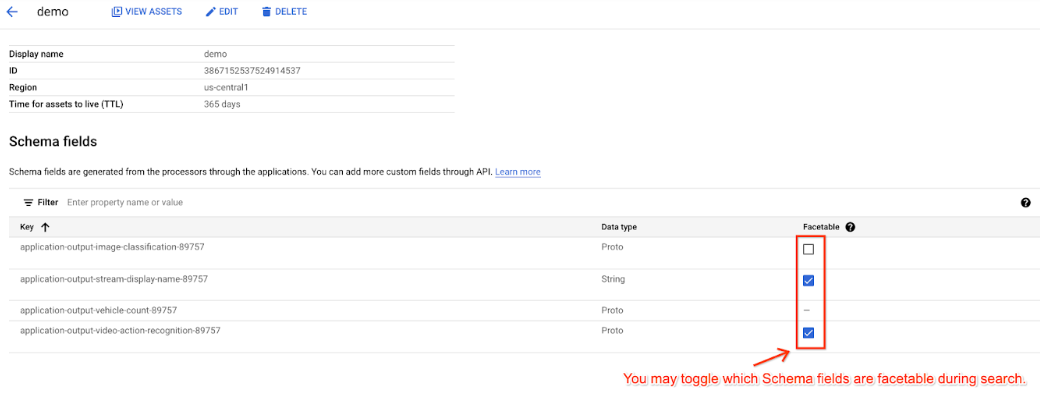
Schema fields are generated from the models through the applications. You can
also [add custom fields](https://docs.cloud.google.com/vision-ai/docs/search-cli-streaming-warehouse.md.txt#create-searchconfig).
After you modify the facetable fields, you can use them to
[search](https://docs.cloud.google.com/vision-ai/docs/search-streaming-warehouse.md.txt) your warehouse.
### Console
1. Open the **Warehouses** tab of the Gemini Enterprise Agent Platform Vision dashboard.
[Go to the Warehouses tab](https://console.cloud.google.com/ai/vision-ai/media-warehouse)
2. Find your desired warehouse, and select its name.
The **Warehouse Details** page appears.
3. Select the fields you want to enable for search.