When you add a BigQuery connector to your Gemini Enterprise Agent Platform Vision app all
the connected app model outputs will be ingested to the target table.
You can either create your own BigQuery table and specify that
table when you add a BigQuery connector to the app, or let
the Gemini Enterprise Agent Platform Vision app platform automatically create the table.
> [!CAUTION]
> **Caution:** Data you ingest into BigQuery is first written to the streaming buffer before they are persisted into the storage. You are not able to use the **Preview** tab to view these rows in the streaming buffer. However, you are still able to read these rows with SQL queries. Use the **Details** tab of the BigQuery table to view metrics about the streaming buffer data.
## Automatic table creation
If you let Gemini Enterprise Agent Platform Vision app platform automatically create the table, you
can specify this option when you add the BigQuery connector node.
The following dataset and table conditions apply if you want to use automatic
table creation:
- Dataset: The automatically created dataset name is `visionai_dataset`.
- Table: The automatically created table name is `visionai_dataset.APPLICATION_ID`.
- Error handling:
- If the table with the same name under the same dataset exists, no automatic creation happens.
### Console
1. Open the **Applications** tab of the Gemini Enterprise Agent Platform Vision dashboard.
[Go to the Applications tab](https://console.cloud.google.com/ai/vision-ai/applications)
2. Select **View app** next to the name of your application from the list.
3. On the application builder page select **BigQuery** from the
**Connectors** section.
4. Leave the **BigQuery path** field empty.
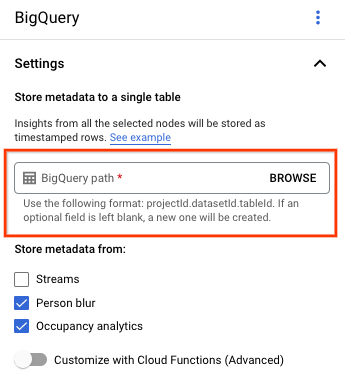
5. Change any other settings.
### REST \& CMD LINE
To let the app platform infer a table schema, use the
`createDefaultTableIfNotExists` field of the [`BigQueryConfig`](https://docs.cloud.google.com/vision-ai/docs/reference/rest/v1alpha1/ApplicationConfigs.md.txt#bigqueryconfig)
when you [create](https://docs.cloud.google.com/vision-ai/docs/reference/rest/v1alpha1/projects.locations.applications/create.md.txt) or [update](https://docs.cloud.google.com/vision-ai/docs/reference/rest/v1alpha1/projects.locations.applications/patch.md.txt) an app.
## Manually create and specify a table
If you want to manage your output table manually, the table must have the
required schema as a subset of the table schema.
If the existing table has incompatible schemas, the deployment is rejected.
### Use the default schema
If you use the default schema for model output tables, make sure your table only
contains the following required columns in the table. You can directly copy
the following
schema text when you create the BigQuery table. For more detailed
information about creating a BigQuery table, see
[Create and use tables](https://docs.cloud.google.com/bigquery/docs/tables.md.txt). For more
information about schema specification when you create a table,
see [Specifying a schema](https://docs.cloud.google.com/bigquery/docs/schemas.md.txt).
Use the following text to describe the schema when you create a table. For
information on using the [`JSON`](https://docs.cloud.google.com/bigquery/docs/reference/standard-sql/data-types.md.txt#json_type) column type
(`"type": "JSON"`), see [Working with JSON data in Standard SQL](https://docs.cloud.google.com/bigquery/docs/reference/standard-sql/json-data).
The JSON column type is recommended for annotation query. You can also use
`"type" : "STRING"`.
```json
[
{
"name": "ingestion_time",
"type": "TIMESTAMP",
"mode": "REQUIRED"
},
{
"name": "application",
"type": "STRING",
"mode": "REQUIRED"
},
{
"name": "instance",
"type": "STRING",
"mode": "REQUIRED"
},
{
"name": "node",
"type": "STRING",
"mode": "REQUIRED"
},
{
"name": "annotation",
"type": "JSON",
"mode": "REQUIRED"
}
]
```
> [!WARNING]
> **Warning:** The BigQuery JSON column may be unavailable in the console. If you cannot create a JSON column in the console, use the `gcloud` command below, or replace the `"JSON"` column with a `"STRING"` column.
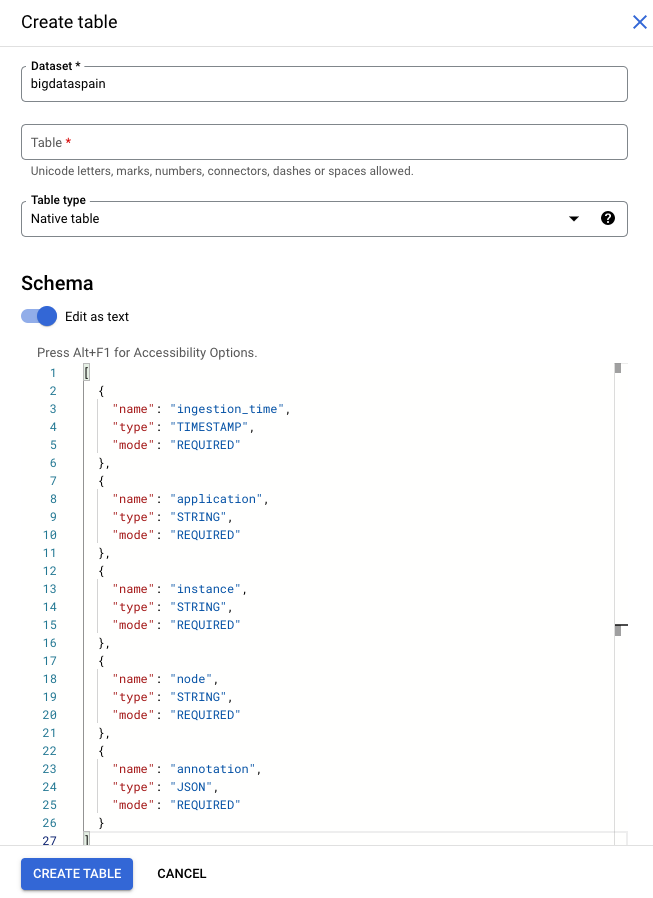
### Google Cloud console
1. In the Google Cloud console, go to the **BigQuery** page.
[Go to BigQuery](https://console.cloud.google.com/bigquery)
2. Select your project.
3. Select more options .
4. Click **Create table**.
5. In the "Schema" section, enable
**Edit as text**.
### gcloud
The following example first creates the request JSON file, then uses the
[`gcloud alpha bq tables create` command](https://docs.cloud.google.com/sdk/gcloud/reference/alpha/bq/tables/create.md.txt).
1. First create the request JSON file:
```
echo "{
\"schema\": [
{
\"name\": \"ingestion_time\",
\"type\": \"TIMESTAMP\",
\"mode\": \"REQUIRED\"
},
{
\"name\": \"application\",
\"type\": \"STRING\",
\"mode\": \"REQUIRED\"
},
{
\"name\": \"instance\",
\"type\": \"STRING\",
\"mode\": \"REQUIRED\"
},
{
\"name\": \"node\",
\"type\": \"STRING\",
\"mode\": \"REQUIRED\"
},
{
\"name\": \"annotation\",
\"type\": \"JSON\",
\"mode\": \"REQUIRED\"
}
]
}
" >> bigquery_schema.json
```
2. Send the `gcloud` command. Make the following replacements:
- TABLE_NAME: The ID of the table or fully
qualified identifier for the table.
- DATASET: The id of the BigQuery dataset.
gcloud alpha bq tables create TABLE_NAME \
--dataset=DATASET \
--schema-file=./bigquery_schema.json
Sample BigQuery rows generated by a Gemini Enterprise Agent Platform Vision app:
| ingestion_time | application | instance | node | annotation |
|---|---|---|---|---|
| 2022-05-11 23:3211.911378 UTC | my_application | 5 | just-one-node | {"bytesFields": \["Ig1qdXN0LW9uZS1ub2RIGgE1Eg5teV9hcHBsaWNhdGlvbgjS+YnOzdj3Ag=="\],"displayNames":\["hello","world"\],"ids":\["12345","34567"\]} |
| 2022-05-11 23:3211.911338 UTC | my_application | 1 | just-one-node | {"bytesFields": \["Ig1qdXN0LW9uZS1ub2RIGgExEg5teV9hcHBsaWNhdGlvbgiq+YnOzdj3Ag=="\],"displayNames":\["hello","world"\],"ids":\["12345","34567"\]} |
| 2022-05-11 23:3211.911313 UTC | my_application | 4 | just-one-node | {"bytesFields": \["Ig1qdXN0LW9uZS1ub2RIGgE0Eg5teV9hcHBsaWNhdGlvbgiR+YnOzdj3Ag=="\],"displayNames":\["hello","world"\],"ids":\["12345","34567"\]} |
| 2022-05-11 23:3212.235327 UTC | my_application | 4 | just-one-node | {"bytesFields": \["Ig1qdXN0LW9uZS1ub2RIGgE0Eg5teV9hcHBsaWNhdGlvbgi/3J3Ozdj3Ag=="\],"displayNames":\["hello","world"\],"ids":\["12345","34567"\]} |
### Use a customized schema
If the default schema doesn't work for your use case, you can use
Cloud Run functions to generate BigQuery rows with a user-defined schema.
If you use a custom schema there is no prerequisite for the BigQuery
table schema.
**App graph with BigQuery node selected**
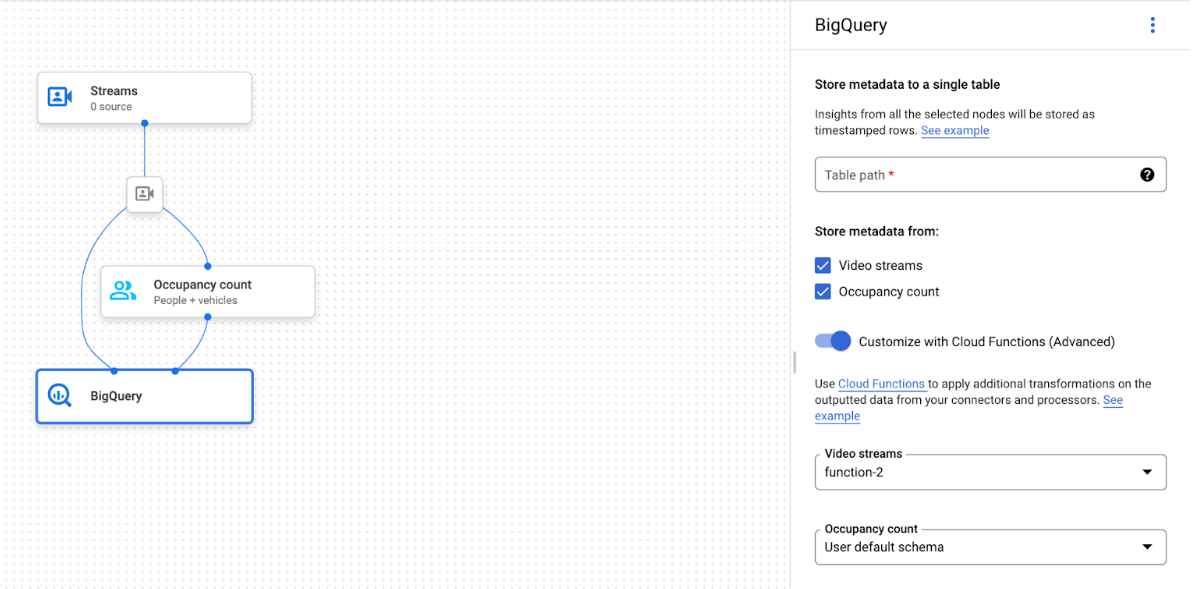
The BigQuery connector can be connected to any model that outputs
video or proto-based annotation:
- For video input, the BigQuery connector *only* extracts the metadata data stored in the stream header and ingests this data to BigQuery as other model annotation outputs. The video itself is *not* stored.
- If your stream contains *no* metadata, nothing will be stored to BigQuery.
## Query table data
With the default BigQuery table schema, you can perform powerful
analysis after the table is populated with data.
### Sample queries
You can use the following sample queries in BigQuery to gain
insight from Gemini Enterprise Agent Platform Vision models.
For example, you can use BigQuery to draw a time-based curve for
maximum number of detected people per minute using data from the
[Person / vehicle detector model](https://docs.cloud.google.com/vision-ai/docs/person-vehicle-model.md.txt) with the following
query:
```sql
WITH
nested3 AS(
WITH
nested2 AS (
WITH
nested AS (
SELECT
t.ingestion_time AS ingestion_time,
JSON_QUERY_ARRAY(t.annotation.stats["fullFrameCount"]) AS counts
FROM
`PROJECT_ID.DATASET_NAME.TABLE_NAME` AS t)
SELECT
ingestion_time,
e
FROM
nested,
UNNEST(nested.counts) AS e)
SELECT
STRING(TIMESTAMP_TRUNC(nested2.ingestion_time, MINUTE, "America/Los_Angeles"),"America/Los_Angeles") AS time,
IFNULL(INT64(nested2.e["count"]), 0) AS person_count
FROM
nested2
WHERE
JSON_VALUE(nested2.e["entity"]["labelString"])="Person")
SELECT
time,
MAX(person_count)
FROM
nested3
GROUP BY
time
```
Similarly, you can use BigQuery and the crossing line count feature
of the [Occupancy analytics model](https://docs.cloud.google.com/vision-ai/docs/occupancy-analytics-model.md.txt) to create a query that counts the
total number of vehicles that pass the crossing line per minute:
```sql
WITH
nested4 AS (
WITH
nested3 AS (
WITH
nested2 AS (
WITH
nested AS (
SELECT
t.ingestion_time AS ingestion_time,
JSON_QUERY_ARRAY(t.annotation.stats["crossingLineCounts"]) AS lines
FROM
`PROJECT_ID.DATASET_NAME.TABLE_NAME` AS t)
SELECT
nested.ingestion_time,
JSON_QUERY_ARRAY(line["positiveDirectionCounts"]) AS entities
FROM
nested,
UNNEST(nested.lines) AS line
WHERE
JSON_VALUE(line.annotation.id) = "LINE_ANNOTATION_ID")
SELECT
ingestion_time,
entity
FROM
nested2,
UNNEST(nested2.entities) AS entity )
SELECT
STRING(TIMESTAMP_TRUNC(nested3.ingestion_time, MINUTE, "America/Los_Angeles"),"America/Los_Angeles") AS time,
IFNULL(INT64(nested3.entity["count"]), 0) AS vehicle_count
FROM
nested3
WHERE
JSON_VALUE(nested3.entity["entity"]["labelString"])="Vehicle" )
SELECT
time,
SUM(vehicle_count)
FROM
nested4
GROUP BY
time
```
### Run your query
After you format your Google Standard SQL query, you can use the
console to run your query:
### Console
1. In the Google Cloud console, open the BigQuery page.
[Go to BigQuery](https://console.cloud.google.com/bigquery)
2. Select **Expand**
next to you dataset name, and select your table name.
3. In the table detail view, click
**Compose new query**.

4. Enter a Google Standard SQL query in the **Query editor** text area.
For example queries, see [sample queries](https://docs.cloud.google.com/vision-ai/docs/connect-bigquery.md.txt#sample-queries).
5. Optional: To change the data processing location, click **Edit** \>
**Query settings** . Under **Processing location** , click **Auto-select** and
choose your data's [location](https://docs.cloud.google.com/bigquery/docs/locations.md.txt). Finally, click
**Save** to update the query settings.
6. Click **Run**.
This creates a query job that writes the output to a temporary table.
## Cloud Run functions integration
You can use Cloud Run functions triggering additional data processing with your
customized BigQuery ingestion.
To use Cloud Run functions for your customized BigQuery ingestion, do
the following:
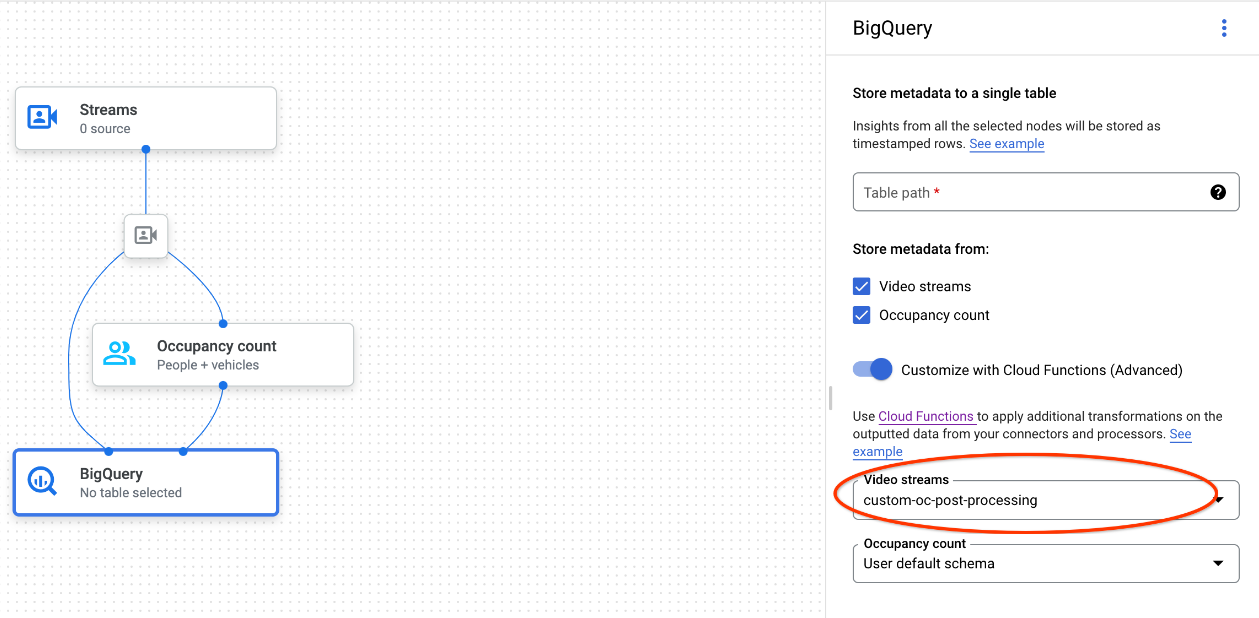
- When using the Google Cloud console, select the corresponding cloud function from
the dropdown menu of each connected model.
- When using the Gemini Enterprise Agent Platform Vision API, add one key-value pair to the
`cloud_function_mapping` field of [`BigQueryConfig`](https://docs.cloud.google.com/vision-ai/docs/reference/rest/v1alpha1/ApplicationConfigs.md.txt#bigqueryconfig) in the
BigQuery node. The key is the BigQuery node
name and value is the http trigger of the target function.
To use Cloud Run functions with your customized BigQuery ingestion, the
function must meet the following requirements:
- The Cloud Run functions instance has to be created before you create the BigQuery node.
- Gemini Enterprise Agent Platform Vision API expects to receive an [`AppendRowsRequest`](https://docs.cloud.google.com/bigquery/docs/reference/storage/rpc/google.cloud.bigquery.storage.v1.md.txt#appendrowsrequest) annotation returned from Cloud Run functions.
- You must set the [`proto_rows.writer_schema`](https://docs.cloud.google.com/bigquery/docs/reference/storage/rpc/google.cloud.bigquery.storage.v1.md.txt#protodata) field for all `CloudFunction` responses ; `write_stream` can be ignored.
### Cloud Run functions integration example
The following example shows how to parse occupancy count node output
(`OccupancyCountPredictionResult`), and
extract from it an `ingestion_time`, `person_count`, and `vehicle_count` table
schema.
The result of the following sample is a BigQuery table with the schema:
```json
[
{
"name": "ingestion_time",
"type": "TIMESTAMP",
"mode": "REQUIRED"
},
{
"name": "person_count",
"type": "INTEGER",
"mode": "NULLABLE"
},
{
"name": "vehicle_count",
"type": "INTEGER",
"mode": "NULLABLE"
},
]
```
Use the following code to create this table:
1. Define a proto (for example, `test_table_schema.proto`) for table fields you
want to write:
syntax = "proto3";
package visionai.testing;
message TestTableSchema {
int64 ingestion_time = 1;
int32 person_count = 2;
int32 vehicle_count = 3;
}
2. Compile the proto file to generate the protocol buffer Python file:
protoc -I=./ --python_out=./ ./test_table_schema.proto
3. Import the generated Python file and write the cloud function.
### Python
```python
import base64
import sys
from flask import jsonify
import functions_framework
from google.protobuf import descriptor_pb2
from google.protobuf.json_format import MessageToDict
import test_table_schema_pb2
def table_schema():
schema = descriptor_pb2.DescriptorProto()
test_table_schema_pb2.DESCRIPTOR.message_types_by_name[
'TestTableSchema'].CopyToProto(schema)
return schema
def bigquery_append_row_request(row):
append_row_request = {}
append_row_request['protoRows'] = {
'writerSchema': {
'protoDescriptor': MessageToDict(table_schema())
},
'rows': {
'serializedRows':
base64.b64encode(row.SerializeToString()).decode('utf-8')
}
}
return append_row_request
@functions_framework.http
def hello_http(request):
request_json = request.get_json(silent=False)
annotations = []
payloads = []
if request_json and 'annotations' in request_json:
for annotation_with_timestamp in request_json['annotations']:
row = test_table_schema_pb2.TestTableSchema()
row.person_count = 0
row.vehicle_count = 0
if 'ingestionTimeMicros' in annotation_with_timestamp:
row.ingestion_time = int(
annotation_with_timestamp['ingestionTimeMicros'])
if 'annotation' in annotation_with_timestamp:
annotation = annotation_with_timestamp['annotation']
if 'stats' in annotation:
stats = annotation['stats']
for count in stats['fullFrameCount']:
if count['entity']['labelString'] == 'Person':
if 'count' in count:
row.person_count = count['count']
elif count['entity']['labelString'] == 'Vehicle':
if 'count' in count:
row.vehicle_count = count['count']
payloads.append(bigquery_append_row_request(row))
for payload in payloads:
annotations.append({'annotation': payload})
return jsonify(annotations=annotations)
```
4. To include your dependencies in Cloud Run functions, you must also
upload the generated `test_table_schema_pb2.py` file and specify
`requirements.txt` similar to the following:
functions-framework==3.*
click==7.1.2
cloudevents==1.2.0
deprecation==2.1.0
Flask==1.1.2
gunicorn==20.0.4
itsdangerous==1.1.0
Jinja2==2.11.2
MarkupSafe==1.1.1
pathtools==0.1.2
watchdog==1.0.2
Werkzeug==1.0.1
protobuf==3.12.2
5. Deploy the cloud function and set the corresponding http trigger in the
[`BigQueryConfig`](https://docs.cloud.google.com/vision-ai/docs/reference/rest/v1alpha1/ApplicationConfigs.md.txt#bigqueryconfig).