# Build an app in the console
Learn how to create a simple Gemini Enterprise Agent Platform Vision object detector app in the
Google Cloud console.
*** ** * ** ***
To follow step-by-step guidance for this task directly in the
Google Cloud console, click **Guide me**:
[Guide me](https://console.cloud.google.com/?walkthrough_id=vertex-ai-vision--build-app-console-quickstart)
*** ** * ** ***
## Before you begin
## Create an object detector application
After you have set up your environment, you can create your app.
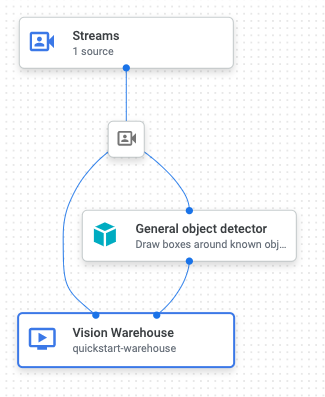
In the Google Cloud console, an app is represented as a graph.
Additionally, in Gemini Enterprise Agent Platform Vision, an app graph must have at least two nodes: a
video source node (stream), and *at least* one more node (a processing model or
output destination).
### Create an empty app
Before you can populate the app graph, you must first create an empty app.
### Console
Create an app in the Google Cloud console.
1. Open the **Applications** tab of the Gemini Enterprise Agent Platform Vision dashboard.
[Go to the Applications tab](https://console.cloud.google.com/ai/vision-ai/applications)
2. Click the **Create** button.
3. Enter `quickstart-app` as the app name and choose your region.
4. Click **Create**.
### Add app component nodes
After you have created the empty application, you can then add the three nodes
to the app graph: the **ingestion node** that can receive stream data, the
**processing node** that performs a computer image task on data, and a **data
destination node**, a warehouse storage destination in this example.
### Console
Add component nodes to your app in the console.
1. Open the **Applications** tab of the Gemini Enterprise Agent Platform Vision dashboard.
[Go to the Applications tab](https://console.cloud.google.com/ai/vision-ai/applications)
2. Next to the name of your `quickstart-app` application in the list,
select **View app**. This takes
you to the graph visualization of the processing pipeline.
**Add a data ingestion node**
1. To add an input stream node, select the **Streams** option in the
**Connectors** section of the side menu.
2. In the **Source** section of the **Stream** menu that opens, select
**Add streams**.
3. In the **Add streams** menu, choose
**Register new
streams** and add `quickstart-stream` as the stream name.
4. To add the stream to the app graph, click **Add streams**.
**Add a data processing node**
1. To add the object detector model node, select the **Object detector**
option in the **Pre-trained models** section of the side menu.

**Add a data storage node**
1. To add the output destination (storage) node, select the
**Gemini Enterprise Agent Platform Vision's Media Warehouse** option in the **Connectors** section of the side
menu.
2. In the **Gemini Enterprise Agent Platform Vision's Media Warehouse** menu, click **Connect warehouse**.
3. In the **Connect warehouse** menu, select
**Create new
warehouse** . Name the warehouse `quickstart-warehouse`, and leave
the TTL duration at 14 days.
4. Click the **Create** button to add the warehouse.
## Deploy your app for use
After you have built your end-to-end app with all the necessary components, the last step to using the app is to deploy it.
### Console
1. Open the **Applications** tab of the Gemini Enterprise Agent Platform Vision dashboard.
[Go to the Applications tab](https://console.cloud.google.com/ai/vision-ai/applications)
2. Next to the name of your `quickstart-app` application in the list,
select **View app**.
3. From the application graph builder page, click the
**Deploy** button.
4. In the following confirmation dialog, select **Deploy**.
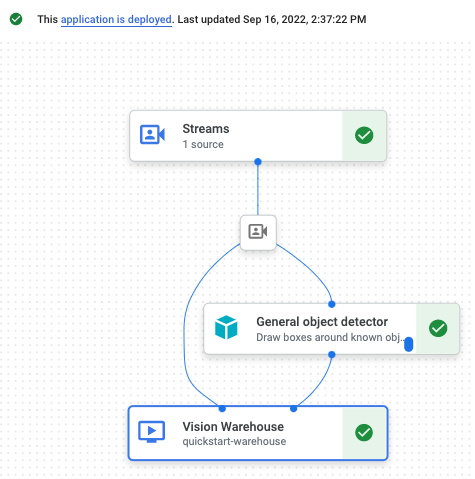
The deploy operation might take several minutes to complete. After
deployment finishes, green check marks appear next to the nodes.
Congratulations! You've just created and deployed your first Gemini Enterprise Agent Platform Vision
app. Creating and deploying an app are the first steps in ingesting and using
processed media data with Gemini Enterprise Agent Platform Vision.
## Clean up
To avoid incurring charges to your Google Cloud account for the resources used
in this quickstart, either delete the project that contains the resources, or
keep the project and delete the individual resources.
### Delete the project
> [!CAUTION]
> **Caution** : Deleting a project has the following effects:
>
> - **Everything in the project is deleted.** If you used an existing project for the tasks in this document, when you delete it, you also delete any other work you've done in the project.
> - **Custom project IDs are lost.** When you created this project, you might have created a custom project ID that you want to use in the future. To preserve the URLs that use the project ID, such as an `appspot.com` URL, delete selected resources inside the project instead of deleting the whole project.
>
>
> If you plan to explore multiple architectures, tutorials, or quickstarts, reusing projects
> can help you avoid exceeding project quota limits.
1. In the Google Cloud console, go to the **Manage resources** page.
[Go to Manage resources](https://console.cloud.google.com/iam-admin/projects)
2. In the project list, select the project that you want to delete, and then click **Delete**.
3. In the dialog, type the project ID, and then click **Shut down** to delete the project.
### Delete individual resources
#### Delete a warehouse
1. In the Google Cloud console, go to the **Warehouses** page.
[Go to the Warehouses tab](https://console.cloud.google.com/ai/vision-ai/media-warehouse)
2. Locate your `quickstart-warehouse` warehouse.
3. To delete the warehouse, click **Actions** , click **Delete warehouse**, and then follow the instructions.
#### Delete a stream
1. In the Google Cloud console, go to the **Streams** page.
[Go to the Streams tab](https://console.cloud.google.com/ai/vision-ai/video-streams)
2. Locate your `quickstart-stream` stream.
3. To delete the stream, click **Actions** , click **Delete stream**, and then follow the instructions.
#### Delete an app
1. In the Google Cloud console, go to the **Applications** page.
[Go to the Applications tab](https://console.cloud.google.com/ai/vision-ai/applications)
> [!NOTE]
> **Note:** You must first undeploy your app before you can delete it.
2. Locate your `quickstart-app` app.
3. To delete the app, click **Actions** , click **Delete application**, and then follow the instructions.
## What's next
- Read [Set up a project and a development environment](https://docs.cloud.google.com/vision-ai/docs/cloud-environment.md.txt) before you use the command line tools.
- Learn how to [ingest data](https://docs.cloud.google.com/vision-ai/docs/create-manage-streams.md.txt#ingest-videos) into your new app and read about other components you can add in [Build an app](https://docs.cloud.google.com/vision-ai/docs/build-app.md.txt).
- Learn about other output storage and processing options in [Connect app output to a data destination](https://docs.cloud.google.com/vision-ai/docs/connect-data-destination.md.txt).
- Read about how to [Search Warehouse data in the console](https://docs.cloud.google.com/vision-ai/docs/search-streaming-warehouse.md.txt).
- Read more about [Responsible AI practices](https://ai.google/responsibilities/responsible-ai-practices/).