# Insert ads into livestreams
This page shows you how to insert ads into a livestream using the
Video Stitcher API and `curl`, PowerShell, or the client libraries.
## Before you begin
Before you call the Video Stitcher API, complete the following steps:
1. This quickstart requires an MPEG-DASH or HTTP Live Streaming (HLS) manifest file. You can create one by following one of the [Live Stream API quickstarts](https://docs.cloud.google.com/livestream/docs/quickstart) up through the **Play the generated livestream** section.
2. As an option, you can use a content delivery network (CDN) with this quickstart. If you haven't configured a CDN, follow the steps in the [Media CDN quickstart](https://docs.cloud.google.com/media-cdn/docs/quickstart.md.txt) with the following modifications:
1. Upload MPEG-DASH or HLS manifest files and media segments into the Cloud Storage bucket.
2. You don't have to make your Cloud Storage bucket publicly readable.
3. You can use signed URLs or unsigned URLs.
## Create a CDN key
The Video Stitcher API can fetch videos from a content delivery network (CDN).
If the video asset is protected by URL signing, a CDN key must be registered
with the Video Stitcher API.
> [!NOTE]
> **Note:** You can [skip to the next section](https://docs.cloud.google.com/video-stitcher/docs/quickstarts/inserting-ads-into-live.md.txt#create-slate) if you are not using a CDN or if your CDN uses unsigned URLs.
To register the CDN key, use the
[`projects.locations.cdnKeys.create`](https://docs.cloud.google.com/video-stitcher/docs/reference/rest/v1/projects.locations.cdnKeys/create.md.txt)
method.
### REST (Media CDN)
Before using any of the request data,
make the following replacements:
- `PROJECT_NUMBER`: your Google Cloud project number; this is located in the **Project number** field on the [IAM Settings](https://console.cloud.google.com/iam-admin/settings) page
- `LOCATION`: the location in which to create your CDN key; use one of the [supported regions](https://docs.cloud.google.com/video-stitcher/docs/locations.md.txt) Show locations
- `us-central1`
- `us-east1`
- `us-west1`
- `asia-east1`
- `asia-south1`
- `asia-southeast1`
- `europe-west1`
- `southamerica-east1`
- `CDN_KEY_ID`: A user-defined identifier for the CDN key, which will become the final component of the CDN key's resource name. This ID can only contain lower-case letters, numbers, and hyphens. The first character must be a letter, the last character must be a letter or a number, and the entire ID has a 63 character maximum.
- `HOSTNAME`: the hostname of the CDN to associate with this CDN key (for example, an IP address like `35.190.60.252` or a domain name like `cdn.example.com`)
- `MEDIA_CDN_KEYNAME`: the keyset name of the [Media CDN key](https://docs.cloud.google.com/media-cdn/docs/keys-overview.md.txt)
- `MEDIA_CDN_PRIVATE_KEY`: The 64-byte Ed25519 private key as a base64-encoded string. See [Create a private key for Media CDN](https://docs.cloud.google.com/video-stitcher/docs/how-to/managing-cdn-keys.md.txt#create-private-key-media-cdn) for more information.
To send your request, expand one of these options:
#### curl (Linux, macOS, or Cloud Shell)
> [!NOTE]
> **Note:** The following command assumes that you have logged in to the `gcloud` CLI with your user account by running [`gcloud init`](https://docs.cloud.google.com/sdk/gcloud/reference/init) or [`gcloud auth login`](https://docs.cloud.google.com/sdk/gcloud/reference/auth/login.md.txt) , or by using [Cloud Shell](https://docs.cloud.google.com/shell/docs.md.txt), which automatically logs you into the `gcloud` CLI . You can check the currently active account by running [`gcloud auth list`](https://docs.cloud.google.com/sdk/gcloud/reference/auth/list.md.txt).
Save the request body in a file named `request.json`.
Run the following command in the terminal to create or overwrite
this file in the current directory:
```
cat > request.json << 'EOF'
{
"hostname": "HOSTNAME",
"mediaCdnKey": {
"keyName": "MEDIA_CDN_KEYNAME",
"privateKey": "MEDIA_CDN_PRIVATE_KEY"
}
}
EOF
```
Then execute the following command to send your REST request:
```
curl -X POST \
-H "Authorization: Bearer $(gcloud auth print-access-token)" \
-H "Content-Type: application/json; charset=utf-8" \
-d @request.json \
"https://videostitcher.googleapis.com/v1/projects/PROJECT_NUMBER/locations/LOCATION/cdnKeys?cdnKeyId=CDN_KEY_ID"
```
#### PowerShell (Windows)
> [!NOTE]
> **Note:** The following command assumes that you have logged in to the `gcloud` CLI with your user account by running [`gcloud init`](https://docs.cloud.google.com/sdk/gcloud/reference/init) or [`gcloud auth login`](https://docs.cloud.google.com/sdk/gcloud/reference/auth/login.md.txt) . You can check the currently active account by running [`gcloud auth list`](https://docs.cloud.google.com/sdk/gcloud/reference/auth/list.md.txt).
Save the request body in a file named `request.json`.
Run the following command in the terminal to create or overwrite
this file in the current directory:
```
@'
{
"hostname": "HOSTNAME",
"mediaCdnKey": {
"keyName": "MEDIA_CDN_KEYNAME",
"privateKey": "MEDIA_CDN_PRIVATE_KEY"
}
}
'@ | Out-File -FilePath request.json -Encoding utf8
```
Then execute the following command to send your REST request:
```
$cred = gcloud auth print-access-token
$headers = @{ "Authorization" = "Bearer $cred" }
Invoke-WebRequest `
-Method POST `
-Headers $headers `
-ContentType: "application/json; charset=utf-8" `
-InFile request.json `
-Uri "https://videostitcher.googleapis.com/v1/projects/PROJECT_NUMBER/locations/LOCATION/cdnKeys?cdnKeyId=CDN_KEY_ID" | Select-Object -Expand Content
```
You should receive a JSON response similar to the following:
```
{
"name": "projects/PROJECT_NUMBER/locations/LOCATION/operations/OPERATION_ID",
"metadata": {
"@type": "type.googleapis.com/google.cloud.common.OperationMetadata",
"createTime": CREATE_TIME,
"target": "projects/PROJECT_NUMBER/locations/LOCATION/cdnKeys/CDN_KEY_ID",
"verb": "create",
"cancelRequested": false,
"apiVersion": "v1"
},
"done": false
}
```
This command creates a [long-running operation (LRO)](https://docs.cloud.google.com/video-stitcher/docs/how-to/manage-long-running-operations.md.txt) that you can query to track progress. Copy the returned `OPERATION_ID`, which is the last part of the `name` field, to use in the next section.
### REST (Cloud CDN)
Before using any of the request data,
make the following replacements:
- `PROJECT_NUMBER`: your Google Cloud project number; this is located in the **Project number** field on the [IAM Settings](https://console.cloud.google.com/iam-admin/settings) page
- `LOCATION`: the location in which to create your CDN key; use one of the [supported regions](https://docs.cloud.google.com/video-stitcher/docs/locations.md.txt) Show locations
- `us-central1`
- `us-east1`
- `us-west1`
- `asia-east1`
- `asia-south1`
- `asia-southeast1`
- `europe-west1`
- `southamerica-east1`
- `CDN_KEY_ID`: A user-defined identifier for the CDN key, which will become the final component of the CDN key's resource name. This ID can only contain lower-case letters, numbers, and hyphens. The first character must be a letter, the last character must be a letter or a number, and the entire ID has a 63 character maximum.
- `HOSTNAME`: the hostname of the CDN to associate with this CDN key (for example, an IP address like `35.190.60.252` or a domain name like `cdn.example.com`)
- `GCDN_KEYNAME`: the name of the [Cloud CDN key](https://docs.cloud.google.com/cdn/docs/using-signed-urls.md.txt#creatingkeys)
- `GCDN_PRIVATE_KEY`: the base64-encoded string secret for the Cloud CDN key
To send your request, expand one of these options:
#### curl (Linux, macOS, or Cloud Shell)
> [!NOTE]
> **Note:** The following command assumes that you have logged in to the `gcloud` CLI with your user account by running [`gcloud init`](https://docs.cloud.google.com/sdk/gcloud/reference/init) or [`gcloud auth login`](https://docs.cloud.google.com/sdk/gcloud/reference/auth/login.md.txt) , or by using [Cloud Shell](https://docs.cloud.google.com/shell/docs.md.txt), which automatically logs you into the `gcloud` CLI . You can check the currently active account by running [`gcloud auth list`](https://docs.cloud.google.com/sdk/gcloud/reference/auth/list.md.txt).
Save the request body in a file named `request.json`.
Run the following command in the terminal to create or overwrite
this file in the current directory:
```
cat > request.json << 'EOF'
{
"hostname": "HOSTNAME",
"googleCdnKey": {
"keyName": "GCDN_KEYNAME",
"privateKey": "GCDN_PRIVATE_KEY"
}
}
EOF
```
Then execute the following command to send your REST request:
```
curl -X POST \
-H "Authorization: Bearer $(gcloud auth print-access-token)" \
-H "Content-Type: application/json; charset=utf-8" \
-d @request.json \
"https://videostitcher.googleapis.com/v1/projects/PROJECT_NUMBER/locations/LOCATION/cdnKeys?cdnKeyId=CDN_KEY_ID"
```
#### PowerShell (Windows)
> [!NOTE]
> **Note:** The following command assumes that you have logged in to the `gcloud` CLI with your user account by running [`gcloud init`](https://docs.cloud.google.com/sdk/gcloud/reference/init) or [`gcloud auth login`](https://docs.cloud.google.com/sdk/gcloud/reference/auth/login.md.txt) . You can check the currently active account by running [`gcloud auth list`](https://docs.cloud.google.com/sdk/gcloud/reference/auth/list.md.txt).
Save the request body in a file named `request.json`.
Run the following command in the terminal to create or overwrite
this file in the current directory:
```
@'
{
"hostname": "HOSTNAME",
"googleCdnKey": {
"keyName": "GCDN_KEYNAME",
"privateKey": "GCDN_PRIVATE_KEY"
}
}
'@ | Out-File -FilePath request.json -Encoding utf8
```
Then execute the following command to send your REST request:
```
$cred = gcloud auth print-access-token
$headers = @{ "Authorization" = "Bearer $cred" }
Invoke-WebRequest `
-Method POST `
-Headers $headers `
-ContentType: "application/json; charset=utf-8" `
-InFile request.json `
-Uri "https://videostitcher.googleapis.com/v1/projects/PROJECT_NUMBER/locations/LOCATION/cdnKeys?cdnKeyId=CDN_KEY_ID" | Select-Object -Expand Content
```
You should receive a JSON response similar to the following:
```
{
"name": "projects/PROJECT_NUMBER/locations/LOCATION/operations/OPERATION_ID",
"metadata": {
"@type": "type.googleapis.com/google.cloud.common.OperationMetadata",
"createTime": CREATE_TIME,
"target": "projects/PROJECT_NUMBER/locations/LOCATION/cdnKeys/CDN_KEY_ID",
"verb": "create",
"cancelRequested": false,
"apiVersion": "v1"
},
"done": false
}
```
This command creates a [long-running operation (LRO)](https://docs.cloud.google.com/video-stitcher/docs/how-to/manage-long-running-operations.md.txt) that you can query to track progress. Copy the returned `OPERATION_ID`, which is the last part of the `name` field, to use in the next section.
### REST (Akamai CDN)
Before using any of the request data,
make the following replacements:
- `PROJECT_NUMBER`: your Google Cloud project number; this is located in the **Project number** field on the [IAM Settings](https://console.cloud.google.com/iam-admin/settings) page
- `LOCATION`: the location in which to create your CDN key; use one of the [supported regions](https://docs.cloud.google.com/video-stitcher/docs/locations.md.txt) Show locations
- `us-central1`
- `us-east1`
- `us-west1`
- `asia-east1`
- `asia-south1`
- `asia-southeast1`
- `europe-west1`
- `southamerica-east1`
- `CDN_KEY_ID`: A user-defined identifier for the CDN key, which will become the final component of the CDN key's resource name. This ID can only contain lower-case letters, numbers, and hyphens. The first character must be a letter, the last character must be a letter or a number, and the entire ID has a 63 character maximum.
- `HOSTNAME`: the hostname of the CDN to associate with this CDN key (for example, an IP address like `35.190.60.252` or a domain name like `cdn.example.com`)
- `AKAMAI_TOKEN_KEY`: the base64-encoded string token key for the Akamai CDN edge configuration
To send your request, expand one of these options:
#### curl (Linux, macOS, or Cloud Shell)
> [!NOTE]
> **Note:** The following command assumes that you have logged in to the `gcloud` CLI with your user account by running [`gcloud init`](https://docs.cloud.google.com/sdk/gcloud/reference/init) or [`gcloud auth login`](https://docs.cloud.google.com/sdk/gcloud/reference/auth/login.md.txt) , or by using [Cloud Shell](https://docs.cloud.google.com/shell/docs.md.txt), which automatically logs you into the `gcloud` CLI . You can check the currently active account by running [`gcloud auth list`](https://docs.cloud.google.com/sdk/gcloud/reference/auth/list.md.txt).
Save the request body in a file named `request.json`.
Run the following command in the terminal to create or overwrite
this file in the current directory:
```
cat > request.json << 'EOF'
{
"hostname": "HOSTNAME",
"akamaiCdnKey": {
"tokenKey": "AKAMAI_TOKEN_KEY"
}
}
EOF
```
Then execute the following command to send your REST request:
```
curl -X POST \
-H "Authorization: Bearer $(gcloud auth print-access-token)" \
-H "Content-Type: application/json; charset=utf-8" \
-d @request.json \
"https://videostitcher.googleapis.com/v1/projects/PROJECT_NUMBER/locations/LOCATION/cdnKeys?cdnKeyId=CDN_KEY_ID"
```
#### PowerShell (Windows)
> [!NOTE]
> **Note:** The following command assumes that you have logged in to the `gcloud` CLI with your user account by running [`gcloud init`](https://docs.cloud.google.com/sdk/gcloud/reference/init) or [`gcloud auth login`](https://docs.cloud.google.com/sdk/gcloud/reference/auth/login.md.txt) . You can check the currently active account by running [`gcloud auth list`](https://docs.cloud.google.com/sdk/gcloud/reference/auth/list.md.txt).
Save the request body in a file named `request.json`.
Run the following command in the terminal to create or overwrite
this file in the current directory:
```
@'
{
"hostname": "HOSTNAME",
"akamaiCdnKey": {
"tokenKey": "AKAMAI_TOKEN_KEY"
}
}
'@ | Out-File -FilePath request.json -Encoding utf8
```
Then execute the following command to send your REST request:
```
$cred = gcloud auth print-access-token
$headers = @{ "Authorization" = "Bearer $cred" }
Invoke-WebRequest `
-Method POST `
-Headers $headers `
-ContentType: "application/json; charset=utf-8" `
-InFile request.json `
-Uri "https://videostitcher.googleapis.com/v1/projects/PROJECT_NUMBER/locations/LOCATION/cdnKeys?cdnKeyId=CDN_KEY_ID" | Select-Object -Expand Content
```
You should receive a JSON response similar to the following:
```
{
"name": "projects/PROJECT_NUMBER/locations/LOCATION/operations/OPERATION_ID",
"metadata": {
"@type": "type.googleapis.com/google.cloud.common.OperationMetadata",
"createTime": CREATE_TIME,
"target": "projects/PROJECT_NUMBER/locations/LOCATION/cdnKeys/CDN_KEY_ID",
"verb": "create",
"cancelRequested": false,
"apiVersion": "v1"
},
"done": false
}
```
This command creates a [long-running operation (LRO)](https://docs.cloud.google.com/video-stitcher/docs/how-to/manage-long-running-operations.md.txt) that you can query to track progress. Copy the returned `OPERATION_ID`, which is the last part of the `name` field, to use in the next section.
### C#
Before trying this sample, follow the C# setup instructions in the
[Video Stitcher API quickstart using
client libraries](https://docs.cloud.google.com/video-stitcher/docs/reference/libraries).
For more information, see the
[Video Stitcher API C# API
reference documentation](https://docs.cloud.google.com/dotnet/docs/reference/Google.Cloud.Video.Stitcher.V1/latest).
To authenticate to Video Stitcher API, set up Application Default Credentials.
For more information, see
[Set up authentication for a local development environment](https://docs.cloud.google.com/docs/authentication/set-up-adc-local-dev-environment.md.txt).
```c#
using Google.Api.Gax.ResourceNames;
using Google.Cloud.Video.Stitcher.V1;
using Google.LongRunning;
using Google.Protobuf;
using System.Threading.Tasks;
public class CreateCdnKeySample
{
public async Task CreateCdnKeyAsync(
string projectId, string location, string cdnKeyId, string hostname,
string keyName, string privateKey, bool isMediaCdn)
{
// Create the client.
VideoStitcherServiceClient client = VideoStitcherServiceClient.Create();
CdnKey cdnKey = new CdnKey
{
Hostname = hostname
};
if (isMediaCdn)
{
cdnKey.MediaCdnKey = new MediaCdnKey
{
KeyName = keyName,
PrivateKey = ByteString.CopyFromUtf8(privateKey)
};
}
else
{
cdnKey.GoogleCdnKey = new GoogleCdnKey
{
KeyName = keyName,
PrivateKey = ByteString.CopyFromUtf8(privateKey)
};
}
CreateCdnKeyRequest request = new CreateCdnKeyRequest
{
ParentAsLocationName = LocationName.FromProjectLocation(projectId, location),
CdnKeyId = cdnKeyId,
CdnKey = cdnKey
};
// Make the request.
Operation response = await client.CreateCdnKeyAsync(request);
// Poll until the returned long-running operation is complete.
Operation completedResponse = await response.PollUntilCompletedAsync();
// Retrieve the operation result.
return completedResponse.Result;
}
}
```
### Go
Before trying this sample, follow the Go setup instructions in the
[Video Stitcher API quickstart using
client libraries](https://docs.cloud.google.com/video-stitcher/docs/reference/libraries).
For more information, see the
[Video Stitcher API Go API
reference documentation](https://pkg.go.dev/cloud.google.com/go/video/stitcher).
To authenticate to Video Stitcher API, set up Application Default Credentials.
For more information, see
[Set up authentication for a local development environment](https://docs.cloud.google.com/docs/authentication/set-up-adc-local-dev-environment.md.txt).
```go
import (
"context"
"fmt"
"io"
stitcher "cloud.google.com/go/video/stitcher/apiv1"
stitcherstreampb "cloud.google.com/go/video/stitcher/apiv1/stitcherpb"
)
// createCDNKey creates a CDN key. A CDN key is used to retrieve protected media.
// If isMediaCDN is true, create a Media CDN key. If false, create a Cloud
// CDN key. To create a privateKey value for Media CDN, see
// https://cloud.google.com/video-stitcher/docs/how-to/managing-cdn-keys#create-private-key-media-cdn.
func createCDNKey(w io.Writer, projectID, keyID, privateKey string, isMediaCDN bool) error {
// projectID := "my-project-id"
// keyID := "my-cdn-key"
// privateKey := "my-private-key"
// isMediaCDN := true
location := "us-central1"
hostname := "cdn.example.com"
keyName := "cdn-key"
ctx := context.Background()
client, err := stitcher.NewVideoStitcherClient(ctx)
if err != nil {
return fmt.Errorf("stitcher.NewVideoStitcherClient: %w", err)
}
defer client.Close()
var req *stitcherstreampb.CreateCdnKeyRequest
if isMediaCDN {
req = &stitcherstreampb.CreateCdnKeyRequest{
Parent: fmt.Sprintf("projects/%s/locations/%s", projectID, location),
CdnKeyId: keyID,
CdnKey: &stitcherstreampb.CdnKey{
CdnKeyConfig: &stitcherstreampb.CdnKey_MediaCdnKey{
MediaCdnKey: &stitcherstreampb.MediaCdnKey{
KeyName: keyName,
PrivateKey: []byte(privateKey),
},
},
Hostname: hostname,
},
}
} else {
req = &stitcherstreampb.CreateCdnKeyRequest{
Parent: fmt.Sprintf("projects/%s/locations/%s", projectID, location),
CdnKeyId: keyID,
CdnKey: &stitcherstreampb.CdnKey{
CdnKeyConfig: &stitcherstreampb.CdnKey_GoogleCdnKey{
GoogleCdnKey: &stitcherstreampb.GoogleCdnKey{
KeyName: keyName,
PrivateKey: []byte(privateKey),
},
},
Hostname: hostname,
},
}
}
// Creates the CDN key.
op, err := client.CreateCdnKey(ctx, req)
if err != nil {
return fmt.Errorf("client.CreateCdnKey: %w", err)
}
response, err := op.Wait(ctx)
if err != nil {
return err
}
fmt.Fprintf(w, "CDN key: %v", response.GetName())
return nil
}
```
### Java
Before trying this sample, follow the Java setup instructions in the
[Video Stitcher API quickstart using
client libraries](https://docs.cloud.google.com/video-stitcher/docs/reference/libraries).
For more information, see the
[Video Stitcher API Java API
reference documentation](https://docs.cloud.google.com/java/docs/reference/google-cloud-video-stitcher/latest/overview).
To authenticate to Video Stitcher API, set up Application Default Credentials.
For more information, see
[Set up authentication for a local development environment](https://docs.cloud.google.com/docs/authentication/set-up-adc-local-dev-environment.md.txt).
```java
import com.google.cloud.video.stitcher.v1.CdnKey;
import com.google.cloud.video.stitcher.v1.CreateCdnKeyRequest;
import com.google.cloud.video.stitcher.v1.GoogleCdnKey;
import com.google.cloud.video.stitcher.v1.LocationName;
import com.google.cloud.video.stitcher.v1.MediaCdnKey;
import com.google.cloud.video.stitcher.v1.VideoStitcherServiceClient;
import com.google.protobuf.ByteString;
import java.io.IOException;
import java.util.concurrent.ExecutionException;
import java.util.concurrent.TimeUnit;
import java.util.concurrent.TimeoutException;
public class CreateCdnKey {
private static final int TIMEOUT_IN_MINUTES = 2;
public static void main(String[] args) throws Exception {
// TODO(developer): Replace these variables before running the sample.
String projectId = "my-project-id";
String location = "us-central1";
String cdnKeyId = "my-cdn-key-id";
String hostname = "cdn.example.com";
String keyName = "my-key";
// To create a privateKey value for Media CDN, see
// https://cloud.google.com/video-stitcher/docs/how-to/managing-cdn-keys#create-private-key-media-cdn.
String privateKey = "my-private-key"; // will be converted to a byte string
Boolean isMediaCdn = true;
createCdnKey(projectId, location, cdnKeyId, hostname, keyName, privateKey, isMediaCdn);
}
// createCdnKey creates a Media CDN key or a Cloud CDN key. A CDN key is used to retrieve
// protected media.
public static CdnKey createCdnKey(
String projectId,
String location,
String cdnKeyId,
String hostname,
String keyName,
String privateKey,
Boolean isMediaCdn)
throws IOException, ExecutionException, InterruptedException, TimeoutException {
// Initialize client that will be used to send requests. This client only needs to be created
// once, and can be reused for multiple requests.
try (VideoStitcherServiceClient videoStitcherServiceClient =
VideoStitcherServiceClient.create()) {
CdnKey cdnKey;
if (isMediaCdn) {
cdnKey =
CdnKey.newBuilder()
.setHostname(hostname)
.setMediaCdnKey(
MediaCdnKey.newBuilder()
.setKeyName(keyName)
.setPrivateKey(ByteString.copyFromUtf8(privateKey))
.build())
.build();
} else {
cdnKey =
CdnKey.newBuilder()
.setHostname(hostname)
.setGoogleCdnKey(
GoogleCdnKey.newBuilder()
.setKeyName(keyName)
.setPrivateKey(ByteString.copyFromUtf8(privateKey))
.build())
.build();
}
CreateCdnKeyRequest createCdnKeyRequest =
CreateCdnKeyRequest.newBuilder()
.setParent(LocationName.of(projectId, location).toString())
.setCdnKeyId(cdnKeyId)
.setCdnKey(cdnKey)
.build();
CdnKey result =
videoStitcherServiceClient
.createCdnKeyAsync(createCdnKeyRequest)
.get(TIMEOUT_IN_MINUTES, TimeUnit.MINUTES);
System.out.println("Created new CDN key: " + result.getName());
return result;
}
}
}
```
### Node.js
Before trying this sample, follow the Node.js setup instructions in the
[Video Stitcher API quickstart using
client libraries](https://docs.cloud.google.com/video-stitcher/docs/reference/libraries).
For more information, see the
[Video Stitcher API Node.js API
reference documentation](https://cloud.google.com/nodejs/docs/reference/video-stitcher/latest).
To authenticate to Video Stitcher API, set up Application Default Credentials.
For more information, see
[Set up authentication for a local development environment](https://docs.cloud.google.com/docs/authentication/set-up-adc-local-dev-environment.md.txt).
```javascript
const location = 'us-central1';
const hostname = 'cdn.example.com';
const keyName = 'cdn-key';
/**
* TODO(developer): Uncomment these variables before running the sample.
*/
// projectId = 'my-project-id';
// cdnKeyId = 'my-cdn-key';
// privateKey = 'my-private-key';
// Imports the Video Stitcher library
const {VideoStitcherServiceClient} =
require('@google-cloud/video-stitcher').v1;
// Instantiates a client
const stitcherClient = new VideoStitcherServiceClient();
async function createCdnKey() {
// Construct request
const request = {
parent: stitcherClient.locationPath(projectId, location),
cdnKey: {
hostname: hostname,
},
cdnKeyId: cdnKeyId,
};
if (isMediaCdn === 'true') {
request.cdnKey.mediaCdnKey = {
keyName: keyName,
privateKey: privateKey,
};
} else {
request.cdnKey.googleCdnKey = {
keyName: keyName,
privateKey: privateKey,
};
}
const [operation] = await stitcherClient.createCdnKey(request);
const [response] = await operation.promise();
console.log(`CDN key: ${response.name}`);
}
createCdnKey().catch(err => {
console.error(err.message);
process.exitCode = 1;
});
```
### PHP
Before trying this sample, follow the PHP setup instructions in the
[Video Stitcher API quickstart using
client libraries](https://docs.cloud.google.com/video-stitcher/docs/reference/libraries).
For more information, see the
[Video Stitcher API PHP API
reference documentation](https://googleapis.github.io/google-cloud-php/#/docs/google-cloud/latest/videostitcher/readme).
To authenticate to Video Stitcher API, set up Application Default Credentials.
For more information, see
[Set up authentication for a local development environment](https://docs.cloud.google.com/docs/authentication/set-up-adc-local-dev-environment.md.txt).
```php
use Google\Cloud\Video\Stitcher\V1\CdnKey;
use Google\Cloud\Video\Stitcher\V1\Client\VideoStitcherServiceClient;
use Google\Cloud\Video\Stitcher\V1\CreateCdnKeyRequest;
use Google\Cloud\Video\Stitcher\V1\GoogleCdnKey;
use Google\Cloud\Video\Stitcher\V1\MediaCdnKey;
/**
* Creates a CDN key. Cloud CDN keys and Media CDN keys are supported.
*
* @param string $callingProjectId The project ID to run the API call under
* @param string $location The location of the CDN key
* @param string $cdnKeyId The ID of the CDN key to be created
* @param string $hostname The hostname of the CDN key
* @param string $keyName For a Media CDN key, this is the keyset name.
* For a Cloud CDN key, this is the public name of the
* CDN key.
* @param string $privateKey For a Media CDN key, this is a 64-byte Ed25519 private
* key encoded as a base64-encoded string. See
* https://cloud.google.com/video-stitcher/docs/how-to/managing-cdn-keys#create-private-key-media-cdn
* for more information. For a Cloud CDN key,
* this is a base64-encoded string secret.
* @param bool $isMediaCdn If true, create a Media CDN key. If false,
* create a Cloud CDN key.
*/
function create_cdn_key(
string $callingProjectId,
string $location,
string $cdnKeyId,
string $hostname,
string $keyName,
string $privateKey,
bool $isMediaCdn
): void {
// Instantiate a client.
$stitcherClient = new VideoStitcherServiceClient();
$parent = $stitcherClient->locationName($callingProjectId, $location);
$cdnKey = new CdnKey();
$cdnKey->setHostname($hostname);
if ($isMediaCdn == true) {
$cloudCdn = new MediaCdnKey();
$cdnKey->setMediaCdnKey($cloudCdn);
} else {
$cloudCdn = new GoogleCdnKey();
$cdnKey->setGoogleCdnKey($cloudCdn);
}
$cloudCdn->setKeyName($keyName);
$cloudCdn->setPrivateKey($privateKey);
// Run CDN key creation request
$request = (new CreateCdnKeyRequest())
->setParent($parent)
->setCdnKey($cdnKey)
->setCdnKeyId($cdnKeyId);
$operationResponse = $stitcherClient->createCdnKey($request);
$operationResponse->pollUntilComplete();
if ($operationResponse->operationSucceeded()) {
$result = $operationResponse->getResult();
// Print results
printf('CDN key: %s' . PHP_EOL, $result->getName());
} else {
$error = $operationResponse->getError();
// handleError($error)
}
}
```
### Python
Before trying this sample, follow the Python setup instructions in the
[Video Stitcher API quickstart using
client libraries](https://docs.cloud.google.com/video-stitcher/docs/reference/libraries).
For more information, see the
[Video Stitcher API Python API
reference documentation](https://docs.cloud.google.com/python/docs/reference/videostitcher/latest).
To authenticate to Video Stitcher API, set up Application Default Credentials.
For more information, see
[Set up authentication for a local development environment](https://docs.cloud.google.com/docs/authentication/set-up-adc-local-dev-environment.md.txt).
```python
import argparse
from google.cloud.video import stitcher_v1
from google.cloud.video.stitcher_v1.services.video_stitcher_service import (
VideoStitcherServiceClient,
)
def create_cdn_key(
project_id: str,
location: str,
cdn_key_id: str,
hostname: str,
key_name: str,
private_key: str,
is_cloud_cdn: bool,
) -> stitcher_v1.types.CdnKey:
"""Creates a Cloud CDN or Media CDN key.
Args:
project_id: The GCP project ID.
location: The location in which to create the CDN key.
cdn_key_id: The user-defined CDN key ID.
hostname: The hostname to which this CDN key applies.
key_name: For a Media CDN key, this is the keyset name.
For a Cloud CDN key, this is the public name of the CDN key.
private_key: For a Media CDN key, this is a 64-byte Ed25519 private
key encoded as a base64-encoded string.
See https://cloud.google.com/video-stitcher/docs/how-to/managing-cdn-keys#create-private-key-media-cdn
for more information. For a Cloud CDN key, this is a base64-encoded string secret.
is_cloud_cdn: If true, create a Cloud CDN key. If false, create a Media CDN key.
Returns:
The CDN key resource.
"""
client = VideoStitcherServiceClient()
parent = f"projects/{project_id}/locations/{location}"
cdn_key = stitcher_v1.types.CdnKey(
name=cdn_key_id,
hostname=hostname,
)
if is_cloud_cdn:
cdn_key.google_cdn_key = stitcher_v1.types.GoogleCdnKey(
key_name=key_name,
private_key=private_key,
)
else:
cdn_key.media_cdn_key = stitcher_v1.types.MediaCdnKey(
key_name=key_name,
private_key=private_key,
)
operation = client.create_cdn_key(
parent=parent, cdn_key_id=cdn_key_id, cdn_key=cdn_key
)
response = operation.result()
print(f"CDN key: {response.name}")
return response
```
### Ruby
Before trying this sample, follow the Ruby setup instructions in the
[Video Stitcher API quickstart using
client libraries](https://docs.cloud.google.com/video-stitcher/docs/reference/libraries).
For more information, see the
[Video Stitcher API Ruby API
reference documentation](https://docs.cloud.google.com/ruby/docs/reference/google-cloud-video-stitcher/latest).
To authenticate to Video Stitcher API, set up Application Default Credentials.
For more information, see
[Set up authentication for a local development environment](https://docs.cloud.google.com/docs/authentication/set-up-adc-local-dev-environment.md.txt).
```ruby
require "google/cloud/video/stitcher"
##
# Create a Media CDN or Cloud CDN key
#
# @param project_id [String] Your Google Cloud project (e.g. `my-project`)
# @param location [String] The location (e.g. `us-central1`)
# @param cdn_key_id [String] The user-defined CDN key ID
# @param hostname [String] The hostname to which this CDN key applies
# @param key_name [String] For a Media CDN key, this is the keyset name.
# For a Cloud CDN key, this is the public name of the CDN key.
# @param private_key [String] For a Media CDN key, this is a 64-byte Ed25519
# private key encoded as a base64-encoded string. See
# https://cloud.google.com/video-stitcher/docs/how-to/managing-cdn-keys#create-private-key-media-cdn
# for more information. For a Cloud CDN key, this is a base64-encoded string
# secret.
# @param is_media_cdn [Boolean] If true, create a Media CDN key. If false,
# create a Cloud CDN key.
#
def create_cdn_key project_id:, location:, cdn_key_id:, hostname:, key_name:,
private_key:, is_media_cdn:
# Create a Video Stitcher client.
client = Google::Cloud::Video::Stitcher.video_stitcher_service
# Build the resource name of the parent.
parent = client.location_path project: project_id, location: location
# Build the path for the CDN key resource.
cdn_key_path = client.cdn_key_path project: project_id, location: location,
cdn_key: cdn_key_id
# Set the CDN key fields.
new_cdn_key = if is_media_cdn
{
name: cdn_key_path,
hostname: hostname,
media_cdn_key: {
key_name: key_name,
private_key: private_key
}
}
else
{
name: cdn_key_path,
hostname: hostname,
google_cdn_key: {
key_name: key_name,
private_key: private_key
}
}
end
operation = client.create_cdn_key parent: parent, cdn_key: new_cdn_key,
cdn_key_id: cdn_key_id
# The returned object is of type Gapic::Operation. You can use this
# object to check the status of an operation, cancel it, or wait
# for results. Here is how to block until completion:
operation.wait_until_done!
# Print the CDN key name.
puts "CDN key: #{operation.response.name}"
end
```
### Check for the result
To check if the CDN key has been created, use the
[`projects.locations.operations.get`](https://docs.cloud.google.com/video-stitcher/docs/reference/rest/v1/projects.locations.operations/get.md.txt)
method. If the response contains `"done: false"`, repeat the command until the
response contains `"done: true"`.
Before using any of the request data,
make the following replacements:
- `PROJECT_NUMBER`: your Google Cloud project number; this is located in the **Project number** field on the [IAM Settings](https://console.cloud.google.com/iam-admin/settings) page
- `LOCATION`: the location of the data; use one of the [supported regions](https://docs.cloud.google.com/video-stitcher/docs/locations.md.txt) Show locations
- `us-central1`
- `us-east1`
- `us-west1`
- `asia-east1`
- `asia-south1`
- `asia-southeast1`
- `europe-west1`
- `southamerica-east1`
- `OPERATION_ID`: the identifier for the operation
To send your request, expand one of these options:
#### curl (Linux, macOS, or Cloud Shell)
> [!NOTE]
> **Note:** The following command assumes that you have logged in to the `gcloud` CLI with your user account by running [`gcloud init`](https://docs.cloud.google.com/sdk/gcloud/reference/init) or [`gcloud auth login`](https://docs.cloud.google.com/sdk/gcloud/reference/auth/login.md.txt) , or by using [Cloud Shell](https://docs.cloud.google.com/shell/docs.md.txt), which automatically logs you into the `gcloud` CLI . You can check the currently active account by running [`gcloud auth list`](https://docs.cloud.google.com/sdk/gcloud/reference/auth/list.md.txt).
Execute the following command:
```
curl -X GET \
-H "Authorization: Bearer $(gcloud auth print-access-token)" \
"https://videostitcher.googleapis.com/v1/projects/PROJECT_NUMBER/locations/LOCATION/operations/OPERATION_ID"
```
#### PowerShell (Windows)
> [!NOTE]
> **Note:** The following command assumes that you have logged in to the `gcloud` CLI with your user account by running [`gcloud init`](https://docs.cloud.google.com/sdk/gcloud/reference/init) or [`gcloud auth login`](https://docs.cloud.google.com/sdk/gcloud/reference/auth/login.md.txt) . You can check the currently active account by running [`gcloud auth list`](https://docs.cloud.google.com/sdk/gcloud/reference/auth/list.md.txt).
Execute the following command:
```
$cred = gcloud auth print-access-token
$headers = @{ "Authorization" = "Bearer $cred" }
Invoke-WebRequest `
-Method GET `
-Headers $headers `
-Uri "https://videostitcher.googleapis.com/v1/projects/PROJECT_NUMBER/locations/LOCATION/operations/OPERATION_ID" | Select-Object -Expand Content
```
You should receive a JSON response similar to the following:
```
{
"name": "projects/PROJECT_NUMBER/locations/LOCATION/operations/OPERATION_ID",
"metadata": {
"@type": "type.googleapis.com/google.cloud.common.OperationMetadata",
"createTime": CREATE_TIME,
"endTime": END_TIME,
"target": "projects/PROJECT_NUMBER/locations/LOCATION/cdnKeys/CDN_KEY_ID",
"verb": "create",
"cancelRequested": false,
"apiVersion": "v1"
},
"done": true,
"response": {
"@type": "type.googleapis.com/google.cloud.video.stitcher.v1.CdnKey",
"name": "projects/PROJECT_NUMBER/locations/LOCATION/cdnKeys/CDN_KEY_ID",
"hostname": "HOSTNAME",
"mediaCdnKey": {
"keyName": "MEDIA_CDN_KEYNAME"
}
}
}
```
## Create a slate
The Video Stitcher API inserts a default slate video when ads can't be
inserted. You must register slate video with the Video Stitcher API to
indicate the slate that will be used in the absence of ads. The slate video can
be any MP4 file with at least one audio track.
> [!NOTE]
> **Note:** You can skip this section if you want to use in-stream ads instead of a slate in the absence of ads.
To create a slate, use the
[`projects.locations.slates.create`](https://docs.cloud.google.com/video-stitcher/docs/reference/rest/v1/projects.locations.slates/create.md.txt)
method.
### REST
Before using any of the request data,
make the following replacements:
- `PROJECT_NUMBER`: your Google Cloud project number; this is located in the **Project number** field on the [IAM Settings](https://console.cloud.google.com/iam-admin/settings) page
- `LOCATION`: the location in which to create your slate; use one of the [supported regions](https://docs.cloud.google.com/video-stitcher/docs/locations.md.txt) Show locations
- `us-central1`
- `us-east1`
- `us-west1`
- `asia-east1`
- `asia-south1`
- `asia-southeast1`
- `europe-west1`
- `southamerica-east1`
- `SLATE_ID`: A user-defined identifier for the slate. This ID can only contain lower-case letters, numbers, and hyphens. The first character must be a letter, the last character must be a letter or a number, and the entire ID has a 63 character maximum.
- `SLATE_URL`: the public URI for an MP4 video with at least one audio track ([sample video](https://docs.cloud.google.com/static/video-stitcher/images/ChromeCast.mp4))
To send your request, expand one of these options:
#### curl (Linux, macOS, or Cloud Shell)
> [!NOTE]
> **Note:** The following command assumes that you have logged in to the `gcloud` CLI with your user account by running [`gcloud init`](https://docs.cloud.google.com/sdk/gcloud/reference/init) or [`gcloud auth login`](https://docs.cloud.google.com/sdk/gcloud/reference/auth/login.md.txt) , or by using [Cloud Shell](https://docs.cloud.google.com/shell/docs.md.txt), which automatically logs you into the `gcloud` CLI . You can check the currently active account by running [`gcloud auth list`](https://docs.cloud.google.com/sdk/gcloud/reference/auth/list.md.txt).
Save the request body in a file named `request.json`.
Run the following command in the terminal to create or overwrite
this file in the current directory:
```
cat > request.json << 'EOF'
{
"uri": "SLATE_URL"
}
EOF
```
Then execute the following command to send your REST request:
```
curl -X POST \
-H "Authorization: Bearer $(gcloud auth print-access-token)" \
-H "Content-Type: application/json; charset=utf-8" \
-d @request.json \
"https://videostitcher.googleapis.com/v1/projects/PROJECT_NUMBER/locations/LOCATION/slates?slateId=SLATE_ID"
```
#### PowerShell (Windows)
> [!NOTE]
> **Note:** The following command assumes that you have logged in to the `gcloud` CLI with your user account by running [`gcloud init`](https://docs.cloud.google.com/sdk/gcloud/reference/init) or [`gcloud auth login`](https://docs.cloud.google.com/sdk/gcloud/reference/auth/login.md.txt) . You can check the currently active account by running [`gcloud auth list`](https://docs.cloud.google.com/sdk/gcloud/reference/auth/list.md.txt).
Save the request body in a file named `request.json`.
Run the following command in the terminal to create or overwrite
this file in the current directory:
```
@'
{
"uri": "SLATE_URL"
}
'@ | Out-File -FilePath request.json -Encoding utf8
```
Then execute the following command to send your REST request:
```
$cred = gcloud auth print-access-token
$headers = @{ "Authorization" = "Bearer $cred" }
Invoke-WebRequest `
-Method POST `
-Headers $headers `
-ContentType: "application/json; charset=utf-8" `
-InFile request.json `
-Uri "https://videostitcher.googleapis.com/v1/projects/PROJECT_NUMBER/locations/LOCATION/slates?slateId=SLATE_ID" | Select-Object -Expand Content
```
You should receive a JSON response similar to the following:
```
{
"name": "projects/PROJECT_NUMBER/locations/LOCATION/operations/OPERATION_ID",
"metadata": {
"@type": "type.googleapis.com/google.cloud.common.OperationMetadata",
"createTime": CREATE_TIME,
"target": "projects/PROJECT_NUMBER/locations/LOCATION/slates/SLATE_ID",
"verb": "create",
"cancelRequested": false,
"apiVersion": "v1"
},
"done": false
}
```
This command creates a [long-running operation (LRO)](https://docs.cloud.google.com/video-stitcher/docs/how-to/manage-long-running-operations.md.txt) that you can query to track progress. Copy the returned `OPERATION_ID`, which is the last part of the `name` field, to use in the next section.
### C#
Before trying this sample, follow the C# setup instructions in the
[Video Stitcher API quickstart using
client libraries](https://docs.cloud.google.com/video-stitcher/docs/reference/libraries).
For more information, see the
[Video Stitcher API C# API
reference documentation](https://docs.cloud.google.com/dotnet/docs/reference/Google.Cloud.Video.Stitcher.V1/latest).
To authenticate to Video Stitcher API, set up Application Default Credentials.
For more information, see
[Set up authentication for a local development environment](https://docs.cloud.google.com/docs/authentication/set-up-adc-local-dev-environment.md.txt).
```c#
using Google.Api.Gax.ResourceNames;
using Google.Cloud.Video.Stitcher.V1;
using Google.LongRunning;
using System.Threading.Tasks;
public class CreateSlateSample
{
public async Task CreateSlateAsync(
string projectId, string location, string slateId, string slateUri)
{
// Create the client.
VideoStitcherServiceClient client = VideoStitcherServiceClient.Create();
CreateSlateRequest request = new CreateSlateRequest
{
ParentAsLocationName = LocationName.FromProjectLocation(projectId, location),
SlateId = slateId,
Slate = new Slate
{
Uri = slateUri
}
};
// Make the request.
Operation response = await client.CreateSlateAsync(request);
// Poll until the returned long-running operation is complete.
Operation completedResponse = await response.PollUntilCompletedAsync();
// Retrieve the operation result.
return completedResponse.Result;
}
}
```
### Go
Before trying this sample, follow the Go setup instructions in the
[Video Stitcher API quickstart using
client libraries](https://docs.cloud.google.com/video-stitcher/docs/reference/libraries).
For more information, see the
[Video Stitcher API Go API
reference documentation](https://pkg.go.dev/cloud.google.com/go/video/stitcher).
To authenticate to Video Stitcher API, set up Application Default Credentials.
For more information, see
[Set up authentication for a local development environment](https://docs.cloud.google.com/docs/authentication/set-up-adc-local-dev-environment.md.txt).
```go
import (
"context"
"fmt"
"io"
stitcher "cloud.google.com/go/video/stitcher/apiv1"
stitcherstreampb "cloud.google.com/go/video/stitcher/apiv1/stitcherpb"
)
// createSlate creates a slate. A slate is displayed when ads are not available.
func createSlate(w io.Writer, projectID, slateID, slateURI string) error {
// projectID := "my-project-id"
// slateID := "my-slate-id"
// slateURI := "https://my-slate-uri/test.mp4"
location := "us-central1"
ctx := context.Background()
client, err := stitcher.NewVideoStitcherClient(ctx)
if err != nil {
return fmt.Errorf("stitcher.NewVideoStitcherClient: %w", err)
}
defer client.Close()
req := &stitcherstreampb.CreateSlateRequest{
Parent: fmt.Sprintf("projects/%s/locations/%s", projectID, location),
SlateId: slateID,
Slate: &stitcherstreampb.Slate{
Uri: slateURI,
},
}
// Creates the slate.
op, err := client.CreateSlate(ctx, req)
if err != nil {
return fmt.Errorf("client.CreateSlate: %w", err)
}
response, err := op.Wait(ctx)
if err != nil {
return err
}
fmt.Fprintf(w, "Slate: %v", response.GetName())
return nil
}
```
### Java
Before trying this sample, follow the Java setup instructions in the
[Video Stitcher API quickstart using
client libraries](https://docs.cloud.google.com/video-stitcher/docs/reference/libraries).
For more information, see the
[Video Stitcher API Java API
reference documentation](https://docs.cloud.google.com/java/docs/reference/google-cloud-video-stitcher/latest/overview).
To authenticate to Video Stitcher API, set up Application Default Credentials.
For more information, see
[Set up authentication for a local development environment](https://docs.cloud.google.com/docs/authentication/set-up-adc-local-dev-environment.md.txt).
```java
import com.google.cloud.video.stitcher.v1.CreateSlateRequest;
import com.google.cloud.video.stitcher.v1.LocationName;
import com.google.cloud.video.stitcher.v1.Slate;
import com.google.cloud.video.stitcher.v1.VideoStitcherServiceClient;
import java.io.IOException;
import java.util.concurrent.ExecutionException;
import java.util.concurrent.TimeUnit;
import java.util.concurrent.TimeoutException;
public class CreateSlate {
private static final int TIMEOUT_IN_MINUTES = 2;
public static void main(String[] args) throws Exception {
// TODO(developer): Replace these variables before running the sample.
String projectId = "my-project-id";
String location = "us-central1";
String slateId = "my-slate-id";
String slateUri =
"https://my-slate-uri/test.mp4"; // URI of an MP4 video with at least one audio track
createSlate(projectId, location, slateId, slateUri);
}
// Creates a slate. Slates are content that can be served when there are gaps in a livestream
// ad break that cannot be filled with a dynamically served ad. For more information, see
// https://cloud.google.com/video-stitcher/docs/how-to/managing-slates.
public static Slate createSlate(
String projectId, String location, String slateId, String slateUri)
throws IOException, ExecutionException, InterruptedException, TimeoutException {
// Initialize client that will be used to send requests. This client only needs to be created
// once, and can be reused for multiple requests.
try (VideoStitcherServiceClient videoStitcherServiceClient =
VideoStitcherServiceClient.create()) {
CreateSlateRequest createSlateRequest =
CreateSlateRequest.newBuilder()
.setParent(LocationName.of(projectId, location).toString())
.setSlateId(slateId)
.setSlate(Slate.newBuilder().setUri(slateUri).build())
.build();
Slate response =
videoStitcherServiceClient
.createSlateAsync(createSlateRequest)
.get(TIMEOUT_IN_MINUTES, TimeUnit.MINUTES);
System.out.println("Created new slate: " + response.getName());
return response;
}
}
}
```
### Node.js
Before trying this sample, follow the Node.js setup instructions in the
[Video Stitcher API quickstart using
client libraries](https://docs.cloud.google.com/video-stitcher/docs/reference/libraries).
For more information, see the
[Video Stitcher API Node.js API
reference documentation](https://cloud.google.com/nodejs/docs/reference/video-stitcher/latest).
To authenticate to Video Stitcher API, set up Application Default Credentials.
For more information, see
[Set up authentication for a local development environment](https://docs.cloud.google.com/docs/authentication/set-up-adc-local-dev-environment.md.txt).
```javascript
/**
* TODO(developer): Uncomment these variables before running the sample.
*/
// projectId = 'my-project-id';
// location = 'us-central1';
// slateId = 'my-slate';
// slateUri = 'https://my-slate-uri/test.mp4';
// Imports the Video Stitcher library
const {VideoStitcherServiceClient} =
require('@google-cloud/video-stitcher').v1;
// Instantiates a client
const stitcherClient = new VideoStitcherServiceClient();
async function createSlate() {
// Construct request
const request = {
parent: stitcherClient.locationPath(projectId, location),
slate: {
uri: slateUri,
},
slateId: slateId,
};
const [operation] = await stitcherClient.createSlate(request);
const [response] = await operation.promise();
console.log(`response.name: ${response.name}`);
}
createSlate().catch(err => {
console.error(err.message);
process.exitCode = 1;
});
```
### PHP
Before trying this sample, follow the PHP setup instructions in the
[Video Stitcher API quickstart using
client libraries](https://docs.cloud.google.com/video-stitcher/docs/reference/libraries).
For more information, see the
[Video Stitcher API PHP API
reference documentation](https://googleapis.github.io/google-cloud-php/#/docs/google-cloud/latest/videostitcher/readme).
To authenticate to Video Stitcher API, set up Application Default Credentials.
For more information, see
[Set up authentication for a local development environment](https://docs.cloud.google.com/docs/authentication/set-up-adc-local-dev-environment.md.txt).
```php
use Google\Cloud\Video\Stitcher\V1\Client\VideoStitcherServiceClient;
use Google\Cloud\Video\Stitcher\V1\CreateSlateRequest;
use Google\Cloud\Video\Stitcher\V1\Slate;
/**
* Creates a slate. A slate is displayed when ads are not available.
*
* @param string $callingProjectId The project ID to run the API call under
* @param string $location The location of the slate
* @param string $slateId The name of the slate to be created
* @param string $slateUri The public URI for an MP4 video with at least one audio track
*/
function create_slate(
string $callingProjectId,
string $location,
string $slateId,
string $slateUri
): void {
// Instantiate a client.
$stitcherClient = new VideoStitcherServiceClient();
$parent = $stitcherClient->locationName($callingProjectId, $location);
$slate = new Slate();
$slate->setUri($slateUri);
// Run slate creation request
$request = (new CreateSlateRequest())
->setParent($parent)
->setSlateId($slateId)
->setSlate($slate);
$operationResponse = $stitcherClient->createSlate($request);
$operationResponse->pollUntilComplete();
if ($operationResponse->operationSucceeded()) {
$result = $operationResponse->getResult();
// Print results
printf('Slate: %s' . PHP_EOL, $result->getName());
} else {
$error = $operationResponse->getError();
// handleError($error)
}
}
```
### Python
Before trying this sample, follow the Python setup instructions in the
[Video Stitcher API quickstart using
client libraries](https://docs.cloud.google.com/video-stitcher/docs/reference/libraries).
For more information, see the
[Video Stitcher API Python API
reference documentation](https://docs.cloud.google.com/python/docs/reference/videostitcher/latest).
To authenticate to Video Stitcher API, set up Application Default Credentials.
For more information, see
[Set up authentication for a local development environment](https://docs.cloud.google.com/docs/authentication/set-up-adc-local-dev-environment.md.txt).
```python
import argparse
from google.cloud.video import stitcher_v1
from google.cloud.video.stitcher_v1.services.video_stitcher_service import (
VideoStitcherServiceClient,
)
def create_slate(
project_id: str, location: str, slate_id: str, slate_uri: str
) -> stitcher_v1.types.Slate:
"""Creates a slate.
Args:
project_id: The GCP project ID.
location: The location in which to create the slate.
slate_id: The user-defined slate ID.
slate_uri: Uri of the video slate; must be an MP4 video with at least one audio track.
Returns:
The slate resource.
"""
client = VideoStitcherServiceClient()
parent = f"projects/{project_id}/locations/{location}"
slate = stitcher_v1.types.Slate(
uri=slate_uri,
)
operation = client.create_slate(parent=parent, slate_id=slate_id, slate=slate)
response = operation.result()
print(f"Slate: {response.name}")
return response
```
### Ruby
Before trying this sample, follow the Ruby setup instructions in the
[Video Stitcher API quickstart using
client libraries](https://docs.cloud.google.com/video-stitcher/docs/reference/libraries).
For more information, see the
[Video Stitcher API Ruby API
reference documentation](https://docs.cloud.google.com/ruby/docs/reference/google-cloud-video-stitcher/latest).
To authenticate to Video Stitcher API, set up Application Default Credentials.
For more information, see
[Set up authentication for a local development environment](https://docs.cloud.google.com/docs/authentication/set-up-adc-local-dev-environment.md.txt).
```ruby
require "google/cloud/video/stitcher"
##
# Create a slate
#
# @param project_id [String] Your Google Cloud project (e.g. `my-project`)
# @param location [String] The location (e.g. `us-central1`)
# @param slate_id [String] Your slate name (e.g. `my-slate`)
# @param slate_uri [String] The URI of an MP4 video with at least one audio
# track (e.g. `https://my-slate-uri/test.mp4`)
#
def create_slate project_id:, location:, slate_id:, slate_uri:
# Create a Video Stitcher client.
client = Google::Cloud::Video::Stitcher.video_stitcher_service
# Build the resource name of the parent.
parent = client.location_path project: project_id, location: location
# Set the slate fields.
new_slate = {
uri: slate_uri
}
operation = client.create_slate parent: parent, slate_id: slate_id,
slate: new_slate
# The returned object is of type Gapic::Operation. You can use this
# object to check the status of an operation, cancel it, or wait
# for results. Here is how to block until completion:
operation.wait_until_done!
# Print the slate name.
puts "Slate: #{operation.response.name}"
end
```
### Check for the result
To check if the slate has been created, use the
[`projects.locations.operations.get`](https://docs.cloud.google.com/video-stitcher/docs/reference/rest/v1/projects.locations.operations/get.md.txt)
method. If the response contains `"done: false"`, repeat the command until the
response contains `"done: true"`.
Before using any of the request data,
make the following replacements:
- `PROJECT_NUMBER`: your Google Cloud project number; this is located in the **Project number** field on the [IAM Settings](https://console.cloud.google.com/iam-admin/settings) page
- `LOCATION`: the location of the data; use one of the [supported regions](https://docs.cloud.google.com/video-stitcher/docs/locations.md.txt) Show locations
- `us-central1`
- `us-east1`
- `us-west1`
- `asia-east1`
- `asia-south1`
- `asia-southeast1`
- `europe-west1`
- `southamerica-east1`
- `OPERATION_ID`: the identifier for the operation
To send your request, expand one of these options:
#### curl (Linux, macOS, or Cloud Shell)
> [!NOTE]
> **Note:** The following command assumes that you have logged in to the `gcloud` CLI with your user account by running [`gcloud init`](https://docs.cloud.google.com/sdk/gcloud/reference/init) or [`gcloud auth login`](https://docs.cloud.google.com/sdk/gcloud/reference/auth/login.md.txt) , or by using [Cloud Shell](https://docs.cloud.google.com/shell/docs.md.txt), which automatically logs you into the `gcloud` CLI . You can check the currently active account by running [`gcloud auth list`](https://docs.cloud.google.com/sdk/gcloud/reference/auth/list.md.txt).
Execute the following command:
```
curl -X GET \
-H "Authorization: Bearer $(gcloud auth print-access-token)" \
"https://videostitcher.googleapis.com/v1/projects/PROJECT_NUMBER/locations/LOCATION/operations/OPERATION_ID"
```
#### PowerShell (Windows)
> [!NOTE]
> **Note:** The following command assumes that you have logged in to the `gcloud` CLI with your user account by running [`gcloud init`](https://docs.cloud.google.com/sdk/gcloud/reference/init) or [`gcloud auth login`](https://docs.cloud.google.com/sdk/gcloud/reference/auth/login.md.txt) . You can check the currently active account by running [`gcloud auth list`](https://docs.cloud.google.com/sdk/gcloud/reference/auth/list.md.txt).
Execute the following command:
```
$cred = gcloud auth print-access-token
$headers = @{ "Authorization" = "Bearer $cred" }
Invoke-WebRequest `
-Method GET `
-Headers $headers `
-Uri "https://videostitcher.googleapis.com/v1/projects/PROJECT_NUMBER/locations/LOCATION/operations/OPERATION_ID" | Select-Object -Expand Content
```
You should receive a JSON response similar to the following:
```
{
"name": "projects/PROJECT_NUMBER/locations/LOCATION/operations/OPERATION_ID",
"metadata": {
"@type": "type.googleapis.com/google.cloud.common.OperationMetadata",
"createTime": CREATE_TIME,
"endTime": END_TIME,
"target": "projects/PROJECT_NUMBER/locations/LOCATION/slates/SLATE_ID",
"verb": "create",
"cancelRequested": false,
"apiVersion": "v1"
},
"done": true,
"response": {
"@type": "type.googleapis.com/google.cloud.video.stitcher.v1.Slate",
"name": "projects/PROJECT_NUMBER/locations/LOCATION/slates/SLATE_ID",
"uri": "SLATE_URL"
}
}
```
## Create the live config
Before you create a live session, you need to create a configuration for it.
Many live sessions can share the same configuration.
To create the config, use the
[`projects.locations.liveConfigs.create`](https://docs.cloud.google.com/video-stitcher/docs/reference/rest/v1/projects.locations.liveConfigs/create.md.txt)
method.
### REST
Before using any of the request data,
make the following replacements:
- `PROJECT_NUMBER`: your Google Cloud project number; this is located in the **Project number** field on the [IAM Settings](https://console.cloud.google.com/iam-admin/settings) page
- `LOCATION`: the location in which to create your live config; use one of the [supported regions](https://docs.cloud.google.com/video-stitcher/docs/locations.md.txt) Show locations
- `us-central1`
- `us-east1`
- `us-west1`
- `asia-east1`
- `asia-south1`
- `asia-southeast1`
- `europe-west1`
- `southamerica-east1`
- `LIVE_CONFIG_ID`: a user-defined identifier for the live config. This ID can only contain lower-case letters, numbers, and hyphens. The first character must be a letter, the last character must be a letter or a number, and the entire ID has a 63 character maximum.
- `SOURCE_LIVESTREAM_URI`: the URI of the livestream manifest; use a public URI or an unsigned URI for which you [registered a CDN key](https://docs.cloud.google.com/video-stitcher/docs/how-to/managing-cdn-keys.md.txt)
-
```
AD_TAG_URI
```
the public URI for the default ad tag. If you don't have one, you can use a [Single Inline Linear](https://developers.google.com/interactive-media-ads/docs/sdks/html5/client-side/tags) sample.
- `SLATE_ID`: the ID of the slate to use in the absence of stitched ads
To send your request, expand one of these options:
#### curl (Linux, macOS, or Cloud Shell)
> [!NOTE]
> **Note:** The following command assumes that you have logged in to the `gcloud` CLI with your user account by running [`gcloud init`](https://docs.cloud.google.com/sdk/gcloud/reference/init) or [`gcloud auth login`](https://docs.cloud.google.com/sdk/gcloud/reference/auth/login.md.txt) , or by using [Cloud Shell](https://docs.cloud.google.com/shell/docs.md.txt), which automatically logs you into the `gcloud` CLI . You can check the currently active account by running [`gcloud auth list`](https://docs.cloud.google.com/sdk/gcloud/reference/auth/list.md.txt).
Save the request body in a file named `request.json`.
Run the following command in the terminal to create or overwrite
this file in the current directory:
```
cat > request.json << 'EOF'
{
"sourceUri": "SOURCE_LIVESTREAM_URI",
"adTagUri": "AD_TAG_URI",
"defaultSlate": "projects/PROJECT_NUMBER/locations/LOCATION/slates/SLATE_ID",
"adTracking": "SERVER",
"stitchingPolicy": "CUT_CURRENT"
}
EOF
```
Then execute the following command to send your REST request:
```
curl -X POST \
-H "Authorization: Bearer $(gcloud auth print-access-token)" \
-H "Content-Type: application/json; charset=utf-8" \
-d @request.json \
"https://videostitcher.googleapis.com/v1/projects/PROJECT_NUMBER/locations/LOCATION/liveConfigs?liveConfigId=LIVE_CONFIG_ID"
```
#### PowerShell (Windows)
> [!NOTE]
> **Note:** The following command assumes that you have logged in to the `gcloud` CLI with your user account by running [`gcloud init`](https://docs.cloud.google.com/sdk/gcloud/reference/init) or [`gcloud auth login`](https://docs.cloud.google.com/sdk/gcloud/reference/auth/login.md.txt) . You can check the currently active account by running [`gcloud auth list`](https://docs.cloud.google.com/sdk/gcloud/reference/auth/list.md.txt).
Save the request body in a file named `request.json`.
Run the following command in the terminal to create or overwrite
this file in the current directory:
```
@'
{
"sourceUri": "SOURCE_LIVESTREAM_URI",
"adTagUri": "AD_TAG_URI",
"defaultSlate": "projects/PROJECT_NUMBER/locations/LOCATION/slates/SLATE_ID",
"adTracking": "SERVER",
"stitchingPolicy": "CUT_CURRENT"
}
'@ | Out-File -FilePath request.json -Encoding utf8
```
Then execute the following command to send your REST request:
```
$cred = gcloud auth print-access-token
$headers = @{ "Authorization" = "Bearer $cred" }
Invoke-WebRequest `
-Method POST `
-Headers $headers `
-ContentType: "application/json; charset=utf-8" `
-InFile request.json `
-Uri "https://videostitcher.googleapis.com/v1/projects/PROJECT_NUMBER/locations/LOCATION/liveConfigs?liveConfigId=LIVE_CONFIG_ID" | Select-Object -Expand Content
```
You should receive a JSON response similar to the following:
```
{
"name": "projects/PROJECT_NUMBER/locations/LOCATION/operations/OPERATION_ID",
"metadata": {
"@type": "type.googleapis.com/google.cloud.common.OperationMetadata",
"createTime": CREATE_TIME,
"target": "projects/PROJECT_NUMBER/locations/LOCATION/liveConfigs/LIVE_CONFIG_ID",
"verb": "create",
"cancelRequested": false,
"apiVersion": "v1"
},
"done": false
}
```
This command creates a [long-running operation (LRO)](https://docs.cloud.google.com/video-stitcher/docs/how-to/manage-long-running-operations.md.txt) that you can query to track progress. For more information, see [Check for the result](https://docs.cloud.google.com/video-stitcher/docs/quickstarts/inserting-ads-into-live.md.txt#check-for-result).
### C#
Before trying this sample, follow the C# setup instructions in the
[Video Stitcher API quickstart using
client libraries](https://docs.cloud.google.com/video-stitcher/docs/reference/libraries).
For more information, see the
[Video Stitcher API C# API
reference documentation](https://docs.cloud.google.com/dotnet/docs/reference/Google.Cloud.Video.Stitcher.V1/latest).
To authenticate to Video Stitcher API, set up Application Default Credentials.
For more information, see
[Set up authentication for a local development environment](https://docs.cloud.google.com/docs/authentication/set-up-adc-local-dev-environment.md.txt).
```c#
using Google.Api.Gax.ResourceNames;
using Google.Cloud.Video.Stitcher.V1;
using Google.LongRunning;
using System.Threading.Tasks;
public class CreateLiveConfigSample
{
public async Task CreateLiveConfigAsync(
string projectId, string location, string liveConfigId, string sourceUri, string adTagUri, string slateId)
{
// Create the client.
VideoStitcherServiceClient client = VideoStitcherServiceClient.Create();
CreateLiveConfigRequest request = new CreateLiveConfigRequest
{
ParentAsLocationName = LocationName.FromProjectLocation(projectId, location),
LiveConfigId = liveConfigId,
LiveConfig = new LiveConfig
{
SourceUri = sourceUri,
AdTagUri = adTagUri,
DefaultSlate = SlateName.FormatProjectLocationSlate(projectId, location, slateId),
AdTracking = AdTracking.Server,
StitchingPolicy = LiveConfig.Types.StitchingPolicy.CutCurrent
}
};
// Make the request.
Operation response = await client.CreateLiveConfigAsync(request);
// Poll until the returned long-running operation is complete.
Operation completedResponse = await response.PollUntilCompletedAsync();
// Retrieve the operation result.
return completedResponse.Result;
}
}
```
### Go
Before trying this sample, follow the Go setup instructions in the
[Video Stitcher API quickstart using
client libraries](https://docs.cloud.google.com/video-stitcher/docs/reference/libraries).
For more information, see the
[Video Stitcher API Go API
reference documentation](https://pkg.go.dev/cloud.google.com/go/video/stitcher).
To authenticate to Video Stitcher API, set up Application Default Credentials.
For more information, see
[Set up authentication for a local development environment](https://docs.cloud.google.com/docs/authentication/set-up-adc-local-dev-environment.md.txt).
```go
import (
"context"
"fmt"
"io"
stitcher "cloud.google.com/go/video/stitcher/apiv1"
stitcherstreampb "cloud.google.com/go/video/stitcher/apiv1/stitcherpb"
)
// createLiveConfig creates a live config. Live configs are used to configure live sessions.
func createLiveConfig(w io.Writer, projectID, liveConfigID, sourceURI, slateID string) error {
// projectID := "my-project-id"
// liveConfigID := "my-live-config-id"
// Uri of the media to stitch; this URI must reference either an MPEG-DASH
// manifest (.mpd) file or an M3U playlist manifest (.m3u8) file.
// sourceURI := "https://storage.googleapis.com/my-bucket/main.mpd"
// See https://cloud.google.com/video-stitcher/docs/concepts for information
// on ad tags and ad metadata. This sample uses an ad tag URL that displays
// a Single Inline Linear ad
// (https://developers.google.com/interactive-media-ads/docs/sdks/html5/client-side/tags).
adTagURI := "https://pubads.g.doubleclick.net/gampad/ads?iu=/21775744923/external/single_ad_samples&sz=640x480&cust_params=sample_ct%3Dlinear&ciu_szs=300x250%2C728x90&gdfp_req=1&output=vast&unviewed_position_start=1&env=vp&impl=s&correlator="
// slateID := "my-slate-id"
location := "us-central1"
ctx := context.Background()
client, err := stitcher.NewVideoStitcherClient(ctx)
if err != nil {
return fmt.Errorf("stitcher.NewVideoStitcherClient: %w", err)
}
defer client.Close()
req := &stitcherstreampb.CreateLiveConfigRequest{
Parent: fmt.Sprintf("projects/%s/locations/%s", projectID, location),
LiveConfigId: liveConfigID,
LiveConfig: &stitcherstreampb.LiveConfig{
SourceUri: sourceURI,
AdTagUri: adTagURI,
AdTracking: stitcherstreampb.AdTracking_SERVER,
StitchingPolicy: stitcherstreampb.LiveConfig_CUT_CURRENT,
DefaultSlate: fmt.Sprintf("projects/%s/locations/%s/slates/%s", projectID, location, slateID),
},
}
// Creates the live config.
op, err := client.CreateLiveConfig(ctx, req)
if err != nil {
return fmt.Errorf("client.createLiveConfig: %w", err)
}
response, err := op.Wait(ctx)
if err != nil {
return err
}
fmt.Fprintf(w, "Live config: %v", response.GetName())
return nil
}
```
### Java
Before trying this sample, follow the Java setup instructions in the
[Video Stitcher API quickstart using
client libraries](https://docs.cloud.google.com/video-stitcher/docs/reference/libraries).
For more information, see the
[Video Stitcher API Java API
reference documentation](https://docs.cloud.google.com/java/docs/reference/google-cloud-video-stitcher/latest/overview).
To authenticate to Video Stitcher API, set up Application Default Credentials.
For more information, see
[Set up authentication for a local development environment](https://docs.cloud.google.com/docs/authentication/set-up-adc-local-dev-environment.md.txt).
```java
import com.google.cloud.video.stitcher.v1.AdTracking;
import com.google.cloud.video.stitcher.v1.CreateLiveConfigRequest;
import com.google.cloud.video.stitcher.v1.LiveConfig;
import com.google.cloud.video.stitcher.v1.LiveConfig.StitchingPolicy;
import com.google.cloud.video.stitcher.v1.LocationName;
import com.google.cloud.video.stitcher.v1.SlateName;
import com.google.cloud.video.stitcher.v1.VideoStitcherServiceClient;
import java.io.IOException;
import java.util.concurrent.ExecutionException;
import java.util.concurrent.TimeUnit;
import java.util.concurrent.TimeoutException;
public class CreateLiveConfig {
private static final int TIMEOUT_IN_MINUTES = 2;
public static void main(String[] args) throws Exception {
// TODO(developer): Replace these variables before running the sample.
String projectId = "my-project-id";
String location = "us-central1";
String liveConfigId = "my-live-config-id";
// Uri of the live stream to stitch; this URI must reference either an MPEG-DASH
// manifest (.mpd) file or an M3U playlist manifest (.m3u8) file.
String sourceUri = "https://storage.googleapis.com/my-bucket/main.mpd";
// See Single Inline Linear
// (https://developers.google.com/interactive-media-ads/docs/sdks/html5/client-side/tags)
String adTagUri = "https://pubads.g.doubleclick.net/gampad/ads...";
String slateId = "my-slate-id";
createLiveConfig(projectId, location, liveConfigId, sourceUri, adTagUri, slateId);
}
// Creates a live config. Live configs are used to configure live sessions.
// For more information, see
// https://cloud.google.com/video-stitcher/docs/how-to/managing-live-configs.
public static LiveConfig createLiveConfig(
String projectId,
String location,
String liveConfigId,
String sourceUri,
String adTagUri,
String slateId)
throws IOException, ExecutionException, InterruptedException, TimeoutException {
// Initialize client that will be used to send requests. This client only needs to be created
// once, and can be reused for multiple requests.
try (VideoStitcherServiceClient videoStitcherServiceClient =
VideoStitcherServiceClient.create()) {
CreateLiveConfigRequest createLiveConfigRequest =
CreateLiveConfigRequest.newBuilder()
.setParent(LocationName.of(projectId, location).toString())
.setLiveConfigId(liveConfigId)
.setLiveConfig(
LiveConfig.newBuilder()
.setSourceUri(sourceUri)
.setAdTagUri(adTagUri)
.setDefaultSlate(SlateName.format(projectId, location, slateId))
.setAdTracking(AdTracking.SERVER)
.setStitchingPolicy(StitchingPolicy.CUT_CURRENT)
.build())
.build();
LiveConfig response =
videoStitcherServiceClient
.createLiveConfigAsync(createLiveConfigRequest)
.get(TIMEOUT_IN_MINUTES, TimeUnit.MINUTES);
System.out.println("Created new live config: " + response.getName());
return response;
}
}
}
```
### Node.js
Before trying this sample, follow the Node.js setup instructions in the
[Video Stitcher API quickstart using
client libraries](https://docs.cloud.google.com/video-stitcher/docs/reference/libraries).
For more information, see the
[Video Stitcher API Node.js API
reference documentation](https://cloud.google.com/nodejs/docs/reference/video-stitcher/latest).
To authenticate to Video Stitcher API, set up Application Default Credentials.
For more information, see
[Set up authentication for a local development environment](https://docs.cloud.google.com/docs/authentication/set-up-adc-local-dev-environment.md.txt).
```javascript
/**
* TODO(developer): Uncomment these variables before running the sample.
*/
// projectId = 'my-project-id';
// location = 'us-central1';
// liveConfigId = 'my-live-config-id';
// sourceUri = 'https://storage.googleapis.com/my-bucket/main.mpd';
// See Single Inline Linear
// (https://developers.google.com/interactive-media-ads/docs/sdks/html5/client-side/tags)
// adTagUri = 'https://pubads.g.doubleclick.net/gampad/ads...';
// slateId = 'my-slate';
// Imports the Video Stitcher library
const {VideoStitcherServiceClient} =
require('@google-cloud/video-stitcher').v1;
// Instantiates a client
const stitcherClient = new VideoStitcherServiceClient();
async function createLiveConfig() {
// Construct request
const request = {
parent: stitcherClient.locationPath(projectId, location),
liveConfig: {
sourceUri: sourceUri,
adTagUri: adTagUri,
adTracking: 'SERVER',
stitchingPolicy: 'CUT_CURRENT',
defaultSlate: stitcherClient.slatePath(projectId, location, slateId),
},
liveConfigId: liveConfigId,
};
const [operation] = await stitcherClient.createLiveConfig(request);
const [response] = await operation.promise();
console.log(`response.name: ${response.name}`);
}
createLiveConfig().catch(err => {
console.error(err.message);
process.exitCode = 1;
});
```
### PHP
Before trying this sample, follow the PHP setup instructions in the
[Video Stitcher API quickstart using
client libraries](https://docs.cloud.google.com/video-stitcher/docs/reference/libraries).
For more information, see the
[Video Stitcher API PHP API
reference documentation](https://googleapis.github.io/google-cloud-php/#/docs/google-cloud/latest/videostitcher/readme).
To authenticate to Video Stitcher API, set up Application Default Credentials.
For more information, see
[Set up authentication for a local development environment](https://docs.cloud.google.com/docs/authentication/set-up-adc-local-dev-environment.md.txt).
```php
use Google\Cloud\Video\Stitcher\V1\AdTracking;
use Google\Cloud\Video\Stitcher\V1\Client\VideoStitcherServiceClient;
use Google\Cloud\Video\Stitcher\V1\CreateLiveConfigRequest;
use Google\Cloud\Video\Stitcher\V1\LiveConfig;
/**
* Creates a live config. Live configs are used to configure live sessions.
*
* @param string $callingProjectId The project ID to run the API call under
* @param string $location The location of the live config
* @param string $liveConfigId The name of the live config to be created
* @param string $sourceUri Uri of the media to stitch; this URI must
* reference either an MPEG-DASH manifest
* (.mpd) file or an M3U playlist manifest
* (.m3u8) file.
* @param string $adTagUri The Uri of the ad tag
* @param string $slateId The user-defined slate ID of the default
* slate to use when no slates are specified
* in an ad break's message
*/
function create_live_config(
string $callingProjectId,
string $location,
string $liveConfigId,
string $sourceUri,
string $adTagUri,
string $slateId
): void {
// Instantiate a client.
$stitcherClient = new VideoStitcherServiceClient();
$parent = $stitcherClient->locationName($callingProjectId, $location);
$defaultSlate = $stitcherClient->slateName($callingProjectId, $location, $slateId);
$liveConfig = (new LiveConfig())
->setSourceUri($sourceUri)
->setAdTagUri($adTagUri)
->setAdTracking(AdTracking::SERVER)
->setStitchingPolicy(LiveConfig\StitchingPolicy::CUT_CURRENT)
->setDefaultSlate($defaultSlate);
// Run live config creation request
$request = (new CreateLiveConfigRequest())
->setParent($parent)
->setLiveConfigId($liveConfigId)
->setLiveConfig($liveConfig);
$operationResponse = $stitcherClient->createLiveConfig($request);
$operationResponse->pollUntilComplete();
if ($operationResponse->operationSucceeded()) {
$result = $operationResponse->getResult();
// Print results
printf('Live config: %s' . PHP_EOL, $result->getName());
} else {
$error = $operationResponse->getError();
// handleError($error)
}
}
```
### Python
Before trying this sample, follow the Python setup instructions in the
[Video Stitcher API quickstart using
client libraries](https://docs.cloud.google.com/video-stitcher/docs/reference/libraries).
For more information, see the
[Video Stitcher API Python API
reference documentation](https://docs.cloud.google.com/python/docs/reference/videostitcher/latest).
To authenticate to Video Stitcher API, set up Application Default Credentials.
For more information, see
[Set up authentication for a local development environment](https://docs.cloud.google.com/docs/authentication/set-up-adc-local-dev-environment.md.txt).
```python
import argparse
from google.cloud.video import stitcher_v1
from google.cloud.video.stitcher_v1.services.video_stitcher_service import (
VideoStitcherServiceClient,
)
def create_live_config(
project_id: str,
location: str,
live_config_id: str,
live_stream_uri: str,
ad_tag_uri: str,
slate_id: str,
) -> stitcher_v1.types.LiveConfig:
"""Creates a live config.
Args:
project_id: The GCP project ID.
location: The location in which to create the live config.
live_config_id: The user-defined live config ID.
live_stream_uri: Uri of the livestream to stitch; this URI must reference either an MPEG-DASH
manifest (.mpd) file or an M3U playlist manifest (.m3u8) file.
ad_tag_uri: Uri of the ad tag.
slate_id: The user-defined slate ID of the default slate to use when no slates are specified in an ad break's message.
Returns:
The live config resource.
"""
client = VideoStitcherServiceClient()
parent = f"projects/{project_id}/locations/{location}"
default_slate = f"projects/{project_id}/locations/{location}/slates/{slate_id}"
live_config = stitcher_v1.types.LiveConfig(
source_uri=live_stream_uri,
ad_tag_uri=ad_tag_uri,
ad_tracking="SERVER",
stitching_policy="CUT_CURRENT",
default_slate=default_slate,
)
operation = client.create_live_config(
parent=parent, live_config_id=live_config_id, live_config=live_config
)
response = operation.result()
print(f"Live config: {response.name}")
return response
```
### Ruby
Before trying this sample, follow the Ruby setup instructions in the
[Video Stitcher API quickstart using
client libraries](https://docs.cloud.google.com/video-stitcher/docs/reference/libraries).
For more information, see the
[Video Stitcher API Ruby API
reference documentation](https://docs.cloud.google.com/ruby/docs/reference/google-cloud-video-stitcher/latest).
To authenticate to Video Stitcher API, set up Application Default Credentials.
For more information, see
[Set up authentication for a local development environment](https://docs.cloud.google.com/docs/authentication/set-up-adc-local-dev-environment.md.txt).
```ruby
require "google/cloud/video/stitcher"
##
# Create a live config
#
# @param project_id [String] Your Google Cloud project (e.g. `my-project`)
# @param location [String] The location (e.g. `us-central1`)
# @param live_config_id [String] Your live config name (e.g. `my-live-config`)
# @param source_uri [String] Uri of the live stream to stitch
# (e.g. `https://storage.googleapis.com/my-bucket/main.mpd`)
# @param ad_tag_uri [String] Uri of the ad tag
# (e.g. `https://pubads.g.doubleclick.net/gampad/ads...`)
# @param slate_id [String] The default slate ID to use when no slates are
# specified in an ad break's message (e.g. `my-slate-id`)
#
def create_live_config project_id:, location:, live_config_id:, source_uri:,
ad_tag_uri:, slate_id:
# Create a Video Stitcher client.
client = Google::Cloud::Video::Stitcher.video_stitcher_service
# Build the resource name of the parent.
parent = client.location_path project: project_id, location: location
# Build the resource name of the default slate.
slate_name = client.slate_path project: project_id, location: location,
slate: slate_id
# Set the live config fields.
new_live_config = {
source_uri: source_uri,
ad_tag_uri: ad_tag_uri,
ad_tracking: Google::Cloud::Video::Stitcher::V1::AdTracking::SERVER,
stitching_policy: Google::Cloud::Video::Stitcher::V1::LiveConfig::StitchingPolicy::CUT_CURRENT,
default_slate: slate_name
}
operation = client.create_live_config parent: parent,
live_config_id: live_config_id,
live_config: new_live_config
# The returned object is of type Gapic::Operation. You can use this
# object to check the status of an operation, cancel it, or wait
# for results. Here is how to block until completion:
operation.wait_until_done!
# Print the live config name.
puts "Live config: #{operation.response.name}"
end
```
## Get the config
To get the config, use the
[`projects.locations.liveConfigs.get`](https://docs.cloud.google.com/video-stitcher/docs/reference/rest/v1/projects.locations.liveConfigs/get.md.txt)
method.
### REST
Before using any of the request data,
make the following replacements:
- `PROJECT_NUMBER`: your Google Cloud project number; this is located in the **Project number** field on the [IAM Settings](https://console.cloud.google.com/iam-admin/settings) page
- `LOCATION`: the location of the live config; use one of the [supported regions](https://docs.cloud.google.com/video-stitcher/docs/locations.md.txt) Show locations
- `us-central1`
- `us-east1`
- `us-west1`
- `asia-east1`
- `asia-south1`
- `asia-southeast1`
- `europe-west1`
- `southamerica-east1`
- `LIVE_CONFIG_ID`: the user-defined identifier for the live config
To send your request, expand one of these options:
#### curl (Linux, macOS, or Cloud Shell)
> [!NOTE]
> **Note:** The following command assumes that you have logged in to the `gcloud` CLI with your user account by running [`gcloud init`](https://docs.cloud.google.com/sdk/gcloud/reference/init) or [`gcloud auth login`](https://docs.cloud.google.com/sdk/gcloud/reference/auth/login.md.txt) , or by using [Cloud Shell](https://docs.cloud.google.com/shell/docs.md.txt), which automatically logs you into the `gcloud` CLI . You can check the currently active account by running [`gcloud auth list`](https://docs.cloud.google.com/sdk/gcloud/reference/auth/list.md.txt).
Execute the following command:
```
curl -X GET \
-H "Authorization: Bearer $(gcloud auth print-access-token)" \
"https://videostitcher.googleapis.com/v1/projects/PROJECT_NUMBER/locations/LOCATION/liveConfigs/LIVE_CONFIG_ID"
```
#### PowerShell (Windows)
> [!NOTE]
> **Note:** The following command assumes that you have logged in to the `gcloud` CLI with your user account by running [`gcloud init`](https://docs.cloud.google.com/sdk/gcloud/reference/init) or [`gcloud auth login`](https://docs.cloud.google.com/sdk/gcloud/reference/auth/login.md.txt) . You can check the currently active account by running [`gcloud auth list`](https://docs.cloud.google.com/sdk/gcloud/reference/auth/list.md.txt).
Execute the following command:
```
$cred = gcloud auth print-access-token
$headers = @{ "Authorization" = "Bearer $cred" }
Invoke-WebRequest `
-Method GET `
-Headers $headers `
-Uri "https://videostitcher.googleapis.com/v1/projects/PROJECT_NUMBER/locations/LOCATION/liveConfigs/LIVE_CONFIG_ID" | Select-Object -Expand Content
```
You should receive a JSON response similar to the following:
```
{
"name": "projects/PROJECT_NUMBER/locations/LOCATION/liveConfigs/LIVE_CONFIG_ID",
"sourceUri": "SOURCE_LIVESTREAM_URI",
"adTagUri": "AD_TAG_URI",
"state": "READY",
"adTracking": "SERVER",
"defaultSlate": "projects/PROJECT_NUMBER/locations/LOCATION/slates/SLATE_ID",
"stitchingPolicy": "CUT_CURRENT"
}
```
### C#
Before trying this sample, follow the C# setup instructions in the
[Video Stitcher API quickstart using
client libraries](https://docs.cloud.google.com/video-stitcher/docs/reference/libraries).
For more information, see the
[Video Stitcher API C# API
reference documentation](https://docs.cloud.google.com/dotnet/docs/reference/Google.Cloud.Video.Stitcher.V1/latest).
To authenticate to Video Stitcher API, set up Application Default Credentials.
For more information, see
[Set up authentication for a local development environment](https://docs.cloud.google.com/docs/authentication/set-up-adc-local-dev-environment.md.txt).
```c#
using Google.Cloud.Video.Stitcher.V1;
public class GetLiveConfigSample
{
public LiveConfig GetLiveConfig(
string projectId, string location, string liveConfigId)
{
// Create the client.
VideoStitcherServiceClient client = VideoStitcherServiceClient.Create();
GetLiveConfigRequest request = new GetLiveConfigRequest
{
LiveConfigName = LiveConfigName.FromProjectLocationLiveConfig(projectId, location, liveConfigId)
};
// Call the API.
LiveConfig response = client.GetLiveConfig(request);
// Return the result.
return response;
}
}
```
### Go
Before trying this sample, follow the Go setup instructions in the
[Video Stitcher API quickstart using
client libraries](https://docs.cloud.google.com/video-stitcher/docs/reference/libraries).
For more information, see the
[Video Stitcher API Go API
reference documentation](https://pkg.go.dev/cloud.google.com/go/video/stitcher).
To authenticate to Video Stitcher API, set up Application Default Credentials.
For more information, see
[Set up authentication for a local development environment](https://docs.cloud.google.com/docs/authentication/set-up-adc-local-dev-environment.md.txt).
```go
import (
"context"
"encoding/json"
"fmt"
"io"
stitcher "cloud.google.com/go/video/stitcher/apiv1"
stitcherstreampb "cloud.google.com/go/video/stitcher/apiv1/stitcherpb"
)
// getLiveConfig gets a previously-created live config.
func getLiveConfig(w io.Writer, projectID, liveConfigID string) error {
// projectID := "my-project-id"
// liveConfigID := "my-live-config-id"
location := "us-central1"
ctx := context.Background()
client, err := stitcher.NewVideoStitcherClient(ctx)
if err != nil {
return fmt.Errorf("stitcher.NewVideoStitcherClient: %w", err)
}
defer client.Close()
req := &stitcherstreampb.GetLiveConfigRequest{
Name: fmt.Sprintf("projects/%s/locations/%s/liveConfigs/%s", projectID, location, liveConfigID),
}
response, err := client.GetLiveConfig(ctx, req)
if err != nil {
return fmt.Errorf("client.GetLiveConfig: %w", err)
}
b, err := json.MarshalIndent(response, "", " ")
if err != nil {
return fmt.Errorf("json.MarshalIndent: %w", err)
}
fmt.Fprintf(w, "Live config:\n%s", string(b))
return nil
}
```
### Java
Before trying this sample, follow the Java setup instructions in the
[Video Stitcher API quickstart using
client libraries](https://docs.cloud.google.com/video-stitcher/docs/reference/libraries).
For more information, see the
[Video Stitcher API Java API
reference documentation](https://docs.cloud.google.com/java/docs/reference/google-cloud-video-stitcher/latest/overview).
To authenticate to Video Stitcher API, set up Application Default Credentials.
For more information, see
[Set up authentication for a local development environment](https://docs.cloud.google.com/docs/authentication/set-up-adc-local-dev-environment.md.txt).
```java
import com.google.cloud.video.stitcher.v1.GetLiveConfigRequest;
import com.google.cloud.video.stitcher.v1.LiveConfig;
import com.google.cloud.video.stitcher.v1.LiveConfigName;
import com.google.cloud.video.stitcher.v1.VideoStitcherServiceClient;
import java.io.IOException;
public class GetLiveConfig {
public static void main(String[] args) throws Exception {
// TODO(developer): Replace these variables before running the sample.
String projectId = "my-project-id";
String location = "us-central1";
String liveConfigId = "my-live-config-id";
getLiveConfig(projectId, location, liveConfigId);
}
// Gets a live config.
public static LiveConfig getLiveConfig(String projectId, String location, String liveConfigId)
throws IOException {
// Initialize client that will be used to send requests. This client only needs to be created
// once, and can be reused for multiple requests.
try (VideoStitcherServiceClient videoStitcherServiceClient =
VideoStitcherServiceClient.create()) {
GetLiveConfigRequest getLiveConfigRequest =
GetLiveConfigRequest.newBuilder()
.setName(LiveConfigName.of(projectId, location, liveConfigId).toString())
.build();
LiveConfig response = videoStitcherServiceClient.getLiveConfig(getLiveConfigRequest);
System.out.println("Live config: " + response.getName());
return response;
}
}
}
```
### Node.js
Before trying this sample, follow the Node.js setup instructions in the
[Video Stitcher API quickstart using
client libraries](https://docs.cloud.google.com/video-stitcher/docs/reference/libraries).
For more information, see the
[Video Stitcher API Node.js API
reference documentation](https://cloud.google.com/nodejs/docs/reference/video-stitcher/latest).
To authenticate to Video Stitcher API, set up Application Default Credentials.
For more information, see
[Set up authentication for a local development environment](https://docs.cloud.google.com/docs/authentication/set-up-adc-local-dev-environment.md.txt).
```javascript
/**
* TODO(developer): Uncomment these variables before running the sample.
*/
// projectId = 'my-project-id';
// location = 'us-central1';
// liveConfigId = 'my-live-config-id';
// Imports the Video Stitcher library
const {VideoStitcherServiceClient} =
require('@google-cloud/video-stitcher').v1;
// Instantiates a client
const stitcherClient = new VideoStitcherServiceClient();
async function getLiveConfig() {
// Construct request
const request = {
name: stitcherClient.liveConfigPath(projectId, location, liveConfigId),
};
const [liveConfig] = await stitcherClient.getLiveConfig(request);
console.log(`Live config: ${liveConfig.name}`);
}
getLiveConfig().catch(err => {
console.error(err.message);
process.exitCode = 1;
});
```
### PHP
Before trying this sample, follow the PHP setup instructions in the
[Video Stitcher API quickstart using
client libraries](https://docs.cloud.google.com/video-stitcher/docs/reference/libraries).
For more information, see the
[Video Stitcher API PHP API
reference documentation](https://googleapis.github.io/google-cloud-php/#/docs/google-cloud/latest/videostitcher/readme).
To authenticate to Video Stitcher API, set up Application Default Credentials.
For more information, see
[Set up authentication for a local development environment](https://docs.cloud.google.com/docs/authentication/set-up-adc-local-dev-environment.md.txt).
```php
use Google\Cloud\Video\Stitcher\V1\Client\VideoStitcherServiceClient;
use Google\Cloud\Video\Stitcher\V1\GetLiveConfigRequest;
/**
* Gets a live config.
*
* @param string $callingProjectId The project ID to run the API call under
* @param string $location The location of the live config
* @param string $liveConfigId The ID of the live config
*/
function get_live_config(
string $callingProjectId,
string $location,
string $liveConfigId
): void {
// Instantiate a client.
$stitcherClient = new VideoStitcherServiceClient();
$formattedName = $stitcherClient->liveConfigName($callingProjectId, $location, $liveConfigId);
$request = (new GetLiveConfigRequest())
->setName($formattedName);
$liveConfig = $stitcherClient->getLiveConfig($request);
// Print results
printf('Live config: %s' . PHP_EOL, $liveConfig->getName());
}
```
### Python
Before trying this sample, follow the Python setup instructions in the
[Video Stitcher API quickstart using
client libraries](https://docs.cloud.google.com/video-stitcher/docs/reference/libraries).
For more information, see the
[Video Stitcher API Python API
reference documentation](https://docs.cloud.google.com/python/docs/reference/videostitcher/latest).
To authenticate to Video Stitcher API, set up Application Default Credentials.
For more information, see
[Set up authentication for a local development environment](https://docs.cloud.google.com/docs/authentication/set-up-adc-local-dev-environment.md.txt).
```python
import argparse
from google.cloud.video import stitcher_v1
from google.cloud.video.stitcher_v1.services.video_stitcher_service import (
VideoStitcherServiceClient,
)
def get_live_config(
project_id: str, location: str, live_config_id: str
) -> stitcher_v1.types.LiveConfig:
"""Gets a live config.
Args:
project_id: The GCP project ID.
location: The location of the live config.
live_config_id: The user-defined live config ID.
Returns:
The live config resource.
"""
client = VideoStitcherServiceClient()
name = f"projects/{project_id}/locations/{location}/liveConfigs/{live_config_id}"
response = client.get_live_config(name=name)
print(f"Live config: {response.name}")
return response
```
### Ruby
Before trying this sample, follow the Ruby setup instructions in the
[Video Stitcher API quickstart using
client libraries](https://docs.cloud.google.com/video-stitcher/docs/reference/libraries).
For more information, see the
[Video Stitcher API Ruby API
reference documentation](https://docs.cloud.google.com/ruby/docs/reference/google-cloud-video-stitcher/latest).
To authenticate to Video Stitcher API, set up Application Default Credentials.
For more information, see
[Set up authentication for a local development environment](https://docs.cloud.google.com/docs/authentication/set-up-adc-local-dev-environment.md.txt).
```ruby
require "google/cloud/video/stitcher"
##
# Get a live config
#
# @param project_id [String] Your Google Cloud project (e.g. `my-project`)
# @param location [String] The location (e.g. `us-central1`)
# @param live_config_id [String] Your live config name (e.g. `my-live-config`)
#
def get_live_config project_id:, location:, live_config_id:
# Create a Video Stitcher client.
client = Google::Cloud::Video::Stitcher.video_stitcher_service
# Build the resource name of the live config.
name = client.live_config_path project: project_id, location: location,
live_config: live_config_id
# Get the live config.
live_config = client.get_live_config name: name
# Print the live config name.
puts "Live config: #{live_config.name}"
end
```
Check that the state is set to `READY`. If not, wait for a few seconds and send
the request again.
## Create a session
To create a session for an ad-stitched video, use the
[`projects.locations.liveSessions.create`](https://docs.cloud.google.com/video-stitcher/docs/reference/rest/v1/projects.locations.liveSessions/create.md.txt)
method.
### REST
Before using any of the request data,
make the following replacements:
- `PROJECT_NUMBER`: your Google Cloud project number located in the **Project number** field on the [IAM Settings](https://console.cloud.google.com/iam-admin/settings) page
- `LOCATION`: the location in which to create your session; use one of the [supported regions](https://docs.cloud.google.com/video-stitcher/docs/locations.md.txt) Show locations
- `us-central1`
- `us-east1`
- `us-west1`
- `asia-east1`
- `asia-south1`
- `asia-southeast1`
- `europe-west1`
- `southamerica-east1`
- `LIVE_CONFIG_ID`: the user-defined identifier for the live config
To send your request, expand one of these options:
#### curl (Linux, macOS, or Cloud Shell)
> [!NOTE]
> **Note:** The following command assumes that you have logged in to the `gcloud` CLI with your user account by running [`gcloud init`](https://docs.cloud.google.com/sdk/gcloud/reference/init) or [`gcloud auth login`](https://docs.cloud.google.com/sdk/gcloud/reference/auth/login.md.txt) , or by using [Cloud Shell](https://docs.cloud.google.com/shell/docs.md.txt), which automatically logs you into the `gcloud` CLI . You can check the currently active account by running [`gcloud auth list`](https://docs.cloud.google.com/sdk/gcloud/reference/auth/list.md.txt).
Save the request body in a file named `request.json`.
Run the following command in the terminal to create or overwrite
this file in the current directory:
```
cat > request.json << 'EOF'
{
"liveConfig": "projects/PROJECT_NUMBER/locations/LOCATION/liveConfigs/LIVE_CONFIG_ID"
}
EOF
```
Then execute the following command to send your REST request:
```
curl -X POST \
-H "Authorization: Bearer $(gcloud auth print-access-token)" \
-H "Content-Type: application/json; charset=utf-8" \
-d @request.json \
"https://videostitcher.googleapis.com/v1/projects/PROJECT_NUMBER/locations/LOCATION/liveSessions"
```
#### PowerShell (Windows)
> [!NOTE]
> **Note:** The following command assumes that you have logged in to the `gcloud` CLI with your user account by running [`gcloud init`](https://docs.cloud.google.com/sdk/gcloud/reference/init) or [`gcloud auth login`](https://docs.cloud.google.com/sdk/gcloud/reference/auth/login.md.txt) . You can check the currently active account by running [`gcloud auth list`](https://docs.cloud.google.com/sdk/gcloud/reference/auth/list.md.txt).
Save the request body in a file named `request.json`.
Run the following command in the terminal to create or overwrite
this file in the current directory:
```
@'
{
"liveConfig": "projects/PROJECT_NUMBER/locations/LOCATION/liveConfigs/LIVE_CONFIG_ID"
}
'@ | Out-File -FilePath request.json -Encoding utf8
```
Then execute the following command to send your REST request:
```
$cred = gcloud auth print-access-token
$headers = @{ "Authorization" = "Bearer $cred" }
Invoke-WebRequest `
-Method POST `
-Headers $headers `
-ContentType: "application/json; charset=utf-8" `
-InFile request.json `
-Uri "https://videostitcher.googleapis.com/v1/projects/PROJECT_NUMBER/locations/LOCATION/liveSessions" | Select-Object -Expand Content
```
You should receive a JSON response similar to the following:
```
{
"name": "projects/PROJECT_NUMBER/locations/LOCATION/liveSessions/SESSION_ID",
"playUri": "PLAY_URI",
"liveConfig": "projects/PROJECT_NUMBER/locations/LOCATION/liveConfigs/LIVE_CONFIG_ID",
}
```
### C#
Before trying this sample, follow the C# setup instructions in the
[Video Stitcher API quickstart using
client libraries](https://docs.cloud.google.com/video-stitcher/docs/reference/libraries).
For more information, see the
[Video Stitcher API C# API
reference documentation](https://docs.cloud.google.com/dotnet/docs/reference/Google.Cloud.Video.Stitcher.V1/latest).
To authenticate to Video Stitcher API, set up Application Default Credentials.
For more information, see
[Set up authentication for a local development environment](https://docs.cloud.google.com/docs/authentication/set-up-adc-local-dev-environment.md.txt).
```c#
using Google.Cloud.Video.Stitcher.V1;
public class CreateLiveSessionSample
{
public LiveSession CreateLiveSession(
string projectId, string location, string liveConfigId)
{
// Create the client.
VideoStitcherServiceClient client = VideoStitcherServiceClient.Create();
CreateLiveSessionRequest request = new CreateLiveSessionRequest
{
Parent = $"projects/{projectId}/locations/{location}",
LiveSession = new LiveSession
{
LiveConfig = LiveConfigName.FormatProjectLocationLiveConfig(projectId, location, liveConfigId)
}
};
// Call the API.
LiveSession session = client.CreateLiveSession(request);
// Return the result.
return session;
}
}
```
### Go
Before trying this sample, follow the Go setup instructions in the
[Video Stitcher API quickstart using
client libraries](https://docs.cloud.google.com/video-stitcher/docs/reference/libraries).
For more information, see the
[Video Stitcher API Go API
reference documentation](https://pkg.go.dev/cloud.google.com/go/video/stitcher).
To authenticate to Video Stitcher API, set up Application Default Credentials.
For more information, see
[Set up authentication for a local development environment](https://docs.cloud.google.com/docs/authentication/set-up-adc-local-dev-environment.md.txt).
```go
import (
"context"
"fmt"
"io"
stitcher "cloud.google.com/go/video/stitcher/apiv1"
"cloud.google.com/go/video/stitcher/apiv1/stitcherpb"
)
// createLiveSession creates a livestream session in which to insert ads.
// Live sessions are ephemeral resources that expire after a few minutes.
func createLiveSession(w io.Writer, projectID, liveConfigID string) error {
// projectID := "my-project-id"
// liveConfigID := "my-live-config"
location := "us-central1"
ctx := context.Background()
client, err := stitcher.NewVideoStitcherClient(ctx)
if err != nil {
return fmt.Errorf("stitcher.NewVideoStitcherClient: %w", err)
}
defer client.Close()
req := &stitcherpb.CreateLiveSessionRequest{
Parent: fmt.Sprintf("projects/%s/locations/%s", projectID, location),
LiveSession: &stitcherpb.LiveSession{
LiveConfig: fmt.Sprintf("projects/%s/locations/%s/liveConfigs/%s", projectID, location, liveConfigID),
},
}
// Creates the live session.
response, err := client.CreateLiveSession(ctx, req)
if err != nil {
return fmt.Errorf("client.CreateLiveSession: %w", err)
}
fmt.Fprintf(w, "Live session: %v\n", response.GetName())
fmt.Fprintf(w, "Play URI: %v", response.GetPlayUri())
return nil
}
```
### Java
Before trying this sample, follow the Java setup instructions in the
[Video Stitcher API quickstart using
client libraries](https://docs.cloud.google.com/video-stitcher/docs/reference/libraries).
For more information, see the
[Video Stitcher API Java API
reference documentation](https://docs.cloud.google.com/java/docs/reference/google-cloud-video-stitcher/latest/overview).
To authenticate to Video Stitcher API, set up Application Default Credentials.
For more information, see
[Set up authentication for a local development environment](https://docs.cloud.google.com/docs/authentication/set-up-adc-local-dev-environment.md.txt).
```java
import com.google.cloud.video.stitcher.v1.CreateLiveSessionRequest;
import com.google.cloud.video.stitcher.v1.LiveConfigName;
import com.google.cloud.video.stitcher.v1.LiveSession;
import com.google.cloud.video.stitcher.v1.LocationName;
import com.google.cloud.video.stitcher.v1.VideoStitcherServiceClient;
import java.io.IOException;
public class CreateLiveSession {
public static void main(String[] args) throws Exception {
// TODO(developer): Replace these variables before running the sample.
String projectId = "my-project-id";
String location = "us-central1";
String liveConfigId = "my-live-config-id";
createLiveSession(projectId, location, liveConfigId);
}
// Creates a live session given the parameters in the supplied live config.
// For more information, see
// https://cloud.google.com/video-stitcher/docs/how-to/managing-live-sessions.
public static LiveSession createLiveSession(
String projectId, String location, String liveConfigId) throws IOException {
// Initialize client that will be used to send requests. This client only needs to be created
// once, and can be reused for multiple requests.
try (VideoStitcherServiceClient videoStitcherServiceClient =
VideoStitcherServiceClient.create()) {
CreateLiveSessionRequest createLiveSessionRequest =
CreateLiveSessionRequest.newBuilder()
.setParent(LocationName.of(projectId, location).toString())
.setLiveSession(
LiveSession.newBuilder()
.setLiveConfig(LiveConfigName.format(projectId, location, liveConfigId)))
.build();
LiveSession response = videoStitcherServiceClient.createLiveSession(createLiveSessionRequest);
System.out.println("Created live session: " + response.getName());
System.out.println("Play URI: " + response.getPlayUri());
return response;
}
}
}
```
### Node.js
Before trying this sample, follow the Node.js setup instructions in the
[Video Stitcher API quickstart using
client libraries](https://docs.cloud.google.com/video-stitcher/docs/reference/libraries).
For more information, see the
[Video Stitcher API Node.js API
reference documentation](https://cloud.google.com/nodejs/docs/reference/video-stitcher/latest).
To authenticate to Video Stitcher API, set up Application Default Credentials.
For more information, see
[Set up authentication for a local development environment](https://docs.cloud.google.com/docs/authentication/set-up-adc-local-dev-environment.md.txt).
```javascript
/**
* TODO(developer): Uncomment these variables before running the sample.
*/
// projectId = 'my-project-id';
// location = 'us-central1';
// liveConfigId = 'my-live-config-id';
// Imports the Video Stitcher library
const {VideoStitcherServiceClient} =
require('@google-cloud/video-stitcher').v1;
// Instantiates a client
const stitcherClient = new VideoStitcherServiceClient();
async function createLiveSession() {
// Construct request
const request = {
parent: stitcherClient.locationPath(projectId, location),
liveSession: {
liveConfig: stitcherClient.liveConfigPath(
projectId,
location,
liveConfigId
),
},
};
const [session] = await stitcherClient.createLiveSession(request);
console.log(`Live session: ${session.name}`);
console.log(`Play URI: ${session.playUri}`);
}
createLiveSession().catch(err => {
console.error(err.message);
process.exitCode = 1;
});
```
### PHP
Before trying this sample, follow the PHP setup instructions in the
[Video Stitcher API quickstart using
client libraries](https://docs.cloud.google.com/video-stitcher/docs/reference/libraries).
For more information, see the
[Video Stitcher API PHP API
reference documentation](https://googleapis.github.io/google-cloud-php/#/docs/google-cloud/latest/videostitcher/readme).
To authenticate to Video Stitcher API, set up Application Default Credentials.
For more information, see
[Set up authentication for a local development environment](https://docs.cloud.google.com/docs/authentication/set-up-adc-local-dev-environment.md.txt).
```php
use Google\Cloud\Video\Stitcher\V1\Client\VideoStitcherServiceClient;
use Google\Cloud\Video\Stitcher\V1\CreateLiveSessionRequest;
use Google\Cloud\Video\Stitcher\V1\LiveSession;
/**
* Creates a live session. Live sessions are ephemeral resources that expire
* after a few minutes.
*
* @param string $callingProjectId The project ID to run the API call under
* @param string $location The location of the session
* @param string $liveConfigId The live config ID to use to create the
* live session
*/
function create_live_session(
string $callingProjectId,
string $location,
string $liveConfigId
): void {
// Instantiate a client.
$stitcherClient = new VideoStitcherServiceClient();
$parent = $stitcherClient->locationName($callingProjectId, $location);
$liveConfig = $stitcherClient->liveConfigName($callingProjectId, $location, $liveConfigId);
$liveSession = new LiveSession();
$liveSession->setLiveConfig($liveConfig);
// Run live session creation request
$request = (new CreateLiveSessionRequest())
->setParent($parent)
->setLiveSession($liveSession);
$response = $stitcherClient->createLiveSession($request);
// Print results
printf('Live session: %s' . PHP_EOL, $response->getName());
}
```
### Python
Before trying this sample, follow the Python setup instructions in the
[Video Stitcher API quickstart using
client libraries](https://docs.cloud.google.com/video-stitcher/docs/reference/libraries).
For more information, see the
[Video Stitcher API Python API
reference documentation](https://docs.cloud.google.com/python/docs/reference/videostitcher/latest).
To authenticate to Video Stitcher API, set up Application Default Credentials.
For more information, see
[Set up authentication for a local development environment](https://docs.cloud.google.com/docs/authentication/set-up-adc-local-dev-environment.md.txt).
```python
import argparse
from google.cloud.video import stitcher_v1
from google.cloud.video.stitcher_v1.services.video_stitcher_service import (
VideoStitcherServiceClient,
)
def create_live_session(
project_id: str, location: str, live_config_id: str
) -> stitcher_v1.types.LiveSession:
"""Creates a live session. Live sessions are ephemeral resources that expire
after a few minutes.
Args:
project_id: The GCP project ID.
location: The location in which to create the session.
live_config_id: The user-defined live config ID.
Returns:
The live session resource.
"""
client = VideoStitcherServiceClient()
parent = f"projects/{project_id}/locations/{location}"
live_config = (
f"projects/{project_id}/locations/{location}/liveConfigs/{live_config_id}"
)
live_session = stitcher_v1.types.LiveSession(live_config=live_config)
response = client.create_live_session(parent=parent, live_session=live_session)
print(f"Live session: {response.name}")
return response
```
### Ruby
Before trying this sample, follow the Ruby setup instructions in the
[Video Stitcher API quickstart using
client libraries](https://docs.cloud.google.com/video-stitcher/docs/reference/libraries).
For more information, see the
[Video Stitcher API Ruby API
reference documentation](https://docs.cloud.google.com/ruby/docs/reference/google-cloud-video-stitcher/latest).
To authenticate to Video Stitcher API, set up Application Default Credentials.
For more information, see
[Set up authentication for a local development environment](https://docs.cloud.google.com/docs/authentication/set-up-adc-local-dev-environment.md.txt).
```ruby
require "google/cloud/video/stitcher"
##
# Create a live stream session. Live sessions are ephemeral resources
# that expire after a few minutes.
#
# @param project_id [String] Your Google Cloud project (e.g. `my-project`)
# @param location [String] The location (e.g. `us-central1`)
# @param live_config_id [String] Your live config name (e.g. `my-live-config`)
#
def create_live_session project_id:, location:, live_config_id:
# Create a Video Stitcher client.
client = Google::Cloud::Video::Stitcher.video_stitcher_service
# Build the resource name of the parent.
parent = client.location_path project: project_id, location: location
# Build the resource name of the live config.
live_config_name = client.live_config_path project: project_id,
location: location,
live_config: live_config_id
# Set the session fields.
new_live_session = {
live_config: live_config_name
}
response = client.create_live_session parent: parent,
live_session: new_live_session
# Print the live session name.
puts "Live session: #{response.name}"
end
```
After the response is received, you can play the ad-stitched livestream by
referencing the URI from the `playUri` field of the response object.
The Video Stitcher API generates a unique session ID for each request. A
session expires if the `playUri` is not requested within the past 5 minutes.
## Play the ad-stitched livestream
Play the ad-stitched livestream using the URI from the `playUri` field of the
response object. To play this livestream in
[Shaka Player](https://shaka-player-demo.appspot.com/demo/), complete the
following steps:
1. Navigate to [Shaka Player](https://shaka-player-demo.appspot.com/demo/), an online media player.
2. Click **Custom Content** in the top navigation bar.
3. Click the **+** button.
4. Paste the value of the `playUri` field (PLAY_URI) into the **Manifest URL** box.
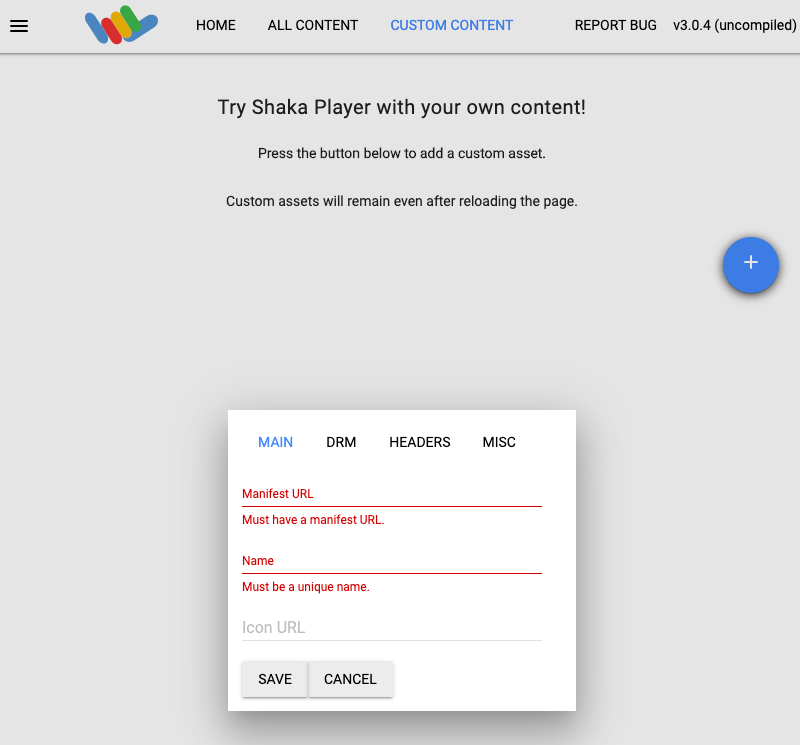
5. Type a name in the **Name** box.
6. Click **Save**.
7. Click **Play**.
## Insert ad breaks
The Video Stitcher API inserts ads retrieved from the ad tag for each
ad break. Ad breaks are denoted in the manifest using ad markers. Ad markers are
inserted by the livestream encoders. For more information on the supported HLS
and DASH ad markers, see the
[ad markers documentation](https://docs.cloud.google.com/video-stitcher/docs/concepts/ad-markers.md.txt).
If you used the Live Stream API to create your livestream, you can [use channel
events to insert ad breaks](https://docs.cloud.google.com/livestream/docs/how-to/create-channel-events).
## Confirm that an ad was stitched
An ad must be encoded before it can be stitched into a live session. If you see
slate video instead of an ad, wait for ad encoding and insert another ad break.
## Clean up
To avoid incurring charges to your Google Cloud account for
the resources used on this page, delete the Google Cloud project with the
resources.
> [!NOTE]
> **Note:** You must manually delete all user-generated content from your project (for example, [slates](https://docs.cloud.google.com/video-stitcher/docs/how-to/managing-slates.md.txt#delete_slate) and [CDN keys](https://docs.cloud.google.com/video-stitcher/docs/how-to/managing-cdn-keys.md.txt#delete_cdn_key)). The Video Stitcher API does not automatically delete this content, even if you remove the service or delete the project.
### Delete the live config
To delete the live config, run the following command:
### REST
Before using any of the request data,
make the following replacements:
- `PROJECT_NUMBER`: your Google Cloud project number; this is located in the **Project number** field on the [IAM Settings](https://console.cloud.google.com/iam-admin/settings) page
- `LOCATION`: the location of the live config; use one of the [supported regions](https://docs.cloud.google.com/video-stitcher/docs/locations.md.txt) Show locations
- `us-central1`
- `us-east1`
- `us-west1`
- `asia-east1`
- `asia-south1`
- `asia-southeast1`
- `europe-west1`
- `southamerica-east1`
- `LIVE_CONFIG_ID`: the user-defined identifier for the live config
To send your request, expand one of these options:
#### curl (Linux, macOS, or Cloud Shell)
> [!NOTE]
> **Note:** The following command assumes that you have logged in to the `gcloud` CLI with your user account by running [`gcloud init`](https://docs.cloud.google.com/sdk/gcloud/reference/init) or [`gcloud auth login`](https://docs.cloud.google.com/sdk/gcloud/reference/auth/login.md.txt) , or by using [Cloud Shell](https://docs.cloud.google.com/shell/docs.md.txt), which automatically logs you into the `gcloud` CLI . You can check the currently active account by running [`gcloud auth list`](https://docs.cloud.google.com/sdk/gcloud/reference/auth/list.md.txt).
Execute the following command:
```
curl -X DELETE \
-H "Authorization: Bearer $(gcloud auth print-access-token)" \
"https://videostitcher.googleapis.com/v1/projects/PROJECT_NUMBER/locations/LOCATION/liveConfigs/LIVE_CONFIG_ID"
```
#### PowerShell (Windows)
> [!NOTE]
> **Note:** The following command assumes that you have logged in to the `gcloud` CLI with your user account by running [`gcloud init`](https://docs.cloud.google.com/sdk/gcloud/reference/init) or [`gcloud auth login`](https://docs.cloud.google.com/sdk/gcloud/reference/auth/login.md.txt) . You can check the currently active account by running [`gcloud auth list`](https://docs.cloud.google.com/sdk/gcloud/reference/auth/list.md.txt).
Execute the following command:
```
$cred = gcloud auth print-access-token
$headers = @{ "Authorization" = "Bearer $cred" }
Invoke-WebRequest `
-Method DELETE `
-Headers $headers `
-Uri "https://videostitcher.googleapis.com/v1/projects/PROJECT_NUMBER/locations/LOCATION/liveConfigs/LIVE_CONFIG_ID" | Select-Object -Expand Content
```
You should receive a JSON response similar to the following:
```
{
"name": "projects/PROJECT_NUMBER/locations/LOCATION/operations/OPERATION_ID",
"metadata": {
"@type": "type.googleapis.com/google.cloud.common.OperationMetadata",
"createTime": CREATE_TIME,
"target": "projects/PROJECT_NUMBER/locations/LOCATION/liveConfigs/LIVE_CONFIG_ID",
"verb": "delete",
"cancelRequested": false,
"apiVersion": "v1"
},
"done": false
}
```
This command creates a [long-running operation (LRO)](https://docs.cloud.google.com/video-stitcher/docs/how-to/manage-long-running-operations.md.txt) that you can query to track progress. For more information, see [Check for the result](https://docs.cloud.google.com/video-stitcher/docs/quickstarts/inserting-ads-into-live.md.txt#check-for-result).
### C#
Before trying this sample, follow the C# setup instructions in the
[Video Stitcher API quickstart using
client libraries](https://docs.cloud.google.com/video-stitcher/docs/reference/libraries).
For more information, see the
[Video Stitcher API C# API
reference documentation](https://docs.cloud.google.com/dotnet/docs/reference/Google.Cloud.Video.Stitcher.V1/latest).
To authenticate to Video Stitcher API, set up Application Default Credentials.
For more information, see
[Set up authentication for a local development environment](https://docs.cloud.google.com/docs/authentication/set-up-adc-local-dev-environment.md.txt).
```c#
using Google.Cloud.Video.Stitcher.V1;
using Google.LongRunning;
using Google.Protobuf.WellKnownTypes;
using System.Threading.Tasks;
public class DeleteLiveConfigSample
{
public async Task DeleteLiveConfigAsync(
string projectId, string location, string liveConfigId)
{
// Create the client.
VideoStitcherServiceClient client = VideoStitcherServiceClient.Create();
DeleteLiveConfigRequest request = new DeleteLiveConfigRequest
{
LiveConfigName = LiveConfigName.FromProjectLocationLiveConfig(projectId, location, liveConfigId)
};
// Make the request.
Operation response = await client.DeleteLiveConfigAsync(request);
// Poll until the returned long-running operation is complete.
await response.PollUntilCompletedAsync();
}
}
```
### Go
Before trying this sample, follow the Go setup instructions in the
[Video Stitcher API quickstart using
client libraries](https://docs.cloud.google.com/video-stitcher/docs/reference/libraries).
For more information, see the
[Video Stitcher API Go API
reference documentation](https://pkg.go.dev/cloud.google.com/go/video/stitcher).
To authenticate to Video Stitcher API, set up Application Default Credentials.
For more information, see
[Set up authentication for a local development environment](https://docs.cloud.google.com/docs/authentication/set-up-adc-local-dev-environment.md.txt).
```go
import (
"context"
"fmt"
"io"
stitcher "cloud.google.com/go/video/stitcher/apiv1"
stitcherstreampb "cloud.google.com/go/video/stitcher/apiv1/stitcherpb"
)
// deleteLiveConfig deletes a previously-created live config.
func deleteLiveConfig(w io.Writer, projectID, liveConfigID string) error {
// projectID := "my-project-id"
// liveConfigID := "my-live-config-id"
location := "us-central1"
ctx := context.Background()
client, err := stitcher.NewVideoStitcherClient(ctx)
if err != nil {
return fmt.Errorf("stitcher.NewVideoStitcherClient: %w", err)
}
defer client.Close()
req := &stitcherstreampb.DeleteLiveConfigRequest{
Name: fmt.Sprintf("projects/%s/locations/%s/liveConfigs/%s", projectID, location, liveConfigID),
}
// Deletes the live config.
op, err := client.DeleteLiveConfig(ctx, req)
if err != nil {
return fmt.Errorf("client.DeleteLiveConfig: %w", err)
}
err = op.Wait(ctx)
if err != nil {
return err
}
fmt.Fprintf(w, "Deleted live config")
return nil
}
```
### Java
Before trying this sample, follow the Java setup instructions in the
[Video Stitcher API quickstart using
client libraries](https://docs.cloud.google.com/video-stitcher/docs/reference/libraries).
For more information, see the
[Video Stitcher API Java API
reference documentation](https://docs.cloud.google.com/java/docs/reference/google-cloud-video-stitcher/latest/overview).
To authenticate to Video Stitcher API, set up Application Default Credentials.
For more information, see
[Set up authentication for a local development environment](https://docs.cloud.google.com/docs/authentication/set-up-adc-local-dev-environment.md.txt).
```java
import com.google.cloud.video.stitcher.v1.DeleteLiveConfigRequest;
import com.google.cloud.video.stitcher.v1.LiveConfigName;
import com.google.cloud.video.stitcher.v1.VideoStitcherServiceClient;
import java.io.IOException;
import java.util.concurrent.ExecutionException;
import java.util.concurrent.TimeUnit;
import java.util.concurrent.TimeoutException;
public class DeleteLiveConfig {
private static final int TIMEOUT_IN_MINUTES = 2;
public static void main(String[] args) throws Exception {
// TODO(developer): Replace these variables before running the sample.
String projectId = "my-project-id";
String location = "us-central1";
String liveConfigId = "my-live-config-id";
deleteLiveConfig(projectId, location, liveConfigId);
}
// Deletes a live config.
public static void deleteLiveConfig(String projectId, String location, String liveConfigId)
throws IOException, ExecutionException, InterruptedException, TimeoutException {
// Initialize client that will be used to send requests. This client only needs to be created
// once, and can be reused for multiple requests.
try (VideoStitcherServiceClient videoStitcherServiceClient =
VideoStitcherServiceClient.create()) {
DeleteLiveConfigRequest deleteLiveConfigRequest =
DeleteLiveConfigRequest.newBuilder()
.setName(LiveConfigName.of(projectId, location, liveConfigId).toString())
.build();
videoStitcherServiceClient
.deleteLiveConfigAsync(deleteLiveConfigRequest)
.get(TIMEOUT_IN_MINUTES, TimeUnit.MINUTES);
System.out.println("Deleted live config");
}
}
}
```
### Node.js
Before trying this sample, follow the Node.js setup instructions in the
[Video Stitcher API quickstart using
client libraries](https://docs.cloud.google.com/video-stitcher/docs/reference/libraries).
For more information, see the
[Video Stitcher API Node.js API
reference documentation](https://cloud.google.com/nodejs/docs/reference/video-stitcher/latest).
To authenticate to Video Stitcher API, set up Application Default Credentials.
For more information, see
[Set up authentication for a local development environment](https://docs.cloud.google.com/docs/authentication/set-up-adc-local-dev-environment.md.txt).
```javascript
/**
* TODO(developer): Uncomment these variables before running the sample.
*/
// projectId = 'my-project-id';
// location = 'us-central1';
// liveConfigId = 'my-live-config-id';
// Imports the Video Stitcher library
const {VideoStitcherServiceClient} =
require('@google-cloud/video-stitcher').v1;
// Instantiates a client
const stitcherClient = new VideoStitcherServiceClient();
async function deleteLiveConfig() {
// Construct request
const request = {
name: stitcherClient.liveConfigPath(projectId, location, liveConfigId),
};
const [operation] = await stitcherClient.deleteLiveConfig(request);
await operation.promise();
console.log('Deleted live config');
}
deleteLiveConfig().catch(err => {
console.error(err.message);
process.exitCode = 1;
});
```
### PHP
Before trying this sample, follow the PHP setup instructions in the
[Video Stitcher API quickstart using
client libraries](https://docs.cloud.google.com/video-stitcher/docs/reference/libraries).
For more information, see the
[Video Stitcher API PHP API
reference documentation](https://googleapis.github.io/google-cloud-php/#/docs/google-cloud/latest/videostitcher/readme).
To authenticate to Video Stitcher API, set up Application Default Credentials.
For more information, see
[Set up authentication for a local development environment](https://docs.cloud.google.com/docs/authentication/set-up-adc-local-dev-environment.md.txt).
```php
use Google\Cloud\Video\Stitcher\V1\Client\VideoStitcherServiceClient;
use Google\Cloud\Video\Stitcher\V1\DeleteLiveConfigRequest;
/**
* Deletes a live config.
*
* @param string $callingProjectId The project ID to run the API call under
* @param string $location The location of the live config
* @param string $liveConfigId The ID of the live config
*/
function delete_live_config(
string $callingProjectId,
string $location,
string $liveConfigId
): void {
// Instantiate a client.
$stitcherClient = new VideoStitcherServiceClient();
$formattedName = $stitcherClient->liveConfigName($callingProjectId, $location, $liveConfigId);
$request = (new DeleteLiveConfigRequest())
->setName($formattedName);
$operationResponse = $stitcherClient->deleteLiveConfig($request);
$operationResponse->pollUntilComplete();
if ($operationResponse->operationSucceeded()) {
// Print status
printf('Deleted live config %s' . PHP_EOL, $liveConfigId);
} else {
$error = $operationResponse->getError();
// handleError($error)
}
}
```
### Python
Before trying this sample, follow the Python setup instructions in the
[Video Stitcher API quickstart using
client libraries](https://docs.cloud.google.com/video-stitcher/docs/reference/libraries).
For more information, see the
[Video Stitcher API Python API
reference documentation](https://docs.cloud.google.com/python/docs/reference/videostitcher/latest).
To authenticate to Video Stitcher API, set up Application Default Credentials.
For more information, see
[Set up authentication for a local development environment](https://docs.cloud.google.com/docs/authentication/set-up-adc-local-dev-environment.md.txt).
```python
import argparse
from google.cloud.video.stitcher_v1.services.video_stitcher_service import (
VideoStitcherServiceClient,
)
from google.protobuf import empty_pb2 as empty
def delete_live_config(
project_id: str, location: str, live_config_id: str
) -> empty.Empty:
"""Deletes a live config.
Args:
project_id: The GCP project ID.
location: The location of the live config.
live_config_id: The user-defined live config ID."""
client = VideoStitcherServiceClient()
name = f"projects/{project_id}/locations/{location}/liveConfigs/{live_config_id}"
operation = client.delete_live_config(name=name)
response = operation.result()
print("Deleted live config")
return response
```
### Ruby
Before trying this sample, follow the Ruby setup instructions in the
[Video Stitcher API quickstart using
client libraries](https://docs.cloud.google.com/video-stitcher/docs/reference/libraries).
For more information, see the
[Video Stitcher API Ruby API
reference documentation](https://docs.cloud.google.com/ruby/docs/reference/google-cloud-video-stitcher/latest).
To authenticate to Video Stitcher API, set up Application Default Credentials.
For more information, see
[Set up authentication for a local development environment](https://docs.cloud.google.com/docs/authentication/set-up-adc-local-dev-environment.md.txt).
```ruby
require "google/cloud/video/stitcher"
##
# Delete a live config
#
# @param project_id [String] Your Google Cloud project (e.g. `my-project`)
# @param location [String] The location (e.g. `us-central1`)
# @param live_config_id [String] Your live config name (e.g. `my-live-config`)
#
def delete_live_config project_id:, location:, live_config_id:
# Create a Video Stitcher client.
client = Google::Cloud::Video::Stitcher.video_stitcher_service
# Build the resource name of the live config.
name = client.live_config_path project: project_id, location: location,
live_config: live_config_id
# Delete the live config.
operation = client.delete_live_config name: name
# The returned object is of type Gapic::Operation. You can use this
# object to check the status of an operation, cancel it, or wait
# for results. Here is how to block until completion:
operation.wait_until_done!
# Print a success message.
puts "Deleted live config"
end
```
### Delete the slate
To delete the slate configuration, run the following command:
### REST
Before using any of the request data,
make the following replacements:
- `PROJECT_NUMBER`: your Google Cloud project number; this is located in the **Project number** field on the [IAM Settings](https://console.cloud.google.com/iam-admin/settings) page
- `LOCATION`: the location where your slate is located; use one of the [supported regions](https://docs.cloud.google.com/video-stitcher/docs/locations.md.txt) Show locations
- `us-central1`
- `us-east1`
- `us-west1`
- `asia-east1`
- `asia-south1`
- `asia-southeast1`
- `europe-west1`
- `southamerica-east1`
- `SLATE_ID`: a user-defined identifier for the slate
To send your request, expand one of these options:
#### curl (Linux, macOS, or Cloud Shell)
> [!NOTE]
> **Note:** The following command assumes that you have logged in to the `gcloud` CLI with your user account by running [`gcloud init`](https://docs.cloud.google.com/sdk/gcloud/reference/init) or [`gcloud auth login`](https://docs.cloud.google.com/sdk/gcloud/reference/auth/login.md.txt) , or by using [Cloud Shell](https://docs.cloud.google.com/shell/docs.md.txt), which automatically logs you into the `gcloud` CLI . You can check the currently active account by running [`gcloud auth list`](https://docs.cloud.google.com/sdk/gcloud/reference/auth/list.md.txt).
Execute the following command:
```
curl -X DELETE \
-H "Authorization: Bearer $(gcloud auth print-access-token)" \
"https://videostitcher.googleapis.com/v1/projects/PROJECT_NUMBER/locations/LOCATION/slates/SLATE_ID"
```
#### PowerShell (Windows)
> [!NOTE]
> **Note:** The following command assumes that you have logged in to the `gcloud` CLI with your user account by running [`gcloud init`](https://docs.cloud.google.com/sdk/gcloud/reference/init) or [`gcloud auth login`](https://docs.cloud.google.com/sdk/gcloud/reference/auth/login.md.txt) . You can check the currently active account by running [`gcloud auth list`](https://docs.cloud.google.com/sdk/gcloud/reference/auth/list.md.txt).
Execute the following command:
```
$cred = gcloud auth print-access-token
$headers = @{ "Authorization" = "Bearer $cred" }
Invoke-WebRequest `
-Method DELETE `
-Headers $headers `
-Uri "https://videostitcher.googleapis.com/v1/projects/PROJECT_NUMBER/locations/LOCATION/slates/SLATE_ID" | Select-Object -Expand Content
```
You should receive a JSON response similar to the following:
```
{
"name": "projects/PROJECT_NUMBER/locations/LOCATION/operations/OPERATION_ID",
"metadata": {
"@type": "type.googleapis.com/google.cloud.common.OperationMetadata",
"createTime": CREATE_TIME,
"target": "projects/PROJECT_NUMBER/locations/LOCATION/slates/SLATE_ID",
"verb": "delete",
"cancelRequested": false,
"apiVersion": "v1"
},
"done": false
}
```
This command creates a [long-running operation (LRO)](https://docs.cloud.google.com/video-stitcher/docs/how-to/manage-long-running-operations.md.txt) that you can query to track progress. For more information, see [Check for the result](https://docs.cloud.google.com/video-stitcher/docs/quickstarts/inserting-ads-into-live.md.txt#check-for-result).
### C#
Before trying this sample, follow the C# setup instructions in the
[Video Stitcher API quickstart using
client libraries](https://docs.cloud.google.com/video-stitcher/docs/reference/libraries).
For more information, see the
[Video Stitcher API C# API
reference documentation](https://docs.cloud.google.com/dotnet/docs/reference/Google.Cloud.Video.Stitcher.V1/latest).
To authenticate to Video Stitcher API, set up Application Default Credentials.
For more information, see
[Set up authentication for a local development environment](https://docs.cloud.google.com/docs/authentication/set-up-adc-local-dev-environment.md.txt).
```c#
using Google.Cloud.Video.Stitcher.V1;
using Google.LongRunning;
using Google.Protobuf.WellKnownTypes;
using System.Threading.Tasks;
public class DeleteSlateSample
{
public async Task DeleteSlateAsync(
string projectId, string location, string slateId)
{
// Create the client.
VideoStitcherServiceClient client = VideoStitcherServiceClient.Create();
DeleteSlateRequest request = new DeleteSlateRequest
{
SlateName = SlateName.FromProjectLocationSlate(projectId, location, slateId)
};
// Make the request.
Operation response = await client.DeleteSlateAsync(request);
// Poll until the returned long-running operation is complete.
await response.PollUntilCompletedAsync();
}
}
```
### Go
Before trying this sample, follow the Go setup instructions in the
[Video Stitcher API quickstart using
client libraries](https://docs.cloud.google.com/video-stitcher/docs/reference/libraries).
For more information, see the
[Video Stitcher API Go API
reference documentation](https://pkg.go.dev/cloud.google.com/go/video/stitcher).
To authenticate to Video Stitcher API, set up Application Default Credentials.
For more information, see
[Set up authentication for a local development environment](https://docs.cloud.google.com/docs/authentication/set-up-adc-local-dev-environment.md.txt).
```go
import (
"context"
"fmt"
"io"
stitcher "cloud.google.com/go/video/stitcher/apiv1"
stitcherstreampb "cloud.google.com/go/video/stitcher/apiv1/stitcherpb"
)
// deleteSlate deletes a previously-created slate.
func deleteSlate(w io.Writer, projectID, slateID string) error {
// projectID := "my-project-id"
// slateID := "my-slate-id"
location := "us-central1"
ctx := context.Background()
client, err := stitcher.NewVideoStitcherClient(ctx)
if err != nil {
return fmt.Errorf("stitcher.NewVideoStitcherClient: %w", err)
}
defer client.Close()
name := fmt.Sprintf("projects/%s/locations/%s/slates/%s", projectID, location, slateID)
req := &stitcherstreampb.DeleteSlateRequest{
Name: name,
}
// Deletes the slate.
op, err := client.DeleteSlate(ctx, req)
if err != nil {
return fmt.Errorf("client.DeleteSlate: %w", err)
}
err = op.Wait(ctx)
if err != nil {
return err
}
fmt.Fprintf(w, "Deleted slate")
return nil
}
```
### Java
Before trying this sample, follow the Java setup instructions in the
[Video Stitcher API quickstart using
client libraries](https://docs.cloud.google.com/video-stitcher/docs/reference/libraries).
For more information, see the
[Video Stitcher API Java API
reference documentation](https://docs.cloud.google.com/java/docs/reference/google-cloud-video-stitcher/latest/overview).
To authenticate to Video Stitcher API, set up Application Default Credentials.
For more information, see
[Set up authentication for a local development environment](https://docs.cloud.google.com/docs/authentication/set-up-adc-local-dev-environment.md.txt).
```java
import com.google.cloud.video.stitcher.v1.DeleteSlateRequest;
import com.google.cloud.video.stitcher.v1.SlateName;
import com.google.cloud.video.stitcher.v1.VideoStitcherServiceClient;
import java.io.IOException;
import java.util.concurrent.ExecutionException;
import java.util.concurrent.TimeUnit;
import java.util.concurrent.TimeoutException;
public class DeleteSlate {
private static final int TIMEOUT_IN_MINUTES = 2;
public static void main(String[] args) throws Exception {
// TODO(developer): Replace these variables before running the sample.
String projectId = "my-project-id";
String location = "us-central1";
String slateId = "my-slate-id";
deleteSlate(projectId, location, slateId);
}
// Deletes a slate.
public static void deleteSlate(String projectId, String location, String slateId)
throws IOException, ExecutionException, InterruptedException, TimeoutException {
// Initialize client that will be used to send requests. This client only needs to be created
// once, and can be reused for multiple requests.
try (VideoStitcherServiceClient videoStitcherServiceClient =
VideoStitcherServiceClient.create()) {
DeleteSlateRequest deleteSlateRequest =
DeleteSlateRequest.newBuilder()
.setName(SlateName.of(projectId, location, slateId).toString())
.build();
videoStitcherServiceClient
.deleteSlateAsync(deleteSlateRequest)
.get(TIMEOUT_IN_MINUTES, TimeUnit.MINUTES);
System.out.println("Deleted slate");
}
}
}
```
### Node.js
Before trying this sample, follow the Node.js setup instructions in the
[Video Stitcher API quickstart using
client libraries](https://docs.cloud.google.com/video-stitcher/docs/reference/libraries).
For more information, see the
[Video Stitcher API Node.js API
reference documentation](https://cloud.google.com/nodejs/docs/reference/video-stitcher/latest).
To authenticate to Video Stitcher API, set up Application Default Credentials.
For more information, see
[Set up authentication for a local development environment](https://docs.cloud.google.com/docs/authentication/set-up-adc-local-dev-environment.md.txt).
```javascript
/**
* TODO(developer): Uncomment these variables before running the sample.
*/
// projectId = 'my-project-id';
// location = 'us-central1';
// slateId = 'my-slate';
// Imports the Video Stitcher library
const {VideoStitcherServiceClient} =
require('@google-cloud/video-stitcher').v1;
// Instantiates a client
const stitcherClient = new VideoStitcherServiceClient();
async function deleteSlate() {
// Construct request
const request = {
name: stitcherClient.slatePath(projectId, location, slateId),
};
const [operation] = await stitcherClient.deleteSlate(request);
await operation.promise();
console.log('Deleted slate');
}
deleteSlate().catch(err => {
console.error(err.message);
process.exitCode = 1;
});
```
### PHP
Before trying this sample, follow the PHP setup instructions in the
[Video Stitcher API quickstart using
client libraries](https://docs.cloud.google.com/video-stitcher/docs/reference/libraries).
For more information, see the
[Video Stitcher API PHP API
reference documentation](https://googleapis.github.io/google-cloud-php/#/docs/google-cloud/latest/videostitcher/readme).
To authenticate to Video Stitcher API, set up Application Default Credentials.
For more information, see
[Set up authentication for a local development environment](https://docs.cloud.google.com/docs/authentication/set-up-adc-local-dev-environment.md.txt).
```php
use Google\Cloud\Video\Stitcher\V1\Client\VideoStitcherServiceClient;
use Google\Cloud\Video\Stitcher\V1\DeleteSlateRequest;
/**
* Deletes a slate.
*
* @param string $callingProjectId The project ID to run the API call under
* @param string $location The location of the slate
* @param string $slateId The ID of the slate
*/
function delete_slate(
string $callingProjectId,
string $location,
string $slateId
): void {
// Instantiate a client.
$stitcherClient = new VideoStitcherServiceClient();
$formattedName = $stitcherClient->slateName($callingProjectId, $location, $slateId);
$request = (new DeleteSlateRequest())
->setName($formattedName);
$operationResponse = $stitcherClient->deleteSlate($request);
$operationResponse->pollUntilComplete();
if ($operationResponse->operationSucceeded()) {
// Print status
printf('Deleted slate %s' . PHP_EOL, $slateId);
} else {
$error = $operationResponse->getError();
// handleError($error)
}
}
```
### Python
Before trying this sample, follow the Python setup instructions in the
[Video Stitcher API quickstart using
client libraries](https://docs.cloud.google.com/video-stitcher/docs/reference/libraries).
For more information, see the
[Video Stitcher API Python API
reference documentation](https://docs.cloud.google.com/python/docs/reference/videostitcher/latest).
To authenticate to Video Stitcher API, set up Application Default Credentials.
For more information, see
[Set up authentication for a local development environment](https://docs.cloud.google.com/docs/authentication/set-up-adc-local-dev-environment.md.txt).
```python
import argparse
from google.cloud.video.stitcher_v1.services.video_stitcher_service import (
VideoStitcherServiceClient,
)
from google.protobuf import empty_pb2 as empty
def delete_slate(project_id: str, location: str, slate_id: str) -> empty.Empty:
"""Deletes a slate.
Args:
project_id: The GCP project ID.
location: The location of the slate.
slate_id: The user-defined slate ID."""
client = VideoStitcherServiceClient()
name = f"projects/{project_id}/locations/{location}/slates/{slate_id}"
operation = client.delete_slate(name=name)
response = operation.result()
print("Deleted slate")
return response
```
### Ruby
Before trying this sample, follow the Ruby setup instructions in the
[Video Stitcher API quickstart using
client libraries](https://docs.cloud.google.com/video-stitcher/docs/reference/libraries).
For more information, see the
[Video Stitcher API Ruby API
reference documentation](https://docs.cloud.google.com/ruby/docs/reference/google-cloud-video-stitcher/latest).
To authenticate to Video Stitcher API, set up Application Default Credentials.
For more information, see
[Set up authentication for a local development environment](https://docs.cloud.google.com/docs/authentication/set-up-adc-local-dev-environment.md.txt).
```ruby
require "google/cloud/video/stitcher"
##
# Delete a slate
#
# @param project_id [String] Your Google Cloud project (e.g. `my-project`)
# @param location [String] The location (e.g. `us-central1`)
# @param slate_id [String] Your slate name (e.g. `my-slate`)
#
def delete_slate project_id:, location:, slate_id:
# Create a Video Stitcher client.
client = Google::Cloud::Video::Stitcher.video_stitcher_service
# Build the resource name of the slate.
name = client.slate_path project: project_id, location: location,
slate: slate_id
# Delete the slate.
operation = client.delete_slate name: name
# The returned object is of type Gapic::Operation. You can use this
# object to check the status of an operation, cancel it, or wait
# for results. Here is how to block until completion:
operation.wait_until_done!
# Print a success message.
puts "Deleted slate"
end
```
### Delete the CDN key
To delete the CDN key, run the following command:
### REST
Before using any of the request data,
make the following replacements:
- `PROJECT_NUMBER`: your Google Cloud project number; this is located in the **Project number** field on the [IAM Settings](https://console.cloud.google.com/iam-admin/settings) page
- `LOCATION`: the location where your CDN key is located; use one of the [supported regions](https://docs.cloud.google.com/video-stitcher/docs/locations.md.txt) Show locations
- `us-central1`
- `us-east1`
- `us-west1`
- `asia-east1`
- `asia-south1`
- `asia-southeast1`
- `europe-west1`
- `southamerica-east1`
- `CDN_KEY_ID`: a user-defined identifier for the CDN key
To send your request, expand one of these options:
#### curl (Linux, macOS, or Cloud Shell)
> [!NOTE]
> **Note:** The following command assumes that you have logged in to the `gcloud` CLI with your user account by running [`gcloud init`](https://docs.cloud.google.com/sdk/gcloud/reference/init) or [`gcloud auth login`](https://docs.cloud.google.com/sdk/gcloud/reference/auth/login.md.txt) , or by using [Cloud Shell](https://docs.cloud.google.com/shell/docs.md.txt), which automatically logs you into the `gcloud` CLI . You can check the currently active account by running [`gcloud auth list`](https://docs.cloud.google.com/sdk/gcloud/reference/auth/list.md.txt).
Execute the following command:
```
curl -X DELETE \
-H "Authorization: Bearer $(gcloud auth print-access-token)" \
"https://videostitcher.googleapis.com/v1/projects/PROJECT_NUMBER/locations/LOCATION/cdnKeys/CDN_KEY_ID"
```
#### PowerShell (Windows)
> [!NOTE]
> **Note:** The following command assumes that you have logged in to the `gcloud` CLI with your user account by running [`gcloud init`](https://docs.cloud.google.com/sdk/gcloud/reference/init) or [`gcloud auth login`](https://docs.cloud.google.com/sdk/gcloud/reference/auth/login.md.txt) . You can check the currently active account by running [`gcloud auth list`](https://docs.cloud.google.com/sdk/gcloud/reference/auth/list.md.txt).
Execute the following command:
```
$cred = gcloud auth print-access-token
$headers = @{ "Authorization" = "Bearer $cred" }
Invoke-WebRequest `
-Method DELETE `
-Headers $headers `
-Uri "https://videostitcher.googleapis.com/v1/projects/PROJECT_NUMBER/locations/LOCATION/cdnKeys/CDN_KEY_ID" | Select-Object -Expand Content
```
You should receive a JSON response similar to the following:
```
{
"name": "projects/PROJECT_NUMBER/locations/LOCATION/operations/OPERATION_ID",
"metadata": {
"@type": "type.googleapis.com/google.cloud.common.OperationMetadata",
"createTime": CREATE_TIME,
"target": "projects/PROJECT_NUMBER/locations/LOCATION/cdnKeys/CDN_KEY_ID",
"verb": "delete",
"cancelRequested": false,
"apiVersion": "v1"
},
"done": false
}
```
This command creates a [long-running operation (LRO)](https://docs.cloud.google.com/video-stitcher/docs/how-to/manage-long-running-operations.md.txt) that you can query to track progress. For more information, see [Check for the result](https://docs.cloud.google.com/video-stitcher/docs/quickstarts/inserting-ads-into-live.md.txt#check-for-result).
### C#
Before trying this sample, follow the C# setup instructions in the
[Video Stitcher API quickstart using
client libraries](https://docs.cloud.google.com/video-stitcher/docs/reference/libraries).
For more information, see the
[Video Stitcher API C# API
reference documentation](https://docs.cloud.google.com/dotnet/docs/reference/Google.Cloud.Video.Stitcher.V1/latest).
To authenticate to Video Stitcher API, set up Application Default Credentials.
For more information, see
[Set up authentication for a local development environment](https://docs.cloud.google.com/docs/authentication/set-up-adc-local-dev-environment.md.txt).
```c#
using Google.Cloud.Video.Stitcher.V1;
using Google.LongRunning;
using Google.Protobuf.WellKnownTypes;
using System.Threading.Tasks;
public class DeleteCdnKeySample
{
public async Task DeleteCdnKeyAsync(
string projectId, string location, string cdnKeyId)
{
// Create the client.
VideoStitcherServiceClient client = VideoStitcherServiceClient.Create();
DeleteCdnKeyRequest request = new DeleteCdnKeyRequest
{
CdnKeyName = CdnKeyName.FromProjectLocationCdnKey(projectId, location, cdnKeyId)
};
// Make the request.
Operation response = await client.DeleteCdnKeyAsync(request);
// Poll until the returned long-running operation is complete.
await response.PollUntilCompletedAsync();
}
}
```
### Go
Before trying this sample, follow the Go setup instructions in the
[Video Stitcher API quickstart using
client libraries](https://docs.cloud.google.com/video-stitcher/docs/reference/libraries).
For more information, see the
[Video Stitcher API Go API
reference documentation](https://pkg.go.dev/cloud.google.com/go/video/stitcher).
To authenticate to Video Stitcher API, set up Application Default Credentials.
For more information, see
[Set up authentication for a local development environment](https://docs.cloud.google.com/docs/authentication/set-up-adc-local-dev-environment.md.txt).
```go
import (
"context"
"fmt"
"io"
stitcher "cloud.google.com/go/video/stitcher/apiv1"
stitcherstreampb "cloud.google.com/go/video/stitcher/apiv1/stitcherpb"
)
// deleteCDNKey deletes a CDN key.
func deleteCDNKey(w io.Writer, projectID, keyID string) error {
// projectID := "my-project-id"
// keyID := "my-cdn-key"
location := "us-central1"
ctx := context.Background()
client, err := stitcher.NewVideoStitcherClient(ctx)
if err != nil {
return fmt.Errorf("stitcher.NewVideoStitcherClient: %w", err)
}
defer client.Close()
name := fmt.Sprintf("projects/%s/locations/%s/cdnKeys/%s", projectID, location, keyID)
req := &stitcherstreampb.DeleteCdnKeyRequest{
Name: name,
}
// Deletes the CDN key.
op, err := client.DeleteCdnKey(ctx, req)
if err != nil {
return fmt.Errorf("client.DeleteCdnKey: %w", err)
}
err = op.Wait(ctx)
if err != nil {
return err
}
fmt.Fprintf(w, "Deleted CDN key")
return nil
}
```
### Java
Before trying this sample, follow the Java setup instructions in the
[Video Stitcher API quickstart using
client libraries](https://docs.cloud.google.com/video-stitcher/docs/reference/libraries).
For more information, see the
[Video Stitcher API Java API
reference documentation](https://docs.cloud.google.com/java/docs/reference/google-cloud-video-stitcher/latest/overview).
To authenticate to Video Stitcher API, set up Application Default Credentials.
For more information, see
[Set up authentication for a local development environment](https://docs.cloud.google.com/docs/authentication/set-up-adc-local-dev-environment.md.txt).
```java
import com.google.cloud.video.stitcher.v1.CdnKeyName;
import com.google.cloud.video.stitcher.v1.DeleteCdnKeyRequest;
import com.google.cloud.video.stitcher.v1.VideoStitcherServiceClient;
import java.io.IOException;
import java.util.concurrent.ExecutionException;
import java.util.concurrent.TimeUnit;
import java.util.concurrent.TimeoutException;
public class DeleteCdnKey {
private static final int TIMEOUT_IN_MINUTES = 2;
public static void main(String[] args) throws Exception {
// TODO(developer): Replace these variables before running the sample.
String projectId = "my-project-id";
String location = "us-central1";
String cdnKeyId = "my-cdn-key-id";
deleteCdnKey(projectId, location, cdnKeyId);
}
// Deletes a CDN key.
public static void deleteCdnKey(String projectId, String location, String cdnKeyId)
throws InterruptedException, ExecutionException, TimeoutException, IOException {
// Initialize client that will be used to send requests. This client only needs to be created
// once, and can be reused for multiple requests.
try (VideoStitcherServiceClient videoStitcherServiceClient =
VideoStitcherServiceClient.create()) {
DeleteCdnKeyRequest deleteCdnKeyRequest =
DeleteCdnKeyRequest.newBuilder()
.setName(CdnKeyName.of(projectId, location, cdnKeyId).toString())
.build();
videoStitcherServiceClient
.deleteCdnKeyAsync(deleteCdnKeyRequest)
.get(TIMEOUT_IN_MINUTES, TimeUnit.MINUTES);
System.out.println("Deleted CDN key");
}
}
}
```
### Node.js
Before trying this sample, follow the Node.js setup instructions in the
[Video Stitcher API quickstart using
client libraries](https://docs.cloud.google.com/video-stitcher/docs/reference/libraries).
For more information, see the
[Video Stitcher API Node.js API
reference documentation](https://cloud.google.com/nodejs/docs/reference/video-stitcher/latest).
To authenticate to Video Stitcher API, set up Application Default Credentials.
For more information, see
[Set up authentication for a local development environment](https://docs.cloud.google.com/docs/authentication/set-up-adc-local-dev-environment.md.txt).
```javascript
/**
* TODO(developer): Uncomment these variables before running the sample.
*/
// projectId = 'my-project-id';
// location = 'us-central1';
// cdnKeyId = 'my-cdn-key';
// Imports the Video Stitcher library
const {VideoStitcherServiceClient} =
require('@google-cloud/video-stitcher').v1;
// Instantiates a client
const stitcherClient = new VideoStitcherServiceClient();
async function deleteCdnKey() {
// Construct request
const request = {
name: stitcherClient.cdnKeyPath(projectId, location, cdnKeyId),
};
const [operation] = await stitcherClient.deleteCdnKey(request);
await operation.promise();
console.log('Deleted CDN key');
}
deleteCdnKey().catch(err => {
console.error(err.message);
process.exitCode = 1;
});
```
### PHP
Before trying this sample, follow the PHP setup instructions in the
[Video Stitcher API quickstart using
client libraries](https://docs.cloud.google.com/video-stitcher/docs/reference/libraries).
For more information, see the
[Video Stitcher API PHP API
reference documentation](https://googleapis.github.io/google-cloud-php/#/docs/google-cloud/latest/videostitcher/readme).
To authenticate to Video Stitcher API, set up Application Default Credentials.
For more information, see
[Set up authentication for a local development environment](https://docs.cloud.google.com/docs/authentication/set-up-adc-local-dev-environment.md.txt).
```php
use Google\Cloud\Video\Stitcher\V1\Client\VideoStitcherServiceClient;
use Google\Cloud\Video\Stitcher\V1\DeleteCdnKeyRequest;
/**
* Deletes a CDN key.
*
* @param string $callingProjectId The project ID to run the API call under
* @param string $location The location of the CDN key
* @param string $cdnKeyId The ID of the CDN key
*/
function delete_cdn_key(
string $callingProjectId,
string $location,
string $cdnKeyId
): void {
// Instantiate a client.
$stitcherClient = new VideoStitcherServiceClient();
$formattedName = $stitcherClient->cdnKeyName($callingProjectId, $location, $cdnKeyId);
$request = (new DeleteCdnKeyRequest())
->setName($formattedName);
$operationResponse = $stitcherClient->deleteCdnKey($request);
$operationResponse->pollUntilComplete();
if ($operationResponse->operationSucceeded()) {
// Print status
printf('Deleted CDN key %s' . PHP_EOL, $cdnKeyId);
} else {
$error = $operationResponse->getError();
// handleError($error)
}
}
```
### Python
Before trying this sample, follow the Python setup instructions in the
[Video Stitcher API quickstart using
client libraries](https://docs.cloud.google.com/video-stitcher/docs/reference/libraries).
For more information, see the
[Video Stitcher API Python API
reference documentation](https://docs.cloud.google.com/python/docs/reference/videostitcher/latest).
To authenticate to Video Stitcher API, set up Application Default Credentials.
For more information, see
[Set up authentication for a local development environment](https://docs.cloud.google.com/docs/authentication/set-up-adc-local-dev-environment.md.txt).
```python
import argparse
from google.cloud.video.stitcher_v1.services.video_stitcher_service import (
VideoStitcherServiceClient,
)
from google.protobuf import empty_pb2 as empty
def delete_cdn_key(project_id: str, location: str, cdn_key_id: str) -> empty.Empty:
"""Deletes a CDN key.
Args:
project_id: The GCP project ID.
location: The location of the CDN key.
cdn_key_id: The user-defined CDN key ID."""
client = VideoStitcherServiceClient()
name = f"projects/{project_id}/locations/{location}/cdnKeys/{cdn_key_id}"
operation = client.delete_cdn_key(name=name)
response = operation.result()
print("Deleted CDN key")
return response
```
### Ruby
Before trying this sample, follow the Ruby setup instructions in the
[Video Stitcher API quickstart using
client libraries](https://docs.cloud.google.com/video-stitcher/docs/reference/libraries).
For more information, see the
[Video Stitcher API Ruby API
reference documentation](https://docs.cloud.google.com/ruby/docs/reference/google-cloud-video-stitcher/latest).
To authenticate to Video Stitcher API, set up Application Default Credentials.
For more information, see
[Set up authentication for a local development environment](https://docs.cloud.google.com/docs/authentication/set-up-adc-local-dev-environment.md.txt).
```ruby
require "google/cloud/video/stitcher"
##
# Delete a CDN key
#
# @param project_id [String] Your Google Cloud project (e.g. `my-project`)
# @param location [String] The location (e.g. `us-central1`)
# @param cdn_key_id [String] Your CDN key name (e.g. `my-cdn-key`)
#
def delete_cdn_key project_id:, location:, cdn_key_id:
# Create a Video Stitcher client.
client = Google::Cloud::Video::Stitcher.video_stitcher_service
# Build the resource name of the CDN key.
name = client.cdn_key_path project: project_id, location: location,
cdn_key: cdn_key_id
# Delete the CDN key.
operation = client.delete_cdn_key name: name
# The returned object is of type Gapic::Operation. You can use this
# object to check the status of an operation, cancel it, or wait
# for results. Here is how to block until completion:
operation.wait_until_done!
# Print a success message.
puts "Deleted CDN key"
end
```
### Revoke your credentials
1.
Optional: Revoke the authentication credentials that you created, and delete the local
credential file.
```bash
gcloud auth application-default revoke
```
2.
Optional: Revoke credentials from the gcloud CLI.
```bash
gcloud auth revoke
```
## What's next
Review the [Video Stitcher API reference documentation](https://docs.cloud.google.com/video-stitcher/docs/reference).