


Per consentire al codice dell'applicazione di utilizzare l'API Video Intelligence, devi configurare le credenziali appropriate per l'applicazione in modo da autenticare la sua identità nel servizio e ottenere l'autorizzazione per eseguire le attività. Questi meccanismi relativi alle credenziali sono noti come schemi di autenticazione.
L'autenticazione e l'autorizzazione dell'APIGoogle Cloud (comunemente raggruppate come "autenticazione") vengono in genere eseguite utilizzando un account di servizio. Un account di servizio consente al tuo codice di inviare le credenziali dell'applicazione direttamente all'API Video Intelligence. Un service account, come un account utente, è rappresentato da un indirizzo email. A differenza di un account utente, un account di servizio è associato solo a un'applicazione.
Attivazione dell'API
Prima di poter eseguire l'autenticazione, devi abilitare l'API Video Intelligence.
- Accedi al tuo account Google Cloud . Se non conosci Google Cloud, crea un account per valutare le prestazioni dei nostri prodotti in scenari reali. I nuovi clienti ricevono anche 300 $di crediti senza costi per l'esecuzione, il test e il deployment dei carichi di lavoro.
-
In the Google Cloud console, on the project selector page, select or create a Google Cloud project.
Roles required to select or create a project
- Select a project: Selecting a project doesn't require a specific IAM role—you can select any project that you've been granted a role on.
-
Create a project: To create a project, you need the Project Creator role
(
roles/resourcemanager.projectCreator), which contains theresourcemanager.projects.createpermission. Learn how to grant roles.
-
Verify that billing is enabled for your Google Cloud project.
Enable the Cloud Video Intelligence API, if it is not already enabled.
Roles required to enable APIs
To enable APIs, you need the
serviceusage.services.enablepermission. If you created the project, then you likely already have this permission through the Owner role (roles/owner). Otherwise, you can get this permission through the Service Usage Admin role (roles/serviceusage.serviceUsageAdmin). Learn how to grant roles.-
Create a service account:
-
Ensure that you have the Create Service Accounts IAM role
(
roles/iam.serviceAccountCreator) and the Project IAM Admin role (roles/resourcemanager.projectIamAdmin). Learn how to grant roles. -
In the Google Cloud console, go to the Create service account page.
Go to Create service account - Select your project.
-
In the Service account name field, enter a name. The Google Cloud console fills in the Service account ID field based on this name.
In the Service account description field, enter a description. For example,
Service account for quickstart. - Click Create and continue.
-
Click Done to finish creating the service account.
Do not close your browser window. You will use it in the next step.
-
Ensure that you have the Create Service Accounts IAM role
(
-
Create a service account key:
- In the Google Cloud console, click the email address for the service account that you created.
- Click Keys.
- Click Add key, and then click Create new key.
- Click Create. A JSON key file is downloaded to your computer.
- Click Close.
-
Set the environment variable
GOOGLE_APPLICATION_CREDENTIALSto the path of the JSON file that contains your credentials. This variable applies only to your current shell session, so if you open a new session, set the variable again. -
Install the Google Cloud CLI.
-
If you're using an external identity provider (IdP), you must first sign in to the gcloud CLI with your federated identity.
-
To initialize the gcloud CLI, run the following command:
gcloud init -
In the Google Cloud console, on the project selector page, select or create a Google Cloud project.
Roles required to select or create a project
- Select a project: Selecting a project doesn't require a specific IAM role—you can select any project that you've been granted a role on.
-
Create a project: To create a project, you need the Project Creator role
(
roles/resourcemanager.projectCreator), which contains theresourcemanager.projects.createpermission. Learn how to grant roles.
-
Verify that billing is enabled for your Google Cloud project.
Enable the Cloud Video Intelligence API, if it is not already enabled.
Roles required to enable APIs
To enable APIs, you need the
serviceusage.services.enablepermission. If you created the project, then you likely already have this permission through the Owner role (roles/owner). Otherwise, you can get this permission through the Service Usage Admin role (roles/serviceusage.serviceUsageAdmin). Learn how to grant roles.-
Create a service account:
-
Ensure that you have the Create Service Accounts IAM role
(
roles/iam.serviceAccountCreator) and the Project IAM Admin role (roles/resourcemanager.projectIamAdmin). Learn how to grant roles. -
In the Google Cloud console, go to the Create service account page.
Go to Create service account - Select your project.
-
In the Service account name field, enter a name. The Google Cloud console fills in the Service account ID field based on this name.
In the Service account description field, enter a description. For example,
Service account for quickstart. - Click Create and continue.
-
Click Done to finish creating the service account.
Do not close your browser window. You will use it in the next step.
-
Ensure that you have the Create Service Accounts IAM role
(
-
Create a service account key:
- In the Google Cloud console, click the email address for the service account that you created.
- Click Keys.
- Click Add key, and then click Create new key.
- Click Create. A JSON key file is downloaded to your computer.
- Click Close.
-
Set the environment variable
GOOGLE_APPLICATION_CREDENTIALSto the path of the JSON file that contains your credentials. This variable applies only to your current shell session, so if you open a new session, set the variable again. -
Install the Google Cloud CLI.
-
If you're using an external identity provider (IdP), you must first sign in to the gcloud CLI with your federated identity.
-
To initialize the gcloud CLI, run the following command:
gcloud init
Creazione di un account di servizio nella console Google Cloud
Per creare un account di servizio utilizzando la console Google Cloud :
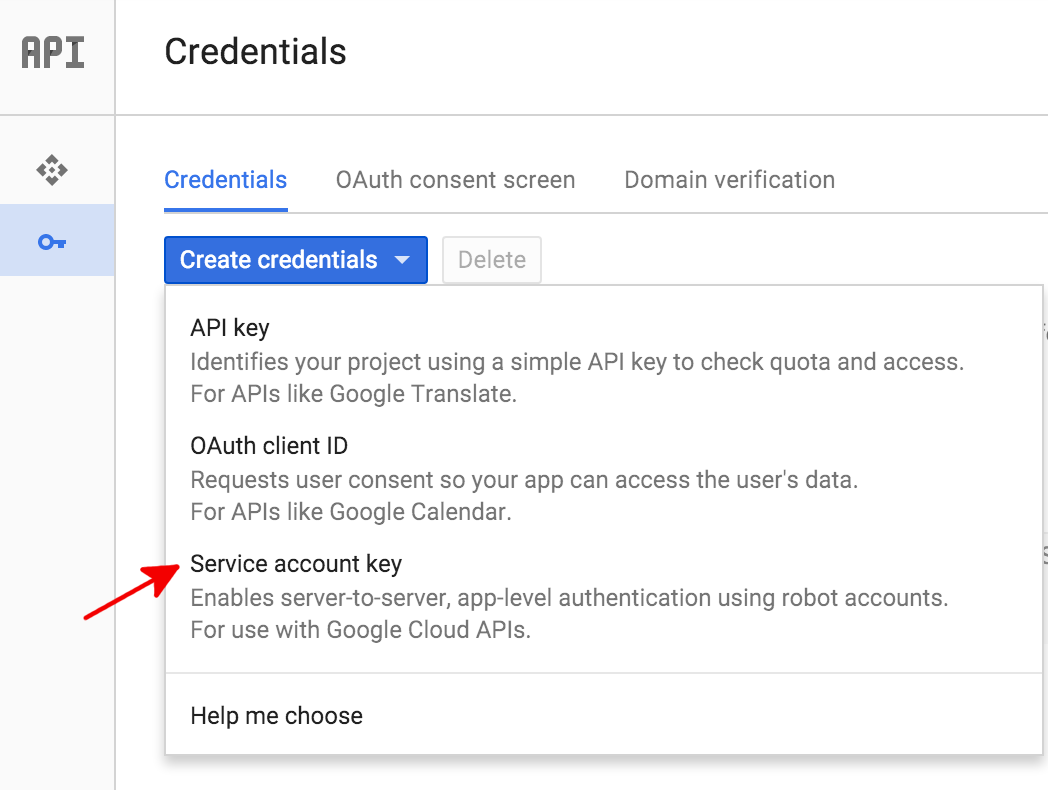
Nella pagina Credenziali della console Google Cloud , seleziona Crea credenziali > Chiave service account.
Poi, in Service account, seleziona Nuovo service account.
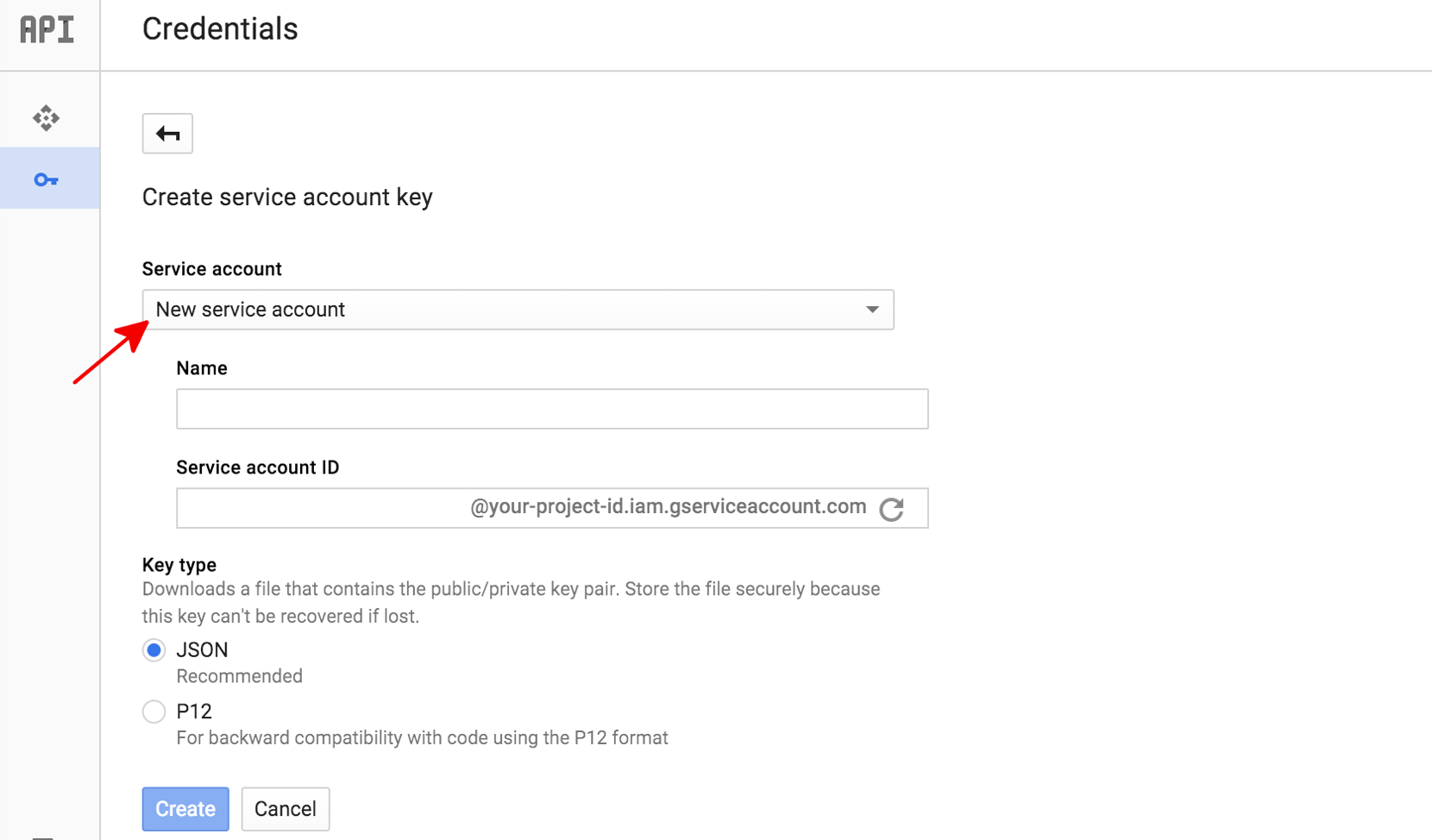
Nella casella Nome service account, inserisci un nome per il service account. Questo nome viene utilizzato come nome predefinito per l'ID account di servizio (a sinistra di "@" nell'indirizzo ID account di servizio generato), ma puoi modificare questo nome ID account di servizio. Questi nomi sono arbitrari; l'importante è che tu li ricordi.
In Tipo di chiave, seleziona JSON per la maggior parte dei nuovi progetti.
Fai clic su Crea.
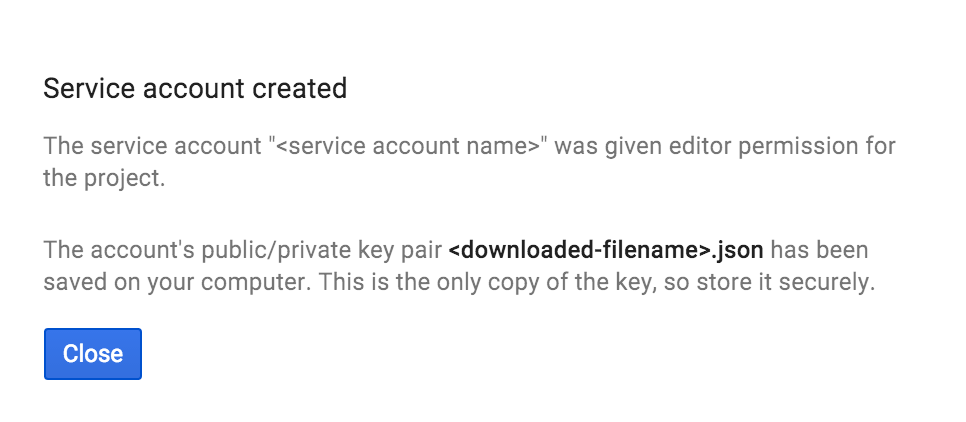
La console Google Cloud genera quindi una chiave JSON (come file di testo .json) e ti chiede di scaricare il file sul computer, quindi visualizza la finestra di dialogo Service account creato.
La chiave JSON generata sarà simile alla seguente chiave JSON di esempio:
{
  "type": "service_account",
  "project_id": "PROJECT_ID",
  "private_key_id": "SOME_NUMBER",
  "private_key": "-----BEGIN PRIVATE KEY-----\nPRIVATE_KEY\n-----END PRIVATE KEY-----\n",
  "client_email": "SERVICE_ACCOUNT_EMAIL",
  "client_id": "...",
  "auth_uri": "https://accounts.google.com/o/oauth2/auth",
  "token_uri": "https://accounts.google.com/o/oauth2/token",
  "auth_provider_x509_cert_url": "https://www.googleapis.com/oauth2/v1/certs",
  "client_x509_cert_url": "https://www.googleapis.com/robot/v1/metadata/x509/SERVICE_ACCOUNT_EMAIL"
}
Archivia questo file JSON in modo sicuro, in quanto contiene la tua chiave privata (e questo file è l'unica copia della chiave). Devi fare riferimento a questo file della chiave del account di servizio all'interno del codice quando invii richieste di annotazione all'API Video Intelligence.
Autenticazione con le Credenziali predefinite dell'applicazione
Il modo più semplice per le applicazioni di autenticarsi all'API Video Intelligence è
utilizzando le
Credenziali predefinite dell'applicazione (ADC).
I servizi che utilizzano ADC cercano prima le credenziali all'interno di una variabile di ambiente GOOGLE_APPLICATION_CREDENTIALS. A meno che tu non richieda specificamente che ADC utilizzi altre credenziali (ad esempio, le credenziali utente), devi impostare questa variabile di ambiente in modo che punti al file della chiave del account di servizio (il file .json scaricato quando hai creato una chiave del account di servizio).
$ export GOOGLE_APPLICATION_CREDENTIALS=PATH_TO_SERVICE_ACCOUNT_FILE