This page describes what a service account is, how to create one to authenticate requests to the Video Intelligence API, and how to use your service account to set [Application Default Credentials](https://docs.cloud.google.com/accounts/docs/application-default-credentials).
To allow your application code to use the Video Intelligence API, you must
set up the proper credentials for your application to
*authenticate* its identity to the service and to obtain
*authorization* to perform tasks.
(These credential-related mechanisms are known as *auth* schemes.)
> [!NOTE]
> **Note:** Authentication and authorization are large topics. How you set up your application or service depends on a variety of factors, including who, or what application, you want to authenticate, what tasks you want to allow the authenticated entity to perform (commonly referred to as authorization), and what, if any, container you use---for example, Compute Engine or App Engine. See the [Google Cloud Platform Auth Guide](https://docs.cloud.google.com/docs/authentication) for more information.
Google Cloud API authentication and authorization
(commonly grouped together as "auth") is typically done using a
service account. A service account allows your code to send
application credentials directly to the Video Intelligence API. A service
account, like a user account, is represented by an email
address. Unlike a user account, a service account is associated only
with an application.
## Enabling the API
Before you can authenticate, you must first enable the
Video Intelligence API.
## Creating a service account in the Google Cloud console
To create a service account using the Google Cloud console, do the
following:
1. From the Google Cloud console
[Credentials](https://console.cloud.google.com/apis/credentials)
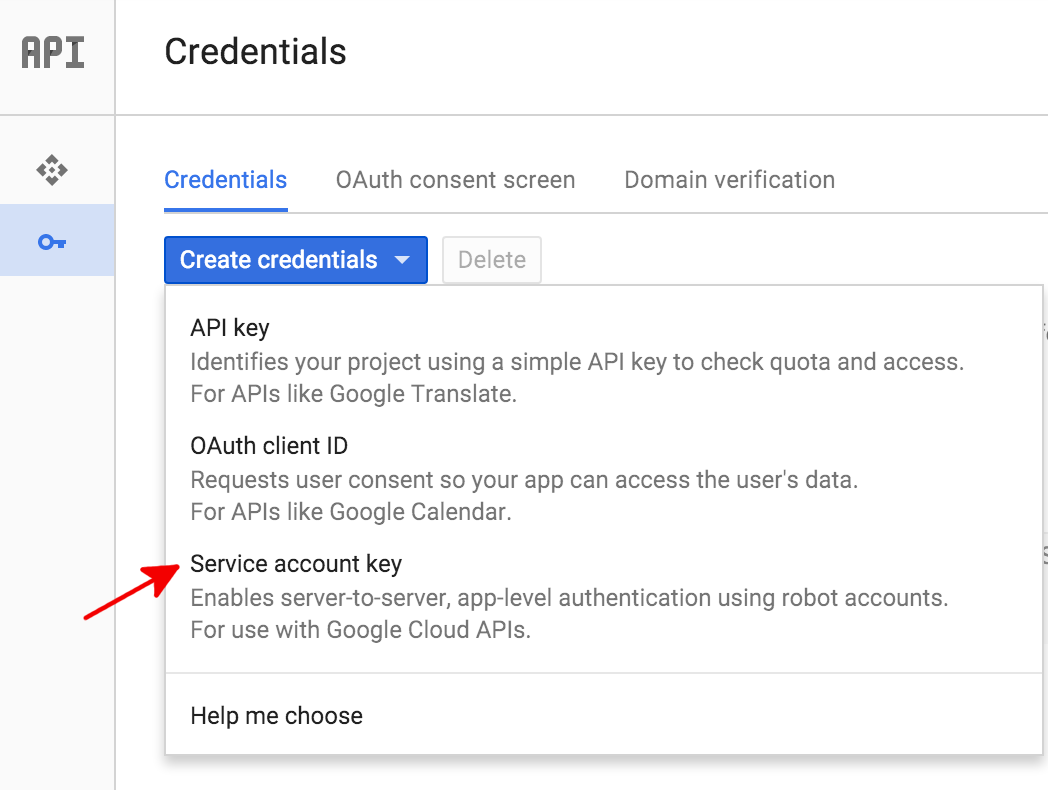
page, select **Create credentials \> Service account key**.
2. Next, under **Service account** select **New service account**.
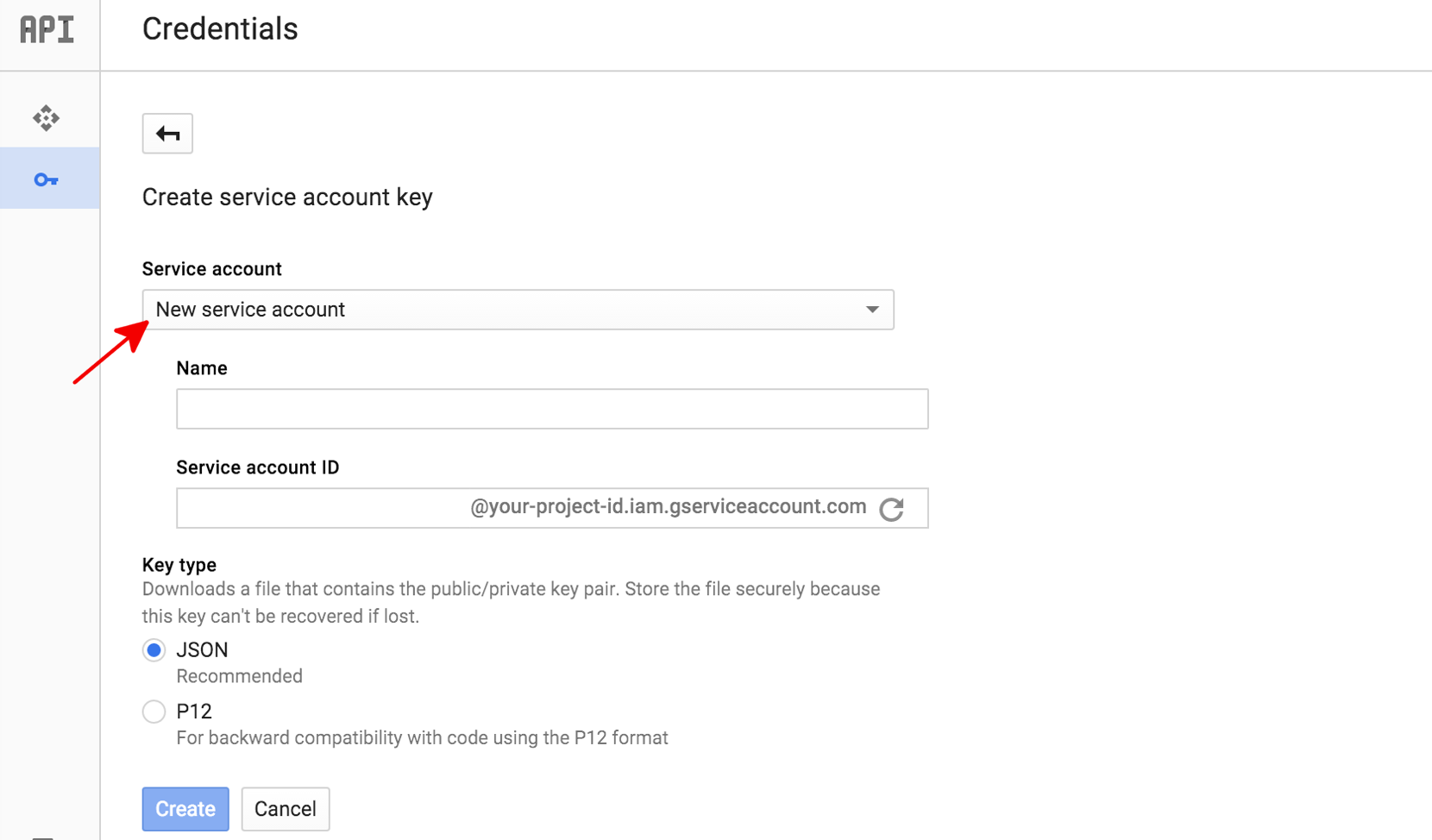
3. In the **Service account name** box, enter a name for your service
account. This name is used as the default name for your **Service
account ID** (to the left of the "@" in the generated service
account ID address), but you can change this service account ID
name. These names are arbitrary; it is only important that you
remember them.
4. Under **Key type** select **JSON** for most new projects.
5. Click **Create**.
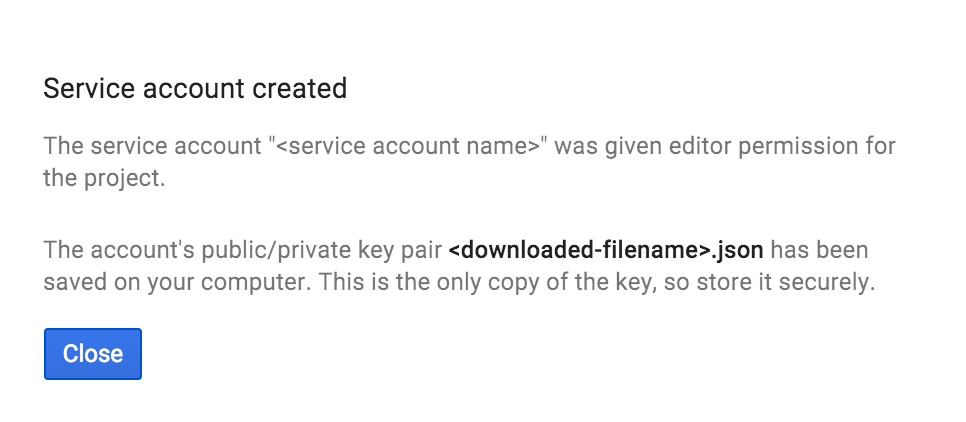
The Google Cloud console then generates a JSON key (as a `.json`
text file), prompts you to download the file to your computer, and
displays a **Service account created** dialog box.
The generated JSON key will be similar to the following sample JSON key:
```
{
"type": "service_account",
"project_id": "PROJECT_ID",
"private_key_id": "SOME_NUMBER",
"private_key": "---BEGIN PRIVATE KEY---\nPRIVATE_KEY\n---END PRIVATE KEY---\n",
"client_email": "SERVICE_ACCOUNT_EMAIL",
"client_id": "...",
"auth_uri": "https://accounts.google.com/o/oauth2/auth",
"token_uri": "https://accounts.google.com/o/oauth2/token",
"auth_provider_x509_cert_url": "https://www.googleapis.com/oauth2/v1/certs",
"client_x509_cert_url": "https://www.googleapis.com/robot/v1/metadata/x509/SERVICE_ACCOUNT_EMAIL"
}
```
Store this JSON file securely, as it contains your private key (and
this file is the only copy of that key). You must refer to this
service account key file within your code when you send annotation
requests to Video Intelligence API.
## Authenticating with Application Default Credentials
The simplest way for applications to authenticate to Video Intelligence API is
by using
[Application Default Credentials](https://docs.cloud.google.com/accounts/docs/application-default-credentials) (ADC).
Services using ADC first search for credentials within a
`GOOGLE_APPLICATION_CREDENTIALS` environment variable. Unless you
specifically require ADC to use other credentials (for example, user
credentials), you should set this environment variable to point to
your service account key file (the `.json` file downloaded when you
created a service account key.
```
$ export GOOGLE_APPLICATION_CREDENTIALS=PATH_TO_SERVICE_ACCOUNT_FILE
```