> [!CAUTION]
> **Caution:** The following table describes image generation endpoints that are deprecated and their replacements. We recommend updating your model endpoints before June 30, 2026, to avoid service disruption.
>
> | Discontinued endpoints | Recommended endpoint migration |
> |---|---|
> | `imagegeneration@002` | `gemini-2.5-flash-image` |
> | `imagegeneration@003` | `gemini-2.5-flash-image` |
> | `imagegeneration@004` | `gemini-2.5-flash-image` |
> | `imagegeneration@005` | `gemini-2.5-flash-image` |
> | `imagegeneration@006` | `gemini-2.5-flash-image` |
> | `imagetext@001` | `gemini-2.5-flash-image` |
> | `imagen-3.0-capability-001` | `gemini-2.5-flash-image` |
> | `imagen-3.0-capability-002` | `gemini-2.5-flash-image` |
> | `imagen-3.0-fast-generate-001` | `gemini-2.5-flash-image` |
> | `imagen-3.0-generate-001` | `gemini-2.5-flash-image` |
> | `imagen-3.0-generate-002` | `gemini-2.5-flash-image` |
> | `imagen-4.0-fast-generate-001` | `gemini-2.5-flash-image` |
> | `imagen-4.0-generate-001` | `gemini-2.5-flash-image` |
> | `imagen-4.0-ultra-generate-001` | `gemini-2.5-flash-image` |
>
Imagen 3 Customization's style customization helps you generate new
images from text prompts and reference images that you provide. The reference
images guide new image generation.
The following models support style customization:
- [`imagen-3.0-capability-001`](https://docs.cloud.google.com/vertex-ai/generative-ai/docs/models/imagen/3-0-generate.md.txt#3.0-capability-001)
## Use cases
Imagen 3 Customization offers free-style prompting, which can give the
impression that it can do more than it is trained to do. The following sections
describe intended use cases for Imagen 3 Customization, and
non-exhaustive examples of unintended use cases.
We recommend using Imagen 3 Customization for the intended use cases, as
we've trained the model on those use cases and expect good results for them.
Conversely, while you can push the model to do things outside of the intended
use cases, we don't expect good results.
### Intended use cases
The following are use cases intended for Imagen 3 Customization style
customization:
- Generate an image from text input that follows the specific style provided by a reference image.
- Alter a photo of a person.
- Alter a photo of a person and preserve their facial expression.
### Examples of unintended use cases
The following are a non-exhaustive list of use cases that
Imagen 3 Customization isn't trained to do, and produces poor results
for:
- Generate an image from text and using a reference image, with the intent to
have some level of control of the generated composition from the reference
image.
- Generate an image of a person from a reference image that has a person with
a particular facial expression.
- Place two people in a different scene, preserve their identities, and while
specifying the style of the output image (such as an oil painting) using a
reference image.
- Stylize a photo of a pet and turn it into a drawing, while preserving or
specifying the composition of the image.
- Place a product, such as a cookie or a couch, into different scenes with
different product angles, and following a specific image style (such as
photorealistic with specific colors, lighting styles, or animation).
## Style customization example
The following depicts an example case for Imagen 3 Customization style
customization:
| Sample Input | Sample Output |
|---|---|
| 1. Reference image^1^: 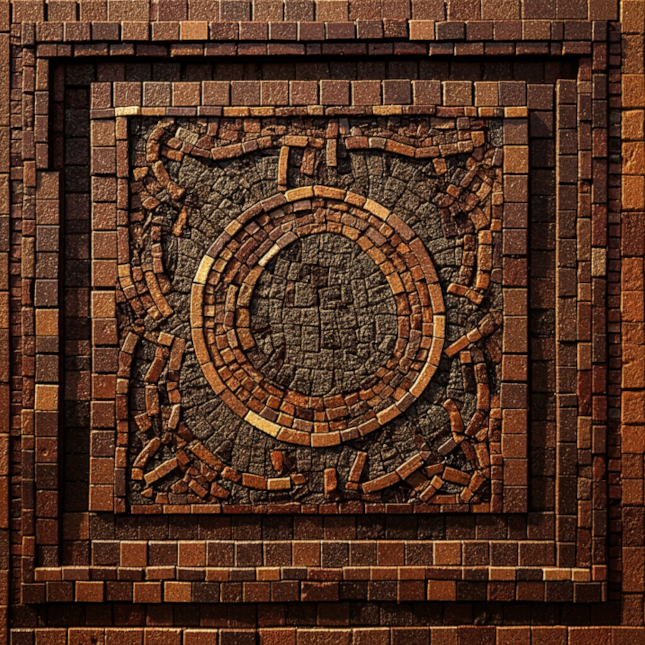 2. Text prompt: *Generate an image in mosaic style \[1\] based on the following caption: The New York City skyline* | 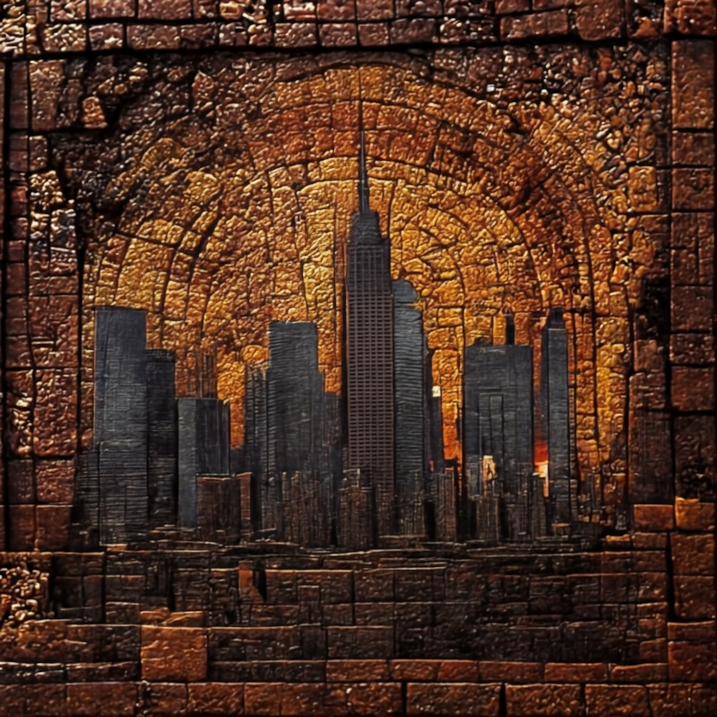 |
^1^ Reference input image generated using Imagen 3
image generation from the prompt: *a simple mosaic*.
[View Imagen for Editing and Customization model card](https://console.cloud.google.com/vertex-ai/publishers/google/model-garden/imagen-3.0-capability-001)
## Before you begin
1. Set up authentication for your environment.
Select the tab for how you plan to use the samples on this page:
### Console
When you use the Google Cloud console to access Google Cloud services and
APIs, you don't need to set up authentication.
### REST
To use the REST API samples on this page in a local development environment, you use the
credentials you provide to the gcloud CLI.
1. [Install](https://docs.cloud.google.com/sdk/docs/install) the Google Cloud CLI.
2. If you're using an external identity provider (IdP), you must first [sign in to the gcloud CLI with your federated identity](https://docs.cloud.google.com/iam/docs/workforce-log-in-gcloud.md.txt).
For more information, see
[Authenticate for using REST](https://docs.cloud.google.com/docs/authentication/rest.md.txt)
in the Google Cloud authentication documentation.
## Style customization
> [!NOTE]
> To see an example of Imagen 3 Customization,
> run the "Imagen 3 Customized Images" notebook in one of the following
> environments:
>
> [Open in Colab](https://colab.research.google.com/github/GoogleCloudPlatform/generative-ai/blob/main/vision/getting-started/imagen3_customization.ipynb)
>
>
> \|
>
> [Open in Colab Enterprise](https://console.cloud.google.com/vertex-ai/colab/import/https%3A%2F%2Fraw.githubusercontent.com%2FGoogleCloudPlatform%2Fgenerative-ai%2Fmain%2Fvision%2Fgetting-started%2Fimagen3_customization.ipynb)
>
>
> \|
>
> [Open
> in Vertex AI Workbench](https://console.cloud.google.com/vertex-ai/workbench/deploy-notebook?download_url=https://raw.githubusercontent.com/GoogleCloudPlatform/generative-ai/main/vision/getting-started/imagen3_customization.ipynb)
>
>
> \|
>
> [View on GitHub](https://github.com/GoogleCloudPlatform/generative-ai/blob/main/vision/getting-started/imagen3_customization.ipynb)
You can provide reference images of style types when you use
Imagen 3 Customization. The style that you choose affects how you form
your generation request.
The prompt you use with Imagen 3 Customization might affect the quality
of your generated images. The following sections describe recommended prompt
templates and samples to send customization requests.
| Use case | Reference images | Prompt template | Example |
|---|---|---|---|
| Object style | Subject image (1-4) | Generate an image in STYLE_DESCRIPTION \[1\] based on the following caption: IMAGE_DESCRIPTION. | Generate an image in neon sign style \[1\] based on the following caption: a sign saying have a great day. |
| Person image stylization without face mesh input | Subject image (1-4) | Create an image about SUBJECT_DESCRIPTION \[1\] to match the description: a portrait of SUBJECT_DESCRIPTION \[1\] *${PROMPT}* | Create an image about a woman with short hair\[1\] to match the description: a portrait of a woman with short hair\[1\] *in 3d-cartoon style with blurred background. A cute and lovely character, smile face, looking at the camera, pastel color tone, high quality, 4k, masterpiece, super details, skin texture, texture mapping, soft shadows, soft realistic lighting, vibrant colors* |
| Person image stylization with face mesh input | Subject image (1-3) *** ** * ** *** Facemesh control image (1) | Create an image about SUBJECT_DESCRIPTION \[1\] in the pose of the CONTROL_IMAGE \[2\] to match the description: a portrait of SUBJECT_DESCRIPTION \[1\] *${PROMPT}* | Create an image about a woman with short hair \[1\] in the pose of the control image \[2\] to match the description: a portrait of a woman with short hair \[1\] *in 3d-cartoon style with blur background. A Cute and lovely character, smile face. See the camera, pastel color tone, high quality, 4k, masterpiece, super details, skin texture, texture mapping, Soft shadows, soft realistic lighting, vibrant colors* |
### REST
For more information about the Imagen API, see the following:
- [Method:
`endpoints.predict`](https://docs.cloud.google.com/vertex-ai/generative-ai/docs/reference/rest/v1/projects.locations.endpoints/predict)
- [`VisionGenerativeModelInstance`](https://docs.cloud.google.com/vertex-ai/generative-ai/docs/reference/rest/Shared.Types/VisionGenerativeModelInstance)
- [`VisionGenerativeModelParams`](https://docs.cloud.google.com/vertex-ai/generative-ai/docs/reference/rest/Shared.Types/VisionGenerativeModelParams)
- [`VisionGenerativeModelResult`](https://docs.cloud.google.com/vertex-ai/generative-ai/docs/reference/rest/Shared.Types/VisionGenerativeModelResult)
Before using any of the request data,
make the following replacements:
- PROJECT_ID: Your Google Cloud [project ID](https://docs.cloud.google.com/resource-manager/docs/creating-managing-projects.md.txt#identifying_projects).
- LOCATION: Your project's region. For example, `us-central1`, `europe-west2`, or `asia-northeast3`. For a list of available regions, see [Generative AI on Vertex AI locations](https://docs.cloud.google.com/vertex-ai/generative-ai/docs/learn/locations-genai). When a regional API endpoint is used, the region from the endpoint's URL determines where the request is processed, and this `LOCATION` in the resource path is ignored if it conflicts.
- TEXT_PROMPT: The text prompt guides what images the model generates. To use Imagen 3 Customization, include the `referenceId` of the reference image or images you provide in the format \[$referenceId\]. For example:
- The following text prompt is for a request that has a single reference image with `"referenceId": 1` and an optional description of `"styleDescription": "glowing style"`: * Generate an image in glowing style \[1\] based on the following caption: A church in the mountain. *
- `"referenceId"`: The ID of the reference image, or the ID for a series of reference images that correspond to the same subject or style. In this example the single reference image has a `referenceId` of (`1`).
- BASE64_REFERENCE_IMAGE: A reference image to guide image generation. The image must be specified as a [base64-encoded](https://docs.cloud.google.com/vertex-ai/generative-ai/docs/image/base64-encode.md.txt) byte string.
- STYLE_DESCRIPTION: Optional. A text description of the reference image you can then use in the `prompt` field. For example:
```
"prompt": "Generate an image in glowing style [1] based on the following
caption: A church in the mountain.",
[...],
"styleImageConfig": {
"styleDescription": "glowing style"
}
```
- IMAGE_COUNT: The number of generated images. Accepted integer values: 1-4. Default value: 4.
HTTP method and URL:
```
POST https://LOCATION-aiplatform.googleapis.com/v1/projects/PROJECT_ID/locations/LOCATION/publishers/google/models/imagen-3.0-capability-001:predict
```
Request JSON body:
```
{
"instances": [
{
"prompt": "TEXT_PROMPT",
"referenceImages": [
{
"referenceType": "REFERENCE_TYPE_STYLE",
"referenceId": 1,
"referenceImage": {
"bytesBase64Encoded": "BASE64_REFERENCE_IMAGE"
},
"styleImageConfig": {
"styleDescription": "STYLE_DESCRIPTION"
}
}
]
}
],
"parameters": {
"sampleCount": IMAGE_COUNT
}
}
```
To send your request, choose one of these options:
#### curl
> [!NOTE]
> **Note:** The following command assumes that you have logged in to the `gcloud` CLI with your user account by running [`gcloud init`](https://docs.cloud.google.com/sdk/gcloud/reference/init) or [`gcloud auth login`](https://docs.cloud.google.com/sdk/gcloud/reference/auth/login.md.txt) , or by using [Cloud Shell](https://docs.cloud.google.com/shell/docs.md.txt), which automatically logs you into the `gcloud` CLI . You can check the currently active account by running [`gcloud auth list`](https://docs.cloud.google.com/sdk/gcloud/reference/auth/list.md.txt).
Save the request body in a file named `request.json`,
and execute the following command:
```
curl -X POST \
-H "Authorization: Bearer $(gcloud auth print-access-token)" \
-H "Content-Type: application/json; charset=utf-8" \
-d @request.json \
"https://LOCATION-aiplatform.googleapis.com/v1/projects/PROJECT_ID/locations/LOCATION/publishers/google/models/imagen-3.0-capability-001:predict"
```
#### PowerShell
> [!NOTE]
> **Note:** The following command assumes that you have logged in to the `gcloud` CLI with your user account by running [`gcloud init`](https://docs.cloud.google.com/sdk/gcloud/reference/init) or [`gcloud auth login`](https://docs.cloud.google.com/sdk/gcloud/reference/auth/login.md.txt) . You can check the currently active account by running [`gcloud auth list`](https://docs.cloud.google.com/sdk/gcloud/reference/auth/list.md.txt).
Save the request body in a file named `request.json`,
and execute the following command:
```
$cred = gcloud auth print-access-token
$headers = @{ "Authorization" = "Bearer $cred" }
Invoke-WebRequest `
-Method POST `
-Headers $headers `
-ContentType: "application/json; charset=utf-8" `
-InFile request.json `
-Uri "https://LOCATION-aiplatform.googleapis.com/v1/projects/PROJECT_ID/locations/LOCATION/publishers/google/models/imagen-3.0-capability-001:predict" | Select-Object -Expand Content
```
The following sample response is for a request with `"sampleCount": 2`. The response returns two prediction objects, with the generated image bytes base64-encoded.
```
{
"predictions": [
{
"bytesBase64Encoded": "BASE64_IMG_BYTES",
"mimeType": "image/png"
},
{
"mimeType": "image/png",
"bytesBase64Encoded": "BASE64_IMG_BYTES"
}
]
}
```
## Product usage
To view usage standards and content restrictions associated with
Imagen on Vertex AI, see the
[usage guidelines](https://docs.cloud.google.com/vertex-ai/generative-ai/docs/image/responsible-ai-imagen.md.txt#imagen-guidelines).
## Model versions
There are multiple image generation models that you can use. For more
information, see [Imagen
models](https://docs.cloud.google.com/vertex-ai/generative-ai/docs/models#imagen-models).
## What's next
Read articles about Imagen and other Generative AI on Vertex AI
products:
- [A developer's guide to getting started with Imagen 3 on
Vertex AI](https://cloud.google.com/blog/products/ai-machine-learning/a-developers-guide-to-imagen-3-on-vertex-ai?e=0?utm_source%3Dlinkedin)
- [New generative media models and tools, built with and for creators](https://blog.google/technology/ai/google-generative-ai-veo-imagen-3/#veo)
- [New in Gemini: Custom Gems and improved image generation with
Imagen 3](https://blog.google/products/gemini/google-gemini-update-august-2024/)
- [Google DeepMind: Imagen 3 - Our highest quality
text-to-image model](https://deepmind.google/technologies/imagen-3/)