> [!CAUTION]
> **Caution:** The following table describes image generation endpoints that are deprecated and their replacements. We recommend updating your model endpoints before June 30, 2026, to avoid service disruption.
>
> | Discontinued endpoints | Recommended endpoint migration |
> |---|---|
> | `imagegeneration@002` | `gemini-2.5-flash-image` |
> | `imagegeneration@003` | `gemini-2.5-flash-image` |
> | `imagegeneration@004` | `gemini-2.5-flash-image` |
> | `imagegeneration@005` | `gemini-2.5-flash-image` |
> | `imagegeneration@006` | `gemini-2.5-flash-image` |
> | `imagetext@001` | `gemini-2.5-flash-image` |
> | `imagen-3.0-capability-001` | `gemini-2.5-flash-image` |
> | `imagen-3.0-capability-002` | `gemini-2.5-flash-image` |
> | `imagen-3.0-fast-generate-001` | `gemini-2.5-flash-image` |
> | `imagen-3.0-generate-001` | `gemini-2.5-flash-image` |
> | `imagen-3.0-generate-002` | `gemini-2.5-flash-image` |
> | `imagen-4.0-fast-generate-001` | `gemini-2.5-flash-image` |
> | `imagen-4.0-generate-001` | `gemini-2.5-flash-image` |
> | `imagen-4.0-ultra-generate-001` | `gemini-2.5-flash-image` |
>
[Try image generation (Vertex AI Studio)](https://console.cloud.google.com/vertex-ai/studio/media/generate;tab=image)
[Try Imagen in a Colab](https://colab.research.google.com/github/GoogleCloudPlatform/generative-ai/blob/main/vision/getting-started/imagen4_image_generation.ipynb)
This page describes how to configure the aspect ratio that Imagen on Vertex AI
generates images for.
Depending on how you plan to use your generated images, some aspect ratios may
work better than others. Choose the aspect ratio that best suits your use case.
There are multiple image generation models that you can use, and certain aspect
ratios are available to specific Imagen models. For more
information, see [Imagen
models](https://docs.cloud.google.com/vertex-ai/generative-ai/docs/models#imagen-models).
| Aspect ratio | Intended use | Sample image |
|---|---|---|
| `1:1` | default, square, general use | 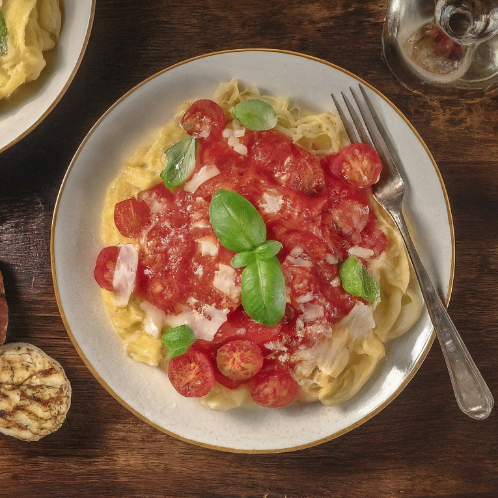 ^Prompt: *overhead shot of a pasta dinner, studio photo in the style of food magazine cover*.^ |
| `3:4` | TV, media, film |  ^Prompt: *commercial photoshoot, fragrance ad, lavender vanilla scented bottle on a light colored background*.^ |
| `4:3` | TV, media, film | 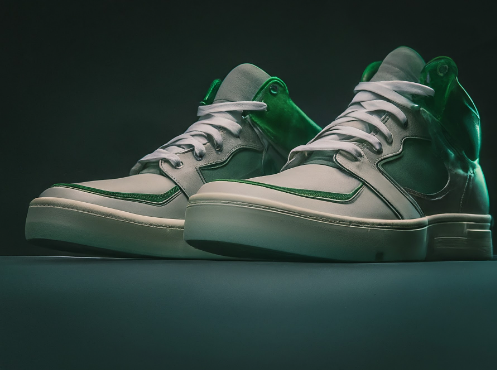 ^Prompt: *commercial photoshoot, green and gray high top sneakers, 4k, dramatic angles*.^ |
| `9:16` | portrait, tall objects, mobile devices | 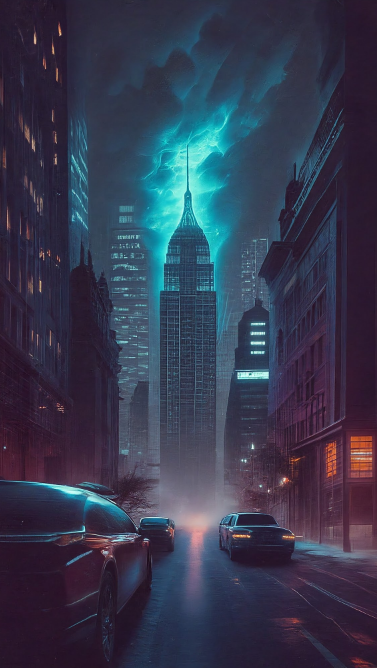 ^Prompt: *nature photography, a beach in hawaii with the ocean in the background, lens flare, sunset*.^ |
| `16:9` | landscape | 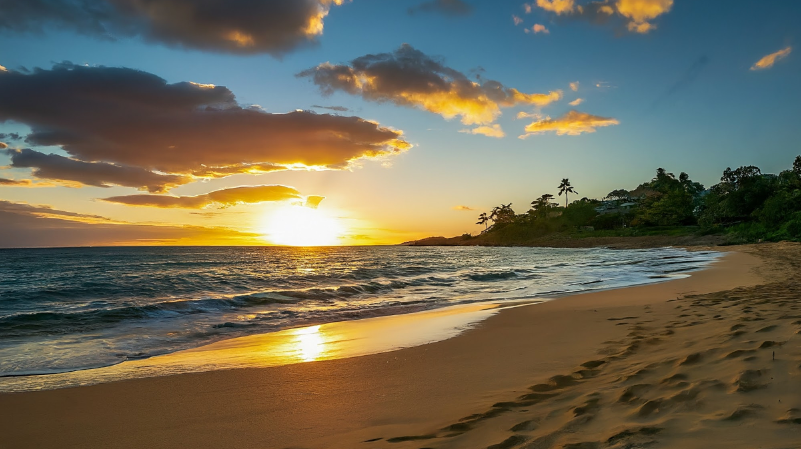 ^Prompt: *skyscrapers in new york city, futuristic rendering, concept, digital art*.^ |
### Console
1.
In the Google Cloud console, go to the **Vertex AI \> Vertex AI Studio** page.
[Go to Vertex AI Studio](https://console.cloud.google.com/vertex-ai/studio/media/generate;tab=image)
2.
Click **Generate media**.
3.
Click **Image**.
4. From the **Task** list, select an image generation task.
5. From the **Model** list,choose a model from the available options.
For more information about available models, see [Imagen
models](https://docs.cloud.google.com/vertex-ai/generative-ai/docs/models#imagen-models)
6. In the **Prompt** box, enter your text prompt that describes the images to
generate. For example, **small boat on water in the morning watercolor
illustration**.
7. In the **Parameters** section, adjust the following options:
- **Aspect ratio**: The aspect ratio to use when generating images
8. Click **Run**.
### REST
For more information about the Imagen API, see the following:
- [Method:
`endpoints.predict`](https://docs.cloud.google.com/vertex-ai/generative-ai/docs/reference/rest/v1/projects.locations.endpoints/predict)
- [`VisionGenerativeModelInstance`](https://docs.cloud.google.com/vertex-ai/generative-ai/docs/reference/rest/Shared.Types/VisionGenerativeModelInstance)
- [`VisionGenerativeModelParams`](https://docs.cloud.google.com/vertex-ai/generative-ai/docs/reference/rest/Shared.Types/VisionGenerativeModelParams)
- [`VisionGenerativeModelResult`](https://docs.cloud.google.com/vertex-ai/generative-ai/docs/reference/rest/Shared.Types/VisionGenerativeModelResult)
Aspect ratio is an optional field in the `parameters` object of a JSON
request body.
Before using any of the request data,
make the following replacements:
- REGION: The region that your project is located in. For more information about supported regions, see [Generative AI on Vertex AI
locations](https://docs.cloud.google.com/vertex-ai/generative-ai/docs/learn/locations).
- PROJECT_ID: Your Google Cloud [project ID](https://docs.cloud.google.com/resource-manager/docs/creating-managing-projects.md.txt#identifying_projects).
- MODEL_VERSION: The Imagen model version
to use. For more information about available models, see
[Imagen
models](https://docs.cloud.google.com/vertex-ai/generative-ai/docs/models#imagen-models).
- TEXT_PROMPT: The text prompt that guides what images the model generates. This field is required for both generation and editing.
- IMAGE_COUNT: The number of images to generate. The accepted range of values is `1` to `4`.
**Additional optional parameters**
Use the following optional variables depending on your use
case. Add some or all of the following parameters in the `"parameters": {}` object.
This list shows common optional parameters and isn't meant to be exhaustive. For more
information about optional parameters,
see [Imagen API reference: Generate images](https://docs.cloud.google.com/vertex-ai/generative-ai/docs/model-reference/imagen-api).
```
"parameters": {
"sampleCount": IMAGE_COUNT,
"addWatermark": ADD_WATERMARK,
"aspectRatio": "ASPECT_RATIO",
"enhancePrompt": ENABLE_PROMPT_REWRITING,
"includeRaiReason": INCLUDE_RAI_REASON,
"includeSafetyAttributes": INCLUDE_SAFETY_ATTRIBUTES,
"outputOptions": {
"mimeType": "MIME_TYPE",
"compressionQuality": COMPRESSION_QUALITY
},
"personGeneration": "PERSON_SETTING",
"safetySetting": "SAFETY_SETTING",
"seed": SEED_NUMBER,
"storageUri": "OUTPUT_STORAGE_URI"
}
```
- ADD_WATERMARK: boolean. Optional. Whether to enable a watermark for generated images. Any image generated when the field is set to `true` contains a digital [SynthID](https://deepmind.google/technologies/synthid/) that you can use to verify a watermarked image. If you omit this field, the default value of `true` is used; you must set the value to `false` to disable this feature. You can use the `seed` field to get deterministic output only when this field is set to `false`.
- ASPECT_RATIO: string. Optional. A generation mode parameter that controls aspect ratio. Supported ratio values and their intended use:
- `1:1` (default, square)
- `3:4` (Ads, social media)
- `4:3` (TV, photography)
- `16:9` (landscape)
- `9:16` (portrait)
- ENABLE_PROMPT_REWRITING: boolean. Optional. A parameter to use an LLM-based prompt rewriting feature to deliver higher quality images that better reflect the original prompt's intent. Disabling this feature may impact image quality and prompt adherence. Default value: `true`.
- INCLUDE_RAI_REASON: boolean. Optional. Whether to enable the [Responsible AI filtered reason
code](https://docs.cloud.google.com/vertex-ai/generative-ai/docs/image/responsible-ai-imagen#safety-categories) in responses with blocked input or output. Default value: `true`.
- INCLUDE_SAFETY_ATTRIBUTES: boolean. Optional. Whether to enable rounded Responsible AI scores for a list of safety attributes in responses for unfiltered input and output. Safety attribute categories: `"Death, Harm & Tragedy"`, `"Firearms & Weapons"`, `"Hate"`, `"Health"`, `"Illicit Drugs"`, `"Politics"`, `"Porn"`, `"Religion & Belief"`, `"Toxic"`, `"Violence"`, `"Vulgarity"`, `"War & Conflict"`. Default value: `false`.
- MIME_TYPE: string. Optional. The MIME type of the content of the image. Available values:
- `image/jpeg`
- `image/gif`
- `image/png`
- `image/webp`
- `image/bmp`
- `image/tiff`
- `image/vnd.microsoft.icon`
- COMPRESSION_QUALITY: integer. Optional. Only applies to JPEG output files. The level of detail the model preserves for images generated in JPEG file format. Values: `0` to `100`, where a higher number means more compression. Default: `75`.
- PERSON_SETTING: string. Optional. The safety setting that controls the type of people or face generation the model allows. The default value is model-dependent. Available values:
- `allow_all`: Allow generation of people, including minors. This is the default for Imagen 4 generation models, imagen-3.0-capability-001, and imagen-product-recontext-preview-06-30.
- `allow_adult`: Allow generation of adults only, including celebrities. This is the default for all other models.
- `dont_allow`: Disable the inclusion of people or faces in generated images.
- SAFETY_SETTING: string. Optional. A setting that controls safety filter thresholds for generated images. Available values:
- `block_low_and_above`: The highest safety threshold, resulting in the largest amount of generated images that are filtered. Previous value: `block_most`.
- `block_medium_and_above` (default): A medium safety threshold that balances filtering for potentially harmful and safe content. Previous value: `block_some`.
- `block_only_high`: A safety threshold that reduces the number of requests blocked due to safety filters. This setting might increase objectionable content generated by Imagen. Previous value: `block_few`.
- SEED_NUMBER: integer. Optional. Any non-negative integer you provide to make output images deterministic. Providing the same seed number always results in the same output images. If the model you're using supports digital watermarking, you must set `"addWatermark": false` to use this field. Accepted integer values: `1` - `2147483647`.
- OUTPUT_STORAGE_URI: string. Optional. The Cloud Storage bucket to store the output images. If not provided, base64-encoded image bytes are returned in the response. Sample value: `gs://image-bucket/output/`.
HTTP method and URL:
```
POST https://REGION-aiplatform.googleapis.com/v1/projects/PROJECT_ID/locations/REGION/publishers/google/models/MODEL_VERSION:predict
```
Request JSON body:
```
{
"instances": [
{
"prompt": "TEXT_PROMPT"
}
],
"parameters": {
"sampleCount": IMAGE_COUNT
}
}
```
To send your request, choose one of these options:
#### curl
> [!NOTE]
> **Note:** The following command assumes that you have logged in to the `gcloud` CLI with your user account by running [`gcloud init`](https://docs.cloud.google.com/sdk/gcloud/reference/init) or [`gcloud auth login`](https://docs.cloud.google.com/sdk/gcloud/reference/auth/login.md.txt) , or by using [Cloud Shell](https://docs.cloud.google.com/shell/docs.md.txt), which automatically logs you into the `gcloud` CLI . You can check the currently active account by running [`gcloud auth list`](https://docs.cloud.google.com/sdk/gcloud/reference/auth/list.md.txt).
Save the request body in a file named `request.json`,
and execute the following command:
```
curl -X POST \
-H "Authorization: Bearer $(gcloud auth print-access-token)" \
-H "Content-Type: application/json; charset=utf-8" \
-d @request.json \
"https://REGION-aiplatform.googleapis.com/v1/projects/PROJECT_ID/locations/REGION/publishers/google/models/MODEL_VERSION:predict"
```
#### PowerShell
> [!NOTE]
> **Note:** The following command assumes that you have logged in to the `gcloud` CLI with your user account by running [`gcloud init`](https://docs.cloud.google.com/sdk/gcloud/reference/init) or [`gcloud auth login`](https://docs.cloud.google.com/sdk/gcloud/reference/auth/login.md.txt) . You can check the currently active account by running [`gcloud auth list`](https://docs.cloud.google.com/sdk/gcloud/reference/auth/list.md.txt).
Save the request body in a file named `request.json`,
and execute the following command:
```
$cred = gcloud auth print-access-token
$headers = @{ "Authorization" = "Bearer $cred" }
Invoke-WebRequest `
-Method POST `
-Headers $headers `
-ContentType: "application/json; charset=utf-8" `
-InFile request.json `
-Uri "https://REGION-aiplatform.googleapis.com/v1/projects/PROJECT_ID/locations/REGION/publishers/google/models/MODEL_VERSION:predict" | Select-Object -Expand Content
```
The following sample response is for a request with `"sampleCount":
2`. The response returns two prediction objects, with the generated image bytes base64-encoded.
```json
{
"predictions": [
{
"bytesBase64Encoded": "BASE64_IMG_BYTES",
"mimeType": "image/png"
},
{
"mimeType": "image/png",
"bytesBase64Encoded": "BASE64_IMG_BYTES"
}
]
}
```
If you use a model that supports prompt enhancement, the response includes an
additional `prompt` field with the enhanced prompt used for
generation:
```
{
"predictions": [
{
"mimeType": "MIME_TYPE",
"prompt": "ENHANCED_PROMPT_1",
"bytesBase64Encoded": "BASE64_IMG_BYTES_1"
},
{
"mimeType": "MIME_TYPE",
"prompt": "ENHANCED_PROMPT_2",
"bytesBase64Encoded": "BASE64_IMG_BYTES_2"
}
]
}
```
## What's next
- [Use prompt rewriter](https://docs.cloud.google.com/vertex-ai/generative-ai/docs/image/use-prompt-rewriter.md.txt)
- [Set text prompt language](https://docs.cloud.google.com/vertex-ai/generative-ai/docs/image/set-text-prompt-language.md.txt)
- [Omit content using a negative prompt](https://docs.cloud.google.com/vertex-ai/generative-ai/docs/image/omit-content-using-a-negative-prompt.md.txt)
- [Generate deterministic images](https://docs.cloud.google.com/vertex-ai/generative-ai/docs/image/generate-deterministic-images.md.txt)