> [!CAUTION]
> Starting on June 30, 2025, Translation Hub is officially
> deprecated and will no longer be supported. You can continue using
> Translation Hub until September 20, 2026, when it will be shut down.
After an administrator adds you to portals, you can sign in and start
translating documents from any supported [language](https://docs.cloud.google.com/translation-hub/docs/supported-languages) to one
or more of the supported languages. For supported file types, see [Supported
formats](https://docs.cloud.google.com/translation-hub/docs/supported-formats).
Translation Hub also has usage limits, as described in [Quotas and
limits](https://docs.cloud.google.com/translation-hub/docs/quotas#limits). For example, there's a limit on the number of PDF pages that
you can translate per file. If you have files that exceed this limit, split your
files into smaller sizes to translate them.
## Portal tiers
Translation Hub offers two portal tiers: [basic or advanced](https://docs.cloud.google.com/translation-hub/docs/tiers).
Depending on your portal's tier, some features might not be available to you.
Advanced-tier portals offer additional features at a different translation cost
per page, such as post-editing capabilities. When administrators create a
portal, they select the portal's tier, which cannot be changed later. If you
must use a different tier, ask an administrator to create and add you to a
portal in that tier.
To view the tier of your portal, see [View portal tier](https://docs.cloud.google.com/translation-hub/docs/user-translate#view-tier).
## Translation resources
Translation resources help you modify translations so that the results are
tailored for your domain. Administrators manage these resources and assign them
to portals to make them available for you to use.
If available, you can choose to use glossaries, translation memories, and custom
models when you request a translation. The following list describes these
resources and when you might use them.
- **Glossary**: A glossary is a custom dictionary to control how specific terms
are translated. Due to glossary size limits, the glossary is meant to
translate small segments like domain-specific terms or entities (such as names
of people or organizations). Glossaries help you fine tune terminology during
the machine translation process.
Learn about [glossaries](https://docs.cloud.google.com/translation-hub/docs/admin-glossary).
- **Translation memory** (advanced tier only): A translation memory controls how
matching segments are translated at the sentence level.
During the post-editing process, a translation memory captures changes made
by an editor as source and target language segment pairs. When you apply the
same translation memory on future translations, Translation Hub
applies the human-reviewed translations on exact matches.
Learn about [translation memories](https://docs.cloud.google.com/translation-hub/docs/admin-translation-memory).
- **Custom model** (advanced tier only): A custom model is a translation model
that is tuned with your sentence pairs. Compared to the general Google NMT
model, a custom model helps improve machine translations for a specific domain
and writing style.
Learn about [custom models](https://docs.cloud.google.com/translation-hub/docs/admin-custom-model).
### How Translation Hub applies translation resources
For each translation request, you can use one or more translation resources. If
you use a combination of these resources, they work together in the following
way:
1. Translation Hub processes the translation memory first. For each exact match on a source language segment, Translation Hub uses the corresponding target language segment.
2. For the remaining untranslated segments, Translation Hub machine translates them. Translation Hub uses the default Google NMT model unless you selected a custom model.
3. On the resulting machine translation, Translation Hub uses the glossary to replace matching source language terms with their target language terms.
## Request a translation
Use a translation portal to translate one or more documents from a single source
language to one or more target languages. An administrator must add you to a
portal before you can sign in.
1. Go to
to sign in to a portal.
If this is your initial sign-in, you must accept the Google Cloud
terms of service to continue.

2. If you're assigned to multiple projects or portals, choose a project and then
choose any available portal within your selected project.
If you have advanced and basic-tier portals available to you, select the
tier that best suits your usage. Consider whether you must use the
advanced-tier features, such as post-editing. For the advanced tier, all
translations are charged at the same price whether you use the advanced
features or not.
3. From the **Translate** page, click **Select files** to upload local files or
click **Import from Google Drive** to select files from Google Drive.
> [!NOTE]
> **Note:** If you upload or import files with sensitive data, such as personally identifiable information, use [Sensitive Data Protection](https://docs.cloud.google.com/sensitive-data-protection/docs) or an equivalent service, which can help you mask or de-identify sensitive data.
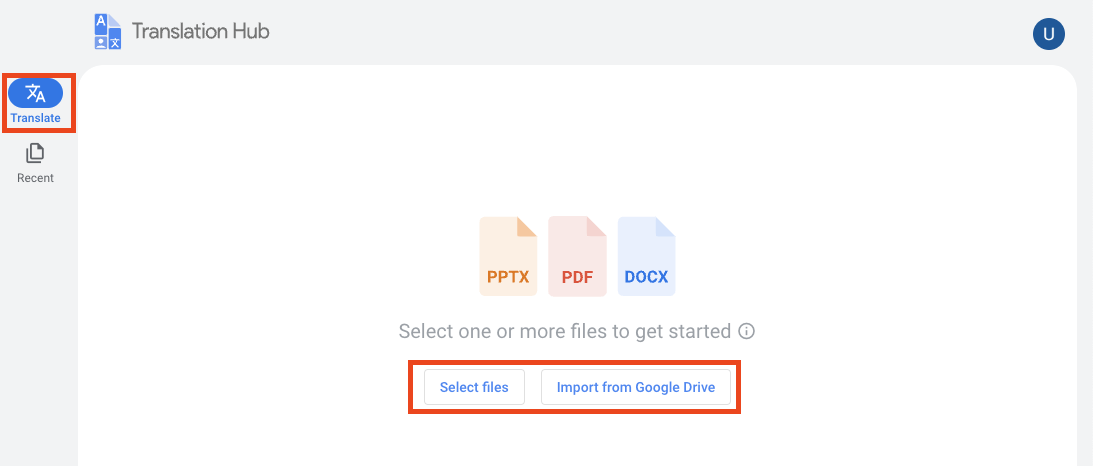
4. Select one or more files to upload or import.
If you select one file, Translation Hub shows a preview. If you
select multiple files, Translation Hub shows a list of files to
translate.
All files must be in the same source language.
5. Start a new translation.
1. If you added multiple files, select the source language of your
documents. If you added one file, Translation Hub automatically
detects the source language.
2. Click **Target language** to select one or more target languages.
3. Click **Configure** to select
translation resources for each target language.
For glossaries and custom models, only the ones that apply to your
selected target languages are available for you to use. Translation
memories can apply to any source and target languages. You can specify
a translation memory for each target language or use the same one for
all target languages.
To **save and reuse** changes from post-editing, you must select a
translation memory that's configured as read-write where the edits are
saved. If you don't specify a translation memory, you can't select one
later for this translation job.
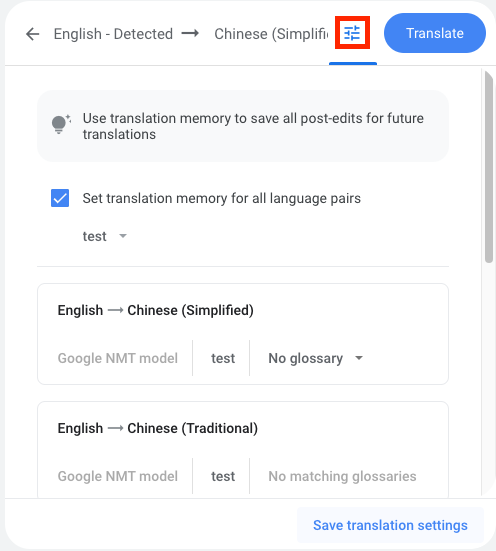
4. If you want to save these settings as a translation template, click
**Save translation settings**, and then name the template.
If you frequently use the same translation settings, creating a template
can help you quickly and consistently apply the same settings each time.
These templates are available only to you and not other portal users.
Only administrator-created template are available to all portal users.
You cannot edit templates after you create them. Instead, you must
delete and recreate them.
Translation Hub limits the number of templates that you can
create per portal. For more information, see [Quotas and
limits](https://docs.cloud.google.com/translation-hub/docs/quotas#limits).
6. Click **Translate**.
## Translate text in images
For scanned PDF files, Translation Hub can translate text in images, such
as text labels in a diagram. Images must be oriented so that the text is also
oriented in the direction appropriate for the language. For example, if an image
and its text is upside down, the image is unlikely to be appropriately
translated.
For other filetypes, if image translation is a priority, consider converting
your source file into a scanned PDF file. Translation Hub doesn't provide
this conversion, you must use a separate tool. If you have existing PDF files,
you can determine whether they are scanned or native PDF files by counting the
number of text characters. Translation Hub considers PDF files with 10 or
more text characters as native PDF files.
## View and retrieve translation results
After a machine translation is complete, you can view a side-by-side comparison
of the source document next to the translated document. When you're done with
your review, you can download the translated document to your local computer or
export it to Google Drive.
1. Go to
to sign in to a portal.
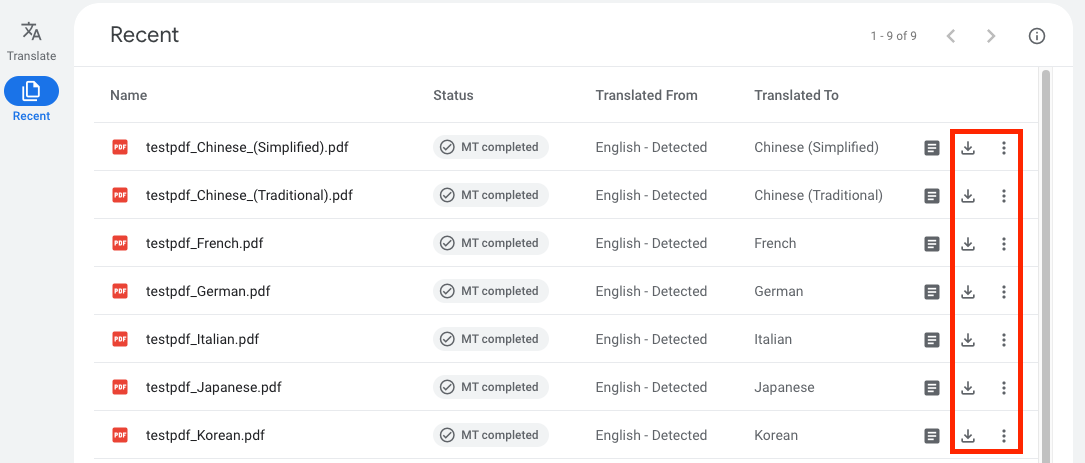
2. Click **Recent** to view recent translations.
The filename for a translated document is the source filename appended with
the target language.
3. Find the translated file and click **View document**.
Translation Hub shows the original and translated documents side by
side.
4. To retrieve a translated file, click **Download** or select **More \> Export to drive** to export
it to Google Drive.
## View portal tier
1. Go to
to sign in to a portal.
2. Click your profile to view information about your portal.
3. View the portal tier, which is shown after the portal name as either
**Basic** or **Advanced**.
## What's next
- Learn how to [post-edit translated documents](https://docs.cloud.google.com/translation-hub/docs/user-post-edit).