> [!CAUTION]
> Starting on June 30, 2025, Translation Hub is officially
> deprecated and will no longer be supported. You can continue using
> Translation Hub until September 20, 2026, when it will be shut down.
After completing machine translations, you can review and edit results through a
post-editing process (advanced tier only). During post-editing, you can compare
the source and machine-translated documents and then make edits to translated
segments.
If an administrator has set up a post-editing group, you can also request that a
translator review your document.
You can complete as many rounds of edits as you need. Translation Hub
only saves the latest version of the document. To preserve a particular version
of your document, download or export it before starting another round of edits.
## Translation memory
If you selected a [translation memory](https://docs.cloud.google.com/translation-hub/docs/user-translate#resources) with your initial machine
translation request, Translation Hub saves any post-edits to the
translation memory if your administrator has configured it to read-write. If you
didn't select a translation memory, you can still perform a post-edit, but
Translation Hub doesn't store edits for reuse in future translations.
If you're editing a repeating segment, you must edit each one. You can edit once
and then apply your changes globally by re-translating the document with your
translation memory. However, re-translating does incur another translation cost.
A read-only translation memory only applies during translation. No post-edits
are saved. Only an administrator can update a read-only translation memory,
which can help prevent unintended updates to the translation memory.
## Edit translations
After you complete a machine translation in an advanced-tier portal, you can
review and edit the translated segments (self edit). You can't modify the source
document.
1. Go to
to sign in to a portal.
2. Click **Recent** to view recent translations.
3. From the list of translations, find the document to edit and then click
**View document**.
4. In the translated document, click
**Edit**.

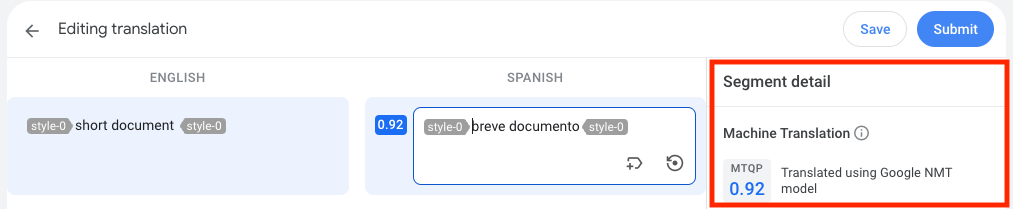
5. To edit a translated segment, click the segment to modify it.
When you select a segment, Translation Hub provides a **Segment
detail** pane, which might have additional details about the machine
translation.
6. Edit the translated text.
Style tags apply specific formatting to text such as bold or
underline. You cannot remove or modify these tags; if you do, you cannot
save or submit your edits. You can reinsert tags or
revert your
edits.
Do not refresh the page until you've saved or submitted your edits. Saving
your edits keeps your progress and sets the status of your document as
**Post-editing in progress** until you submit your edits.
7. When you're done with your review, click **Submit**.
The status of your document changes to **Post-editing completed**
### Segment details
During a post-edit, you can select a segment to view its translation details,
such as its machine translation quality prediction (MTQP) score, in the
**Segment detail** pane.
- **MTQP** - MTQP scores predict if the translation output matches the meaning of the source sentence. These scores are machine-learning generated metrics, which serve as a probability of quality and not a guarantee of quality. A higher score predicts a higher probability. You can use these scores to help guide your editing efforts.
Translation Hub provides MTQP scores for the following supported
language pairs:
- Arabic (`ar`) \<-\> English (`en`)
- Chinese (`zh`) \<-\> English (`en`)
- French (`fr`) \<-\> English (`en`)
- German (`de`) \<-\> English (`en`)
- Hindi (`hi`) \<-\> English (`en`)
- Italian (`it`) \<-\> English (`en`)
- Japanese (`ja`) \<-\> English (`en`)
- Portuguese (`pt`) \<-\> English (`en`)
- Russian (`ru`) \<-\> English (`en`)
- Spanish (`es`) \<-\> English (`en`)
Translation Hub doesn't provide MTQP scores for segments that are
replaced by translation memory or for custom model translations.
- **TM** (translation memory) - If a segment matched an entry in the translation memory, Translation Hub shows the matching source segment and corresponding translation that Translation Hub used.
- **Glossary** - If a segment had matching glossary terms, Translation Hub shows a list of the source language terms and their corresponding target language terms.
- **Translation reviewed** - Indicates that a segment has been post-edited.
- **N/A** - There's no MTQP score for this segment because it was translated by using a custom model or translated to or from an unsupported language.
## Request a post-edit
To request a post-edit, you must have completed a machine translation in an
advanced-tier portal. The post-editing groups that are available to you are
managed by an administrator. If you don't have any post-editing groups to send
requests to, contact your Google Cloud administrator.
1. Go to
to sign in to a portal.
2. Click **Recent** to view recent translations.
3. From the list of translations, find the translation to send for post-editing
and then select **More \> Send
for post-editing**.
The status of the translation must be **MT completed** or **Completed**. You
cannot resend an item that is currently in post-editing.
4. In the **Send for post-editing** dialog, set post-editing details.
1. Select a post-editing group.
Translation Hub shows you post-editing groups that contain a
translator who is fluent in your source and translated content language
pairs. You can select **Show all groups** to view and select a group
regardless of the translators' language capabilities. Or, you can contact
your Google Cloud administrators and request that they add a
translator with the relevant language capabilities.
2. Specify a due date and time to indicate when you'd like the review to be
completed.
3. Optional: Add a note that is included to translators in the post-editing
portal.
5. Click **Send**.
The status of your translation changes to **Post-editing in progress**.
Translation Hub notifies all translators in the group of your
request. The first translator who chooses to accept the task is assigned
as the reviewer.
When the status changes to **Post-editing complete**, your post-edit request
is complete.
If you and other portal users send multiple requests to the same post-editing
group, the group sees a list of requests that is ordered by due date.
## View post-edit request status
From the portal, you can view whether your request has been accepted or
completed.
1. Go to
to sign in to a portal.
2. Click **Recent** and find your document.
3. Select **More \> View details**.
In the **Post-editing in progress** section, Translation Hub shows if
your request is in one of the following states:
- **Assigned**: You have submitted a request but a translator has not yet accepted the editing task.
- **Accepted**: A translator from your selected post-editing group has accepted the editing task.
- **Completed**: The translator has completed the editing task.
## Cancel post-edit request
You can cancel a post-edit request if you no longer require a post-edit or if
you want to resubmit a post-edit request. After you cancel a post-edit request,
any translator work is lost whether it was saved or in progress.
1. Go to
to sign in to a portal.
2. Click **Recent** and find your document.
3. Select **More \> View details**.
4. In the **Post-editing in progress** section, select **More \> Cancel post-editing
request**.
## What's next
- Learn how to [retrieve your translations](https://docs.cloud.google.com/translation-hub/docs/user-translate#retrieve-results).