You can configure AI agents built with the
[Agent Development Kit (ADK) framework](https://google.github.io/adk-docs/)
or [LangGraph ReAct agents](https://docs.langchain.com/oss/python/langchain/agents)
to send multimodal prompts and responses to your Google Cloud project.
Collecting multimodal media lets you
[inspect conversations in Cloud Trace](https://docs.cloud.google.com/trace/docs/collect-view-multimodal-prompts-responses.md.txt#view-multimodal-trace),
[analyze prompt data in BigQuery](https://docs.cloud.google.com/trace/docs/collect-view-multimodal-prompts-responses.md.txt#view-multimodal-prompt-bq), and
[evaluate model performance using Vertex AI and Colaboratory](https://docs.cloud.google.com/trace/docs/collect-view-multimodal-prompts-responses.md.txt#view-multimodal-prompt-vertex).
## Types of media that you can collect
You can collect the following types of media:
- Audio.
- Documents.
- Images.
- Plain text and Markdown-formatted text.
- Video.
Prompts and responses can include inline content and links. Links can go
to either public resources or to Cloud Storage buckets.
## Where prompts and responses are stored
When your agentic application creates or receives either prompts or responses,
the SDK your application uses invokes OpenTelemetry instrumentation.
This instrumentation formats the
prompts and responses, and the multimodal data that they might contain,
according to version 1.37.0 of the
[OpenTelemetry GenAI semantic conventions](https://github.com/open-telemetry/semantic-conventions/tree/v1.37.0/docs/gen-ai). Higher versions are also
supported.
Next, the OpenTelemetry instrumentation does the following:
- It creates object identifiers for prompts and response data and then writes
that data to your [Cloud Storage bucket](https://docs.cloud.google.com/storage/docs/buckets.md.txt).
The entries in your Cloud Storage bucket are saved in the JSON Lines
format.
- It creates object identifiers for prompts and response data and then writes
the full contents of your end user's prompts and responses to your
[Cloud Storage bucket](https://docs.cloud.google.com/storage/docs/buckets.md.txt) in JSON Lines format. For
details about controlling access or deleting data, see the
[Cloud Storage documentation](https://docs.cloud.google.com/storage/docs/introduction.md.txt). To manage
sensitive data in your prompts and responses, you can use
[Model Armor](https://docs.cloud.google.com/model-armor/overview.md.txt) and
[Sensitive Data Protection](https://docs.cloud.google.com/sensitive-data-protection/docs/sensitive-data-protection-overview.md.txt).
- It sends log and trace data to your Google Cloud project, where the
Logging and Trace services ingest and store
the data. The OpenTelemetry semantic conventions determine many of the attributes
and fields attached to your log entries or to your trace spans.
When the OpenTelemetry instrumentation creates Cloud Storage bucket objects, it
also writes a log entry that contains references to those objects.
The following example shows part of a log entry that includes object
references:
```bash
{
...
"labels": {
"gen_ai.system": "vertex_ai",
"event.name": "gen_ai.client.inference.operation.details",
"gen_ai.output.messages_ref": "gs://my-bucket/eso9aP7NA_GX2PgPkrOi-Qg_output.jsonl",
"gen_ai.system_instructions_ref": "gs://my-bucket/eso9aP7NA_GX2PgPkrOi-Qg_system_instructions.jsonl",
"gen_ai.input.messages_ref": "gs://my-bucket/eso9aP7NA_GX2PgPkrOi-Qg_input.jsonl"
},
"logName": "projects/my-project/logs/gen_ai.client.inference.operation.details",
"trace": "projects/my-project/traces/963761020fc7713e4590cad89ad03229",
"spanId": "1234512345123451",
...
}
```
In the log entry example, notice the following:
- The label `"event.name": "gen_ai.client.inference.operation.details"` indicates that the log entry contains references to Cloud Storage objects.
- The labels whose keys include `gen_ai` each reference an object in a Cloud Storage bucket.
- All log entries that contain object references are written to the same log, which is named `projects/my-project/logs/gen_ai.client.inference.operation.details`.
For information about how to show log entries that contain object references,
see the
[Find all log entries that reference prompts and responses](https://docs.cloud.google.com/trace/docs/collect-view-multimodal-prompts-responses.md.txt#view-multimodal-logs)
section of this document.
## Collect multimodal prompts and responses
The SDK your application uses automatically invokes OpenTelemetry to store
prompts and responses, and to send log and trace data to your Google Cloud project.
You don't need to modify your application. However, you need to configure your
Google Cloud project and the SDK you are using.
To collect and view multimodal prompts and responses from an application,
do the following:
1. Configure your project:
1.
[Verify that billing is enabled for your Google Cloud project](https://docs.cloud.google.com/billing/docs/how-to/verify-billing-enabled.md.txt#confirm_billing_is_enabled_on_a_project).
2.
Enable the Vertex AI, Cloud Storage, Telemetry, Cloud Logging, and Cloud Trace APIs, if any are not already enabled.
**Roles required to enable APIs**
To enable APIs, you need the `serviceusage.services.enable` permission. If you
created the project, then you likely already have this permission through the
Owner role (`roles/owner`). Otherwise, you can get this permission through the
Service Usage Admin role (`roles/serviceusage.serviceUsageAdmin`).
[Learn how to grant roles](https://docs.cloud.google.com/iam/docs/granting-changing-revoking-access.md.txt).
[Enable the APIs](https://console.cloud.google.com/apis/enableflow?apiid=aiplatform.googleapis.com,storage-component.googleapis.com,telemetry.googleapis.com,logging.googleapis.com,cloudtrace.googleapis.com)
3. Make sure that you have a Cloud Storage bucket. When necessary,
[create a Cloud Storage bucket](https://docs.cloud.google.com/storage/docs/creating-buckets.md.txt).
We recommend that you do the following:
- Create your Cloud Storage bucket in the same location as the
log bucket that stores your application's log data. This configuration
makes BigQuery queries more efficient.
- Make sure that the [storage class](https://docs.cloud.google.com/storage/docs/storage-classes.md.txt)
of your Cloud Storage bucket supports external tables. This
capability lets you query prompts and responses with
BigQuery. If you don't plan to use the default settings
for a new Cloud Storage bucket, then before you create the bucket,
review
[Create Cloud Storage external tables](https://docs.cloud.google.com/bigquery/docs/external-data-cloud-storage.md.txt).
- Set the retention period for your Cloud Storage bucket to match the
retention period of the log bucket that stores your log entries. The
default retention period for log data is 30 days.
For information about how to set the retention period for your
Cloud Storage bucket, see
[Bucket Lock](https://docs.cloud.google.com/storage/docs/bucket-lock.md.txt).
4.
To ensure that the service account your application uses has the necessary
permissions to store prompts and responses and to write log, metric, and trace data,
ask your administrator to grant the
following IAM roles to the service account your application uses:
**Important:** You must grant these roles to the service account your application uses, *not* to your user account. Failure to grant the roles to the correct principal might result in permission errors.
- [Storage Object User](https://docs.cloud.google.com/iam/docs/roles-permissions/storage.md.txt#storage.objectUser) (`roles/storage.objectUser`) on your storage bucket
- [Logs Writer](https://docs.cloud.google.com/iam/docs/roles-permissions/logging.md.txt#logging.logWriter) (`roles/logging.logWriter`) on your project
- [Monitoring Metric Writer](https://docs.cloud.google.com/iam/docs/roles-permissions/monitoring.md.txt#monitoring.metricWriter) (`roles/monitoring.metricWriter`) on your project
- [Cloud Telemetry Traces Writer](https://docs.cloud.google.com/iam/docs/roles-permissions/telemetry.md.txt#telemetry.tracesWriter) (`roles/telemetry.tracesWriter`) on your project
The Storage Object User role includes the
[`storage.objects.create` permission](https://docs.cloud.google.com/storage/docs/access-control/iam-permissions.md.txt#objects).
This permission lets your application write objects to your
Cloud Storage bucket. These objects store the prompts and responses
that your agentic application creates or receives. For more information,
see
[Set and manage IAM policies on buckets](https://docs.cloud.google.com/storage/docs/access-control/using-iam-permissions.md.txt).
2. Configure the SDK:
1. Install and upgrade the following dependencies:
### ADK
```python
google-adk>=1.16.0
opentelemetry-instrumentation-google-genai>=0.4b0
fsspec[gcs]==2025.10.0
```
### LangGraph
```python
opentelemetry-instrumentation-vertexai>=2.2b0
opentelemetry-instrumentation-google-genai>=0.4b0
fsspec[gcs]==2025.10.0
```
Not all versions of `fsspec` support collection of prompts and
responses. The listed version is known to support this feature. You
might also examine the sample to determine whether you can use a later
version.
2. If you are using ADK, then update your application's invocation to turn
on the `otel_to_cloud` flag:
- If you are using the CLI for ADK, then run the following command:
```bash
adk web --otel_to_cloud [other options]
```
- Otherwise, pass the flag when creating the FastAPI app:
```python
get_fast_api_app(..., otel_to_cloud=True)
```
3. Set the following environment variables:
- Instruct OpenTelemetry to format
Cloud Storage objects as JSON Lines.
```bash
OTEL_INSTRUMENTATION_GENAI_UPLOAD_FORMAT='jsonl'
```
- Instruct OpenTelemetry to upload prompt and response data instead of
embedding this content in trace spans. References to the
uploaded objects are included in a log entry.
```bash
OTEL_INSTRUMENTATION_GENAI_COMPLETION_HOOK='upload'
```
- Instruct OpenTelemetry to use the most recent semantic conventions
for generative AI.
```bash
OTEL_SEMCONV_STABILITY_OPT_IN='gen_ai_latest_experimental'
```
- Optional: Instruct OpenTelemetry not to attach message content as
attributes on spans.
```bash
OTEL_INSTRUMENTATION_GENAI_CAPTURE_MESSAGE_CONTENT='NO_CONTENT'
```
You don't need to set the previous environment variable. However,
if you do, then we recommend that you set it to `NO_CONTENT`. For
information about the allowed values, see
[`genai/types.py`](https://github.com/open-telemetry/opentelemetry-python-contrib/blob/opentelemetry-util-genai%3D%3D0.3b0/util/opentelemetry-util-genai/src/opentelemetry/util/genai/types.py).
- Specify the path for objects:
```bash
OTEL_INSTRUMENTATION_GENAI_UPLOAD_BASE_PATH='gs://STORAGE_BUCKET/PATH'
```
In the previous expression, STORAGE_BUCKET refers to the
name of the Cloud Storage bucket. PATH refers to the
path where objects are stored.
- For LangGraph ReAct agents, instruct OpenTelemetry to automatically
capture log data:
```bash
OTEL_PYTHON_LOGGING_AUTO_INSTRUMENTATION_ENABLED='true'
```
- You might need to set other environment variables. For example,
if you deploy to [Gemini Enterprise Agent Platform](https://docs.cloud.google.com/gemini-enterprise-agent-platform/scale/runtime/tracing.md.txt),
then you also want to set the following environment variable.
```bash
GOOGLE_CLOUD_AGENT_ENGINE_ENABLE_TELEMETRY='true'
```
## View multimodal prompts and responses
To determine the prompts and responses to display for a span, Cloud Trace
issues queries to read log data and to read data stored in a
Cloud Storage bucket. Your Identity and Access Management (IAM) roles on the queried
resources determine whether data is returned. In some cases, you might see
an error message. For example, if you don't have permission to read data
from a Cloud Storage bucket, then attempts to access that data result
in a permission-denied error.
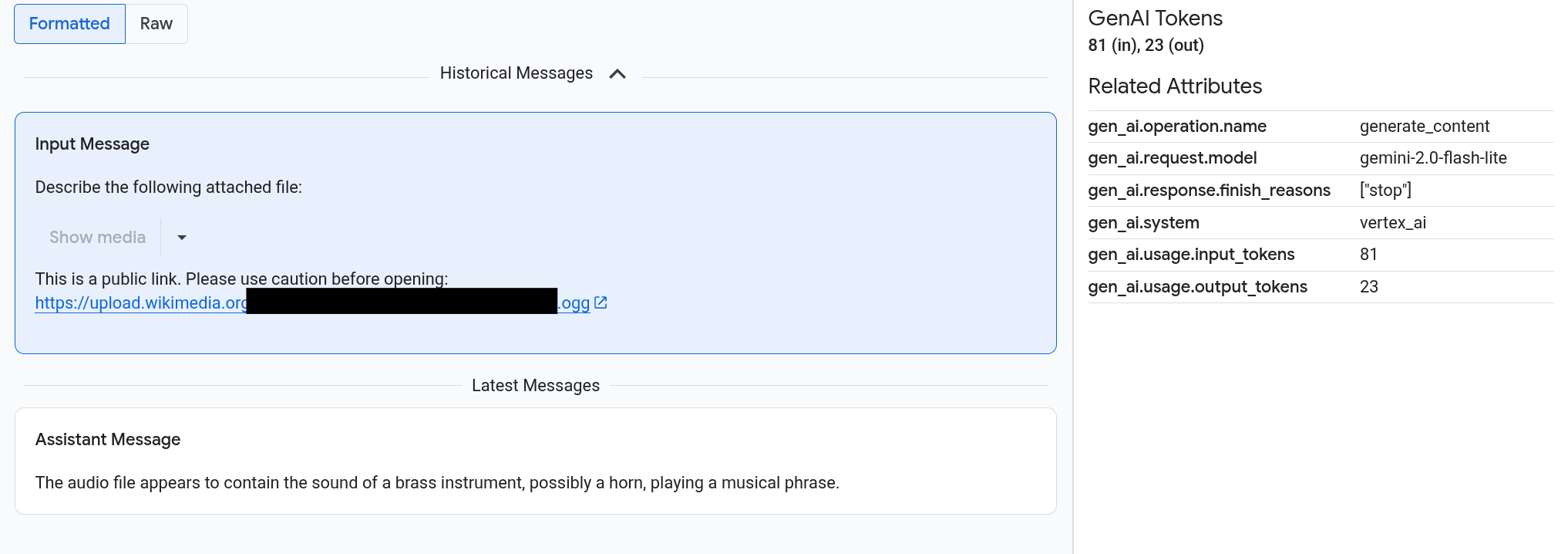
Prompts and responses appear in a chat-like format, and you select whether media
like images automatically render or appear in source format. Similarly, you
can view the entire conversation history or only view the prompts and responses
attached to a span.
For example, the following image illustrates how prompts and responses appear,
and how [OpenTelemetry: Attributes](https://opentelemetry.io/docs/concepts/signals/traces/#attributes) are summarized:
### Before you begin
To ensure that the service account your application uses has the necessary
permissions to view multimodal prompts and responses,
ask your administrator to grant the
following IAM roles to the service account your application uses on project:
**Important:** You must grant these roles to the service account your application uses, *not* to your user account. Failure to grant the roles to the correct principal might result in permission errors.
- [Cloud Trace User](https://docs.cloud.google.com/iam/docs/roles-permissions/cloudtrace.md.txt#cloudtrace.user) (`roles/cloudtrace.user`)
- [Logs Viewer](https://docs.cloud.google.com/iam/docs/roles-permissions/logging.md.txt#logging.viewer) (`roles/logging.viewer`)
- [Storage Object Viewer](https://docs.cloud.google.com/iam/docs/roles-permissions/storage.md.txt#storage.objectViewer) (`roles/storage.objectViewer`)
### Find spans that contain multimodal prompts and responses
To find the spans that contain multimodal prompts and responses, do
the following:
1. In the Google Cloud console, go to the

**Trace explorer** page:
[Go to **Trace explorer**](https://console.cloud.google.com/traces/explorer)
You can also find this page by using the search bar.
2. In the **Span filter** pane, go to the **Span name** section and select
`generate_content`.
Alternatively, add the filter `gen_ai.operation.name: generate_content`.
3. Select a span from the list of spans.
The **Details** page for the span opens. This page displays the span
within the context of the trace. If a span name has a button labeled
**Inputs/Outputs** , , then there are
generative AI events available. The next section,
[Explore multimodal prompts and responses](https://docs.cloud.google.com/trace/docs/collect-view-multimodal-prompts-responses.md.txt#explore), explains how
the data is presented and the visualization options.
### Explore multimodal prompts and responses
The **Inputs/Outputs** tab contains two sections.
One section displays the prompts and
responses, and the other section displays [OpenTelemetry: Attributes](https://opentelemetry.io/docs/concepts/signals/traces/#attributes). This tab
appears only when spans sent to Trace
follow the [OpenTelemetry GenAI semantic conventions](https://github.com/open-telemetry/semantic-conventions/tree/v1.37.0/docs/gen-ai),
version 1.37.0 or higher,
which results in messages whose names begin with `gen_ai`.
The **Inputs/Outputs** tab shows messages in a chat-like
format. You control which messages appear and their format by using options on
the tab:
- To view the entire conversation, expand the **Historical Messages** pane.
- To view only the prompts and responses in the selected span, use the **Latest Messages** pane.
- To view images, videos, or other media, select **Formatted**.
The tab doesn't always automatically show media. To protect security and
performance, you must confirm before displaying media from public links or
large objects stored in your Cloud Storage bucket.
Some media, like images and video, appear with an attached menu. You can
use this menu to perform actions like downloading an image to a local drive.
The menu options depend on the media type.
- To view the messages as formatted in JSON, select **Raw**. With this
selection, media like images aren't rendered.
For example, the following image illustrates how a conversation appears in
raw format:

### Find all log entries that reference prompts and responses
To list the log entries that include object references to multimodal prompts and
responses, do the following:
1. In the Google Cloud console, go to the
**Logs Explorer** page:
[Go to **Logs Explorer**](https://console.cloud.google.com/logs/query)
If you use the search bar to find this page, then select the result whose subheading is
**Logging**.
2. In the project picker, select your Google Cloud project.
3. In the toolbar, expand **All log names** , enter `gen_ai` in the filter,
and then select the log named **gen_ai.client.inference.operation.details**.
The previous steps add the following query to the Logs Explorer:
```bash
logName="projects/PROJECT_ID/logs/gen_ai.client.inference.operation.details"
```
If you prefer, replace PROJECT_ID with your project ID and then
copy the statement and paste it into the **Query** pane of the
Logs Explorer.
You can also filter log data by label value. For example, if you add the
following filter, then only log entries that contain the specified label
appear:
```bash
labels."event.name"="gen_ai.client.inference.operation.details"
```
4. To view the prompts and responses that are referenced by a log entry, in the
log entry, click  **View trace details**.
For information about how to use the options on the
**Inputs/Outputs** tab, see the
[Explore multimodal prompts and responses](https://docs.cloud.google.com/trace/docs/collect-view-multimodal-prompts-responses.md.txt#explore)
section of this document.
## Analyze prompt-response data by using BigQuery
You can analyze the prompts and responses that your Cloud Storage bucket
stores by using BigQuery. Before you perform this analysis,
complete the following steps:
1. Enable required APIs and make sure that you have been given the necessary IAM roles.
2. Create a linked BigQuery dataset on your log bucket.
3. Give BigQuery permission to read from your Cloud Storage bucket.
4. Create an external table.
After you create the external table, you join the data in your log bucket with
your external table, and perform your analysis on the joined data. This section
illustrates how to join your tables and extract specific fields. It also
illustrates how to analyze the joined table with BigQuery ML functions.
### Before you begin
The IAM roles listed in this section are required
to perform actions like upgrading a log bucket and creating an external table.
However, after the configuration is completed, fewer permissions are
required to run queries.
1.
Enable the BigQuery and BigQuery Connection APIs, if any are not already enabled.
**Roles required to enable APIs**
To enable APIs, you need the `serviceusage.services.enable` permission. If you
created the project, then you likely already have this permission through the
Owner role (`roles/owner`). Otherwise, you can get this permission through the
Service Usage Admin role (`roles/serviceusage.serviceUsageAdmin`).
[Learn how to grant roles](https://docs.cloud.google.com/iam/docs/granting-changing-revoking-access.md.txt).
[Enable the APIs](https://console.cloud.google.com/apis/enableflow?apiid=bigquery.googleapis.com,bigqueryconnection.googleapis.com)
2.
To ensure that the service account your application uses has the necessary
permissions to configure the system so that you can view multimodal prompts and responses in BigQuery,
ask your administrator to grant the
following IAM roles to the service account your application uses on project:
**Important:** You must grant these roles to the service account your application uses, *not* to your user account. Failure to grant the roles to the correct principal might result in permission errors.
- [Logs Configuration Writer](https://docs.cloud.google.com/iam/docs/roles-permissions/logging.md.txt#logging.configWriter) (`roles/logging.configWriter`)
- [Storage Admin](https://docs.cloud.google.com/iam/docs/roles-permissions/storage.md.txt#storage.admin) (`roles/storage.admin`)
- [BigQuery Connection Admin](https://docs.cloud.google.com/iam/docs/roles-permissions/bigquery.md.txt#bigquery.connectionAdmin) (`roles/bigquery.connectionAdmin`)
- [BigQuery Data Viewer](https://docs.cloud.google.com/iam/docs/roles-permissions/bigquery.md.txt#bigquery.dataViewer) (`roles/bigquery.dataViewer`)
- [BigQuery Studio User](https://docs.cloud.google.com/iam/docs/roles-permissions/bigquery.md.txt#bigquery.studioUser) (`roles/bigquery.studioUser`)
### Create a linked BigQuery dataset on your log bucket
1. To determine whether the log bucket that stores your log data is upgraded
for Observability Analytics, run the following command:
```bash
gcloud logging buckets describe LOG_BUCKET_ID --location=LOCATION
```
Replace the following before you run the command:
- LOG_BUCKET_ID: The ID of the log bucket.
- LOCATION: The location of the log bucket.
When a log bucket is upgraded for Observability Analytics, the results of the
`describe` command include the following statement:
```bash
analyticsEnabled: true
```
If your log bucket isn't upgraded, then run the following command:
```bash
gcloud logging buckets update LOG_BUCKET_ID --location=LOCATION --enable-analytics --async
```
The upgrade can take several minutes to complete. When the `describe`
command reports the `lifecycleState` as `ACTIVE`, the upgrade is complete.
2. To create a linked BigQuery dataset on your log bucket,
run the following command:
```bash
gcloud logging links create LINKED_DATASET_NAME --bucket=LOG_BUCKET_ID --location=LOCATION
```
Replace the following before you run the command:
- LOG_BUCKET_ID: The ID of the log bucket.
- LOCATION: The location of the log bucket.
- LINKED_DATASET_NAME: Name of the linked BigQuery dataset to create.
The linked BigQuery dataset lets BigQuery read
the log data stored in your log bucket. For more information, see
[Query a linked BigQuery dataset](https://docs.cloud.google.com/logging/docs/analyze/query-linked-dataset.md.txt).
To confirm that the link exists, run the following command:
```bash
gcloud logging links list --bucket=LOG_BUCKET_ID --location=LOCATION
```
When successful, the response to the previous command includes the following
line:
```bash
LINK_ID: LINKED_DATASET_NAME
```
### Give BigQuery permission to read from your Cloud Storage bucket
1. To create a [BigQuery connection](https://docs.cloud.google.com/bigquery/docs/create-cloud-resource-connection.md.txt),
run the following command:
```bash
bq mk --connection --location=CONNECTION_LOCATION --project_id=PROJECT_ID \
--connection_type=CLOUD_RESOURCE CONNECTION_ID
```
Replace the following before you run the command:
- PROJECT_ID: The identifier of the project.
- CONNECTION_ID: The ID of the connection to create.
- CONNECTION_LOCATION: The location of the connection.
When the command completes successfully, it displays a message similar
to the following:
```bash
Connection 151560119848.CONNECTION_LOCATION.CONNECTION_ID successfully created
```
2. Verify the connection.
```bash
bq show --connection PROJECT_ID.CONNECTION_LOCATION.CONNECTION_ID
```
The response to this command lists the connection ID, and it lists
a service account:
```bash
{"serviceAccountId": "bqcx-151560119848-s1pd@gcp-sa-bigquery-condel.iam.gserviceaccount.com"}
```
3. Grant the service account for the BigQuery connection an
IAM role that lets it read data stored in your
Cloud Storage bucket:
```bash
gcloud storage buckets add-iam-policy-binding gs://STORAGE_BUCKET \
--member=serviceAccount:SERVICE_ACCT_EMAIL \
--role=roles/storage.objectViewer
```
Replace the following before you run the command:
- STORAGE_BUCKET: The name of your Cloud Storage bucket.
- SERVICE_ACCT_EMAIL: The email address of your service account.
### Create an external BigLake table
To query prompt and response data stored in your Cloud Storage bucket,
use BigQuery to
[create a BigLake external table](https://docs.cloud.google.com/bigquery/docs/create-cloud-storage-table-biglake.md.txt).
1. In the Google Cloud console, go to the **BigQuery** page:
[Go to **BigQuery Studio**](https://console.cloud.google.com/bigquery)
You can also find this page by using the search bar.
2. In the query editor, enter the following statement:
```sql
CREATE OR REPLACE EXTERNAL TABLE `PROJECT_ID.EXT_TABLE_DATASET_NAME.EXT_TABLE_NAME` (
-- Schema matching the JSON structure in a Cloud Storage bucket.
parts ARRAY<
STRUCT<
type STRING,
content STRING,
-- multimodal attachments
mime_type STRING,
uri STRING,
data BYTES,
-- tool calls
id STRING,
name STRING,
arguments JSON,
response JSON
>
>,
role STRING,
`index` INT64,
)
WITH CONNECTION `PROJECT_ID.CONNECTION_LOCATION.CONNECTION_ID`
OPTIONS (
format = 'NEWLINE_DELIMITED_JSON',
uris = ['gs://STORAGE_BUCKET/PATH/*'],
ignore_unknown_values = TRUE
);
```
Replace the following before you run the command:
- PROJECT_ID: The identifier of the project.
- EXT_TABLE_DATASET_NAME: The name of the dataset to create.
- EXT_TABLE_NAME: The name of the external BigLake table to create.
- CONNECTION_LOCATION: The location of your CONNECTION_ID.
- CONNECTION_ID: The ID of the connection.
- STORAGE_BUCKET: The name of the Cloud Storage bucket.
- PATH: The path to the prompts and responses. The `OTEL_INSTRUMENTATION_GENAI_UPLOAD_BASE_PATH` environment variable specifies the path.
3. Click **Run**.
For information about external tables, see the following:
- [Introduction to external data sources](https://docs.cloud.google.com/bigquery/docs/external-data-sources.md.txt)
- [Introduction to BigLake external tables](https://docs.cloud.google.com/bigquery/docs/biglake-intro.md.txt)
### Join your external table with your log data
This section illustrates how you can analyze multimodal prompts in
BigQuery. The solution relies on joining your
external BigLake table with your log data, which lets you
retrieve objects from your Cloud Storage bucket. The example joins on the
URI for the input messages, `gen_ai.input.messages`. You can also join on
the URI for the output messages, `gen_ai.output.messages`, or
on the system instructions, `gen_ai.system_instructions`.
To join your external BigLake table with your log data, do the
following:
1. In the Google Cloud console, go to the **BigQuery** page:
[Go to **BigQuery Studio**](https://console.cloud.google.com/bigquery)
You can also find this page by using the search bar.
2. In the query editor, enter the following query, which joins your log data
and your external table on the path to the Cloud Storage bucket entries:
```sql
``-- Query the linked BigQuery dataset for completion logs.
FROM `PROJECT_ID.LINKED_DATASET_NAME._AllLogs`
|> WHERE
log_name = 'projects/PROJECT_ID/logs/gen_ai.client.inference.operation.details'
AND timestamp > TIMESTAMP_SUB(CURRENT_TIMESTAMP(), INTERVAL 1 DAY)
|> SELECT
insert_id,
timestamp,
labels,
trace,
span_id,
STRING(labels['gen_ai.input.messages_ref']) AS messages_ref_uri``
-- Join completion log entries with the external table.
|> JOIN `PROJECT_ID.EXT_TABLE_DATASET_NAME.EXT_TABLE_NAME`
ON messages_ref_uri = _FILE_NAME
|> RENAME `index` AS message_idx
-- Flatten.
|> CROSS JOIN UNNEST(parts) AS part WITH OFFSET AS part_idx
-- Print fields.
|> SELECT
insert_id,
labels,
timestamp,
trace,
span_id,
role,
part.content,
part.uri,
part.mime_type,
TO_HEX(MD5(part.data)) AS data_md5_hex,
part.id AS tool_id,
part.name AS tool_name,
part.arguments AS tool_args,
part.response AS tool_response,
message_idx,
part_idx,
|> ORDER BY timestamp, message_idx, part_idx;
|> LIMIT 10;
```
Replace the following before you run the query:
- PROJECT_ID: The identifier of the project.
- LINKED_DATASET_NAME: The name of the linked BigQuery dataset.
- EXT_TABLE_DATASET_NAME: The name of the dataset for the external BigLake table.
- EXT_TABLE_NAME: The name of the external BigLake table.
3. Optional: The previous query filters by the log name and timestamp. If
you want to also filter by a specific trace ID, then add the following
statement to the `WHERE` clause:
```sql
AND trace = 'projects/PROJECT_ID/traces/TRACE_ID'
```
In the previous expression, replace TRACE_ID with the
16-byte hexadecimal string that contains a trace ID.
### Use BigQuery ML functions
You can use BigQuery ML functions like
[`AI.GENERATE`](https://docs.cloud.google.com/bigquery/docs/reference/standard-sql/bigqueryml-syntax-ai-generate.md.txt)
on the prompts and responses stored in your Cloud Storage bucket.
For example, the following query joins the completion log entries with the
external table, and then flattens and filters the join result. Next, the query
runs `AI.GENERATE` to analyze whether entries contain an image and to generate
a summary of each entry:
```sql
``-- Query the linked BigQuery dataset for completion logs.
FROM `PROJECT_ID.LINKED_DATASET_NAME._AllLogs`
|> WHERE
log_name = 'projects/PROJECT_ID/logs/gen_ai.client.inference.operation.details'
AND timestamp > TIMESTAMP_SUB(CURRENT_TIMESTAMP(), INTERVAL 1 DAY)
|> SELECT
insert_id,
timestamp,
labels,
trace,
span_id,
STRING(labels['gen_ai.input.messages_ref']) AS messages_ref_uri``
-- Join completion log entries with the external table.
|> JOIN `PROJECT_ID.EXT_TABLE_DATASET_NAME.EXT_TABLE_NAME`
ON messages_ref_uri = _FILE_NAME
|> RENAME `index` AS message_idx
-- Flatten.
|> CROSS JOIN UNNEST(parts) AS part WITH OFFSET AS part_idx
|> WHERE part.uri IS NOT NULL AND part.uri LIKE 'gs://%'
|> LIMIT 10
-- Use natural language to search for images, and then summarize the entry.
|> EXTEND
AI.GENERATE(
(
'Describe the attachment in one sentence and whether the image contains a diagram.',
OBJ.FETCH_METADATA(OBJ.MAKE_REF(part.uri, 'CONNECTION_LOCATION.CONNECTION_ID'))),
connection_id => 'CONNECTION_LOCATION.CONNECTION_ID',
endpoint => 'gemini-2.5-flash-lite',
output_schema => 'description STRING, is_match BOOLEAN') AS gemini_summary
|> SELECT insert_id, trace, span_id, timestamp, part_idx, part.uri, part.mime_type, gemini_summary
|> WHERE gemini_summary.is_match = TRUE
|> ORDER BY timestamp DESC
```
Replace the following before you run the query:
- PROJECT_ID: The identifier of the project.
- LINKED_DATASET_NAME: The name of the linked BigQuery dataset.
- EXT_TABLE_DATASET_NAME: The name of the dataset for the external BigLake table.
- EXT_TABLE_NAME: The name of the external BigLake table.
- CONNECTION_LOCATION: The location of your CONNECTION_ID.
- CONNECTION_ID: The ID of the connection.
## Run evaluations on the prompt-response data with Colaboratory
You can evaluate prompts and responses by using the
[Vertex AI SDK for Python](https://docs.cloud.google.com/vertex-ai/docs/python-sdk/use-vertex-ai-python-sdk).
To run evaluations by using a [Google Colaboratory](https://colab.google/)
notebook, do the following:
1. To view an example notebook,
click [`evaluating_observability_datasets.ipynb`](https://github.com/GoogleCloudPlatform/generative-ai/blob/main/gemini/evaluation/evaluating_observability_datasets.ipynb).
GitHub opens and displays instructions for using the notebook.
2. Select **Open in Colab**.
Colaboratory opens and displays the
`evaluating_observability_datasets.ipynb` file.
3. In the toolbar, click **Copy to Drive**.
Colaboratory creates a copy of the notebook, saves it to your drive, and
then opens the copy.
4. In your copy, go to the section titled
**Set Google Cloud project information** and enter your Google Cloud project ID
and a
[location that is supported by Vertex AI](https://docs.cloud.google.com/vertex-ai/docs/general/locations).
For example, you might set the location to `"us-central1"`.
5. Go to the section titled **Load in Google Observability Gen AI datasets**
and enter values for the following sources:
- **INPUT_SOURCE**
- **OUTPUT_SOURCE**
- **SYSTEM_SOURCE**
You can find values for these fields by using the `gen_ai` labels that
are attached to your log entries. For example, for the **INPUT_SOURCE**,
the value is similar to the following:
```bash
'gs://STORAGE_BUCKET/PATH/REFERENCE_inputs.jsonl'
```
In the preceding expression, the fields have the following meanings:
- STORAGE_BUCKET: The name of the Cloud Storage bucket.
- PATH: The path to the prompts and responses.
- REFERENCE: The identifier of the data in your Cloud Storage bucket.
For information about how to find values for these sources, see
[Find all log entries that reference prompts and responses](https://docs.cloud.google.com/trace/docs/collect-view-multimodal-prompts-responses.md.txt#view-multimodal-logs).
6. In the toolbar, click **Run all**.