# Preserve training progress using Autocheckpoint
> [!WARNING]
>
> **Preview**
>
>
> This product or feature is
>
> subject to the "Pre-GA Offerings Terms" in the General Service Terms section
> of the [Service Specific
> Terms](https://docs.cloud.google.com/terms/service-terms#1).
>
> Pre-GA products and features are available "as is" and might have limited support.
>
> For more information, see the
> [launch stage descriptions](https://cloud.google.com/products/#product-launch-stages).
> [!CAUTION]
> **Caution:** This page applies to the Cloud TPU API, which is no longer under active development. The Cloud TPU API will receive bug fixes and security updates only. For the latest features and support for the latest TPU versions, we recommend using Compute Engine or Google Kubernetes Engine to manage TPU resources. For more information, see [TPU resources in Compute Engine](https://docs.cloud.google.com/tpu/docs/tpus-in-compute-engine.md.txt) and [About TPUs in GKE](https://docs.cloud.google.com/kubernetes-engine/docs/concepts/tpus.md.txt). The Cloud TPU API is not supported on TPU7x and later TPU versions.
Historically, when a TPU VM requires
[maintenance](https://docs.cloud.google.com/tpu/docs/maintenance-events.md.txt),
the procedure is initiated immediately, without leaving time for users to
perform progress-preserving actions such as saving a checkpoint. This is
shown in Figure 1(a).
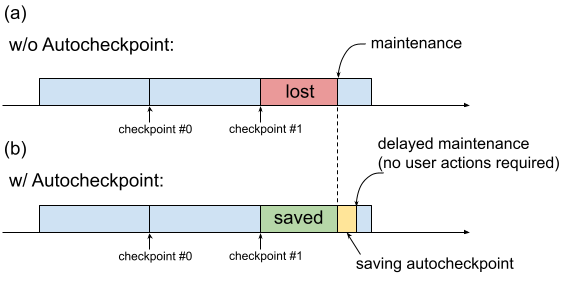
**Fig. 1.** Illustration of the Autocheckpoint feature:
(a) Without Autocheckpoint, the training progress from the last checkpoint
is lost when there is an upcoming maintenance event. (b) With Autocheckpoint,
the training progress since the last
checkpoint can be preserved when there is an upcoming maintenance event.
You can use Autocheckpoint (Figure 1(b)) to preserve training progress by
configuring your code to save a non-scheduled checkpoint when a maintenance
event occurs. When a maintenance event occurs, progress since the last
checkpoint is automatically saved. The feature works on both single slices
and Multislice.
The Autocheckpoint feature works with frameworks that can capture
SIGTERM signals and subsequently save a checkpoint. The supported frameworks
include:
- [MaxText](https://github.com/google/maxtext),
- [Pax](https://github.com/google/paxml),
- JAX with [Orbax](https://github.com/google/orbax).
## Using Autocheckpoint
The Autocheckpoint feature is disabled by default. When you create a
TPU or a request a [queued resource](https://docs.cloud.google.com/tpu/docs/queued-resources.md.txt),
you can enable Autocheckpoint by adding the `--autocheckpoint-enabled` flag when provisioning
the TPU.
With the feature enabled, Cloud TPU
performs the following steps once it receives notification of a
maintenance event:
1. Capture SIGTERM signal sent to the process using the TPU device
2. Wait until the process exits, or 5 minutes have elapsed, whichever comes first
3. Perform maintenance on the impacted slices
The infrastructure used by Autocheckpoint is ML framework-independent.
Any ML framework
can support Autocheckpoint if it can capture the SIGTERM signal
and initiate a checkpointing process.
In the application code, you need to enable the Autocheckpoint
capabilities provided by the ML framework. In Pax, for example,
this means enabling command-line flags when launching the
training. For more information, see [the Autocheckpoint quickstart with Pax](https://docs.cloud.google.com/tpu/docs/autocheckpoint.md.txt#pax-single-slice).
Behind the scenes, the frameworks save a
non-scheduled checkpoint when a SIGTERM signal is received,
and the impacted TPU VM goes through maintenance when the TPU is no longer
in use.
## Quickstart: Autocheckpoint with MaxText
[MaxText](https://github.com/google/maxtext) is a high performance,
arbitrarily scalable, open source, well-tested LLM library and reference
implementation written in pure Python/JAX targeting Cloud TPUs.
MaxText contains all the necessary setup to use the Autocheckpoint
feature.
The [MaxText `README`
file](https://github.com/AI-Hypercomputer/maxtext/blob/main/README.md) describes
two ways to run MaxText at scale:
- Using `multihost_runner.py`, recommended for experimentation
- Using `multihost_job.py`, recommended for production
When using `multihost_runner.py`, enable Autocheckpoint by setting
the `autocheckpoint-enabled` flag when provisioning the queued resource.
When using
`multihost_job.py`, enable Autocheckpoint by specifying the
`ENABLE_AUTOCHECKPOINT=true` command line flag when launching the job.
## Quickstart: Autocheckpoint with Pax on a single slice
This section provides an example of how to set up and use Autocheckpoint
with Pax on a single slice. With the appropriate setup:
- A checkpoint will be saved when a maintenance event occurs.
- Cloud TPU will perform maintenance on the affected TPU VM(s) after the checkpoint is saved.
- When Cloud TPU completes maintenance, you can use the TPU VM as usual.
1. Use the `autocheckpoint-enabled` flag when creating the TPU VM or requesting a
queued resource.
For example:
1. Set environment variables:
```bash
export PROJECT_ID=your-project-id
export TPU_NAME=your-tpu-name
export ZONE=zone-you-want-to-use
export ACCELERATOR_TYPE=your-accelerator-type
export RUNTIME_VERSION=tpu-ubuntu2204-base
```
#### Environment variable descriptions
- `PROJECT_ID`: Your Google Cloud project ID. Use an existing project or [create a new one.](https://docs.cloud.google.com/tpu/docs/setup-gcp-account.md.txt#set-up-project)
- `TPU_NAME`: The name of the TPU.
- `ZONE`: The zone in which to create the TPU VM. For more information about supported zones, see [TPU regions and zones](https://docs.cloud.google.com/tpu/docs/regions-zones.md.txt).
- `ACCELERATOR_TYPE`: The accelerator type specifies the version and size of the Cloud TPU you want to create. For more information about supported accelerator types for each TPU version, see [TPU versions](https://docs.cloud.google.com/tpu/docs/system-architecture-tpu-vm.md.txt#versions).
- `RUNTIME_VERSION`: The Cloud TPU [software version](https://docs.cloud.google.com/tpu/docs/runtimes.md.txt).
2. Set your project ID and zone in your active configuration:
```bash
gcloud config set project $PROJECT_ID
gcloud config set compute/zone $ZONE
```
3. Create a TPU:
```bash
gcloud alpha compute tpus tpu-vm create $TPU_NAME \
--accelerator-type $ACCELERATOR_TYPE \
--version $RUNTIME_VERSION \
--autocheckpoint-enabled
```
> [!NOTE]
> **Note:** The Pax version that supports Autocheckpoint requires the runtime version `tpu-ubuntu2204-base` which comes with Python 3.10.
2. Connect to the TPU using SSH:
```bash
gcloud compute tpus tpu-vm ssh $TPU_NAME
```
3. Install Pax on a single slice
The Autocheckpoint feature works on Pax versions 1.1.0 and later. On the TPU VM,
install `jax[tpu]` and the latest `paxml`:
```bash
pip install paxml && pip install jax[tpu] -f https://storage.googleapis.com/jax-releases/libtpu_releases.html
```
4. Configure the [`LmCloudSpmd2B`](https://github.com/google/paxml/blob/b18a8d109ec45bbd7e4bcab04e3e53c2e65f3035/paxml/tasks/lm/params/lm_cloud.py#L166)
model. Before running the training script, change `ICI_MESH_SHAPE` to
`[1, 8, 1]`:
```python
@experiment_registry.register
class LmCloudSpmd2B(LmCloudSpmd):
"""SPMD model with 2B params.
Global batch size = 2 * 2 * 1 * 32 = 128
"""
PERCORE_BATCH_SIZE = 8
NUM_LAYERS = 18
MODEL_DIMS = 3072
HIDDEN_DIMS = MODEL_DIMS * 4
CHECKPOINT_POLICY = layers.AutodiffCheckpointType.SAVE_NOTHING
ICI_MESH_SHAPE = [1, 8, 1]
```
5. Launch the training with the appropriate configuration.
The following example shows how to configure the `LmCloudSpmd2B`
model to save checkpoints triggered by Autocheckpoint to a Cloud Storage
bucket. Replace your-storage-bucket with the name of an existing
bucket, or [create a new bucket](https://docs.cloud.google.com/storage/docs/creating-buckets.md.txt).
```bash
export JOB_LOG_DIR=gs://your-storage-bucket
{ python3 .local/lib/python3.10/site-packages/paxml/main.py \
--jax_fully_async_checkpoint=1 \
--exit_after_ondemand_checkpoint=1 \
--exp=tasks.lm.params.lm_cloud.LmCloudSpmd2B \
--job_log_dir=$JOB_LOG_DIR; } 2>&1 | tee pax_logs.txt
```
Note the two flags that are passed to the command:
- `jax_fully_async_checkpoint`: With this flag on, `orbax.checkpoint.AsyncCheckpointer` will be used. The `AsyncCheckpointer` class automatically saves a checkpoint when the training script receives a SIGTERM signal.
- `exit_after_ondemand_checkpoint`: With this flag on, the TPU process exits after the Autocheckpoint is successfully saved, which triggers the maintenance to be performed immediately. If you don't use this flag, the training will continue after the checkpoint is saved and Cloud TPU will wait for a timeout to occur (5 minutes) before performing the required maintenance.
## Autocheckpoint with Orbax
The Autocheckpoint feature is not limited to MaxText or Pax. Any framework
that can capture the SIGTERM signal and initiate a
checkpointing process works with the infrastructure provided by Autocheckpoint.
[Orbax](https://github.com/google/orbax), a namespace that provides
common utility libraries for JAX users, provides these capabilities.
As explained in the [Orbax documentation](https://github.com/google/orbax/blob/986f23ff728c0ed5273f17662fa49011a08342bc/docs/preemption_checkpointing.ipynb),
these capabilities are enabled by default for users
of `orbax.checkpoint.CheckpointManager`. The `save` method
that is called after every step automatically checks whether a maintenance
event is impending, and if so, saves a checkpoint even if the step number
is not a multiple of `save_interval_steps`.
The [GitHub documentation](https://github.com/google/orbax/blob/986f23ff728c0ed5273f17662fa49011a08342bc/docs/preemption_checkpointing.ipynb)
also illustrates how to make the training exit after saving an
Autocheckpoint, with a modification in the user code.