## Set up
To enroll your Google Cloud Project in data logging,
follow these steps:
1. Go to the [GCP Console](http://console.cloud.google.com).
If you don't already have a Google Cloud Project set up, you must [create a project](https://docs.cloud.google.com/resource-manager/docs/creating-managing-projects.md.txt).
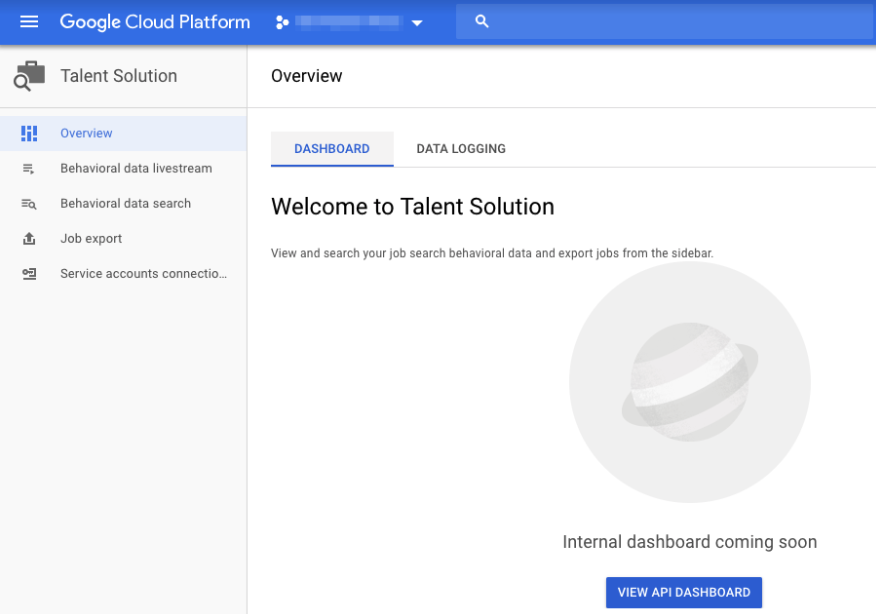
2. Go to your project settings for Cloud Talent Solution in the [GCP Dashboard](https://console.cloud.google.com). To view navigation, click the hamburger icon in the upper left-hand corner and scroll down to select **Talent Solution** under **Artificial
Intelligence** .

Select your project from the drop down.
3. If you don't already have a billing account associated with this Google Cloud Project, you are prompted to first set up a billing account and then link it to this Google Cloud Project. Note that only a person who is the owner of the Google Cloud Project and the owner of the billing account can link them.
1. Click **Enable billing** .
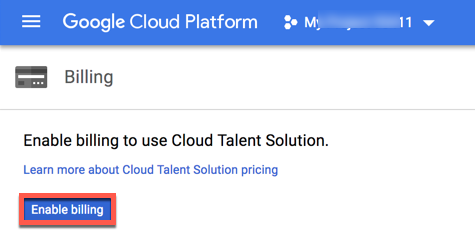
The **Enable billing for project** dialog box appears.
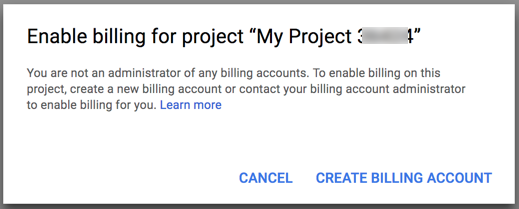
2. Click **CREATE BILLING ACCOUNT** . See [Create, Modify, or Close Your Billing Account](https://docs.cloud.google.com/billing/docs/how-to/manage-billing-account.md.txt).
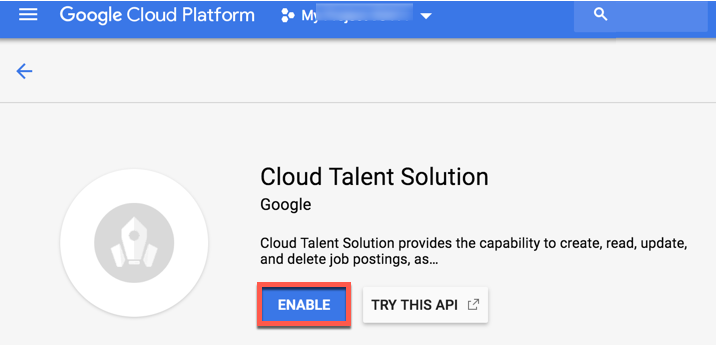
4. Enable API
Click **ENABLE** .
5. The dashboard page appears.
Click the **DATA LOGGING** tab.
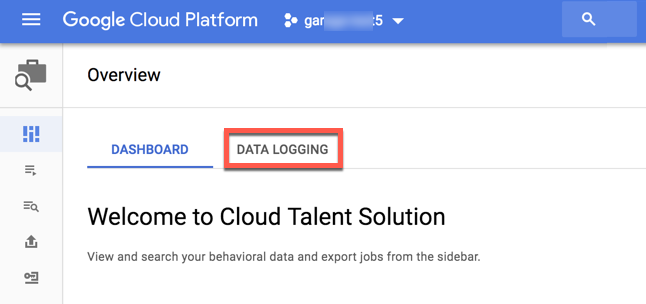
6. The data logging opt-in page appears. Accepting the terms outlined on this page allows you to use the various API features. By not accepting these terms, you'll only be able to use deletion API requests.
Click **ENABLE** .

The confirmation page appears.
7. Click **CONTINUE** on the confirmation page.
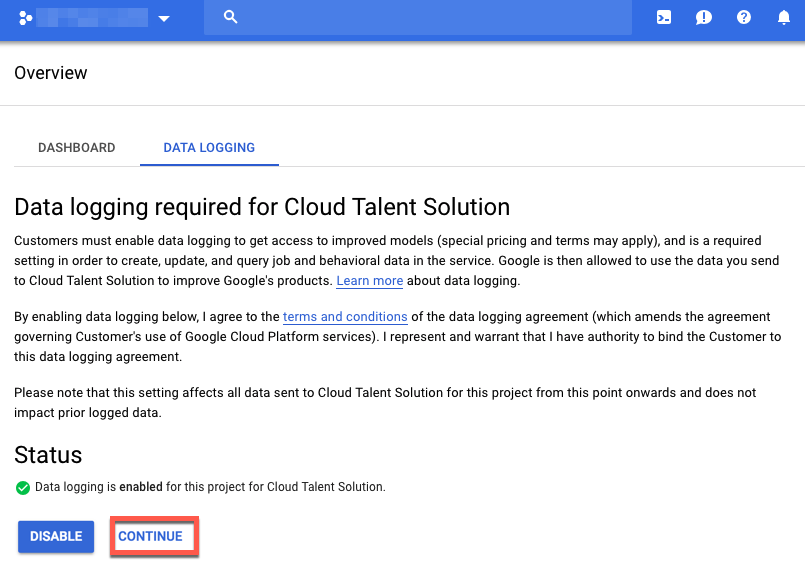
The **Connect service accounts** view appears.
> [!NOTE]
> **Note:**Cloud Talent Solution only allows authentication of API requests through service account keys and OAuth2.0.
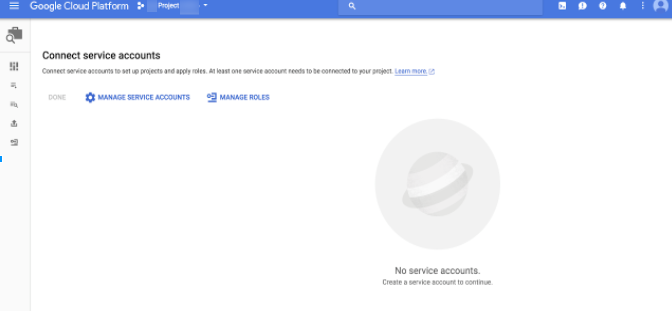
8. Connect service accounts
If you already have service accounts created for your Google Cloud project, you'll see a list of them here, otherwise, click **MANAGE SERVICE ACCOUNTS** . See [Creating a service account](https://docs.cloud.google.com/iam/docs/creating-managing-service-accounts) for instructions.
> [!NOTE]
> **Note:** Make sure you've set the appropriate permissions for the service account (for example, Cloud Talent Solution Admin).
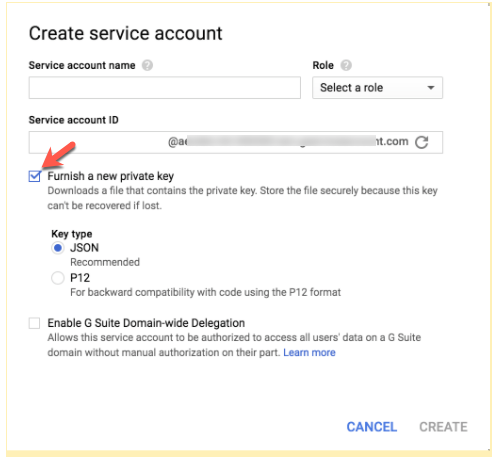
When creating the service account, also check the box **Furnish a new
private key** . A new JSON credential file is automatically downloaded. Store this file in a specific location on the server, and follow the [instructions](https://docs.cloud.google.com/talent-solution/job-search/v3/docs/libraries.md.txt#setting_up_authentication) to set the GOOGLE_APPLICATION_CREDENTIALS environment variable to point to this file. This is an essential step for authenticating requests to Cloud Talent Solution.
9. After creating the service account, navigate back to the Cloud Talent Solution left-nav tab. The service account you've created now appears. Click **CONNECT** to link this account to Cloud Talent Solution.
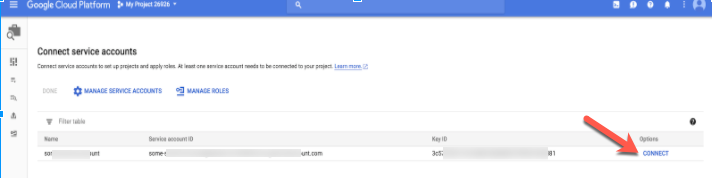
10. The account is now connected.
Click **DONE** to proceed.

11. You're now ready to begin integrating Cloud Talent Solution into your system.
12. Set your [project id](https://cloud.google.com/resource-manager/docs/creating-managing-projects#identifying_projects) to environment.
### LINUX OR MACOS
```bash
export GOOGLE_CLOUD_PROJECT="your-project-id"
```
### WINDOWS
With PowerShell:
```bash
$env:GOOGLE_CLOUD_PROJECT="your-project-id"
```
With command prompt:
```bash
set GOOGLE_CLOUD_PROJECT="your-project-id"
```
13. Next, go to the [Create companies and jobs](https://docs.cloud.google.com/talent-solution/job-search/v3/docs/create-company-job.md.txt) quickstart, to start integrating Cloud Talent Solution.
## Install Client library
### Java
For more on installing and creating a Cloud Talent Solution client, see
[Cloud Talent Solution Client Libraries](https://docs.cloud.google.com/talent-solution/job-search/v3/docs/libraries.md.txt).
If you are using Maven, add this to your pom.xml file:
```java
com.google.apis
google-api-services-jobs
LATEST
```
> [!NOTE]
> **Note:** Google Cloud Java client libraries do not currently support Android.
### Python
For more on installing and creating a Cloud Talent Solution client, see
[Cloud Talent Solution Client Libraries](https://docs.cloud.google.com/talent-solution/job-search/v3/docs/libraries.md.txt).
```
pip install --upgrade google-api-python-client
```
### Node.js
For more on installing and creating a Cloud Talent Solution client, see
[Cloud Talent Solution Client Libraries](https://docs.cloud.google.com/talent-solution/job-search/v3/docs/libraries.md.txt).
```
npm install googleapis
```
### Go
For more on installing and creating a Cloud Talent Solution client, see
[Cloud Talent Solution Client Libraries](https://docs.cloud.google.com/talent-solution/job-search/v3/docs/libraries.md.txt).
```
go get google.golang.org/api/jobs/v3
```
## Make a request
### Java
For more on installing and creating a Cloud Talent Solution client, see
[Cloud Talent Solution Client Libraries](https://docs.cloud.google.com/talent-solution/job-search/v3/docs/libraries.md.txt).
```java
private static final JsonFactory JSON_FACTORY = new GsonFactory();
private static final NetHttpTransport NET_HTTP_TRANSPORT = new NetHttpTransport();
private static final String DEFAULT_PROJECT_ID =
"projects/" + System.getenv("GOOGLE_CLOUD_PROJECT");
private static CloudTalentSolution talentSolutionClient =
createTalentSolutionClient(generateCredential());
private static CloudTalentSolution createTalentSolutionClient(GoogleCredentials credential) {
String url = "https://jobs.googleapis.com";
HttpRequestInitializer requestInitializer =
request -> {
new HttpCredentialsAdapter(credential).initialize(request);
request.setConnectTimeout(60000); // 1 minute connect timeout
request.setReadTimeout(60000); // 1 minute read timeout
};
return new CloudTalentSolution.Builder(NET_HTTP_TRANSPORT, JSON_FACTORY, requestInitializer)
.setApplicationName("JobServiceClientSamples")
.setRootUrl(url)
.build();
}
private static GoogleCredentials generateCredential() {
try {
// Credentials could be downloaded after creating service account
// set the `GOOGLE_APPLICATION_CREDENTIALS` environment variable, for example:
// export GOOGLE_APPLICATION_CREDENTIALS=/path/to/your/key.json
return GoogleCredentials.getApplicationDefault()
.createScoped(Collections.singleton(CloudTalentSolutionScopes.JOBS));
} catch (Exception e) {
System.out.println("Error in generating credential");
throw new RuntimeException(e);
}
}
public static CloudTalentSolution getTalentSolutionClient() {
return talentSolutionClient;
}
public static void main(String... args) throws Exception {
try {
ListCompaniesResponse listCompaniesResponse =
talentSolutionClient.projects().companies().list(DEFAULT_PROJECT_ID).execute();
System.out.println("Request Id is " + listCompaniesResponse.getMetadata().getRequestId());
if (listCompaniesResponse.getCompanies() != null) {
for (Company company : listCompaniesResponse.getCompanies()) {
System.out.println(company.getName());
}
}
} catch (IOException e) {
System.out.println("Got exception while listing companies");
throw e;
}
}
```
### Python
For more on installing and creating a Cloud Talent Solution client, see
[Cloud Talent Solution Client Libraries](https://docs.cloud.google.com/talent-solution/job-search/v3/docs/libraries.md.txt).
```python
import os
from googleapiclient.discovery import build
from googleapiclient.errors import Error
client_service = build("jobs", "v3")
def run_sample():
try:
project_id = "projects/" + os.environ["GOOGLE_CLOUD_PROJECT"]
response = (
client_service.projects().companies().list(parent=project_id).execute()
)
print("Request Id: %s" % response.get("metadata").get("requestId"))
print("Companies:")
if response.get("companies") is not None:
for company in response.get("companies"):
print("%s" % company.get("name"))
print("")
except Error as e:
print("Got exception while listing companies")
raise e
if __name__ == "__main__":
run_sample()
```
### Go
For more on installing and creating a Cloud Talent Solution client, see
[Cloud Talent Solution Client Libraries](https://docs.cloud.google.com/talent-solution/job-search/v3/docs/libraries.md.txt).
```go
// Command quickstart is an example of using the Google Cloud Talent Solution API.
package main
import (
"context"
"fmt"
"log"
"os"
"golang.org/x/oauth2/google"
talent "google.golang.org/api/jobs/v3"
)
func main() {
projectID := os.Getenv("GOOGLE_CLOUD_PROJECT")
parent := fmt.Sprintf("projects/%s", projectID)
// Authorize the client using Application Default Credentials.
// See https://g.co/dv/identity/protocols/application-default-credentials
ctx := context.Background()
client, err := google.DefaultClient(ctx, talent.CloudPlatformScope)
if err != nil {
log.Fatal(err)
}
// Create the jobs service client.
ctsService, err := talent.New(client)
if err != nil {
log.Fatal(err)
}
// Make the RPC call.
response, err := ctsService.Projects.Companies.List(parent).Do()
if err != nil {
log.Fatalf("Failed to list Companies: %v", err)
}
// Print the request id.
fmt.Printf("Request ID: %q\n", response.Metadata.RequestId)
// Print the returned companies.
for _, company := range response.Companies {
fmt.Printf("Company: %q\n", company.Name)
}
}
```